

A milestone birthday—whether it is a 70th, 80th, or 100th—represents a monumental journey through time. When you sit down to create a life story slideshow, you are doing more than just dragging files into a timeline; you are curating a legacy. These visual tributes serve as the emotional centerpiece of a celebration, often moving guests to tears and sparking hours of storytelling. However, the difference between a captivating tribute and a tedious one lies in the delicate balance of music selection and pacing. You want your audience to feel the passage of time without feeling the weight of the minutes.
Creating a meaningful milestone birthday tribute requires a blend of technical skill and emotional intelligence. You must look at a box of faded Polaroids and a smartphone full of digital snapshots and find the cohesive thread that binds them. By focusing on intentional transitions and a soundtrack that resonates with the guest of honor’s personal history, you transform a simple photo reel into a cinematic experience that honors a life well-lived.
Structuring the Narrative Arc
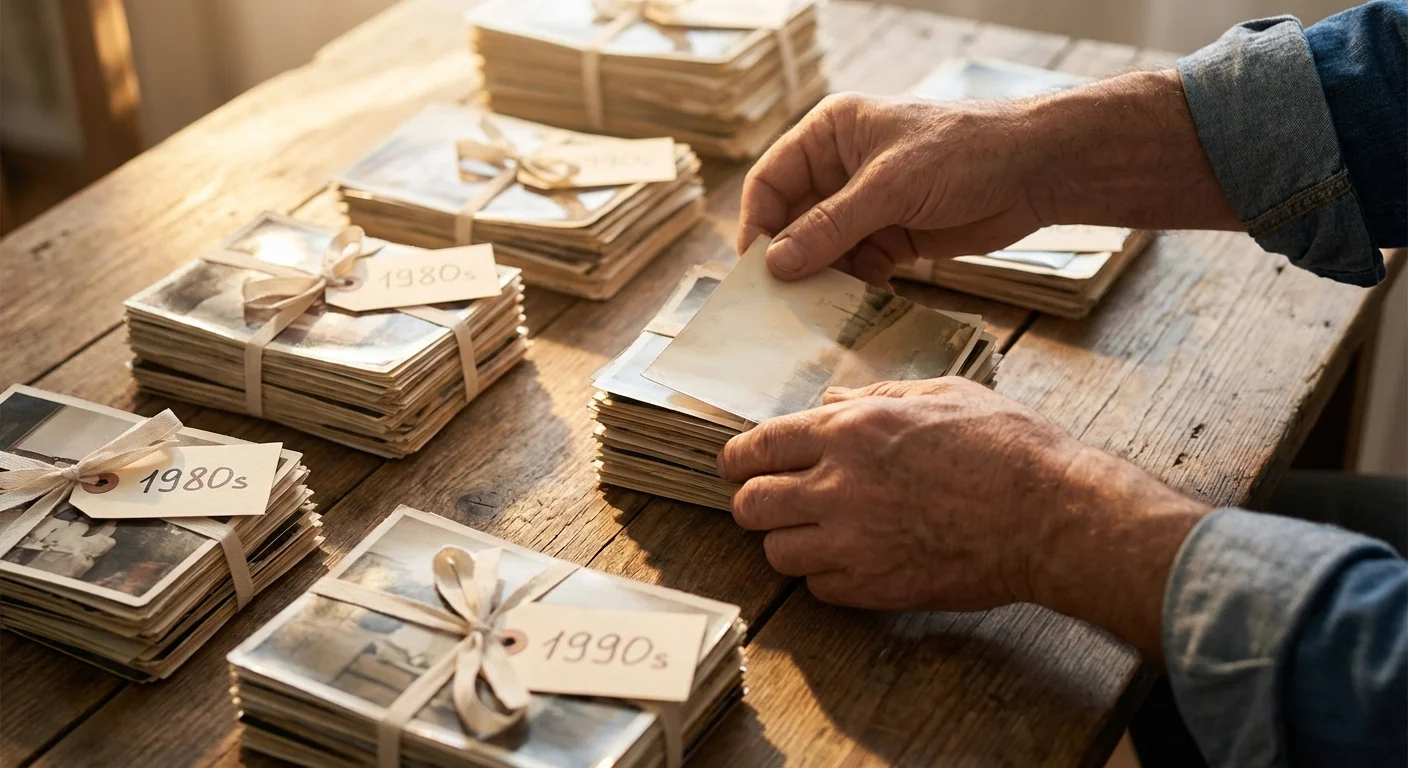
Before you pick your first song or scan your first photo, you need a plan. A slideshow without a structure feels like a random pile of snapshots. Most successful life story projects follow a chronological path, but you can also group photos by “chapters” or themes to keep the audience engaged. A chronological approach allows the audience to witness the literal growth of the person—from a swaddled infant to a playful toddler, an awkward teenager, and eventually, a confident adult.
Consider breaking the life story into four or five distinct eras. For an 80th birthday, your chapters might look like this: The Formative Years (1944–1962), Building a Life and Career (1963–1980), The Family Years (1981–2000), and The Golden Years and Legacy (2001–Present). This structure provides natural breaking points for music changes and helps you manage the sheer volume of photos. If the guest of honor has a specific passion, such as travel or a long-standing hobby, you might dedicate a specific thematic section to those adventures mid-way through the show.
Focus on the “hero shots”—those photos that capture the essence of a person’s character. While it is tempting to include every photo from a specific vacation, choose the one where they are laughing hardest or looking most content. Your goal is to tell a story of personality, not just a log of events. If you have inherited boxes of old photos, remember that handling them requires care to prevent further degradation. The Library of Congress Preservation guidelines suggest keeping physical photos in a cool, dry environment and using clean hands to avoid transferring oils to the delicate emulsions during your selection process.

Selecting the Perfect Soundtrack
The music you choose dictates the emotional temperature of the room. It is the heartbeat of your milestone birthday tribute. A common mistake is choosing songs that you like, rather than songs that the guest of honor loves or that represent the eras of their life. To find the right music for photo slideshows, you must delve into the “musical DNA” of the birthday celebrant.
Start by identifying the music that was popular during their late teens and early twenties. Sociological research suggests that people form their strongest musical identities during these formative years. If you are celebrating a 90th birthday, the big band sounds of the 1940s or the early crooners of the 1950s will likely trigger a powerful nostalgic response. For a 60th birthday, the classic rock of the 1970s or the synth-pop of the 1980s might be more appropriate. Use these era-specific tracks for the sections of the slideshow that correspond to those years.
Vary the tempo to prevent the audience from drifting off. If you use three slow, sentimental ballads in a row, you risk making the event feel somber rather than celebratory. Follow a sentimental track with something upbeat and “swinging” to lift the energy of the room. Here is a sample music structure for a milestone tribute:
- Opening (Childhood): A light, instrumental piece or a playful song from the era of their birth.
- Young Adulthood: A high-energy “anthem” from their college or early working years.
- Marriage/Family: A sentimental but mid-tempo song, perhaps the “first dance” song from their wedding.
- Grandkids/Present Day: A warm, contemporary acoustic track or a song that specifically mentions family and legacy.
- Closing: A triumphant, recognizable classic that invites the audience to clap or sing along as the final slide fades.
Remember that copyright is a factor if you plan to share the video on social media or platforms like YouTube. For a private party, using your own purchased music is generally fine, but for any public-facing digital sharing, consider royalty-free libraries that offer “cinematic” or “nostalgic” categories to avoid your video being muted or taken down.

Mastering Pacing and Timing
Pacing is the invisible hand that keeps your audience watching. If a photo stays on the screen for ten seconds, the audience starts to look at their phones. If it flashes by in one second, they miss the details. The “sweet spot” for most photos is between 3 and 5 seconds. This provides enough time for the eye to scan the faces and the setting without the energy dragging.
However, pacing should not be static. You must match the timing to the music. If the song has a strong, driving beat, you can cut the photos more quickly—perhaps every 2 seconds—to create a sense of excitement and momentum. For a slow, sweeping orchestral piece, let the photos linger for 6 or 7 seconds, especially if the images are complex group shots where the audience needs time to identify who is in the picture.
| Slide Type | Recommended Duration | Purpose |
|---|---|---|
| Single Portrait | 3–4 Seconds | Focuses on the individual’s face and expression. |
| Group Photo (Family/Events) | 5–7 Seconds | Allows guests to find themselves or others in the crowd. |
| Title/Text Slide | 4–6 Seconds | Ensures the text is readable by slow readers. |
| Fast Action Montage | 1–2 Seconds | Builds energy and shows a rapid passage of time. |
| Closing Legacy Slide | 8–10 Seconds | Provides a moment for reflection and applause. |
Avoid the “Ken Burns effect” (panning and zooming) on every single photo. While a subtle zoom can bring a static image to life, overusing it can cause motion sickness for the audience. Use it intentionally—for example, start with a wide shot of a house and slowly zoom in on the person standing in the doorway. This directs the viewer’s attention to the most important part of the story.
Digitizing and Preparing Your Media
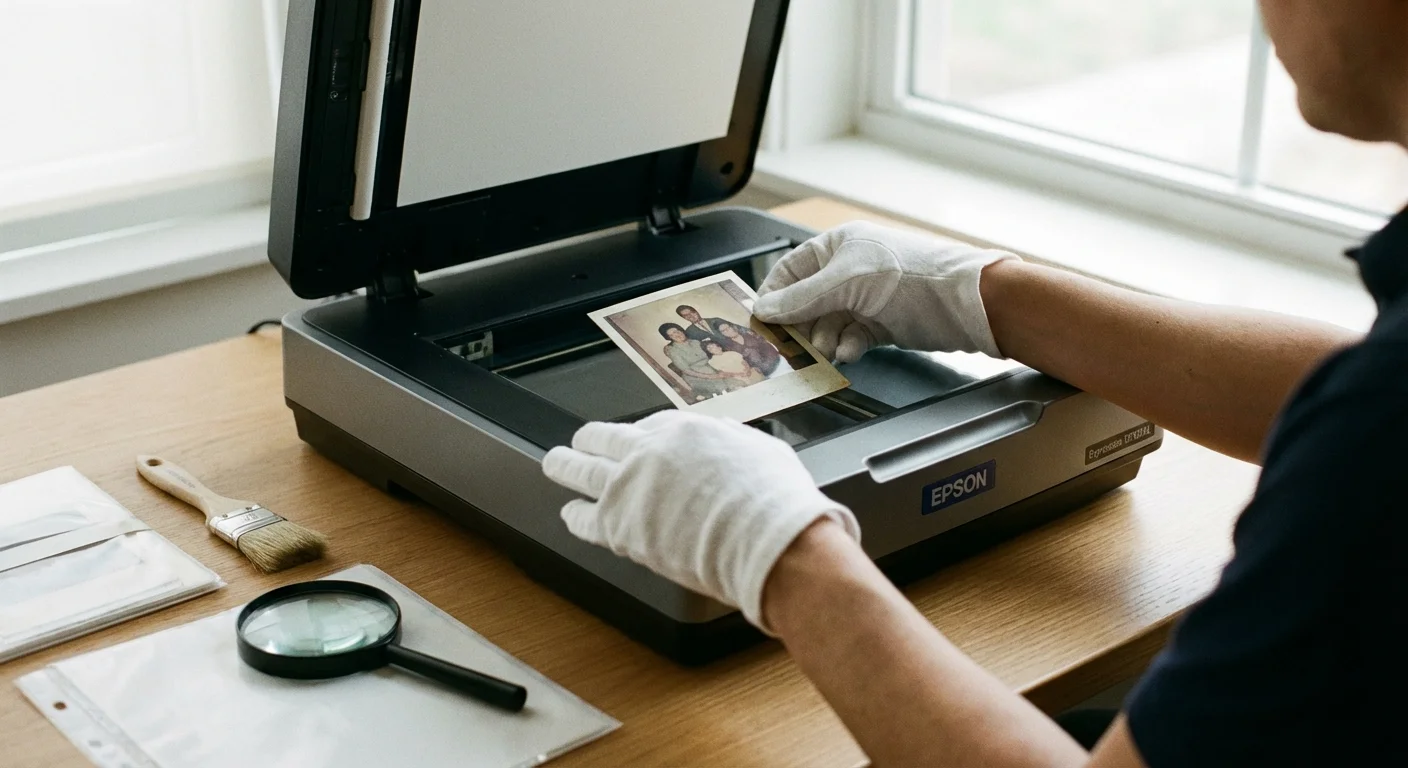
The quality of your slideshow depends heavily on the quality of your digital files. When you are working with photos spanning eight or nine decades, you will likely encounter everything from tiny black-and-white snapshots to 35mm slides and modern digital JPEGs. To ensure your birthday slideshow tips are effective, you must standardize your media.
To truly round out the timeline, you might also want to digitize old home videos to include moving footage from past celebrations.
When scanning old prints, set your scanner to at least 600 DPI (dots per inch). This allows you to zoom into the photo during the slideshow without it becoming a blurry mess of pixels. If you are scanning 35mm slides, you will need a higher resolution—around 2400 to 3200 DPI—because the physical source is so small. Always handle your originals with care. Organizations like the Image Permanence Institute emphasize that heat and humidity are the enemies of photo longevity; keep your originals in a climate-controlled environment while you work.
You may also find that older photos are faded or have a “sepia” tint that wasn’t there originally. Simple photo editing tools can help you restore the black-and-white contrast or gently color-correct a 1970s photo that has turned overly orange. However, don’t over-edit. The imperfections, such as a slight crease or a handwritten date in the margin, often add to the authenticity and charm of the memory. If you are unsure about the best way to handle delicate items, consulting resources from the Getty Conservation Institute can provide insights into the professional standards of image stabilization and preservation.
Effective Use of Transitions and Effects
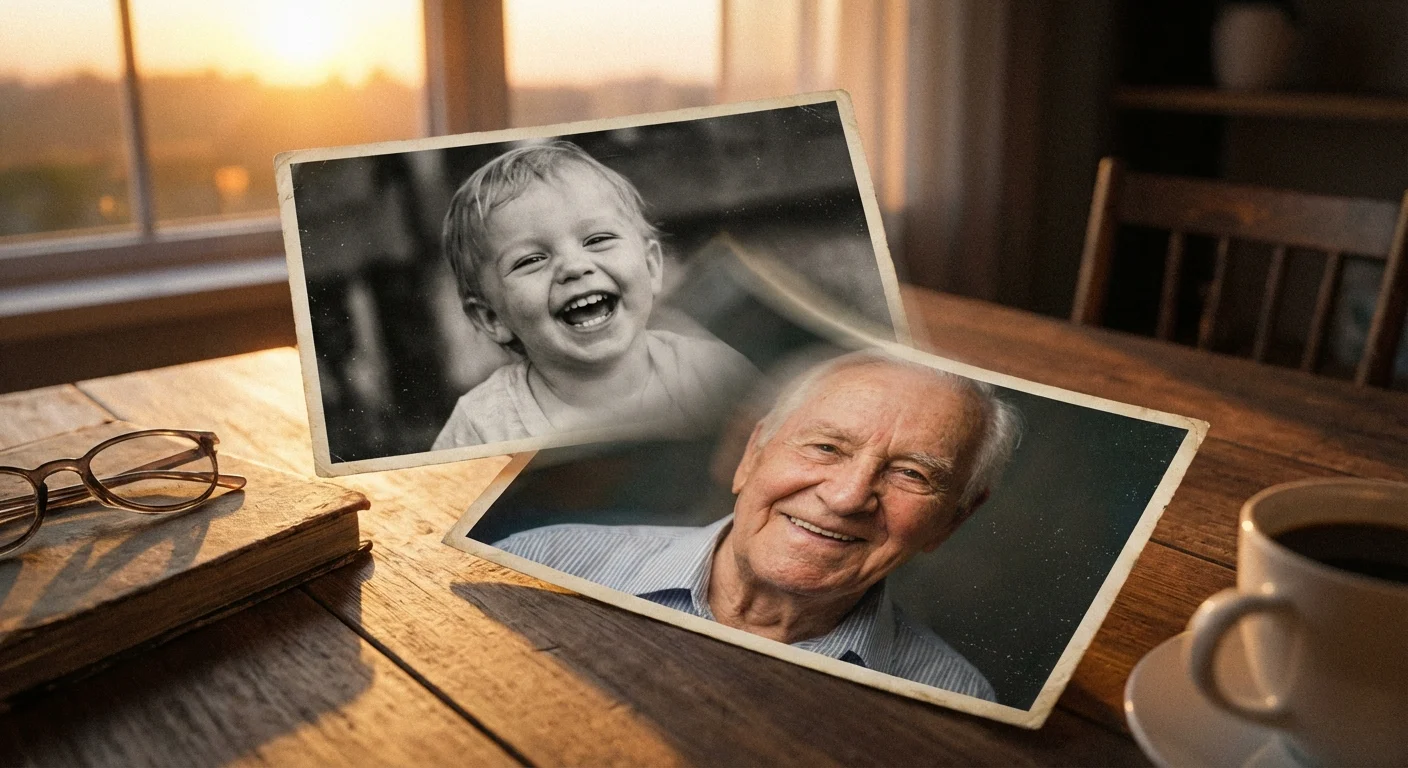
Transitions are the “glue” between your photos. In professional video editing, the most powerful transition is the simple “cut” or the “cross-dissolve.” A cross-dissolve, where one image fades into the next, is perfect for milestone tributes because it suggests the gentle flow of time. It is less jarring than a hard cut and creates a nostalgic, dreamy atmosphere.
Avoid “wipe,” “star,” or “page turn” transitions. They look dated and distract the viewer from the emotional content of the photos. You want your guests to be looking at their grandfather’s face, not wondering why the photo just spiraled off the screen into a heart shape. Keep the transition duration consistent—usually between 0.5 and 1.0 seconds. A transition that is too long becomes a distraction in itself.
Consider using text overlays sparingly. A simple date (e.g., “Chicago, 1958”) or a short caption (“The First Grandchild”) can provide vital context. Use a clean, sans-serif font like Arial or Helvetica for maximum readability on a projector. Ensure the text is placed in a “safe zone”—away from the very edges of the screen—so it doesn’t get cut off during projection.
The best slideshows aren’t the ones with the most special effects; they are the ones that allow the photos to speak for themselves through thoughtful arrangement and silent moments.
Technical Setup and Public Display
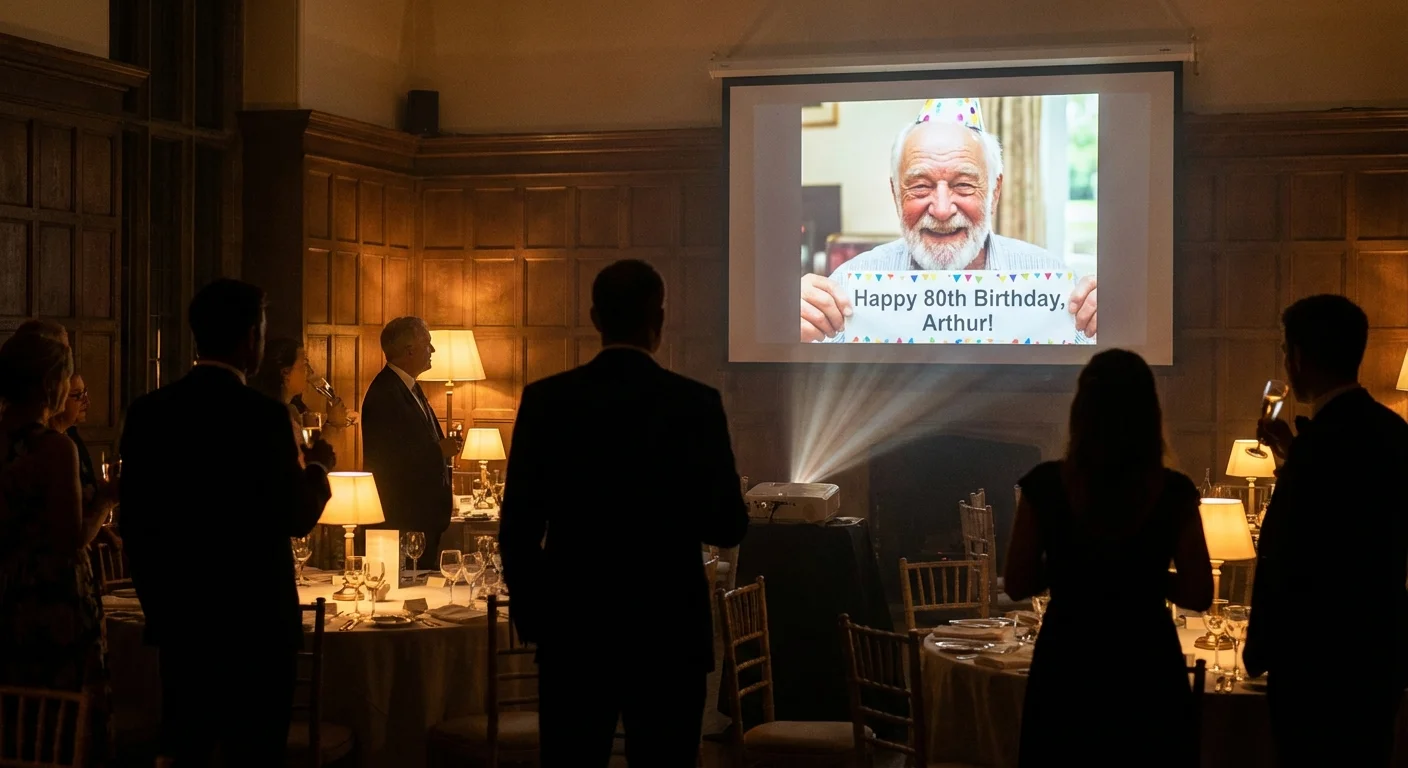
You have spent weeks scanning, sorting, and syncing. Do not let the final presentation be ruined by a poor technical setup. If you are displaying the slideshow at a party venue, you must test the equipment at least 24 hours in advance. Projectors and modern laptops often have “handshake” issues with HDMI cables, and you do not want to be troubleshooting while the guests are arriving.
Once the celebration is over, you can continue the legacy by creating a digital photo frame slideshow for the guest of honor’s home.
Pay attention to the aspect ratio. Most modern screens and projectors use a 16:9 widescreen format. However, most old photos are 4:3 (nearly square). This means you will have black bars on the sides of your old photos. You can fill these bars with a blurred version of the photo itself or a neutral, dark background. Avoid stretching the photos to fill the screen, as this will distort the faces of your loved ones, making them appear wider than they actually were.
Audio is the other half of the experience. If the room is large, your laptop speakers will not be sufficient. Connect your device to the venue’s sound system or bring a high-quality external Bluetooth speaker. If you are using music with lyrics, ensure the volume is set high enough to be heard over the “clinking” of dinnerware, but not so high that it prevents people from whispering “I remember that!” to the person sitting next to them. Finally, always have a backup. Save the slideshow as a high-resolution MP4 file on a thumb drive, upload it to a cloud service, and if possible, have it ready on a second device. Redundancy is the key to a stress-free milestone birthday tribute.
Frequently Asked Questions
What is the ideal length for a milestone birthday slideshow?
Most experts recommend staying between 8 and 12 minutes. This allows for about 150 photos. If you go longer than 15 minutes, you risk losing the audience’s attention, especially if there is a party or meal following the viewing.
How do I handle music copyright if I want to post the video online?
If you plan to share the video on platforms like Facebook or YouTube, use royalty-free music from sites like Epidemic Sound or Artlist. If you use popular commercial songs, the platform may mute your video or block it entirely due to copyright strikes.
Can I include video clips in my photo slideshow?
Yes! In fact, short 5- to 10-second video clips of the person laughing, talking, or dancing can add immense depth to the tribute. Just ensure the audio from the video doesn’t clash with your background music; fade the music down when the video audio plays.
What resolution should I export my final slideshow in?
Always export in at least 1080p (Full HD). If you are projecting on a very large screen, 4K is even better if your photos have enough resolution to support it. This ensures the images look crisp and professional.
Disclaimer: This article is for informational purposes only. When handling valuable or irreplaceable photographs, consider consulting a professional conservator. Always test preservation methods on non-valuable items first.







Leave a Reply