

Your photographs capture moments, tell stories, and connect generations. While an image speaks a thousand words, a well-crafted caption ensures your memories truly resonate and endure. Adding text to your photos, whether digital or physical, transforms them from mere pictures into documented history, making them invaluable for you and for future generations. This guide provides practical, actionable steps to help you add meaningful text and captions to your precious photo memories, protecting your photographic heritage for years to come.
Before you start writing, learning how to tag and label photos can help you organize your collection for easier captioning.
Properly documented images are the foundation for creating a home photo archive that future generations will appreciate.
Why Your Photos Need Text and Captions
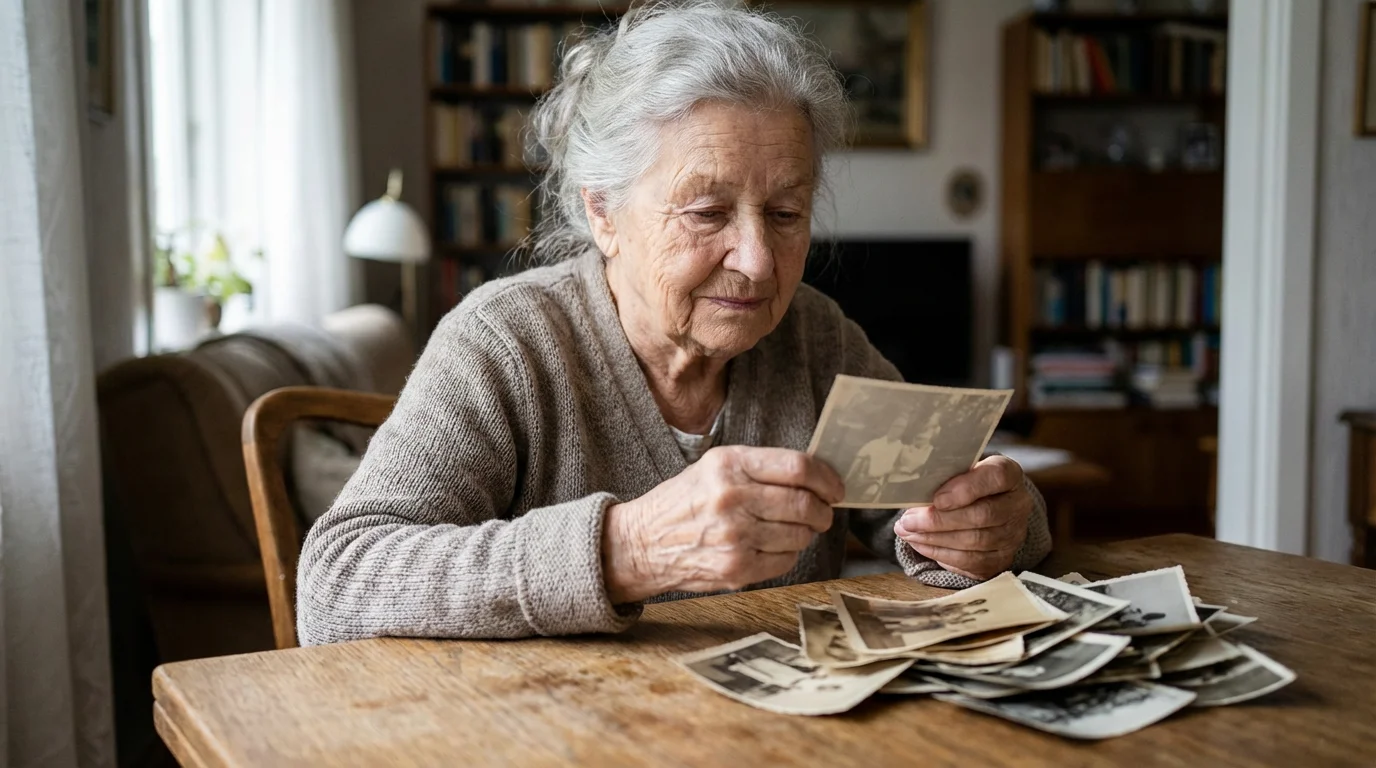
A photograph’s true value often lies in the story it tells. Without context, even the most striking image can lose its power over time. Adding photo captions ensures these stories remain vivid and accurate. Imagine discovering a box of old family photos, only to find anonymous faces and forgotten events. This scenario highlights a common challenge: memories fade, and the details surrounding a photo can be lost forever if you do not record them.
Incorporating a 10-minute daily photo organization routine is a simple way to stay on top of captioning your newest memories.
The process is even more efficient once you scan old photos at home to create high-quality digital copies for labeling.
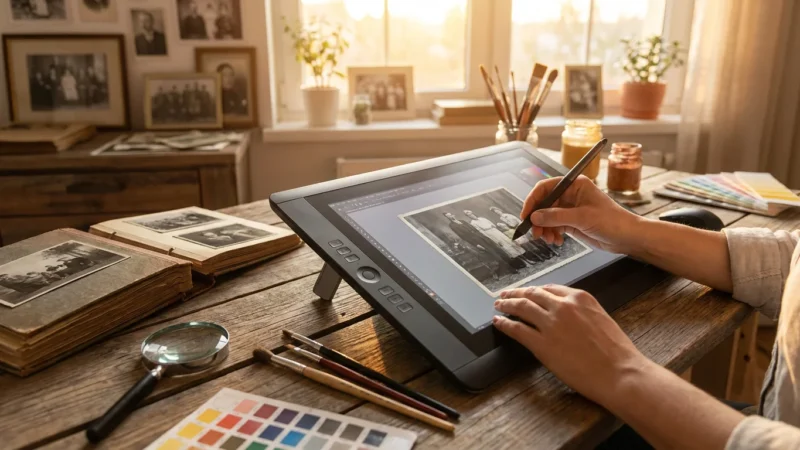
Before you begin captioning, you may want to learn how to restore old faded photos to ensure your heritage images are clearly visible for future generations.
Captions provide essential context. They identify individuals, pinpoint locations, mark dates, and describe the emotions or events unfolding. For instance, a picture of a child on a swing becomes much richer with the caption, “Emily’s first time on the swing at Grandma’s house, summer 1998, she was so proud of herself.” This brief description turns a simple snapshot into a cherished memory, complete with a narrative. Data suggests that photos accompanied by descriptions are significantly more likely to be understood and remembered accurately by viewers, making them invaluable for sharing your family’s history.
Furthermore, captions serve a crucial preservation role. As digital files proliferate, metadata often provides some context, but a visible, integrated caption ensures the information travels with the image wherever it goes. For physical photographs, properly added captions safeguard against the silent loss of information that often accompanies inherited collections. You preserve not just the image, but the meaning behind it.
The American Institute for Conservation emphasizes that documenting the context of photographs is vital for their long-term interpretability and cultural value. Proper captioning ensures future generations can understand and appreciate their photographic heritage fully.
Planning Your Captions: What Information to Include
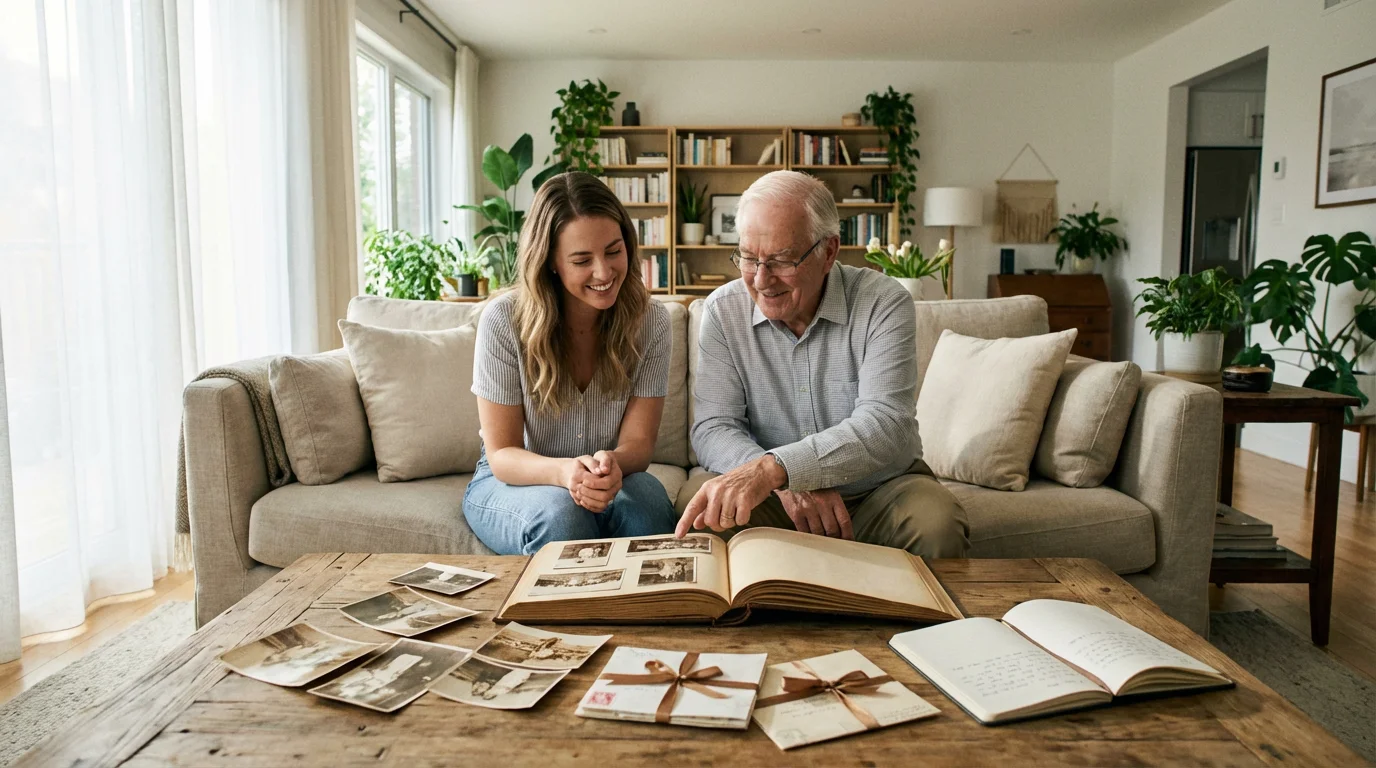
Before you add text photos, consider what information truly enhances the image. A thoughtful caption answers key questions, providing maximum context without overwhelming the viewer. Here is a framework to guide your captioning efforts:
Deciding on whether you are organizing photos by event, date, or people can help determine which facts are most vital for your captions.
This level of detail is particularly useful when creating a travel photo journal to record the specific highlights of your journeys.
Once you have planned your content, you might want to perform basic photo editing to improve clarity and brightness before adding the text.
- Who is in the photo? Identify individuals by name, including relationships if relevant (e.g., “Aunt Sarah,” “my grandfather, John Smith”).
- What is happening? Describe the event, activity, or situation. Is it a birthday party, a family vacation, a quiet moment?
- When was the photo taken? Include the date (year, month, day if known). “Circa [year]” works for approximations.
- Where was the photo taken? Specify the location, whether it is a family home, a specific park, or a travel destination.
- Why is this moment significant? Add personal anecdotes, emotions, or historical context. This is where your unique voice and memories truly shine. For example, “This was the first time our whole family gathered in over five years, a truly joyous occasion.”
Gather this information by asking family members, looking for clues in the photo itself (calendars, fashion, cars), or consulting old scrapbooks and diaries. The more comprehensive your initial research, the richer your photo captions will be. A good caption is concise yet informative, telling a complete story in just a few sentences.
Adding Text to Digital Photos: Software and Apps
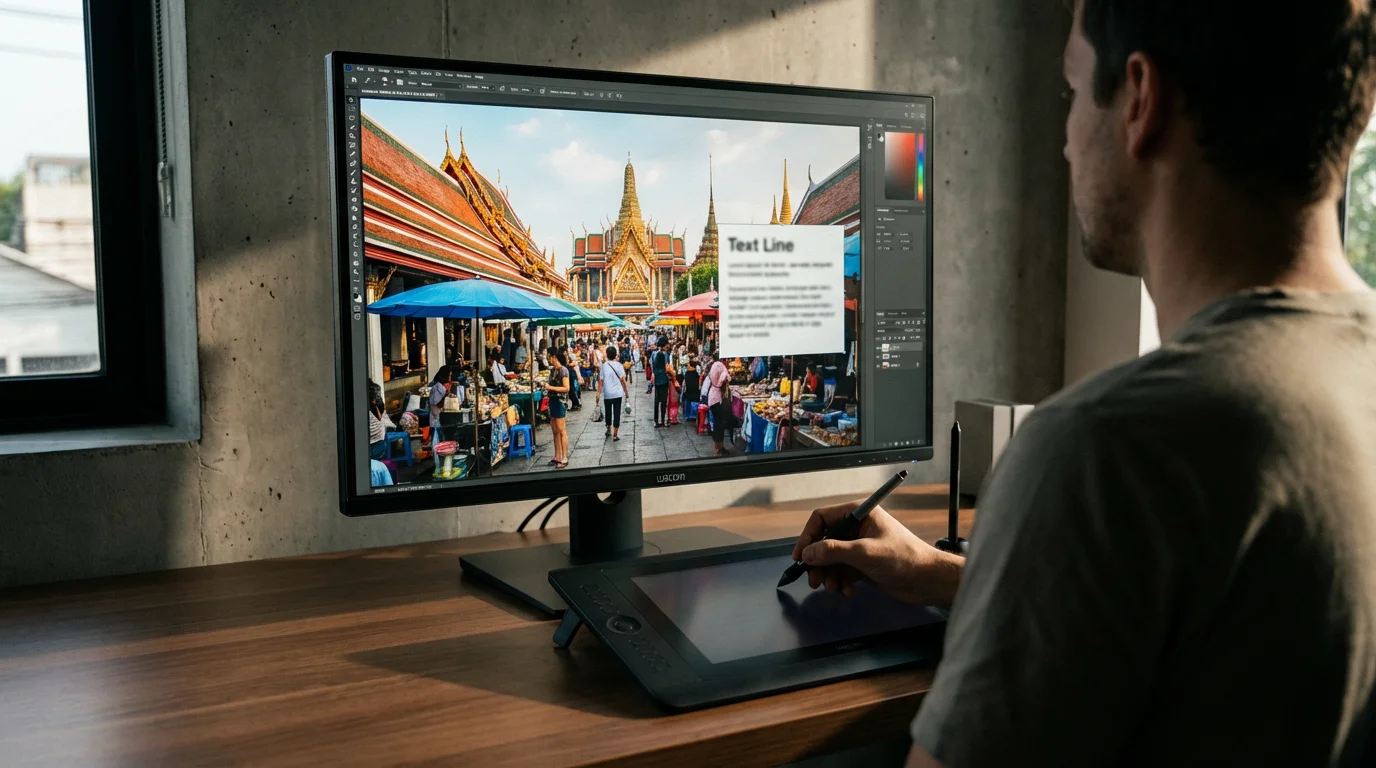
Adding text overlay to digital images offers flexibility and a wide range of creative options. Whether you use a desktop computer or a mobile device, numerous tools can help you achieve professional-looking photo captions. Selecting the best apps for adding captions to pictures depends on your skill level, budget, and desired outcome.
If you want to combine several images with themed text, creating photo collages is an excellent design-focused approach.
Desktop Software Options
For more control and advanced features, desktop photo editing software is ideal:
- Adobe Photoshop/Lightroom: These professional-grade programs offer unparalleled control over text appearance, placement, and effects. Photoshop allows you to add text as a separate layer, giving you the ability to edit it later without altering the original image. Lightroom is excellent for managing large libraries and adding descriptive metadata.
- GIMP (GNU Image Manipulation Program): A powerful, free, open-source alternative to Photoshop, GIMP includes robust text tools for adding captions and overlays.
- Affinity Photo: A popular, one-time purchase professional editor that provides similar capabilities to Photoshop for a fraction of the cost, including extensive text and typography options.
- Native Photo Editors (Windows Photos, Apple Photos): Many operating systems include basic photo editing tools that allow you to add simple text. These are user-friendly for quick additions, though they offer fewer customization options.
Mobile Apps for On-the-Go Captioning
If you prefer to add captions directly from your smartphone or tablet, these apps are excellent choices:
- Canva: Renowned for its user-friendly interface and vast template library, Canva makes it easy to add stylish text and design elements to your photos. It offers a wide selection of fonts, colors, and effects.
- Snapseed (Google): A powerful and free photo editor, Snapseed includes a “Text” tool that allows for various text styles and adjustments. It is excellent for precise control over text placement and appearance.
- PicMonkey: This web-based and mobile editor provides many creative tools, including customizable text options, overlays, and graphics.
- Over: Specifically designed for adding text and graphics to photos, Over offers a large collection of fonts and design features, making it a favorite for social media content.
- Your Phone’s Built-in Editor: Most modern smartphones have basic photo editing capabilities that allow you to add text, often with limited font and color choices. These are perfect for quick, simple labels.
When choosing a tool, consider how frequently you will add text photos, the complexity of your designs, and your comfort level with different interfaces. For professional results and archival purposes, consider tools that allow you to control the quality and resolution of your output images.

Step-by-Step: How to Add Text Overlay to Digital Images
Adding a text overlay to your digital images is a straightforward process once you select your preferred software or app. Follow these general steps, which apply to most photo editing tools:
Once your images are perfectly captioned, you can use them to create a beautiful photo book online as a lasting family keepsake.
To ensure your text is perfectly framed, consider cropping and straightening photos to adjust the composition of your digital file.
- Open Your Photo: Launch your chosen photo editing software or app. Navigate to and open the digital image you wish to caption. Always work on a copy of your original photo to prevent accidental loss or irreversible changes to the master file.
- Locate the Text Tool: Look for an icon typically represented by a “T” or “A.” In many applications, this tool is called “Text,” “Add Text,” or “Type.” Select this tool to activate text editing mode.
- Click to Add Text: Click anywhere on your photo where you want the text to appear. A blinking cursor or a text box will usually appear, indicating you can start typing.
- Type Your Caption: Enter your desired caption or text. Keep it concise and relevant to the image.
- Format the Text: This is where you customize the appearance of your photo captions. Most tools offer options to adjust:
- Font: Choose a clear, legible typeface.
- Size: Adjust the size to be easily readable without obscuring important parts of the image.
- Color: Select a color that contrasts well with the background of your photo. Black or white often work best, but consider other colors if they enhance the aesthetic.
- Alignment: Align text left, right, center, or justified.
- Style: Apply bold, italic, or underline effects.
You might also find options for background fill, outlines, shadows, or opacity to help your text stand out.
- Position and Resize the Text Box: Use your mouse or finger to drag the text box to the optimal location on your photo. You can usually resize the box by dragging its corners, which might also adjust the text size automatically or allow for manual scaling.
- Review and Refine: Take a moment to review your caption. Is it accurate? Is it legible? Does it enhance the photo without distracting from it? Make any necessary adjustments to the text, its formatting, or its position.
- Save Your Image: Once satisfied, save your photo. Most programs offer options to save as a new file, preserving your original image. When saving for sharing or printing, use common formats like JPEG or PNG. If your software supports layers (like Photoshop), you might save a layered version (e.g., PSD) to allow for future text edits.
Remember, the goal is to enhance the image and its story, not overshadow it. Experiment with different fonts and placements until you achieve a harmonious result.
Adding Captions to Physical Photos for Printing and Preservation
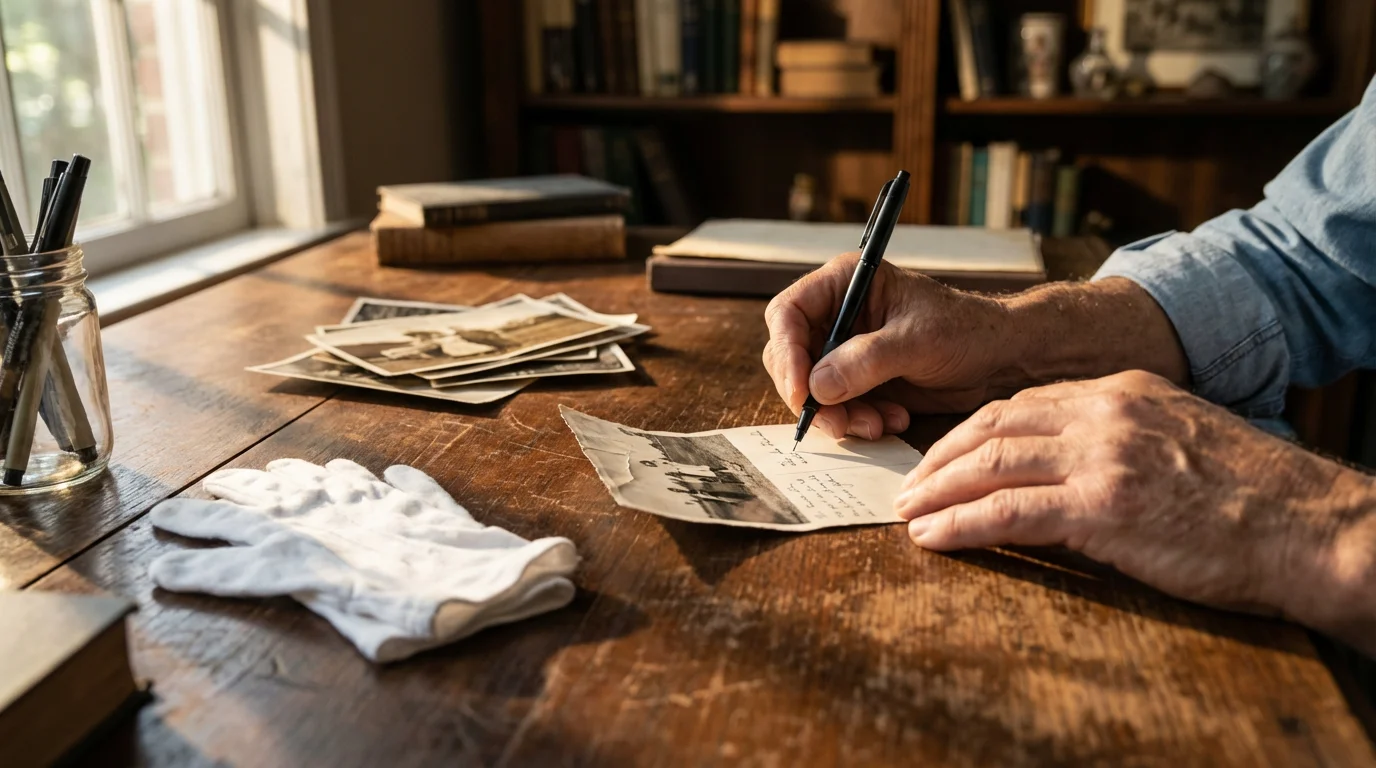
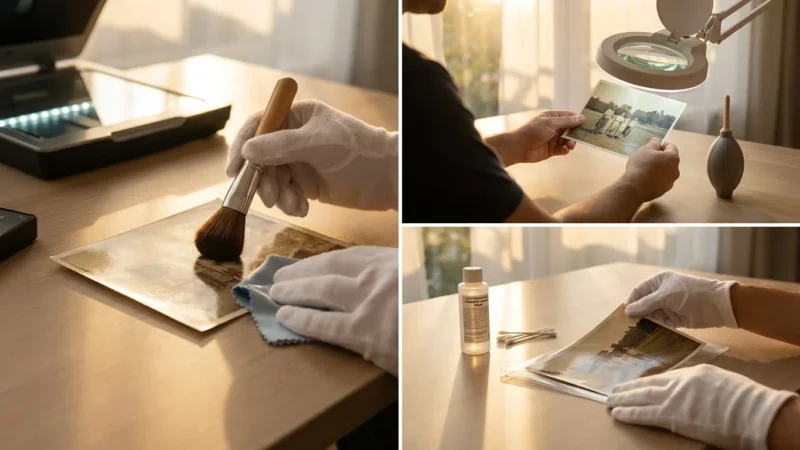
When you handle physical photographs, especially irreplaceable family heirlooms, thoughtful preservation practices are paramount. The way you add text to these photos for printing and long-term storage directly impacts their longevity and value. Always prioritize archival quality and reversible methods.
Before you begin writing on original prints, understand the importance of backing up physical photos digitally to ensure a master copy exists.
For damaged originals, using AI photo restoration tools can help clean up the image quality after you have digitized the physical copies for labeling.
Choosing Archival Materials
The cardinal rule for physical photo preservation is to use only archival, acid-free, and lignin-free materials. Standard pens, glues, and papers contain acids that can degrade photographs over time, causing discoloration, fading, and brittleness. This degradation is irreversible.
- Archival Pens: Use pens specifically designed for photo labeling. These pens contain permanent, fade-resistant, pH-neutral, and waterproof ink. Look for pens labeled “archival,” “acid-free,” or “photo-safe.” Brands like Pigma Micron, Staedtler Pigment Liner, or similar archival-quality markers are excellent choices. Test any pen on a non-valuable photo or a hidden edge first to ensure no bleeding or damage.
- Archival Labels: For a non-direct approach, use archival self-adhesive labels or acid-free paper labels attached with photo-safe adhesive. These offer a reversible method, as you can remove them without directly marking the photograph. Ensure both the label material and the adhesive are archival grade.
- Placement: Write captions on the back of the photograph, along a blank border, or on a separate, archival-quality sleeve or enclosure. Avoid writing on the image area itself. If writing on the back, place the photo on a hard, clean surface and write lightly to avoid embossing the image side.
Methods for Physical Captions
- Direct Marking (Archival Pen):
- Use an archival-quality pen.
- Write clearly and legibly on the back of the photo. Avoid applying heavy pressure, which can damage the emulsion on the front.
- Allow the ink to dry completely before stacking or storing the photos to prevent smudging or transfer.
- Archival Labels:
- Write your caption on an archival-grade label using an archival pen.
- Attach the label to the back of the photograph or to an archival sleeve. Photo-safe glue sticks or double-sided tape are available, but ensure they are explicitly labeled as “photo-safe” or “archival.”
- This method is often preferred for very old or fragile photographs, as it avoids direct contact between ink and the photo’s surface.
- Archival Sleeves or Enclosures:
- Store your photographs in individual archival sleeves (polyester, polypropylene, or polyethylene).
- Write your caption on the sleeve itself using an archival pen, or insert a separate acid-free paper slip with the caption into the sleeve alongside the photo.
- This method offers excellent protection and keeps the caption physically linked to the image without direct alteration.
For more detailed guidance on handling and preserving physical photographs, you can consult resources like the Image Permanence Institute, which offers extensive information on proper archival practices.
Best Practices for Effective Photo Captioning
Beyond the technical steps of how to add text to photos, consider these best practices to ensure your captions are impactful, accurate, and truly serve their purpose:
- Be Accurate and Factual: Verify names, dates, and locations. Incorrect information can be more misleading than no information at all. When unsure, use phrases like “likely” or “estimated,” but strive for precision.
- Keep it Concise but Informative: Aim for brevity, but do not sacrifice essential details. A good caption tells a story in a few sentences, providing enough context without becoming a lengthy paragraph.
- Focus on the Story: What makes this particular moment special? Share an anecdote, an emotion, or a funny memory. This human element connects viewers to the image.
- Maintain a Consistent Tone: Whether your captions are formal or lighthearted, maintain a consistent voice throughout your collection. This creates a cohesive experience for anyone viewing your photos.
- Consider Your Audience: Are these captions primarily for immediate family, or will they be shared more widely? Tailor the level of detail and context accordingly.
- Proofread Thoroughly: Typos and grammatical errors detract from the professionalism and reliability of your captions. Always proofread before finalizing.
- Utilize Digital Metadata: For digital photos, embed descriptive information (keywords, descriptions, names) directly into the image file’s metadata using software like Adobe Lightroom or dedicated photo organizing tools. This information is searchable and travels with the image. While not a visible caption, it is a crucial layer of documentation.

Creative Ways to Display Photos with Text
Adding text and captions elevates your photographs beyond simple prints or digital files, transforming them into curated narratives. Explore these creative display methods that integrate your carefully crafted captions:
You can also combine several captioned images when creating photo collages to tell a more expansive story of a family event.
- Custom Photo Books and Albums: Design a professional-quality photo book or a traditional scrapbook where each page features images accompanied by your captions. This method integrates text beautifully and provides a lasting physical record. Websites and software like Shutterfly, Mixbook, or Blurb offer easy-to-use templates for photo book creation.
- Digital Slideshows with Narratives: Create dynamic digital slideshows where each image appears with its caption, perhaps even accompanied by a voiceover reading the text. This is a powerful way to share stories with family members, especially those far away. Many video editing programs or photo presentation software allow for this.
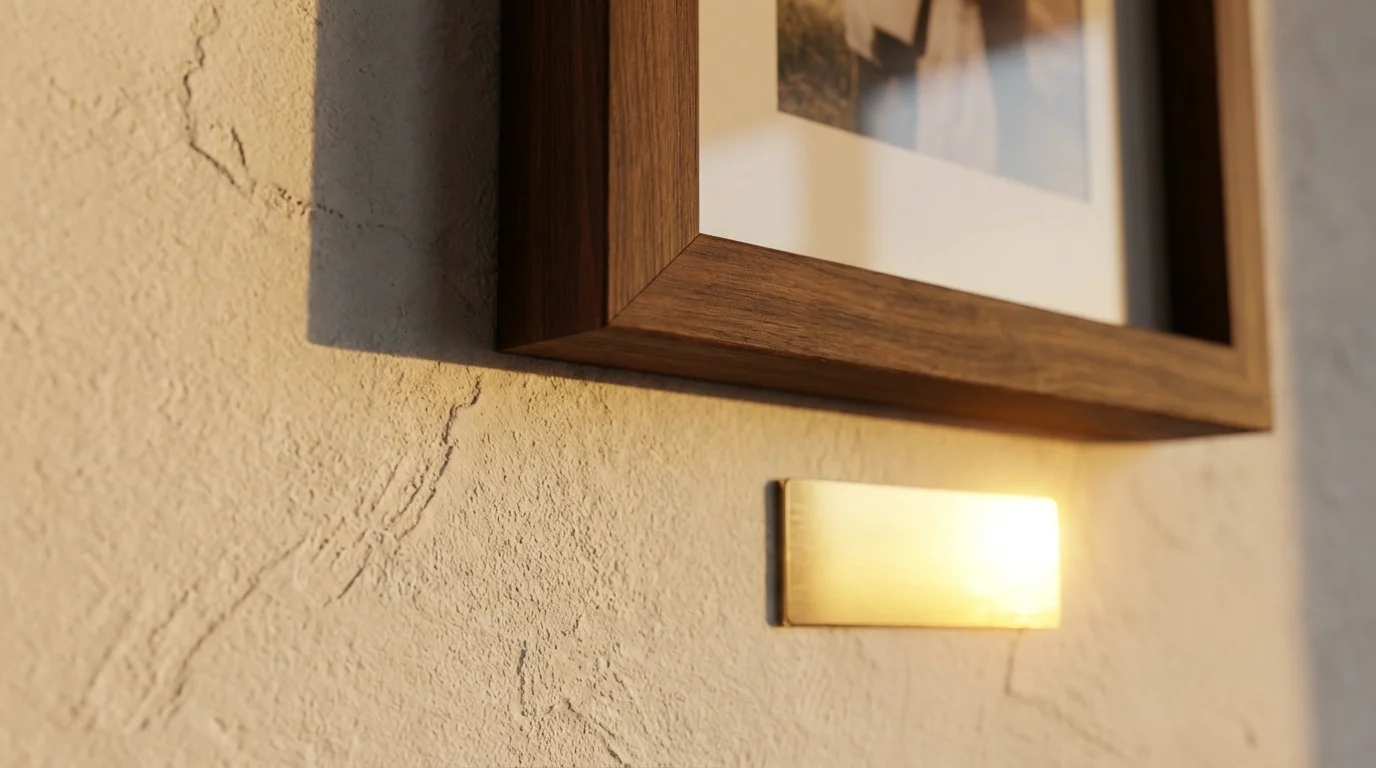
- Framed Prints with Matting: When framing a cherished photograph, include a custom mat with an opening for the print and a space below for an elegant, printed caption. This method adds a gallery-like touch to your displayed memories.
- Storyboards and Memory Walls: Design a wall display or a large storyboard that combines multiple photos with connecting captions, creating a visual timeline or thematic collection. You can use printed text strips or elegant handwritten labels mounted alongside the images.
- Personalized Gifts: Turn your captioned photos into unique gifts, such as custom calendars, mugs, or textiles. The added text makes these items deeply personal and memorable.
By thoughtfully combining your images with text, you create an engaging experience that allows viewers to connect more deeply with your photographic heritage. Your efforts ensure these precious memories are not only seen but truly understood and cherished for generations.
Frequently Asked Questions
What is the difference between adding text and adding a caption?
Adding text refers to placing any words on a photo, such as a date, a quote, or decorative elements. Adding a caption specifically means providing descriptive information about the photo, explaining who, what, when, where, and why. Captions always provide context, while general text might serve a more decorative or functional purpose.
Can I add text to a photo after it has been printed?
Yes, you can add text to a physical photo after printing, but you must use archival-quality pens or labels to avoid damaging the print over time. Always write on the back of the photo or on an archival sleeve. Standard pens contain acids that can degrade the photo and should never be used.
Will adding text to a digital photo reduce its quality?
Adding text as an overlay in photo editing software generally does not reduce the original image quality. When you save the photo with the text, the software creates a new version. The quality of this new version depends on the file format and compression settings you choose upon saving. Always save a copy to preserve your original, uncaptioned image.
What are the best apps for adding captions to pictures on my phone?
Excellent mobile apps for adding captions include Canva, Snapseed, PicMonkey, and Over. These apps offer a range of features from simple text overlays to advanced design tools, allowing you to customize fonts, colors, and placement effectively.
Should I add text directly to the photo or use separate labels for physical prints?
For valuable or fragile physical prints, using separate archival labels or writing on archival sleeves is generally safer than writing directly on the photo. This reversible method protects the integrity of the original print. If you choose to write directly, use an archival pen lightly on the back of the photo, avoiding the image area.
Disclaimer: This article is for informational purposes only. When handling valuable or irreplaceable photographs, consider consulting a professional conservator. Always test preservation methods on non-valuable items first.






Leave a Reply