You stand before a monumental task—thousands of digital files scattered across hard drives and several shoeboxes filled with fading physical prints. The goal of preserving these memories feels overwhelming because traditional photo editing often requires hours of tedious manual work. Fortunately, artificial intelligence has fundamentally changed the landscape of photo preservation. Today, AI-powered editors can handle complex tasks like sky replacement, skin retouching, and noise reduction with a single click.
Luminar Neo and ON1 Photo RAW represent the pinnacle of this technological shift. While both claim to simplify your workflow, they approach the problem from different angles. One prioritizes artistic simplicity and modular tools, while the other offers an all-in-one powerhouse for organization and technical precision. Choosing the right one depends on whether you want to quickly stylize a family vacation photo or meticulously restore a 100-year-old portrait of your great-grandparents.
The Evolution of AI in Modern Photo Editing
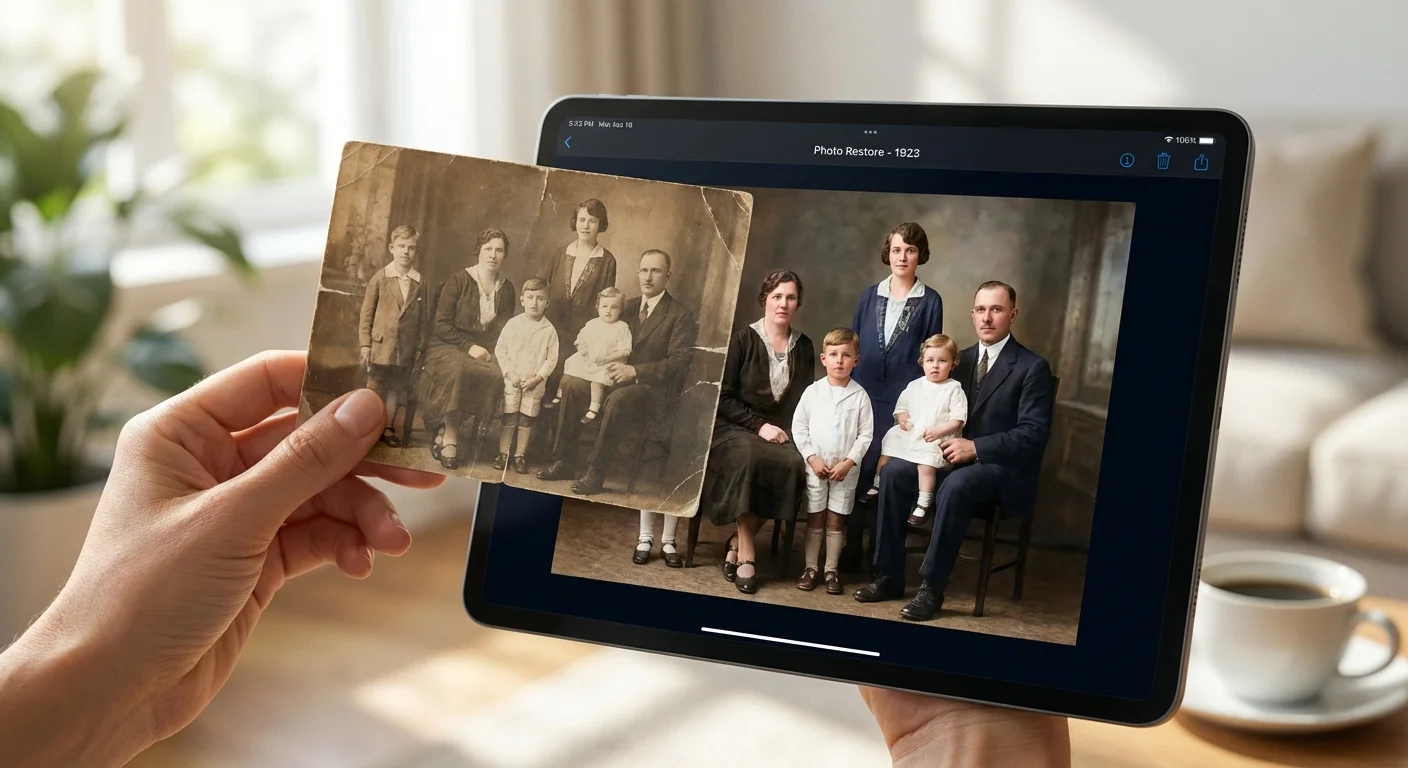
In the early days of digital photography, “editing” meant mastering the pen tool, understanding complex layers, and spending twenty minutes just to mask out a messy background. For most family archivists, this learning curve was simply too steep. Artificial intelligence removes these barriers by using neural networks trained on millions of images to understand the context of your photo. When you click a button to “enhance” an image, the software recognizes the difference between a human face, a mountain range, and a cloudy sky.
For those just starting out, there are also several options for free photo editing software that incorporate basic AI features.
This contextual awareness is the core of a Luminar Neo review or a deep look into ON1 Photo RAW. These programs do not just apply a generic filter; they perform localized adjustments that mimic the work of a professional retoucher. For example, when you use AI to brighten a portrait, the software avoids blowing out the highlights in the background while specifically targeting the shadows on the subject’s skin. This level of intelligence is essential when you are dealing with diverse photo collections that range from high-resolution smartphone shots to low-contrast scans of vintage Polaroids.
Luminar Neo: The Artist’s AI Playground
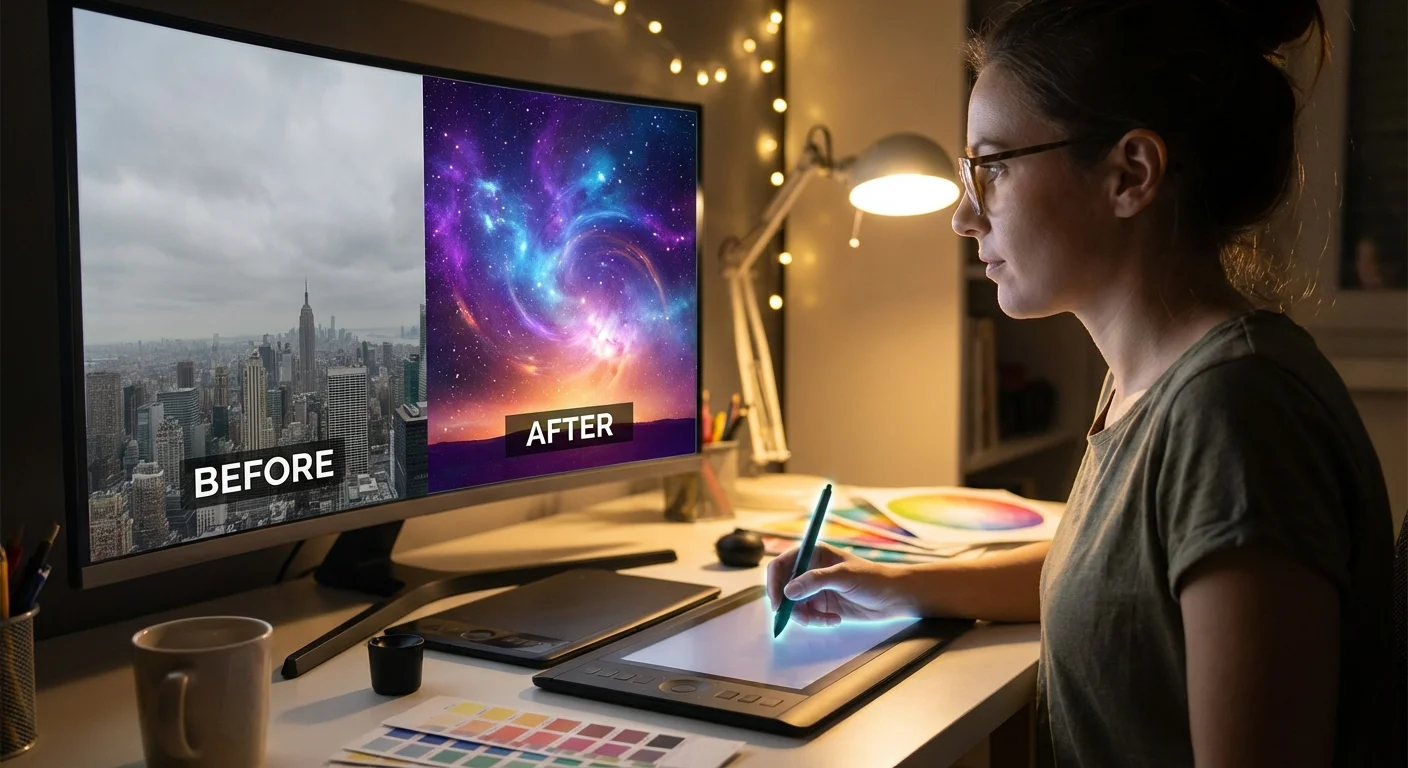
Skylum designed Luminar Neo for creators who value speed and visual impact over technical minutiae. It utilizes a modular system where you apply “Tools” that act as independent AI agents. This software excels at what many call “One-Click” magic. If you have a family portrait where the lighting is lackluster, the Relight AI tool calculates the 3D depth of the scene. You can then brighten the foreground subjects while keeping the background dark, or vice versa, without ever drawing a manual mask.
One of Luminar Neo’s most significant advantages is its generative AI suite. Tools like GenErase and GenSwap allow you to remove distracting elements—like a stray power line or a modern car in a historical street scene—and replace them with textures that match the surroundings perfectly. For those working on heritage projects, GenExpand can even “grow” the edges of a photo. This is incredibly useful if you have a scanned photo with torn edges or if you need to change a vertical shot into a horizontal one for a digital slideshow.
“Luminar Neo focuses on the ‘what’ rather than the ‘how,’ allowing users to achieve complex artistic results without needing to understand the underlying technical layers.”
However, Luminar Neo is not a traditional file manager. It operates primarily as an editor. While you can browse folders, it lacks the deep organizational features like star ratings, color labels, and advanced metadata search that professional archivists often require. It serves best as a creative companion—either as a standalone program or as a plugin for other software.
ON1 Photo RAW: The Comprehensive Workhorse
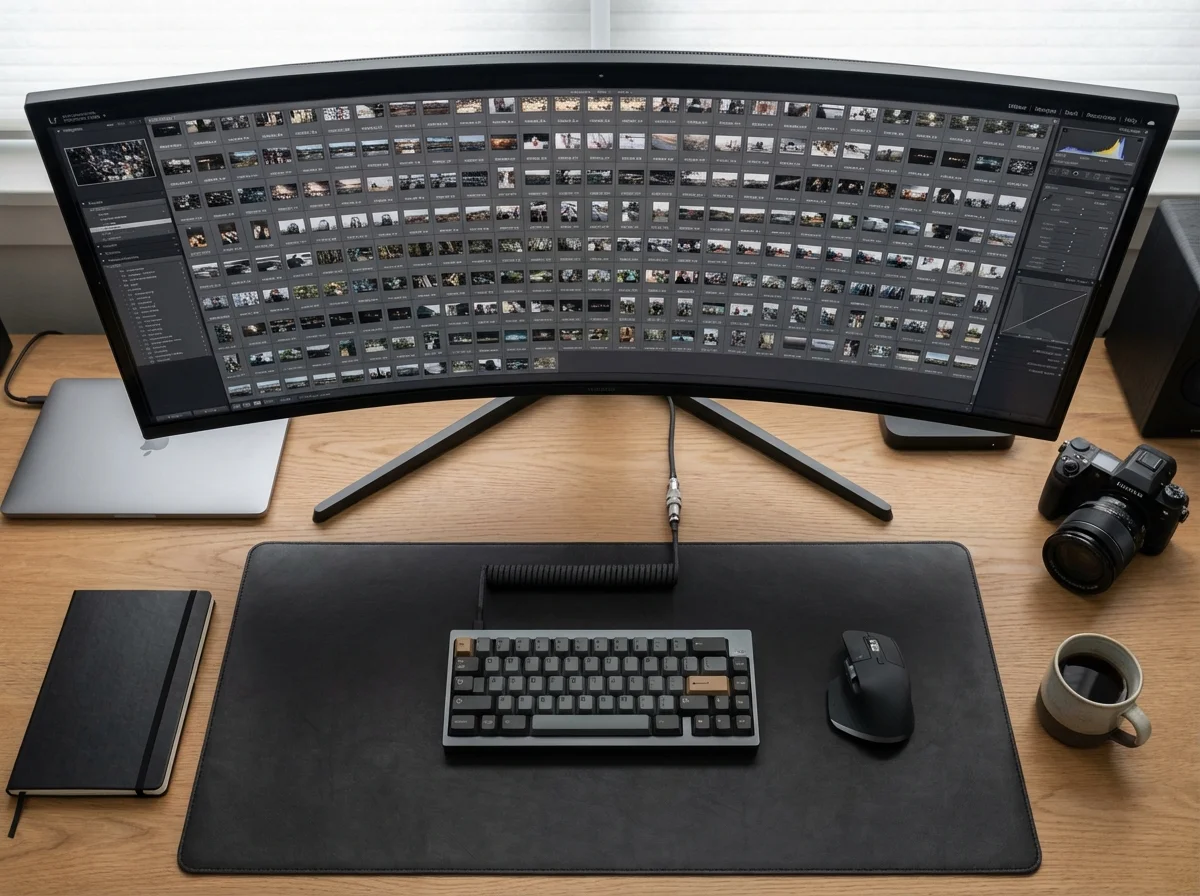
If Luminar Neo is an artist’s brush, ON1 Photo RAW is a professional’s entire studio. It combines a powerful photo browser, a raw processor, and a sophisticated AI editor into a single application. ON1 has long been a favorite for those who want to avoid the Adobe subscription model while retaining high-end control. Its AI implementation focuses on solving technical problems. The NoNoise AI and Tack Sharp AI are industry leaders, capable of rescuing blurry or grainy photos that would otherwise be unusable.
The “Brilliance AI” feature in ON1 Photo RAW is perhaps its strongest “one-click” offering. When you open a photo, Brilliance AI automatically detects the regions of the image and applies specific adjustments to the sky, foliage, people, and water simultaneously. Unlike a global “Auto” button, this provides a nuanced starting point that respects the different textures and colors within the frame.
ON1 also shines in its Digital Asset Management (DAM). You can search your entire library for photos of “dogs” or “mountains” using the Keyword AI, which automatically tags your images. For someone managing a 20,000-image family archive, this feature alone saves dozens of hours of manual labor. It treats your hard drive as a live browser, meaning you don’t have to go through a lengthy “import” process to start working on your memories.
Side-by-Side Comparison: Features and Usability
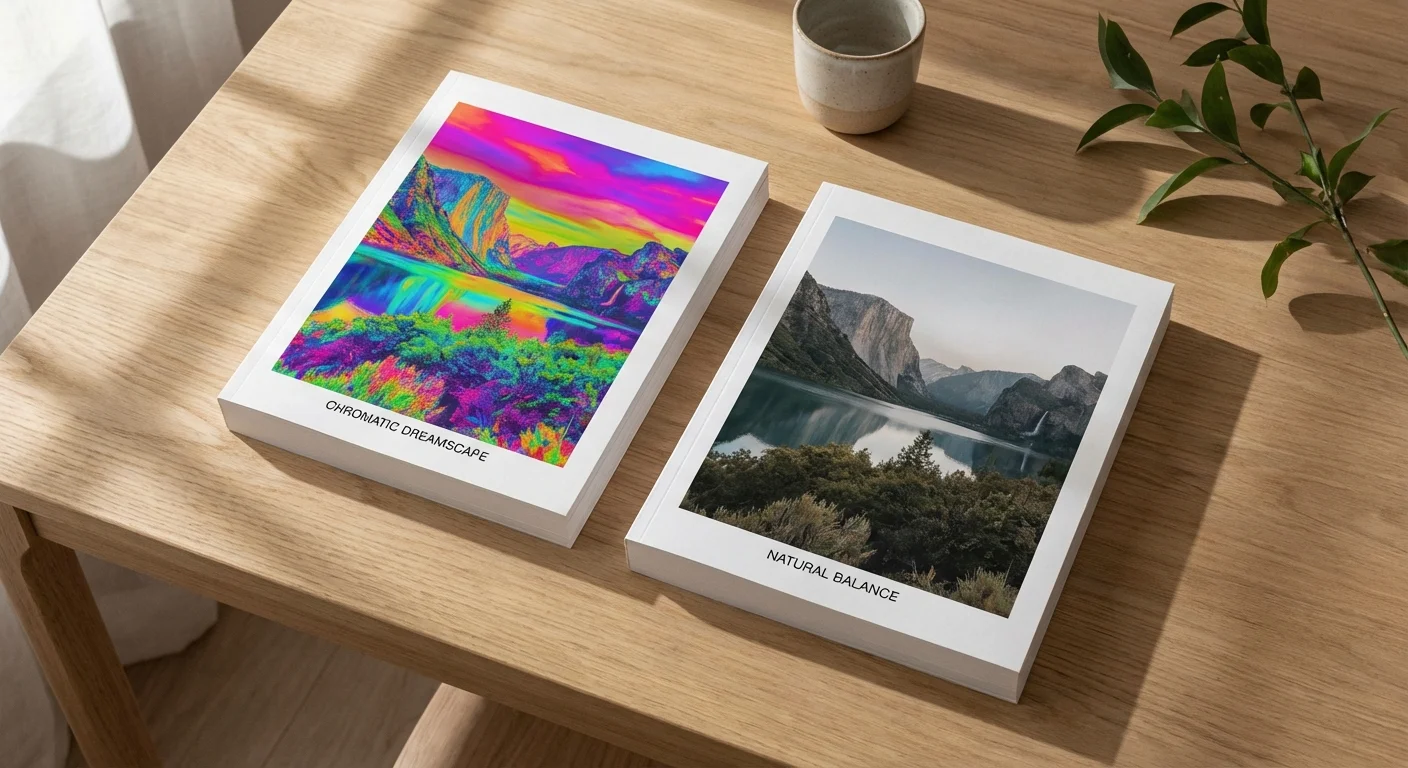
To help you decide between ON1 Photo RAW vs Luminar, you must compare their core capabilities side-by-side. Both programs offer AI masking and portrait retouching, but their execution differs significantly.
If you need to process large folders of images at once, learning batch editing photos can save you hours of manual work.
| Feature | Luminar Neo | ON1 Photo RAW |
|---|---|---|
| Primary Philosophy | Creative, AI-driven simplicity | Technical precision and workflow |
| Key AI Strength | Generative AI (GenErase, GenSwap) | Noise reduction and sharpening |
| Organization (DAM) | Basic cataloging | Advanced search and auto-keywording |
| One-Click Editing | Preset-centric with Relight AI | Brilliance AI region-based adjustments |
| Pricing Model | Subscription or Lifetime | Subscription or Perpetual License |
| Best For | Quick artistic enhancements | Large archives and technical rescue |
When you evaluate these AI photo editors, consider your own technical comfort level. Luminar Neo uses very friendly language like “Accent AI” and “Sky Enhancer,” making it accessible to those who have never edited a photo. ON1 Photo RAW uses more traditional terminology like “Levels,” “Curves,” and “Luminosity Masks,” which provides a shorter path for those moving away from Lightroom or Photoshop.
AI for Heritage Restoration and Old Photos
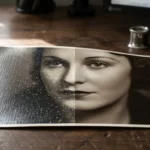
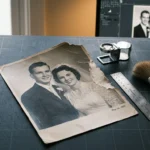
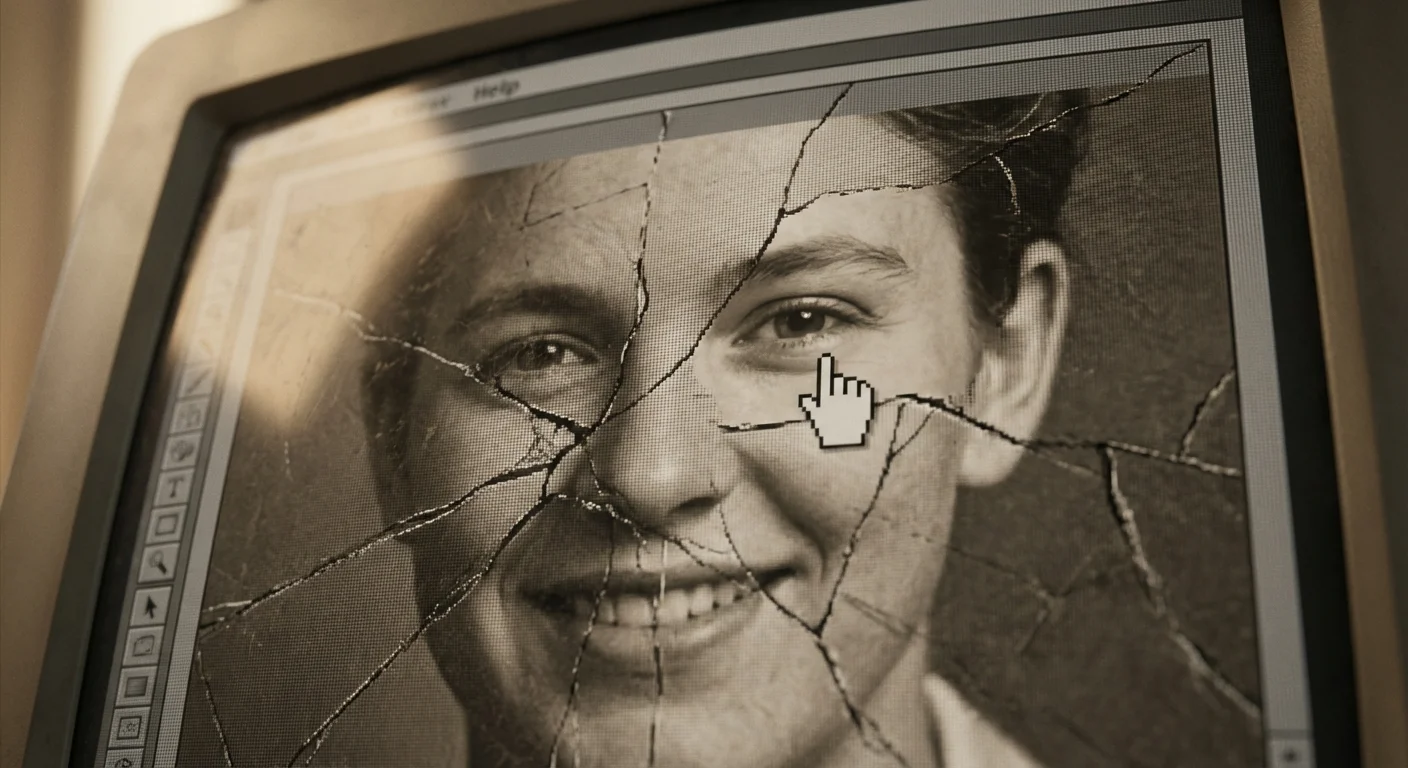
Preserving family heritage involves more than just making a photo look “pretty.” You must often repair damage caused by time, light, and poor storage. According to the National Archives Preservation guidelines, the first step in digital preservation is creating a high-quality scan. Once you have that digital file, AI editors become your best tools for restoration.
If your collection includes heavily discolored prints, learning how to restore old faded photos can help you bring back the original vibrancy before you begin technical AI enhancements.
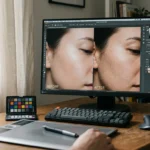
Luminar Neo’s “Face AI” and “Skin AI” are remarkable for old portraits. They can subtly enhance eyes and smooth out skin texture that may have been lost in a low-resolution scan. The “Portrait Bogus” tool can even add a pleasing blur to the background, mimicking the look of an expensive vintage lens on a photo that was originally shot on a basic consumer camera. The Generative Erase tool is your primary weapon against physical defects; you simply paint over a scratch or a coffee stain, and the AI replaces it with matching pixels.
ON1 Photo RAW offers a different set of restoration tools. Its NoNoise AI is particularly effective for scanned 35mm slides, which often have heavy film grain. By removing the grain without losing the actual image detail, you create a much cleaner base for further editing. Additionally, ON1’s “Tack Sharp AI” can often correct the slight motion blur found in old handheld family photos, potentially revealing features in a distant ancestor’s face that were previously a smudge.

Workflow and Digital Asset Management
The biggest challenge in photo preservation is not editing a single image; it is managing thousands. This is where the divergence between these two programs becomes most apparent. You need a system that allows you to find a specific person or event in seconds.
ON1 Photo RAW functions as a complete command center. Its “Keyword AI” scans your images and assigns tags like “Outdoor,” “Person,” “Building,” or “Vintage” automatically. You can create “Smart Albums” that update themselves whenever you add a photo that meets certain criteria (e.g., all photos taken in 1984 with a 5-star rating). This level of organization is critical for long-term heritage projects where you may be collaborating with other family members to identify individuals in photos.
Luminar Neo takes a more linear approach. You open an image, apply your edits, and move on. While it does keep a catalog of your edits, it lacks the robust metadata tools required for serious archiving. If your goal is to take your ten best family photos and turn them into a stunning “Photo of the Year” wall display, Luminar Neo is perfect. If your goal is to organize three generations of digital and scanned media, you will likely find Luminar’s cataloging features frustratingly limited.

Performance Realities and Hardware Requirements
AI is computationally expensive. These programs do not run like a simple web browser; they require significant power from your computer’s Graphics Processing Unit (GPU). Before you commit to either software, you should check your hardware specifications. For a technical baseline of how these programs perform on modern systems, Digital Photography Review provides extensive benchmarks.
Luminar Neo, especially with its newer Generative AI tools, requires a modern machine. If you are using a laptop that is more than four or five years old, you may experience significant “lag” when applying AI effects. The software has to communicate with the hardware to calculate the AI models, which can take several seconds per adjustment. Skylum has worked to optimize this, but it remains a resource-heavy application.
ON1 Photo RAW is generally more optimized for older hardware but still benefits immensely from a dedicated graphics card. Because it handles so many tasks at once—browsing, indexing, and editing—it requires a healthy amount of RAM (16GB is the recommended minimum). If you plan to batch-process 500 photos at once with AI noise reduction, expect your computer fans to kick into high gear.

Choosing the Right Editor for Your Memory Project
To make your final decision, look at the current state of your photo collection. Are you mostly dealing with high-quality digital photos that just need a bit of “pop”? Or are you wading through a sea of grainy scans and poorly exposed historical records?
You should choose Luminar Neo if:
- You want the fastest way to make individual photos look professional.
- You enjoy creative, artistic effects like changing the sky or adding sunbeams.
- You are focused on “GenAI” features that can reconstruct missing parts of an image.
- You already use a program like Lightroom for organization and just want a creative plugin.
You should choose ON1 Photo RAW if:
- You need a comprehensive tool to organize and keyword a massive family archive.
- You prioritize technical image quality, specifically noise reduction and sharpening.
- You prefer a traditional workspace with layers, masks, and professional-grade color tools.
- You want a “one-stop shop” that handles everything from the initial scan to the final print.
Whichever tool you choose, remember that the most important part of photo preservation is the “non-destructive” aspect of the software. Both Luminar Neo and ON1 Photo RAW preserve your original file and store your edits in a separate database or sidecar file. This ensures that you can always go back to the original “raw” state of your memory, a practice highly recommended by the Image Permanence Institute to ensure the longevity of digital records.
Frequently Asked Questions
Which software is better for restoring old scanned family photos?
Both programs offer excellent tools, but Luminar Neo’s Generative AI features like GenErase and GenExpand are particularly effective at removing scratches and filling in missing borders. ON1 Photo RAW excels if your scanned images are grainy or soft, as its NoNoise AI and Tack Sharp AI lead the industry in detail recovery.
Do I need a subscription to use Luminar Neo or ON1 Photo RAW?
Luminar Neo offers both a Pro subscription and a lifetime license (one-time purchase). ON1 Photo RAW provides a traditional perpetual license and a subscription option called ON1 Everything, which includes all plugins and cloud storage. Most users find the one-time purchase option more cost-effective for long-term photo preservation.
Can these AI editors handle large collections of digital photos?
ON1 Photo RAW is superior for large-scale organization. It functions as a powerful digital asset manager (DAM) with advanced keywording and search features. Luminar Neo focuses more on individual image editing and lacks the sophisticated cataloging tools found in ON1.
Is AI photo editing “cheating” when it comes to family history?
Think of AI editing as modern restoration. Just as a physical conservator might carefully clean a painting to reveal the original colors, AI tools help remove the “noise” of time—scratches, dust, and fading—to show the subject as they truly appeared. As long as you maintain the original scan as a backup, using AI to enhance the clarity of a loved one’s face is a wonderful way to honor their memory.
Disclaimer: This article is for informational purposes only. When handling valuable or irreplaceable photographs, consider consulting a professional conservator. Always test preservation methods on non-valuable items first.