
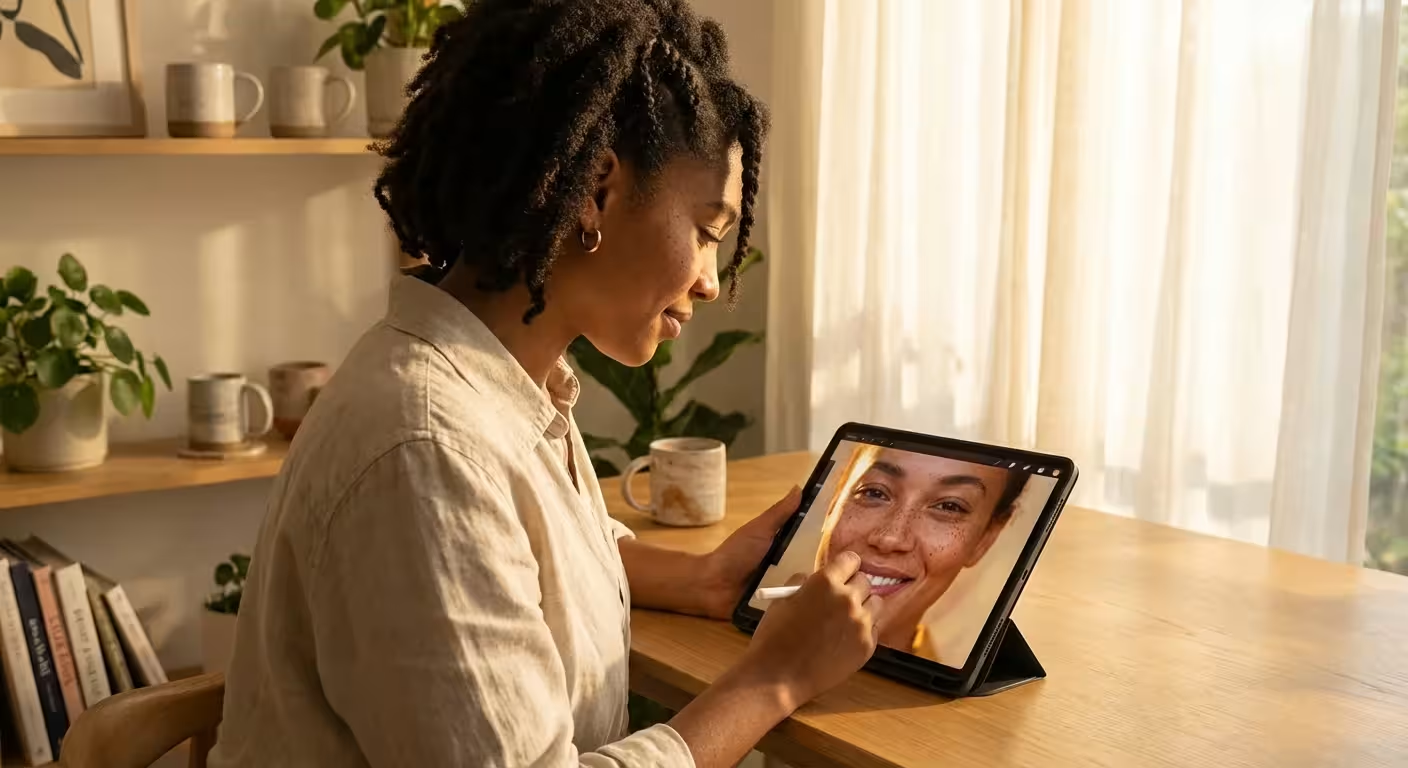
Your phone, a device you carry daily, holds immense power. It captures moments, stores memories, and, with the right tools, transforms your everyday snapshots into stunning photographs. You do not need expensive desktop software or professional photography skills to enhance your images. Mobile photo editing has democratized photography, putting powerful capabilities directly into your hands. This guide helps you navigate the best phone editing apps, ensuring your precious visual stories look their absolute best.
To get the best results before you even start editing, you can apply some simple smartphone photography tips when taking your pictures.
The Power in Your Pocket: Why Mobile Photo Editing Matters
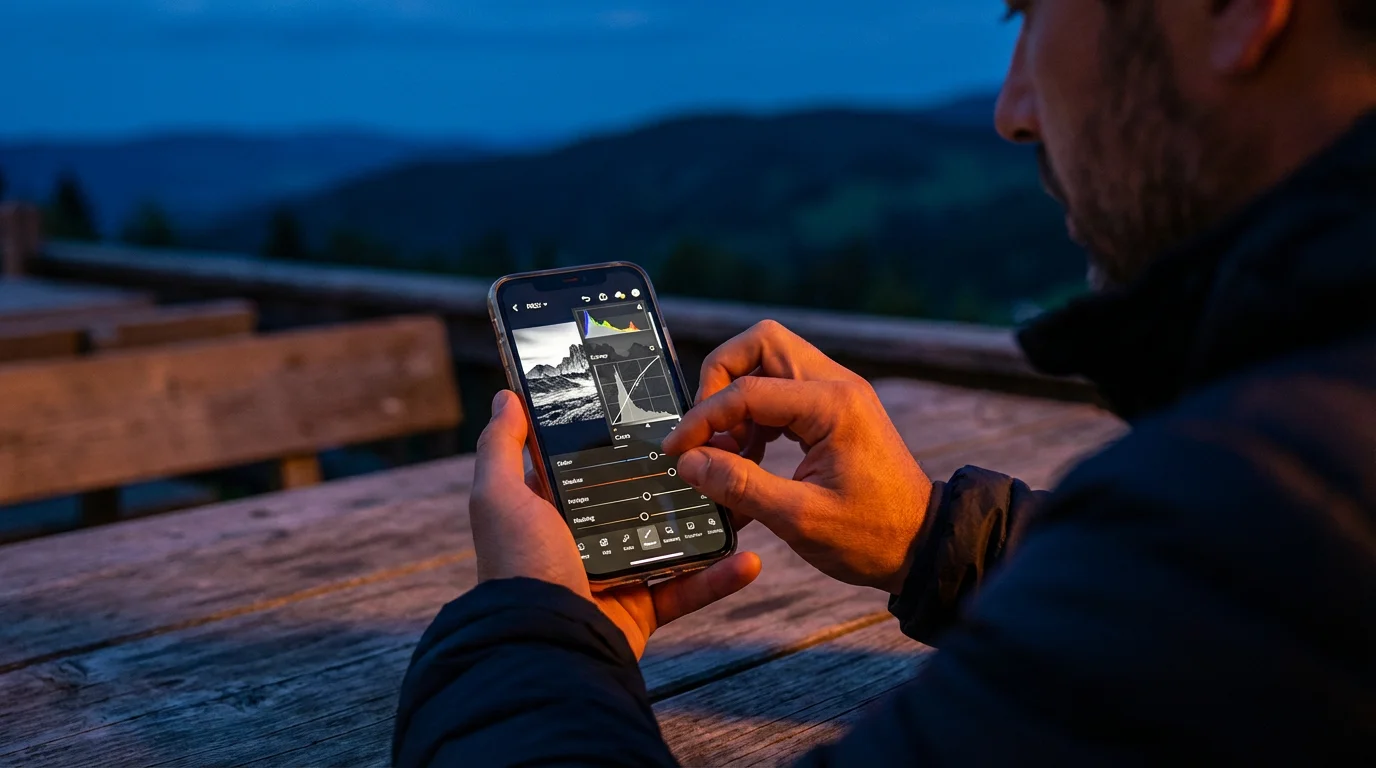
Mobile phones revolutionized how we capture photographs. They transformed cameras from specialized equipment into ubiquitous tools. Modern smartphones feature incredible camera technology, often incorporating multiple lenses, advanced image stabilization, and computational photography. This means your phone captures high-quality images straight out of the camera. The real magic, however, happens when you refine those images with a dedicated mobile photo editing app.
If you are starting with physical prints, choosing the best scanner apps for iPhone and Android can help you create high-quality digital copies ready for editing.
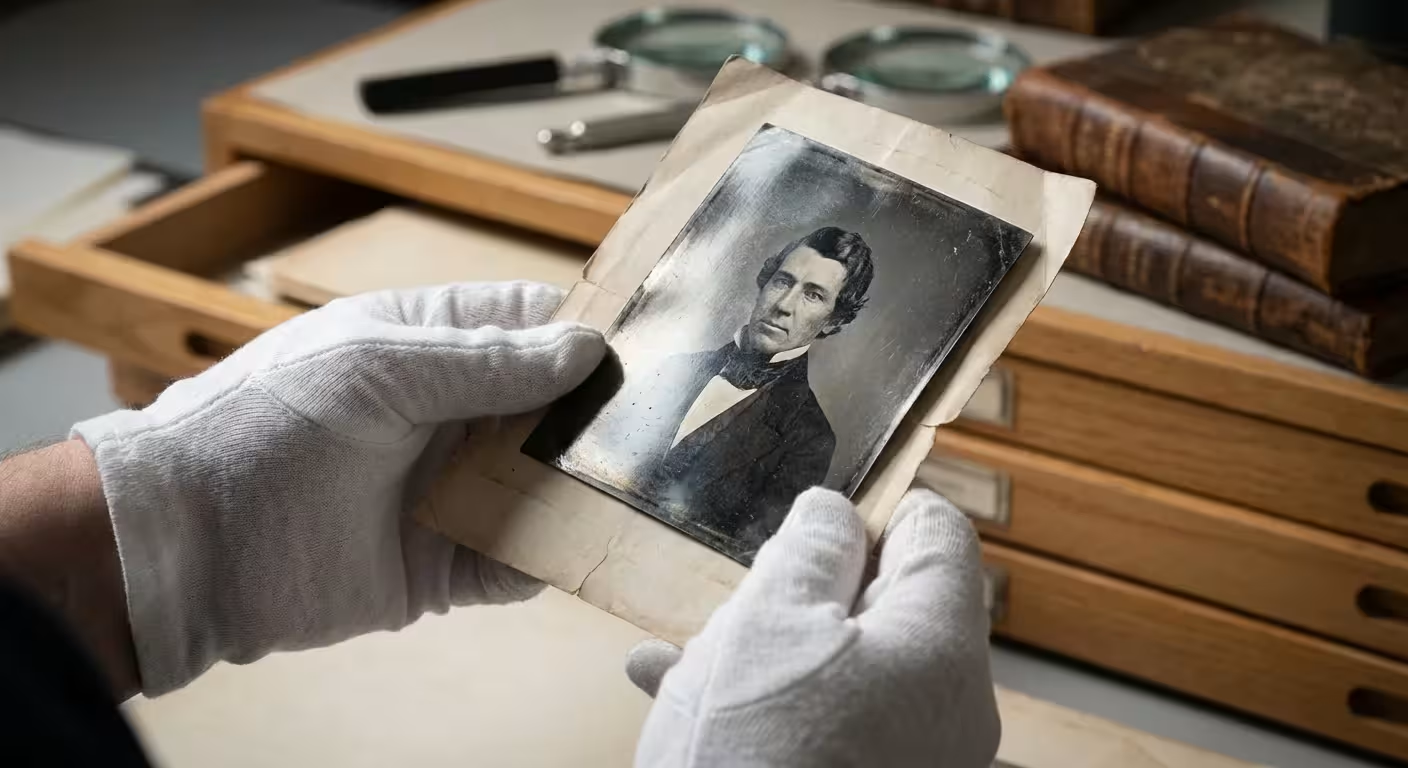
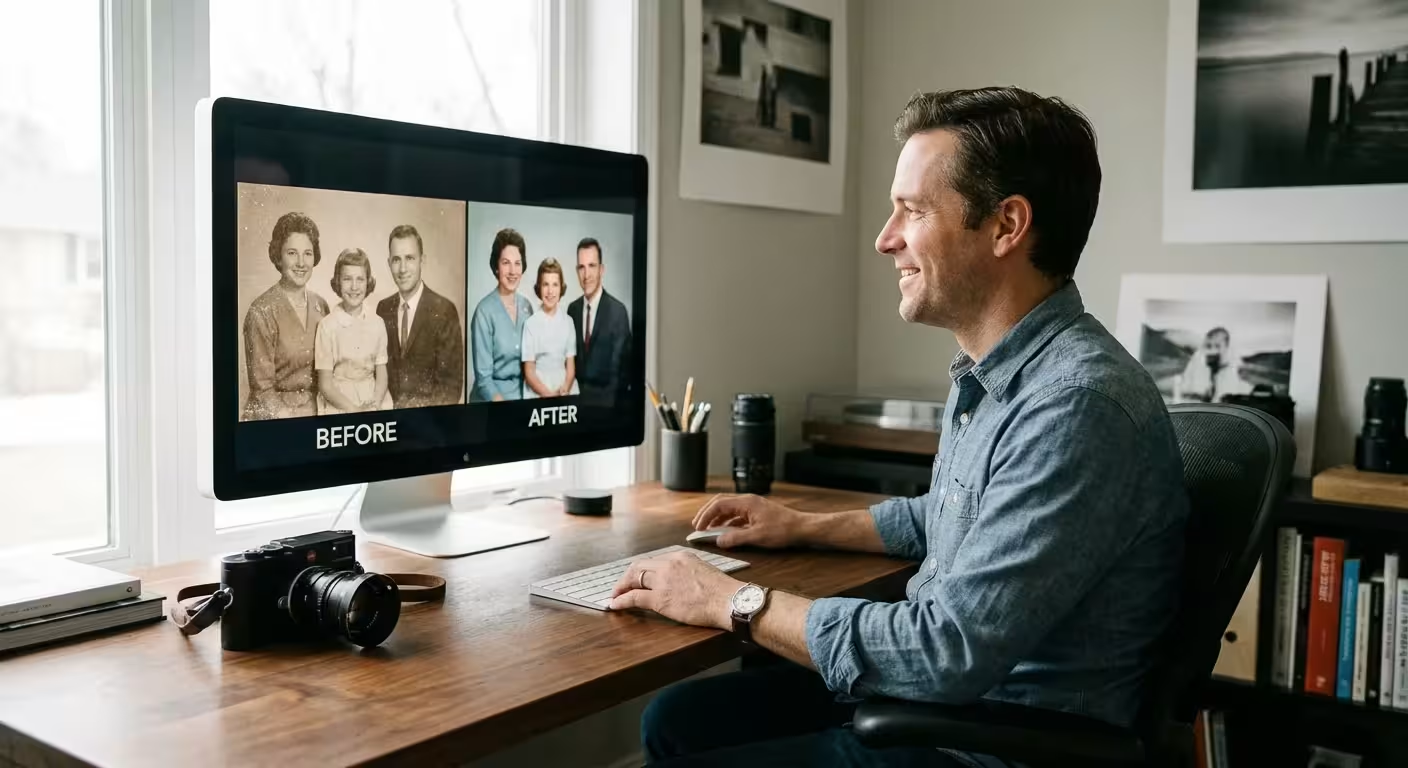
The convenience of a smartphone editor cannot be overstated. You capture a beautiful sunset, a candid family moment, or a vibrant landscape, and you can instantly enhance it before sharing it with loved ones or archiving it for the future. This immediacy removes the barrier of transferring files to a computer, streamlining your entire photography workflow. For families with inherited boxes of old photos, digitizing them and then subtly enhancing their digital versions on a phone offers a practical first step in preservation. You can correct color shifts, improve contrast, and bring new life to fading memories, all from your device.
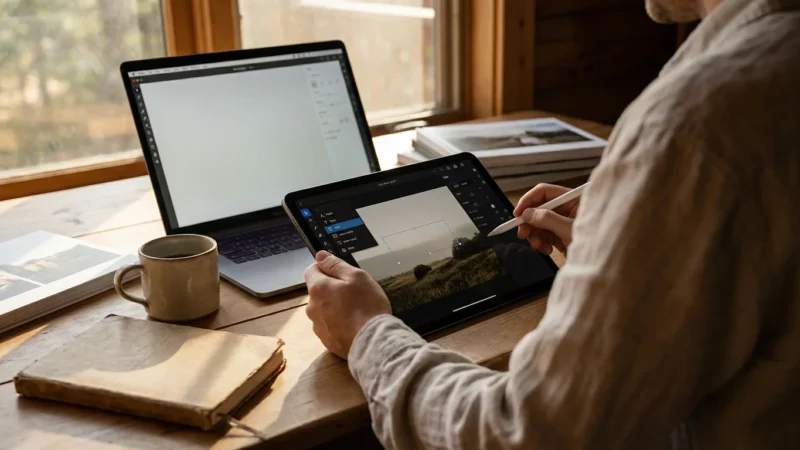
Furthermore, mobile editing apps are becoming increasingly sophisticated. Many now offer features once exclusive to professional desktop software, including selective adjustments, healing brushes, and even AI-powered enhancements. This means you do not compromise on quality or creative control. You gain the flexibility to apply professional-grade edits anywhere, anytime, turning ordinary snapshots into extraordinary keepsakes. Understanding the capabilities of these phone editing apps empowers you to take control of your photographic legacy.
Essential Features to Look for in a Phone Editing App
When you choose a mobile photo editing app, consider the types of edits you typically make and the level of control you desire. While many smartphone editors offer a vast array of tools, some core functionalities prove invaluable for most users. Look for apps that provide robust control over these aspects:
Beyond retouching, you can also use specialized tools to sharpen blurry photos to rescue a precious but slightly out-of-focus shot.
- Exposure and Brightness: Fundamental adjustments like brightness, contrast, highlights, and shadows allow you to correct under or overexposed images. These tools ensure your photos have appropriate visual balance.
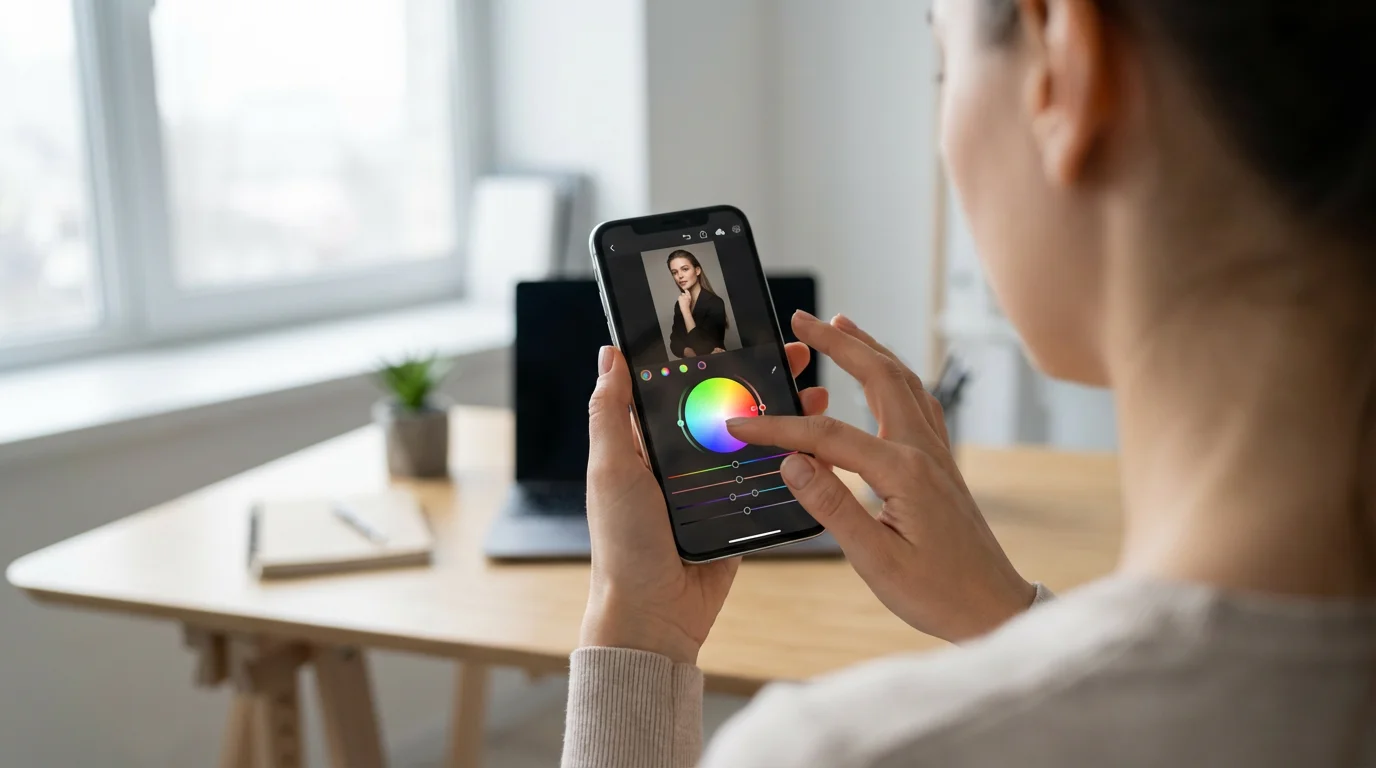
- Color Correction: White balance, saturation, and vibrance controls help you achieve accurate and pleasing colors. You can warm up a cool image, reduce overly intense hues, or bring out subtle tones.
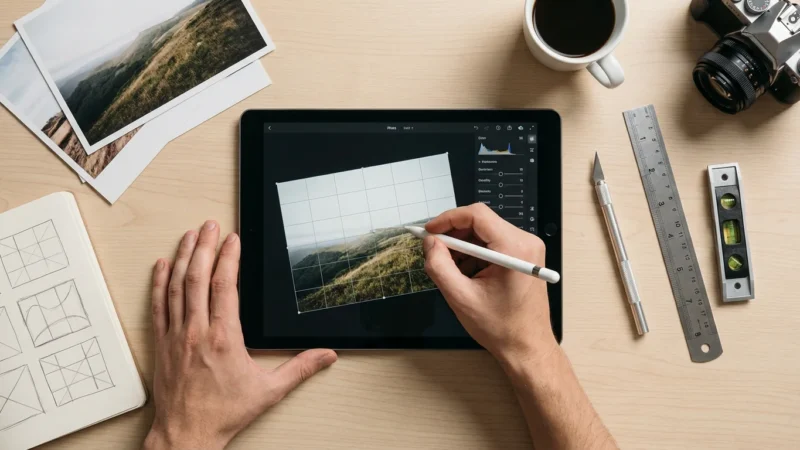
- Cropping and Straightening: Essential for improving composition and correcting skewed horizons. A well-cropped image eliminates distractions and draws the viewer’s eye to the main subject. Many apps include aspect ratio presets for social media or printing.
- Healing and Retouching: Tools like spot removal or clone stamps let you remove unwanted dust, blemishes, or minor distractions from your photos. This proves particularly useful when you restore old family photos, as it helps eliminate creases or tears in the digitized version.
- Presets and Filters: These one-tap solutions apply a consistent look or style to your images. They offer a quick way to achieve a specific aesthetic, from vintage looks to cinematic tones. Many apps allow you to create and save your own custom presets, streamlining your editing process.
- Selective Adjustments: The ability to apply edits to specific areas of an image, rather than the entire photo, offers unparalleled control. Radial and linear gradient tools, or brush masks, allow you to brighten a face, darken a sky, or enhance a particular object without affecting other parts of the picture.
- Non-Destructive Editing: This crucial feature means your original image remains untouched. All edits apply as layers or instructions, allowing you to revert to the original or modify any adjustment at any time. This protects your photographic integrity and provides flexibility.
An app incorporating these features empowers you to handle most common editing tasks effectively. The best photo editing apps for iPhone and Android prioritize ease of use alongside powerful capabilities, ensuring you enhance your photos without feeling overwhelmed.
Top Picks for Mobile Photo Editing
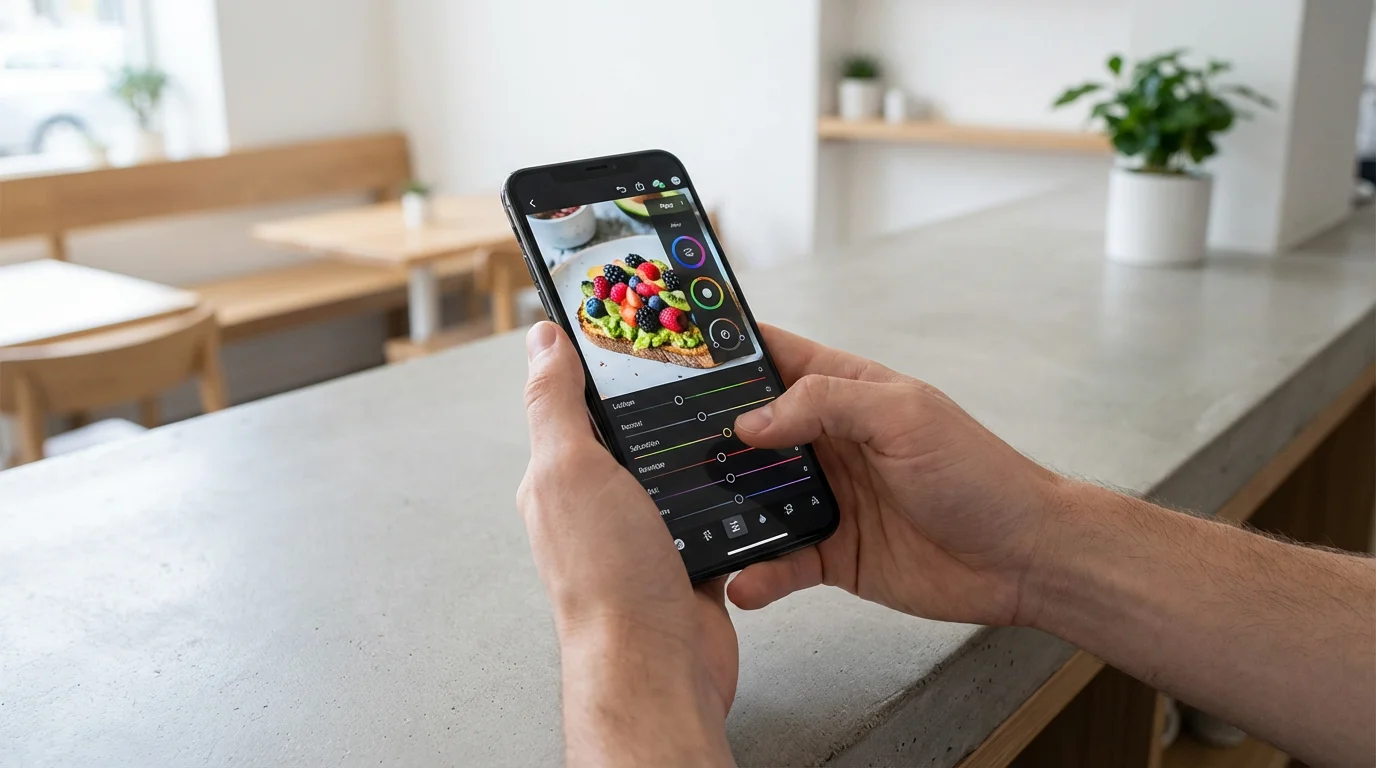
The market offers numerous excellent smartphone editors, each with its strengths. We curated a list of top mobile photo editing apps, considering their features, user interface, and overall value.
For those dealing with hundreds of images from an event, finding an app that supports batch editing photos can save a significant amount of time.
Adobe Lightroom Mobile
Ideal User: Photographers seeking professional-grade tools, seamless synchronization with desktop Lightroom, and robust organization features.
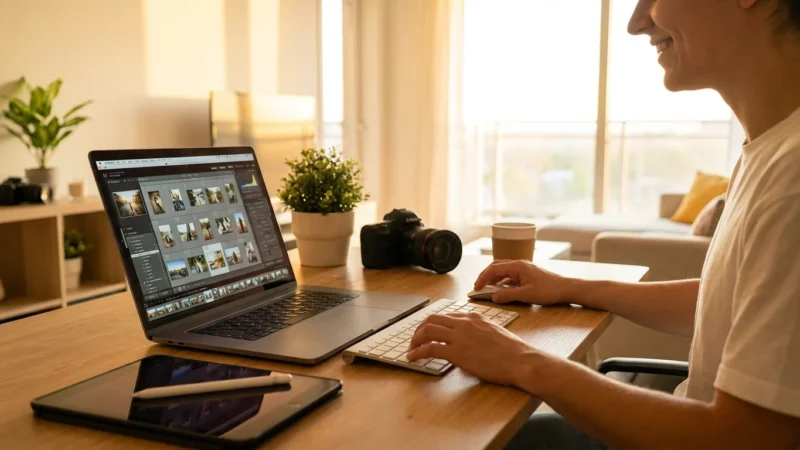
Adobe Lightroom Mobile stands as a powerhouse among phone editing apps. It offers an incredibly comprehensive suite of editing tools, including precise control over exposure, color, tone curves, and geometry. You gain access to advanced features like selective adjustments with masks, healing brushes, and noise reduction. Lightroom Mobile supports RAW file editing, a significant advantage for serious photographers, as it preserves maximum image data for editing flexibility. Its cloud integration allows you to sync your edits and photo library across all your devices, ensuring your work is always up to date and accessible. This integration proves invaluable for those managing large digital collections.
While a free version provides many essential tools, a Creative Cloud subscription unlocks premium features, cloud storage, and desktop synchronization. The investment pays off for users who value a professional workflow and consistent results. Data shows that photographers increasingly rely on mobile workflows, with many starting their edits on a smartphone before refining them on a desktop. Lightroom Mobile facilitates this hybrid approach seamlessly.
Snapseed
Ideal User: Anyone looking for a powerful, user-friendly, and completely free mobile photo editor with advanced capabilities.
Developed by Google, Snapseed consistently ranks as one of the best free mobile photo editors available for both iPhone and Android. Its intuitive interface makes complex edits accessible to beginners, while its deep feature set satisfies experienced users. Snapseed offers a wide range of tools, from basic adjustments like tuning image brightness and contrast to sophisticated options such as selective adjustments, brush tools, and precise healing. You can apply filters and effects, then fine-tune them with granular control. One of its standout features is “Stacks,” which allows you to view and edit each adjustment individually, ensuring a non-destructive workflow. This means you can revert specific changes without starting over. Snapseed’s ability to edit RAW files further cements its position as a top-tier app. You gain incredible power without any cost, making it an excellent starting point for any mobile editor.
VSCO
Ideal User: Photographers focused on aesthetic consistency, film-like looks, and a strong community aspect.
VSCO (pronounced “vis-co”) has carved out a niche as a favorite among those who appreciate beautiful, film-inspired aesthetics. While it offers standard editing tools for exposure, contrast, and color, its true strength lies in its extensive collection of high-quality presets. These presets emulate various film stocks and photographic styles, giving your images a cohesive and sophisticated look. VSCO also features a robust camera within the app, offering manual controls for those who want more precise capture. The app fosters a creative community where users share and discover inspiring photography. You can publish your edited photos directly to your VSCO profile, engaging with other photographers. A free version provides basic editing and a selection of presets, while a paid membership unlocks the full library of presets, advanced editing tools, and educational content. If you aim for a consistent, artistic style across your photos, VSCO is an excellent choice for your smartphone editor.
PicsArt Photo & Video Editor
Ideal User: Creative individuals interested in collages, stickers, drawing tools, and advanced photo manipulation beyond basic adjustments.
PicsArt stands out as a highly versatile and creative mobile photo editing suite. It extends far beyond basic adjustments, offering a vast array of features for photo manipulation, collage making, drawing, and video editing. You can apply artistic filters, add text and stickers, use background removers, and even experiment with AI-powered effects. Its tools include a customizable brush, cloning features, and a dispersion tool for unique artistic effects. For anyone who enjoys transforming their photos into something entirely new, PicsArt provides an extensive playground. While it does offer standard exposure and color controls, its strength lies in its creative toolkit, making it ideal for crafting social media content, personalized greeting cards from digitized family photos, or artistic compositions. A free version offers many features, and a premium subscription unlocks additional tools, effects, and removes ads. PicsArt helps you unleash your creative potential directly on your phone, offering a robust set of features for creative smartphone editors.
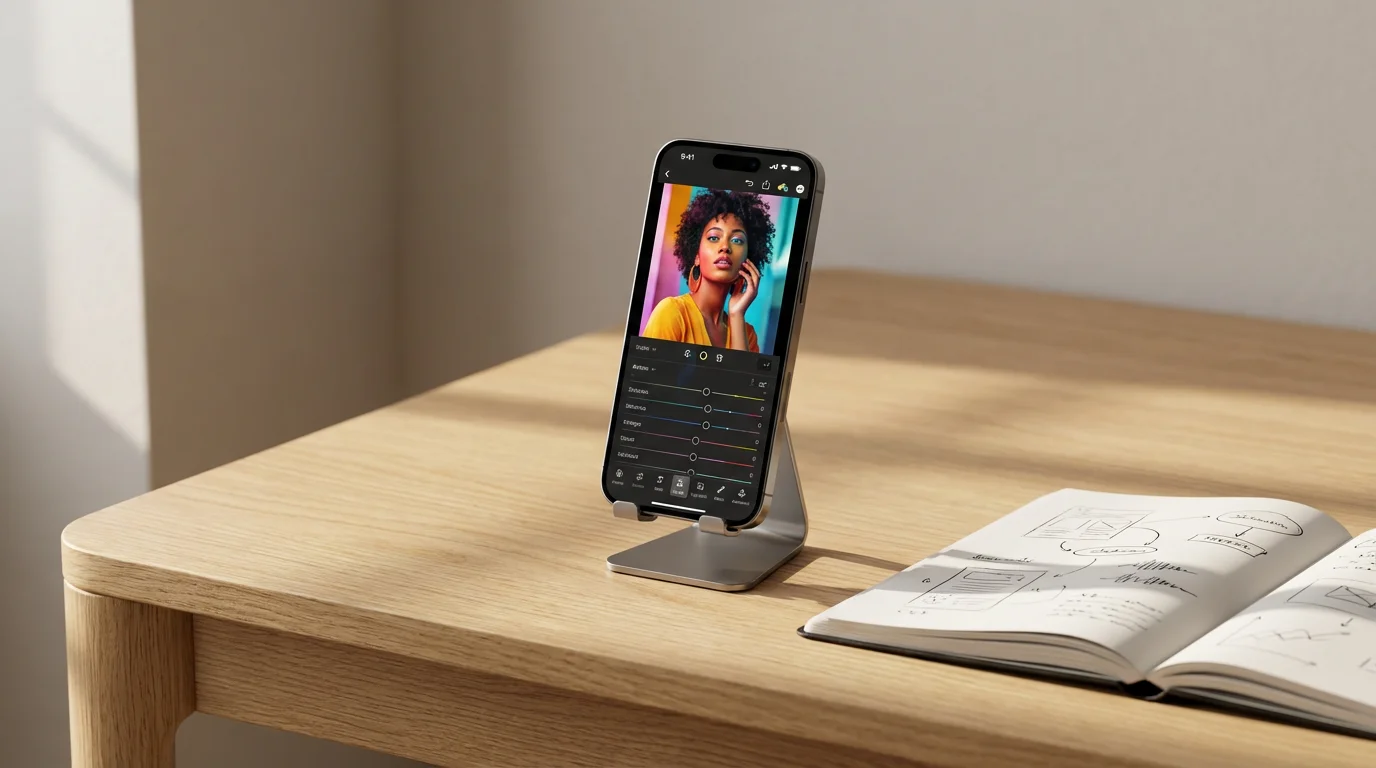
Mastering Your Smartphone Editor: Practical Tips and Techniques
Using a powerful phone editing app involves more than just tapping filters. To get the most out of your mobile photo editing experience, implement these practical techniques:
Once you have finished editing your precious memories, don’t forget the importance of setting up automatic photo backup from your phone to keep them safe.
- Shoot in RAW (If Available): Many modern smartphones, particularly flagship models, allow you to capture photos in RAW format. RAW files contain significantly more image data than standard JPEGs, offering greater flexibility and quality during the editing process. Your phone editing apps like Lightroom Mobile and Snapseed support RAW editing, giving you more headroom to adjust exposure, colors, and shadows without introducing artifacts.
- Edit Non-Destructively: Always work with non-destructive editing. This means the app saves your edits as instructions rather than permanently altering the original image file. Most reputable mobile photo editing apps, including all those listed above, employ this method. This safeguards your original photograph and allows you to experiment freely, reverting or adjusting any step in your editing history.
- Calibrate Your Screen: While perfect calibration on a phone screen is challenging, be aware that your screen’s brightness and color settings influence how you perceive your edits. Avoid editing in extremely bright sunlight or very dim conditions. Viewing your photos on another device, like a calibrated monitor, occasionally helps you assess color accuracy.
- Less is Often More: Subtle enhancements usually produce the most impactful results. Over-editing can make photos look artificial or dated. Focus on bringing out the natural beauty of your image by correcting imperfections and enhancing existing elements. A slight boost in contrast, a minor adjustment to white balance, or a judicious crop often yields better results than heavy filters or excessive saturation.
- Develop a Consistent Style: For your personal photo collection, particularly if you share your work, developing a consistent editing style creates a cohesive aesthetic. Utilize presets, or create your own, to apply a similar look across multiple images. This helps tell a visual story and makes your collection feel more intentional.
“Non-destructive editing is fundamental to preserving your original vision. It gives you the freedom to experiment and refine your image without the fear of irreversible changes, safeguarding your photographic heritage.”
If you have a large library of similar shots, consider batch editing photos to save time and maintain a consistent look.
By adopting these techniques, you elevate your mobile photo editing skills and ensure your enhanced images look professional and timeless.

Integrating Mobile Edits into Your Photo Preservation Workflow
Editing your photos on your phone is just one step in a comprehensive photo preservation strategy. Once you create stunning versions of your images, you need to secure them for the long term. This applies whether you are enhancing new digital photos or revitalizing digitized old family photos.
First, always save your edited images in a high-quality format. Most phone editing apps offer options to export in various file types and resolutions. Choose JPEG with the highest quality setting, or, if available, TIFF or PNG for maximum preservation of detail. Avoid heavily compressed formats that degrade image quality. Store these high-resolution versions separately from the original, unedited files.
Next, implement a robust backup strategy. Cloud services (like Google Photos, iCloud, Dropbox) offer convenient, automated backups, ensuring your photos are safe even if your phone is lost or damaged. You should also consider local backups on an external hard drive or a home server. A “3-2-1 backup rule” is often recommended: keep at least three copies of your data, store them on two different types of media, and keep one copy offsite. This multi-layered approach safeguards your edited memories. You can read more about robust digital asset management on sites like Digital Photography Review.
Organizing your edited photos also plays a critical role. Create a logical folder structure on your phone and any backup drives. Consider organizing by date, event, or subject matter. Renaming files with descriptive names (e.g., “2023-10-26_GrandmasBirthday_Edited.jpg”) makes them easily searchable years down the line. For digitized physical photos, ensure the edited versions link back to their original source in your organizational system.
Finally, consider the tangible. Digitizing old photos allows you to edit and share them digitally, but printing these enhanced versions offers another layer of preservation and enjoyment. Print on archival-quality paper using reputable printing services to ensure the prints last for generations. These printed memories, refreshed by your mobile photo editing skills, become new heirlooms for your family.
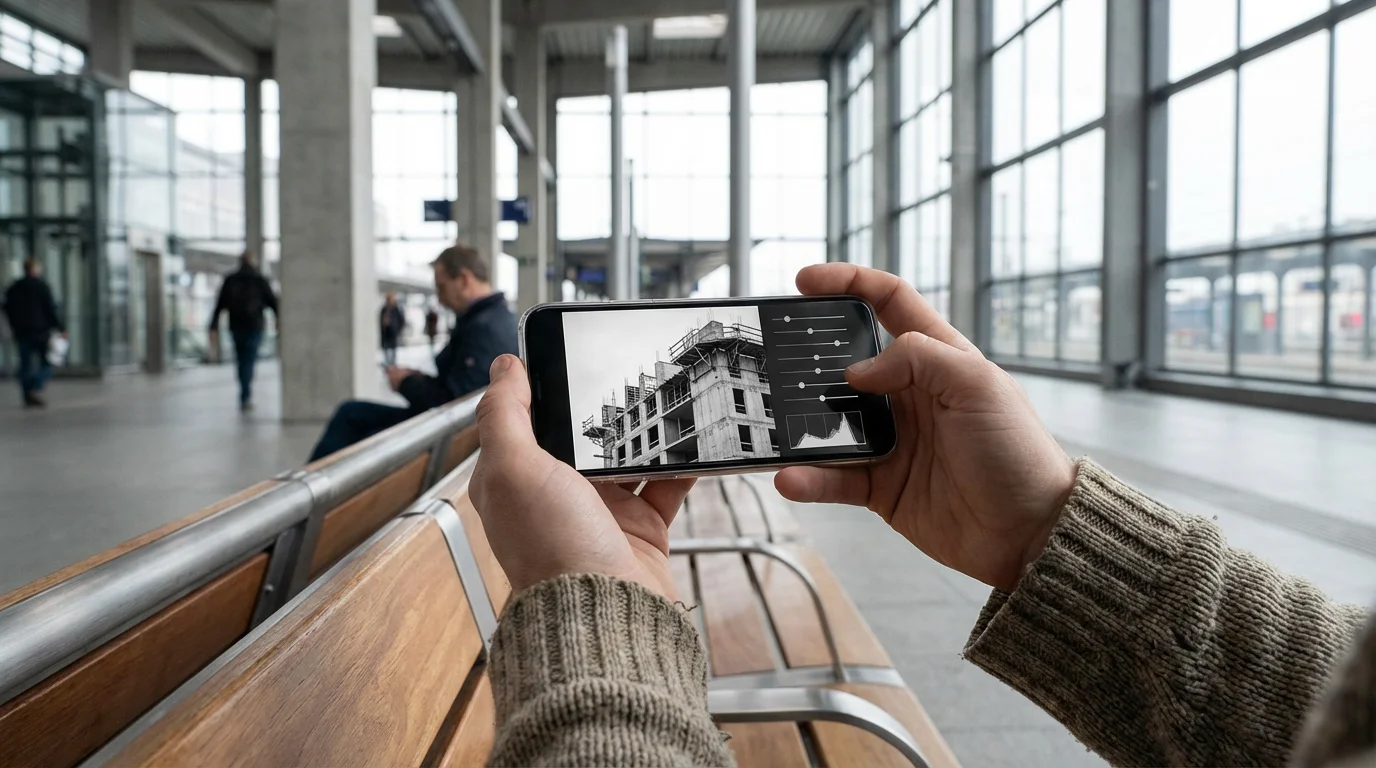
Free Mobile Photo Editors: Power Without the Price Tag
You do not need to spend money to access powerful mobile photo editing tools. The landscape of smartphone editors includes numerous excellent free options that provide extensive functionality. Snapseed, as highlighted earlier, leads this category, offering a professional-grade experience without any cost. Its comprehensive toolset, non-destructive editing, and RAW support make it an indispensable tool for anyone.
If you find you need more advanced control on a larger screen, you might also consider the best free photo editing software for beginners available for desktop computers.
Beyond Snapseed, many apps offer robust free tiers. Adobe Lightroom Mobile, for example, provides a significant portion of its editing capabilities in its free version, allowing you to make fundamental adjustments, use selective adjustments, and apply many presets. Only advanced features and cloud synchronization require a subscription. Similarly, VSCO offers a selection of its popular film-inspired presets and core editing tools for free, allowing you to achieve beautiful aesthetics without immediate investment. Even apps like PicsArt offer a vast array of creative tools and effects for free users, with premium features locked behind a subscription.
When choosing a free mobile photo editor, consider the ads. Some free apps integrate advertisements or nag screens for subscriptions, which might interrupt your workflow. Prioritize apps that offer a clean user experience even in their free versions. These free tools empower you to significantly enhance your photos, manage your digital memories, and experiment with creative effects, proving that powerful photo editing is accessible to everyone.
Frequently Asked Questions
What is the best mobile photo editing app for beginners?
For beginners, Snapseed offers an exceptional balance of powerful features and an intuitive, user-friendly interface. Its clear layout and non-destructive editing make it easy to learn and experiment without fear of ruining your original photos. Many tutorials are available to guide you through its various tools.
Can phone editing apps edit RAW files?
Yes, many advanced phone editing apps now support RAW file editing. Adobe Lightroom Mobile and Snapseed are prime examples that allow you to import and edit RAW files directly on your smartphone. Editing RAW files gives you significantly more flexibility with exposure, color, and detail recovery compared to JPEGs.
Are free mobile photo editors good enough for serious editing?
Absolutely. Free mobile photo editors like Snapseed provide professional-grade tools for most common editing tasks, including color correction, exposure adjustments, and selective enhancements. While paid apps might offer more advanced features or seamless cloud integration, free options are perfectly capable of serious, high-quality photo editing for most users.
How do I maintain the quality of my photos after editing on my phone?
To maintain quality, always export your edited photos at the highest possible resolution and quality setting your app allows, typically a high-quality JPEG or TIFF. Avoid over-compressing. Additionally, implement a robust backup strategy, including cloud storage and local hard drive copies, to protect your enhanced images from loss or degradation.
Is it possible to edit old scanned photos on my phone?
Yes, it is definitely possible and highly recommended. After you digitize your old photos by scanning or photographing them, you can import them into any mobile photo editing app. These apps help you correct color shifts, remove dust spots, improve contrast, and crop images, bringing new life to your precious family archives.
Disclaimer: This article is for informational purposes only. When handling valuable or irreplaceable photographs, consider consulting a professional conservator. Always test preservation methods on non-valuable items first.
Leave a Reply