

You have captured a beautiful moment, but a stray object or an unexpected person in the background distracts from the main subject. This common scenario frustrates many photographers, amateur and experienced alike. Unwanted elements clutter your frame, diminishing the impact of your cherished memories. Fortunately, you possess the power to clean up your images, creating a more focused and impactful visual story. This guide equips you with the knowledge and tools to effectively remove objects from photos, transforming distractions into seamless backgrounds.
Before spending hours on edits, it is helpful to declutter your photo collection to ensure you are only investing time in your most precious images.
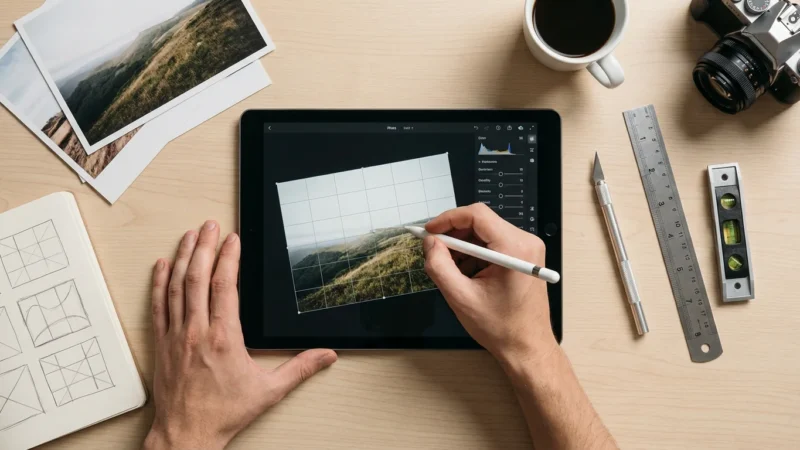
In some cases, simple cropping and straightening can remove distractions at the edges of your frame before you even reach for a healing brush.

Understanding Why Distractions Appear
Every photograph tells a story, and you want your story to be clear and compelling. Often, elements beyond your control intrude upon the perfect shot. A vibrant landscape might feature an unsightly trash bin. A treasured family portrait might show a stranger walking by in the background. Even subtle distractions, such as power lines crisscrossing a beautiful sky or dust spots on an old scanned print, pull the viewer’s eye away from your intended focus.
In some instances, spots in your photos aren’t environmental but result from equipment issues, making it essential to know how to clean your camera lens properly.
By mastering composition techniques, you can often frame your shots to avoid unwanted elements entirely.
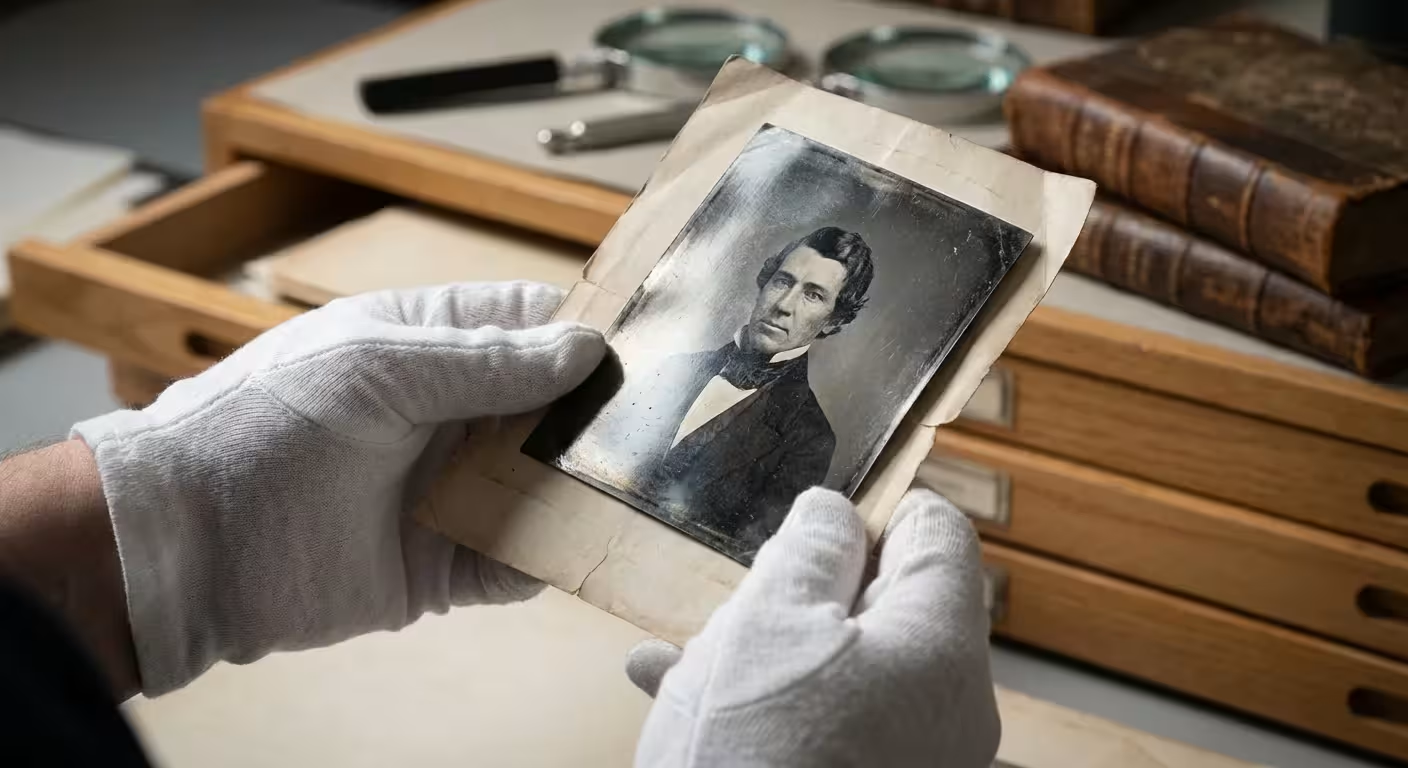
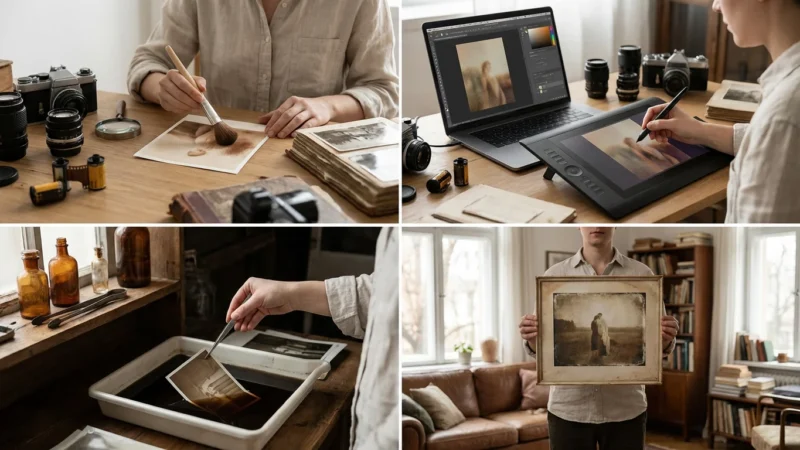
These unwanted elements can be particularly frustrating when you are digitizing old family photos. Scratches, stains, and creases often accompany the nostalgia. While these imperfections contribute to the photo’s age, they sometimes detract from the people and events captured within the frame. You seek to preserve the memory, not the incidental damage or clutter. Recognizing these common intruders is the first step toward effective photo cleanup.
The Core Principle of Object Removal: Content-Aware Filling
Removing objects from photos sounds like magic, but modern software employs sophisticated algorithms to achieve this feat. The fundamental concept behind most object removal tools is “content-aware filling.” This technology analyzes the pixels surrounding the unwanted object, then intelligently generates new pixels to seamlessly fill the selected area. It effectively guesses what the background would look like if the object were not present.
While content-aware tools handle missing pixels, you may also need to restore old faded photos to recover colors that have washed away over time.
Beyond removal, you may need to adjust brightness and contrast to ensure the new background pixels blend perfectly with the rest of the image.
Early versions of these tools required careful manual input. Today, artificial intelligence (AI) significantly enhances their capabilities. AI-powered algorithms understand context, distinguishing between a sky, a face, or a textured wall. This allows them to create more believable and natural-looking fills, even in complex scenes. For example, if you remove a person from a crowded street, the AI analyzes patterns in the surrounding pavement, buildings, and other people to reconstruct the missing portion with surprising accuracy. This advancement makes photo cleanup accessible to a broader audience, including those new to photo editing.
Modern digital tools offer powerful capabilities for image restoration and manipulation. Understanding the underlying algorithms, such as content-aware filling, empowers you to make informed editing decisions and achieve professional results.
Essential Tools for Photo Cleanup
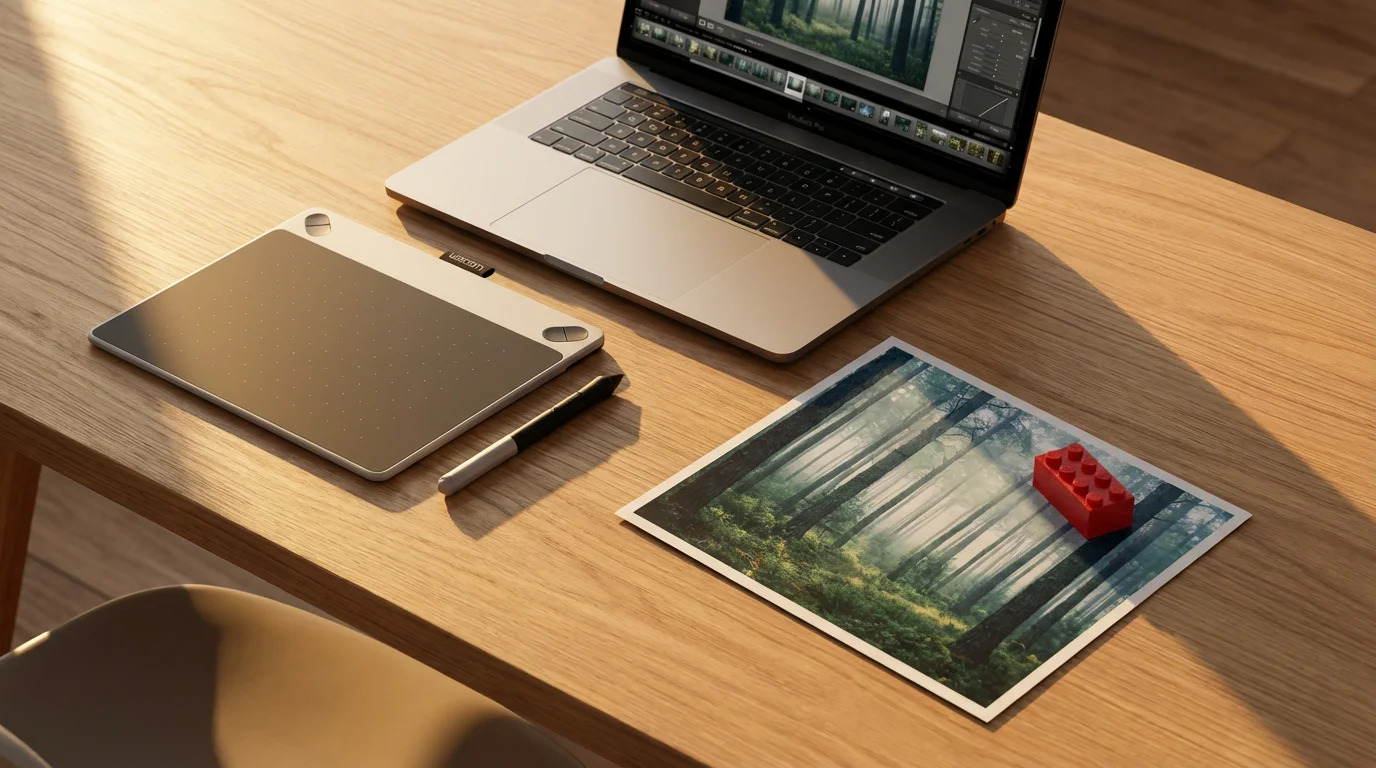
The digital landscape offers a wide array of tools for removing objects from photos. Your choice depends on your skill level, the complexity of the photo, and your budget. You can categorize these tools into several groups:
When dealing with many images from the same shoot, batch editing photos can significantly speed up the process of applying consistent cleanup across your gallery.
If you prefer to edit on the go, our guide to photo editing apps for your phone highlights tools that specialize in quick object removal.
If you are just starting your editing journey, exploring the best free photo editing software for beginners is a great way to learn these tools without a financial commitment.
Dedicated AI-Powered Mobile and Desktop Apps
These applications prioritize ease of use and often leverage powerful AI for quick, effective results. They suit beginners and anyone needing fast fixes on the go.
- TouchRetouch: A popular mobile app known for its intuitive interface and excellent object removal capabilities. You simply brush over the object, and the app does the rest. It excels at removing power lines, distracting backgrounds, and small blemishes.
- Snapseed: Google’s free mobile editing app includes a “Healing” tool that works remarkably well for removing minor imperfections and small objects. It provides a simple touch-and-remove experience.
- Adobe Photoshop Express: A free version of Photoshop for mobile and desktop, offering basic healing tools. While less powerful than the full Photoshop, it handles simple cleanups effectively.
Professional Desktop Photo Editors
These programs offer the most control and precision, making them ideal for complex removals or when you require fine-tuning.
- Adobe Photoshop: The industry standard for photo editing, Photoshop features highly advanced tools like Content-Aware Fill, Spot Healing Brush, Healing Brush, and Clone Stamp. These tools provide unparalleled control over every pixel.
- Affinity Photo: A strong, one-time purchase alternative to Photoshop, Affinity Photo includes similar robust healing and cloning tools that achieve professional results.
- GIMP (GNU Image Manipulation Program): A powerful, free, open-source editor. GIMP offers healing and cloning tools comparable to professional software, though it might have a steeper learning curve.
Online Editors and Cloud-Based Tools
These web-based options require no software installation and are accessible from any browser. Many incorporate AI for automated cleanups.
- Canva: While primarily a graphic design tool, Canva now offers photo editing features, including background removal and basic object removal, especially for paid subscribers. It is user-friendly for quick edits.
- Fotor: An online photo editor with AI-powered object removal tools. It provides a straightforward interface for quickly cleaning up images without extensive photo editing knowledge.
For most users, starting with a dedicated AI-powered app or a simple desktop tool provides excellent results for common distractions. As your needs grow or photo challenges become more complex, exploring professional desktop editors offers greater precision and creative control.
Step-by-Step Guide: Removing Objects with AI Tools (Beginner-Friendly)
This guide focuses on using the intuitive object removal features found in many modern mobile apps and entry-level desktop software. You can achieve impressive results quickly and easily.
The best way to minimize heavy editing later is to start with a high-quality capture by learning how to take sharp photos every time.
Once you’ve cleaned up the distractions, you can also learn how to sharpen blurry photos to further enhance the clarity of your final image.
- Open Your Photo: Launch your chosen photo editing app (e.g., TouchRetouch, Snapseed, Photoshop Express). Select the image you want to edit from your device’s gallery or cloud storage.
- Locate the Object Removal Tool: Look for an icon that resembles a band-aid, a magic wand, or a healing brush. It often goes by names such as “Object Removal,” “Healing,” “Retouch,” or “Erase.”
- Select the Unwanted Object:
- Brush Tool: Most apps provide a brush. Carefully paint over the entire unwanted object. Ensure you cover it completely, extending slightly into the surrounding background if necessary.
- Lasso/Selection Tool: Some apps offer a lasso or selection tool. Draw a precise outline around the object. The accuracy of your selection directly impacts the quality of the removal.
- Line Removal Tool (for wires/poles): Specific tools in apps like TouchRetouch let you draw a single line over a power line or fence post. The app then intelligently removes the entire line segment.
Adjust your brush size as needed for precision. Zoom into the image to make accurate selections on smaller details.
- Process and Review: After selecting the object, the app automatically processes the image. It analyzes the surrounding pixels and reconstructs the background. This usually happens in a matter of seconds. Review the result carefully. Check for any remaining ghostly outlines, smudges, or unnatural textures.
- Refine (If Necessary): If the initial removal is not perfect, try one of these refinement strategies:
- Undo and Retry: Often, a slightly different selection or brush stroke yields better results. Undo the previous attempt and try again.
- Smaller Strokes: For larger objects, remove them in smaller, manageable sections rather than one massive swipe. This gives the algorithm more localized context to work with.
- Zoom In: Working at a zoomed-in level helps you catch subtle imperfections and apply more precise touches.
- Save Your Cleaned Image: Once satisfied with the removal, save your edited photo. Most apps offer options to save as a new copy, preserving your original image, which is always the safest approach. Choose a high-quality format like JPEG or TIFF to retain image detail.
Practice makes perfect with these tools. Start with simple objects on uniform backgrounds, like removing a piece of litter from a grassy lawn, then gradually tackle more complex scenarios.
Advanced Techniques: Mastering Object Removal in Desktop Editors
Professional desktop photo editors like Adobe Photoshop or Affinity Photo provide unparalleled control for removing objects. These tools require a bit more understanding but deliver superior results, especially for intricate details and complex backgrounds. You gain the ability to precisely guide the software, ensuring a natural blend.
Key Tools in Professional Editors:
- Content-Aware Fill: This powerful feature analyzes the surrounding content to intelligently fill a selected area. It works best for larger, distinct objects on relatively uniform or patterned backgrounds.
- Spot Healing Brush Tool: Ideal for removing small imperfections, dust spots, or minor blemishes with a single click or brush stroke. It automatically samples from the surrounding area.
- Healing Brush Tool: Offers more control than the Spot Healing Brush. You manually define a source area (pixels to sample from) and then paint over the unwanted object. This ensures you replace the object with appropriate texture and lighting.
- Clone Stamp Tool: Provides the most precise control. You manually sample pixels from one part of your image and paint them over another area. This tool is invaluable for replicating intricate textures, patterns, and straight lines, but it demands a steady hand and careful attention to detail.
Step-by-Step Example: Using Content-Aware Fill and Refinement in Photoshop (similar principles apply to Affinity Photo and GIMP)
- Duplicate Your Layer: Always work non-destructively. Duplicate your background layer (
Ctrl+JorCmd+J). This preserves your original image and allows you to revert changes easily. - Select the Unwanted Object: Use a selection tool (e.g., Lasso Tool, Quick Selection Tool, or Pen Tool) to accurately outline the object you wish to remove. For best results, select slightly outside the object’s edges to provide the software with more context.
- Apply Content-Aware Fill:
- Go to
Edit > Content-Aware Fill...(orEdit > Fill > Content-Awarein older versions). - A new workspace may open. Photoshop highlights the sampling area in green. Adjust this area if necessary to guide the software towards the best source pixels.
- Review the preview of the fill. If it looks good, apply the changes to a new layer for maximum flexibility.
- Go to
- Refine with Healing and Clone Tools:
- Spot Healing Brush: Select the Spot Healing Brush (shortcut
J) and click on any remaining small imperfections, smudges, or ghostly outlines. - Healing Brush: For areas requiring more control, select the Healing Brush. Hold
Alt(Windows) orOption(Mac) and click on a clean area near the imperfection to sample pixels. Then paint over the problem area. Ensure you sample from areas with similar texture, light, and shadow. - Clone Stamp Tool: For intricate patterns, edges, or repeating textures, choose the Clone Stamp Tool (shortcut
S). As with the Healing Brush,AltorOptionclick to define a source point, then paint over the object. Adjust brush hardness and opacity for a seamless blend. Use it to carefully rebuild elements like brickwork, grass, or fabric textures.
- Spot Healing Brush: Select the Spot Healing Brush (shortcut
- Check Edges and Blend: Zoom in to 100% or 200% to inspect the edges where the object was removed. Look for unnatural blurs, repetitive patterns, or harsh lines. Use the Healing Brush or Clone Stamp with a low opacity to gently blend any noticeable transitions.
- Save Your Work: Once you are satisfied, flatten your layers (
Layer > Flatten Image) if you plan to save as a JPEG. Save a version as a PSD (Photoshop Document) or TIFF to retain layers for future edits. Export a final copy in your desired format.
The key to mastering these advanced tools involves patience and an understanding of how light, shadow, and texture interact in your photograph. Experiment with brush sizes, opacities, and different sampling points to achieve the most convincing results. Consider visiting resources like Cambridge in Colour or Digital Photography Review for in-depth tutorials on specific tools.

Best Practices for Seamless Photo Cleanup
Achieving truly seamless object removal requires more than just knowing which buttons to press. Implement these best practices to elevate your photo cleanup game and ensure your images look naturally flawless.
Sometimes, simply cropping and straightening photos can remove distractions at the edge of the frame more quickly than cloning tools.
- Always Work on a Duplicate Layer: This is a cardinal rule of photo editing. Duplicating your layer preserves your original image, allowing you to experiment freely and revert to an earlier state if you make a mistake. It is a non-destructive editing technique that protects your precious memories.
- Zoom In for Precision: Small details make a big difference. Zoom into 100% or even 200% when making selections or applying healing/cloning strokes. This allows you to see individual pixels and ensures a more accurate, seamless repair. What looks good at normal zoom can appear pixelated or smudged up close.
- Use Multiple, Small Strokes: Rather than attempting to remove a large object with one sweeping brush stroke, break it down into smaller, more manageable sections. This gives the content-aware algorithms more localized context, leading to more believable results. For cloning, use many short strokes to build up textures gradually.
- Match Light, Shadow, and Perspective: When reconstructing an area, pay close attention to the existing lighting conditions, shadows, and perspective lines. A successful removal means the new area integrates perfectly with its surroundings. If you introduce a patch that is too bright, too dark, or misaligned with the perspective, the repair becomes obvious.
- Consider Background Complexity: Object removal is easiest on simple, uniform backgrounds (e.g., a clear sky, a plain wall). It becomes significantly more challenging on complex, textured, or patterned backgrounds (e.g., busy crowds, intricate brickwork, rippling water). For complex areas, expect to spend more time refining with the Healing Brush and Clone Stamp tools.
- Avoid Over-Editing: Knowing when to stop is crucial. Over-editing can make a photo look artificial, like a painting instead of a photograph. Your goal is to make the object removal undetectable, not to create a perfectly sterile image. Sometimes, a minor imperfection might be less distracting than an obvious, poorly executed repair.
- Save in High Quality: After all your hard work, save your final image in a high-quality format. JPEG with minimal compression is generally fine for sharing, but consider TIFF or PSD for archival purposes, especially if you plan further edits. This preserves image integrity and prevents the introduction of compression artifacts.
When to Seek Professional Help
While modern tools empower you to tackle many object removal tasks, some situations genuinely call for a professional hand. Recognizing these limits prevents frustration and ensures the best outcome for your most valuable photographs.
You should consider professional restoration or editing services if:
- The Object is Large and Central with a Complex Background: Removing a prominent feature like a car or a large structure from a highly detailed landscape, or a person from a crowded, textured scene, often demands expertise in advanced masking, cloning, and blending techniques.
- The Photo Holds Significant Historical or Sentimental Value: For irreplaceable family heirlooms, rare historical documents, or vintage photos with extreme damage, you risk causing irreversible harm with amateur attempts. A professional conservator or photo restorer possesses specialized skills and archival knowledge. They use methods that preserve the original integrity of the physical photograph, which is crucial for old prints. The American Institute for Conservation provides resources for finding qualified professionals.
- You Lack the Time or Patience: Advanced object removal can be time-consuming and require a significant learning curve. If you prefer to dedicate your time to other aspects of photo preservation or enjoyment, outsourcing the task is a practical solution.
- You Want Flawless, Exhibition-Quality Results: For images intended for high-quality prints, exhibits, or commercial use, a professional editor ensures the highest standard of invisible repair. Their eye for detail and mastery of software produce results that untrained eyes might miss.
Investing in professional help for truly important or challenging photographs protects your heritage and delivers a polished result you can cherish for generations.
Frequently Asked Questions
What is the easiest way to remove objects from photos?
The easiest way to remove objects from photos is by using AI-powered mobile apps or simple desktop tools such as TouchRetouch or Snapseed. These applications typically feature a “healing” or “object removal” tool that allows you to brush over the unwanted item, and the software automatically fills the area based on surrounding pixels. They require minimal technical knowledge and deliver quick results for common distractions.
Once you have cleaned up your images, remember to find and remove duplicate photos to keep your digital library streamlined.
Can I remove a person from a photo without professional software?
Yes, you can often remove a person from a photo using non-professional software, especially if the person is relatively small and stands against a simple or repetitive background. Apps like TouchRetouch and Snapseed excel at this. For more complex scenarios, where the person is large or the background is intricate, results from these simpler tools might not be perfect, and professional software or services could offer better outcomes.
Is content-aware fill the same as cloning?
No, content-aware fill and cloning are different techniques. Content-aware fill intelligently analyzes surrounding pixels to generate new content, often used for larger, less precise removals. The software effectively “guesses” what should be there. Cloning, specifically with the Clone Stamp tool, involves manually sampling pixels from one part of the image and precisely painting them over another area. You direct the content directly, offering greater control for specific textures, patterns, and straight lines.
How do I remove reflections from glasses in a photo?
Removing reflections from glasses in a photo is one of the more challenging object removal tasks. For minor reflections, the Spot Healing Brush or Healing Brush in tools like Photoshop can sometimes blend them out. For more prominent or complex reflections, you typically need advanced techniques involving manually cloning clean areas, adjusting lighting, and potentially masking. This often requires professional-grade software and a skilled editor.
Will removing objects from a photo reduce its quality?
Object removal, when done correctly, should not noticeably reduce the overall quality of your photo. However, if the removal is poorly executed or if you perform extensive edits on a low-resolution image, you might notice blurring, smudging, or unnatural-looking patches. Always work on a duplicate layer and save your final image in a high-quality format to preserve the integrity of your photo.
By understanding the tools and techniques available, you gain the ability to refine your photographs, ensuring that your precious memories shine without distraction. You are now equipped to take control of your images, making them cleaner, clearer, and more impactful.
Disclaimer: This article is for informational purposes only. When handling valuable or irreplaceable photographs, consider consulting a professional conservator. Always test preservation methods on non-valuable items first.
Before focusing on object removal, it is often helpful to apply basic photo editing to ensure your image has the right exposure and balance.





Leave a Reply