
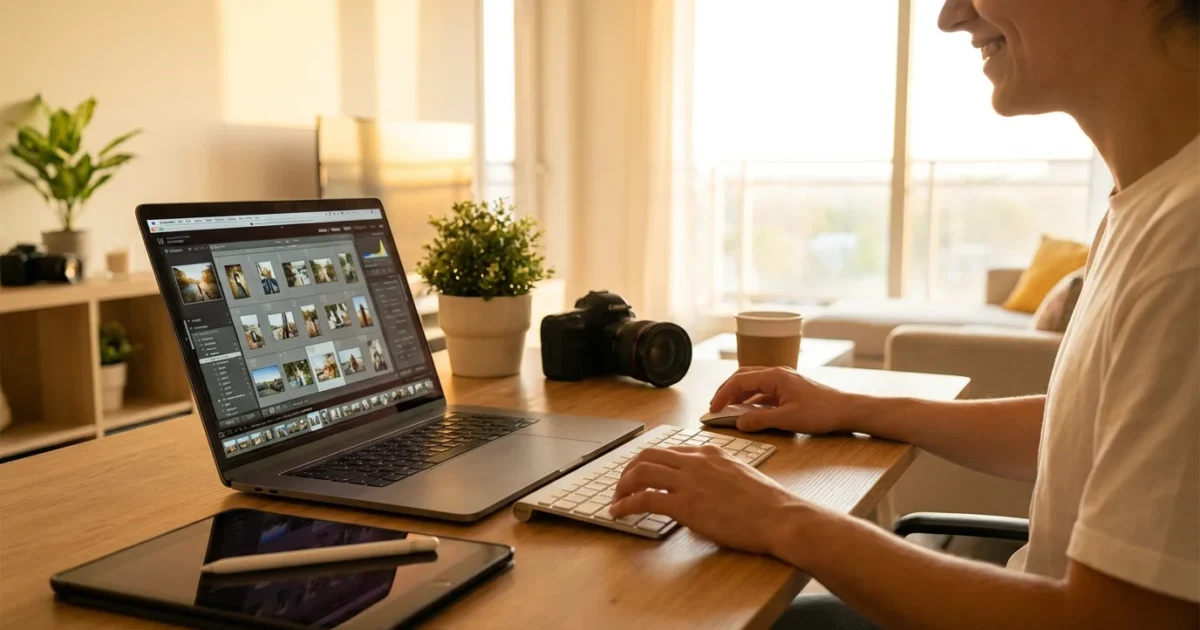
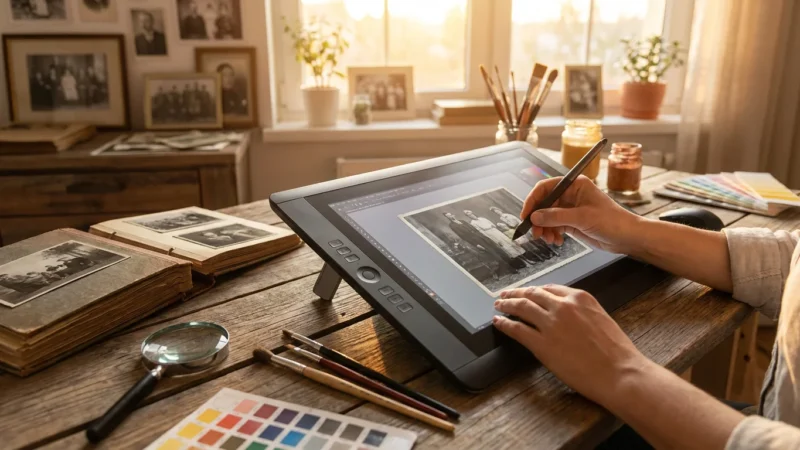
Preserving your family’s photographic heritage involves more than just scanning old prints or taking new digital photos. Often, your precious images benefit from a touch of digital restoration or enhancement. You might have inherited faded sepia prints, scans with dust spots, or even modern digital photos that need simple adjustments to truly shine. The good news is you do not need expensive software to achieve impressive results. Many powerful, free photo editors exist, perfectly suited for beginners who want to elevate their memories.
This guide explores the best free photo editing software available today, focusing on tools that are easy to learn, offer essential features, and help you transform your photos from ordinary to extraordinary. You will discover practical options whether you use Windows, Mac, or prefer web-based solutions. Empower yourself to correct colors, remove imperfections, and bring new life to your photographic collection without spending a dime.
Why Photo Editing Matters for Your Memories
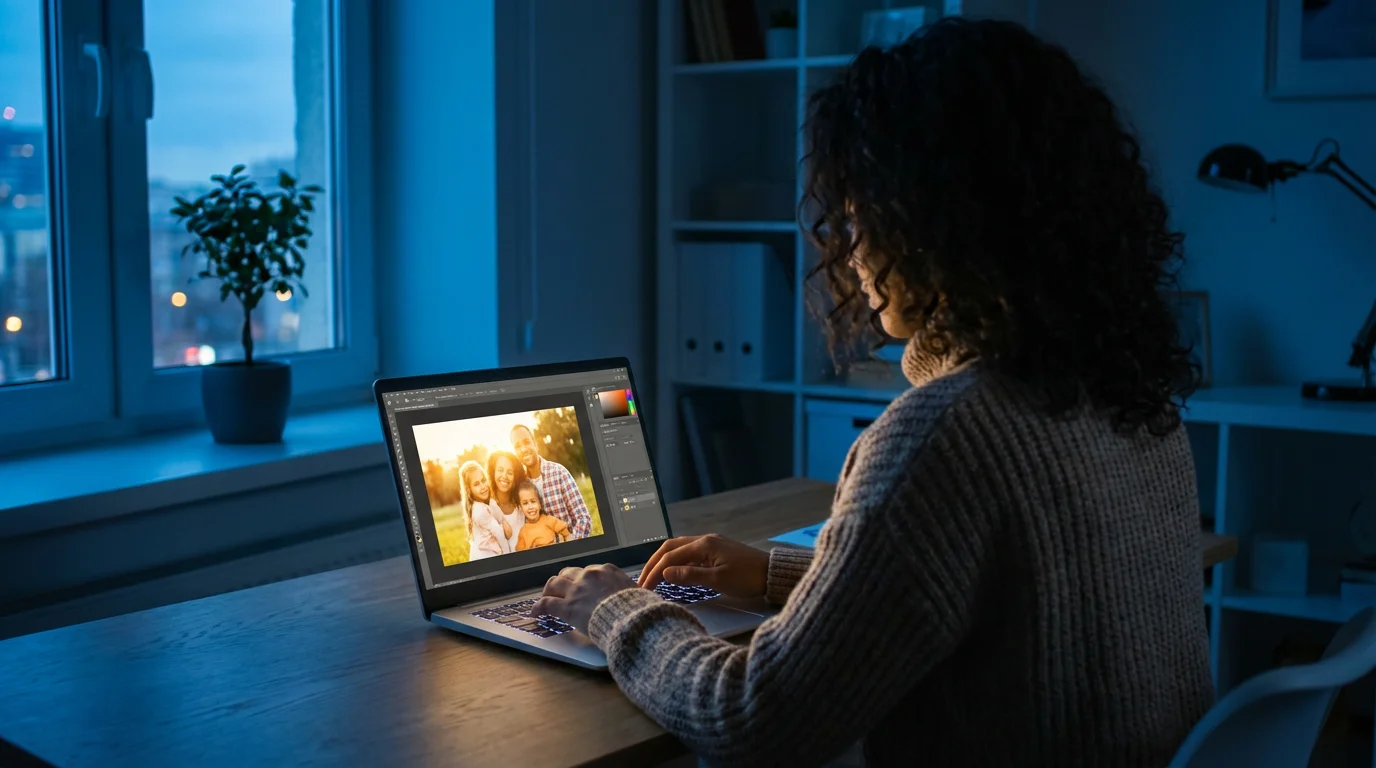
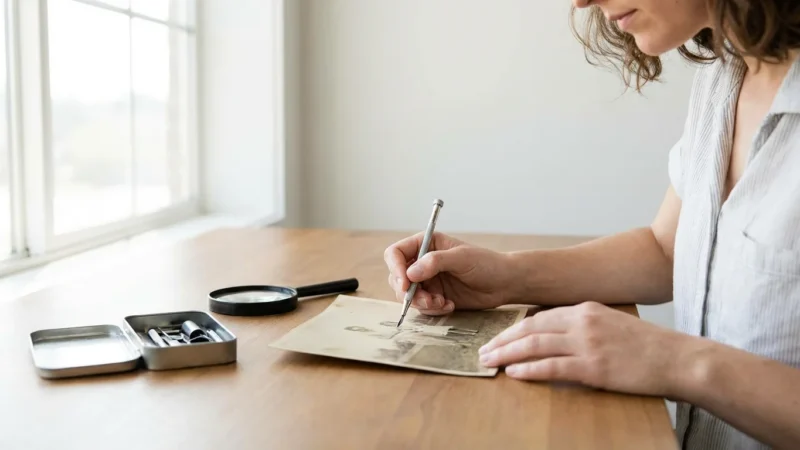
Photo editing is a crucial step in preserving and enhancing your family’s memories. Think of it as digital restoration and refinement. When you digitize old family photographs, they often come with wear and tear from decades of storage. Fading, color shifts, scratches, and dust spots
Properly edited and restored files are a vital component of creating a home photo archive that will last for decades.
Once you master these basics, batch editing photos can help you apply these adjustments to hundreds of images at once.
are common issues. Basic editing allows you to address these problems, restoring the original vibrancy and clarity of the image. For your modern digital photos, editing helps you correct minor flaws, improve composition, and ensure consistent quality across your collection. You are not trying to create something artificial, you are simply bringing out the best in the image, making it clearer and more enjoyable for generations to come.
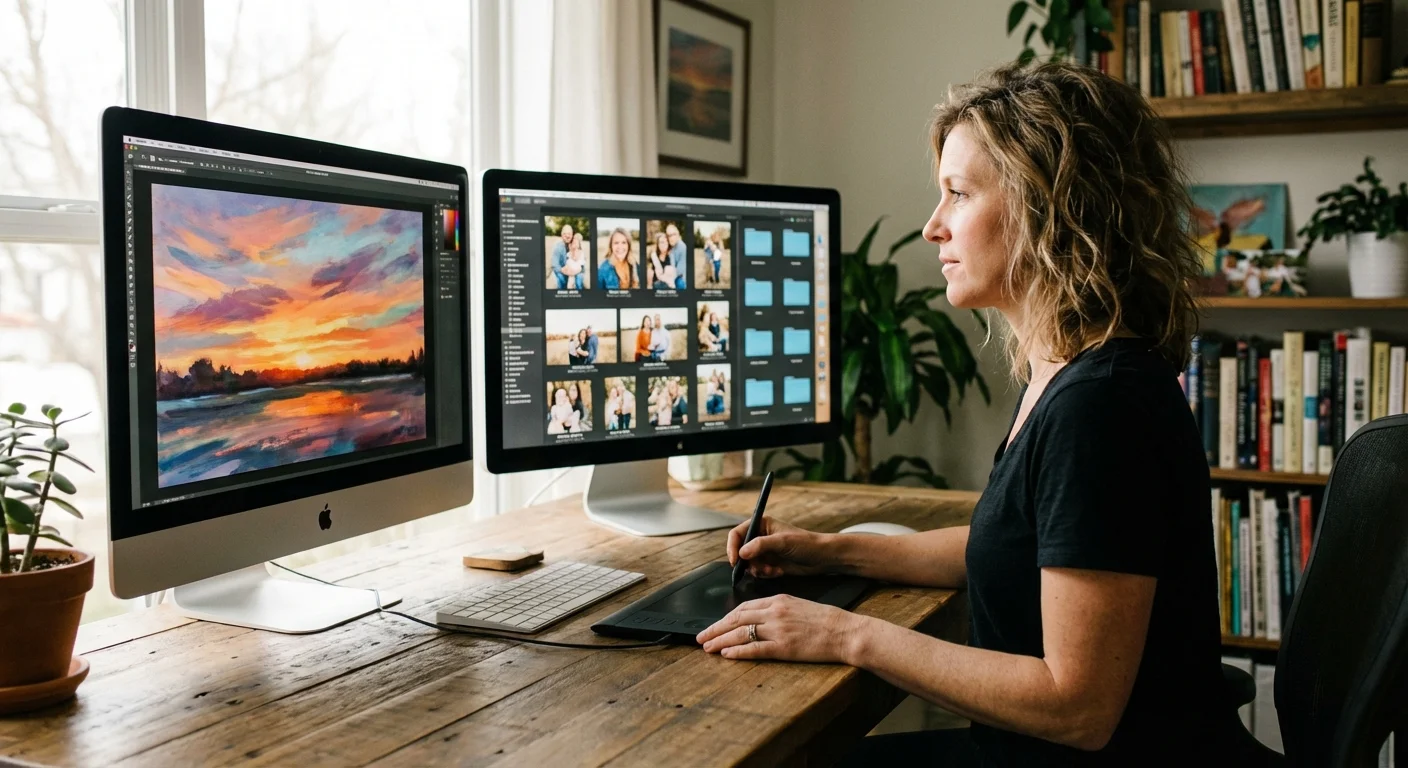
Many people hesitate to try photo editing because they assume it requires advanced technical skills or expensive subscriptions. This is a misconception. Beginner-friendly software focuses on intuitive tools that let you make significant improvements with minimal effort. You can crop distracting elements, adjust brightness and contrast, correct color casts, and even remove small blemishes quickly. These simple adjustments make a profound difference in how your photos are perceived and cherished. By embracing basic editing, you take an active role in safeguarding your photographic heritage, ensuring each image tells its story with maximum impact.
Key Features to Look For in Beginner Editing Software
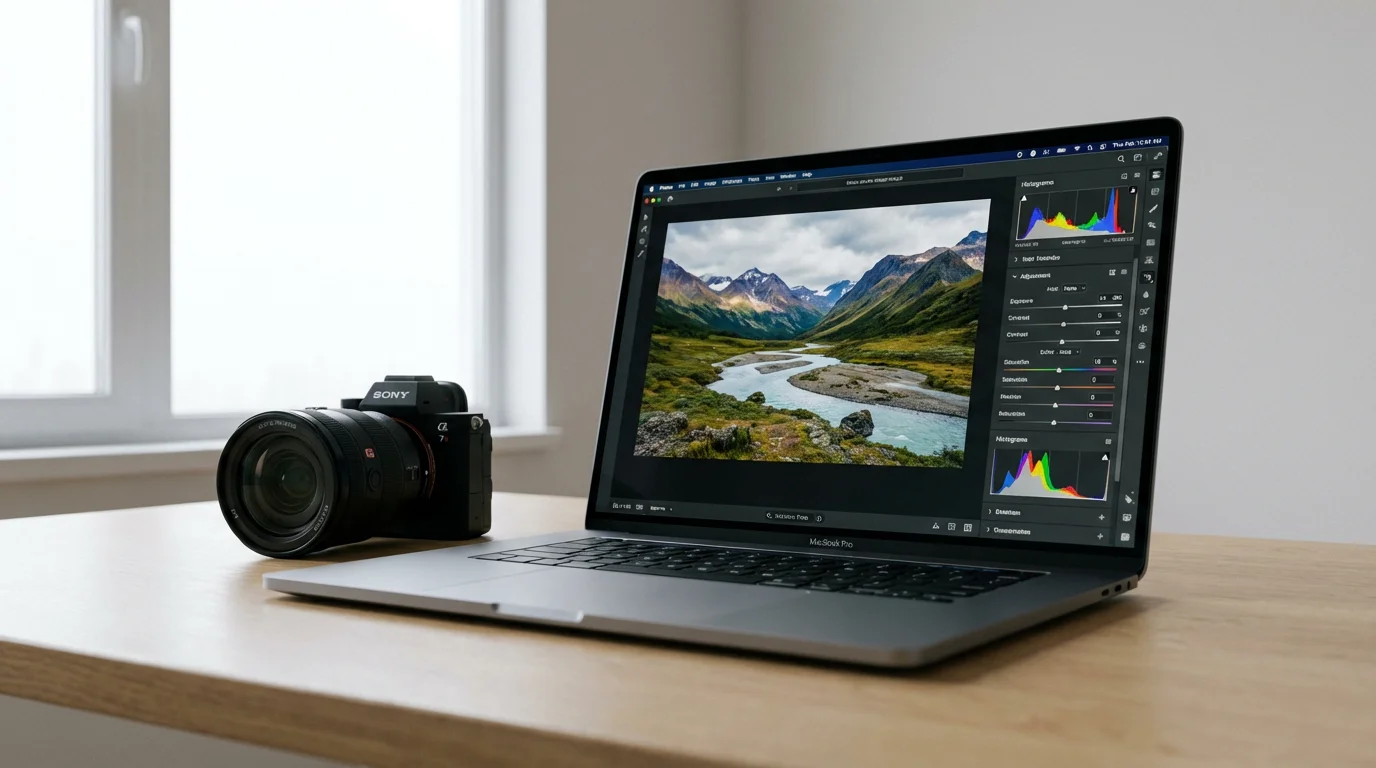
When you begin your journey into photo editing, specific features make the learning process smoother and more effective. Prioritizing user-friendly interfaces and essential tools helps you achieve great results without feeling overwhelmed. Look for software that includes these fundamental capabilities:
- Intuitive Interface: The software should feel approachable, with clearly labeled tools and logical workflows. You want to spend your time editing, not searching for functions.
- Basic Adjustments: Essential tools for brightness, contrast, exposure, highlights, shadows, and white balance are fundamental. These allow you to correct common lighting issues and improve overall image tone.
- Color Correction: Look for options to adjust saturation, vibrancy, and color temperature. These help you fix color casts, restore faded colors, or make colors pop more naturally.
- Cropping and Rotating: These basic tools are indispensable for improving composition, straightening crooked horizons, and removing unwanted distractions around the edges of your photos.
- Resizing: You will often need to resize images for sharing online, printing, or storage. An easy-to-use resizing tool is a must.
- Red-Eye Removal: A common issue in flash photography, a dedicated red-eye tool simplifies correction.
- Sharpening and Noise Reduction: Sharpening helps clarify soft details, while noise reduction minimizes graininess, particularly in older scans or photos taken in low light.
- Layer Support (Optional but Recommended): Layers allow you to make non-destructive edits, meaning you can adjust specific parts of an image without altering the original pixels. This offers immense flexibility and creative control. Even basic layer support provides a significant advantage.
- Undo/Redo History: The ability to easily step back through your changes is vital for experimentation and correcting mistakes.
- File Format Support: Ensure the software can open and save common image formats like JPEG, PNG, and TIFF.
Focusing on tools with these core features ensures you have everything you need to start improving your photos effectively. You can always explore more advanced functionalities as your skills and confidence grow.
GIMP: A Powerful Open-Source Option
GIMP, which stands for GNU Image Manipulation Program, is a free and open-source image editor available for Windows, macOS, and Linux. It stands as one of the most comprehensive free photo editors, often cited as a powerful alternative to professional software. GIMP provides an extensive array of features, from basic cropping and color correction to advanced retouching, layers, masks, and filter effects. Its capability extends to creating graphics, designing web elements, and even performing complex photo manipulations.
For more severe damage like tears or missing pieces, you might also consider using AI photo restoration tools alongside these manual editors.
For a beginner, GIMP offers a robust toolkit to grow into. It handles various file formats, including RAW files through plugins, allowing you to work with high-quality images. The software provides precise control over color, tone, and composition. Its layer system lets you make sophisticated, non-destructive edits, giving you the flexibility to experiment without permanent changes. You can adjust lighting, remove blemishes, or even composite multiple images together using its powerful selection and blending tools.
While GIMP offers incredible power, its interface can initially feel less intuitive than some simpler programs, presenting a steeper learning curve for absolute beginners. You might need to spend some time watching tutorials or reading documentation to fully grasp its extensive capabilities. However, for those willing to invest a little effort, GIMP rewards you with professional-grade editing potential without any cost. It is an excellent choice if you envision yourself eventually tackling more complex photo restoration or creative projects, making it a valuable long-term asset for your photo memory work.
Paint.NET: The Windows-Friendly Choice
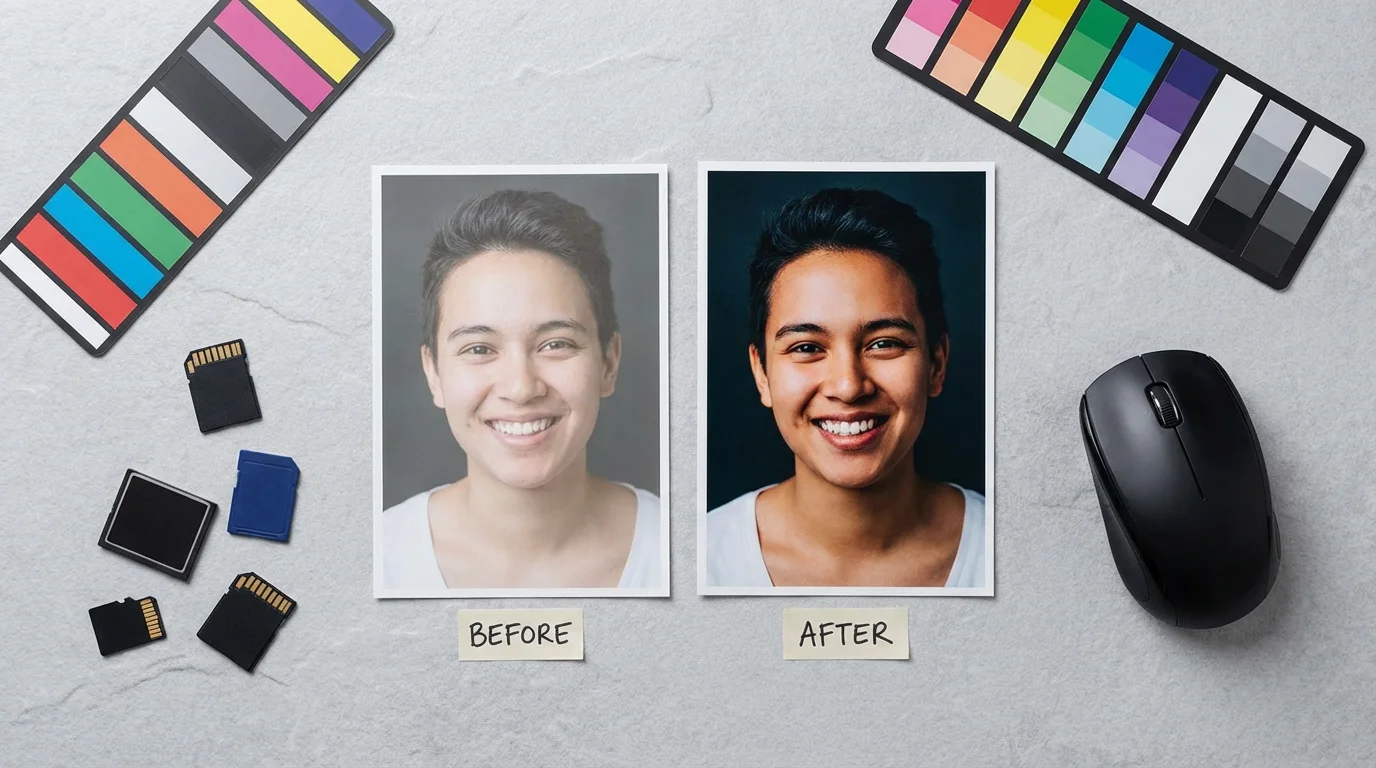
Paint.NET is an image and photo manipulation software specifically designed for Windows operating systems. It offers an excellent balance between simplicity and powerful features, making it a top recommendation for Windows users new to photo editing. Developed with an emphasis on speed and ease of use, Paint.NET provides a clean, intuitive interface that beginners can navigate comfortably.
Once you have finished your edits, consider using dedicated photo management software to keep your growing digital library organized.
If you are focusing on digitizing a vintage collection, reviewing specific color correction tips for scanned photos will help you get the most out of Paint.NET’s adjustment tools.
This software includes a wide range of essential editing tools. You find robust options for adjusting brightness, contrast, hue, saturation, and curves, giving you fine control over your image’s appearance. Paint.NET’s standout feature for many users is its support for layers. This means you can create multiple transparent layers on top of your photo, making specific adjustments or adding elements without altering the original image data. This non-destructive workflow is invaluable for experimentation and complex edits.
You also benefit from various special effects, an unlimited undo history, and a strong community that contributes plugins, further extending its capabilities. For example, you can download plugins to enhance dust and scratch removal or add new artistic filters. Paint.NET is much more capable than the default Windows Paint program, yet it remains significantly less complex than GIMP or professional alternatives. If you are a Windows user seeking a free, powerful, yet accessible photo editor that handles everything from basic corrections to creative enhancements, Paint.NET is an outstanding choice that you will likely enjoy using for many of your photo memory projects.
Pixlr Editor and Pixlr X: Web-Based Convenience
Pixlr offers two excellent web-based free photo editing apps: Pixlr Editor and Pixlr X. Both run directly in your web browser, meaning you do not need to download or install any software, making them incredibly convenient for quick edits on any computer with an internet connection. This accessibility is a huge advantage when you need to make fast adjustments to photos before sharing them or integrating them into a digital memory project.
For those looking to go beyond restoration, these web tools also make it easy to create vintage and retro effects for a unique, nostalgic look.
Pixlr Editor
While browser tools are great for desktops, you might also find photo editing on your phone to be a highly efficient way to manage your mobile captures.
provides a more advanced experience, mimicking the layout and features of traditional desktop photo editors. You get layers, selection tools, filters, and a comprehensive set of adjustments for color, exposure, and sharpening. It supports various file formats, giving you considerable flexibility. If you are comfortable with a more feature-rich environment and want to perform detailed editing in your browser, Pixlr Editor is the stronger option. It caters to users who might find simpler tools limiting but do not want the commitment of desktop software.
Pixlr X, on the other hand, prioritizes speed and simplicity. It features a streamlined interface designed for quick, one-click enhancements. You can easily crop, rotate, apply filters, add text, and adjust basic elements like brightness and contrast. Pixlr X is perfect for absolute beginners or when you need to make swift, impactful changes without delving into complex settings. You can often achieve a polished look in just a few clicks.
Both Pixlr platforms offer a fantastic entry point into photo editing, allowing you to learn and experiment without any upfront cost or installation hassle. While the free versions include advertisements, their ease of use and immediate accessibility make them valuable tools for managing and enhancing your digital photo memories. They are particularly useful for those moments when you are on the go or using a shared computer.
Photopea: A Web-Based Photoshop Alternative
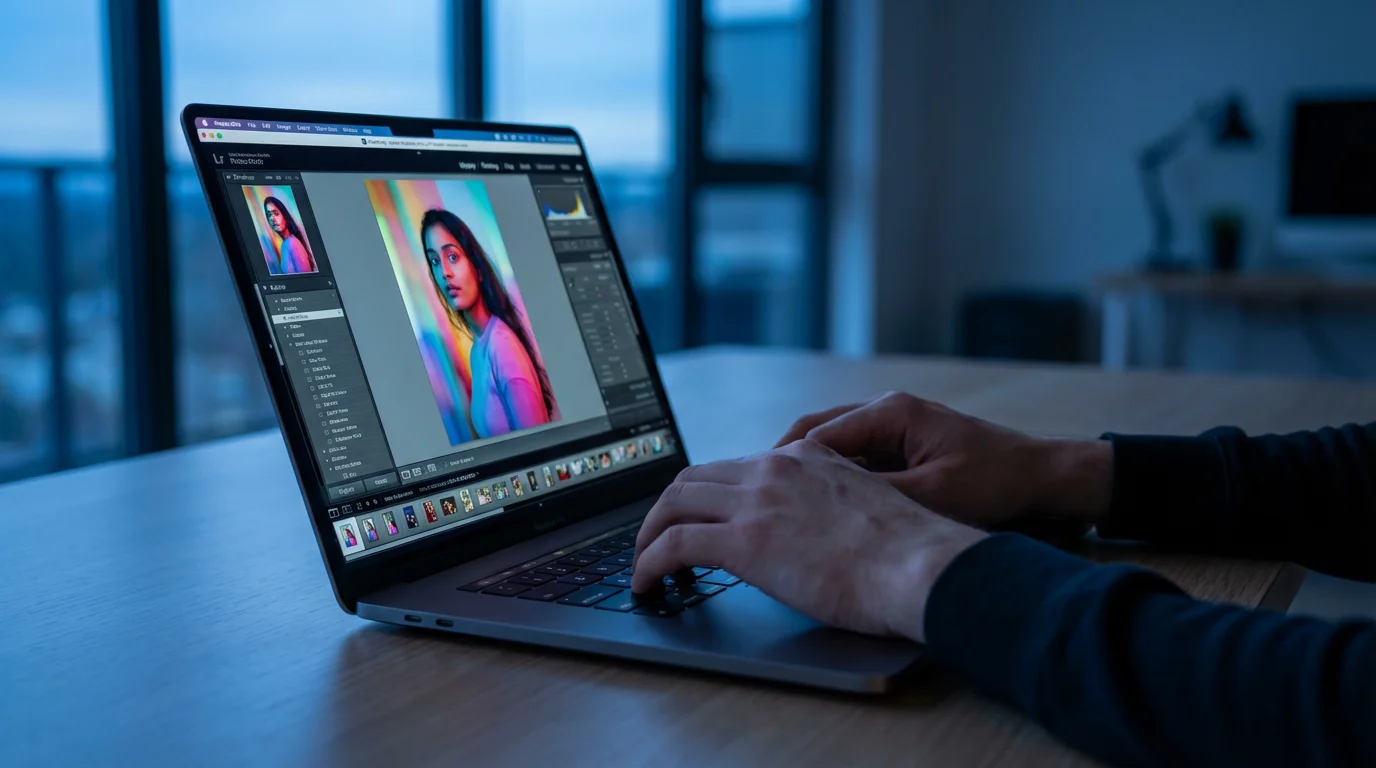
Photopea stands out as a remarkable web-based image editor that offers an experience strikingly similar to professional desktop software. Running entirely in your browser, Photopea supports a vast array of file formats, including PSD (Photoshop files), AI (Adobe Illustrator), Sketch, PDF, XCF (GIMP files), and RAW images. This broad compatibility makes it incredibly versatile, especially if you ever receive files from others using different software.
For beginners, Photopea provides a powerful environment to learn advanced editing concepts. Its interface closely mirrors that of professional programs, complete with layers, masks, smart objects, and a comprehensive suite of selection and adjustment tools. You can perform complex tasks like sophisticated color grading, precise retouching, and detailed compositing, all within your web browser. This means you can achieve professional-quality results without installing any software or paying for subscriptions.
The learning curve for Photopea is comparable to desktop professional editors. While it is accessible online, mastering its full potential requires dedication, just like GIMP. However, for those who appreciate the convenience of a browser-based solution and desire the power to grow into advanced techniques, Photopea offers an unparalleled free option. It is particularly beneficial if you want to familiarize yourself with an interface similar to industry-standard tools, preparing you for more advanced work if you choose to pursue it later. The presence of advertisements helps keep it free, a small trade-off for such powerful capabilities available at your fingertips.
Darktable or RawTherapee: Advanced Free Raw Editors
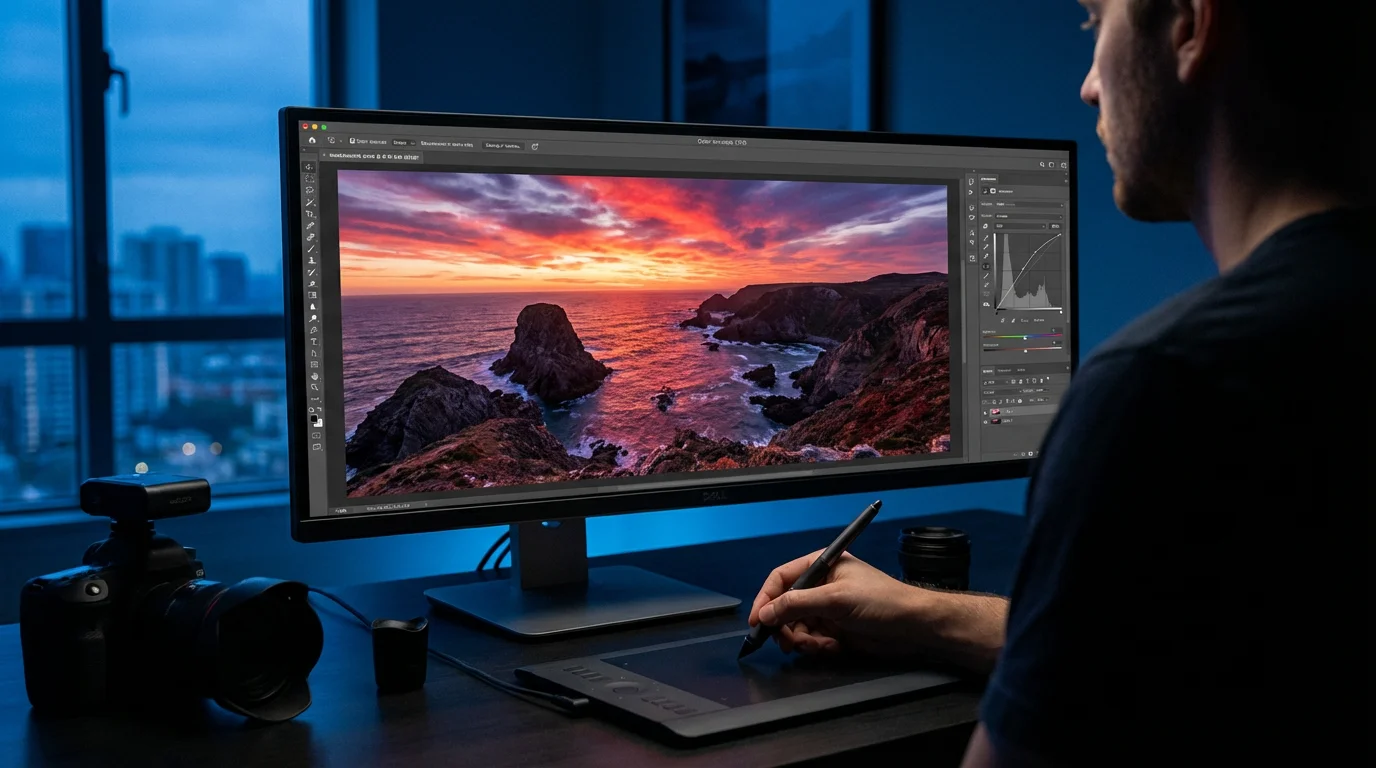
For those ready to move beyond basic JPEG editing and truly unlock the potential of their photographs, Darktable and RawTherapee offer professional-grade RAW image editing capabilities entirely for free. While these programs are generally not for absolute beginners, they represent the pinnacle of open-source photo development. Understanding their value requires a brief explanation of RAW files.
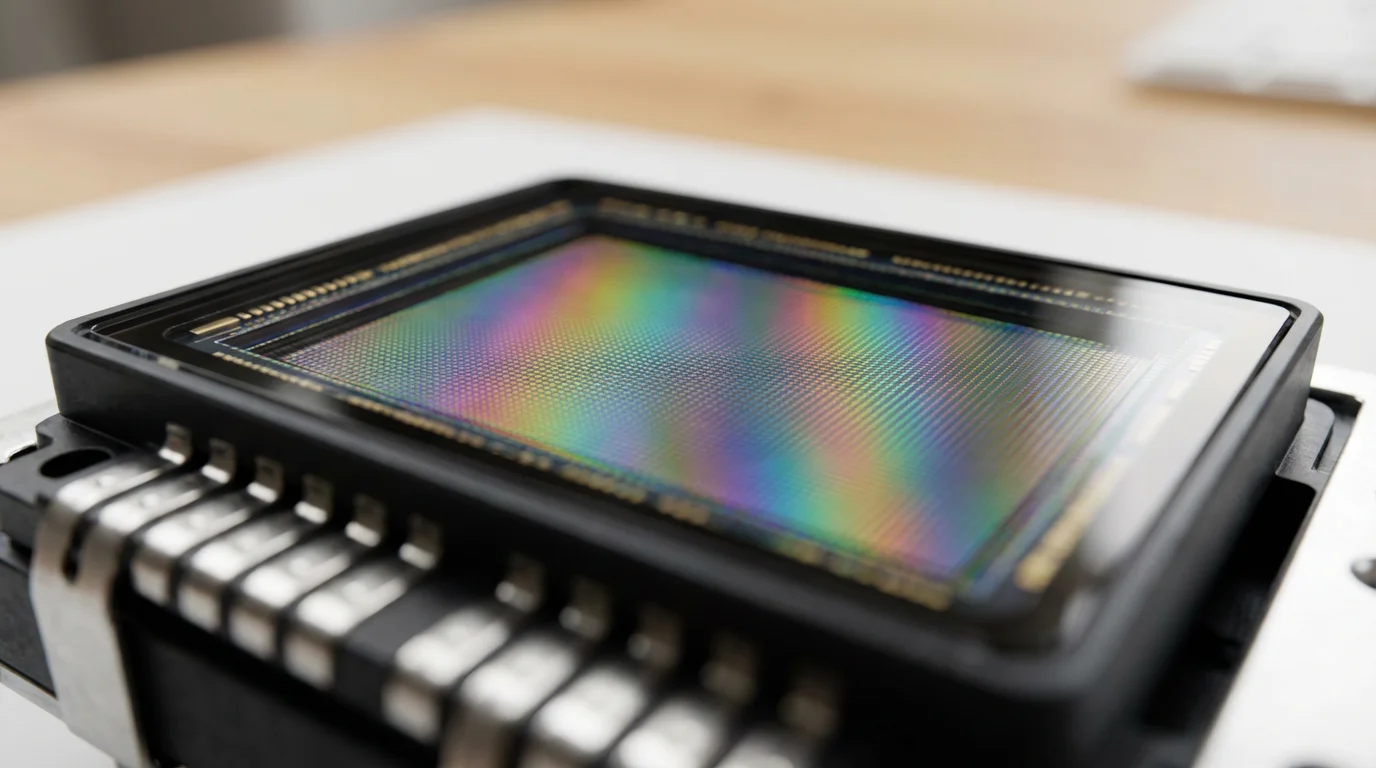
When your digital camera takes a picture, it can save it as a JPEG or a RAW file. A JPEG is a compressed image, processed by the camera with certain adjustments already applied. A RAW file, conversely, is the unprocessed, uncompressed data directly from your camera’s sensor. It contains far more information, offering immense flexibility for adjustments without degrading image quality. This is particularly crucial for images that are slightly over or underexposed, or when you need to make significant color corrections.
“Non-destructive editing is fundamental to professional image workflows. It means your original image data remains untouched, allowing you to experiment freely and revert changes at any point. This approach is invaluable for preserving the integrity of your photographic memories while making powerful enhancements.”
Both Darktable and RawTherapee are non-destructive editors, meaning they apply changes as instructions rather than altering the original RAW file. You can adjust exposure, white balance, color, sharpness, and noise reduction with incredible precision. They offer advanced features like local adjustments, perspective correction, and extensive color management tools. Darktable is often praised for its workflow management and module-based editing, while RawTherapee is known for its excellent detail recovery and sophisticated color tools.
These programs have a steeper learning curve than simple editors, but for photographers who shoot in RAW and want maximum control over their images, they are invaluable. You can download and install them on Windows, macOS, and Linux. If you are serious about getting the best possible quality from your digital camera files, or if you have scanned negatives that you want to process like digital RAWs, dedicating time to learn Darktable or RawTherapee will yield significant rewards.
Choosing the Right Free Photo Editor for Your Needs
Selecting the perfect free photo editor depends on your operating system, skill level, and the types of projects you envision. Consider these factors when making your choice. Do you need a quick online tool for minor tweaks, or a powerful desktop application for in-depth restoration of old photos? Your preferences will guide you to the ideal software.
Here is a comparison table to help you match your needs with the best free photo editing software for beginners:
| Software | Platform | Learning Curve | Key Strengths | Best For |
|---|---|---|---|---|
| GIMP | Windows, macOS, Linux | Moderate to Steep | Extensive features, layers, powerful tools, open-source community support. | Users wanting a full desktop editor, ready for a learning challenge, complex projects. |
| Paint.NET | Windows Only | Easy to Moderate | Intuitive interface, layers, good balance of features and simplicity, plugins. | Windows users seeking a capable yet easy-to-learn desktop editor with layer support. |
| Pixlr Editor | Web-based | Easy to Moderate | Accessible anywhere, no installation, desktop-like interface, good feature set. | Users needing a flexible, browser-based editor with more power than basic tools. |
| Pixlr X | Web-based | Very Easy | Fast, simple interface, one-click enhancements, ideal for quick edits. | Absolute beginners, quick adjustments, social media, no installation needed. |
| Photopea | Web-based | Moderate to Steep | Mimics professional software, extensive file support (PSD, XCF), layers, masks. | Users wanting advanced features in a browser, familiar with professional interfaces, versatile file handling. |
| Darktable / RawTherapee | Windows, macOS, Linux | Steep | Non-destructive RAW editing, professional color management, advanced controls. | Experienced beginners ready for RAW photo development, maximum image quality control. |
Start with the option that feels most comfortable based on your current technical comfort. Many people begin with a simple web-based editor like Pixlr X to get a feel for basic adjustments, then transition to a desktop program like Paint.NET or GIMP as they gain confidence and seek more control. Experimentation is key. Download a few options, try their basic functions, and see which interface resonates most with your style of learning. Remember, the goal is to make your photos look their best, and the right tool helps you achieve that efficiently and enjoyably.
Frequently Asked Questions
Is free photo editing software truly powerful enough for serious use?
Yes, absolutely. Many free photo editors, such as GIMP and Photopea, offer a comprehensive suite of features comparable to professional paid software. They support layers, advanced color correction, retouching, and various file formats. While they might have a steeper learning curve or a less polished interface than premium options, they certainly provide the power to achieve professional-quality results for personal projects and even some commercial work. The key is to learn the software’s capabilities and practice regularly.
If you are specifically looking to revive family heirlooms, you can learn how to restore old faded photos to bring back their original luster.
Can I use these free editors to restore old scanned photographs?
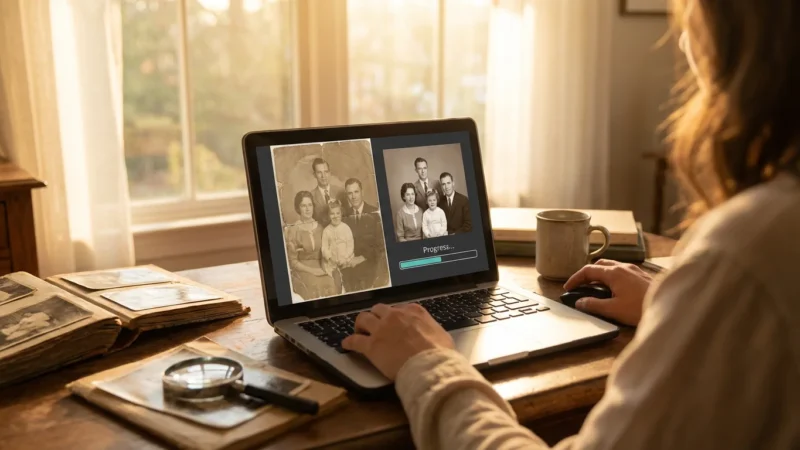
You can certainly use free editors to restore old scanned photographs. Tools like GIMP, Paint.NET, and Photopea offer functions for dust and scratch removal, color correction, fading restoration, and sharpening. You can use layers to isolate imperfections, adjust color casts that develop over time, and boost contrast to bring life back to faded images. Success depends on the original scan quality and your patience with the editing process, but significant improvements are achievable without cost.
What does “non-destructive editing” mean, and why is it important for beginners?
Non-destructive editing means you apply changes to an image without permanently altering the original pixel data. Instead, the software saves your edits as a series of instructions or layers separate from the base image. This is crucial because it allows you to experiment freely, revert to previous stages, or modify any adjustment at any time without damaging your original photograph. For beginners, it removes the fear of making irreversible mistakes, encouraging more confident exploration of editing tools and techniques. Software like Darktable, RawTherapee, and even those with layer support like GIMP and Paint.NET, facilitate this important workflow.
Do these free photo editors work on both Windows and Mac?
Many popular free photo editors offer cross-platform compatibility. GIMP, Darktable, RawTherapee, and the web-based options like Pixlr and Photopea are available for both Windows and macOS users. Paint.NET is a notable exception, being a Windows-exclusive application. Always check the specific software’s compatibility before downloading to ensure it runs smoothly on your operating system. Web-based editors provide the most universal access regardless of your computer’s operating system.
What is the most accessible free editor for someone who has never edited a photo before?
For someone with no prior photo editing experience, Pixlr X is arguably the most accessible free editor. Its streamlined, intuitive interface focuses on quick, one-click adjustments and essential tools. You can make significant improvements to your photos in just a few moments without encountering complex menus or terminology. Paint.NET is also an excellent option for Windows users who prefer a desktop application, as it balances capability with an easy-to-understand design. Starting with either of these allows you to build confidence before exploring more feature-rich options.
Taking the first step into photo editing might seem daunting, but countless free resources and powerful software options await you. These tools empower you to breathe new life into cherished memories, correct imperfections, and ensure your photographs look their absolute best for future generations. Choose a program that matches your current skill level and operating system, then dive in. Start with simple adjustments, explore new features as you gain confidence, and always remember that every edit contributes to a richer, more vibrant legacy of your family’s history. You hold the power to transform and preserve your photo memories with creativity and precision. For further reading on fundamental image editing principles, explore resources like Cambridge in Colour’s Image Editing Basics.
Disclaimer: This article is for informational purposes only. When handling valuable or irreplaceable photographs, consider consulting a professional conservator. Always test preservation methods on non-valuable items first.


Leave a Reply