

Low-light photography often feels like a gamble. You capture a fleeting moment at a family wedding or a dim indoor birthday party, only to find the resulting image covered in a veil of grainy digital noise. For those of us preserving family legacies, this problem extends to our history; scanned negatives and old prints frequently carry grain that obscures the very faces we want to remember. In the modern era of photography, you no longer have to accept these imperfections as permanent flaws.
Artificial Intelligence has revolutionized how we clean up these images. Two titans currently lead the market in this space: Topaz Photo AI and DxO PureRAW. Both promise to strip away noise while preserving—and even enhancing—fine detail. However, they approach the problem from different angles. Choosing the right one depends heavily on your specific workflow, the types of files you own, and whether you are cleaning up modern digital files or digitizing a box of heritage prints. This guide breaks down the performance, usability, and specific strengths of both tools to help you decide which one deserves a spot in your digital darkroom.
Understanding the Science of Noise Reduction
Before you dive into the software, you must understand what “noise” actually is. In digital photography, noise appears as random speckles of color (chrominance noise) or grainy texture (luminance noise). It usually occurs when your camera sensor struggles to gather enough light, forcing the internal electronics to “amplify” the signal. This amplification creates interference. When you scan an old film photograph, you encounter a different but related beast: film grain. While grain is a physical property of the chemical process, it often looks like digital noise once the photo is converted into pixels.
Traditional noise reduction, like the sliders you might find in older versions of Photoshop or basic phone apps, works by blurring the image. It hides the noise by smoothing everything out, which unfortunately also destroys the fine details in your subject’s eyes, hair, or clothing. AI-powered software changes the game. Instead of simply blurring, these programs use neural networks trained on millions of images. They look at a noisy patch of your photo and “understand” what the detail should look like underneath the grit. They effectively rebuild the image rather than just smearing it.
This technology is vital for photo preservation. If you are zooming in on a small face in a 1940s group portrait, a standard noise filter will turn that face into a “watercolor painting” effect. An AI tool like Topaz or DxO attempts to keep the skin texture and eye clarity intact while removing the distracting speckles of the paper or the film’s chemical grain.
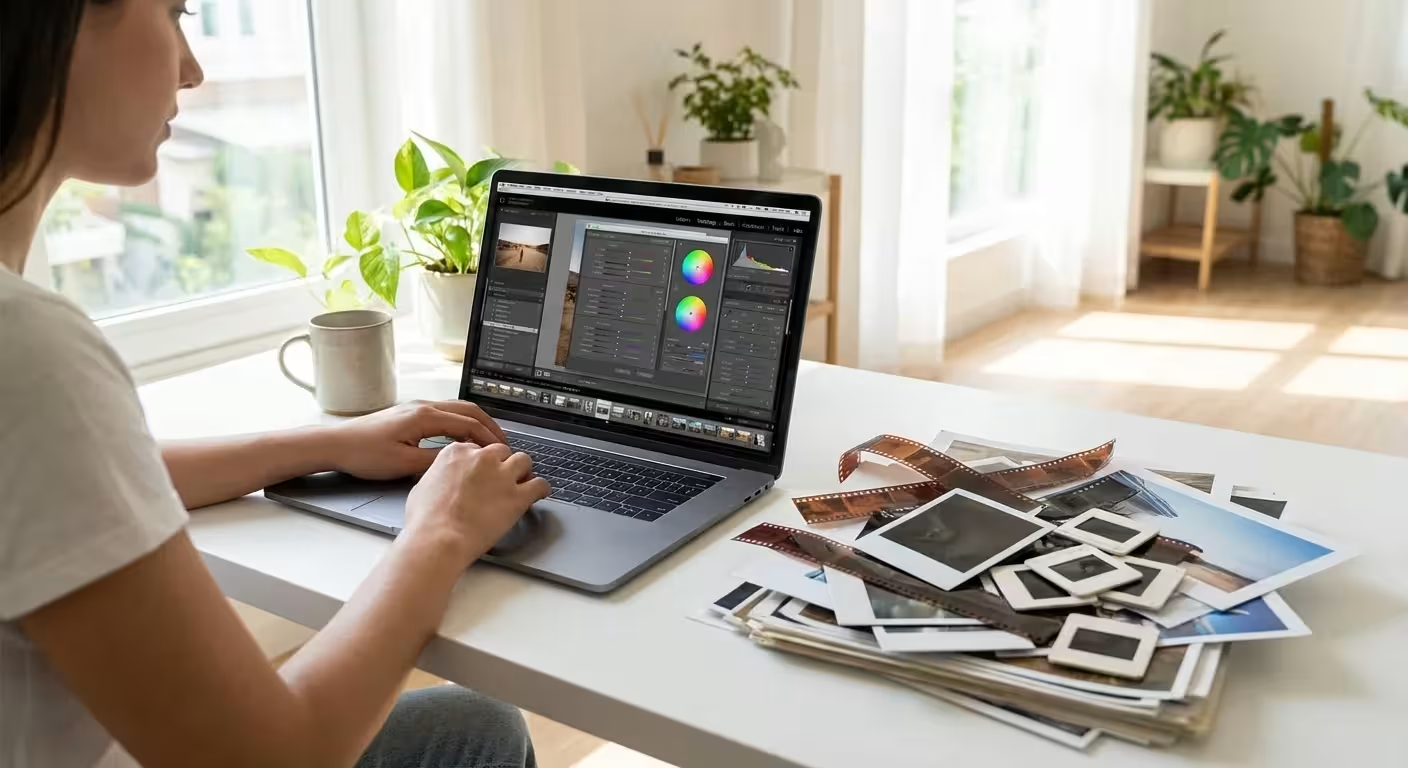
Topaz Photo AI: The All-in-One Solution
Topaz Photo AI acts as a “Swiss Army Knife” for image enhancement. It combines the technology from three of Topaz Labs’ previous standalone products: DeNoise AI, Sharpen AI, and Gigapixel AI. When you open a photo in Topaz, the software initiates an “Autopilot” sequence. This feature analyzes your image to detect specific problems—it identifies high noise levels, motion blur, and even recognizes human faces that need reconstruction.
“The power of Topaz Photo AI lies in its ability to handle multiple corrective tasks in a single pass, which is a significant time-saver for those managing large archival projects.”
One of the most impressive aspects of a Topaz Photo AI review is its versatility with file types. Unlike some competitors, Topaz works remarkably well with JPEGs. This is a massive advantage if you are working with photos taken on older digital cameras or scans of physical prints. Since JPEGs are already compressed, they often contain “artifacts”—blocky, distorted sections of pixels. Topaz identifies these artifacts and smooths them out while simultaneously sharpening the edges of your subject.
The “Face Recovery” tool is another standout feature for those of us focused on family memories. If you have an old photo where the faces are slightly out of focus or blurry from a low-resolution scan, Topaz uses AI to intelligently sharpen eyes, mouths, and hair. You can adjust the strength of this recovery to ensure the person still looks like themselves and doesn’t take on an “uncanny valley” artificial appearance. However, the software can sometimes over-process, making skin look too smooth if you don’t manually pull back the sliders.
DxO PureRAW: The Precision Pre-Processor
If Topaz is a multi-tool, DxO PureRAW is a surgical scalpel. It does not try to be a face-swapper or a creative editor. Instead, it focuses on one thing: creating the cleanest possible “Linear DNG” file from your original RAW data. For the uninitiated, a RAW file is the “digital negative” captured by a camera before any processing is applied. DxO PureRAW is designed to sit at the very beginning of your workflow, cleaning the image before you ever touch a slider in Lightroom or Capture One.
The secret sauce of DxO is its DeepPRIME and DeepPRIME XD2 technology. DxO has spent decades in a laboratory setting, mapping the specific flaws of thousands of camera lenses and sensors. When you load a photo, DxO recognizes the exact camera and lens combination you used. It then applies “Optics Modules” to fix distortion, vignetting, and lens softness specifically for that gear. This level of technical precision is unmatched in a noise reduction software comparison.
For modern digital photographers, the results from DxO PureRAW often look more “natural” than Topaz. It avoids the heavy-handed artificial look by focusing on the raw data level. It removes color noise—those ugly purple and green splotches in dark areas—with incredible efficiency. However, there is a major catch: DxO PureRAW is built almost exclusively for RAW files. If you are trying to fix a JPEG you downloaded from Facebook or a scan of a 1980s polaroid, DxO PureRAW simply won’t work. It requires the rich data found in original camera files to perform its magic.

Head-to-Head: Noise Reduction Performance
When you compare these two strictly on their ability to remove noise, the winner often depends on the ISO (light sensitivity) of the original shot. In a DxO PureRAW comparison against Topaz at extreme ISOs (like 12,800 or 25,600), DxO often maintains better color accuracy. It keeps the “soul” of the photo intact without introducing weird color shifts in the shadows. If you are a wildlife photographer shooting birds at dawn or a wedding photographer in a dark cathedral, DxO’s DeepPRIME XD2 is currently the gold standard for preserving fine feathers or lace detail.
Topaz Photo AI, however, handles “structural” noise better. If a photo is not just noisy but also slightly blurry or low-resolution, Topaz wins because it can sharpen and upscale the image simultaneously. If you take a noisy 10-megapixel photo and want to print it as a large 24×36 canvas, Topaz can increase the pixel count while removing the noise. DxO will give you a very clean 10-megapixel photo, but it won’t help you “grow” the image for large-scale display.
To see these differences in action, consider the technical guides at Cambridge in Colour, which illustrate how noise impacts image clarity. When you use Topaz, you are often “reimagining” the pixels. When you use DxO, you are “purifying” the existing pixels. This distinction is subtle but important for how the final image feels to the viewer.
Workflow Integration and Speed
Efficiency matters when you have a library of 10,000 digital photos or 500 family scans. You don’t want to spend 10 minutes on a single image.
DxO PureRAW is built for speed in batch processing. You can highlight a hundred photos, right-click, and send them to DxO. It processes them in the background and drops the clean versions back into your folder or Lightroom catalog. It is a “set it and forget it” tool. Because its modules are based on pre-calculated lens data, it doesn’t have to “think” as much as Topaz does for every individual frame.
Topaz Photo AI requires more hands-on attention. While it has a batch mode, its Autopilot sometimes makes choices you might disagree with. For instance, it might detect a face in a background crowd and try to “recover” it, making a blurry stranger look like a sharp, slightly creepy mannequin. You often find yourself clicking through images to ensure the AI hasn’t over-sharpened certain areas. If you enjoy the “craft” of editing and want control over every setting, you will prefer the Topaz interface. If you want the software to just “fix it” so you can get on with your life, DxO is the smoother experience.
| Feature | Topaz Photo AI | DxO PureRAW |
|---|---|---|
| Primary Strength | Versatility (Noise, Blur, Upscaling) | Pure Noise Reduction & Lens Correction |
| Supported Files | RAW, JPEG, TIFF, PNG | Primarily RAW only |
| Auto-Pilot | Excellent (detects subjects/faces) | Limited (focuses on technical data) |
| Upscaling | Yes (up to 600%) | No |
| Best For | Restoration & General Enhancement | Professional High-ISO Photography |
Preserving Heritage: Handling Scanned and Old Photos
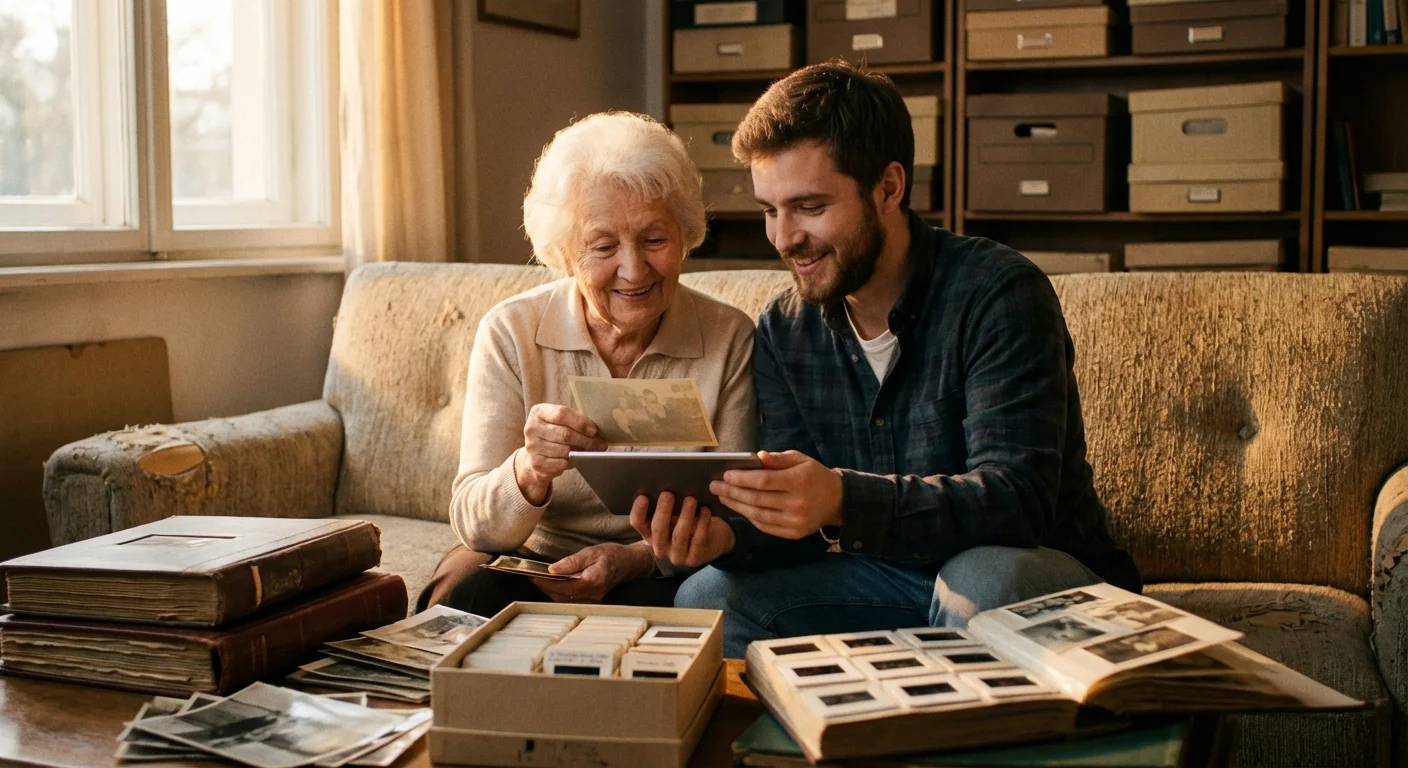
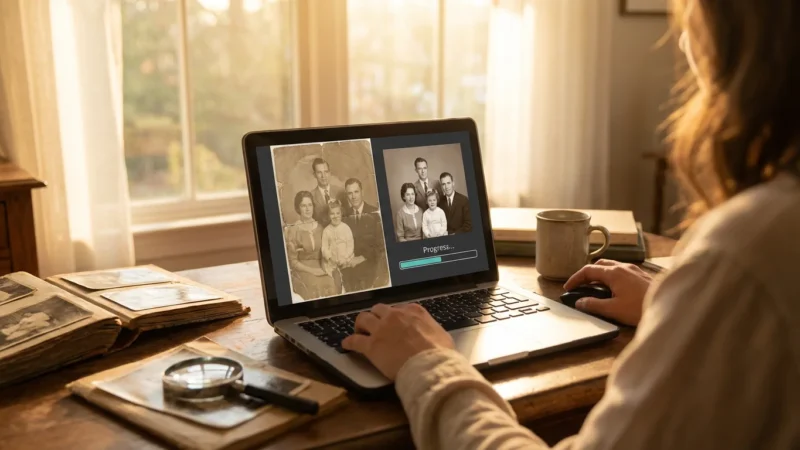
For many visitors to PhotoMemoryHub, the goal isn’t just to fix a photo from last week’s vacation; it’s to save a photo from fifty years ago. This is where the choice between these two tools becomes very clear. Since most scanned photos are saved as JPEGs or TIFFs, Topaz Photo AI is the undisputed champion for photo restoration.
When you scan an old print, you often capture the texture of the paper itself. If the photo was printed on “silk” or “matte” paper, that physical texture can look like heavy noise. Topaz’s “Remove Noise” slider is incredibly effective at identifying that repetitive paper pattern and neutralizing it. Furthermore, old photos are often small. A standard 4×6 print scanned at 300 DPI only gives you about 2 megapixels of data. If you want to share that photo on a modern 4K television or print a larger copy for a memorial, you need more pixels. Topaz’s “Upscale” feature adds that resolution intelligently, using AI to guess where the details should be.
DxO PureRAW, unfortunately, offers very little to the heritage archivist. Unless you are using a high-end mirrorless camera to “scan” your negatives (a process called camera scanning) and saving them as RAW files, DxO won’t even open your images. For those who do use the camera-scanning method, DxO can be useful for removing the digital noise introduced by the sensor during the “scan,” but it still won’t help with the actual grain of the film or the sharpening of the image in the same way Topaz does.

Pricing and Accessibility
Both companies follow a traditional “perpetual license” model, which is a breath of fresh air in an age of endless subscriptions. You pay for the software once, and you own that version forever. However, there is a catch: you usually get one year of free updates. After that, if they release a revolutionary new AI model, you will likely have to pay an upgrade fee to access it.
Topaz Photo AI typically costs more upfront—usually around $199. However, remember that you are getting three tools in one (Denoise, Sharpen, and Upscale). If you were to buy these separately, you would spend much more. Topaz also frequently runs sales during holidays, often dropping the price significantly.
DxO PureRAW is generally more affordable, priced around $119. It is a lower barrier to entry, but it is also a more limited tool. You aren’t getting sharpening of blurry images or upscaling. You are paying for the world’s best RAW cleaner. If you already have a great sharpening workflow, the lower price of DxO makes it an attractive “add-on” to your existing toolkit.
Before purchasing either, check the system requirements. AI processing is incredibly taxing on a computer. You need a relatively modern machine with a dedicated graphics card (GPU) to run these efficiently. If you are using a ten-year-old laptop, you might find that processing a single photo takes several minutes, which can quickly turn a fun preservation project into a frustrating chore. You can find detailed technical hardware reviews at Digital Photography Review to see how different GPUs handle these specific AI tasks.
The Final Verdict: Which One Should You Buy?
The “winner” depends entirely on what is currently sitting on your hard drive or in your shoeboxes.
You should choose Topaz Photo AI if:
- You are working with scanned family photos, JPEGs, or old digital images.
- You need to enlarge small photos for printing (upscaling).
- You have photos that are slightly out of focus or have motion blur.
- You want an all-in-one “repair shop” that handles multiple problems automatically.
You should choose DxO PureRAW if:
- You shoot modern RAW files and want the absolute highest image quality.
- You frequently shoot in low light (wildlife, concerts, indoor events).
- You want a fast, “invisible” workflow that fixes your photos before you start editing.
- You care deeply about correcting lens flaws like distortion and chromatic aberration.
For most people focused on photo preservation and family history, Topaz Photo AI is the more practical investment. Its ability to breathe new life into low-quality, small, or “noisy” scans makes it a foundational tool for anyone serious about protecting their photographic heritage. It turns “that grainy old photo of Grandma” into a clear, printable portrait that can be enjoyed by future generations.
Regardless of the tool you choose, the most important step is to start. Digital noise and physical decay are the enemies of memory. By using these AI tools, you are effectively acting as a digital conservator, ensuring that the visual record of your family stays as sharp and vibrant as the memories themselves. Don’t let noise hide your history; use the technology available today to bring your past into focus.
Frequently Asked Questions
Can I use Topaz Photo AI or DxO PureRAW on scanned JPEG photos?
Topaz Photo AI excels with non-RAW files like JPEGs, TIFFs, and PNGs, making it the superior choice for scanned family photos. DxO PureRAW requires RAW files from supported cameras to utilize its full DeepPRIME processing power, although it offers limited support for some linear DNGs.
Which software is faster for processing large batches of images?
DxO PureRAW generally wins on speed when processing hundreds of images because its workflow is streamlined for one specific task: pre-processing. Topaz Photo AI often takes longer per image because its “Autopilot” analyzes multiple factors like face recovery and sharpening simultaneously.
Do these tools replace Adobe Lightroom’s built-in noise reduction?
While Lightroom recently introduced its own AI Denoise feature, both Topaz and DxO often provide superior results in extreme low-light situations. Many professionals use these tools as a “pre-processor” before moving into Lightroom for creative color grading.
Is a high-end graphics card (GPU) necessary for this software?
Both programs rely heavily on your computer’s GPU to perform complex AI calculations. While they will run on older systems using the CPU, the processing time per photo can jump from seconds to minutes without a dedicated graphics card.
Disclaimer: This article is for informational purposes only. When handling valuable or irreplaceable photographs, consider consulting a professional conservator. Always test preservation methods on non-valuable items first.




Leave a Reply