

Organizing your digital photos can feel overwhelming, especially when you face a sprawling collection of images scattered across devices, old hard drives, and cloud accounts. Perhaps you inherited boxes of physical family photos and now realize the daunting task of digitizing and arranging them. A well-designed folder structure is the bedrock of a manageable and future-proof photo library. It transforms chaos into clarity, making it easy to find specific memories, share them with loved ones, and ensure their long-term preservation. This guide provides a practical, step-by-step approach to creating a robust folder system for your digital photos, turning your overwhelming task into an achievable project.
For those dealing with decades of imagery, learning how to organize 20 years of digital photos can provide additional perspective on managing large archives.

Why a Structured Photo Library Matters
Imagine searching for that specific photo from your child’s first birthday, only to scroll through thousands of unsorted images. Without a clear folder structure, your digital photo library becomes a digital attic, full of forgotten treasures and endless frustration. A well-organized photo library offers significant benefits:
This foundational work is especially important if you plan to organize photos for a family history project to share with future generations.
- Easy Retrieval: You find any photo quickly, whether it is for a school project, a family reunion slideshow, or a personal trip down memory lane. This saves you time and reduces stress.
- Enhanced Enjoyment: You spend less time searching and more time reliving your memories. A clean system encourages you to revisit your photos more often.
- Simplified Backup: A consistent photo library organization allows you to back up your collection efficiently. You know exactly where all your precious files reside, ensuring no memory goes unpreserved.
- Future-Proofing: Technology evolves, but a logical folder structure remains accessible. It does not rely on proprietary software or obscure metadata, ensuring your photos are readable for decades.
- Reduces Duplicates: A structured approach helps you identify and eliminate redundant files, freeing up valuable storage space and reducing clutter. Data shows that many users have hundreds, even thousands, of duplicate images consuming unnecessary storage and complicating backups.
Your digital photo library is a significant part of your personal and family history. Treating it with a structured approach protects this heritage for generations to come.

Core Principles of Effective Photo Organization
Before you dive into creating folders, understand the foundational principles that guide any successful photo library organization. These principles ensure your system is robust, sustainable, and truly serves your needs.
Once you have established your core principles, staying consistent is much easier if you follow a 10-minute daily photo organization routine.
These standards align with professional home photo archive best practices designed for long-term accessibility.
Developing these habits early is key to how to create a photo organization system that sticks over the long term.
- Consistency is Paramount: Apply your chosen structure and naming conventions uniformly across your entire collection. Inconsistency creates new forms of chaos. Decide on a system and stick to it without deviation.
- Scalability for Growth: Design a system that accommodates tens of thousands, even hundreds of thousands, of photos without breaking down. Your library will grow, so your structure must grow with it.
- Simplicity for Accessibility: An overly complex system discourages use and maintenance. Keep it straightforward and intuitive. You should easily understand where to place new photos and where to find old ones.
- Redundancy for Safety: While a folder structure organizes your files, it does not protect them from loss. Implement a robust backup strategy alongside your organization efforts. You need multiple copies of your precious photo library.
- Actionable and Reversible: Any changes you make to your photo organization should be reversible. Work on copies when experimenting, and ensure your process allows you to revert if something goes wrong. This builds confidence in your efforts.
“A well-organized digital photo collection is not just about finding pictures faster. It is about safeguarding your family’s visual heritage and ensuring future generations can connect with their past. Treat your digital files with the same reverence you would physical heirlooms.”

Choosing Your Primary Organizational Method
The first critical decision involves selecting the primary way you want to organize your photos. Most photo library organization systems fall into a few main categories. While you can incorporate elements from each, choose one dominant method for your folder structure to maintain clarity and consistency.
If you’re still undecided on the best approach, you can compare event, date, or people-based systems to see which fits your specific needs.
Organization by Date (Recommended)
This method organizes photos chronologically, starting with years, then months, then specific days or events.
Pros:
- Universal: Every photo has a date, making this the most objective and consistent method.
- Intuitive: People naturally recall memories by when they occurred.
- Automated Sorting: Many cameras and smartphones embed date metadata, simplifying initial sorting.
- Scalable: Easily accommodates new photos without requiring major structural changes.
Cons:
- May require extra steps to find photos from a specific event if you do not remember the exact date.
Organization by Event or Theme
This method groups photos by specific occasions or subjects, such as “Summer Vacation 2023,” “Birthday Parties,” or “Landscape Photography.”
Pros:
- Great for finding specific event-based collections quickly if you know the event name.
Cons:
- Inconsistency: What constitutes an “event” can be subjective.
- Overlapping: A single photo might belong to multiple events or themes, leading to duplicates or tough decisions.
- Scalability Issues: An ever-growing list of event folders can become unwieldy.
- Lack of Chronological Context: Hard to browse your life’s timeline.
Organization by Person
This method dedicates folders to specific individuals.
Pros:
- Useful for creating dedicated albums for each family member.
Cons:
- Duplication: A family photo with multiple people would need to appear in several folders, creating duplicates.
- Complexity: Becomes very difficult to manage with a large number of people or group shots.
Hybrid Approach
Many systems are ultimately a hybrid. You can use date as your primary folder structure, then use subfolders for specific events within those dates. For example: 2023/2023-07_Summer-Vacation-Europe/. You can also leverage tagging and metadata for people and themes, rather than relying on a folder structure alone.
For the vast majority of users building a photo library organization system, a date-based folder structure provides the most robust and accessible foundation. It is the most common answer to how to create a folder system for photos because of its inherent objectivity and scalability. This guide will focus on building such a system, allowing you to easily browse your memories chronologically while incorporating event-specific details within that framework.

Step-by-Step: Building Your Date-Based Folder Structure
Creating an effective folder structure for your digital photos starts with a clear hierarchy. This step-by-step guide walks you through the recommended date-based system, helping you implement the best folder structure for digital photos.
Step 1: Create Your Root Photo Library Folder
First, establish a single, dedicated location for all your photos on your primary storage drive. This is your main hub, your digital photo library organization central command. Choose a logical name for this folder.
- Example:
PhotosorMy Photo Library
Place this root folder in a prominent location, such as directly on your drive (e.g., D:/Photos on Windows or ~/Pictures/My Photo Library on macOS).
Step 2: Create Year Folders
Inside your root folder, create a folder for each year for which you have photos. Use a four-digit year format.
- Example:
Photos/1998Photos/2005Photos/2023
This provides a top-level chronological filter, making it easy to jump to a specific year. Consider creating these folders for all years you expect to have photos for, even if they are currently empty. This prepares your photo library organization for future additions.
Step 3: Create Month Folders Within Each Year
Inside each year folder, create folders for each month. Use a two-digit month number followed by the month name. This ensures proper alphabetical sorting by month.
- Example:
Photos/2023/01_JanuaryPhotos/2023/02_FebruaryPhotos/2023/03_March
This adds another layer of chronological detail. You now have a clear path to any month within any year.
Step 4: Create Event or Day Folders Within Each Month (Optional but Recommended)
For even finer granularity and ease of finding specific occasions, create subfolders within your month folders for specific events or days. Combine the date (YYYY-MM-DD) with a descriptive event name.
- Example:
Photos/2023/01_January/2023-01-15_Sarahs_BirthdayPhotos/2023/01_January/2023-01-28_Snowy_HikePhotos/2023/02_February/2023-02-10_Zoo_Trip
If a month only contains general, unspecific photos, you can simply place them directly in the month folder. However, for significant events, creating a dedicated subfolder vastly improves your ability to locate those specific memories later. This detailed folder structure becomes the ideal photo library organization system for most users. This method addresses the core of how to create a folder system for photos effectively, ensuring both chronological order and event-specific grouping.
Step 5: Handling Unsorted or Special Categories
Sometimes you encounter photos that do not fit neatly into the date-based structure, such as old family photos with unknown dates or specific projects. Create a separate “Unsorted” or “Projects” folder within your root Photos folder.
- Example:
Photos/UnsortedorPhotos/Projects
The goal is to eventually process these. If you can estimate a decade or year for an unsorted photo, place it in an “Unsorted” subfolder within that year, like Photos/1980/Unsorted_Scans. For creative projects, keep them separate until final versions are exported and can be filed by date.

Mastering File Naming Conventions for Easy Retrieval
A consistent file naming convention complements your folder structure, providing another layer of organization and searchability. It makes it easy to sort files alphabetically within a folder and immediately understand a photo’s content without opening it. This is a crucial element of effective photo library organization, especially for those concerned with file naming for long-term accessibility.
The Recommended File Naming Structure
The most robust file naming strategy incorporates the date, a descriptive keyword, and a sequential number.
Format: YYYY-MM-DD_Event-Keyword_001.jpg
Let us break down why this file naming convention works so well:
- YYYY-MM-DD (Date):
- Always start with the date. This allows files to sort chronologically regardless of the folder they reside in.
- Use a four-digit year (YYYY), two-digit month (MM), and two-digit day (DD).
- Separate with hyphens, not slashes, to avoid operating system conflicts.
- Example:
2023-08-15
- _ (Underscore Separator):
- Use an underscore to separate the date from the descriptive text. This improves readability.
- Event-Keyword (Description):
- Provide a concise, descriptive name for the photo or event.
- Use hyphens to separate words for better readability and search engine compatibility (e.g., when uploading to photo sharing sites).
- Avoid spaces, special characters (like
&, %, $, #), and punctuation (like?, !, .). - Keep it brief yet informative.
- Example:
Summer-Vacation-Beach,Sarahs-Birthday-Party,Grandma-Portrait
- _001 (Sequential Number):
- If you have multiple photos from the same event on the same day, add a three-digit sequential number. This prevents overwriting and maintains a logical order.
- Start with
001, then002, and so on. - Example:
_001,_002,_010,_123
- .jpg (File Extension):
- The file extension tells your computer what type of file it is (e.g.,
.jpg,.png,.raw,.heic). Do not change this.
- The file extension tells your computer what type of file it is (e.g.,
Complete File Naming Examples:
2023-08-15_Summer-Vacation-Beach_001.jpg2023-08-15_Summer-Vacation-Beach_002.jpg2023-08-15_Family-Picnic.jpg(If only one photo for the day/event)1995-10-22_Graduation-Day_Scan_001.tif(For scanned images)
Batch Renaming Tools
Renaming hundreds or thousands of photos manually is impractical. Utilize batch renaming tools to automate this process. Many operating systems offer built-in batch renaming capabilities. For instance, in Windows, you can select multiple files, right-click, choose “Rename,” and type a common name, which Windows then appends with a sequential number. For more advanced options, third-party applications like Adobe Bridge, FastStone Image Viewer, or dedicated renaming utilities provide powerful features to extract metadata (like capture date) and apply custom naming patterns. This significantly speeds up the file naming stage of your photo library organization.

Integrating Physical Scans and Digital Photos
Your photo library likely includes a mix of new digital captures and digitized old family photos. A consistent folder structure and file naming system accommodates both, creating a unified timeline of your visual heritage. Many families inherit shoeboxes full of precious, irreplaceable photos that require careful handling and digitization. The National Archives provides extensive guidance on preserving physical artifacts, including photographs, emphasizing the importance of proper storage and handling before and after digitization.
If you have not yet scanned your analog collection, consider organizing physical photo prints before you begin the digitization process.
Digitizing Old Photos
When you digitize old prints, slides, or negatives, prioritize quality. Use a high-resolution scanner or a professional digitization service. Save the master scan in a high-quality, uncompressed format like TIFF to retain maximum detail. You can then create smaller JPEG versions for everyday viewing and sharing.
Folder Placement for Scans
Integrate scanned photos into your date-based folder structure as if they were original digital captures. If you know the exact date, place them in the corresponding year, month, and event folder. If the exact date is unknown, estimate a year or decade.
- Example:
Photos/1985/1985-06-XX_Grandparents-Wedding_Scan.tif(Use ‘XX’ for unknown day)Photos/1970s/197X-XX-XX_Childhood-Memories_Scan_001.jpg(For estimated decade)- Alternatively, create a dedicated ‘Scans’ subfolder within a year for easier batch processing later:
Photos/1970/Scans_Unknown_Date
File Naming for Scans
Apply the same file naming conventions, adding “Scan” or a similar identifier to distinguish them from born-digital images. This helps you understand the origin of the image at a glance.
- Example:
1965-03-10_Family-Reunion_Scan_001.tif1982-XX-XX_Baby-Photos_Scan_002.jpg
Remember that old photos are fragile. When handling physical photos for scanning, use cotton gloves to prevent oils and dirt from transferring. Return them to archival sleeves and boxes after digitization. The Image Permanence Institute offers valuable insights into the longevity of photographic materials, both physical and digital, underscoring the importance of careful handling and storage for preservation.

Implementing Your New Structure: A Migration Strategy
Transitioning from a disorganized collection to a structured photo library organization can seem daunting. A strategic approach minimizes stress and helps you achieve your goal systematically.
Phase 1: Preparation and Planning
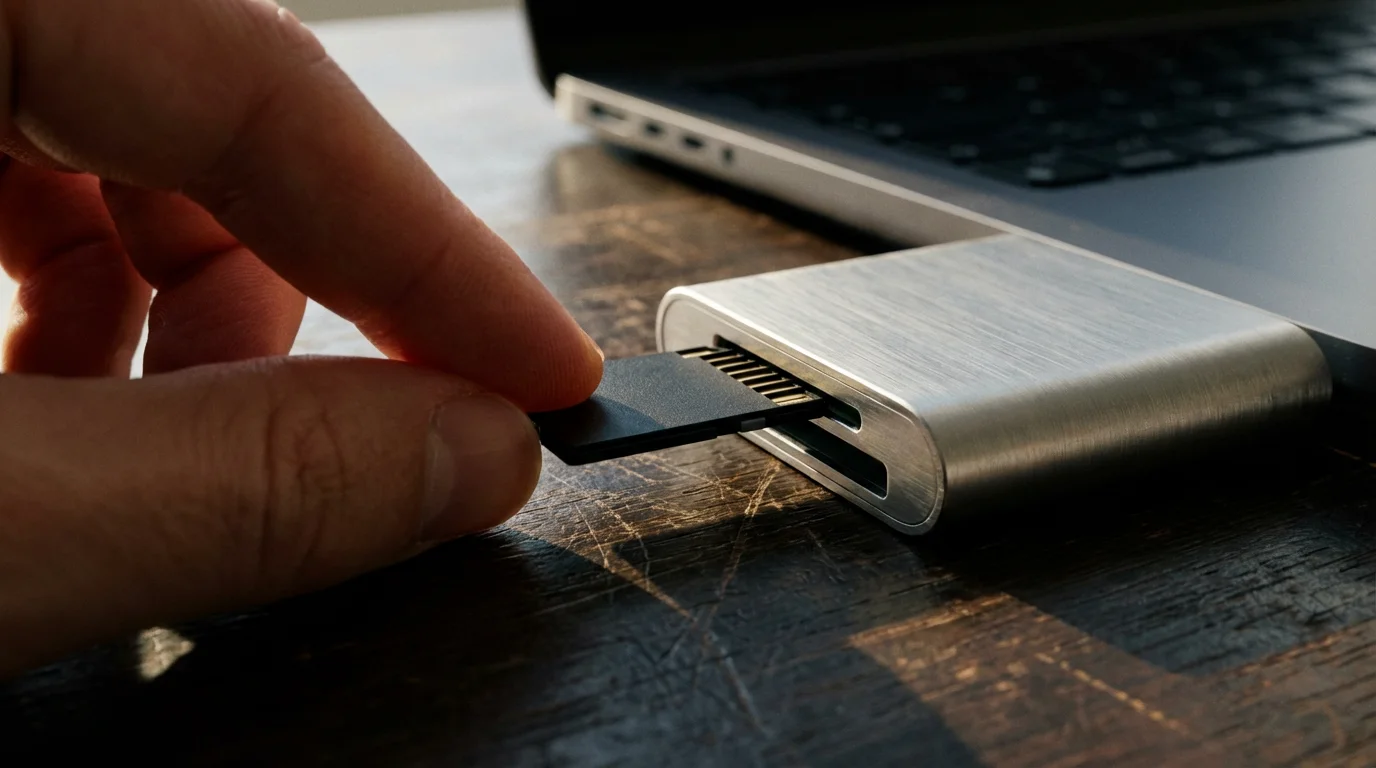
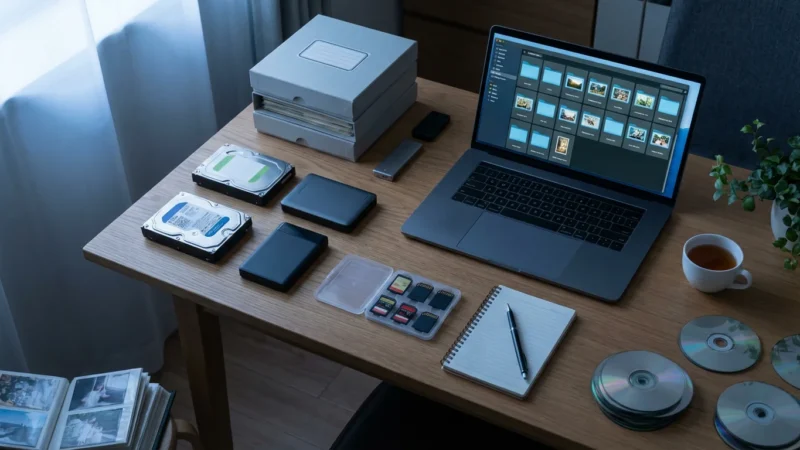
- Gather All Photos: Consolidate photos from all sources onto one large external hard drive or your computer’s primary photo drive. This includes old phones, memory cards, cloud services, and other devices. Create a temporary “Incoming” or “Unsorted Photos” folder for this initial dump.
- Backup Everything: Before you move or delete anything, perform a complete backup of all your photos in their current state. This provides a safety net if you make a mistake. You can use an external hard drive or a cloud backup service.
- Clean Up Duplicates (Optional First Pass): Use a duplicate file finder application to identify and remove obvious duplicates. Be cautious, as some tools might identify visually similar but unique images as duplicates. Review suggestions before deleting.
Phase 2: Building and Populating the Structure
- Create the Core Structure: Set up your root
Photosfolder and your primary year folders (e.g.,Photos/2000,Photos/2001, etc.) on your designated photo drive. - Start with Current Photos: Begin by processing all new photos from this point forward. Adopt your new folder structure and file naming conventions immediately. This prevents new backlogs while you work on the old ones.
- Tackle Old Photos Chronologically: Work backward from your most recent older photos. For example, start with 2022, then 2021, and so on. This keeps you working with relatively familiar images first.
- Process in Batches: Do not try to organize everything at once. Dedicate specific blocks of time, perhaps an hour or two each week. Focus on one year or one month at a time.
- Move, Do Not Copy: Once you are confident a photo is correctly placed in its new folder and renamed, move it from your “Incoming” or old disorganized folders. This prevents having multiple copies of the same photo in different places, which causes confusion.
- Verify as You Go: After processing a batch, quickly review the destination folder to ensure everything looks correct.
Phase 3: Refinement and Ongoing Maintenance
- Delete Empty Folders: Once you have moved all photos from a source folder, delete that folder to keep your storage clean.
- Regular Backups: Maintain your backup routine. As your organized photo library grows, ensure your backups are up-to-date.
- Refine Naming/Folders: As you become more comfortable, you might adjust some folder or file names for clarity. The system should be flexible enough to adapt slightly as your needs evolve.
This systematic approach, starting with preparation and moving in manageable steps, ensures that you can successfully migrate your entire photo collection to your new, efficient folder structure without feeling overwhelmed. Remember, the goal is progress, not instant perfection.
Maintaining and Evolving Your Photo Library
Building a robust folder structure is a significant achievement, but maintaining it is an ongoing process. Your photo library is a living archive, constantly growing and evolving. Regular maintenance ensures it remains an organized, accessible, and valuable resource for your family’s memories.
To keep your collection from becoming unmanageable again, establishing a 10-minute daily photo organization routine is a highly effective maintenance strategy.
Establish a Routine for New Photos
Consistency is the cornerstone of effective photo library organization. Develop a clear workflow for ingesting new photos from your camera, phone, or other devices. For example, you might decide to:
- Transfer all new photos from your devices to a temporary “Incoming” folder on your computer every week.
- Review these photos, deleting blurry shots, duplicates, and unwanted images.
- Rename the keepers using your established file naming convention.
- Move the renamed photos into their correct year/month/event folders within your main photo library.
- Initiate a backup after each significant addition.
This routine prevents new backlogs and keeps your system tidy. Many people find a monthly or bi-weekly routine works best, allowing enough time for new photos to accumulate without becoming unmanageable.
Regular Review and Pruning
Even with a good intake routine, your library benefits from periodic review. Once or twice a year, dedicate time to:
- Delete Redundancies: Over time, duplicate images can creep back in. Use duplicate photo finder software or manually scan folders.
- Review Unsorted Folders: If you created “Unsorted” or “Projects” folders, make an effort to process those images and integrate them into your main chronological structure.
- Consolidate Small Events: If you have many very small event folders that might be better grouped under a broader monthly folder, consider merging them.
- Check for Consistency: Ensure your file naming and folder structure remain consistent across the entire photo library. Correct any deviations you discover.
Backup, Backup, Backup
No folder structure, however perfect, protects against hardware failure, accidental deletion, or disaster. Implement a comprehensive 3-2-1 backup strategy:
- 3 Copies: Keep at least three copies of your data.
- 2 Different Media Types: Store your copies on two different types of storage media (e.g., internal hard drive, external hard drive).
- 1 Offsite Copy: Keep at least one copy in a different physical location (e.g., cloud storage, or a physically separate external drive stored elsewhere).
Cloud services like Google Photos, Dropbox, or OneDrive can be excellent for offsite backups and convenient access, but ensure you understand their terms and conditions regarding privacy and data retention. Relying solely on a single cloud provider for your master photo library is not the best strategy. The Library of Congress Preservation division offers valuable insights into digital preservation best practices, reinforcing the importance of redundant backups and diverse storage solutions for safeguarding your digital heritage.
Adapting Your System Over Time
Your needs and preferences might evolve. Your folder structure is not set in stone. The beauty of a date-based system is its inherent flexibility. If you later decide you want a specific “Travel” category, you can create a top-level folder for that and use symlinks or aliases to point to specific trip folders within your date-based structure, without disrupting the original organization. This hybrid approach allows for specialized access while maintaining the core chronological integrity.
By committing to these maintenance practices, you ensure your photo library remains a vibrant, accessible, and well-preserved collection of your most cherished memories for years to come. This commitment ultimately preserves your photographic heritage.
Frequently Asked Questions
How often should I organize my digital photos?
Commit to a regular schedule, such as once a month or quarterly. This prevents overwhelming backlogs. Dedicate a specific time to transfer new photos, delete duplicates, and integrate them into your established folder structure. Consistency is key to maintaining an organized photo library.
Can cloud storage services replace a local folder structure?
Cloud storage offers convenience and accessibility, serving as an excellent backup and synchronization tool. However, it does not replace the need for a well-defined local folder structure. A robust local structure gives you full control over your files, ensures offline access, and protects you from potential service changes or data loss. Integrate cloud services as a part of your comprehensive backup strategy, not as your primary organizational system.
Should I use tags or keywords in addition to folders?
Yes, absolutely. Folders provide a foundational hierarchical organization, while tags and keywords offer a flexible, non-hierarchical way to categorize photos. You can tag images with multiple attributes, such as names of people, specific events, locations, or emotions. This allows for powerful search capabilities, enabling you to find photos across different folders quickly. Use both folders and tags for a comprehensive photo organization system.
What if I have thousands of unorganized photos already? Where do I begin?
Start small and do not aim for perfection immediately. Create your root folder and initial year folders. Then, tackle your oldest photos first, perhaps working through one year or even one month at a time. Process new photos as they come in to prevent further backlog. Gradually integrate your existing collection. Consistency over intensity proves more effective for large collections. Consider using a photo management software to assist with identifying duplicates or sorting by metadata.
How should I handle photos and videos together?
Integrate videos directly into your existing date-based folder structure. Videos are intrinsically tied to the date and event they capture, just like photos. Place them within the same month or event folders. You might consider adding a simple suffix to video files, like ‘_VIDEO,’ or using specific video file extensions for easy identification. This ensures all your memories from a specific time or event reside together, simplifying retrieval and storytelling.
Disclaimer: This article is for informational purposes only. When handling valuable or irreplaceable photographs, consider consulting a professional conservator. Always test preservation methods on non-valuable items first.








Leave a Reply