
Your photographs are more than just digital files or printed paper; they are tangible links to your past, repositories of cherished moments, and records of your family’s history. Preserving these memories for future generations is a vital task, and in our increasingly digital world, choosing the right storage solution becomes a critical decision. You stand at a crossroads when it comes to backing up your precious photo archives: do you entrust your memories to a physical device you hold in your hand, or do you send them to the seemingly infinite expanse of the cloud?
Adopting best practices for creating a home photo archive will ensure your collection remains manageable as it grows over the years.
This comprehensive guide will help you navigate the complexities of external hard drives and cloud storage, offering practical insights to empower you in making the best choice for your unique photo collection. We will delve into the advantages and disadvantages of each option, explore cost implications, discuss security and accessibility, and ultimately help you craft a robust preservation strategy that keeps your memories safe and accessible.

Understanding Your Photo Archive: What Do You Need to Protect?
Before you commit to a storage solution, take a moment to assess the scope and nature of your photo collection. This initial assessment guides your requirements for capacity, speed, and budget. You likely have a mix of digital images from your smartphone, DSLR, and scanned old family photographs. Each type contributes to the overall size and importance of your archive.
Before you start the backup process, it is a great time to find and remove duplicate photos to save space and keep your archive clean.
Consider these questions:
- Total Volume: How many gigabytes (GB) or terabytes (TB) do your photos currently occupy? A typical smartphone photo is 3-7MB, while high-resolution DSLR raw files can be 20-50MB each. Scanned prints and negatives can also add significantly to your storage needs, especially if digitized at high resolutions for archival quality. An archive of 100,000 photos could easily reach 1-2 TB or more.
- Growth Rate: How many new photos do you create or add each month or year? Your storage solution needs to accommodate future growth without becoming immediately obsolete.
- File Types: Do you primarily store JPEGs, or do you have many uncompressed TIFFs, RAW files, or even video clips? RAW files, for instance, retain maximum image data but require much more storage.
- Frequency of Access: How often do you need to access your entire archive versus a select few photos? Do you regularly edit old photos, or do you mostly view current ones?
- Importance: Are these memories irreplaceable? For most people, family photos fall into this category, demanding robust backup strategies.
Understanding these factors gives you a clear picture of your actual storage needs, which is crucial for an informed decision about `photo backup options`.
External Hard Drives: The Tangible, Local Solution
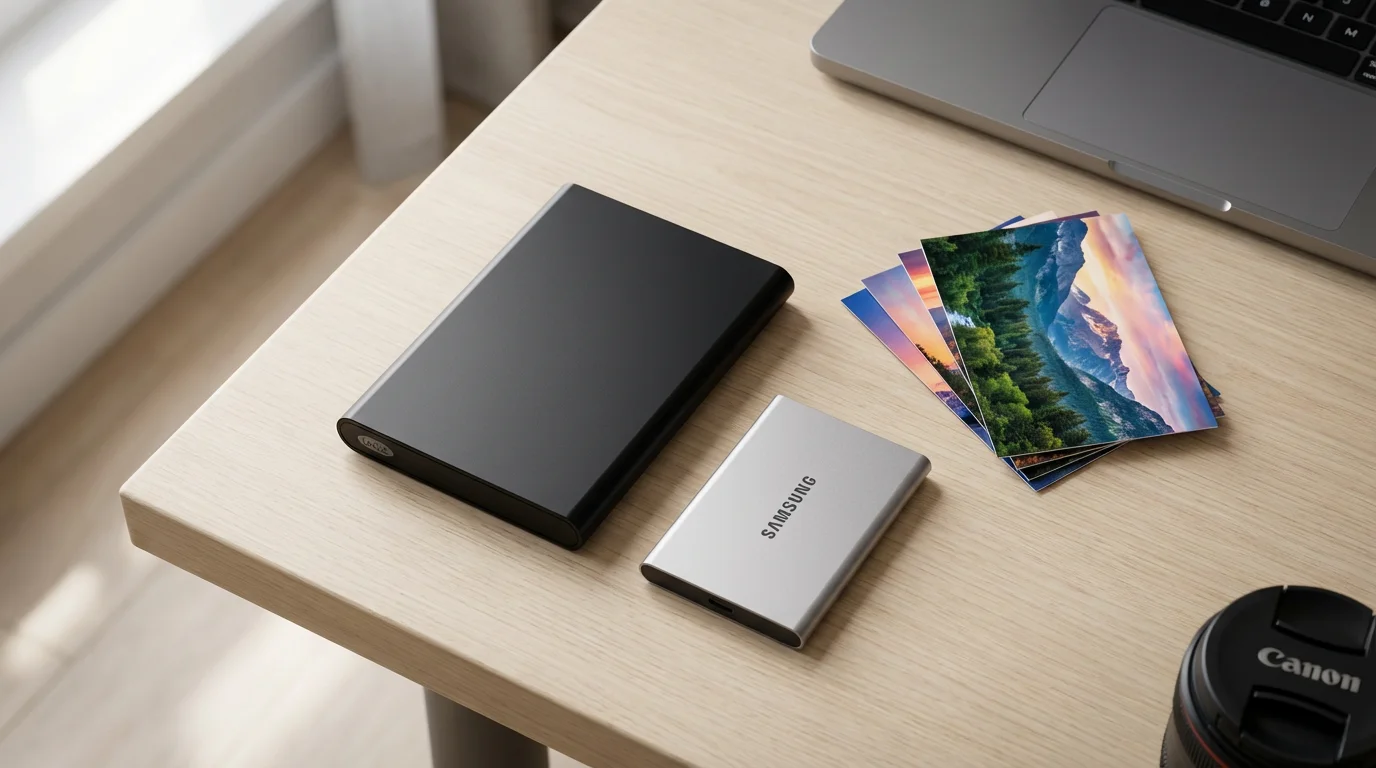
External hard drives offer a direct, physical way to store your `photo collection`. These devices connect directly to your computer, providing a personal, local backup. They come in various capacities, from 1 TB to well over 20 TB, allowing you to store vast numbers of images.
Physical drives are a perfect companion when you are organizing physical photo prints and need a local destination for your new scans.
When using physical drives, success often comes down to creating a folder structure for your photo library that makes sense years down the road.
Advantages of External Hard Drives
- Speed: Local access means faster transfer speeds for copying, reading, and writing files compared to downloading or uploading over the internet. Modern USB 3.0, USB-C, or Thunderbolt connections can transfer hundreds of megabytes per second. For example, moving a 1 TB collection to an external SSD via USB 3.2 could take under an hour, whereas uploading the same volume to cloud storage could take days or weeks depending on your internet speed.
- One-Time Cost: You purchase the drive once. There are no recurring subscription fees, which can make them a more economical choice in the long run for large archives. A 4TB external HDD might cost around $100-$150, an investment that covers years of storage.
- Control and Privacy: You retain complete physical control over your data. Your photos reside solely on your device, disconnected from the internet. This provides peace of mind for those concerned about data privacy with third-party providers.
- Offline Accessibility: Access your entire archive anywhere, anytime, without an internet connection. This is invaluable for photographers working in remote locations or during travel.
- Suitable for Large Files: Ideal for storing high-resolution RAW files and large video clips due to their speed and capacity.
Disadvantages of External Hard Drives
- Physical Vulnerability: Hard drives are susceptible to physical damage from drops, spills, power surges, or general wear and tear. They can also fail without warning. The average lifespan of an HDD is around 3-5 years, though this varies greatly.
- Single Point of Failure: If you only have one external drive, and it fails, you lose your data. This is why a “single external hard drive” is not a backup solution, but rather one component of a larger strategy.
- Limited Scalability (Per Drive): Once a drive fills up, you need to purchase another one, leading to a collection of drives you must manage.
- Theft Risk: A physical drive can be stolen, along with your computer, leaving you without your photo archive.
- Lack of Automatic Backups: You must manually initiate backups or use separate software to automate the process. This requires discipline and consistency.
Types of External Hard Drives
- Hard Disk Drives (HDDs): These use spinning platters to store data. They offer the best cost per gigabyte, making them ideal for large, less frequently accessed archives. They are generally slower and more fragile than SSDs.
- Solid State Drives (SSDs): These use flash memory, similar to USB drives. They are significantly faster, more durable (no moving parts), and more compact. However, they come at a higher cost per gigabyte, making them better suited for frequently accessed files, active editing libraries, or bootable backups.
For most users managing `external hard drives` for photo archives, a combination of HDDs for bulk storage and perhaps an SSD for current projects proves effective. Remember, your goal is redundancy. As a general rule, many experts recommend the 3-2-1 backup strategy: at least three copies of your data, stored on two different types of media, with one copy off-site. We will explore this further in the hybrid approach section.

Cloud Storage: The Ubiquitous, Off-Site Solution
Cloud storage involves storing your digital photos on remote servers managed by a third-party provider, accessed over the internet. It has emerged as a dominant solution for `photo backup options` due to its convenience and resilience.
Before moving everything to the cloud, you may want to merge multiple photo libraries to ensure your collection is unified and easy to manage.
Selecting the right provider is essential, so it is helpful to review the best cloud storage services for photo backup before signing up.
If you are tied into a specific mobile ecosystem, you should compare Google Photos vs Apple Photos to decide which platform handles organization more effectively.
Advantages of Cloud Storage
- Ubiquitous Accessibility: Access your photos from any device with an internet connection, anywhere in the world. This is perfect for sharing with family, accessing memories on vacation, or showcasing your portfolio.
- Automatic Backups: Many cloud services offer automatic syncing and backup, ensuring your latest photos are constantly protected without manual intervention. This dramatically reduces the risk of human error.
- Disaster Recovery: Your data is stored redundantly across multiple data centers, protecting it from local disasters like fire, flood, or theft that could destroy physical drives. If your house burns down, your cloud-stored photos remain safe.
- Scalability: Easily upgrade your storage plan as your collection grows, often with just a few clicks. You rarely need to worry about running out of space, as providers continually expand their infrastructure.
- Sharing and Collaboration: Cloud platforms make it simple to share albums or individual photos with friends and family, and even collaborate on projects, often with granular control over permissions.
Disadvantages of Cloud Storage
- Internet Dependency: You need an active internet connection to upload, download, or often even view your full-resolution photos. Slow internet speeds can make accessing large archives frustratingly slow. For example, uploading 1TB of data on a typical home internet connection (e.g., 20 Mbps upload) could take over 100 hours.
- Recurring Costs: Cloud storage typically operates on a subscription model, incurring ongoing monthly or annual fees. While entry-level plans might be free or inexpensive, storing terabytes of photos can become a significant long-term expense.
- Privacy Concerns: You entrust your data to a third-party company. While reputable providers employ strong security measures, you surrender direct control. Reviewing privacy policies and terms of service becomes critical.
- Potential Vendor Lock-in: Migrating large photo collections from one cloud provider to another can be time-consuming and challenging due to varying interfaces and download speeds.
- Bandwidth Usage: Initial uploads of large archives can consume substantial internet bandwidth, potentially impacting other internet activities or incurring overage charges if you have data caps.
Types of Cloud Storage
- General-Purpose Cloud Storage: Services like Google Drive, Dropbox, Microsoft OneDrive, and Apple iCloud offer broad file storage and syncing. They are versatile but might not have specific photo management features.
- Photo-Centric Cloud Services: Platforms such as SmugMug, Flickr Pro, Adobe Creative Cloud (with Lightroom), and specialized backup services often provide enhanced photo organization, sharing tools, and sometimes even RAW file support. These services can be a powerful option for photographers seeking an integrated workflow.
The decision of `should I use external hard drive or cloud for photos` often hinges on your priorities regarding access, budget, and control.

Cost Comparison: Initial vs. Long-Term Investment
When evaluating `external hard drives vs cloud storage comparison`, cost is a major factor. It is important to look beyond the initial purchase price and consider the total cost of ownership over several years.
You can reduce your long-term storage fees by decluttering your photo collection before committing to a paid subscription plan.
External Hard Drives Cost
External hard drives represent an upfront investment. A high-capacity HDD (e.g., 8 TB) typically costs between $150 and $250. An equivalent SSD might cost $500-$1000 or more. You then own the storage until it fails or becomes too small. The key is that you need multiple drives for a robust backup strategy. For a 3-2-1 backup, you might buy three 8TB drives, totaling $450-$750 for 24 TB of raw storage, which could last you 5-7 years or more if managed well.
| Drive Type | Capacity Example | Approx. Initial Cost | Estimated Lifespan |
|---|---|---|---|
| External HDD | 8 TB | $150 – $250 | 3-5 years |
| External SSD | 4 TB | $300 – $600 | 5-10 years |
While the initial outlay can be higher, particularly if you are buying multiple drives for redundancy, there are no ongoing monthly fees. Over a decade, the cost of external hard drives, even with replacements, can sometimes be lower than a continuous cloud subscription for the same amount of storage.
Cloud Storage Cost
Cloud storage typically involves monthly or annual subscription fees. These fees vary widely based on the provider and the amount of storage you need. Here are some illustrative examples:
- Basic Tier (200 GB – 2 TB): Often ranges from $2.99/month to $9.99/month, or $30-$120 annually. This is often sufficient for individual users with moderate photo collections.
- Mid-Tier (2 TB – 10 TB): Can range from $9.99/month to $50/month, or $120-$600 annually. Many photographers and families with extensive archives find themselves in this range.
- High-Tier (10 TB+ or Unlimited): Some services offer higher tiers or “unlimited” plans (often with fair-use policies) for professional photographers, which can cost $50-$100+ per month, or $600-$1200+ annually.
Over a 10-year period, a cloud storage plan costing $10/month accumulates to $1,200, while a $50/month plan totals $6,000. These figures highlight the significant long-term financial commitment. However, this recurring cost provides convenience, automation, and geographic redundancy that hard drives alone cannot offer.
A data professional once shared, “The most expensive backup solution is the one you don’t have when your primary data is lost. Whether it’s a hard drive or the cloud, invest in redundancy. That initial or recurring cost is negligible compared to the emotional and financial cost of lost memories.”

Security and Privacy: Who Controls Your Memories?
The safety of your treasured photos depends heavily on the security measures in place. Both `external hard drives` and cloud storage have distinct security and privacy considerations.
External Hard Drive Security
With an external hard drive, you have complete physical control. This means:
- Physical Security: You are responsible for protecting the drive from theft, damage, or loss. Keeping drives in a fireproof safe or off-site (as part of a redundant strategy) is crucial.
- Data Encryption: You can encrypt the drive using built-in operating system tools (like BitLocker for Windows or FileVault for macOS) or third-party software. Encryption scrambles your data, making it unreadable without the correct password, even if the drive is stolen.
- No Internet Exposure: Your data remains entirely offline, eliminating risks associated with online hacking or data breaches.
The primary security weakness here lies in human error or physical vulnerability. A stolen laptop with an unencrypted external drive attached presents a significant privacy risk.
Cloud Storage Security and Privacy
Cloud providers invest heavily in security, but you rely on their infrastructure and policies:
- Data Center Security: Reputable cloud providers use state-of-the-art physical security for their data centers, including biometric access controls, 24/7 surveillance, and environmental controls. They also employ robust cybersecurity measures like firewalls, intrusion detection systems, and regular security audits.
- Encryption In Transit and At Rest: Your data is typically encrypted when it travels between your device and the cloud server (in transit) and while it is stored on their servers (at rest). This helps protect against eavesdropping and unauthorized access.
- Two-Factor Authentication (2FA): Always enable 2FA for your cloud accounts. This adds an extra layer of security, requiring a code from your phone in addition to your password, making it much harder for unauthorized users to gain access.
- Privacy Policies: Read the provider’s terms of service and privacy policy carefully. Understand how they handle your data, whether they scan it for content, and if they share data with third parties. Some providers explicitly state they do not scan your personal files for advertising, while others may use aggregated data for service improvement. For example, photo-centric services like SmugMug are often known for strong privacy commitments tailored to photographers.
- Government Requests: Be aware that cloud providers, being companies, are subject to legal requests from governments and law enforcement. While rare for individual photo archives, it is a consideration.
For concerns about privacy, some users choose to encrypt their photos locally before uploading them to the cloud. This provides “zero-knowledge” encryption, meaning only you hold the key to decrypt your files, even if the cloud provider’s servers are compromised. This is an advanced `photo backup options` strategy for ultimate privacy.
Speed and Accessibility: Instant Access vs. Always On
How quickly you can get to your photos and how easily you can use them are key differentiators between `external hard drives` and cloud storage.
External Hard Drive Speed and Accessibility
Speed: Local drives offer superior speed for most users.
- Read/Write Speeds: Directly connected drives, especially SSDs, provide rapid read and write speeds. You can open, edit, and save large image files almost as quickly as if they were on your computer’s internal drive. This is crucial for photographers who frequently work with large RAW files or edit videos.
- Bulk Transfers: Moving hundreds of gigabytes or even terabytes of data is significantly faster locally than over the internet. A 500 GB transfer might take minutes with an external drive versus hours or days with a typical internet connection.
Accessibility:
- Physical Presence Required: You must have the physical drive connected to your computer to access your files. This limits spontaneous access when you are away from your main workstation.
- No Sharing Without Manual Transfer: Sharing photos with others requires manual copying or emailing, which can be cumbersome for large selections.
Cloud Storage Speed and Accessibility
Speed: Dependent on your internet connection.
- Upload/Download Speeds: The speed at which you can back up or retrieve photos is directly tied to your internet service provider’s upload and download speeds. High-resolution images and videos can take considerable time to transfer, especially initial uploads of an entire archive.
- Streaming/Viewing: Many cloud services optimize viewing for the web, allowing you to browse thumbnails and even stream lower-resolution versions of videos quickly. However, downloading original full-resolution files still depends on bandwidth.
Accessibility:
- Universal Access: This is where cloud storage shines. You can access your entire photo collection from your smartphone, tablet, laptop, or any internet-connected computer, anytime, anywhere. This seamless access facilitates spontaneous sharing and viewing.
- Easy Sharing: Cloud platforms are built for sharing, offering simple links to specific photos, albums, or folders, often with password protection and expiration dates. This makes collaborating or sharing family albums effortless.
For those who need immediate, high-speed access to large files for editing, `external hard drives` remain superior. For individuals prioritizing widespread access and effortless sharing, cloud storage takes the lead.
Scalability and Future-Proofing: Growing Your Archive
Your photo archive will undoubtedly grow. How easily your chosen storage solution adapts to this growth is a key consideration for `best way to backup photo collection`.
External Hard Drive Scalability
Scalability with external hard drives involves purchasing new drives as your existing ones fill up. This leads to:
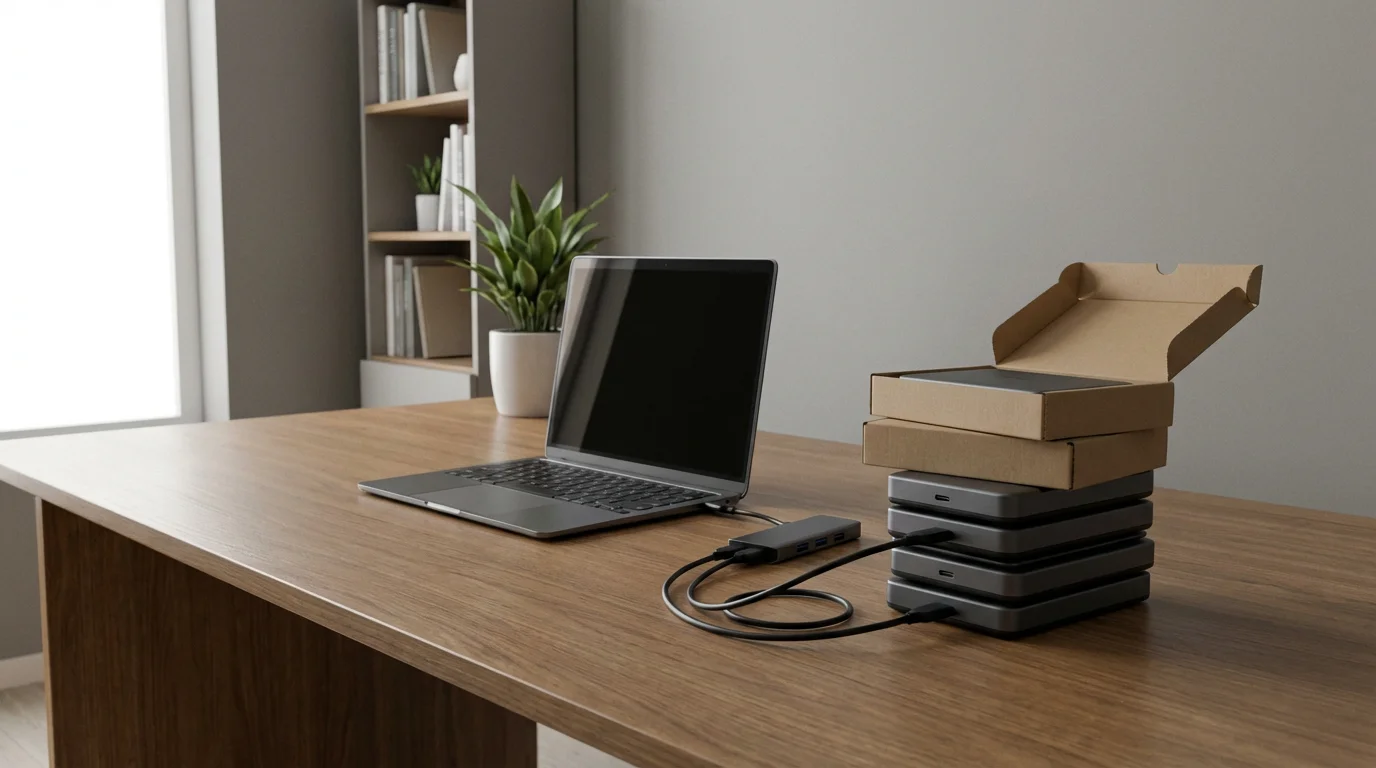
- Physical Management: You accumulate multiple physical devices, requiring organization, labeling, and storage space. You might end up with several 4 TB drives instead of one large 16 TB drive.
- Discrete Upgrades: Upgrading means buying a new, larger drive and migrating data. While a single purchase might be substantial, it is a one-time event until the next upgrade.
- RAID Solutions: For more advanced users, Network Attached Storage (NAS) devices with RAID (Redundant Array of Independent Disks) configurations offer robust local scalability and redundancy, allowing you to add drives and expand storage seamlessly. This is a significant step up in complexity and cost, often used by professional photographers or tech-savvy families with very large archives.
The “future-proofing” aspect with external drives means you need to stay current with connection technologies (e.g., USB-C over older USB standards) and ensure your new drives are compatible with your current and future computers.
Cloud Storage Scalability
Cloud storage offers nearly infinite scalability with minimal effort:
- Seamless Upgrades: When you need more space, you simply upgrade your subscription plan. No new hardware purchases, no data migration, no physical management. The provider handles all the underlying infrastructure.
- Automatic Allocation: The cloud environment dynamically allocates resources. You pay for what you use, and the backend scaling is transparent to you.
- No Obsolescence of Hardware: You never worry about your cloud storage becoming obsolete or incompatible with new devices, as the provider manages the hardware lifecycle.
This inherent scalability is a huge draw for cloud storage. You can start with a smaller plan and effortlessly grow into larger tiers as your `photo archive` expands, without needing to predict your future storage needs perfectly or manage physical drives.
The Hybrid Approach: Combining Strengths for Ultimate Protection
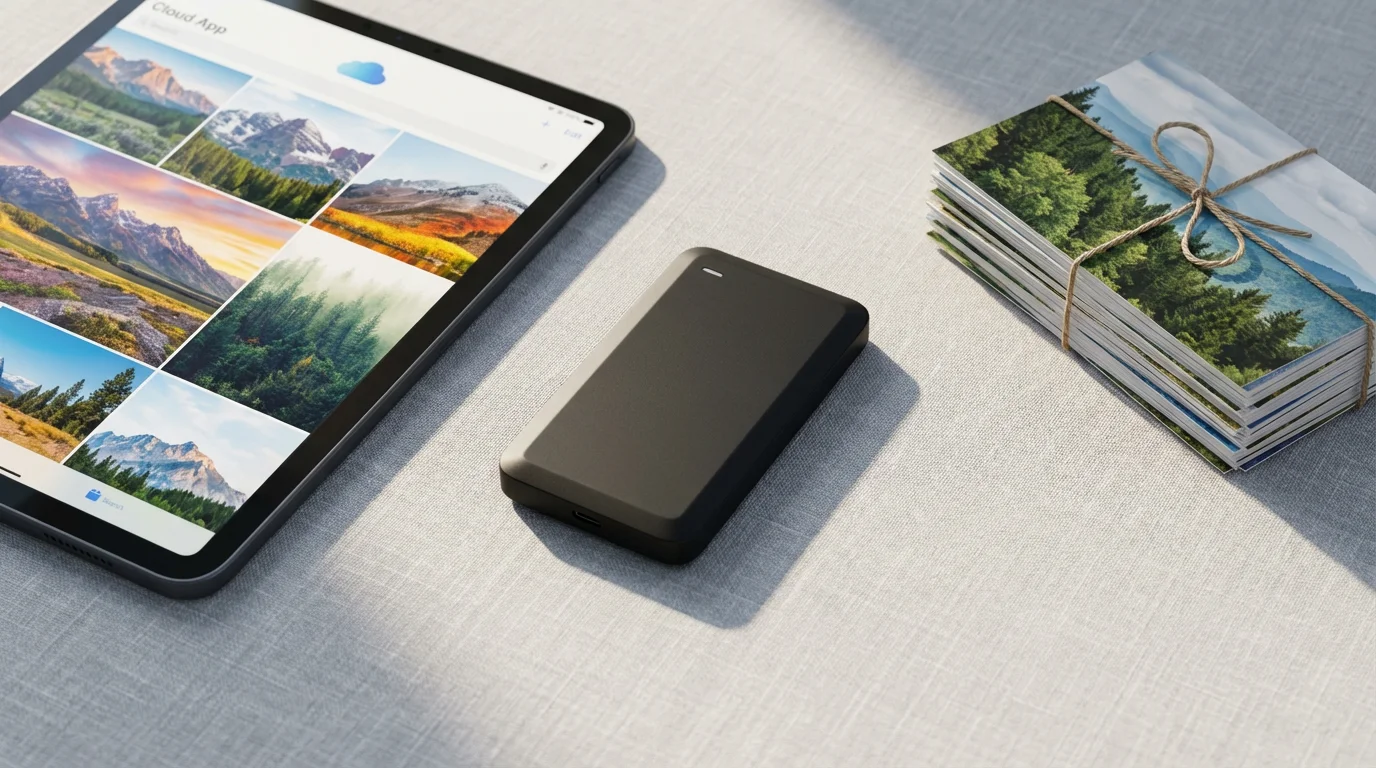
The question of `should I use external hard drive or cloud for photos` often has the best answer: both. A hybrid strategy combines the strengths of local and off-site storage, creating a robust and resilient `best way to backup photo collection` solution. This approach is often referred to as the 3-2-1 backup rule, which is widely endorsed by data preservation experts.
The 3-2-1 Backup Rule Explained:
- 3 Copies of Your Data: Always maintain at least three copies of your precious photos. This includes your primary working copy (e.g., on your computer’s hard drive) and two separate backups.
- 2 Different Media Types: Store your copies on at least two different types of storage media. This hedges against a specific type of media failure. For example, your computer’s internal drive (first copy), an external hard drive (second copy), and cloud storage (third copy). This mixes magnetic media with flash memory or remote server storage.
- 1 Copy Off-Site: Keep at least one copy of your data in a different physical location. This protects against localized disasters like fire, flood, or theft. Cloud storage naturally fulfills this requirement, but a separate external drive stored at a friend’s house or a safe deposit box also works.
Implementing a Hybrid Strategy:
- Local Working Copy: Keep your most current and frequently accessed photos on your computer’s internal drive.
- Primary Local Backup: Use a large `external hard drive` (or a NAS) for frequent, automated backups of your entire photo archive. This provides fast recovery if your computer’s drive fails. Ensure this drive is regularly connected and backed up.
- Off-Site Cloud Backup: Use a `cloud storage` service to synchronize your entire photo collection. This provides the essential off-site copy, protects against local disasters, and offers universal accessibility.
This layered approach means that even if your computer crashes and your external drive is physically damaged, your irreplaceable photos are still safely stored in the cloud. Conversely, if your internet connection is down or your cloud provider experiences an outage, you still have your local copies readily available. This comprehensive strategy gives you the highest level of confidence in preserving your photographic heritage.
The Library of Congress advises, “Digital files, unlike physical artifacts, can be duplicated perfectly. Take advantage of this. Redundancy is your best friend when it comes to digital preservation. Never rely on a single copy or a single storage medium.”

Making Your Decision: A Practical Guide
Choosing between `external hard drives` and `cloud storage comparison` or deciding on a hybrid approach depends on your specific needs, habits, and priorities. Use the following considerations to guide your choice:
Consider External Hard Drives If:
- You prioritize initial cost savings and dislike recurring fees.
- You have extremely large files (e.g., professional RAW photos, 4K video) that you need to access quickly and frequently for editing.
- You have limited or unreliable internet access.
- You value complete physical control and maximum privacy for your data.
- You are comfortable with manual backup processes or setting up local automation.
- You are primarily concerned with a fast, local recovery solution for your main computer.
Consider Cloud Storage If:
- You need access to your photos from multiple devices and locations.
- You want the peace of mind of automatic, off-site backups without manual intervention.
- You prioritize protection against local disasters (fire, theft, flood).
- You frequently share photos with family and friends.
- You prefer the simplicity of scaling storage without managing physical hardware.
- You are comfortable with a recurring subscription fee.
The Recommended Path: A Hybrid Approach
For most individuals and families with precious memories, the hybrid approach offers the `best way to backup photo collection`. It mitigates the weaknesses of each individual solution and leverages their strengths. Start by ensuring you have a local backup on an external hard drive. Then, add an off-site cloud solution for redundancy and accessibility. This strategy creates multiple layers of protection, giving you the greatest chance of preserving your photos for generations to come. Your choice ensures your photographic legacy endures, safe from unexpected technical failures or life’s unforeseen events.
Frequently Asked Questions
What is the 3-2-1 backup rule for photos?
The 3-2-1 backup rule recommends having at least three copies of your data, stored on two different types of media, with one copy located off-site. For photos, this typically means your original files on your computer, a local backup on an external hard drive, and an off-site copy using cloud storage.
How often should I back up my photo collection?
You should back up your photo collection as frequently as you are willing to lose data. For most people, this means daily or weekly. If you take many photos, consider continuous or real-time syncing offered by some cloud services, or daily incremental backups to an external drive. Automation is key to consistent backups.
Are “unlimited” cloud storage plans truly unlimited?
While some cloud providers offer “unlimited” storage plans, these often come with fair-use policies or speed throttling once you exceed a certain threshold. It is crucial to read the terms and conditions carefully. For example, some may be “unlimited” for personal use but restrict commercial use, or slow down transfers after reaching several terabytes of data. Always understand the fine print.
Can an external hard drive last forever?
No, external hard drives, like all electronic devices, have a finite lifespan. HDDs typically last 3-5 years, while SSDs might last 5-10 years, depending on usage, brand quality, and environmental factors. They can fail without warning. This is why having redundant backups, including off-site solutions, is essential to `photo backup options` and avoiding data loss.
What type of external hard drive is best for photos?
For large photo archives where cost per gigabyte is a primary concern, a traditional Hard Disk Drive (HDD) offers excellent value. If you prioritize speed, portability, and durability for frequently accessed photos or active editing, a Solid State Drive (SSD) is superior, though it comes at a higher price point.
Disclaimer: This article is for informational purposes only. When handling valuable or irreplaceable photographs, consider consulting a professional conservator. Always test preservation methods on non-valuable items first.








Leave a Reply