

Managing your cherished photo memories, whether they are digitized heirlooms or recent smartphone captures, often feels like an unending task. You want to preserve these moments, not lose them in a digital abyss. Cloud photo services offer a powerful solution, centralizing your entire collection. Google Photos and Apple Photos stand out as two dominant platforms, each promising robust organization features. Choosing between them, however, requires understanding their core philosophies, functionalities, and how they align with your existing technology ecosystem and personal priorities.
One of the most important first steps in managing your library is setting up automatic photo backup from your phone to ensure no memory is ever lost.
Before diving into specific features, it’s worth reviewing the best cloud storage services for photo backup to see how these giants compare to the broader market.
This comprehensive guide helps you compare Google Photos and Apple Photos, focusing on their organizational strengths. You will learn which platform might better serve your needs, considering everything from AI-driven search to storage costs and cross-platform compatibility. Make an informed decision to protect and enjoy your precious photographic heritage.
Understanding Your Photo Ecosystem: Why Organization Matters
Your photo collection represents a rich tapestry of your life and family history. From yellowed prints carefully scanned to thousands of high-resolution digital files on your phone, these images hold immense sentimental value. Yet, many people face the daunting challenge of managing a scattered collection. Hard drives fail, phones get lost, and memories fade if not properly archived. A disorganized collection means you struggle to find specific moments, share them with loved ones, or truly appreciate your visual legacy.
Developing a photo organization system that sticks ensures that your library remains manageable as it grows over the coming decades.
Learning how to organize 20 years of digital photos is often the first step for those tackling a long-neglected legacy library.
Cloud photo organizers like Google Photos and Apple Photos offer centralized, secure storage with powerful tools to help you sort, search, and relive your memories. They remove the burden of manual backups and local storage constraints, providing peace of mind and easier access. Choosing the right platform ensures your efforts in scanning old photographs and diligently capturing new ones yield lasting, accessible results. For valuable physical prints, always prioritize reversible methods and archival materials for their preservation before digitizing. The Library of Congress provides comprehensive guidelines on preserving various media, a testament to the importance of proper care for your photographic heritage.

Core Philosophies of Google Photos and Apple Photos
Understanding the fundamental approach of each service clarifies their strengths and weaknesses in organization. Google Photos and Apple Photos, while seemingly similar, operate with distinct design principles.
Google Photos: The AI-Driven, Cross-Platform Powerhouse
Google Photos excels at leveraging artificial intelligence and machine learning to manage your library. Its philosophy centers on making your photos effortlessly searchable and shareable, regardless of the device you use. Google positions Photos as a smart assistant for your memories, automatically organizing, enhancing, and surfacing nostalgic moments. The service emphasizes intelligent search capabilities, facial recognition, object detection, and location-based grouping. This AI-first approach significantly reduces the need for manual organization. It provides a truly cross-platform experience, accessible via web browsers, Android, and iOS devices.
Apple Photos: The Integrated, Privacy-Focused Ecosystem Player
Apple Photos deeply integrates within the Apple ecosystem. Its core philosophy revolves around a seamless experience across your iPhone, iPad, Mac, and other Apple devices, with a strong emphasis on privacy and user control. Apple Photos offers a more traditional album and folder structure, familiar to users accustomed to desktop photo management. While it incorporates powerful on-device machine learning for facial recognition and scene detection, it prioritizes keeping processing local to your device whenever possible. This strategy appeals directly to users deeply invested in Apple hardware who value a cohesive, private, and secure experience.

Storage and Pricing Models: A Crucial Consideration
Your choice of photo organizer significantly impacts your long-term storage strategy and budget. Both Google Photos and Apple Photos offer limited free storage, requiring paid subscriptions for larger libraries.
Before committing to a subscription, it is helpful to weigh the benefits of external hard drives vs cloud storage to build a redundant backup strategy.
Google Photos Storage:
Google provides 15 GB of free storage across your Google account, which includes Google Photos, Gmail, and Google Drive. This pooled storage means your emails and documents count towards your photo limit. Historically, Google Photos offered unlimited storage of “high-quality” (compressed) photos, a significant differentiator. However, this policy changed in June 2021. Now, all photos, regardless of quality, count towards your 15 GB free limit. Exceeding this limit necessitates a Google One subscription.
- Google One Paid Plans:
- 100 GB: Starts at $1.99/month or $19.99/year.
- 200 GB: Starts at $2.99/month or $29.99/year.
- 2 TB: Starts at $9.99/month or $99.99/year.
Google One plans offer additional benefits like VPN access, expert support, and family sharing. The pricing structure is competitive, especially for the 2 TB tier, making it a viable option for extensive photo collections.
Apple Photos Storage:
Apple offers 5 GB of free iCloud storage, which also pools across all your iCloud data, including backups, documents, and emails. For many users, 5 GB proves insufficient for a comprehensive photo library, especially with modern high-resolution images and videos. You will likely need to upgrade to an iCloud+ plan.
- iCloud+ Paid Plans:
- 50 GB: Starts at $0.99/month.
- 200 GB: Starts at $2.99/month.
- 2 TB: Starts at $9.99/month.
iCloud+ plans include features like iCloud Private Relay, Hide My Email, and HomeKit Secure Video support. Apple’s entry-level paid plan (50 GB) is more accessible than Google’s 100 GB plan for those needing only a slight bump in storage. However, comparing the 2 TB tiers, both services offer identical pricing, suggesting a market standard for high-capacity cloud storage.
Which is better for cost-conscious organization?
For individuals with smaller photo collections, Google’s 15 GB free storage offers three times more space than Apple’s 5 GB. If you maintain a modest photo library and utilize other Google services, this might suffice. However, for most users with growing digital archives, a paid plan becomes essential. Google One often provides slightly more storage for the same price point in the lower tiers (e.g., 100 GB vs. 50 GB for similar cost), but the 2 TB plans are parity. Your current usage of other cloud services, like Gmail or iCloud backups, also dictates how quickly you will exhaust free storage on either platform.
Organization Features: AI, Manual Tagging, and Albums
The true test of a photo organization app lies in its ability to help you find and manage your images effectively. Both Google Photos and Apple Photos employ advanced features, but their execution differs significantly.
When setting up your library, it’s worth considering whether organizing photos by event, date, or people aligns better with how you prefer to browse your collection.
Much of the magic in these apps comes from using AI to automatically sort and tag your photos, turning a mountain of data into a searchable database.
To keep your cloud storage costs down, ensure you know how to find and remove duplicate photos before performing a large migration.
Google Photos: AI-Powered Search and Discovery
Google Photos’ organizational prowess centers on its industry-leading artificial intelligence. It automatically analyzes your photos upon upload, identifying people, places, objects, and even abstract concepts. This enables incredibly powerful search functionality:
- Facial Recognition and Grouping: The app automatically groups similar faces, allowing you to name individuals. You can then search for all photos of “Grandma” or “Uncle Bob.”
- Object and Scene Detection: Search for “dogs,” “beaches,” “mountains,” “food,” or “gardens” and Google Photos delivers relevant results, often with surprising accuracy.
- Location-Based Organization: If your photos contain GPS data, Google Photos automatically organizes them by location. You can search for “Paris” or “my house.”
- Semantic Search: This is where Google truly shines. You can combine search terms, like “photos of Emily at the park,” and the AI understands the context.
- Automatic Albums and Stories: Google Photos frequently creates “Memories” or “Stories” based on specific dates, locations, or people, automatically curating short slideshows or albums for you to revisit.
- Manual Albums: You can create traditional albums to manually group photos, adding titles and descriptions.
The power of Google Photos’ organization is its hands-off approach. It does the heavy lifting, making your entire library searchable without requiring extensive manual tagging. This saves immense time, especially for large collections containing tens of thousands of images. However, this convenience relies heavily on trusting Google with your image data for AI processing.
Apple Photos: On-Device Intelligence and Traditional Structure
Apple Photos also utilizes machine learning for organization, but often performs much of this processing on your device, prioritizing privacy. Its approach combines intelligent features with a more traditional album and folder management structure:
- Facial Recognition: Apple Photos offers robust facial recognition, allowing you to name individuals and create “People” albums. This feature works effectively across your Apple devices.
- Object and Scene Detection: The app identifies objects and scenes (e.g., “cats,” “water,” “flowers”), making them searchable, though often less comprehensively than Google Photos.
- Location-Based Organization: Photos taken with GPS data automatically sort by location. You can browse your library by places on a map.
- Memories: Similar to Google’s automatic creations, Apple Photos curates “Memories” based on significant events, people, and locations, often presenting them with background music and effects.
- Albums and Folders: Apple Photos provides a robust system for creating albums to group photos and organizing those albums into folders. This is highly beneficial for those who prefer a structured, hierarchical approach to their library.
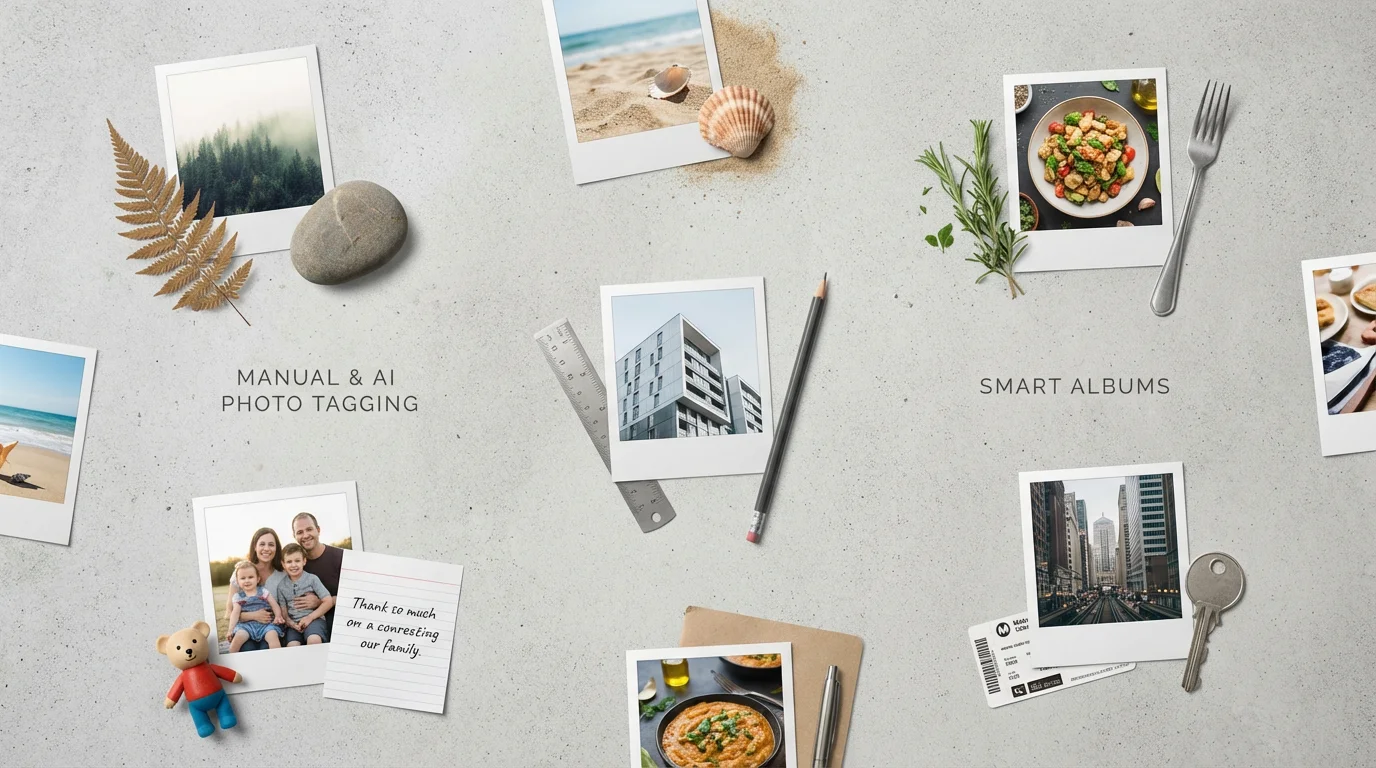
- Smart Albums (macOS): On a Mac, you can create Smart Albums that automatically collect photos based on criteria like keywords, dates, camera model, or even “Photo is edited.” This feature offers powerful, dynamic organization.
- Keywords and Metadata: You can add keywords to photos on macOS, which helps with searching and grouping. The system also preserves and displays EXIF metadata.
Table: Organization Feature Comparison
| Feature | Google Photos | Apple Photos |
|---|---|---|
| AI Facial Recognition | Excellent, cloud-based processing | Excellent, primarily on-device processing |
| AI Object/Scene Search | Superior, extensive vocabulary | Good, more limited vocabulary |
| Semantic Search | Highly advanced (e.g., “dog at beach”) | Basic, relies more on explicit tags |
| Automatic Curation (Memories/Stories) | Frequent and varied suggestions | Meaningful “Memories” feature |
| Manual Albums | Yes, simple album creation | Yes, albums and hierarchical folders |
| Smart Albums | No direct equivalent | Yes (macOS only), powerful automated grouping |
| Keyword Tagging | Via descriptions/search | Yes (macOS), integrates with search |
| Location Grouping | Automatic, map view | Automatic, map view |
Conclusion on Organization:
For sheer automated, intelligent search capabilities across your entire library, Google Photos often takes the lead. Its AI is remarkably effective at surfacing specific moments with minimal effort on your part. If you have a vast, unorganized collection and want the app to do most of the work, Google Photos is an excellent choice. However, if you prefer more hands-on control, value a hierarchical folder structure, and are heavily invested in the Apple ecosystem, Apple Photos provides robust tools with its Smart Albums and keyword support on macOS, alongside its on-device intelligence. Your preference for automated discovery versus structured manual control will guide your decision here.

Editing Capabilities: Quick Fixes vs. Advanced Tools
A comprehensive photo app extends beyond mere organization; it often includes tools for enhancing your images. Both Google Photos and Apple Photos offer built-in editing suites, allowing you to make quick adjustments without leaving the app.
Google Photos Editing:
Google Photos provides a competent set of editing tools, designed for quick enhancements and popular creative effects. It focuses on accessibility and ease of use. Key features include:
- Auto Enhance: A one-tap option to automatically improve brightness, contrast, and color.
- Basic Adjustments: Controls for exposure, contrast, saturation, white balance, highlights, shadows, and more.
- Filters: A selection of artistic filters to change the mood or style of your photos.
- Cropping and Rotating: Standard tools for composition adjustments.
- AI-Powered Tools: Google Photos features exclusive AI tools for Google One subscribers, such as Magic Eraser (to remove unwanted objects) and Portrait Light (to adjust lighting on faces).
- Video Editing: Basic trimming, stabilization, and filter application for videos.
Google Photos’ editing tools are effective for everyday adjustments and enhancing smartphone snaps. They cater to users who want quick, intuitive fixes without needing advanced photographic knowledge.
Apple Photos Editing:
Apple Photos offers a more comprehensive and arguably more powerful editing suite, especially on iOS and macOS. It integrates seamlessly with other apps and supports advanced file formats. Its tools include:
- Automatic Enhancements: An “Auto” button for one-tap improvements.
- Extensive Adjustments: Fine-grained control over light, color, black & white, and detail. Tools include exposure, highlights, shadows, contrast, brightness, black point, saturation, vibrancy, warmth, tint, sharpness, definition, noise reduction, and vignetting.
- Filters: A curated selection of Apple-designed filters.
- Cropping and Straightening: Advanced tools with aspect ratio presets and horizon leveling.
- Retouch Tool (macOS): A brush tool for removing small imperfections.
- Support for Extensions: On macOS and iOS, Apple Photos supports third-party editing extensions, allowing you to leverage powerful photo editors like Pixelmator Photo or Darkroom directly within the Photos app.
- RAW File Support: Apple Photos handles RAW files natively, offering non-destructive editing for professional photographers.
- Video Editing: More robust video editing capabilities, including cropping, filters, and a wider range of adjustments.
For users who desire more control over their image adjustments or require RAW file processing, Apple Photos offers a richer and more extensible editing experience. Its integration with system-wide extensions provides a pathway to advanced editing without a complex workflow.

Sharing and Collaboration: Connecting Your Memories
Photos are meant for sharing. Both services provide robust features to share your memories with family and friends, but their approaches and compatibility vary.
Once you have chosen a platform, you can learn more about how to share photo galleries with family online to keep everyone connected.
Google Photos Sharing:
Google Photos excels at making sharing effortless and universal. Its cross-platform nature means you can share photos and albums with anyone, regardless of their device or operating system.
- Shared Albums: Create albums and share a link with anyone. Recipients can view photos without a Google account and can even add their own photos if you grant permission.
- Partner Sharing: A unique feature allowing you to automatically share all photos of specific people or from a specific date forward with a trusted partner. This simplifies sharing daily family photos.
- Direct Sharing: Easily share individual photos or videos to contacts via email, messaging apps, or social media.
- Creating Collages and Animations: The app offers creative tools to turn selected photos into collages or short animations, perfect for social sharing.
Google Photos’ sharing features are highly flexible and user-friendly, prioritizing ease of access for all recipients. This makes it an excellent choice for families with mixed device ecosystems.
Apple Photos Sharing:
Apple Photos offers seamless sharing primarily within the Apple ecosystem, but also provides options for broader sharing.
- Shared Albums (iCloud Shared Photo Library): Create albums that specific contacts can join. Members can view, comment on, and add their own photos and videos. This works best among Apple users, as non-Apple users can only view via a web link. The new iCloud Shared Photo Library feature allows up to five other people to contribute to a single, shared library, giving everyone equal access to a collective set of photos.
- AirDrop: For sharing photos and videos quickly and easily with nearby Apple devices.
- Family Sharing: If you use Apple’s Family Sharing, you can create a shared photo stream that everyone in the family group can access.
- Direct Sharing: Share individual photos via messages, mail, or other apps. Non-Apple users will receive a standard image file.
Apple Photos provides a highly integrated and private sharing experience for those within the Apple ecosystem. The iCloud Shared Photo Library offers a powerful solution for families to pool their memories seamlessly. However, sharing with individuals outside the Apple walled garden often requires standard link sharing, which can be less integrated than Google’s experience.
Cross-Platform Accessibility and Device Integration
Your existing devices play a significant role in determining which photo service offers the most convenient experience.
Google Photos: Universal Accessibility
Google Photos truly shines in its cross-platform accessibility. You can access your entire library from virtually any device with an internet connection:
- Web Browser: A full-featured web interface provides access on any computer, regardless of operating system (Windows, macOS, Linux).
- Android App: Deep integration with Android devices, often serving as the default gallery app.
- iOS App: A robust and highly functional app available for iPhones and iPads, offering nearly all the features found on Android.
- Other Devices: Viewable on smart displays and casting devices.
If you own a mix of devices (e.g., an Android phone, an iPad, and a Windows laptop), Google Photos provides a consistent and unified experience across all of them. This universal access ensures your photos are always within reach, simplifying your digital life.
Apple Photos: Deep Ecosystem Integration
Apple Photos prioritizes seamless integration within the Apple ecosystem. Its experience is unparalleled if you exclusively use Apple hardware:
- macOS App: A powerful desktop application that serves as the central hub for your photo library, offering advanced editing and organization features.
- iOS/iPadOS Apps: Native, tightly integrated apps on iPhone and iPad, providing instant syncing and access to your entire iCloud Photo Library.
- iCloud.com: A web interface allowing access to your photos from non-Apple devices, though with more limited functionality compared to the native apps.
- Windows Integration: A basic iCloud Photos app for Windows exists, but it offers limited functionality compared to the macOS app.
- Apple TV: Access your photo library directly on your television.
For individuals and families fully committed to Apple devices, Apple Photos offers an incredibly cohesive and frictionless experience. Photos taken on your iPhone instantly appear on your iPad and Mac, synchronized and ready for editing or sharing. However, if you or family members use Android phones or Windows computers frequently, you might encounter friction or reduced functionality.

Data Privacy and Security: Protecting Your Digital Assets
When entrusting your precious memories to the cloud, privacy and security become paramount. Both companies invest heavily in protecting your data, but their approaches and privacy policies differ.
Google Photos: Data and AI for Enhanced Features
Google employs robust security measures, including encryption in transit and at rest, to protect your photos. However, Google’s business model relies on data analysis to improve its services, including the AI features in Google Photos. While Google explicitly states it does not use information from Google Photos for advertising, the general perception of Google’s data practices can be a concern for some users. Google’s AI processes your images to power features like search, facial grouping, and automatic suggestions. This processing happens in the cloud. You have control over various privacy settings, such as opting out of facial grouping or deleting location data, but the underlying system processes your data to provide its smart features.
“Prioritizing the security of digital assets is crucial. Users should understand how their chosen cloud service handles data, including encryption protocols and access permissions, to ensure their precious memories remain protected.”
Apple Photos: Privacy by Design
Apple positions itself as a champion of user privacy, and this ethos extends to Apple Photos. The company emphasizes on-device machine learning, meaning much of the AI processing (like facial recognition and object detection) happens directly on your iPhone or Mac, rather than in the cloud. This significantly reduces the amount of personal image data sent to Apple’s servers for analysis. Apple Photos also uses end-to-end encryption for some iCloud data, including photos, when certain conditions are met, further bolstering security. For example, the iCloud Shared Photo Library offers a high degree of privacy and control among participants.
Apple’s approach aims to provide powerful features while minimizing the exposure of your personal data to its servers. This focus resonates strongly with users who place a premium on data privacy and wish to limit how tech companies process their personal information. The Image Permanence Institute, a leader in preservation, constantly reminds us that digital preservation involves both physical media and data integrity, highlighting the importance of trustworthy storage.

Making Your Choice: Which App Best Suits Your Needs?
Ultimately, the “better” app for organization depends entirely on your personal circumstances, priorities, and existing technology. Consider the following scenarios:
If you are switching platforms, you may first need to learn how to merge multiple photo libraries into one to consolidate your archives.
Choose Google Photos if:
- You prioritize AI-powered search and effortless organization: If you want the app to do most of the heavy lifting, automatically categorizing and making your entire library searchable with minimal manual effort, Google Photos is unparalleled.
- You need true cross-platform accessibility: If you use a mix of Android, iOS, Windows, or macOS devices, Google Photos offers a consistent and feature-rich experience across all of them.
- You frequently share photos with a diverse audience: Its universal sharing links and partner sharing features make it incredibly easy to share with anyone, regardless of their device.
- You have a large, disorganized collection: The powerful AI can quickly bring order to chaos, helping you discover forgotten memories.
- The 15 GB free storage is sufficient, or you are comfortable with Google One pricing.
Choose Apple Photos if:
- You are deeply invested in the Apple ecosystem: If you primarily use an iPhone, iPad, and Mac, Apple Photos provides an incredibly seamless, integrated experience that is hard to beat.
- You prioritize privacy and on-device processing: Apple’s commitment to user privacy, with more processing done locally, resonates if this is a significant concern for you.
- You prefer a more traditional, hierarchical organization: The ability to create albums and folders, especially with Smart Albums on macOS, appeals to those who like to meticulously manage their library.
- You require more advanced native editing capabilities or third-party extension support: Apple Photos offers a robust editing suite and extensibility that can cater to more demanding users.
- The 5 GB free iCloud storage is enough, or you are comfortable with iCloud+ pricing.
Consider a Hybrid Approach:
Many users find value in using both services. For example, you might use Apple Photos as your primary, tightly integrated library for your daily photos on your iPhone and Mac, and then use Google Photos to back up specific albums for easy sharing with extended family who use Android, or to leverage its superior search for specific, hard-to-find photos. This dual approach can give you the best of both worlds, playing to each app’s strengths while managing potential redundancy.
Regardless of your choice, the most important step is selecting a system and committing to it. Consistently uploading and organizing your photos, whether through AI or manual effort, guarantees the preservation of your valuable memories for generations to come. Your photographic heritage deserves careful stewardship, and selecting the right tool is a foundational step in that journey.
Frequently Asked Questions
Can I use both Google Photos and Apple Photos simultaneously?
Yes, you can certainly use both Google Photos and Apple Photos. Many people adopt a hybrid strategy, using Apple Photos as their primary gallery on iOS/macOS devices for seamless integration and Google Photos for its superior search capabilities, cross-platform access, or to share large libraries with non-Apple users. You might upload specific albums to Google Photos for sharing, while keeping your main library in Apple Photos, or vice-versa. Remember, this approach might involve managing two separate cloud libraries and potentially incurring costs for both if you exceed free storage tiers.
What happens to my photos if I stop paying for a cloud storage subscription?
If you stop paying for a Google One or iCloud+ subscription, your access to additional storage beyond the free tier (15 GB for Google Photos, 5 GB for Apple Photos) will cease. Both services typically offer a grace period during which you can download your photos. After this period, if your photo library exceeds the free storage limit, new uploads will stop, and your existing photos might be at risk of deletion after a specific timeframe, usually several months. Google Photos, for example, states content may be deleted if you are over your storage limit for two years. Always download your full library before canceling a subscription or when you are close to exceeding the free limit to prevent data loss.
Is my photo data safe and private with these cloud services?
Both Google Photos and Apple Photos employ robust security measures to protect your data, including encryption during transit and at rest. Apple Photos emphasizes user privacy extensively, often performing AI analysis on your device rather than in the cloud and offering end-to-end encryption for specific data types within iCloud. Google Photos also provides strong security and privacy controls, allowing you to manage who sees your photos and how your data is used. While both services are highly secure, understand each company’s privacy policies to align with your personal comfort level regarding data usage and privacy, especially concerning AI features and data anonymization.
How do I transfer photos between Google Photos and Apple Photos?
Transferring photos between Google Photos and Apple Photos requires a few steps, as no direct, automated transfer tool exists between the two. You can download your entire Google Photos library using Google Takeout, which exports your photos and videos into organized archives. You then manually import these files into Apple Photos on your Mac, or upload them to iCloud.com. Conversely, to move from Apple Photos to Google Photos, you can download photos from iCloud.com or export them from the Apple Photos app on a Mac, then manually upload them to Google Photos via the web interface or an official app. Be mindful of metadata preservation during these transfers.
Which service offers better photo quality preservation?
Both Google Photos and Apple Photos preserve the original quality of your photos if you choose to store them at their original resolution and have sufficient cloud storage. When you upload photos to Google Photos, you have the option to store them in ‘Storage Saver’ quality (formerly ‘High quality’), which compresses images to save space, or ‘Original quality,’ which maintains their full resolution. Apple Photos always syncs photos at their original quality to iCloud by default, unless you enable ‘Optimize iPhone Storage,’ which keeps smaller, device-optimized versions on your device while preserving originals in iCloud. For maximum quality preservation, always select original quality storage for both services, ensuring you have enough paid storage to accommodate your entire collection.
Disclaimer: This article is for informational purposes only. When handling valuable or irreplaceable photographs, consider consulting a professional conservator. Always test preservation methods on non-valuable items first.






Leave a Reply