

Disclaimer: This article is for informational purposes only. When handling valuable or irreplaceable photographs, consider consulting a professional conservator. Always test preservation methods on non-valuable items first.
Managing a growing library is much easier when you incorporate a 10-minute daily photo organization routine to keep clutter from building up.
Learning how to create an organization system is the first step toward reclaiming and protecting your digital library.
Your photo collection holds precious memories, a visual chronicle of your life and family history. Yet, as digital photography expands, a common problem emerges, duplicate photos. These identical or near-identical copies clog your hard drives, slow down your computer, and make finding specific images a frustrating scavenger hunt. Imagine sifting through thousands of unorganized images just to locate that one cherished family portrait. It takes time, creates clutter, and often prevents you from truly enjoying your visual heritage.
But you do not have to live with this digital mess. This guide provides practical, actionable steps to identify and eliminate duplicate photos from your collection, restoring order, reclaiming valuable storage space, and making your memories more accessible. You will learn how to approach this task systematically, whether through careful manual review or by leveraging powerful software. Let us transform your sprawling photo library into a curated, organized treasure trove.

Understanding the Duplicate Photo Dilemma
You accumulate duplicate photos for many reasons, often without realizing it. Each instance chips away at your available storage and introduces organizational headaches. Consider these common scenarios:
Removing these redundancies is a vital step if you are preparing to organize photos for a family history project.
Beyond finding exact duplicates, you can streamline your library further by deciding what to keep and delete from your larger collection.
- Multiple Devices: You transfer photos from your phone to your computer, then upload them to a cloud service. You might also copy them to an external hard drive for backup. Each transfer can create another copy, especially if you do not meticulously track what you have already moved.
- Editing and Versions: When you edit a photo, many programs save the edited version as a new file, preserving the original. This is a good practice for preserving your original image, but if you do not name or organize these versions carefully, you can end up with multiple near-identical files scattered across your folders.
- Backup Habits: You might create manual backups by simply copying entire photo folders to different locations. While important for data safety, this method easily generates duplicates if you copy the same folders multiple times or do not properly synchronize your backups.
- Cloud Syncing: Services like Google Photos, iCloud, or Dropbox offer automatic syncing. If you upload photos manually and then also have automatic syncing enabled, or if you use multiple cloud services, you often create redundant copies.
- Sharing and Downloading: When friends or family share photos with you, and you download them, you might already possess a copy. This also happens in reverse, when you share and then re-download your own images.
These scenarios multiply over time, leading to gigabytes, even terabytes, of wasted storage. More critically, they make it harder for you to find and enjoy your unique memories. Data from various cloud storage providers indicates that a significant percentage of stored images are redundant copies, often consuming 15-20% of a user’s total photo storage. Addressing this problem is a crucial step in effective photo management.

The Tangible Benefits of a Lean Photo Collection
Removing duplicate photos offers immediate and significant advantages beyond simply freeing up space. When you streamline your photo library, you gain:
Eliminating waste is a core component of creating a home photo archive that remains accessible for future generations.
- Reclaimed Storage Space: This is the most obvious benefit. You immediately free up valuable space on your hard drive, SSD, or cloud storage. This means you can store more unique photos, videos, or other important files without needing to purchase additional storage. For example, if you find and delete 50GB of duplicate photos, you instantly have 50GB more room for new memories.
- Improved Performance: Fewer files mean your computer’s operating system and photo applications work more efficiently. Browsing large folders becomes faster, photo editing software loads images quicker, and backup processes complete in less time. Your computer no longer needs to index and manage thousands of redundant files.
- Easier Organization and Navigation: Imagine searching for a specific photo from a family vacation. Without duplicates, you find it in one place, instantly. A clean collection simplifies categorization, tagging, and album creation, making it a joy to revisit your memories instead of a chore.
- Faster and More Reliable Backups: Backing up a smaller, duplicate-free collection takes less time and consumes less bandwidth, especially for cloud backups. This also increases the reliability of your backups, as you reduce the chances of backing up corrupted or unnecessary files. A clean collection promotes a more robust 3-2-1 backup strategy.
- Reduced Clutter and Stress: A cluttered digital space often mirrors mental clutter. Organizing your photos brings a sense of accomplishment and peace of mind. You know exactly where your treasured images reside, reducing the anxiety of lost or unfindable photos.

Preparing for Your Photo Cleanup: Essential First Steps
Before you start deleting anything, you must take careful preparatory steps. This ensures the safety of your original images and makes the entire process smoother. Remember, we treat your photographs as precious objects deserving respect.
1. Back Up Everything
This is the single most critical step. Before you begin to find and delete duplicate photos, create a complete backup of your entire photo collection. You do not want to risk losing irreplaceable memories due to an accidental deletion or software error. Use an external hard drive, a cloud service, or both. This backup acts as your safety net. You can recover everything if anything goes wrong during the cleanup process.
The National Archives recommends creating multiple copies of your digital records and storing them in different locations. This approach protects against hardware failure, accidental deletion, and disaster, ensuring your photographic heritage endures.
2. Consolidate Your Photo Sources
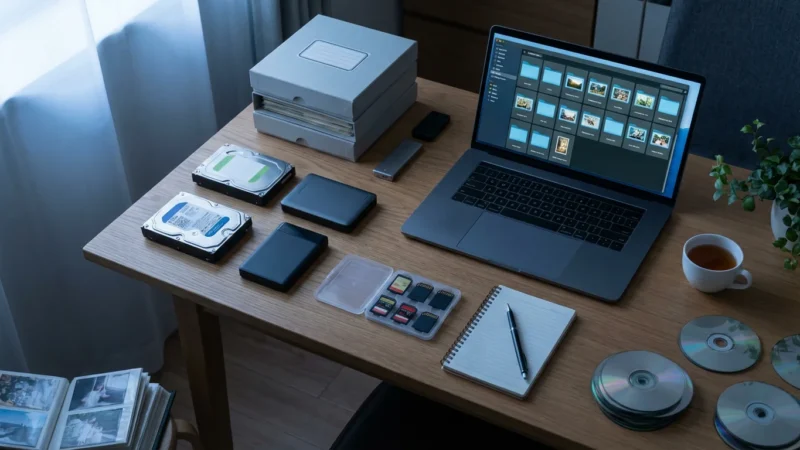
Your photos likely reside in various locations: your computer’s main drive, an external hard drive, old phones, USB sticks, and cloud services. To effectively identify duplicates, you need to gather all these disparate collections into a central location or at least ensure your chosen duplicate finder can scan them all. Copy all images to a single, temporary master folder on your main computer or a large external drive. This provides a unified pool for scanning.
3. Establish a Consistent Folder Structure (Optional, but Recommended)
While not strictly necessary for duplicate removal, establishing a logical folder structure before or after the cleanup significantly improves long-term organization. A popular method involves organizing by year, then by event or month. For example: Photos/2023/Family Vacation Hawaii/ or Photos/2022/January/. This makes it easier to navigate your collection and prevent future clutter.
4. Understand Your File Types and Naming Conventions
Familiarize yourself with the different types of image files you have (JPEG, PNG, RAW, HEIC). Some duplicate finders work better with certain formats. Also, observe your current file naming. Generic names like “IMG_1234.JPG” or “PXL_20230101_100000.jpg” are common, but identical names in different folders often indicate duplicates. Custom names might indicate unique images or edited versions you want to keep.
Manual Methods for Finding Duplicates: A Focused Approach
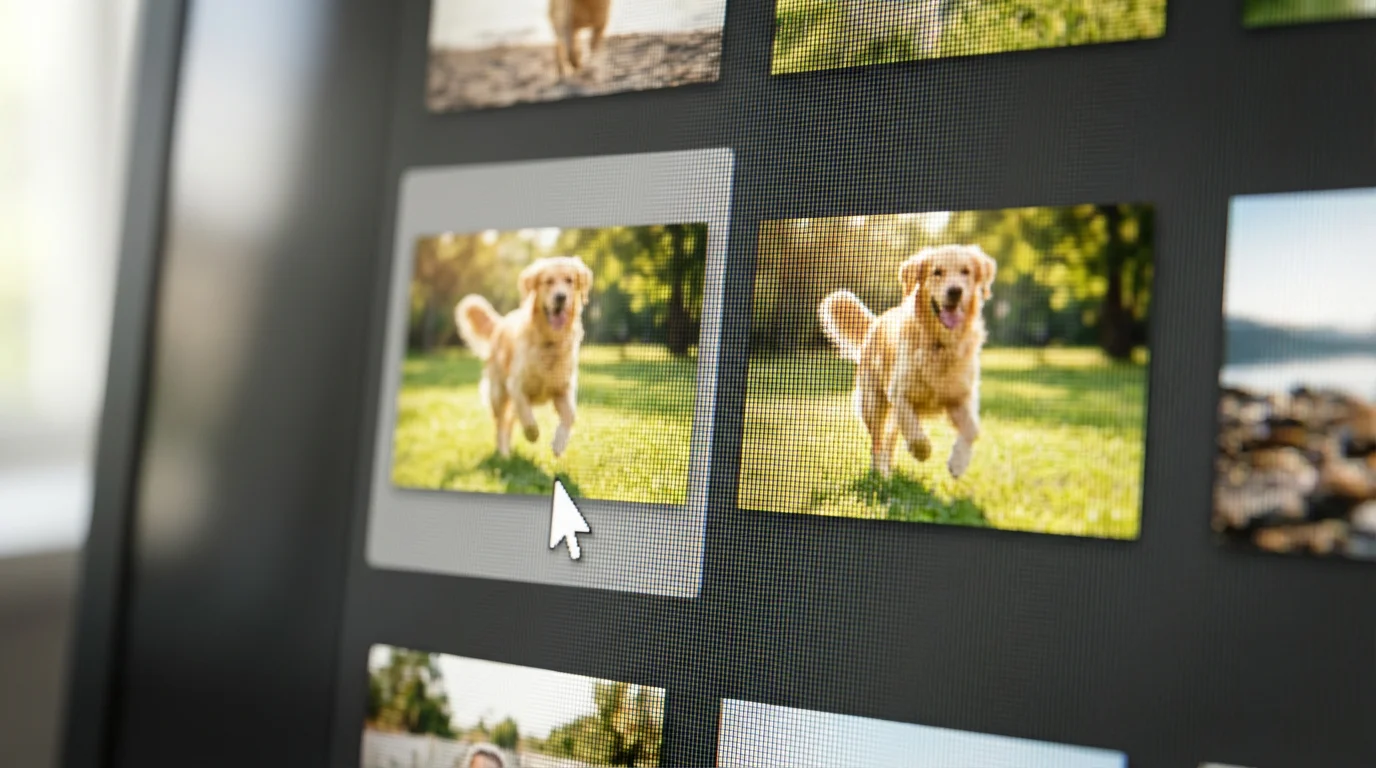
For smaller collections, or if you prefer a hands-on approach, you can manually identify and remove duplicate photos. This method offers complete control, but it requires patience and a keen eye. You will typically use your operating system’s file browser (File Explorer on Windows, Finder on macOS).
If you are managing a library spanning decades, consider these tips for organizing 20 years of digital photos to handle the volume effectively.
1. Sort by Name
Navigate to your consolidated photo folder. Sort the contents by “Name.” Duplicate photos often have identical file names, especially if they came from the same source and were copied multiple times. Look for patterns like “IMG_1234.JPG” and “IMG_1234 (1).JPG” or “IMG_1234 copy.JPG.” Carefully review these groups and delete the redundant copies, keeping the original or the highest quality version.
2. Sort by Date Modified or Date Created
Sorting by date can reveal groups of similar photos taken around the same time. While this will not directly show identical filenames, it can group images from the same event. You then visually inspect these groups for duplicates. For example, if you took ten photos of the same sunset, then accidentally copied the entire set, sorting by date might show two identical sets side by side. This method is particularly useful for finding near-duplicates where filenames differ slightly but the content is the same.
3. Sort by Size
Identical photos often have identical file sizes. Sorting your photos by “Size” can bring exact duplicates together, even if their names are slightly different. Look for blocks of files with the same size and creation date. This is an effective way to spot true copies of an image, as even a minor edit usually changes the file size.
4. Visual Inspection
For discerning duplicates from near-duplicates (like slightly edited versions or burst shots), visual inspection is unavoidable. Open suspected duplicate images side-by-side or use a quick preview function. Decide which version you want to keep. This is where your judgment comes into play. You might prefer a slightly edited version over the original, or vice versa.
Limitations of Manual Cleanup:
While manual methods offer control, they become impractical quickly. For thousands of images, this process is incredibly time-consuming, prone to human error, and mentally exhausting. You risk missing duplicates or accidentally deleting unique photos. This is why most users turn to automated solutions for larger collections.

Leveraging Software to Find Duplicate Photos Automatically
For larger photo collections, relying on a dedicated duplicate photo finder app is the most efficient and reliable method. These applications are designed to scan your drives, identify duplicate photos, and often suggest the best version to keep, significantly streamlining the photo cleanup process. You do not need to manually sift through thousands of images.
Beyond just finding duplicates, many of these tools also offer features for using AI to automatically sort and tag your photos.
Modern software often includes AI to automatically sort and categorize your images alongside duplicate detection.
How Duplicate Photo Finders Work
These applications use sophisticated algorithms to compare images. They look for more than just identical file names. Common comparison methods include:
- Checksums/Hashes: The software calculates a unique digital fingerprint (hash) for each file. If two files have the same hash, they are exact duplicates, byte for byte. This method is incredibly fast and accurate for true copies.
- Metadata Comparison: Applications compare EXIF data, such as creation date, camera model, and even GPS coordinates. While not definitive for duplicates, it helps group potentially similar images.
- Pixel-by-Pixel Analysis: For near-duplicates (e.g., resized versions, slightly cropped images, or burst shots), advanced algorithms analyze the visual content of the image. They compare pixel patterns and colors to determine if images are visually identical or very similar. This is essential for finding images that are effectively the same to your eye, even if their file data differs slightly.
What to Look for in a Best Duplicate Photo Finder App
When you choose a duplicate photo finder, consider these features to ensure you pick a tool that meets your needs:
- Accuracy: The app must reliably identify true duplicates without flagging unique photos incorrectly.
- Speed: For large collections, a fast scanning engine is crucial. Some apps use multi-threading to speed up the process.
- User Interface: An intuitive interface makes it easy to understand scan results, review identified duplicates, and make informed decisions about which photos to keep.
- Preview Functionality: You need to view images side-by-side before deleting them to confirm they are indeed duplicates or decide which version to retain.
- Smart Selection Options: Good apps offer options to automatically select duplicates based on criteria such as keeping the highest resolution image, the original file, the newest version, or the one from a specific folder.
- Safe Deletion Options: The ability to move duplicates to a trash folder rather than permanently deleting them immediately provides an extra layer of safety.
- Support for Various File Types: Ensure the app supports common image formats (JPEG, PNG, TIFF, HEIC, RAW) that you use.
- Operating System Compatibility: Choose an app compatible with your operating system, whether it is Windows, macOS, or a cloud-based solution.
Many apps, both free and paid, exist. Popular options often integrate with your operating system or photo management software. For example, macOS Photos has some duplicate detection built in, and Google Photos identifies and groups visually similar images, often preventing duplicate uploads. Explore reputable software options and read reviews to find one that aligns with your specific needs for how to find and delete duplicate photos automatically.

A Step-by-Step Guide Using a Duplicate Finder Application
Once you have backed up your photos and chosen a reliable duplicate finder application, you can proceed with the cleanup. This systematic approach ensures a thorough and safe process.
-
Install and Launch Your Chosen Application:
Download and install the duplicate photo finder. Open the application, and familiarize yourself with its layout. Most apps provide a clear starting point for scanning. -
Select Folders for Scanning:
Specify the folders or drives you want the application to scan. This might include your main “Pictures” folder, external hard drives, or even specific subfolders if you want to target a particular area. It is often best to start with your consolidated master photo folder. Some applications allow you to exclude certain folders, such as your backup drives, to avoid scanning unnecessary areas. -
Initiate the Scan:
Click the “Scan” or “Start” button. The application will begin analyzing your chosen directories. This process can take anywhere from a few minutes to several hours, depending on the number of photos, the speed of your drive, and your computer’s processing power. Monitor its progress, but you can usually leave it running in the background. -
Review the Scan Results:
After the scan completes, the application presents its findings, typically grouping duplicates together. You will see groups of identical or similar photos. Most good duplicate finders offer a clear visual representation, often showing thumbnails of the detected images side by side. They also display information like file size, resolution, and path for each image. -
Make Your Selections (Critical Step):
This is where you decide which version of each duplicate group to keep.- Automatic Selection: Many apps offer “smart selection” features. For example, they might automatically mark all but the highest resolution image for deletion, or keep the original file and mark copies. Review these automatic selections carefully to ensure they align with your preferences.
- Manual Review: For crucial photos or when the smart selection does not quite match what you want, manually review each group. Compare the images visually. Check their file paths to see where they originated. Decide which one is the “master” copy you want to retain. Always err on the side of caution; if you are unsure, do not delete it yet.
-
Delete or Move Duplicates Safely:
Once you have made all your selections, proceed with the removal.- Move to Trash/Recycle Bin: The safest option. Most applications allow you to move the selected duplicates to your operating system’s trash or recycle bin. This way, you still have an opportunity to recover them if you realize you made a mistake. You can empty the trash later, once you are absolutely certain of your choices.
- Move to a Separate Folder: Some apps offer an option to move duplicates to a specific “Duplicates to Review” folder. This is another excellent safety measure, providing a quarantine zone before permanent deletion.
Avoid permanent deletion directly from the app, especially during your first few runs, unless you are extremely confident in your selections and have a robust backup.
-
Empty the Trash/Recycle Bin:
After moving duplicates to the trash, and only after you have confirmed that your remaining photo collection looks correct and contains all your essential images, empty your system’s trash or recycle bin. This permanently frees up the storage space. -
Run a Second Scan (Optional but Recommended):
For very large or complex collections, consider running the duplicate finder again after the first pass. Sometimes, removing one set of duplicates reveals others that were previously obscured or were only partial matches. A second scan can catch any stragglers.
Following these steps meticulously helps you achieve a clean, duplicate-free photo collection, giving you back storage space and clarity.

Maintaining a Duplicate-Free Collection: Long-Term Strategies
Removing duplicate photos is an excellent cleanup, but preventing their return is key to long-term organization. Adopt these habits to keep your photo collection lean and orderly:
The easiest way to prevent future clutter is to adopt a 10-minute daily photo organization routine to handle new images as they arrive.
1. Establish a Consistent Import Workflow
Create a routine for importing photos from your camera or phone. Always import to a specific “Inbox” folder, then review and move them to their final, organized destination (e.g., Year/Month/Event folders). Delete images from your device *after* confirming a successful import and backup, not before.
2. Use One Primary Photo Management Application
Whether it is your operating system’s built-in photo app, a dedicated photo editor, or a cloud service, try to centralize your photo handling. These applications often have built-in duplicate detection or prevention features. For instance, many cloud services, such as Google Photos or iCloud, automatically detect and prevent uploading exact duplicates.
3. Be Mindful When Copying and Moving Files
When transferring photos, use “move” instead of “copy” if you intend for the files to reside in only one new location. If copying for backup, use synchronization tools rather than simple copy-pasting, as sync tools intelligently detect new or changed files and avoid creating redundant copies of existing ones.
4. Embrace Cloud Syncing Wisely
Cloud services are fantastic for backup and access. Choose one primary cloud service for your photos, and understand its duplicate handling policies. Most services prevent you from uploading the exact same file twice. If you switch between services or use multiple, be very careful about cross-uploading the same images.
5. Regularly Review and Tidy Up
Schedule a quarterly or semi-annual “photo housekeeping” session. This involves a quick scan for new duplicates, deleting unwanted photos (blurry shots, accidental clicks), and ensuring your organization structure remains consistent. This preventative maintenance avoids the need for massive cleanups later.
The Image Permanence Institute emphasizes the importance of consistent digital preservation habits. Regular maintenance, including file organization and duplicate removal, contributes significantly to the longevity and accessibility of your digital assets.
6. Implement a Robust 3-2-1 Backup Strategy
Your photos are precious. Ensure you have at least three copies of your important files, stored on two different media types, with one copy offsite. A clean, duplicate-free collection makes this strategy more efficient and reliable. For instance, you could have copies on your computer, an external hard drive, and a cloud service.
Frequently Asked Questions
What is the difference between a duplicate and a near-duplicate?
A duplicate photo is an exact copy of another image, identical in every byte of data. A near-duplicate, however, is a very similar image that might have slight differences, such as a different resolution, a minor crop, a small edit, or being part of a burst shot sequence. Duplicate finder software often uses advanced algorithms to detect both.
Will duplicate photo finder apps delete my original photos?
Reputable duplicate photo finder apps prioritize safety. They usually mark one photo as the “original” or “master” and suggest deleting the copies. They also typically move deleted items to your system’s trash or recycle bin rather than permanently deleting them immediately. This provides a safety net for recovery. Always perform a full backup before using any such software.
Can I find duplicate photos on my iPhone or Android device?
Yes, most modern smartphone operating systems, like iOS and Android, have built-in features within their Photos apps to identify and group duplicate or visually similar photos. For more comprehensive scans, third-party apps are available on app stores. Cloud services like Google Photos also manage duplicates across devices if you use their syncing features.
Is it safe to delete all detected duplicates automatically?
While some duplicate finder apps offer an “auto-delete” option, exercising caution is always best. Always review the detected duplicates, especially if the app flags near-duplicates, before confirming deletion. You might want to keep a slightly edited version or a different angle from a burst shot. Always move to trash first, do not permanently delete.
How often should I clean up my photo collection for duplicates?
The frequency depends on how often you take and import photos. For casual photographers, a semi-annual cleanup might suffice. For enthusiastic photographers who frequently import from multiple devices, a quarterly or even monthly check prevents accumulation. Integrating duplicate checks into your regular photo organization routine is a good strategy.

Your Photo Legacy, Preserved
Managing your digital photo collection does not have to be an overwhelming task. By systematically finding and removing duplicate photos, you reclaim valuable storage space, improve your computer’s performance, and, most importantly, create a more accessible and enjoyable archive of your memories. You honor your precious photographic heritage when you organize your photos.
Whether you choose to tackle the task manually or leverage the power of a duplicate photo finder app, the goal remains the same: a lean, clean, and organized collection that serves as a testament to your life’s journey. Start today, and give your memories the organized home they deserve. You will enjoy the immediate benefits of a clutter-free digital space and the long-term satisfaction of a well-preserved photo legacy.
If your files are scattered across several computers and devices, you may first need to learn how to merge multiple photo libraries into one to identify every duplicate.








Leave a Reply