
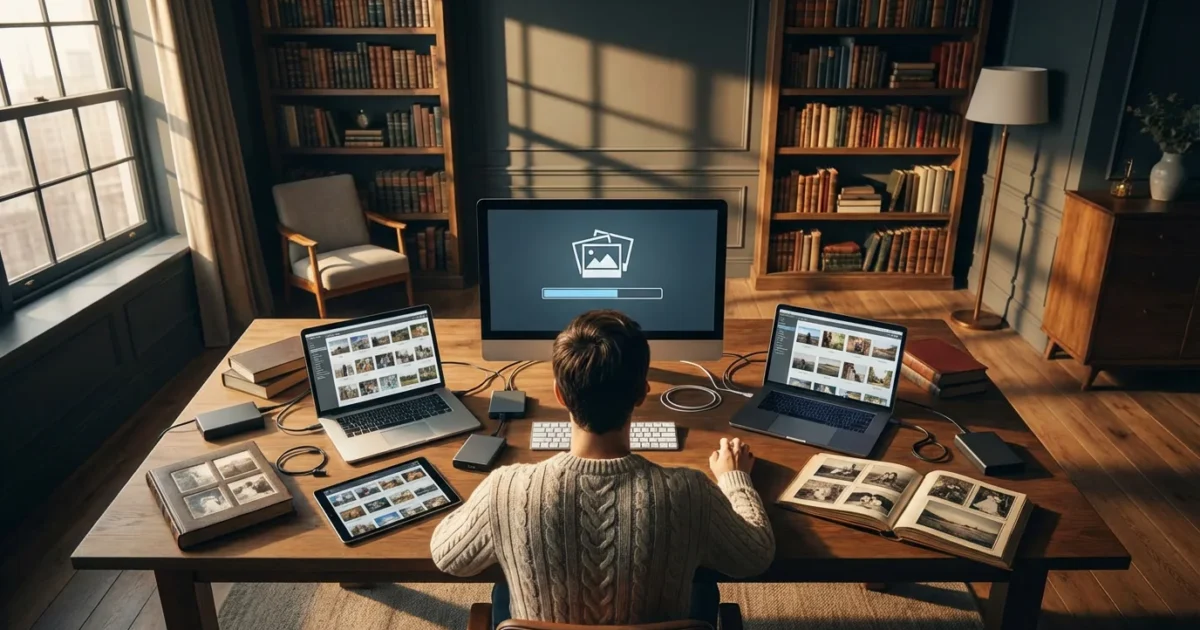
Your life story, told through images, likely resides in many places: on your phone, an old laptop, a dusty external hard drive, scattered across cloud services, or perhaps in a shoebox of prints in your attic. This fragmented existence makes it challenging to enjoy, share, and protect these precious memories. Picture yourself trying to find all the photos from a single family vacation, only to realize they are spread across four different devices and two cloud platforms. Frustrating, isn’t it?
Merging multiple photo libraries into one unified collection simplifies your digital life. It centralizes your memories, makes organization and backup straightforward, and ensures your photographic heritage remains intact and accessible for generations. This comprehensive guide walks you through the practical steps to consolidate your scattered photo collections into a single, manageable master library. You will gain control over your images, transform digital chaos into a structured archive, and create a powerful hub for your family’s visual narrative.

Why Consolidate Your Photo Libraries?
You accumulate photos at an unprecedented rate today. Each new device or cloud service often creates another silo for your images. Merging these disparate collections offers significant benefits, transforming your photo management experience from a chore into an organized pleasure.
- Simplified Access: Imagine finding any photo from any year in one place. A single, unified library means you stop hunting through old phones, forgotten folders, and multiple cloud accounts. Your images become instantly searchable and retrievable, saving you time and frustration.
- Streamlined Organization: With everything in one location, you can implement a consistent folder structure, naming convention, and tagging system. This consistency ensures every photo fits into its logical place, making it easy to browse by date, event, or subject.
- Easier Backup and Preservation: Scattered photos create backup nightmares. You must back up each device and service individually. A consolidated library requires backing up only one central location, simplifying your preservation strategy significantly. This drastically reduces the chance of losing precious memories due to a single device failure.
- Reduced Digital Clutter: Eliminating duplicates across multiple sources frees up valuable storage space. More importantly, it cleans up your visual history, presenting a single, clear timeline of events without redundant images. This efficiency extends the life of your storage devices and makes your collection feel lighter.
- Complete Visual Narrative: Your life story unfolds chronologically when all photos reside together. You gain a comprehensive view of your family’s history, recognizing patterns and connections you might miss when photos are isolated. This complete narrative enriches your ability to reminisce and share your heritage.
“Consolidating your photo libraries is not merely an act of digital housekeeping; it is an active step in safeguarding your personal history. It transforms fragmented memories into a cohesive narrative, making them more resilient and accessible for future generations.”

The Pre-Merge Audit: Inventory Your Collections
Before you begin moving files, take stock of where your photos currently reside. This initial audit helps you understand the scope of your project, identify potential challenges, and prevent overlooked sources. Think of it as mapping your photographic landscape.
Where to Look for Your Photos:
- Current Devices: Your smartphone, tablet, and digital camera contain the most recent images. Connect them and explore their internal storage.
- Old Computers and Laptops: Dig out retired machines. Photos often lurk in default “Pictures” folders, “Downloads,” or even old user profiles.
- External Hard Drives and USB Sticks: These are common temporary storage solutions that often become permanent archives for forgotten files.
- Cloud Services: Google Photos, iCloud Photos, Dropbox, OneDrive, Amazon Photos, Flickr, and even social media platforms like Facebook or Instagram (though these often store lower-resolution versions) can hold vast numbers of your images.
- CDs/DVDs: Many older backup methods involved burning photos to discs. Check any physical media you might have.
- Physical Prints and Negatives: Do not forget the tangible. Boxes of old family photos, slides, and negatives represent an invaluable part of your heritage. Plan to digitize these as part of your overall consolidation.
Create a simple list. Note the source, an estimated number of photos, and any unique characteristics (e.g., “Dad’s old laptop, ~20,000 photos, mostly JPEGs from 2000-2010,” or “Google Photos, all smartphone images since 2015”). This inventory provides a roadmap for the gathering phase.
Choose Your Central Hub: Where Will Your Unified Library Live?
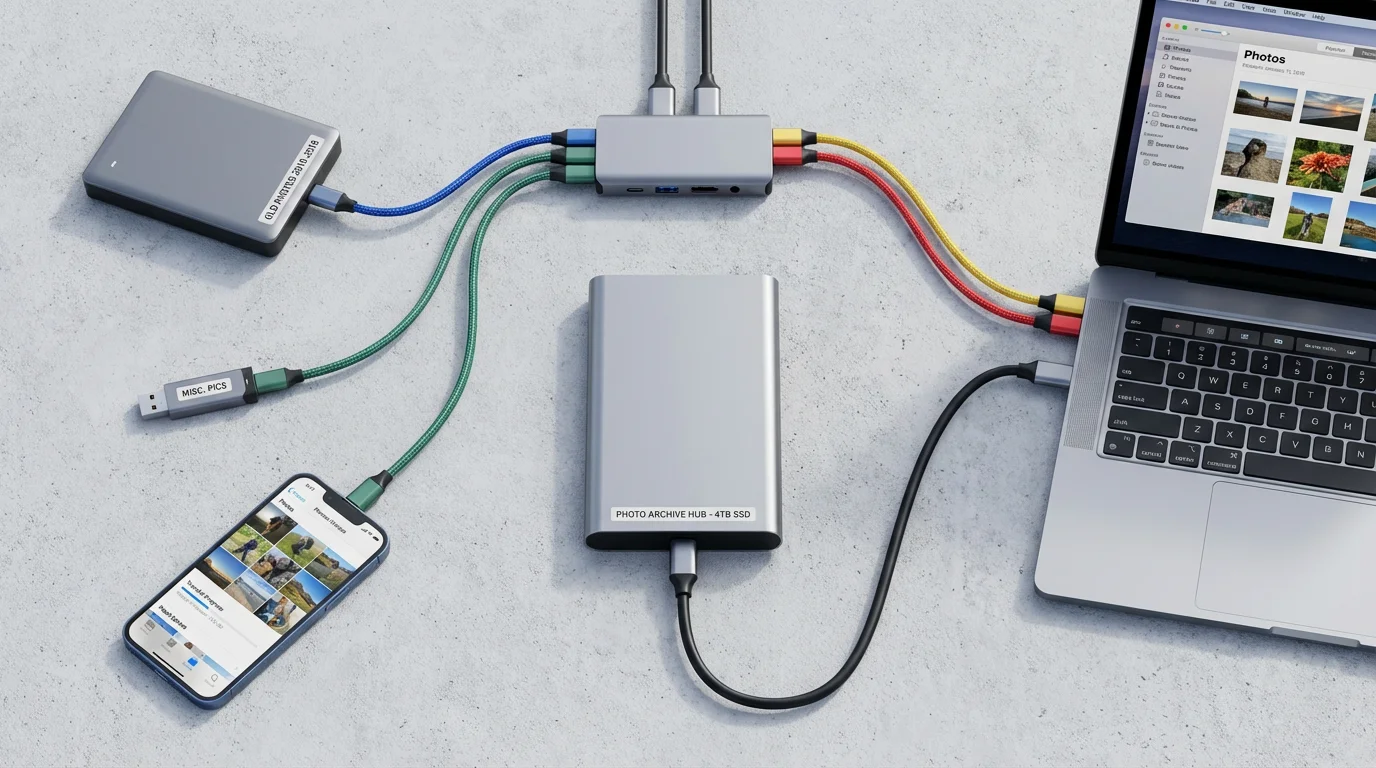
The foundation of your merged library is its central storage location. This “hub” will house every photo, serving as the master copy from which all other operations, like backups and viewing, stem. Your choice depends on factors like collection size, budget, technical comfort, and desired accessibility.
Key Considerations for Your Central Hub:
- Storage Capacity: Estimate your total photo volume. Digital photos, especially RAW files and videos, consume significant space. Aim for a hub with at least twice your current estimated storage needs to accommodate growth.
- Speed: Faster drives (e.g., SSDs over HDDs) and faster connections (USB 3.0/3.1/Thunderbolt) improve efficiency, particularly during initial transfers and ongoing use.
- Accessibility: Do you need to access your photos only at home, or from anywhere in the world?
- Budget: Storage solutions range from affordable external drives to more expensive, comprehensive network solutions.
Common Hub Options:
- Dedicated External Hard Drive:
- Pros: Affordable, easy to set up, good for local access.
- Cons: Susceptible to physical damage, requires manual backup, not easily accessible remotely without a computer connection.
- Recommendation: A high-capacity (e.g., 4TB or larger) USB 3.0/USB-C external hard drive is an excellent starting point for many individuals.
- Network-Attached Storage (NAS):
- Pros: Always-on, accessible from any device on your home network, remote access possible, built-in redundancy (RAID) protects against single drive failure.
- Cons: Higher initial cost, requires some technical setup, internet speed affects remote access.
- Recommendation: Ideal for families with large collections, multiple users, or those desiring robust local and remote access.
- Cloud Service (as primary storage):
- Pros: Accessible anywhere, anytime, automatic backups (though verify their terms), no physical hardware to manage.
- Cons: Ongoing subscription costs, internet dependence, privacy concerns for some, potential for vendor lock-in, downloading large libraries can be slow.
- Recommendation: While convenient, consider using cloud services primarily for backup or syncing a curated selection rather than the sole master archive, especially for very large libraries.
For most users, a new, high-capacity external hard drive serves as an excellent central repository for your master photo library. You combine this with cloud backup for offsite redundancy, fulfilling the critical 3-2-1 backup strategy.
Phase 1: Gather and Ingest All Your Digital Photos
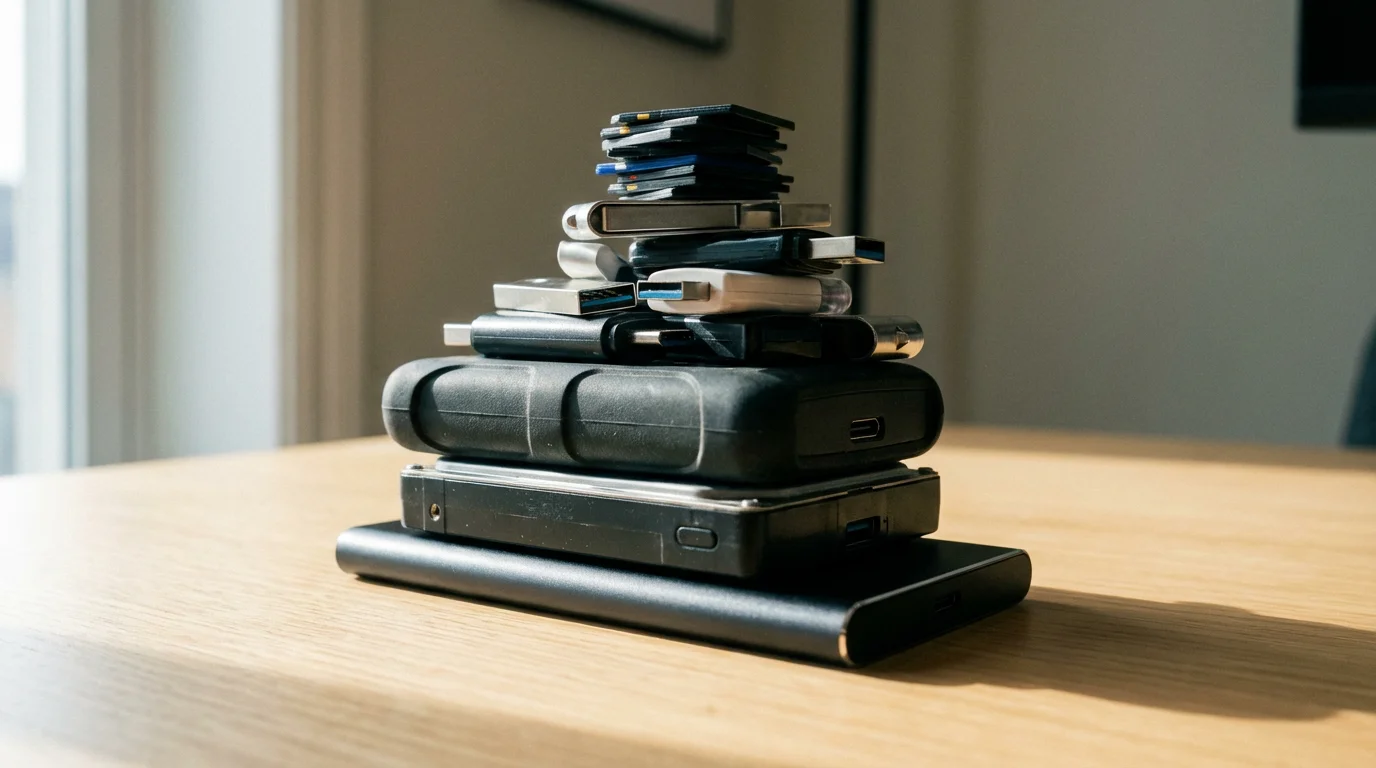
This phase involves bringing every identified photo from its scattered locations into one temporary staging area on your chosen central hub. Think of it as collecting all the pieces of a puzzle before you start assembling it.
If you are tackling a massive project, learn more about how to organize 20 years of digital photos to handle long-term archives effectively.
Step-by-Step Gathering Process:
- Create a Temporary “Incoming” Folder on Your Central Hub: On your external drive or NAS, create a top-level folder named something clear, like “PhotoMerge_Incoming.” This serves as your unorganized landing zone.
- Copy, Do Not Move: This is a crucial rule. Always copy files from their original source to your “Incoming” folder. Do not delete them from the source until you confirm a successful merge and backup. This provides a safety net if anything goes wrong during transfer.
- Extract from Mobile Devices and Cameras:
- Connect your smartphone, tablet, or camera to your computer.
- Access its internal storage (often appears as a drive or portable device).
- Copy all photo and video folders (e.g., “DCIM”) into your “PhotoMerge_Incoming” folder.
- Download from Cloud Services:
- Log into each cloud service (Google Photos, iCloud, Dropbox, etc.).
- Initiate a full download of your entire photo library. Be aware this can take a long time for large collections and may require using specific tools (e.g., Google Takeout for Google Photos, iCloud for Windows/Mac).
- Crucially, ensure you download original, full-resolution files, not compressed versions.
- Save these downloaded collections into separate subfolders within your “PhotoMerge_Incoming” folder (e.g., “PhotoMerge_Incoming/Google Photos,” “PhotoMerge_Incoming/iCloud”).
- Migrate from Old Computers and Drives:
- Connect old external hard drives or access old computers.
- Navigate to known photo locations (My Pictures, Downloads, custom folders).
- Copy all identified photo and video files/folders to your “PhotoMerge_Incoming” folder.
- Digitize Physical Photos (Optional, but Recommended):
- If you have physical prints, slides, or negatives, this is an excellent time to digitize them. Use a flatbed scanner with a transparency adapter for film, or a dedicated photo scanner.
- Alternatively, send them to a reputable scanning service.
- Save these digitized images into a subfolder within “PhotoMerge_Incoming” (e.g., “PhotoMerge_Incoming/Scanned Prints”). For best archival practices in scanning, consider resources like those provided by the Library of Congress Preservation initiatives.
As you gather, avoid making any organizational changes at this stage. Your primary goal is to get everything into one temporary location. Focus purely on ingestion.
Phase 2: Deduplication and Initial Organization
With all your photos in the “PhotoMerge_Incoming” folder, the next step involves cleaning up redundancies and laying the groundwork for a robust organizational structure. This makes your collection manageable and efficient.
Step-by-Step Cleanup and Initial Structure:
- Deduplicate Your Collection:
- It is virtually guaranteed you have duplicate images. Photos copied from multiple sources, social media downloads, and accidental backups all contribute to this.
- Use a reliable duplicate photo finder software. Options exist for Windows (e.g., Duplicate Photo Finder by VSDC, Awesome Duplicate Photo Finder), macOS (e.g., PhotoSweeper, Duplicate Photo Cleaner), and cross-platform (e.g., digiKam). Many modern photo management applications also offer built-in deduplication tools.
- Carefully review the suggested duplicates. Some programs might flag very similar but not identical photos. Always confirm before deleting.
- Delete only the duplicate files. Retain the highest quality version.
- Standardize File Naming (Optional, but Recommended):
- Consistent file names make sorting and searching much easier. Many cameras use generic names like “IMG_1234.JPG.”
- Use a batch renaming tool (many operating systems have built-in options, or use dedicated software).
- A common and effective naming convention includes the date and a descriptive element:
YYYY-MM-DD_EventName_SequenceNumber.JPG(e.g.,2023-10-26_GrandCanyonTrip_001.JPG).
- Implement a Basic Folder Structure:
- Create your permanent master photo library structure on your central hub. A robust system uses nested folders.
- A highly recommended structure is chronological:
Year (e.g., 2023)Month (e.g., 2023-10 October)Specific Event/Subject (e.g., 2023-10-26 Grand Canyon Trip)
- This structure allows you to quickly navigate to any period. Start moving photos from “PhotoMerge_Incoming” into these newly created dated folders.
- Initial Tagging and Metadata (Optional, but Powerful):
- As you move photos, consider adding basic metadata if your chosen photo management software allows. This could include keywords (e.g., “birthday,” “beach,” “family,” “friends”) or basic captions.
- Metadata embeds information directly into the image file, making it searchable even if you move the file to another system.
This phase transforms a chaotic dump of files into a structured, clean foundation for your master library. Take your time, as thoughtful organization now saves significant effort later.

Phase 3: Building Your Master Library (Software & Strategy)
Once your photos are gathered, deduplicated, and roughly organized by date, you need to decide how you will manage them moving forward. This involves choosing between manual file management or utilizing dedicated photo management software.
Selecting the best photo management software is key to effectively navigating and enjoying your newly unified collection.
Option 1: Manual Folder Management
This approach involves organizing your photos solely using your operating system’s file explorer (Finder on Mac, File Explorer on Windows). You arrange images into folders and subfolders based on your chosen hierarchy.
- Pros: Simple, no additional software cost, complete control over file locations, easy to understand.
- Cons: Limited search capabilities beyond file names/basic metadata, no built-in editing, no robust facial recognition or advanced tagging, difficult to manage large collections efficiently.
- Best for: Smaller collections (under 10,000 photos), users who prefer direct file access, or those who use a separate image editor.
Option 2: Photo Management Software
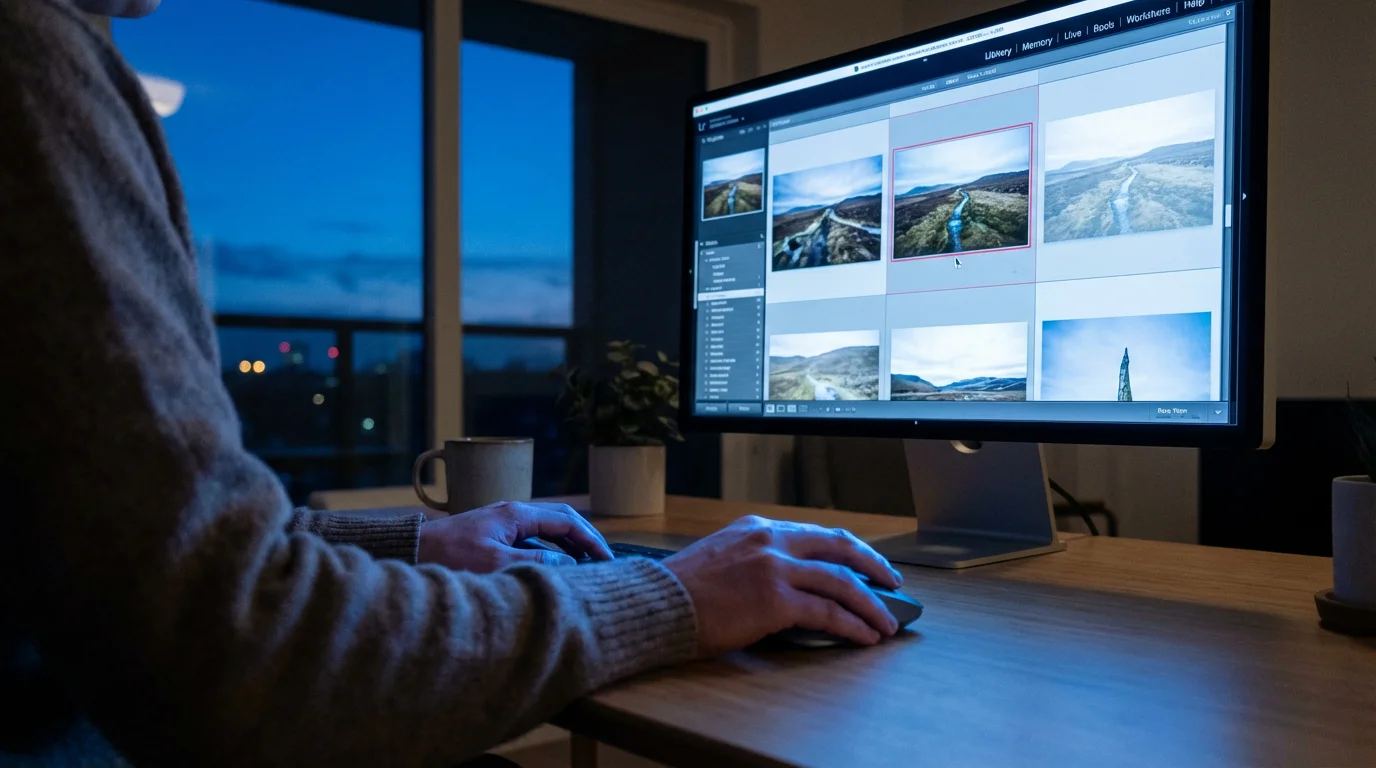
Dedicated software offers powerful tools for organizing, searching, editing, and sharing your photos. These applications act as a central catalog for your images, regardless of their actual file location.
Popular Photo Management Software:
- Adobe Lightroom Classic:
- Pros: Industry-standard for professional and serious amateur photographers, powerful organizing tools (keywords, collections, facial recognition, GPS), non-destructive editing, excellent RAW file support.
- Cons: Subscription-based, steep learning curve for new users, can be resource-intensive.
- Apple Photos:
- Pros: Seamless integration with Apple ecosystem, user-friendly interface, decent organizing and basic editing tools, iCloud Photos for syncing.
- Cons: Primarily for Apple users, less control over file structure compared to Lightroom, limited RAW editing compared to professional tools.
- Google Photos:
- Pros: Excellent AI-powered search, automatic backups (often with compression), easy sharing, free tier (though with limitations now).
- Cons: Not a true “master library” for local files, primarily cloud-based, can compress original files, less control over local organization.
- Mylio Photos:
- Pros: Focuses on centralizing all photos across devices, offline access to full-resolution images, robust organization and sync features.
- Cons: Subscription-based, can be resource-intensive with very large libraries.
- digiKam:
- Pros: Powerful, free, open-source software, excellent for tagging, organizing, and basic editing, supports various operating systems (Windows, macOS, Linux).
- Cons: Interface can be less intuitive for beginners, requires more manual setup.
When using software, understand the difference between a “managed” and “referenced” library:
- Managed Library: The software copies all your photos into its own internal folder structure. You typically do not interact directly with the files. (e.g., Apple Photos, Google Photos).
- Referenced Library: The software points to your photos wherever they are stored on your hard drive. You maintain control over your own folder structure. (e.g., Adobe Lightroom Classic, digiKam). This offers greater flexibility and portability.
For large, personal archives, a referenced library approach using software like Lightroom Classic or digiKam on your external drive/NAS often provides the best balance of organization, power, and long-term control. This method allows you to define your own folder structure while leveraging the software’s advanced cataloging and editing capabilities.
You have now gathered, cleaned, and organized your photos into a single, comprehensive master library. This achievement represents a significant step towards preserving your photographic legacy.
Essential Backup Strategies for Your Merged Library
A unified photo library is invaluable, but it remains vulnerable without a robust backup strategy. Merging your photos makes backing them up much simpler, but the responsibility to do so remains yours. Do not let years of effort be lost to a single hardware failure or accidental deletion.
The 3-2-1 Backup Rule: Your Gold Standard
This universally recommended strategy offers excellent protection against data loss:
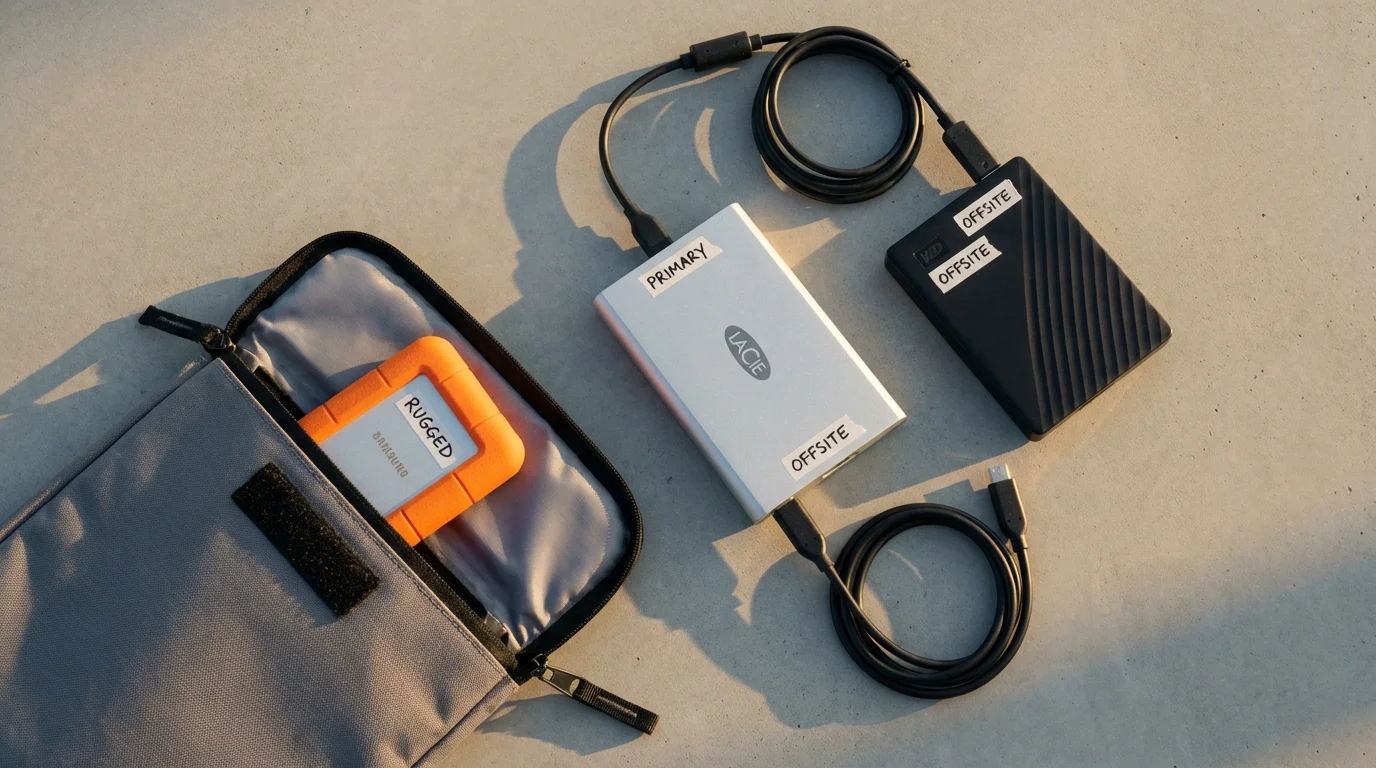
- 3 Copies of Your Data: Keep your primary working copy (your master library on your central hub) and at least two separate backup copies.
- 2 Different Media Types: Store your backups on at least two different types of storage media. This protects against a single type of media failure. For example, your master library on an external HDD and one backup on another external HDD, and another backup on a cloud service.
- 1 Offsite Copy: At least one of your backup copies should reside in a different physical location than your master library. This safeguards against local disasters like fire, flood, or theft. Cloud services are excellent for offsite storage, or you can rotate external drives to a friend’s house or a safe deposit box.
Practical Backup Implementations:
- Local External Drive Backup:
- Use a second, equally large external hard drive.
- Regularly copy your entire master library to this backup drive. Set a schedule: weekly, bi-weekly, or monthly, depending on how often you add new photos.
- Software like FreeFileSync (Windows/Linux) or Carbon Copy Cloner (macOS) can automate this synchronization.
- Cloud Backup Service:
- Subscribe to a reliable cloud storage provider (Backblaze, CrashPlan, pCloud, Sync.com).
- These services typically offer automatic, continuous backups of specified folders, including your entire master photo library.
- Ensure you choose a service that allows full-resolution file storage and offers strong encryption.
- NAS (Network-Attached Storage) with Redundancy:
- If your master library resides on a NAS, configure it with RAID (Redundant Array of Independent Disks). RAID 1 or RAID 5, for example, mirrors your data across multiple drives, protecting against a single drive failure.
- Even with RAID, a NAS is not a complete backup solution on its own. It protects against hardware failure within the NAS, but not against accidental deletion, ransomware, or physical disaster affecting your home. You still need offsite and separate media backups.
Regularly test your backups. Try restoring a few random files from your backup copies to ensure they are accessible and uncorrupted. This verification confirms your preservation efforts are genuinely effective.
“Your photo library is not truly preserved until it exists in multiple, independent locations. The most meticulous organization can’t recover what isn’t backed up.”

Maintaining Your Consolidated Photo Collection
Merging your photo libraries is a significant accomplishment, but photo management is an ongoing process. Consistent maintenance ensures your master library remains organized, current, and a joy to use.
To prevent future clutter, try implementing a daily photo organization routine to handle new images as they arrive.
Ongoing Practices for a Healthy Photo Library:
- Regularly Import New Photos: Establish a routine for getting new photos off your camera and phone and into your master library. Do this weekly or after every significant event. This prevents new scattered collections from forming.
- Consistent Organization and Tagging: As you import new images, immediately place them into your established folder structure. Take a few extra moments to add relevant keywords, captions, or star ratings. This effort significantly enhances your ability to find specific photos later.
- Periodic Deduplication Checks: Even with careful importing, duplicates can creep back in. Run your duplicate finder software every few months or annually to catch and remove redundant files.
- Review and Curate: Your master library is not just a dump; it is a curated collection. Periodically review older sections. Delete blurry, unflattering, or redundant shots that slipped through the initial deduplication. While every photo holds some history, keeping only the best helps tell your story more effectively and reduces storage burden.
- Monitor Storage and Backups: Keep an eye on the free space on your central hub. If it starts to fill up, plan for an upgrade or additional storage. Regularly verify your backup drives are healthy and your cloud backups are running successfully.
- Update Software: Keep your photo management software and operating system updated. Updates often include bug fixes, security enhancements, and new features that improve your workflow and protect your data.
By integrating these maintenance habits into your routine, you will ensure your consolidated photo library remains a vibrant, accessible, and well-protected archive of your life’s moments. This proactive approach transforms a one-time project into a sustainable system for preserving your precious photographic heritage.
Frequently Asked Questions
What if my photo libraries contain different file formats, like JPEGs, RAW, and videos?
Merging libraries with diverse file formats is common. Your chosen photo management software or operating system will typically handle these files within a single library. RAW files and videos naturally consume more storage space. Ensure your central hub has ample capacity. During the merge, focus on consolidating all file types into your master folder structure. Afterwards, you can review and organize them according to your preferences, perhaps separating RAW files for advanced editing or archiving videos in a dedicated subfolder.
How long does the process of merging multiple photo libraries usually take?
The time required to merge photo libraries varies significantly based on the volume of your photos, the number of sources, and your internet speed for cloud downloads. A small collection of a few thousand photos might take a weekend. A vast collection spanning tens of thousands or hundreds of thousands of images, especially with many cloud sources or physical prints needing digitization, could extend over several weeks or even months. Approaching it in stages, rather than trying to complete it all at once, makes the process more manageable.
Should I delete photos from their original sources immediately after merging them?
Do not delete photos from their original sources until you have confirmed your master library is complete, organized, and, critically, backed up. This involves verifying that all images successfully transferred, deduplication is complete, and your backup system works. Many experts recommend waiting a few weeks or even a month after creating your master library and its backups before permanently removing files from original devices or cloud services. This allows you to catch any overlooked issues and ensures you have multiple safe copies.
Can I use an old external hard drive as my central photo library?
You can use an old external hard drive, but exercise caution. Hard drives, like all electronics, have a finite lifespan. Older drives are more prone to failure. Assess the drive’s age, capacity, and overall health. If it is more than five years old, consider investing in a new, larger, and more reliable drive for your master library. Always ensure you have a robust backup strategy in place, especially if you use an older drive, to protect against potential data loss.
What’s the best way to handle RAW files when merging libraries?
RAW files preserve maximum image data, but they are larger and require specific software for viewing and editing. When merging, treat them as any other photo file, ensuring they copy correctly to your central hub. Many photo management applications fully support RAW files. Keep them separate from edited JPEGs if you intend to preserve both. Do not discard RAW files after editing, as they represent your digital negative and offer the most flexibility for future edits. For more detailed insights into digital preservation, the Image Permanence Institute offers valuable guidance on digital imaging workflows and longevity.
Disclaimer: This article is for informational purposes only. When handling valuable or irreplaceable photographs, consider consulting a professional conservator. Always test preservation methods on non-valuable items first.









Leave a Reply