

Your phone holds a treasure trove of irreplaceable moments: family vacations, everyday joys, milestones, and spontaneous captures. Losing these memories to a dropped phone, a software glitch, or an accidental deletion is heartbreaking. Many people experience this pain, often after inheriting boxes of old family photos and understanding the deep value of preserving visual history. Fortunately, you can secure your digital photo legacy with a simple, yet powerful strategy: setting up automatic photo backup from your phone. This practical guide walks you through the steps, helping you protect your precious images with minimal effort and maximum peace of mind.
Before you begin your first sync, it is often helpful to start decluttering your photo collection to ensure you are only preserving the best shots.
If you are also looking to digitize older physical prints, check out the best scanner apps for iPhone and Android to make the process simple.
While securing new images is vital, many users also struggle with how to organize 20 years of digital photos that are currently scattered across old devices and hard drives.
Why Automatic Backup Is Non-Negotiable for Your Phone Photos
Think about the sheer volume of photos accumulating on your smartphone. Industry data indicates people take trillions of photos annually, with smartphones being the primary capture device. Your phone likely houses hundreds, if not thousands, of images, each representing a personal story. This vast collection, while convenient to carry, is also incredibly vulnerable.
While you are taking more photos, using expert smartphone photography tips can help you capture even better family memories worth saving.
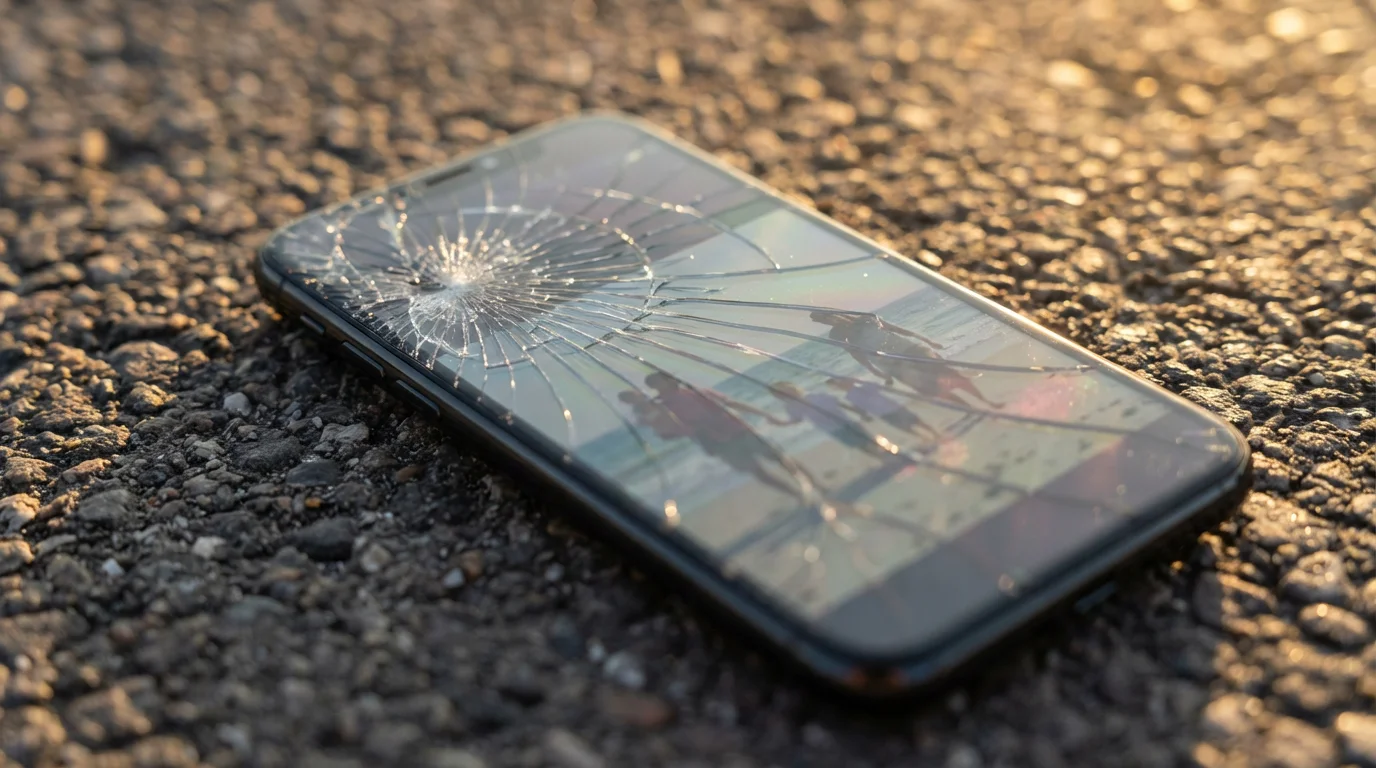
Imagine the scenario: Your phone slips from your hand, hits the pavement, and the screen shatters. Or perhaps you upgrade to a new model, forgetting to transfer everything. Worse yet, an unforeseen software corruption or theft could wipe out years of photographic memories instantly. These are not rare occurrences. Studies consistently show that device failure, accidental deletion, and theft are leading causes of data loss. Losing your digital photo memories can feel as devastating as losing physical family albums.
Automatic backup provides an invisible, continuous safety net. It ensures that as soon as you capture a new photo, it travels to a secure, off-site location, ready for retrieval no matter what happens to your device. This proactive approach saves you from the stress and potential heartbreak of irreversible loss. It frees you to enjoy taking photos without constantly worrying about their immediate safety.
“Treat your digital photos with the same reverence you accord physical heirlooms. Implementing an automatic backup system is the most fundamental step in safeguarding these invaluable records for future generations.”

Understanding Your Automatic Backup Options: Cloud Services
When you consider automatic backup for your phone photos, cloud services represent the most practical and efficient solution. Cloud sync services upload your photos and videos to remote servers, accessible from any device with an internet connection. This differs from local backups, where you manually transfer files to an external hard drive or computer. While local backups are an excellent secondary measure, cloud services offer the “set it and forget it” automation essential for daily photo capture on your phone.
Setting up mobile backup is just one piece of creating a home photo archive that keeps your entire collection safe and organized.
For a more detailed breakdown of monthly costs and storage limits, you can explore our guide on the best cloud storage services for photo backup.
Major cloud providers offer varying features, storage capacities, and pricing models. Key aspects to evaluate include:
- Automatic Upload: Does the service seamlessly upload new photos in the background? This is the core feature you need.
- Storage Space: Most services offer a free tier with limited storage, then paid plans for more capacity. Assess your current photo volume and future needs.
- Accessibility: Can you access your photos easily from a web browser, another phone, or a computer?
- Pricing: Compare monthly or annual costs for different storage tiers.
- Privacy and Security: Understand how your data is protected, including encryption and two-factor authentication options.
- Additional Features: Some services offer photo organization tools, editing capabilities, sharing options, and even facial recognition for easy searching.
Leading options for automatic phone photo backup include:
- Google Photos: Highly popular, cross-platform (Android, iOS, web), robust search, and organization features. Offers 15 GB free storage shared across Google services.
- Apple Photos (iCloud Photos): Deeply integrated with Apple devices, ideal for iPhone and Mac users. Offers 5 GB free iCloud storage.
- Dropbox: A versatile cloud storage solution with robust photo backup capabilities, available across all platforms. Offers 2 GB free storage.
- Microsoft OneDrive: Integrates well with Windows ecosystems and Microsoft Office. Offers 5 GB free storage.
Choosing the Best Automatic Photo Backup App for iPhone and Android
Selecting the right service depends largely on your device, existing digital ecosystem, and specific needs. Consider these factors when making your choice:
If you are unsure which platform to commit to, we have compared Google Photos vs Apple Photos to help you decide which offers better long-term organization.
- Your Device Ecosystem:
- iPhone Users: If you primarily use Apple devices (iPhone, iPad, Mac), iCloud Photos offers the most seamless integration. Photos and videos sync across all your Apple devices automatically, making them accessible everywhere. You receive 5 GB of free iCloud storage, which many users quickly outgrow. Upgrading to a paid iCloud+ plan unlocks more storage and additional privacy features.
- Android Users: Google Photos is the natural choice for most Android users due to its deep integration with the Android operating system and Google account. It offers excellent organizational features, powerful search, and smart albums. You get 15 GB of free storage shared across Google Photos, Gmail, and Google Drive.
- Cross-Platform Users: If you use both iPhone and Android devices, or want a solution that works identically across various operating systems, Google Photos, Dropbox, or Microsoft OneDrive are strong contenders. These services provide consistent experiences regardless of your phone’s brand.
- Storage Needs and Cost:
Estimate your photo library size. A typical iPhone user might take hundreds to thousands of photos and videos annually, quickly exceeding free tiers. Paid plans vary in price. For example, Google One (for Google Photos) offers 100 GB for a low monthly fee, while Apple iCloud+ provides similar tiers. Compare these costs against your budget and storage requirements. Remember, investing in adequate storage is an investment in your memories.
- Features and Functionality:
- Organization: Do you need intelligent albums, facial recognition, or easy tagging? Google Photos excels here.
- Editing Tools: Some apps include basic photo editing capabilities.
- Sharing: How easily can you share albums or individual photos with family and friends?
- Privacy: Review each service’s privacy policy. Understand who can access your data and how it is used. Most reputable services offer robust security, but knowledge empowers you.
For a deeper dive into comparing features and performance across different cloud photo services, you might consult expert reviews. For example, Digital Photography Review often provides comprehensive analyses of photo storage and management solutions, helping you make an informed decision.

Step-by-step: How to Automatically Backup Phone Photos to Cloud (iPhone)
Here, you will learn to activate automatic backup using iCloud Photos, the native Apple solution, and Google Photos, a popular cross-platform alternative.
Once your automated system is running, maintaining it is simple if you follow a 10-minute daily photo organization routine.
Using iCloud Photos (Apple’s Native Solution)
This method integrates seamlessly with your Apple ecosystem.
- Open Settings: Tap the “Settings” app on your iPhone.
- Tap Your Apple ID: At the top of the Settings screen, tap your name (your Apple ID banner).
- Select iCloud: Tap “iCloud” from the menu.
- Tap Photos: Under “Apps Using iCloud,” tap “Photos.”
- Toggle On iCloud Photos: Ensure the “iCloud Photos” toggle is green (on).
- Choose Storage Optimization (Optional):
- “Optimize iPhone Storage”: This option keeps smaller, device-sized versions of your photos on your iPhone when storage is low, while full-resolution versions remain in iCloud. This saves space on your phone.
- “Download and Keep Originals”: This option stores full-resolution photos and videos on both your iPhone and in iCloud. Choose this if you have ample phone storage and prefer immediate access to originals offline.
Your photos will now automatically upload to iCloud whenever you connect to Wi-Fi and power. If you exceed your free 5 GB iCloud storage, you will receive a notification prompting you to upgrade your iCloud+ plan.
Using Google Photos on iPhone
If you prefer Google’s features or use Android devices, Google Photos works excellently on iOS.
- Download Google Photos: If you do not have it, download the Google Photos app from the App Store.
- Sign In: Open the app and sign in with your Google account.
- Enable Backup & Sync:
- Tap your profile picture or initial in the top right corner.
- Tap “Google Photos settings.”
- Tap “Backup & sync.”
- Toggle “Backup & sync” to the on position.
- Select Upload Size (Optional):
- Under “Upload size,” you can choose “Original quality” (uses your Google account storage) or “Storage saver” (slightly compressed, but still high quality, also uses Google account storage). For full preservation, always choose “Original quality.”
- Cellular Data Backup (Optional): By default, Google Photos backs up only over Wi-Fi. If you want photos to backup over cellular data, tap “Mobile data usage” and toggle on “Daily limit for backup” to “No data limit,” or select a specific limit. Be mindful of your data plan.
Google Photos will now automatically back up your camera roll to your Google account. You can view its progress in the app.

Step-by-step: How to Automatically Backup Phone Photos to Cloud (Android)
Google Photos is the primary and often pre-installed automatic backup solution for Android phones. We also cover other popular options.
Using Google Photos (Android’s Native Solution)
For most Android users, Google Photos offers the most integrated and feature-rich automatic backup experience.
- Open Google Photos: Locate and open the “Photos” app on your Android phone. It often comes pre-installed.
- Sign In (if necessary): Ensure you are signed into your Google account. If not, the app will prompt you.
- Enable Backup & Sync:
- Tap your profile picture or initial in the top right corner.
- Tap “Photos settings.”
- Tap “Backup.”
- Toggle “Backup” to the on position.
- Select Upload Size (Optional):
- Under “Backup settings,” tap “Upload size.” Choose “Original quality” to preserve your photos in their full resolution (uses your Google account storage), or “Storage saver” for slightly compressed but high-quality versions (also uses Google account storage). For the best preservation, “Original quality” is always recommended.
- Manage Cellular Data Usage (Optional):
- Under “Backup settings,” tap “Mobile data usage.”
- To back up over mobile data, toggle on “Photos” and “Videos.”
- You can also set a “Daily limit for backup” to control data consumption. Setting it to “No data limit” ensures continuous backup but uses more cellular data.
Your Android phone will now automatically back up new photos and videos to Google Photos whenever connected to Wi-Fi (or cellular, if enabled). You can monitor the backup status within the Google Photos app.
Using Dropbox or Microsoft OneDrive on Android
If you prefer a different cloud provider, the process is similar for Dropbox and OneDrive.
- Download the App: Get the Dropbox or Microsoft OneDrive app from the Google Play Store.
- Sign In: Open the app and sign in with your account credentials.
- Enable Camera Uploads/Automatic Backup:
- Dropbox: Tap the “Account” tab (person icon) in the bottom right, then tap “Camera Uploads.” Toggle “Camera uploads” to on. Configure whether to use cellular data and if videos should be included.
- OneDrive: Tap your profile picture/icon in the top left, then tap “Settings.” Tap “Camera upload.” Toggle “Camera upload” to on. Configure if videos should be included and if cellular data should be used.
These apps will now automatically upload your phone’s camera roll to their respective cloud services, providing an additional layer of backup for your digital memories.
Best Practices for Maintaining Your Automatic Backup
Setting up automatic backup is a significant first step, but ongoing vigilance ensures its effectiveness. Implement these practices to keep your photo memories secure:
Before starting your first major sync, it is helpful to find and remove duplicate photos to avoid cluttering your new backup.
- Verify Backups Regularly: Do not just trust that it is working. Periodically check your cloud service via its website or another device to confirm your latest photos have uploaded. Look for a few recent pictures. This simple check gives you confidence in your system.
- Manage Your Storage Space: Cloud storage is not infinite. Monitor your used storage space, especially if you use a free tier. Delete unwanted photos and videos from the cloud service (only after confirming they are indeed unwanted and backed up elsewhere if desired). Upgrade your plan if you consistently approach your limit. This prevents backup failures due to lack of space.
- Understand Sync vs. Backup: Many cloud services are “sync” services. This means changes you make on your phone (like deleting a photo) may sync to the cloud, deleting it there as well. Be mindful of this behavior. If you delete photos from your device to free up space, ensure you understand what happens on the cloud side. For instance, Google Photos offers a “Free up space” feature that safely removes device copies of backed-up photos without deleting them from the cloud.
- Strengthen Your Account Security: Your cloud account is the key to your photo library. Enable two-factor authentication (2FA) on your Google, Apple, Dropbox, or Microsoft account. This adds an extra layer of security, requiring a code from a second device in addition to your password, significantly reducing the risk of unauthorized access.
- Consider Archival Quality: While automatic backups are convenient, consider their long-term archival quality. Backing up “Original quality” files is always preferable to compressed versions for true preservation. For critical photos, consider downloading full-resolution copies to a local external hard drive periodically as an additional archival step.
The “3-2-1 Rule” for Digital Photo Preservation
Professional archivists and data preservation experts advocate for the “3-2-1 Rule.” This principle provides a robust framework for safeguarding any digital information, including your precious phone photos. Understanding and applying it helps ensure your memories endure for decades.
While this guide focuses on your phone, don’t forget the importance of backing up physical photos as part of your comprehensive preservation plan.
The 3-2-1 Rule states you should have:
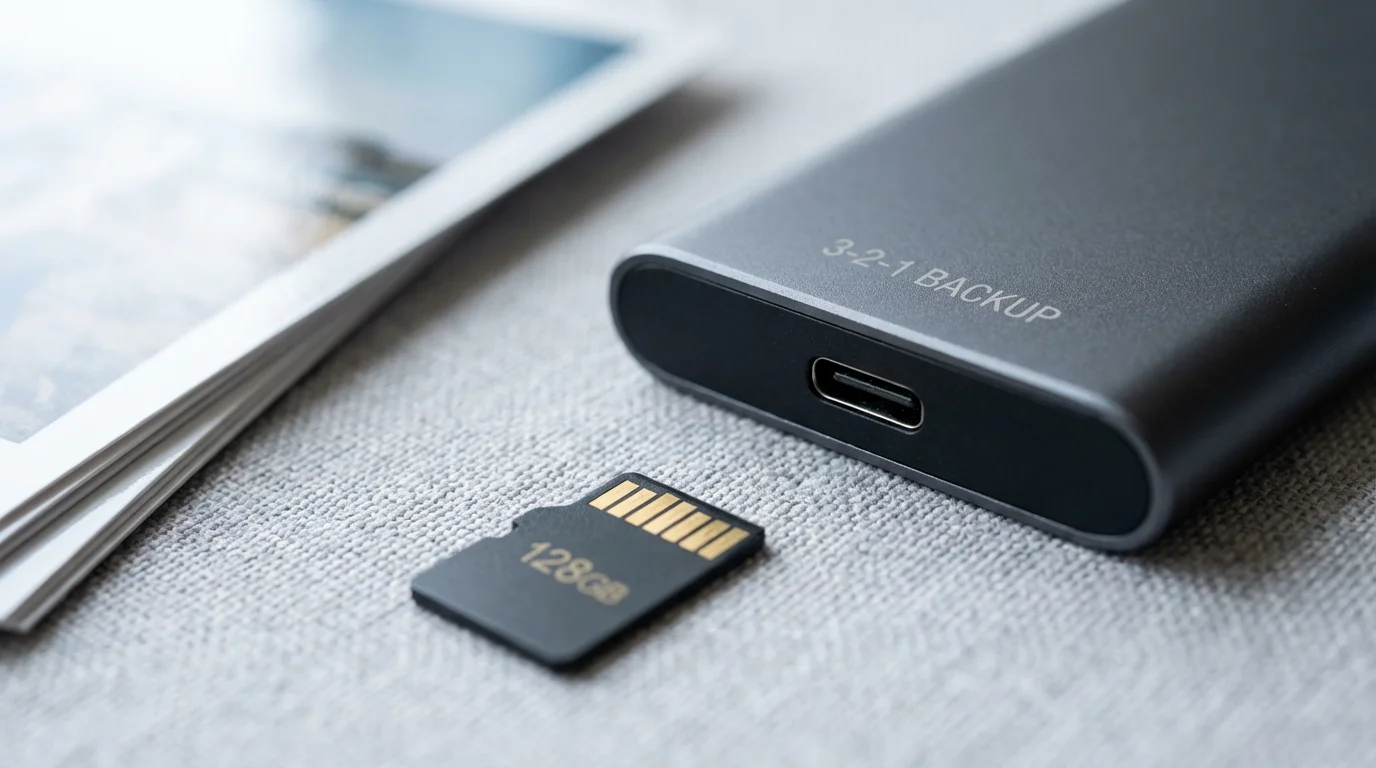
- 3 copies of your data: The original copy (on your phone), and at least two backups.
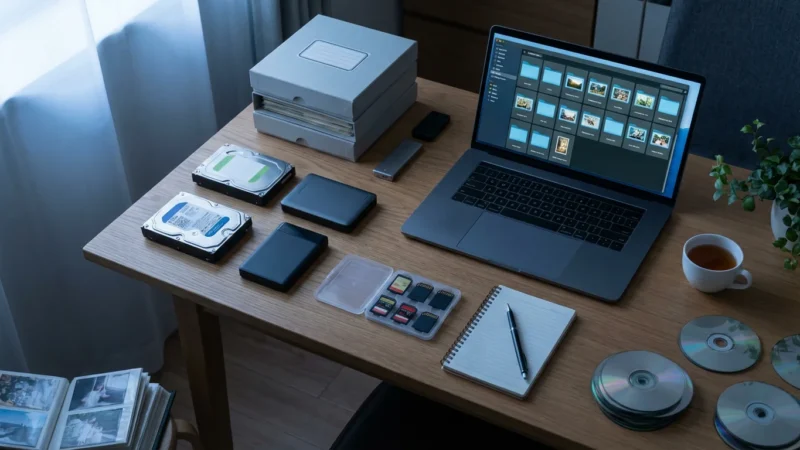
- 2 different types of media: Store your copies on at least two different storage types. For example, your phone, a cloud service, and an external hard drive. Relying solely on one type of media, such as multiple cloud accounts, mitigates some risk but using distinct technologies offers stronger protection against systemic failures.
- 1 copy off-site: Keep at least one copy of your data in a different physical location. Cloud services naturally fulfill this requirement, as their servers are geographically distant from your phone. This protects your data from local disasters such as fire, flood, or theft.
Your automatic cloud backup directly addresses key aspects of the 3-2-1 Rule. It provides a second copy (the first being on your phone), uses a different type of media (cloud servers versus your phone’s internal storage), and critically, it keeps a copy off-site. For optimal preservation, consider adding a third copy on a local external hard drive or a desktop computer, further diversifying your storage media and locations. This combined approach gives your photo memories the best possible chance of survival, ensuring they remain accessible for future generations to cherish.
Frequently Asked Questions
What is the best automatic photo backup app for iPhone Android?
For iPhone users, iCloud Photos offers seamless integration. For Android users, Google Photos is typically the best choice. Both are pre-installed or deeply integrated with their respective operating systems. However, cross-platform apps like Dropbox and Microsoft OneDrive also provide excellent automatic backup functionality, offering flexibility if you use multiple device types or prefer their specific features.
How often should I verify my automatic backups?
Verify your automatic backups at least once a month. This quick check involves logging into your cloud service (via web or another device) and confirming that your most recent photos have successfully uploaded. Regular verification catches potential issues with your backup settings or internet connection before any significant data loss occurs.
Does deleting photos from my phone also delete them from the cloud?
It depends on the cloud service and your settings. Most cloud services, especially those designed for “syncing” like iCloud Photos, will mirror deletions: if you delete a photo from your phone, it also deletes from iCloud. Services like Google Photos offer more control; you can use the “Free up space” feature to remove photos from your device while keeping them in the cloud. Always understand your specific service’s behavior before deleting photos from your device.
Is automatic backup enough, or do I need other backups?
Automatic cloud backup is an excellent first line of defense and satisfies the “off-site” requirement of robust data preservation. However, relying solely on one backup method carries inherent risks. For comprehensive protection, follow the “3-2-1 Rule”: keep three copies of your photos, on at least two different types of media, with one copy stored off-site. This often means adding a local backup on an external hard drive in addition to your automatic cloud solution.
Can I automatically backup my phone photos without using the cloud?
While some apps or computer programs can initiate automatic transfer of photos to a local hard drive when your phone connects to your computer, true “automatic” backup that happens continuously and wirelessly, without user intervention, is almost exclusively a feature of cloud services. These services constantly monitor your camera roll and upload new content as soon as an internet connection is available, providing the most hands-off approach.
With automatic photo backup in place, you protect your digital heritage. You secure those fleeting moments, transforming them into lasting memories for yourself and future generations. Take action today to set up your system and experience the unparalleled peace of mind that comes with knowing your cherished photographs are safe.
Disclaimer: This article is for informational purposes only. When handling valuable or irreplaceable photographs, consider consulting a professional conservator. Always test preservation methods on non-valuable items first.
To prevent your cloud storage from filling up prematurely, it is also wise to find and remove duplicate photos that may be wasting space.
Beyond just backing up, establishing a consistent photo organization system ensures you can actually find and enjoy your memories once they are secured.






Leave a Reply