
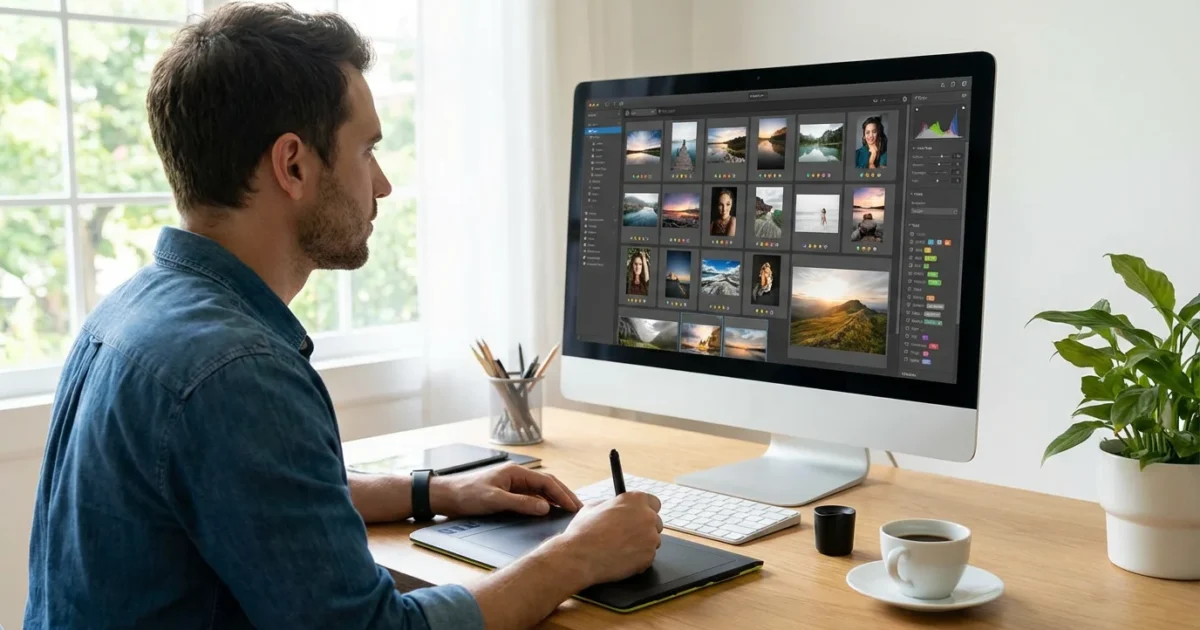
You have dedicated years to capturing life’s fleeting moments. Perhaps you inherited boxes filled with family history, or your phone’s camera roll now holds tens of thousands of digital images. The sheer volume can feel overwhelming, making it difficult to find a specific memory or ensure your precious photos remain safe for future generations. Protecting, organizing, and enjoying these visual treasures requires more than just a camera; it demands a robust system for managing your growing collection.
For those starting with physical prints, using one of the best photo scanners is the first step toward digital organization.
Establishing a proper home photo archive ensures your family’s legacy is preserved for decades to come.
Before diving into specific software, it is helpful to understand how to create a photo organization system that sticks so you can maintain your library long-term.
This guide cuts through the noise, helping you identify the best photo management software for your unique needs in 2025. We will explore top-tier options, from powerful paid platforms to capable free photo organizing apps, providing practical insights so you can confidently safeguard your photographic heritage.

Why You Need Photo Management Software
Imagine searching for a specific photograph, perhaps a cherished image from a family vacation years ago, or a crucial document shot with your phone. Without a system, this search often devolves into an endless scroll through disorganized folders or a frustrating hunt through thousands of unlabeled files. You risk losing memories, duplicating efforts, and feeling utterly defeated by the digital chaos. Digital photo tools provide order, ensuring you can quickly locate, share, and protect your images.
To avoid falling behind, consider implementing a 10-minute daily organization routine to stay on top of new arrivals.
A quality manager also helps you find and remove duplicate photos, freeing up valuable storage space.
Effective photo management software offers several critical benefits:
- Centralized Organization: Consolidate images from various sources, including cameras, phones, and external drives, into one accessible location.
- Enhanced Searchability: Utilize keywords, tags, ratings, and facial recognition to find specific photos in seconds, even within a massive collection.
- Efficient Workflow: Streamline importing, culling, editing, and exporting processes, saving you significant time and effort.
- Protection Against Loss: Many solutions integrate with backup systems, either locally or in the cloud, safeguarding your irreplaceable memories from hardware failure or accidental deletion.
- Creative Potential: Organize your photos to tell stories, create albums, or prepare them for prints and projects, unlocking new ways to engage with your visual history.

Key Features to Look for in Photo Management Software
Choosing the best photo management software involves understanding the core functionalities that will most benefit your workflow. Consider these essential features as you evaluate different options:
Many modern applications are now using AI to automatically sort and tag your photos, saving you hours of manual categorization.
Organization and Tagging
- Keywords and Tags: The ability to add custom keywords, descriptive tags, and ratings (e.g., 1-5 stars) allows for granular control over your collection. You can tag photos with “Grandma,” “Christmas 2005,” or “Hiking Trip.”
- Facial Recognition: Advanced software automatically identifies faces, letting you group photos by person. This saves immense time when searching for images of specific family members.
- Geolocation: Software that reads GPS data from your camera or phone can organize photos by location, enabling searches like “all photos taken in Paris.”
- Smart Albums/Collections: Automatically group photos based on criteria you define, such as date, camera model, or tags. For example, create a smart album for all 5-star photos taken in 2024.
Editing Capabilities
- Non-Destructive Editing: This crucial feature ensures any edits you make do not permanently alter the original image file. You can always revert to the untouched version.
- Basic Adjustments: Look for tools that handle exposure, contrast, white balance, cropping, and straightening.
- Advanced Tools: Some platforms offer sophisticated features like selective adjustments, noise reduction, lens correction, and RAW file processing.
Import and Export
- RAW File Support: If you shoot in RAW, your software must be able to import, view, and edit these high-quality, uncompressed files.
- Batch Processing: Apply settings, rename files, or export multiple images simultaneously, which is a major time-saver for large collections.
- Diverse Export Formats: Export options should include common formats like JPEG, PNG, and TIFF, with control over resolution and quality.
Backup and Synchronization
- Cloud Integration: Seamlessly sync your library with cloud storage providers, ensuring your photos are backed up and accessible across devices.
- Device Synchronization: Keep your photo library consistent across your computer, tablet, and smartphone.
- Local Backup Options: Features that facilitate backing up your organized library to external hard drives add an extra layer of security.
User Experience and Compatibility
- Intuitive Interface: The software should be easy to navigate, with a logical layout that supports an efficient workflow, minimizing frustration.
- Performance: It must handle your library size without significant lag, importing, indexing, and processing images quickly.
- Platform Compatibility: Ensure the software runs on your preferred operating system, whether it is Windows, Mac, or a mobile platform. The best photo management software for Windows and Mac often offers cross-platform solutions.
Pricing Model
- Subscription: Many powerful options use a monthly or annual subscription, providing continuous updates and cloud storage.
- One-Time Purchase: Some software offers a perpetual license, requiring a single upfront payment, with optional paid upgrades for new major versions.
- Free: Several excellent free photo organizing apps exist, often with limitations on features or storage.
“The most powerful photo management software is the one you actually use consistently. A complex system that remains untouched offers no value, while a simpler, well-utilized tool creates an organized, accessible legacy.”

Top Paid Photo Management Software for Serious Organizers
For individuals with extensive photo libraries, professional-level editing needs, or a desire for maximum control and advanced features, investing in paid photo management software offers significant advantages. These platforms provide robust tools for organization, editing, and workflow efficiency.
Adobe Lightroom Classic
Adobe Lightroom Classic stands as the industry standard for many photographers, offering unparalleled non-destructive editing alongside powerful cataloging capabilities. You import your photos into a central catalog, which tracks every edit and organizational tag, leaving your original files untouched. Its robust keyword, rating, and collection system allows you to manage thousands of images with precision. For example, you can flag all your best landscape photos, add “Iceland” and “Aurora” as keywords, and quickly find them again years later. The subscription model includes cloud storage and access to other Adobe Creative Cloud apps, which means you always have the latest features. While its learning curve requires dedication, the depth of its features makes it an excellent choice for comprehensive digital photo tools.
Mylio Photos+
Mylio Photos+ offers a unique approach, prioritizing privacy and accessibility across all your devices without relying solely on cloud storage. This software creates a “smart vault” of your photos that synchronizes across your computers, phones, and tablets using peer-to-peer technology. Your full-resolution images reside on at least one designated device, while optimized versions are available everywhere else. This means you can view, organize, and even lightly edit your entire library offline, irrespective of internet connectivity. It focuses heavily on organization, facial recognition, and data safety, making it a compelling option for families who want a centralized photo organizer app accessible to everyone in the household, without constant internet dependency. Mylio Photos+ positions itself as a private, local-first solution for managing large photo collections across many devices.
ACDSee Photo Studio Ultimate
ACDSee Photo Studio Ultimate blends comprehensive photo management with powerful RAW editing tools. It boasts exceptional speed and efficiency, particularly when browsing and processing large volumes of images. Unlike Lightroom, ACDSee allows you to browse photos directly on your hard drive without importing them into a separate catalog first, offering a different workflow for those who prefer file-based organization. It supports an extensive range of file formats and includes advanced editing features like layered editing, digital asset management, and robust keyword and category tagging. You can purchase it with a one-time payment or through a subscription, providing flexibility. If you seek a fast, feature-rich photo organizer app with strong editing capabilities, ACDSee Photo Studio Ultimate presents a strong contender, especially as a best photo management software for Windows users.

Leading Free Photo Management Software Options
You do not need to spend a fortune to organize your digital photo collection. Several excellent free photo organizing apps offer powerful features for managing, editing, and sharing your images. While they might lack some of the advanced functionalities of their paid counterparts, they provide robust solutions for most users.
If your primary focus is strictly on creative adjustments, you might also explore the best free photo editing software for beginners available today.
Deciding between the two most popular mobile ecosystems is easier when you understand the key differences in Google Photos vs Apple Photos for long-term library management.
Google Photos
Google Photos excels at automatic organization, AI-powered search, and effortless sharing. Upload your photos, and Google’s AI automatically categorizes them by people, places, and things, making it incredibly easy to find specific images with simple search terms like “dog at the beach” or “Paris 2018.” It offers basic editing tools and integrates seamlessly with Google’s ecosystem. While Google no longer provides unlimited free storage for high-quality photos, it remains a strong choice for its powerful search capabilities and ease of use, especially for smartphone users. You receive 15GB of free storage across your Google account, which you can expand with a paid Google One subscription.
Microsoft Photos
Built directly into Windows, Microsoft Photos serves as the default photo viewer and editor for many users. It offers basic photo management features, including automatic album creation, facial recognition, and a timeline view to navigate your collection. You can perform quick edits like cropping, rotating, and color correction. Microsoft Photos also integrates with OneDrive, allowing for cloud backup and synchronization across Windows devices. While it may not offer the professional-grade features of dedicated photo management software, it provides a solid, free solution for everyday organization and simple edits for Windows users. It’s an accessible starting point as a free photo organizing app.
Apple Photos
For Mac, iPhone, and iPad users, Apple Photos provides a deeply integrated and intuitive experience. It automatically organizes your photos by date, people, and places, using machine learning to create curated “Memories” and “For You” collections. iCloud Photos keeps your entire library synchronized across all your Apple devices, making every photo accessible everywhere. Apple Photos offers a good set of editing tools, including non-destructive adjustments and filters. Its strength lies in its seamless integration within the Apple ecosystem, providing a cohesive experience for users who primarily operate within this environment. While the basic software is free, larger iCloud storage plans require a subscription.
DigiKam
DigiKam stands out as a powerful, open-source photo organizer app available for Windows, macOS, and Linux. It offers an extensive range of features typically found in professional paid software, including advanced tagging, facial recognition, geolocation, and comprehensive metadata management. DigiKam supports RAW files and provides a suite of editing tools through its integration with Kipi plugins. While its interface can appear more complex than consumer-focused applications, its depth of functionality and complete absence of cost make it an exceptional choice for users who demand control and customization without a subscription fee. It’s an excellent digital photo tool for those willing to invest time in learning its robust system.

Cloud-Based vs. Desktop Solutions: Making the Right Choice
When selecting photo management software, you will encounter a fundamental choice: cloud-based solutions, desktop applications, or a hybrid approach. Each offers distinct advantages and disadvantages, influencing accessibility, security, and performance.
The decision often comes down to the pros and cons of external hard drives vs cloud storage for your primary archive.
Cloud-Based Photo Management
Cloud-based solutions store your photos on remote servers, accessible via the internet from any device. Google Photos, Apple Photos (with iCloud), and SmugMug are prime examples.
Pros:
- Accessibility: Access your entire library from any internet-connected device, anywhere in the world.
- Automatic Backup: Photos upload automatically, reducing the risk of loss from local drive failure.
- Easy Sharing: Share albums and individual photos effortlessly via links.
- Reduced Local Storage: You do not need massive local hard drives for your primary photo library.
Cons:
- Internet Dependency: You need a stable internet connection for full functionality and fast access.
- Subscription Costs: Most cloud services require ongoing payments for substantial storage.
- Privacy Concerns: Your photos reside on third-party servers, potentially raising privacy questions depending on the provider’s policies.
- Upload Times: Initial uploads of large libraries can take a very long time.
Desktop Photo Management
Desktop applications store your photos primarily on your local computer or attached external drives. Adobe Lightroom Classic, ACDSee Photo Studio Ultimate, and DigiKam exemplify this approach.
Pros:
- Local Control and Privacy: Your photos remain on your hardware, giving you complete control over their location and privacy.
- Speed and Performance: Editing and browsing often feel faster because data does not rely on internet speeds.
- Offline Access: Work with your entire library without an internet connection.
- One-Time Purchase Option: Many desktop applications offer a perpetual license, potentially saving money over time compared to subscriptions.
Cons:
- Limited Accessibility: Access your library only from the specific computer where it is stored.
- Manual Backup Responsibility: You must diligently implement your own backup strategy to prevent data loss.
- Local Storage Requirements: Large photo libraries demand significant hard drive space.
Making Your Choice
Your ideal solution depends on your priorities. If maximum accessibility, automatic backups, and seamless sharing are paramount, and you are comfortable with subscription costs and cloud storage, a cloud-based or hybrid solution like Mylio Photos+ might be best. If you prioritize control, privacy, offline access, and fast local performance, a desktop-centric photo organizer app will serve you better. Many photographers use a hybrid approach, maintaining a master library on a desktop application and selectively syncing smaller collections or edited outputs to a cloud service for sharing and mobile access.

Tips for Effective Photo Organization with Your New Software
Acquiring the best photo management software is the first step; establishing a consistent workflow ensures its effectiveness. Implement these actionable tips to transform your digital photo chaos into an organized, accessible archive.
- Start Small, Be Consistent: Do not attempt to organize your entire photo history in one go. Begin with your newest imports and apply your chosen system consistently. Then, tackle older photos in manageable batches.
- Standardize Naming Conventions: Before importing, rename files if necessary. A format like “YYYY-MM-DD_EventName_Description_001.jpg” helps sort photos chronologically and contextually, even outside your software.
- Utilize Keywords and Tags Powerfully: This is the backbone of searchability. Tag people, places, events, and broad categories (e.g., “vacation,” “family,” “portrait”). Many programs allow hierarchical tags, like “Travel > Europe > Paris.”
- Rate and Cull Ruthlessly: After importing, go through new photos, assigning star ratings (e.g., 5 for best, 1 for poor). Delete blurry, duplicate, or irrelevant shots immediately. You save future time and storage space.
- Create Smart Albums: Leverage your software’s ability to create dynamic albums based on criteria like “5-star photos from 2024,” “Photos of John,” or “Images taken with iPhone.” These update automatically.
- Develop a Backup Strategy: Your photo organizer app is not a backup solution. Implement the 3-2-1 backup rule: three copies of your data, on two different types of media, with one copy offsite. This protects your irreplaceable memories from drive failure or disaster.
- Review and Refine Regularly: Periodically review your organization system. Are your keywords working? Are there new categories you need? Adapt your approach as your photo collection and needs evolve.

Integrating Physical Photo Preservation with Digital Workflows
While this article focuses on digital photo tools, many of you also possess cherished physical photographs, negatives, and slides. Integrating these invaluable pieces of your heritage into your digital workflow provides a comprehensive approach to preservation. Digitizing these items ensures their longevity and allows them to be organized alongside your born-digital images.
Digitization involves scanning your prints and negatives at high resolution. Once scanned, treat these digital files like any other photo. Import them into your chosen photo management software, apply appropriate tags (e.g., “scanned,” “1970s,” “family reunion”), and integrate them into your albums and collections. This process not only creates a digital backup of fragile originals but also makes these historical images easily discoverable and shareable with family members worldwide. The digital versions then benefit from your robust photo management system, ensuring they are preserved and celebrated for generations to come. For guidelines on best practices for digitizing and caring for physical photographs, resources such as the Library of Congress Preservation division offer valuable advice.
Frequently Asked Questions
What is the most important feature of photo management software?
The most crucial feature is effective tagging and metadata management. The ability to add keywords, ratings, and descriptions to your photos makes them searchable and discoverable years later. Combine this with a robust backup system, as organization alone does not prevent data loss.
Can I use multiple photo organizer apps?
You can use multiple apps, but you risk fragmenting your library and creating redundant efforts. It is usually best to choose one primary photo management software for your main collection and workflow. You can then use secondary apps for specific tasks, like quick mobile edits or sharing, ensuring your master library remains unified.
Is free photo organizing software good enough?
Free photo organizing software is often excellent for casual users, offering strong basic organization, editing, and sharing features. However, if you have a very large library, shoot RAW files, require advanced editing capabilities, or need specific professional workflows, paid photo management software will likely provide the necessary depth and power.
How often should I back up my photos?
You should back up your photos regularly. For active photographers, this means daily or after every significant shoot. For others, a weekly or bi-weekly schedule might suffice. Always follow the 3-2-1 rule: three copies of your data, on two different types of storage media, with one copy stored offsite. This ensures your precious memories are safe from various potential failures.
What is the difference between an album and a folder in photo software?
Folders typically represent the physical location of your image files on your hard drive. Albums, conversely, are virtual collections within your photo management software. A single photo can reside in one folder but appear in multiple albums without duplicating the file, allowing flexible organization without consuming extra storage space.

Making Your Decision: How to Choose the Best Software for You
Selecting the best photo management software requires a clear understanding of your personal needs, your existing photo library, and your budget. You now have a comprehensive overview of the market’s leading paid and free photo organizing apps, along with essential features to prioritize.
- Consider your library size: Do you have thousands or tens of thousands of photos?
- Assess your editing needs: Do you require basic tweaks or advanced RAW processing?
- Evaluate your platform: Are you a Windows, Mac, or multi-device user?
- Think about privacy and control: Are you comfortable with cloud storage, or do you prefer local control?
- Set your budget: Are you willing to pay a subscription, or do you need free digital photo tools?
Many paid options offer free trials. Take advantage of these to test the software with your own photos and workflow. There is no single “best” solution; the ideal choice empowers you to protect, organize, and enjoy your memories with confidence. Implement a system that feels intuitive and sustainable for you. Your photographic legacy deserves nothing less.
Disclaimer: This article is for informational purposes only. When handling valuable or irreplaceable photographs, consider consulting a professional conservator. Always test preservation methods on non-valuable items first.
Once you have chosen your software, try implementing a 10-minute daily photo organization routine to keep your collection from becoming overwhelming again.
If you are struggling to choose between these two major ecosystems, read our detailed comparison on Google Photos vs Apple Photos.









Leave a Reply