
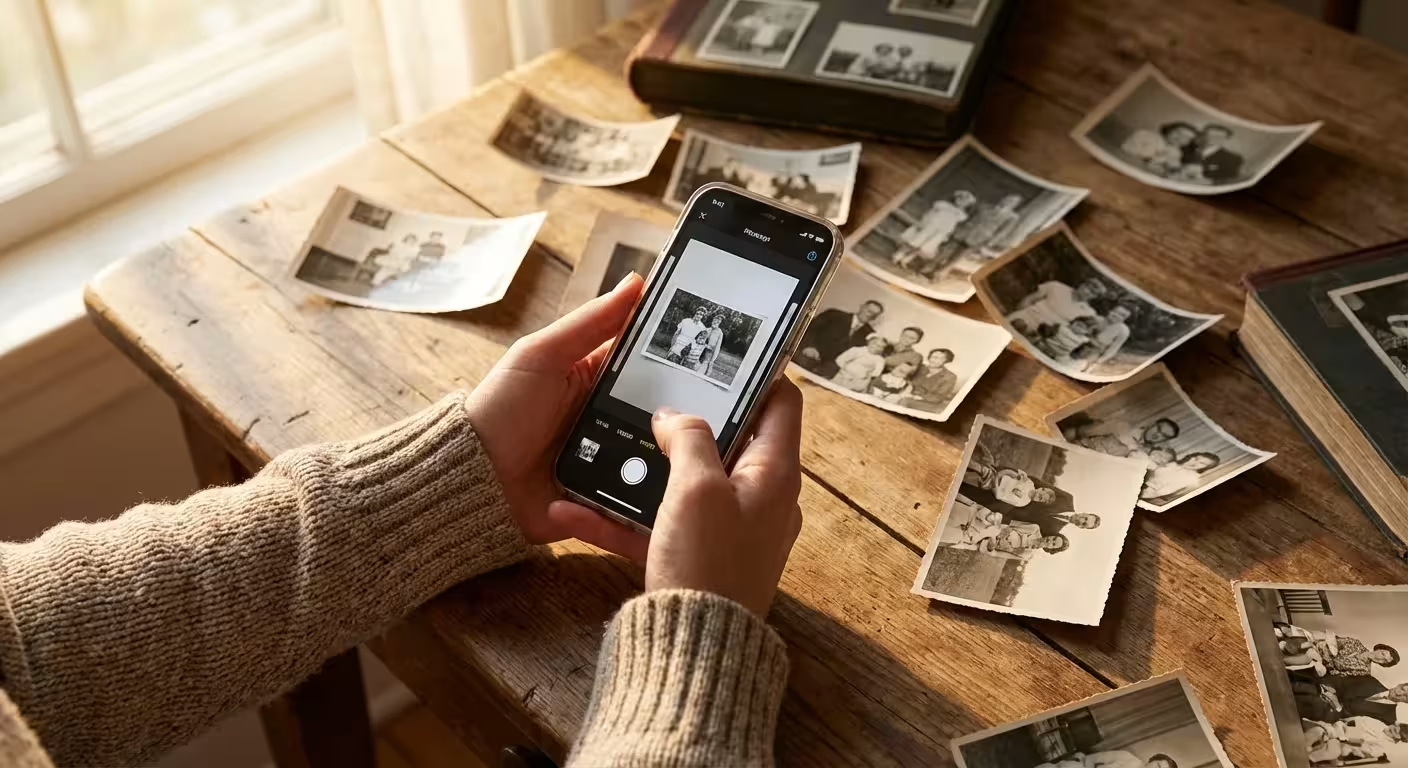
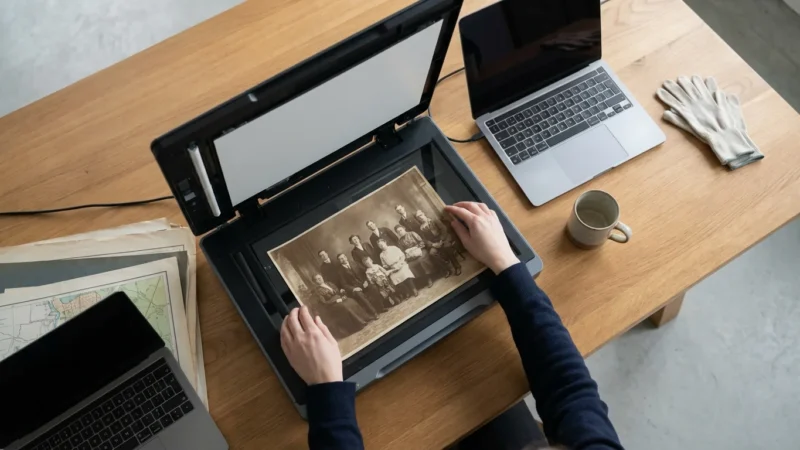
Old photographs hold more than just silver halide and paper; they contain the visual DNA of your family history. You likely have a shoebox or a heavy adhesive album tucked away in a closet, filled with moments that risk fading or becoming lost to time. Digitizing these memories provides a vital safety net against physical decay, fire, or flood. While professional flatbed scanners offer the highest resolution, they often feel cumbersome and slow for the average person with hundreds of prints to process.
Mobile scanning apps have bridged the gap between convenience and preservation. You no longer need to spend hours tethered to a computer; instead, you can use the high-powered camera already in your pocket. Two titans dominate this space: Photomyne and Google PhotoScan. Each app approaches the task of digitizing history with a different philosophy. One prioritizes speed and organizational features, while the other focuses on optical clarity and glare removal. Understanding the nuances between them helps you choose the right tool for your specific preservation project.

The Mechanics of Mobile Scanning
Mobile scanning is not simply taking a photo of a photo. When you use a standard camera app to snap a picture of a glossy print, you encounter three major enemies: glare, perspective distortion, and poor cropping. Dedicated scanning apps use sophisticated algorithms to solve these problems. They employ edge detection to find the boundaries of the print and perspective correction to “flatten” the image, ensuring it looks like a direct scan rather than a tilted snapshot.
You must consider the lighting environment before you begin. Even the best app cannot fully compensate for a dark room or harsh, direct sunlight. Experts recommend indirect, natural light—positioning yourself near a large window on a bright day usually works best. This setup minimizes the harsh reflections that often ruin digital copies of old glossy prints.

Photomyne Review: The AI Efficiency Expert
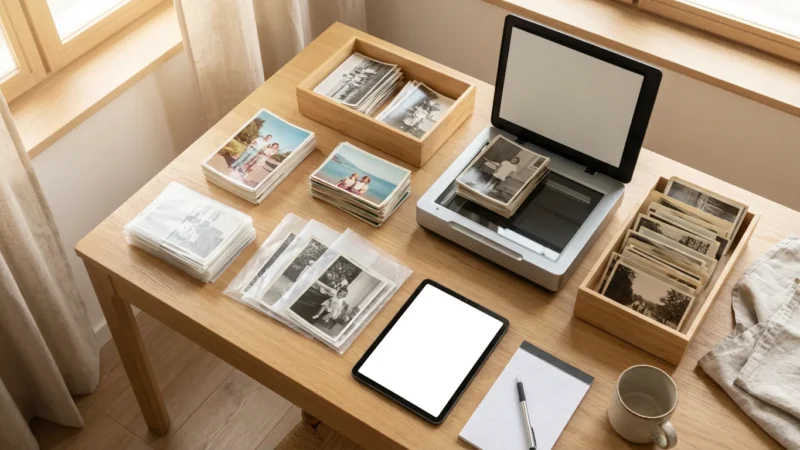
Photomyne positions itself as a comprehensive memory management system. If you have thousands of photos, the sheer volume can feel paralyzing. Photomyne addresses this by allowing you to scan multiple photos at once. You can lay four or five snapshots on a table, point your phone, and capture them in a single shot. The app’s AI then identifies each individual photo, crops it, rotates it, and saves it as a separate file. This feature alone makes it a top contender for the best scanning app for high-volume users.
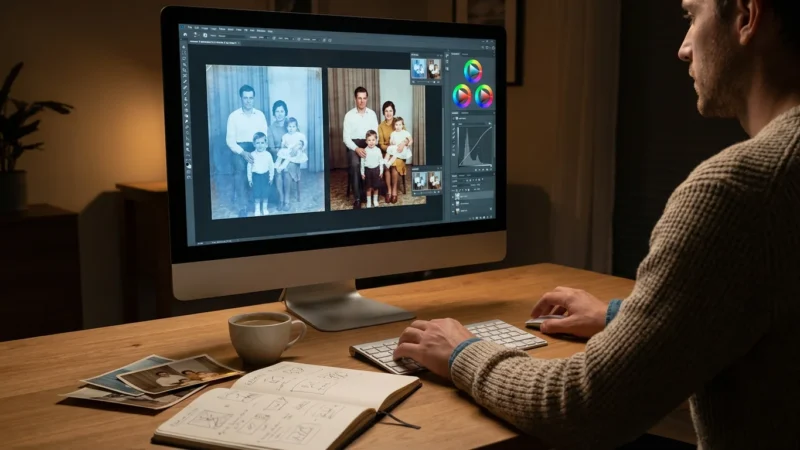
The app also includes a suite of enhancement tools. Its AI-driven colorization can breathe life into black-and-white images with surprising accuracy. While it may not match the nuance of a professional restorer, it provides an immediate, emotional “wow” factor for family sharing. Furthermore, Photomyne offers the ability to add metadata—names, dates, and locations—directly to the digital file. This ensures that the context of the photo travels with the image wherever it goes.
The primary value of Photomyne lies in its ability to turn a daunting multi-year project into a manageable weekend task through automated batch processing.

Google PhotoScan: The Glare Reduction Specialist
Google PhotoScan takes a more surgical approach to scanning. When you start a scan, the app asks you to align a frame with the photo. It then generates four white dots over the image. You must move your phone to hover over each dot. During this process, the app takes multiple exposures from different angles. It then stitches these images together, intelligently discarding any pixels that contain glare or reflections.
This “stitching” method is Google’s secret weapon. It is particularly effective for photos stuck behind the glass of a frame or those inside high-gloss “magnetic” albums from the 1970s. Because it captures the photo from multiple perspectives, it creates a cleaner, more balanced image than a single-shot capture. However, this process takes significantly longer—expect to spend 15 to 30 seconds per photo. In the Google PhotoScan vs Photomyne debate, Google wins on optical consistency but loses on sheer throughput.

Head-to-Head Comparison of Features
Comparing these two apps requires looking at your specific needs. Are you trying to digitize a single shoebox of 50 photos, or are you the designated family historian with thousands of images dating back to the late 1800s? The following table breaks down the core differences to help you decide.
| Feature | Photomyne | Google PhotoScan |
|---|---|---|
| Scanning Speed | Fast (Batch scanning) | Slow (Single photo stitching) |
| Glare Removal | Basic software filters | Advanced multi-angle stitching |
| AI Colorization | Yes (Highly effective) | No (Requires Google Photos) |
| Organization | Albums, faces, and notes | Basic saving to camera roll |
| Cost | Subscription/One-time payment | Free |
| Metadata Support | Extensive (Dates, locations) | Minimal |
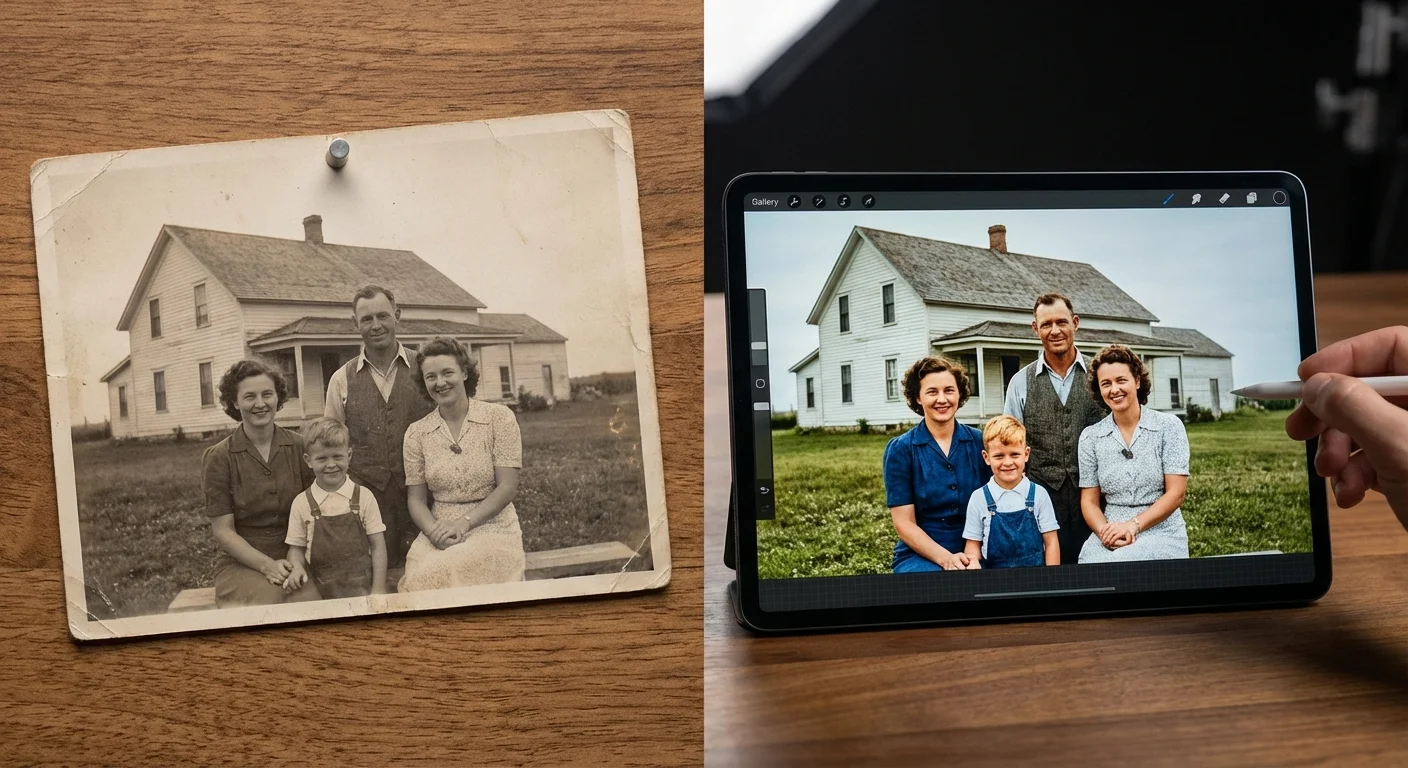
Image Quality and Resolution Breakdown
Resolution is often misunderstood in the world of mobile scanning. Your phone’s camera sensor is the ultimate limiting factor. However, how the app processes that sensor data matters. Photomyne tends to produce images that are optimized for screen viewing and small prints. Its focus on speed means it sometimes prioritizes compression over raw detail, though its “Best” quality setting is sufficient for most family needs.
Google PhotoScan’s stitching process can be a double-edged sword. While it removes glare beautifully, the alignment process can occasionally lead to minor “ghosting” or loss of sharpness at the edges if you don’t hold the phone steady. For those seeking the highest possible resolution for large-scale printing, neither app replaces a 600 or 1200 DPI flatbed scan. According to Cambridge in Colour, scanning at higher bit depths and resolutions is essential for archival quality, a standard that mobile apps are still striving to reach.

Managing Your Digital Archive
Digitizing your photos is only the first step; you must also ensure they remain accessible for the next fifty years. Photomyne excels here by offering its own cloud storage service and a web portal. You can invite family members to view albums, add their own notes, and even contribute their scans to a centralized family tree. This collaborative aspect turns photo preservation into a social activity rather than a solitary chore.
Google PhotoScan integrates seamlessly with Google Photos. Once you scan a photo, it uploads to your Google account, where you can take advantage of Google’s powerful search capabilities. You can search for “dog” or “beach,” and Google’s AI will find those images within your scanned collection. This makes finding specific memories effortless, provided you are comfortable with your data living within the Google ecosystem.

Cost vs. Value: The Bottom Line
Google PhotoScan is free, making it the most accessible best scanning app for casual users. There are no watermarks, no limits on the number of scans, and no hidden fees. It is a utility tool designed to bring more content into the Google Photos environment.
Photomyne, conversely, is a premium service. While it offers a free trial, you will eventually face a paywall for high-definition saves and unlimited cloud storage. They often offer a “one-time payment” for multi-year access or a monthly subscription. If you value your time and have a massive collection, the cost is often justified by the hours saved through batch scanning and automated organization. You are paying for an ecosystem, not just a scanner.
Best Practices for Original Photo Preservation
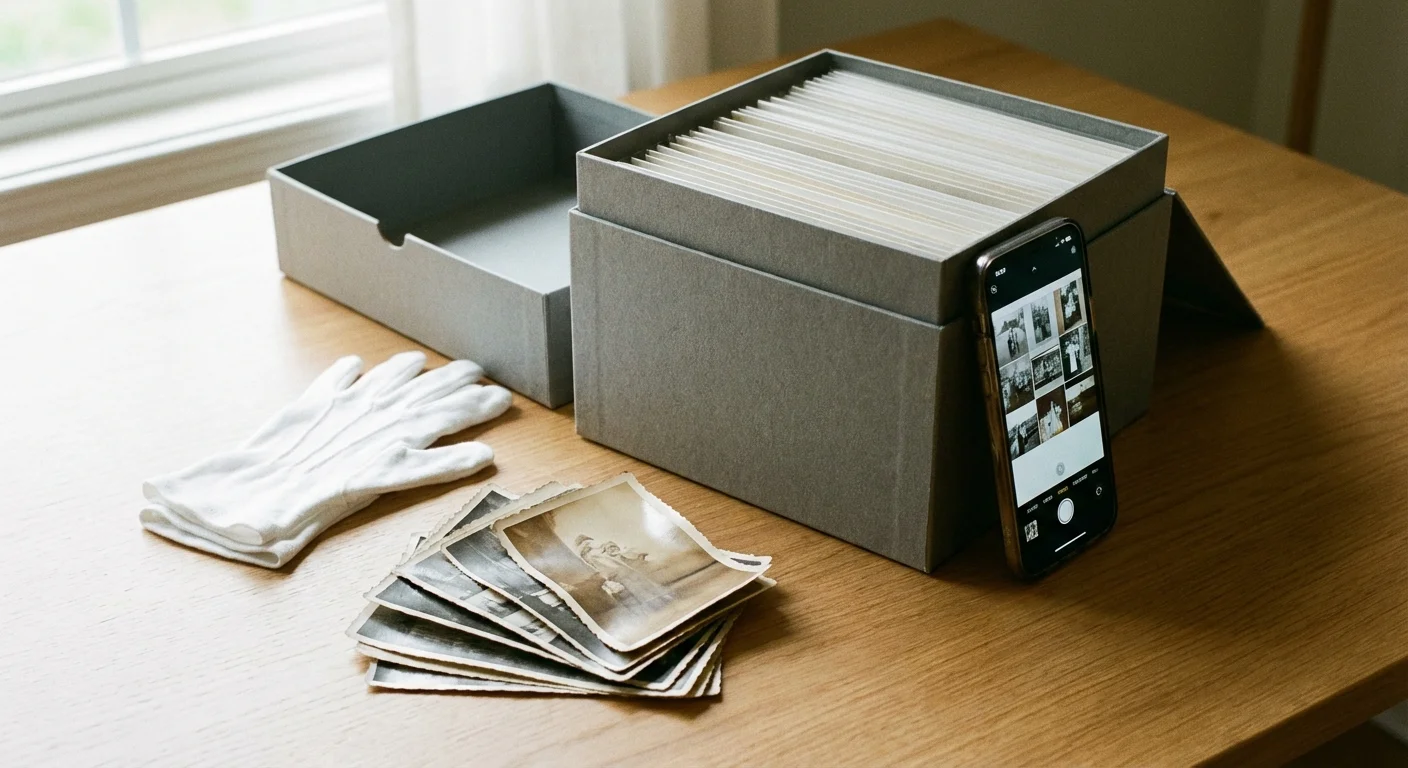
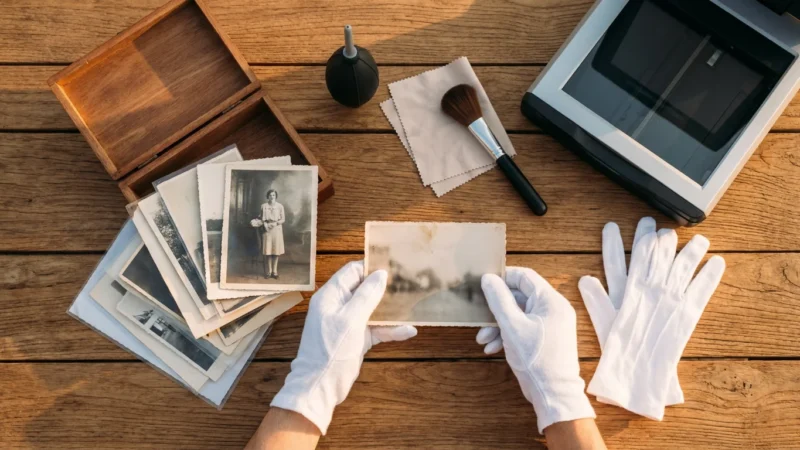
Scanning your photos does not mean you should discard the originals. Physical photographs are the “master copies.” Even the best digital scan is a reproduction that loses some data from the original. You must handle your prints with care during the scanning process to avoid transferring skin oils or causing mechanical damage.
The Library of Congress preservation guidelines suggest keeping originals in a cool, dry, and dark environment. After you scan your photos using Photomyne or Google PhotoScan, place them in acid-free, lignin-free folders or envelopes. Avoid using adhesive “magnetic” albums, as the glue can turn acidic over time and eat through the photo backing. Research from the Image Permanence Institute confirms that temperature and humidity control are the most critical factors in preventing the chemical breakdown of photographic emulsions.
Frequently Asked Questions
Is Photomyne or Google PhotoScan better for bulk scanning?
Photomyne is the clear winner for bulk scanning. Its AI allows you to capture multiple physical photographs in a single frame, which it then automatically crops and saves as individual files. Google PhotoScan requires a multi-step process for every single photo, making it much slower for large collections.
Does Google PhotoScan reduce the resolution of my photos?
Google PhotoScan focuses on glare reduction rather than raw resolution. While it produces clean images, it often caps the output resolution based on the stitching process. For the highest quality digital archive, a dedicated flatbed scanner is superior, but for mobile apps, Google PhotoScan provides excellent clarity for social sharing and basic viewing.
Can I use Photomyne for free?
Photomyne offers a limited free version, but most of its powerful features—such as unlimited cloud backup, high-definition saving, and PC access—require a subscription or a one-time payment. Google PhotoScan is entirely free to use with no hidden costs.
Do these apps work on both iPhone and Android?
Yes, both Photomyne and Google PhotoScan are available on the Apple App Store and Google Play Store. Performance is generally consistent across platforms, though higher-end smartphone cameras will always yield better results.
Choosing between Photomyne and Google PhotoScan depends on your priorities. If you want a free, simple tool to digitize a few dozen photos with perfect glare removal, Google PhotoScan is your best bet. If you are embarking on a major project to organize thousands of family memories and want AI-powered restoration and sharing tools, Photomyne is worth the investment. Regardless of your choice, the act of digitizing ensures that your family’s legacy remains vibrant for generations to come.
Disclaimer: This article is for informational purposes only. When handling valuable or irreplaceable photographs, consider consulting a professional conservator. Always test preservation methods on non-valuable items first.


Leave a Reply