
Your boxes of treasured family photos and overflowing digital camera rolls tell a powerful story, your story. Protecting these memories feels like a monumental task, but it is one of the most rewarding endeavors you can undertake. Fortunately, digitizing your physical photos and organizing your digital ones is easier than ever, thanks to powerful tools you already carry: your smartphone. This guide dives deep into the world of scanner apps, showing you how to transform your iPhone or Android device into a capable photo digitizer. You will discover the best tools for the job, learn how to get the highest quality scans, and integrate these new digital assets into a robust preservation strategy.
Why Mobile Scanning Matters for Your Photo Legacy
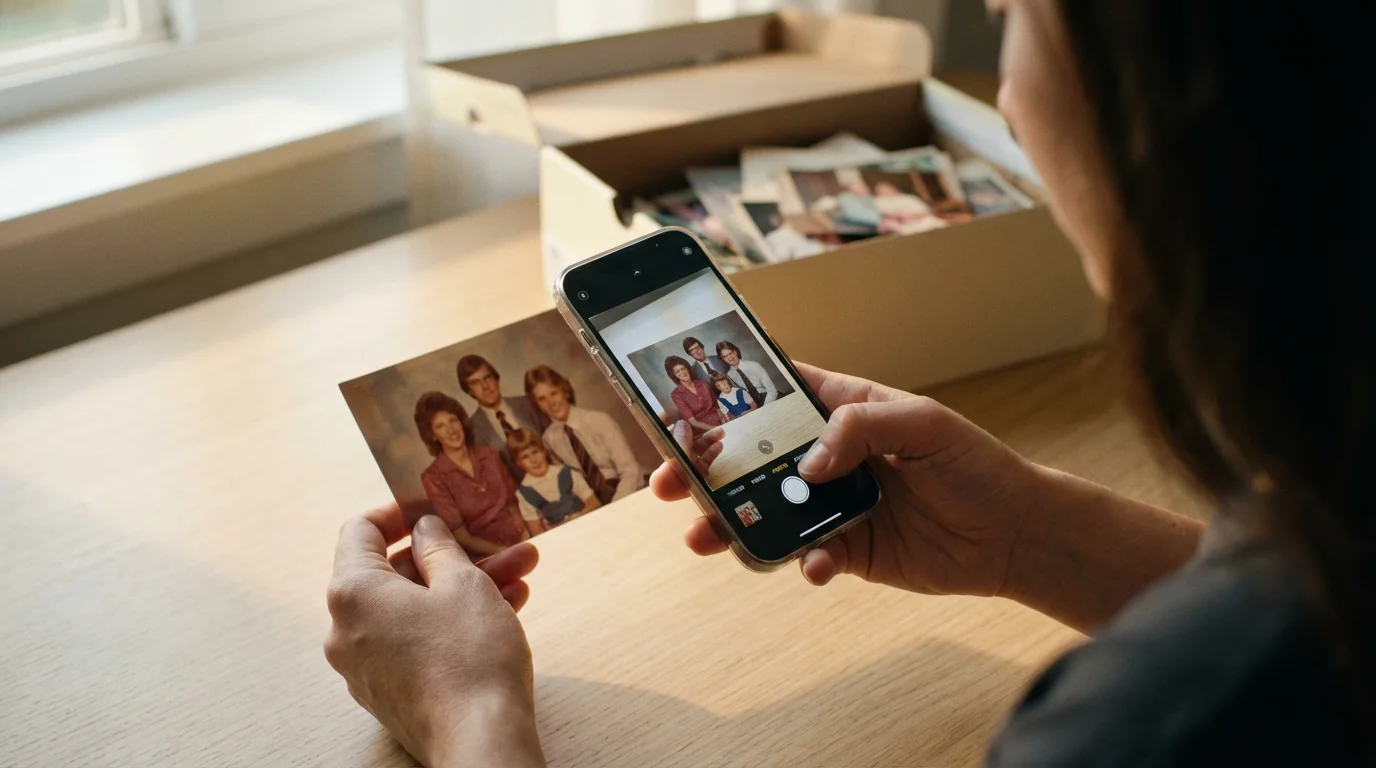
You likely have a shoebox or an album filled with irreplaceable prints from birthdays, holidays, and everyday moments. These physical photographs are fragile, susceptible to fading, damage, and loss. Fires, floods, and even simple misplacement threaten these precious originals. Mobile scanning offers an accessible, immediate solution to create digital copies, safeguarding your visual history against these threats.
To master the process, it helps to understand the specific techniques for smartphone scanning that ensure every digital copy remains crisp and clear.
While apps are convenient, you may also want to explore our complete guide on how to scan old photos at home for a broader look at DIY equipment.
The beauty of using a scanner app on your phone lies in its convenience. You do not need expensive, bulky flatbed scanners or specialized equipment. Your smartphone, a device many of us carry everywhere, becomes a powerful tool for phone digitization. This immediacy allows you to digitize photos as you rediscover them, during family gatherings, or whenever inspiration strikes. It is an excellent first step in securing your family’s visual heritage, ensuring future generations can experience these memories.
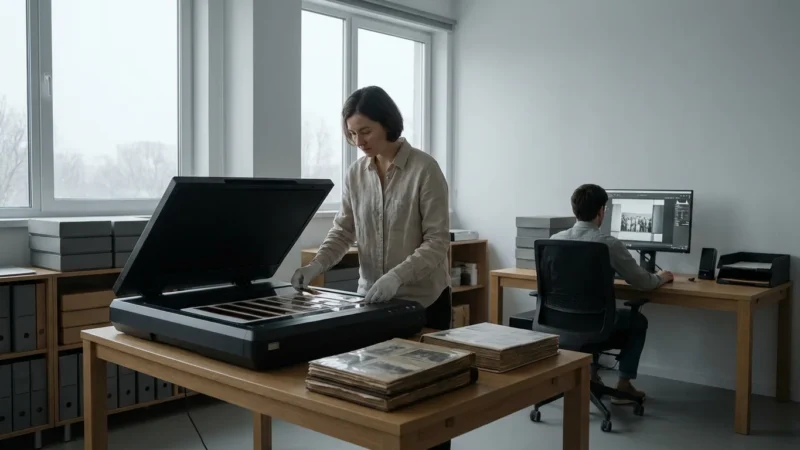
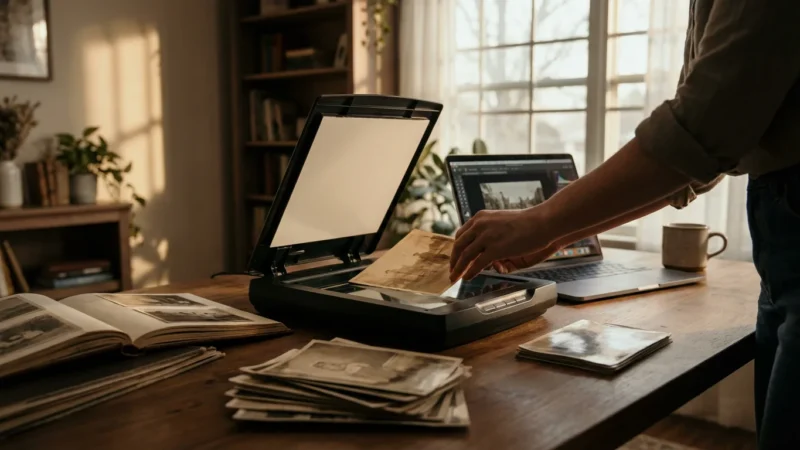
While dedicated flatbed scanners offer superior resolution and color depth for high-volume, professional-grade digitization, mobile scanner apps provide an impressive balance of quality and convenience for most personal archives. For instance, many modern smartphone cameras boast resolutions exceeding 12 megapixels, more than sufficient for creating high-quality digital versions of your standard 4×6 inch prints. Apps then employ advanced algorithms to correct perspective, reduce glare, and enhance colors, bringing new life to old, faded images.
Key Features to Look for in a Scanner App
Choosing the right scanner app makes a significant difference in the quality and efficiency of your phone digitization efforts. As you evaluate options, prioritize apps that offer a robust set of features designed specifically for photo scanning. Here are the essential capabilities to seek out:
- Automatic Cropping and Edge Detection: The best apps automatically identify the edges of your photograph, cropping out the background. This saves you significant time compared to manual editing.
- Perspective Correction: If you cannot hold your phone perfectly parallel to the photo, perspective correction straightens the image, making it appear as if you scanned it on a flatbed.
- Glare Reduction: Reflections from ambient light or your phone’s flash often plague scanned photos. Advanced apps use multiple captures and intelligent processing to minimize or eliminate glare.
- Color Enhancement and Restoration: Many old photos fade or yellow over time. Apps that offer automatic or manual color correction tools can revitalize these images, bringing back their original vibrancy.
- Batch Scanning: For large collections, the ability to scan multiple photos quickly, sometimes even directly from an album page, dramatically speeds up the process.
- Organizational Tools: Look for apps that integrate with cloud storage services, allow you to add metadata (dates, names, locations), or create albums directly within the app.
- Resolution and File Format Options: Ensure the app saves images in high-quality formats, such as JPEG or PNG, with options for choosing resolution settings. Higher resolution preserves more detail, crucial for potential future enlargements or edits.
- User Interface: An intuitive, easy-to-use interface makes the scanning process enjoyable, not frustrating.
“Digitizing your photos is not just about creating copies, it’s about making your memories accessible and shareable. A good scanner app acts as your personal digital assistant, transforming fading prints into vibrant, shareable files with minimal effort.”
Top Scanner Apps for iPhone Users
iPhone users have several excellent choices for mobile scanning, each offering unique strengths. Here are some of the most highly-rated and effective best photo scanning app for iPhone options:
Google PhotoScan
- Description: Developed by Google Photos, PhotoScan is specifically designed to digitize physical prints without glare. It captures multiple images and stitches them together for optimal results.
- Key Features: Automatic glare removal, smart rotation, automatic edge detection, perspective correction. Integrates seamlessly with Google Photos for unlimited storage of “high quality” scans (though Google’s policy on “high quality” has evolved, impacting free storage limits).
- Pros: Excellent at glare reduction, very user-friendly, free, good integration with cloud storage.
- Cons: Can be a bit slow as it requires multiple phone movements, resolution might not match dedicated flatbed scanners.
Adobe Scan: PDF & OCR Scanner
- Description: While primarily a document scanner, Adobe Scan performs admirably for photographs. Its powerful OCR (Optical Character Recognition) capabilities are an added bonus for documents accompanying photos, but its image processing is strong too.
- Key Features: High-quality image capture, automatic border detection, perspective correction, color enhancement, integration with Adobe Creative Cloud.
- Pros: Produces sharp images, robust editing tools, reliable, widely used, good for scanning text along with photos.
- Cons: Not specifically optimized for glare reduction on glossy photos like PhotoScan, some advanced features require an Adobe Creative Cloud subscription.
Microsoft Lens: PDF Scanner
- Description: Another versatile scanner app from a major tech company, Microsoft Lens (formerly Office Lens) is adept at capturing whiteboards, documents, and business cards, and it extends its capabilities effectively to photographs.
- Key Features: Automatic trimming and enhancement, converts images to PDF, Word, or PowerPoint, saves to OneDrive or local storage.
- Pros: Free, simple interface, good basic image enhancement, excellent for integration into Microsoft 365 ecosystem.
- Cons: Lacks dedicated photo-specific features like glare removal, photo quality processing is less advanced than specialized photo scanners.
Best Scanner Apps for Android Phones
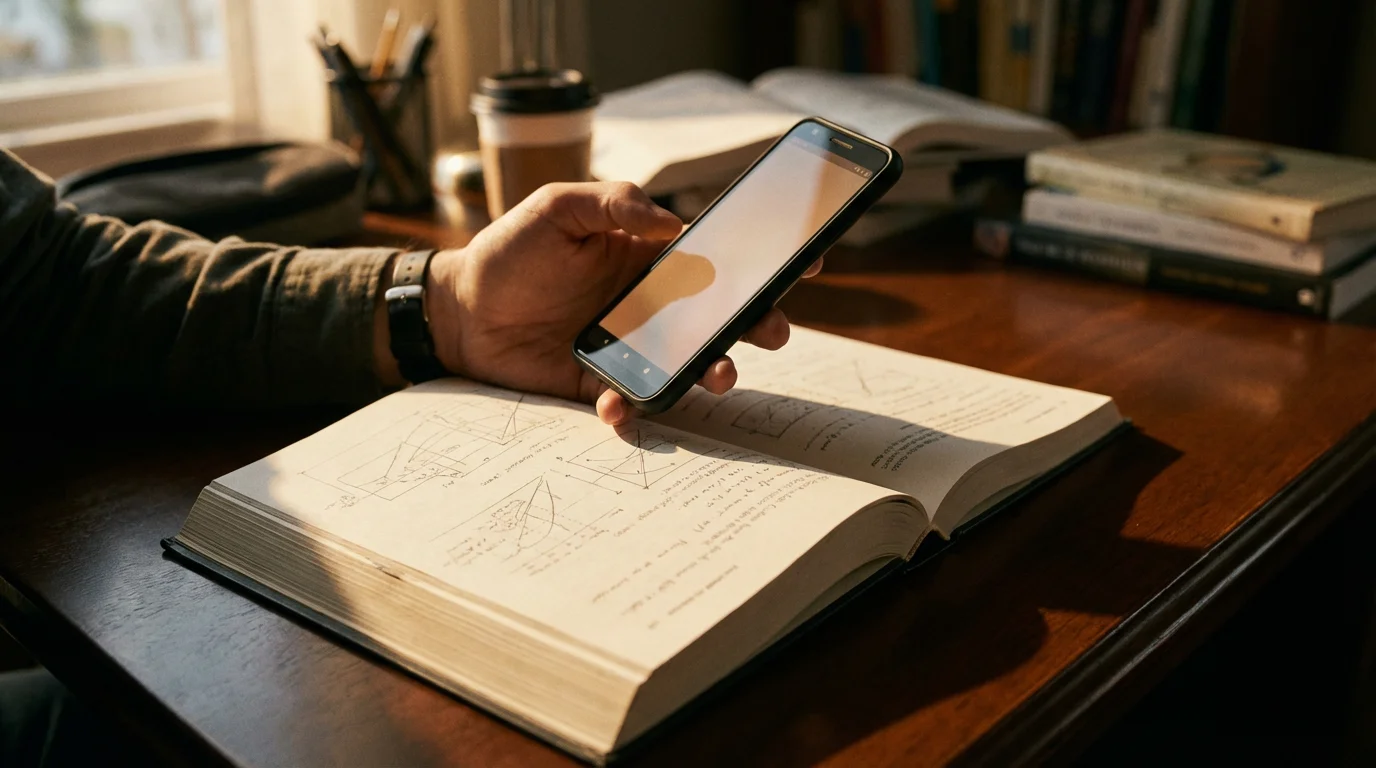
Android users also enjoy a rich selection of high-performing scanner apps, ensuring you can find the perfect tool for your phone digitization needs. Here are some of the top scanner apps for Android phones:
Google PhotoScan
- Description: Just as on iPhone, PhotoScan is a standout for Android users looking to digitize old prints without reflections. It leverages your Android phone’s camera to capture multiple frames and intelligently merge them.
- Key Features: Automatic glare removal, smart rotation, automatic edge detection, perspective correction, direct upload to Google Photos.
- Pros: Exceptionally good at eliminating glare, free, intuitive interface, direct link to Google Photos cloud backup.
- Cons: Requires a steady hand and a specific multi-capture process, which can feel a bit slower than single-shot apps.
Adobe Scan: PDF & OCR Scanner
- Description: Adobe Scan delivers consistent, high-quality results on Android devices. Its strength lies in its reliable image processing and integration with other Adobe products, making it a powerful choice for many users.
- Key Features: Precise border detection, automatic cleaning, color correction, OCR for text recognition, exports to various formats.
- Pros: Produces crisp scans, versatile for both photos and documents, widely trusted, good for users already in the Adobe ecosystem.
- Cons: Can struggle with glare on very glossy photos, some features are premium.
CamScanner (Various Versions Available)
- Description: CamScanner is a popular, feature-rich app often used for documents, but it handles photos well too. Note that there are free versions with ads and premium versions.
- Key Features: Smart cropping, image enhancement, OCR, ability to add watermarks, password protection for PDFs, cloud syncing.
- Pros: Very comprehensive features, good for batch processing, offers various sharing options.
- Cons: Free version includes watermarks and ads, some concerns about data privacy in the past, subscription model for full features.

Optimizing Your Mobile Scans for Best Results
While scanner apps are incredibly smart, you play a crucial role in achieving the highest quality phone digitization. Follow these actionable steps to get the best possible results from your mobile scans:
- Clean Your Photos: Before scanning, gently wipe your old photographs with a soft, lint-free microfiber cloth. Dust and smudges will show up clearly in your digital scan. For delicate or fragile photos, exercise extreme caution.
- Ensure Excellent Lighting: Diffused, even lighting is key. Avoid direct sunlight or harsh overhead lights that create shadows or hotspots. Natural light from a window on a cloudy day often works best. If using artificial light, ensure it is indirect and illuminates the photo evenly.
- Choose a Flat, Neutral Background: Place your photo on a flat, non-reflective surface with a contrasting, neutral color, like a white or black sheet. This helps the app’s edge detection work effectively.
- Stabilize Your Phone: Hold your phone as steadily as possible, directly above the photo. Even minor shakiness can reduce sharpness. Consider using a phone stand, tripod, or even stacking books to create a stable perch.
- Minimize Glare: If your photo is glossy, glare becomes a major issue. Position your light source at an angle to minimize reflections. Apps like Google PhotoScan specifically address glare by taking multiple shots. Experiment with different angles of light.
- Scan at the Highest Possible Resolution: If your app allows it, choose the highest resolution setting. This captures the most detail, which is vital for long-term preservation and potential future printing or editing.
- Review Immediately: After each scan, quickly review the image for sharpness, color accuracy, and any missed details. It is easier to rescan immediately than to discover issues later.
Integrating Your Scans into a Digital Preservation Strategy
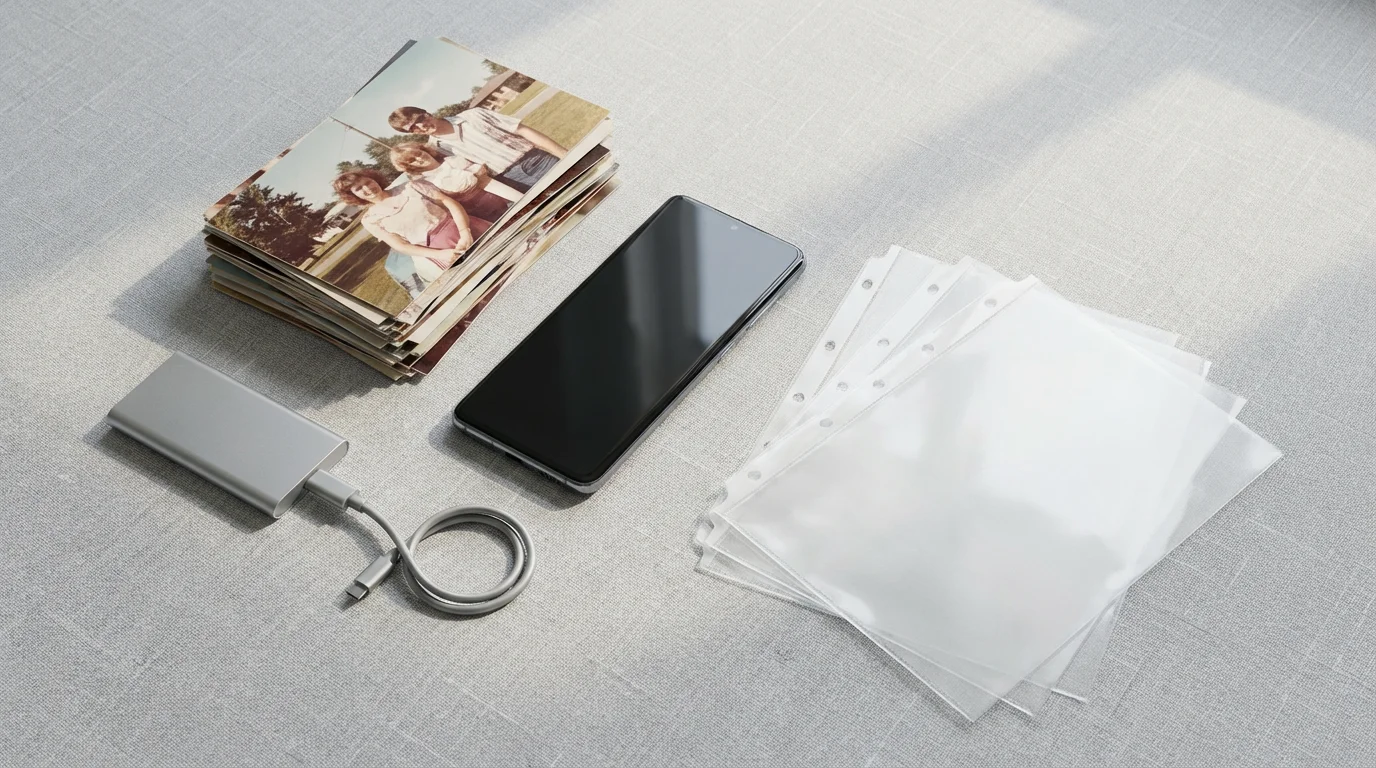
Phone digitization is only the first step. To truly preserve your memories, you need a comprehensive digital preservation strategy. Your newly created digital files are valuable assets, and protecting them requires foresight and organization.
Naming Conventions
Establish a consistent naming convention for your files right from the start. This makes locating specific photos much easier. A good format includes relevant information, such as:
YYYY-MM-DD_Event_Description_Location.jpg(e.g.,1985-07-14_BirthdayParty_GrandmaHelen_Chicago.jpg)- For older undated photos, use approximations:
1960s-circa_FamilyPicnic_Unknown.jpg
Organization and Storage
Create a logical folder structure on your computer. Organize by year, event, or family branch. The goal is to make retrieval simple and intuitive. Once organized, implement a “3-2-1” backup strategy:
- 3 Copies: Keep at least three copies of your important files.
- 2 Different Media Types: Store copies on at least two different types of storage media (e.g., external hard drive, cloud service).
- 1 Off-Site: Keep one copy off-site (e.g., a friend’s house, a secure cloud storage provider).
Cloud storage services like Google Drive, Dropbox, or iCloud offer convenient off-site storage. External hard drives provide local, quick access backups. Regular backups are non-negotiable for digital longevity.
Consider the file formats you use. While JPEG is widely accepted and space-efficient, it is a “lossy” format, meaning it discards some image data each time it is saved. For archival purposes, especially for very important images, consider saving copies in “lossless” formats like TIFF or PNG if your app allows, or if you later process them in editing software. This preserves maximum detail for future generations. The Image Permanence Institute offers extensive resources on digital file formats and long-term storage, providing guidance on these crucial decisions. Their research consistently shows that careful planning of file types and storage environments significantly extends the life of digital assets.
Beyond Apps: Holistic Preservation of Your Photo Heritage
While scanner apps are a fantastic starting point for phone digitization, true photo preservation encompasses more than just digital copies. Your original physical photographs still hold immense sentimental and historical value. After scanning, consider how you store these originals.
If your collection is too large to handle manually, consider whether professional photo scanning services are worth it for your specific project.
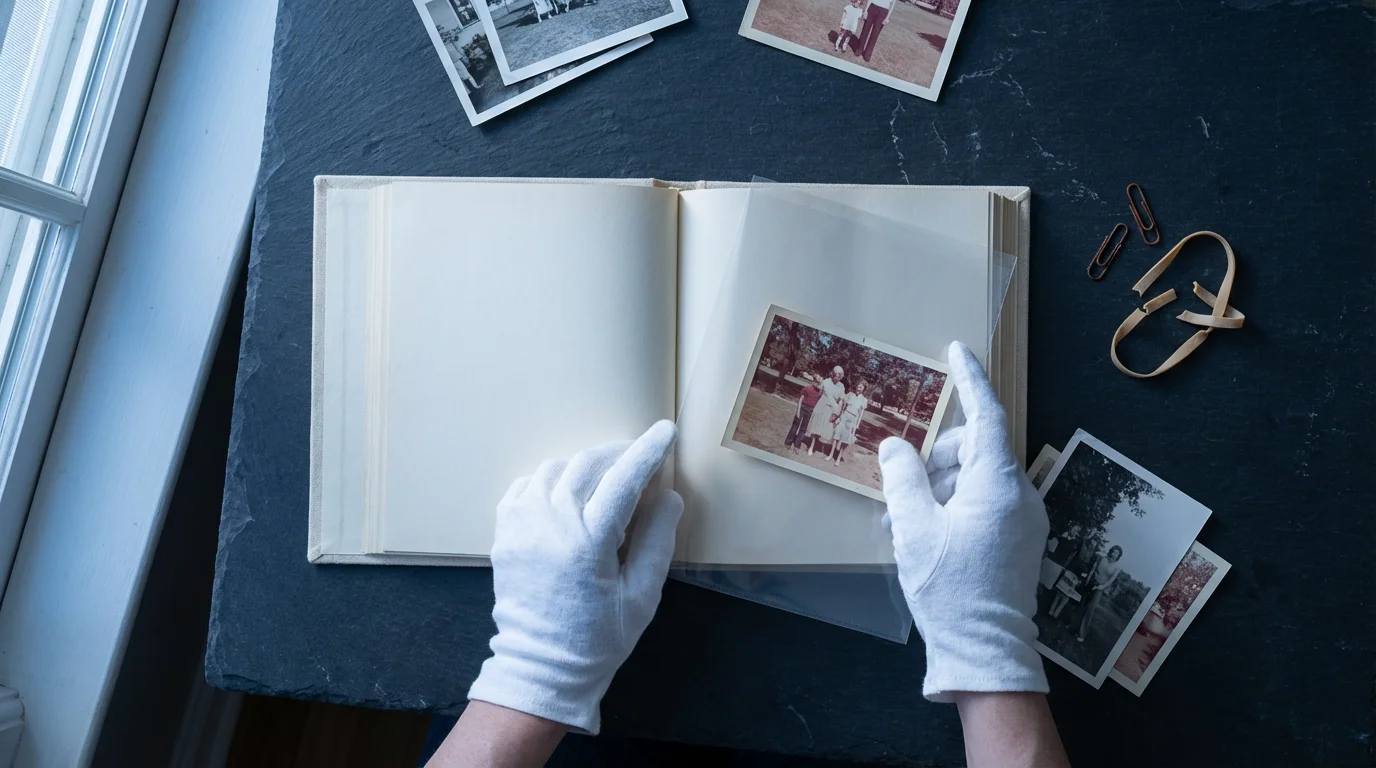
Store physical photos in archival-quality, acid-free albums, sleeves, or boxes. Avoid rubber bands, paper clips, and acidic paper, which can damage photos over time. Store them in a cool, dry, stable environment, away from direct sunlight, extreme temperature fluctuations, and humidity. These simple steps significantly prolong the life of your physical collection.
For truly rare, valuable, or severely damaged photographs, consider professional conservation. Experts have the tools and knowledge to repair and stabilize delicate prints, often using methods beyond what a hobbyist can achieve. Organizations like the American Institute for Conservation offer directories of qualified conservators who can assess your unique needs. While scanner apps empower you with accessible tools, knowing when to consult a specialist is also part of a comprehensive preservation strategy.
Frequently Asked Questions
Can a scanner app really replace a flatbed scanner?
For most personal photo collections, a good scanner app provides excellent quality and unmatched convenience. It is perfect for casual scanning, sharing, and creating digital backups. However, for very high-resolution archival needs, large format prints, or professional work, a dedicated flatbed scanner generally offers superior image quality, color accuracy, and consistency due to its fixed optics and precise scanning mechanism. The best choice depends on your specific needs and quality expectations.
What resolution should I aim for when scanning old photos with my phone?
Aim for the highest resolution your app and phone camera allow. For standard 4×6 inch prints, this typically means the native resolution of your phone’s camera, which often exceeds 12 megapixels. This captures sufficient detail for viewing on screens and making reasonable prints. Higher resolution provides more flexibility for cropping, editing, or making larger prints later without significant loss of quality.
How can I reduce glare when scanning glossy photos?
Glare is a common challenge. Use diffused, indirect lighting, avoiding direct overhead lights or flash. Position your light source at an angle to the photo. Apps like Google PhotoScan are specifically designed to minimize glare by taking multiple images from different angles and intelligently removing reflections. Experiment with the angle of your phone and the light source for the best results.
Is it safe to store my scanned photos on a cloud service?
Yes, storing your scanned photos on a reputable cloud service is a critical component of a robust digital preservation strategy. Cloud services offer off-site backup, protecting your files from local disasters like hard drive failure or fire. Choose a service with strong security features and a good track record, and always maintain at least one additional local backup copy, following the 3-2-1 backup rule.
What if my old photos are damaged or faded? Can scanner apps help?
Scanner apps can help digitize damaged or faded photos, often with built-in color correction and enhancement features that can improve their appearance. They cannot physically repair tears or severe damage. For heavily damaged or faded photographs, consider consulting professional photo restoration services. Digitizing them first, however, ensures you have a copy even if the original deteriorates further or requires extensive restoration.
Your photo legacy is invaluable. With the right scanner apps for your iPhone or Android, you hold the power to bring those memories into the digital age, preserving them for yourself and for generations to come. Start today, one photo at a time, and watch your family’s story come alive again.
Disclaimer: This article is for informational purposes only. When handling valuable or irreplaceable photographs, consider consulting a professional conservator. Always test preservation methods on non-valuable items first.

Leave a Reply