

Your treasured photographic memories, whether carefully preserved physical prints or a vast digital archive, deserve a dynamic and accessible display. A digital photo frame transforms your collection into a captivating, ever-changing gallery, bringing joy and conversation to any space. Imagine reliving family vacations, milestone celebrations, or everyday moments with a beautiful slideshow playing continuously.
Establishing a comprehensive home photo archive is a great first step to ensure all your memories are accessible for this project.
Beyond digital displays, your curated collection can also be used to create thoughtful DIY photo gifts for any special occasion.
This guide walks you through every step of creating an engaging digital photo frame slideshow. You will learn how to select the ideal electronic frame, prepare your images for optimal viewing, and set up a personalized display that celebrates your unique photographic heritage. Let us begin making those memories shine.

Why Display Your Memories with a Digital Frame?
A digital photo frame offers an unparalleled way to keep your cherished memories alive and visible. Unlike static prints or hidden digital files, an electronic frame actively cycles through your favorite images, creating a living album. You gain several benefits from this dynamic display:
For images that deserve a permanent spot on your walls, consider printing photos on canvas to complement your rotating digital gallery.
While digital screens offer versatility, combining them with creative photo wall ideas can help you create a more comprehensive memory gallery.
- Constant Joy: Your photos become a daily source of happiness and nostalgia, automatically cycling through your favorite moments. Many users report a significant uplift in mood simply from seeing these cherished images throughout their day.
- Shareability: Family and friends visiting your home can easily enjoy a wide range of your memories without flipping through albums or gathering around a computer screen. This makes your shared history more accessible and engaging.
- Space Efficiency: A single digital photo frame can display thousands of images, eliminating the need for numerous physical frames or bulky photo albums. This declutters your home while still showcasing a vast collection.
- Easy Updates: Refreshing your collection is simple. You can add new photos from recent events or swap out older ones to reflect seasons or moods. This ensures your display always feels current and relevant to your life.
- Preservation: Displaying digital copies on a frame protects your original physical prints from environmental damage and wear and tear. You can enjoy your memories without risking the originals, especially valuable family heirlooms. For guidance on preserving your physical photos, resources like the Library of Congress Preservation website offer detailed information.
Transforming your photo collection into a vibrant digital photo frame slideshow makes your memories an integral, delightful part of your daily environment.

Choosing the Right Digital Photo Frame
Selecting the best digital frames for displaying photos requires considering several factors. The right choice enhances your viewing experience and simplifies the slideshow setup process. Look for frames that balance display quality, ease of use, and connectivity options.
Here are key aspects to evaluate when you shop for an electronic frame:
- Screen Size and Resolution:
- Size: Common sizes range from 7 inches to 15 inches, with some larger models available. Consider where you will place the frame. A 10-inch frame often suits a tabletop or desk, while a 15-inch model works well for wall mounting.
- Resolution: A higher resolution delivers sharper, more detailed images. Look for frames with at least 1024×768 pixels for a 10-inch screen, or 1920×1080 (Full HD) for larger displays. This ensures your photos appear crisp, similar to how they look on a good tablet or monitor.
- Aspect Ratio:
- Most digital cameras capture images in a 3:2 or 4:3 aspect ratio, while many modern frames are 16:9 widescreen. A frame matching your camera’s aspect ratio reduces cropping or black bars. However, many frames intelligently crop or fit images. Consider how important exact aspect ratio preservation is to you.
- Connectivity:
- Wi-Fi: Frames with Wi-Fi allow you to upload photos wirelessly, often via email, a dedicated app, or cloud services. This simplifies updates significantly, making it easy to share photos from afar.
- USB/SD Card Slots: Essential for loading photos directly from a flash drive or memory card. Ensure the frame supports common card types you use, like SD, SDHC, or microSD.
- Cloud Integration: Some frames sync directly with services like Google Photos, Dropbox, or Flickr, offering seamless access to your online albums.
- Internal Storage:
- Internal storage, ranging from 4GB to 32GB or more, allows the frame to store a substantial collection of photos directly. This is crucial if you prefer not to keep a USB drive constantly plugged in. One gigabyte can hold hundreds, if not thousands, of optimized photos.
- User Interface and Features:
- Ease of Use: A user-friendly interface with intuitive menus simplifies setup and customization.
- Slideshow Options: Look for customizable transition effects, display durations, shuffle modes, and the ability to play videos or music if desired.
- Sensors: Some frames include ambient light sensors to adjust brightness automatically or motion sensors to turn the frame on or off when someone enters or leaves the room, saving energy.
By carefully evaluating these features, you can choose a digital photo frame that not only looks great but also provides a hassle-free and enjoyable experience for displaying your precious memories.
“Choosing the right digital photo frame is an investment in your memories. Prioritize screen quality and user-friendliness. A great display brings your photos to life, making every glance a moment of joy.”

Gathering and Selecting Your Photos
Before you begin the slideshow setup, you must gather and curate the photographs you want to display. This crucial step ensures your slideshow is cohesive, meaningful, and visually appealing. You likely have photos scattered across various devices and formats, so a systematic approach helps.
If you are starting with a massive, disorganized library, learning how to organize 20 years of digital photos can make the curation process much more manageable.
Developing a photo organization system will make it much easier to refresh your frame with new content over time.
If your collection includes older formats, you may need specific guidance on scanning slides to ensure they look their best on a high-resolution screen.
This selection process is also highly effective when creating a memorial photo tribute to honor a late family member.
Follow these steps to prepare your photo collection:
- Consolidate Your Collection:
- Physical Prints: If you have physical photos you want to include, this is the perfect opportunity to digitize them. Use a flatbed scanner for best quality, scanning at a resolution of at least 300 DPI for standard prints. Store the original prints properly to ensure their longevity.
- Digital Files: Collect photos from your smartphone, digital camera, computer, external hard drives, and cloud storage services (Google Photos, iCloud, Dropbox, etc.). Create a master folder on your computer named “Digital Frame Photos” or similar.
- Curate with Purpose:
- Thematic Grouping: Decide on a theme for your slideshow. Will it be a general family history, a specific vacation, a year in review, or photos of grandchildren? A clear theme makes photo selection easier.
- Quality Over Quantity: You do not need to include every photo. Select the best shots. Choose images that are well-composed, in focus, and evoke strong positive emotions. Remove duplicates, blurry images, or shots with poor lighting.
- Storytelling: Think about the narrative your photos create. Arrange them mentally or physically into sequences that tell a story. For example, show a progression of a child growing up or the timeline of a memorable trip.
- Diversity: Include a variety of subjects, locations, and people. Mix close-ups with wider shots, and candid moments with posed portraits, to keep the slideshow engaging.
- Organize for Access:
- Within your “Digital Frame Photos” master folder, create subfolders. You might organize by year, event, or theme (e.g., “Summer Vacation 2023”, “Family Holidays”, “Grandchildren”). This structured approach helps when you want to update your frame with specific photo sets.
- Rename files with descriptive names if it helps your organization, such as “GrandmaBirthday_2023_01.jpg” instead of “IMG_4567.jpg”. This makes identification easier, especially for large collections.
This careful selection and organization process ensures that every image in your digital photo frame slideshow contributes to a rich, personal, and visually pleasing experience.
Optimizing Your Images for the Digital Frame
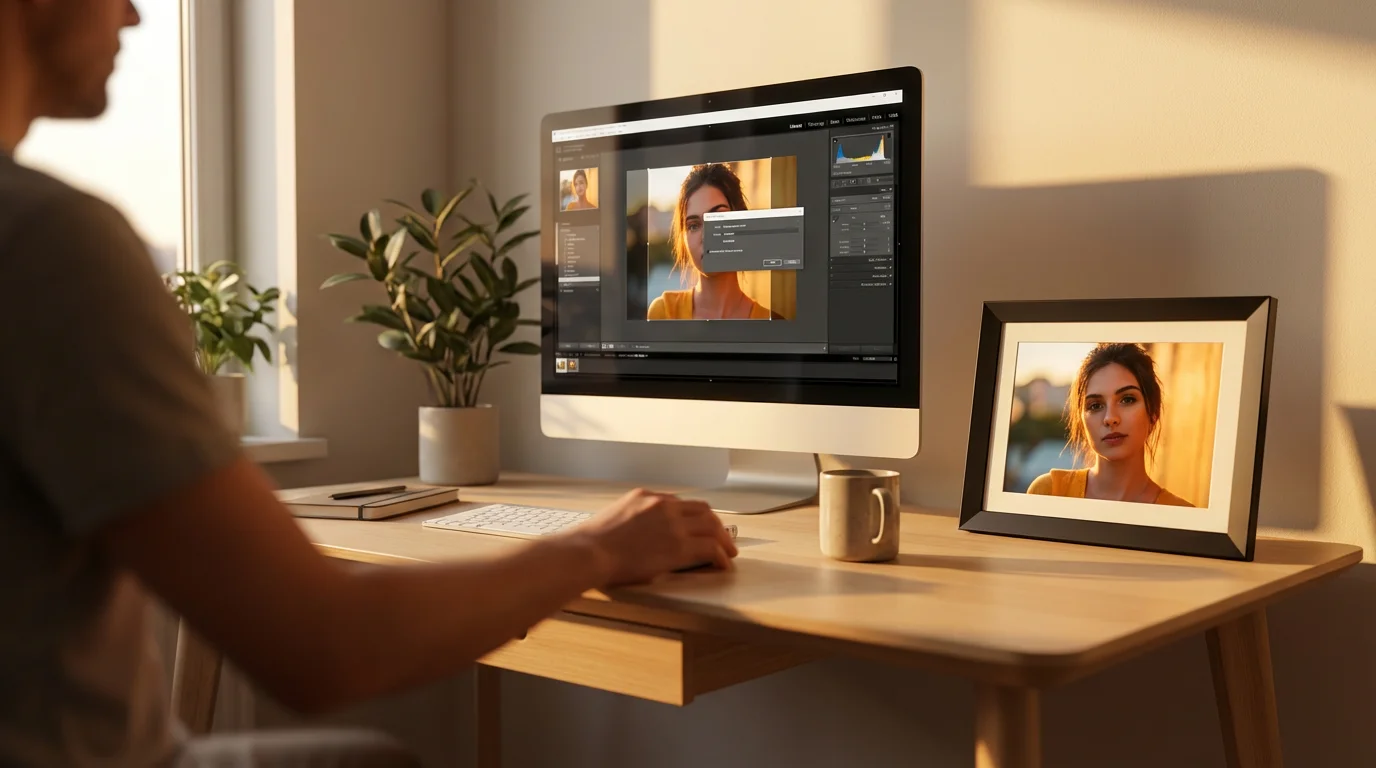
Once you have selected your photos, optimizing them for your digital photo frame is the next step. This process ensures your images look their best, load quickly, and do not consume excessive storage space. High-resolution images from modern cameras often contain more data than a digital frame requires, so resizing and compression are beneficial.
Here is how to prepare your images:
- Resize Images to Frame Resolution:
- Match Pixel Dimensions: Find your digital frame’s native resolution (e.g., 1024×768, 1920×1080). Resizing your photos to these exact dimensions will make them appear sharp and prevent the frame from having to rescale them, which can sometimes lead to softer images.
- Software Tools: Use image editing software like Adobe Photoshop, GIMP (free), or online tools like ResizeImage.net. Most operating systems also have built-in resizing capabilities. For example, on Windows, you can select multiple images, right-click, and choose a “resize” option in some photo viewers.
- Adjust Aspect Ratio:
- If your photos have a different aspect ratio than your frame, you might see black bars or experience automatic cropping. Consider cropping your images to match the frame’s aspect ratio (e.g., 4:3 or 16:9). For instance, if your frame is 16:9 and your photo is 4:3, you might crop some from the top and bottom to fill the screen, or accept the black bars.
- Crop strategically, ensuring you do not cut out important elements of your photograph.
- Choose the Right File Format:
- JPEG (JPG): This is the most universally supported format for digital photo frames and offers good compression with minimal quality loss for photographs. Most digital cameras save photos as JPEGs.
- PNG: While PNG offers lossless compression, resulting in larger file sizes, it is excellent for images with sharp lines or text, and for preserving transparency. For typical photographs, JPEG is usually sufficient.
- Avoid RAW: RAW files are uncompressed and contain vast amounts of data, making them unsuitable for direct display on digital frames due to their large size and lack of universal support. Convert them to JPEG.
- Optimize File Size and Compression:
- After resizing, further optimize the file size. When saving JPEGs, you usually have a quality slider. A setting between 70-85% often provides an excellent balance of image quality and small file size, significantly reducing the storage required on your frame while maintaining visual fidelity. For a 1920×1080 resolution photo, an optimized JPEG might be between 500KB and 2MB.
- Do not over-compress, as this can introduce visible artifacts and degrade image quality.
- Review and Finalize:
- After optimization, review your photos on your computer screen to ensure the quality remains high. Create a dedicated folder for these optimized images, separate from your originals, so you do not accidentally overwrite them.
Proper image optimization makes a noticeable difference in the quality and performance of your digital photo frame slideshow, providing a crisp and enjoyable viewing experience.
Setting Up Your Slideshow: A Step-by-Step Guide
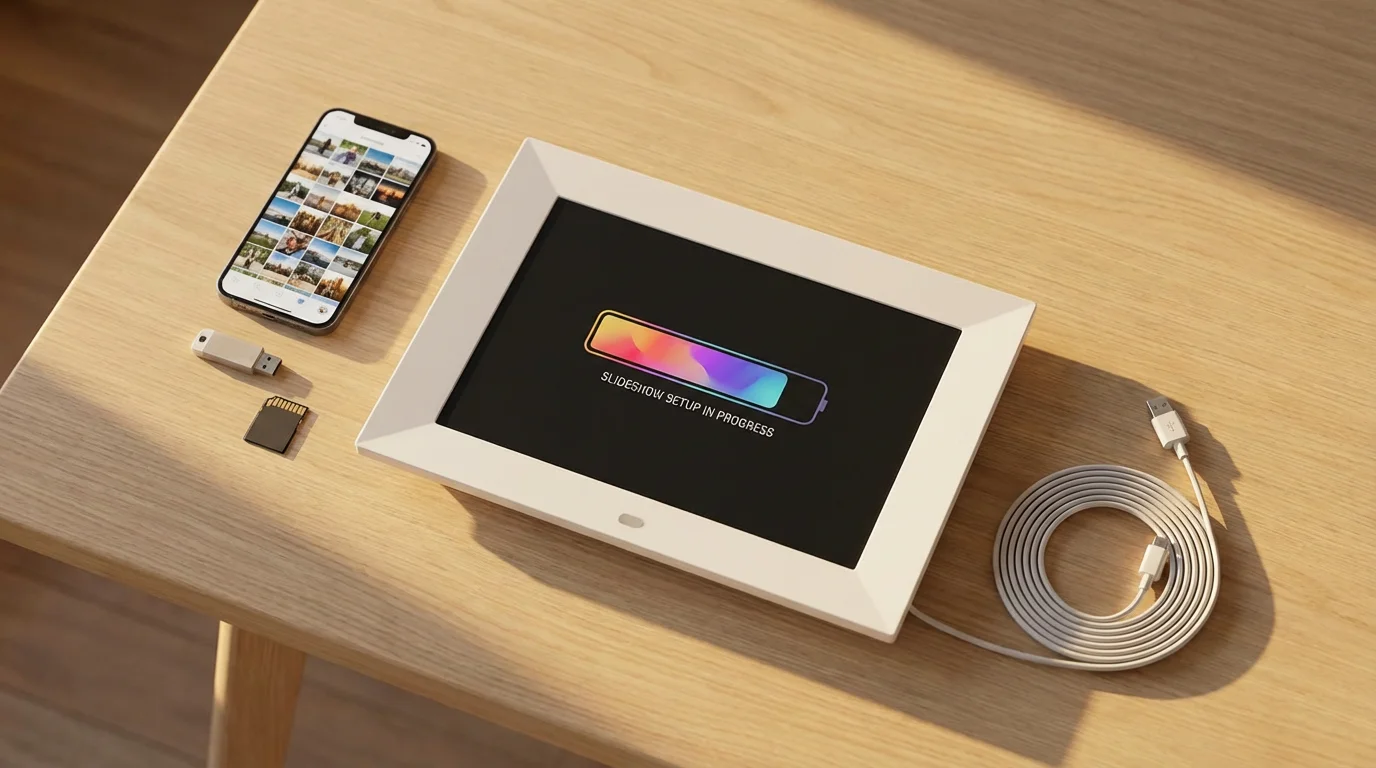
Now that your photos are perfectly optimized, it is time for the core process: the slideshow setup on your digital photo frame. The exact steps can vary slightly between models, but the general procedure remains consistent for almost all electronic frames.
Follow this guide to get your memories playing:
- Transfer Your Optimized Photos:
- USB Drive or SD Card: The most common method. Copy your folder of optimized photos to a USB flash drive or an SD card. Insert the storage device into the appropriate slot on your digital photo frame. Ensure the device is formatted to FAT32 or exFAT for maximum compatibility, as NTFS is not always supported.
- Wi-Fi/Cloud: If your frame is Wi-Fi enabled, connect it to your home network. Then, use the frame’s dedicated app on your smartphone or computer, or its associated cloud service (e.g., Google Photos sync), to upload your photos wirelessly. Some frames allow you to email photos directly to a unique frame address.
- Internal Storage: Many frames automatically copy photos from an inserted USB/SD card to their internal storage. This is ideal for continuous play without a card perpetually plugged in. Check your frame’s manual for this option.
- Access the Frame’s Menu:
- Most digital frames have physical buttons on the back or side, or a remote control, to navigate the menu. Power on your frame and look for a “Menu,” “Settings,” or “Photos” option.
- Select Your Photo Source:
- Navigate to the “Photos” or “Album” section. You will typically see options to select the source of your images: “USB Drive,” “SD Card,” “Internal Storage,” or “Cloud Album.” Choose the source where you stored your optimized photos.
- Initiate the Slideshow:
- Once you select the source, the frame will usually display thumbnails of your photos or prompt you to start a slideshow. Select the “Slideshow” or “Play” option. Some frames allow you to choose a specific folder to play from, which is useful if you organized your photos into themes.
- Basic Slideshow Settings:
- At this stage, your slideshow should be running. You can often access basic settings immediately, such as pause, next/previous photo, or volume (if playing videos/music).
With these steps, your digital photo frame is now actively displaying your carefully chosen memories. The real fun of personalization begins with customizing the display settings.

Customizing Your Slideshow Experience
Beyond the basic setup, your digital photo frame offers numerous options to personalize your slideshow and create a truly unique viewing experience. Tailoring these settings enhances the visual appeal and emotional impact of your photo display.
Explore these customization features in your frame’s settings menu:
- Slideshow Interval:
- Adjust how long each photo stays on screen. Common intervals range from 3 seconds to 30 seconds or even several minutes. A slower interval allows more time to appreciate each image, while a faster one keeps the display dynamic. Experiment to find what feels right for your content.
- Transition Effects:
- Most frames offer various transition styles, such as fades, wipes, dissolves, or pushes. You can choose a single effect for consistency, select “random” for variety, or pick a few favorites. A gentle crossfade is often elegant and unobtrusive.
- Shuffle or Sequential Play:
- Decide if photos play in the order you loaded them (sequential) or in a random order (shuffle). Shuffle is excellent for large collections, ensuring you see different combinations of images each day.
- Photo Fit Options:
- Your frame usually has options for how images fit the screen:
- Fit to Screen: Displays the entire image, potentially adding black bars to maintain the aspect ratio.
- Fill Screen (Crop): Zooms in and crops the image to fill the entire screen, which might cut off parts of the photo.
- Original Size: Displays the image at its actual pixel dimensions, potentially showing only a portion of larger images or leaving significant borders for smaller ones.
- Choose the option that best preserves your images while providing a pleasing full-screen experience.
- Your frame usually has options for how images fit the screen:
- Background Music and Video Playback:
- Many frames support playing background music with your slideshow. Load MP3 files onto your USB drive or internal storage. Some frames can also play short video clips. Remember that music and video files will consume more storage, so select them thoughtfully.
- Display Settings:
- Brightness and Contrast: Adjust these to suit your room’s lighting conditions. A setting that looks good during the day might be too bright at night.
- Auto On/Off Timer: Set your frame to automatically turn on in the morning and off at night, saving energy and extending the frame’s lifespan. Some frames include motion sensors for this purpose.
- Clock and Calendar: Some frames can display a clock, calendar, or weather information alongside your photos.
By experimenting with these customization options, you can craft a dynamic display that perfectly showcases your photo collection and enhances your home environment.

Maintaining Your Digital Photo Frame
Proper maintenance ensures your digital photo frame continues to operate smoothly and display your memories beautifully for years to come. A few simple practices can extend its lifespan and keep the screen pristine.
Implement these maintenance tips:
- Clean the Screen Gently:
- Dust and fingerprints can accumulate on the screen, diminishing image clarity. Use a soft, lint-free microfiber cloth, specifically designed for electronics screens. Avoid abrasive materials or paper towels, which can scratch the display.
- For stubborn smudges, slightly dampen a corner of the microfiber cloth with water or a screen-safe electronic cleaner. Never spray cleaner directly onto the screen.
- Always power off and unplug the frame before cleaning.
- Manage Your Photo Library:
- Periodically review the photos on your frame. Remove outdated images, add new favorites, or swap out themes. This keeps your slideshow fresh and prevents it from becoming stagnant.
- If your frame has limited internal storage, deleting older photo sets before uploading new ones helps prevent storage full errors and keeps the frame responsive.
- Software Updates:
- Some Wi-Fi enabled frames receive software or firmware updates. These updates can improve performance, add new features, or fix bugs. Check your frame’s settings menu or manufacturer’s website for available updates and follow their instructions for installation.
- Protect from Environmental Factors:
- Place your frame in a location away from direct sunlight, which can cause screen glare and potentially damage the display over time.
- Avoid areas with extreme temperatures or high humidity, as these conditions can affect the internal electronics.
- Ensure good air circulation around the frame to prevent overheating, especially if it runs continuously.
- Power Management:
- Utilize the auto on/off timer feature to power down the frame during periods of inactivity, like overnight. This conserves energy and can prolong the life of the screen and other components.
- If you plan to store the frame for an extended period, unplug it and store it in its original packaging or a protective cover in a cool, dry place.
By following these maintenance guidelines, you ensure your digital photo frame remains a vibrant centerpiece for your memories, displaying them with clarity and reliability for years to come.

Beyond the Slideshow: Creative Display Ideas
While the continuous slideshow is the primary function of a digital photo frame, you can use these electronic frames in even more creative ways to honor your photographic heritage. Think beyond a simple rotation of images to make your frame a dynamic storytelling device or a personalized art piece.
Consider these creative display ideas:
- Theme of the Month/Season:
- Instead of a random shuffle, create curated albums for each month or season. For example, in October, display harvest festival photos and Halloween costumes. In December, showcase holiday celebrations. This keeps the content fresh and relevant to the current time of year.
- Family History Spotlight:
- Dedicate a period to one branch of your family tree or a specific ancestor. Collect old digitized photos of that family line, add any historical documents you have scanned, and create a narrative. This is a wonderful way to connect generations and learn about your heritage.
- Event Recaps:
- After a significant family event, like a wedding, graduation, or a large reunion, compile a dedicated slideshow for it. Let it play for a few weeks as a special recap. This allows guests who visit later to relive the event.
- “Guess the Year” Game:
- If you have many undated photos, mix them into a slideshow and challenge family members to guess the year or decade. This sparks conversation and shared reminiscences.
- Digital Guestbook at Events:
- At parties or gatherings, temporarily set up the digital frame to display photos of the guests or past events they attended. It creates an instant talking point and a warm, personalized atmosphere.
- Artwork Showcase:
- Beyond personal photos, you can display digital reproductions of art. If you enjoy photography as an art form, curate a collection of your own artistic shots or even digital scans of children’s artwork. This transforms the frame into a rotating gallery.
- Morning Routine Visuals:
- If your family has a consistent morning routine, you could create a slideshow of photos representing each step: breakfast, getting ready, school bus, etc. It can be a fun visual aid for young children.
By thinking creatively about how you curate and display your images, your digital photo frame becomes more than just a picture display. It evolves into a dynamic storyteller, a focal point for family history, and a source of constant inspiration and joy.
Frequently Asked Questions
What image file formats do most digital photo frames support?
Most digital photo frames widely support JPEG and PNG image formats. Some advanced models also display HEIC files from Apple devices, GIF animations, or even short video clips. Always check your specific frame’s product specifications to confirm compatibility.
How often should I update the photos on my digital frame?
The frequency for updating photos on your digital frame depends on your personal preference and the frame’s features. Many users enjoy refreshing their collection seasonally, for holidays, or for special events like birthdays and anniversaries. Some frames offer cloud connectivity, making updates simple and frequent, while others require manual loading via a USB drive or SD card.
Can a digital photo frame display photos from different sources?
Yes, many modern digital photo frames can pull photos from various sources. These often include USB drives, SD cards, cloud storage services like Google Photos or Dropbox, and even social media platforms like Instagram or Facebook. The specific sources available depend on the frame’s model and its connectivity options, such as Wi-Fi or Bluetooth capabilities.
Is it better to use a wired or wireless digital photo frame?
The choice between a wired and wireless digital photo frame depends on your needs. Wired frames typically rely on USB drives or SD cards for content, offering simplicity and reliability. Wireless frames, which connect via Wi-Fi, provide greater convenience for remote updates, cloud integration, and accessing photos from multiple devices. Consider your technical comfort, update frequency, and desired features when making your decision.
Displaying your photographic heritage on a digital photo frame is a rewarding way to honor your memories. By following this guide, you can confidently select the right electronic frame, prepare your images, and create a captivating slideshow that brings your past and present into constant, joyful view. Enjoy the vibrant journey through your family’s precious moments, showcased beautifully for all to see.
Disclaimer: This article is for informational purposes only. When handling valuable or irreplaceable photographs, consider consulting a professional conservator. Always test preservation methods on non-valuable items first.









Leave a Reply