

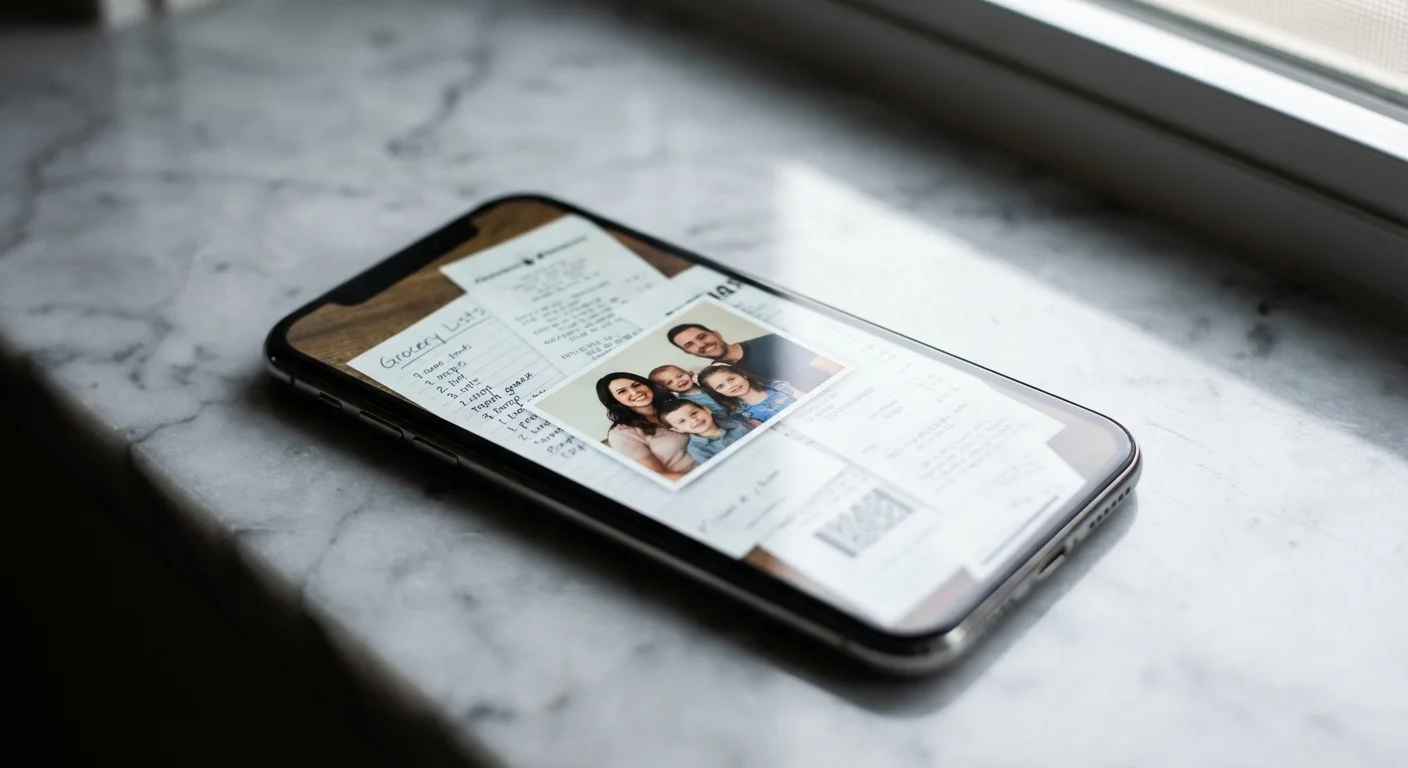
Open your smartphone’s photo app and look at your “Recents” folder. Mixed among the precious highlights of your daughter’s first steps or your sunset vacation shots, you likely see a chaotic mess of grocery lists, memes from your brother, screenshots of flight itineraries, and blurry receipts. This digital noise does more than just eat up your storage space; it dilutes the emotional value of your photographic heritage. When you have to scroll through fifty screenshots of weather forecasts to find one genuine family memory, your phone ceases to be a digital heirloom and becomes a cluttered filing cabinet.
Organizing this “utility media” is the first step toward reclaiming your digital life. You do not need to be a tech expert to master this. By implementing a few structural changes and utilizing the built-in AI tools already on your device, you can transform your photo library from a source of stress into a curated gallery of your life’s best moments. Let’s dive into the practical strategies to clean up the clutter and keep it organized for good.
Understanding the Digital Clutter Crisis
The fundamental problem with modern smartphone photography is that we use our cameras for two entirely different purposes. We use them as memory captures—recording events, emotions, and people—and we use them as information captures—noting prices, tracking packages, or saving text threads. Most phone operating systems treat these two categories exactly the same, dumping them into a single chronological stream. Over time, the information captures (the screenshots and WhatsApp media) overwhelm the memory captures.
Digital clutter has a psychological cost. Research into digital hoarding suggests that excessive digital “stuff” can lead to increased stress and a feeling of being overwhelmed. For the family historian, this clutter makes the task of photo preservation feel impossible. If you feel paralyzed by the thought of organizing your 20,000 photos, it is probably because 15,000 of them are things you never intended to keep in the first place.
Before you begin the physical act of deleting, you must adopt a new mindset. You are the curator of your own life. Just as a museum doesn’t display every rough sketch or shipping invoice, your primary photo library should not house every piece of digital debris that passes through your phone. Treat your “Recents” album as a temporary holding pen, not a permanent home.

The WhatsApp Triage: Stop the Bleeding
WhatsApp is the single largest contributor to photo clutter for most users. Because the app often defaults to saving every image and video sent in a chat directly to your phone’s internal storage, your gallery becomes an unintended repository for every joke, meme, and “Good Morning” graphic sent in your group chats. You must stop this influx at the source.
For iPhone Users: Open WhatsApp and go to Settings > Chats. Look for the toggle labeled “Save to Camera Roll” and turn it off. By disabling this, images sent to you will stay inside the WhatsApp app. You can still manually save an individual photo that you actually care about—like a picture of your niece—by long-pressing the image and selecting “Save.”
For Android Users: Open WhatsApp, tap the three dots in the top right corner, and go to Settings > Chats. Toggle off “Media Visibility.” This prevents newly downloaded media from showing up in your phone’s gallery. Furthermore, Android users should utilize the “Manage Storage” tool found under Settings > Storage and Data > Manage Storage. This tool categorizes files that have been forwarded many times or are larger than 5 MB, making it easy to delete high-volume clutter in seconds.
“The key to a sustainable digital archive is curation at the point of entry; stop the noise before it enters your sacred space.”
Once you have stopped the automatic saving, perform a “Great Purge” of your existing WhatsApp media. Most phones create a specific folder or album named “WhatsApp Images.” Instead of looking at individual photos, look at the thumbnails in a grid view. You will quickly notice patterns—hundreds of similar memes or low-quality screenshots. Select them in bulk and delete them. Do not worry about “missing something”—if a photo was truly important, you likely would have already engaged with it or saved it separately.
Managing Screenshots: From Temporary Notes to Organized Assets
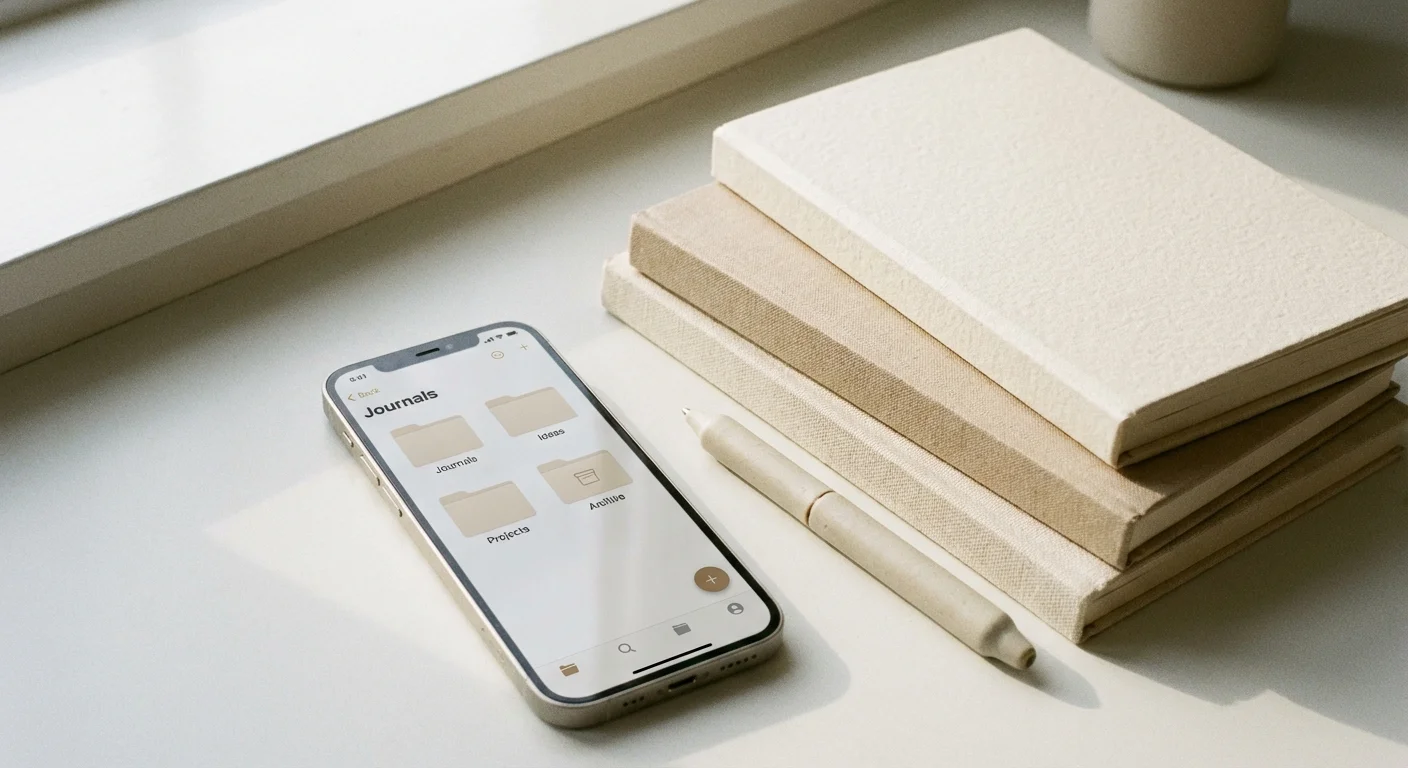
Screenshots are the “post-it notes” of the digital age. We take them to remember a book recommendation, a recipe, or a confirmation number. The problem is that we rarely go back and throw the “post-it” away once the task is complete. To manage this, you need a categorization system based on the lifespan of the information.
- Ephemeral Screenshots: These are temporary. Parking garage levels, grocery lists, or tracking numbers. These should be deleted within 24 hours.
- Reference Screenshots: Recipes, home decor ideas, or articles to read later. These belong in a dedicated note-taking app (like Apple Notes, Evernote, or Notion), not your photo gallery.
- Legacy Screenshots: A heart-warming text message from a late relative or a digital certificate of achievement. These are “memories” and should be treated as such—moved to a specific “Memories” album and backed up.
Both iOS and Android automatically group screenshots into their own smart album. On an iPhone, go to Albums, scroll down to Media Types, and select Screenshots. On Android, open Google Photos, tap Library, and find the Screenshots folder. Reviewing this specific folder once a week for five minutes—perhaps while waiting for coffee—can prevent a year’s worth of buildup.

Using AI and Search Tools to Clear the Fog
You don’t have to manually hunt for every receipt or text-heavy image. Modern smartphones are incredibly efficient at “reading” your photos. This technology, often called OCR (Optical Character Recognition), allows you to search for text inside an image just as you would search for a word in a Word document.
If you need to find all the screenshots of recipes you’ve taken, simply type “recipe” or “ingredients” into the search bar of your photo app. If you are looking for a specific bill, search for “Invoice” or the name of the utility company. This capability allows you to find and group clutter for mass deletion. According to technical resources like Digital Photography Review, the metadata and internal indexing of mobile images have become so sophisticated that search is often more effective than manual browsing.
Try searching for these terms to find common clutter culprits:
| Search Term | Type of Clutter Likely Found |
|---|---|
| “Screenshot” | General interface captures and notes. |
| “Text” | Memes, quotes, and document photos. |
| “Receipt” or “Bill” | Financial records and temporary proof of purchase. |
| “QR Code” | Menu links and digital check-ins. |
| “Map” | Direction captures and location notes. |
Once the search results appear, you can often “Select All” and review the results in a batch. This is significantly faster than scrolling through your entire timeline. You can clear out a hundred “utility” images in a single swipe-and-delete motion.

The Batch Cleaning Workflow: A Step-by-Step Guide
If you are facing thousands of images, don’t try to fix it all in one sitting. Use a “Batch Cleaning” workflow to make the process manageable. Break the task down into specific “missions.”
- The “Duplicate” Mission: Use the built-in “Duplicates” folder (found in the Utilities section of iOS 16+ or the “Clean up” tool in Google Photos). Merging duplicates immediately reduces the sheer number of items you have to look at.
- The “Large Video” Mission: WhatsApp videos are often the biggest storage hogs. Sort your media by size and tackle the largest files first. You might find that deleting ten long, forwarded videos frees up more space than deleting a thousand screenshots.
- The “Month-by-Month” Review: Instead of looking at your whole library, focus on one month at a time. Go back to January of last year. Scroll through and delete anything that isn’t a high-quality memory. Because you are looking at the past, it is much easier to identify what was “temporary” information that is no longer relevant.
- The “Favorite” Filter: If you are overwhelmed by the “bad” photos, focus on the “good” ones first. Go through a month and “Favorite” (hit the heart icon) the 10-20 photos that truly matter. Once you’ve done that, you can feel much more confident about being aggressive with the remaining images.
Consider using third-party apps with caution. While some apps help you “swipe left or right” to delete photos, ensure they do not have access to your private metadata or sell your data. Stick to the native tools provided by Apple and Google whenever possible, as they are integrated into your OS and respect your privacy settings more consistently.

Preserving the Gems: Moving from Phone to Archive
Once you have cleared the clutter, you are left with the images that actually define your life and family history. These are precious objects. However, a smartphone is a dangerous place for long-term storage. Phones get lost, screens break, and cloud accounts can be hacked or locked. You must move your curated “gems” into a proper preservation system.
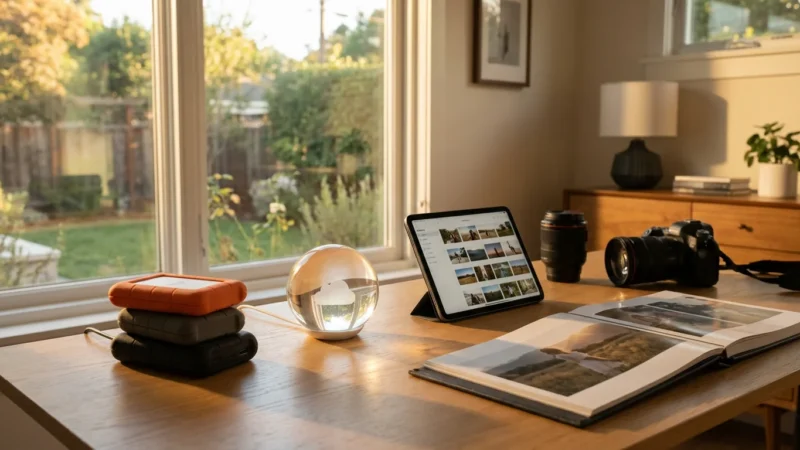
The Library of Congress recommends a “3-2-1” backup strategy for digital media: keep 3 copies of your important files, on 2 different media types (like a hard drive and the cloud), with 1 copy located off-site (like a safe deposit box or a different geographic location).
For your screenshots that are worth keeping—like a digital record of a meaningful conversation—convert them to a more stable format. Export them as high-quality JPEGs or PDFs and store them in a folder labeled “Digital Ephemera” on an external SSD. Rename the files with dates and descriptions (e.g., 2023-11-15-Text-From-Mom.jpg). This makes them searchable for future generations who won’t have access to your phone’s internal AI search.
Remember that digital preservation is an active process. Unlike a physical photo in an archival box, which can sit for decades, digital files require regular “refreshing.” Every few years, ensure your backup drives still function and that the file formats are still readable by modern software. By clearing the WhatsApp and screenshot clutter now, you are ensuring that when you perform these future updates, you are only spending time on the images that truly matter.
Frequently Asked Questions
How do I stop WhatsApp from automatically saving photos to my gallery?
On both iPhone and Android, navigate to WhatsApp Settings > Chats and toggle off ‘Save to Camera Roll’ (iOS) or ‘Media Visibility’ (Android). This prevents every incoming meme or temporary image from cluttering your primary photo library.
Can I search for specific text within my screenshots?
Yes, both Apple Photos and Google Photos use Optical Character Recognition (OCR). You can type words found within the image into your photo app’s search bar to locate specific receipts, notes, or messages quickly.
Will deleting photos in WhatsApp also delete them from my phone gallery?
Usually, if you have already saved the photo to your gallery, deleting the message in WhatsApp will not remove the file from your phone’s local storage. You must delete the image from your photo app to free up space.
What is the best way to back up screenshots worth keeping?
Move valuable screenshots to a dedicated ‘Archive’ or ‘Reference’ folder in your cloud storage (like iCloud, Google Drive, or Dropbox) and rename them with descriptive titles so they are searchable outside of the photo app.
Disclaimer: This article is for informational purposes only. When handling valuable or irreplaceable photographs, consider consulting a professional conservator. Always test preservation methods on non-valuable items first.







Leave a Reply