

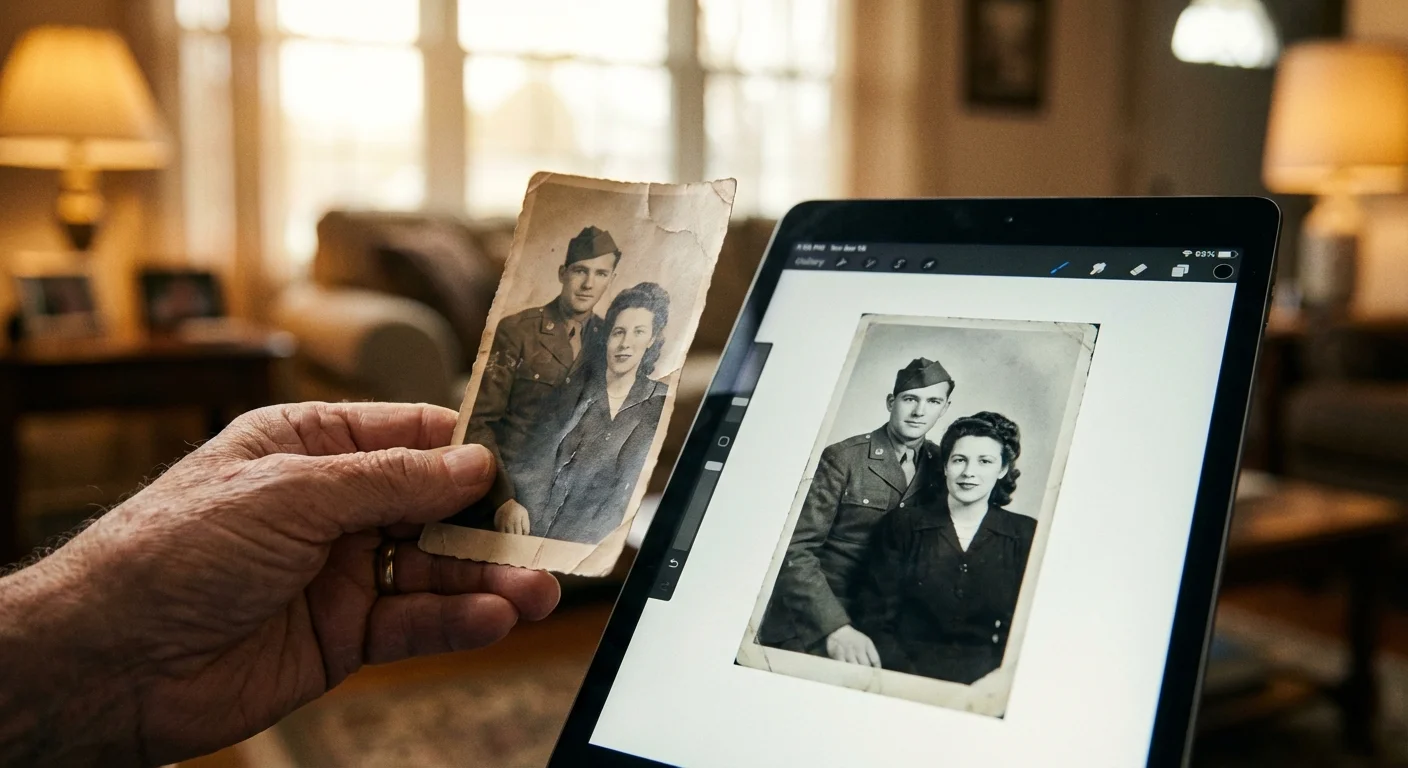
Imagine holding an old black-and-white photograph of a family gathering. You turn it over, hoping to find a name or a date, but the back is blank. The identity of the people and the significance of the moment remain locked in the past; forever a mystery. In the digital world, photo metadata serves as the writing on the back of your pictures. It ensures that fifty years from now, your descendants won’t just see a digital file—they will know exactly who is in the frame, where they stood, and when the shutter clicked.
Digital photo tagging involves more than just clicking a heart icon or moving a file into a folder. It relies on a sophisticated internal filing system comprised of three primary standards: EXIF, IPTC, and XMP. Understanding these formats allows you to take full control of your photographic heritage. You can organize thousands of images with surgical precision, protect your intellectual property, and ensure your family stories survive the transition across different software and devices.
The Digital DNA of Your Memories
Metadata is quite literally “data about data.” In the context of photography, it refers to the hidden text embedded within an image file. While you see the pixels that form your daughter’s graduation or a sunrise over the Grand Canyon, your computer sees a complex header containing strings of information. This information travels with the file wherever it goes, provided you use the right tools to manage it.
Why should you care about these invisible strings of text? Think of metadata as the ultimate search tool. If you have 50,000 photos stored on a hard drive, finding one specific image of your grandfather becomes an impossible chore without tagging. With proper metadata, you can search for “Grandpa Joe” and “1954” and find the exact image in seconds. This efficiency is why professional archives, like those at the Smithsonian Archives, place such a high priority on metadata standards—it is the difference between a functional library and a pile of discarded paper.
EXIF: The Technical Footprint of Your Camera
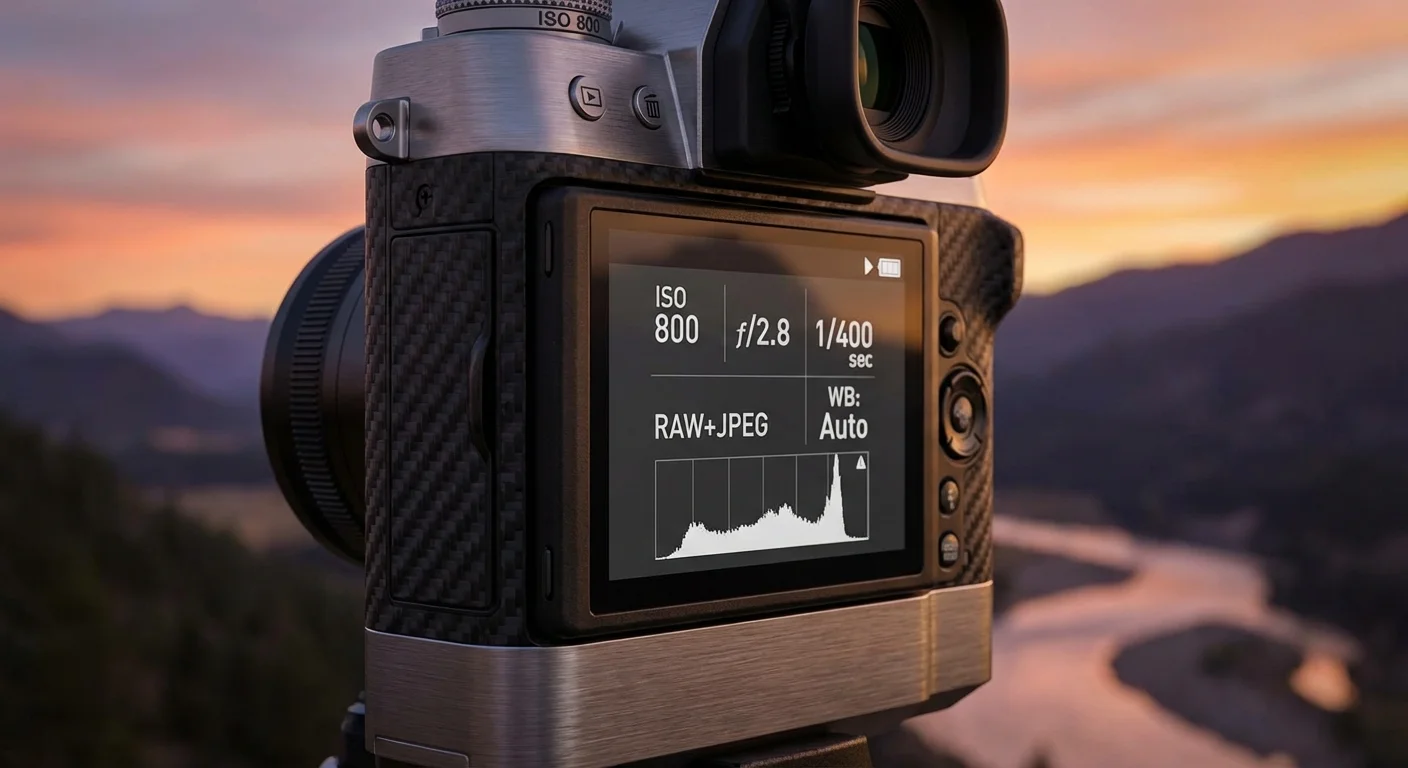
Exchangeable Image File Format, or EXIF, is the most common form of metadata. Your digital camera or smartphone generates this data automatically the moment you press the shutter button. You don’t have to do anything to create it; the device records the technical environment of the shot and embeds it directly into the image header.
EXIF data is primarily technical. It captures the settings that determined the look of your photo. Typical EXIF fields include:
- Camera Model and Serial Number: Identifies the hardware used.
- Exposure Settings: Records the aperture (f-stop), shutter speed, and ISO.
- Lens Information: Notes the focal length and the specific lens used.
- Date and Time: Records exactly when the photo was taken (based on the camera’s internal clock).
- GPS Coordinates: If your device has a GPS chip, it records the exact latitude and longitude of the shot.
For the family historian, the date and time fields are the most critical parts of EXIF. However, for those learning photography, EXIF serves as a silent mentor. You can review your best shots and see that a specific aperture of f/2.8 created that beautiful blurred background; similarly, you can see that a shutter speed of 1/15 caused the motion blur in a failed shot. For a deeper dive into how these technical settings affect your images, Cambridge in Colour offers excellent tutorials on the relationship between EXIF data and visual outcomes.

IPTC: Telling the Story Behind the Image
While EXIF tells you how a photo was taken, IPTC (International Press Telecommunications Council) tells you what is happening in the photo. This standard was developed in the 1970s to help photojournalists transmit captions and credits alongside their images. Today, it remains the gold standard for descriptive and administrative metadata.
Unlike EXIF, your camera will not automatically fill out IPTC fields. You must add this information yourself using photo management software. This is where the “heavy lifting” of photo preservation happens. The primary IPTC fields include:
- Caption/Description: A full sentence or paragraph describing the scene.
- Keywords/Tags: Individual words like “Christmas,” “Beach,” or “Portrait” that make searching easier.
- Creator/Author: Your name or the name of the photographer.
- Copyright Notice: Legal information regarding the ownership of the image.
- Headline: A brief summary of the image content.
By utilizing IPTC fields, you transform a file named “IMG_8432.jpg” into a searchable historical record. Instead of a vague filename, the file now contains the information: “Description: Aunt Mary’s 90th birthday party held at the community center in Chicago.” This data stays inside the file, making it much more robust than simply organizing photos into folders on your computer.

XMP: The Modern Standard for Flexible Data
The Extensible Metadata Platform (XMP) is the newest of the three standards, introduced by Adobe in 2001. Rather than replacing EXIF or IPTC, XMP acts as a modern container that can hold both, along with much more. XMP is based on XML, which makes it highly flexible and readable by a wide variety of software applications.
One of the most significant features of XMP is its ability to handle “sidecar” files. When you edit a RAW image file in a program like Adobe Lightroom, the software doesn’t actually change the original pixels. Instead, it records your edits—like “increase brightness by 10%” or “convert to black and white”—into an XMP sidecar file (usually ending in .xmp). When you open that photo again, the software reads the XMP file and applies those changes on the fly.
XMP is the bridge that allows modern photo software to talk to one another, ensuring that your tags and edits remain consistent across different platforms.
For photo tagging, XMP is incredibly powerful because it allows for custom fields. If you are a genealogist, you can use XMP-compatible software to create custom fields for family branches or specific historical events. Most importantly, XMP is designed to be future-proof. As new technology emerges, XMP can expand to accommodate new types of data without breaking the older information already stored in the file.

A Practical Workflow for Digital Photo Tagging
The prospect of tagging thousands of photos can feel overwhelming. The key is to establish a consistent workflow. You do not need to tag every photo individually; instead, you should use batch processing to handle groups of images at once. Follow this practical step-by-step guide to get your collection under control.
- Import and Rename: When you move photos from your camera to your computer, rename them immediately. Use a format like YYYY-MM-DD-Event-Name. This provides a baseline level of organization even before you touch the metadata.
- Apply Global Metadata: Select all the photos from a single session. Use your software to apply “Global” IPTC tags. This might include your name in the Creator field and a general keyword like “Vacation 2023.”
- Add Specific Keywords: Narrow your selection. Select only the photos of your children, and add their names as keywords. Select only the photos taken at the beach, and add “Beach” and “Ocean” as keywords.
- Write Captions for “Star” Photos: You don’t need to write a detailed caption for every one of the 500 photos you took at a wedding. Focus on the top 10%—the “keeper” images. For these, write a detailed IPTC caption identifying the people from left to right.
- Verify and Embed: Ensure your software is set to “write” the metadata to the files. Some programs keep the data in a local database only; you want to make sure it is actually embedded into the image header or saved as an XMP sidecar so it travels with the file.
By breaking the task down into these layers, you can tag hundreds of images in just a few minutes. The initial investment of time pays off every time you need to find a specific memory in the future.
Applying Metadata to Scanned Family Archives
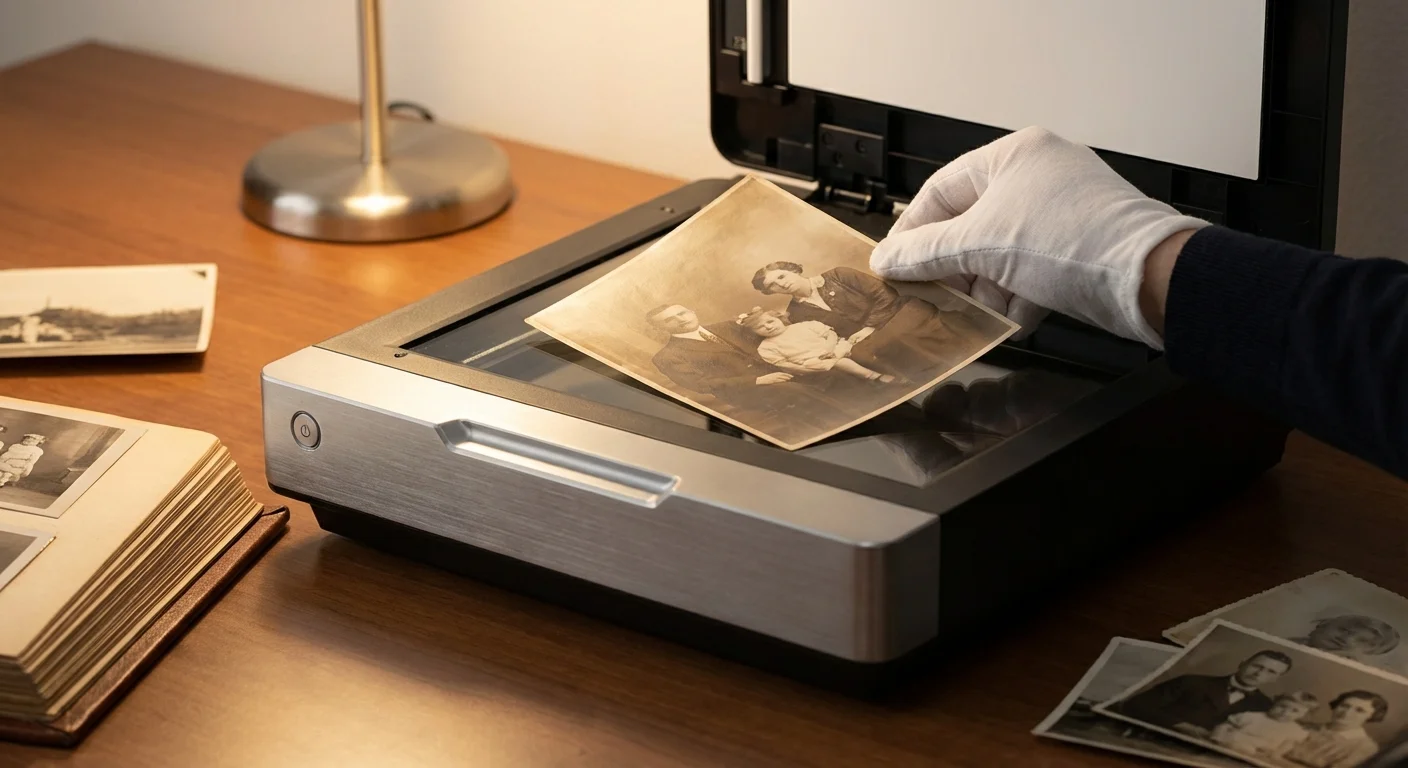
Scanned photos present a unique challenge. When you scan a physical photograph from 1920, the scanner creates a digital file with today’s date in the EXIF field. This is technically accurate—the file was created today—but it is historically misleading. To preserve your heritage, you must manually correct this data.
Most advanced photo management tools allow you to “Shift-Date” or “Modify Capture Time.” You should change the EXIF date to match the actual date the photo was taken. If you only know the year, many experts recommend setting the date to January 1st of that year at noon. This keeps your timeline organized in digital galleries.
Furthermore, use the IPTC “Source” or “Credit” fields to note where the physical photo is located. For example, you might write: “Original physical print located in the blue archival box, shelf 2, attic.” This creates a vital link between your digital collection and your physical archives. For more on the standards of professional digitizing, the National Archives Preservation site provides comprehensive guidelines on how to document historical digital assets.

Privacy and the Ethics of Metadata
While metadata is a powerful tool for preservation, it also carries privacy risks. EXIF data, in particular, often contains highly specific GPS coordinates. If you take a photo of your child in your backyard and post it to a public forum, anyone who downloads that image could potentially see exactly where you live.
Before sharing images online or with strangers, you should consider “scrubbing” the sensitive metadata. Most operating systems (Windows and macOS) allow you to remove properties and personal information from files through the file properties menu. Additionally, many social media platforms automatically strip metadata to protect users, but you should never rely on them entirely. Take control of your own data by using a dedicated metadata editor to remove GPS and serial numbers from photos intended for public viewing.
On the flip side, always include your copyright and contact information in the IPTC fields if you are a professional or serious hobbyist. If your image is shared or “borrowed” across the internet, that embedded metadata acts as your digital signature, making it easier for people to find the original creator and ask for permission or licensing.
Essential Tools for Managing Metadata
To manage EXIF, IPTC, and XMP effectively, you need the right tools. While your computer’s built-in file explorer can handle basic edits, professional-grade software offers batch processing and more detailed field access.
| Software | Best For | Level |
|---|---|---|
| Adobe Bridge | Batch editing and viewing all metadata types for free. | Intermediate |
| ExifTool | The most powerful, command-line tool for technical users. | Advanced |
| DigiKam | Open-source, comprehensive photo management for power users. | Professional |
| Lightroom Classic | Seamlessly integrating metadata into a creative workflow. | Intermediate |
| Photo Mechanic | Lightning-fast captioning and keywording for journalists. | Professional |
If you are just starting, Adobe Bridge is an excellent choice because it is free to use (with a Creative Cloud account) and provides a clear, visual interface for editing IPTC and XMP fields. For those who aren’t afraid of a bit of coding, ExifTool by Phil Harvey is the industry standard used by archivists worldwide to repair corrupted metadata or perform complex batch operations that other software cannot handle.
Frequently Asked Questions
What is the difference between EXIF and IPTC metadata?
EXIF data is automatically generated by your camera and records technical settings like shutter speed, aperture, and date. IPTC data is usually added by the photographer manually to include descriptive information such as captions, keywords, and copyright ownership.
Does adding metadata to a photo reduce its quality?
No, adding or editing metadata does not affect the visual quality of the image pixels. Metadata is stored in a separate part of the file header or in a sidecar file, leaving the actual image data untouched.
Can I add metadata to old scanned photos?
Yes, you can and should add metadata to scanned photos. Since scanners don’t know when the original photo was taken, you can manually use software to inject the correct historical date, location, and family names into the IPTC or XMP fields.
Is metadata permanent?
Metadata is persistent but not indestructible. It stays with the file during most transfers, but certain social media platforms or privacy tools may strip metadata to reduce file size or protect user privacy.
Taking the time to understand and apply photo metadata is an act of generosity for future generations. By mastering EXIF, IPTC, and XMP, you ensure that your digital library remains an organized, searchable, and meaningful record of your life’s most important moments. Start small—perhaps with your most recent vacation—and build the habit of tagging. Your future self, and your children’s children, will thank you for providing the context that turns a simple image into a cherished memory.
Disclaimer: This article is for informational purposes only. When handling valuable or irreplaceable photographs, consider consulting a professional conservator. Always test preservation methods on non-valuable items first.









Leave a Reply