

You likely have a digital shoebox. It might be a literal hard drive tucked in a desk drawer, a sprawling folder on your desktop labeled “Photos to Sort,” or thousands of images scattered across three different smartphones. When you inherit a lifetime of family memories—scanned Polaroids, black-and-white negatives, and early digital snapshots—the sheer volume feels overwhelming. You want to preserve these treasures, but you are rightly hesitant to hand them over to a cloud provider that might change its terms, hike its prices, or compromise your privacy.
Offline photo management offers a sanctuary for your digital heritage. By keeping your files on hardware you own, you maintain total control. Today, two titans dominate the conversation for those who prefer local storage: Mylio Photos and Adobe Bridge. While both allow you to organize images without a mandatory cloud subscription, they approach the task with vastly different philosophies. This guide breaks down the strengths, weaknesses, and practical applications of each to help you decide which system will safeguard your family legacy for the next generation.
The Case for Offline Photo Management
Most modern photo solutions try to lock you into a “walled garden.” When you upload to a proprietary cloud, you often lose direct access to your folder structure. If you stop paying your monthly fee, your access to high-resolution originals may vanish. For a family archivist, this is a significant risk. Digital preservation requires a proactive approach to prevent “bit rot” and hardware failure, a topic extensively covered by the Library of Congress Preservation guidelines.
Offline managers like Mylio and Adobe Bridge operate on a “referential” basis. They do not gobble up your photos and hide them in a database; instead, they look at your existing folders and provide a window through which you can view, sort, and tag them. This distinction is vital. If the software disappears tomorrow, your photos remain exactly where you put them, organized in folders you recognize. This transparency ensures that your heirs can easily find the 1954 wedding album even if they don’t have your specific software installed.
Privacy also plays a major role. Many people feel uncomfortable with big-tech algorithms scanning their family photos to build advertising profiles. Offline tools process everything on your local CPU. Whether you are tagging a sensitive historical document or a photo of your grandchild, that data stays on your machine. You own the hardware, you own the data, and you own the peace of mind that comes with total privacy.

Mylio Photos: The Decentralized Library
Mylio Photos represents a radical shift in how we think about photo storage. Rather than relying on a central server, Mylio creates a “mesh” network between your devices. Imagine your laptop, your tablet, and your phone all talking to each other directly over your home Wi-Fi. When you add a photo to your laptop, it automatically appears on your phone—not because it went to the cloud, but because the devices synced locally.
The primary appeal of Mylio is its ability to make a massive library (hundreds of thousands of photos) feel weightless. It creates “Smart Previews,” which are small, editable versions of your photos that take up very little space. This allows you to carry your entire lifetime of memories on a smartphone with limited storage, while the high-resolution originals stay safe on your home hard drives. For anyone who has ever wanted to show a relative a specific old photo while away from home, this feature is a game-changer.
Mylio is designed for the family historian who needs their entire archive accessible at all times across multiple devices without sacrificing privacy or paying for cloud storage.
Mylio also excels at chronological storytelling. Its “LifeCalendar” automatically maps your photos onto a timeline, allowing you to see “This Day in History” or jump to a specific decade with a click. For those processing inherited collections, Mylio’s automated facial recognition is remarkably fast. It can scan thousands of images, identifying your grandfather across sixty years of his life, which significantly cuts down the time required to tag a legacy collection.
Adobe Bridge: The Industrial Browser
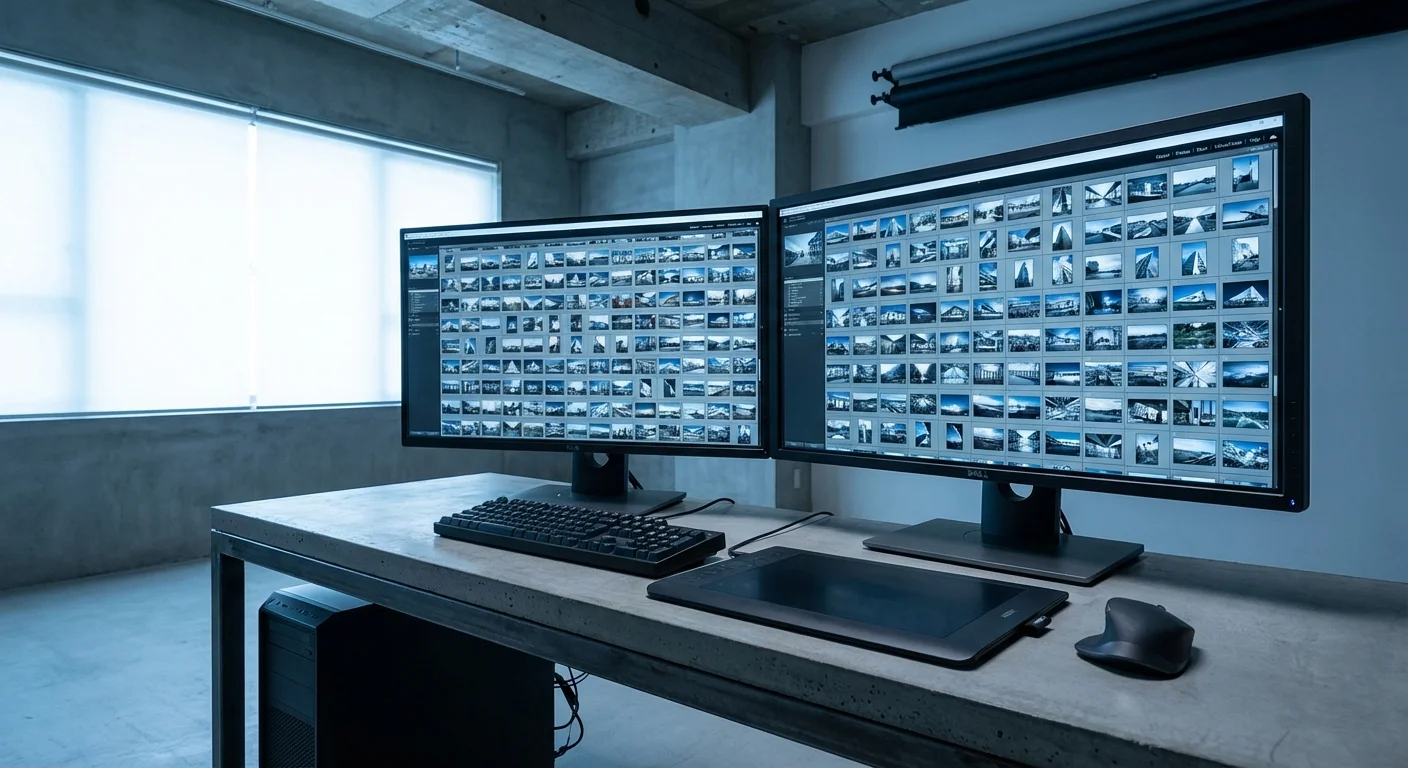
Adobe Bridge is often misunderstood. Many photographers see it merely as a companion to Photoshop, but it is a powerful, standalone media browser. Unlike Mylio, Bridge is strictly a “one-computer-at-a-time” tool. It does not sync your devices or create a mesh network. It simply looks at the folders on your connected hard drives and displays the contents with professional-grade precision.
If Mylio is a personal librarian, Adobe Bridge is a high-end filing clerk. It offers unparalleled control over metadata. If you need to change the “Date Created” for 500 scanned slides simultaneously, Bridge handles it in seconds. Its “Batch Rename” tool is the gold standard, allowing you to create complex naming conventions (e.g., 1965-Smith-Family-Vacation-001.jpg) that keep your files organized at the system level.
One of the most significant advantages of Adobe Bridge is its price: it is free. While it is part of the Adobe ecosystem, you do not need a Creative Cloud subscription to use the core organizational features. You simply need an Adobe account to download the desktop application. For a budget-conscious archivist who only works from a single desktop computer and doesn’t care about syncing to a phone, Bridge offers professional tools at no cost.
Comparing Organization and Search Features
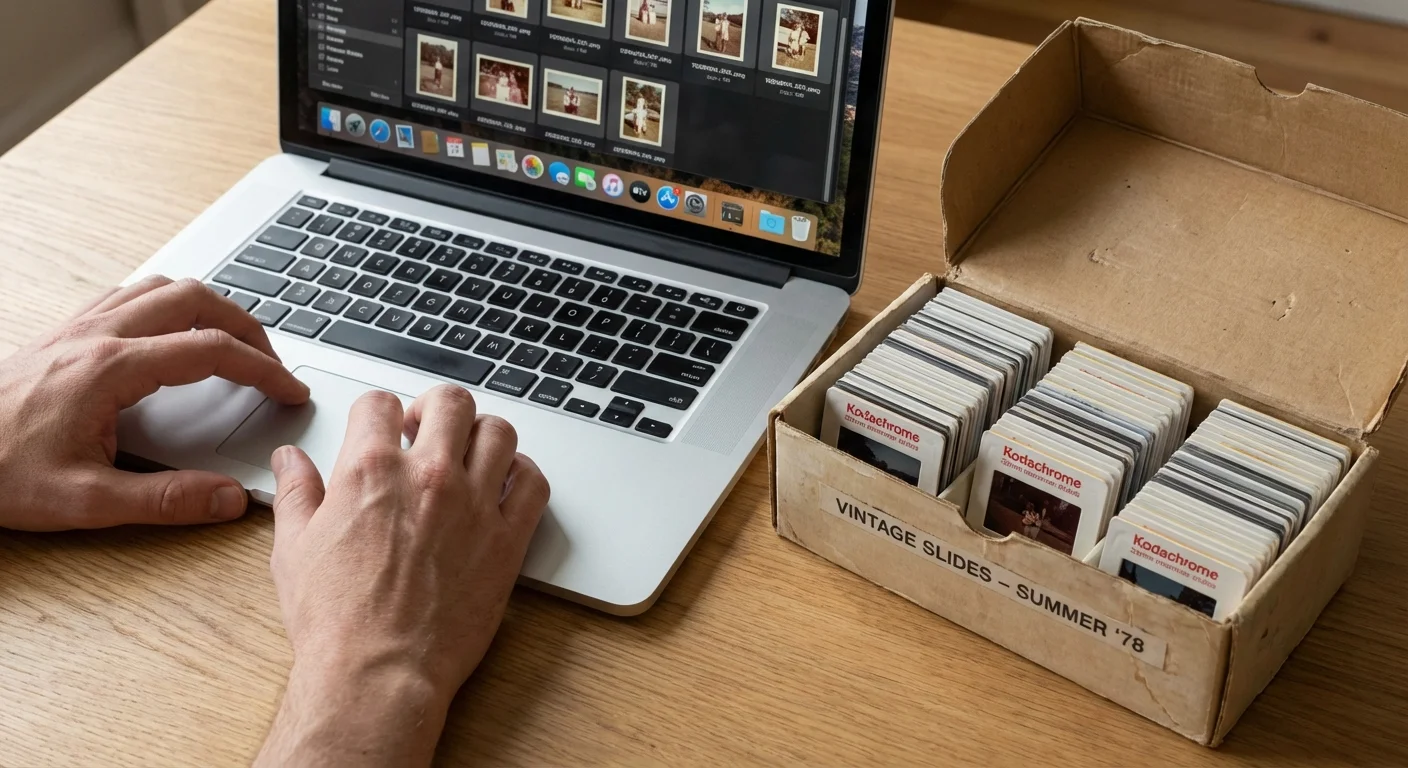
When you are staring down 20,000 unorganized images, the “searchability” of your software is what saves your sanity. Both programs offer tagging, star ratings, and color labels, but they implement them differently. Mylio uses a more modern, AI-assisted approach. It can automatically categorize images based on visual content (e.g., “mountains,” “dogs,” or “weddings”) even if you haven’t manually tagged them. This is particularly helpful for “pre-sorting” a messy collection.
Adobe Bridge relies on traditional, user-defined metadata. It doesn’t guess what is in your photos; it shows you exactly what you have told it. Bridge is heavily integrated with the XMP (Extensible Metadata Platform) standard. This is crucial for long-term preservation because the tags you apply in Bridge are written directly into the file or a small “sidecar” file that stays with the image. This ensures that 50 years from now, a different program will still be able to read that the photo was taken in “Yellowstone” in “1978.”
Mylio’s facial recognition is its “killer feature” for genealogists. Identifying individuals in old family photos is often the most time-consuming part of preservation. Mylio learns faces quickly and allows you to confirm matches in bulk. Bridge, by comparison, has no native facial recognition. You must manually type names into the metadata fields, which can be a Herculean task for large family archives.

Performance and Sync Capabilities
Performance is where the two programs diverge most sharply. Mylio is built for speed across a network. Because it uses Smart Previews, you can scroll through a library of 100,000 images on a five-year-old laptop without any “lag” or loading icons. It is designed to be “always on,” running in the background to keep your devices in sync. If you value being able to organize your photos while sitting on the couch with a tablet, Mylio is the clear winner.
Adobe Bridge is a “heavy” application. It generates high-quality previews every time you open a folder, which can be slow if you are working with large RAW files or high-resolution TIFF scans on an older mechanical hard drive. Bridge is best suited for “active sessions”—you sit down at your desk, plug in your archival drive, do the work, and close the program. It isn’t meant to be a constant companion; it’s a workstation.
The “Mylio Mesh” provides a unique form of backup. In a typical setup, you might designate one desktop with a large external drive as a “Vault.” When you bring your phone home, Mylio automatically copies your new phone photos to that Vault. You can even set up a second Vault at a relative’s house. The two Vaults will sync over the internet (encrypted and private), creating an off-site backup without ever using a cloud provider like Google or Apple. This peer-to-peer architecture is one of the most robust ways to protect against hardware failure.
Metadata and Archival Integrity
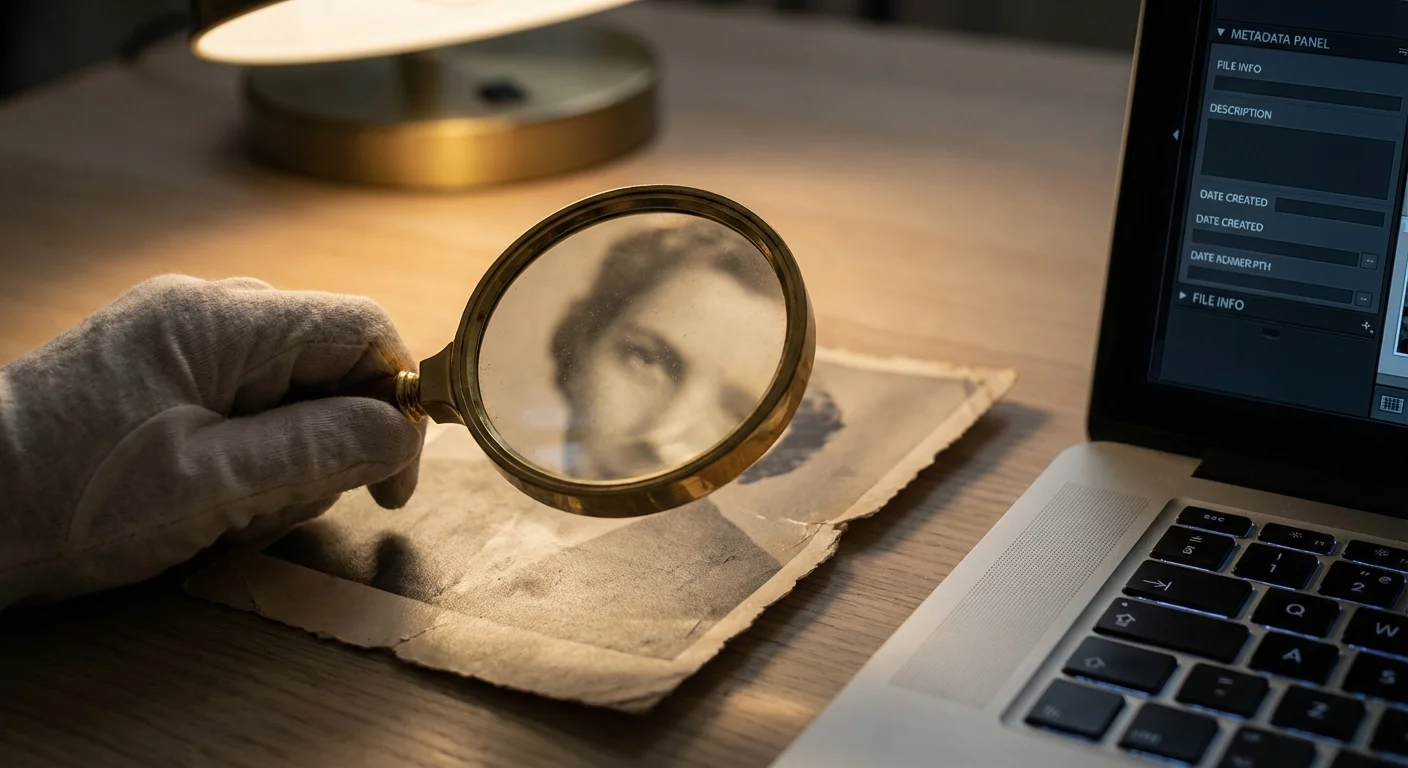
For those serious about preservation, metadata is more important than the software itself. Metadata is the “digital ink” that records the who, what, where, and when of your history. If your software saves your notes in a proprietary database that other programs can’t read, you are building a “data silo”—a dangerous situation for long-term archives.
Adobe Bridge is the gold standard for metadata integrity. It follows the IPTC and XMP standards religiously. When you add a caption in Bridge, it is hard-coded into the file’s “DNA.” This is the same workflow used by news agencies and museums. If you are preparing a collection for a historical society or a digital repository, Bridge ensures your work meets professional standards. You can read more about these technical requirements at the Image Permanence Institute.
Mylio also supports XMP standards, but because it prioritizes sync speed, it manages metadata in its own database first and then “writes” it to the files. You must ensure that the “Export” or “Save Metadata to File” settings are correctly configured in Mylio to ensure your work is portable. While Mylio is much friendlier for the average user, it requires a bit more vigilance to ensure your metadata is truly “baked in” for the long haul.

Cost and Accessibility Models
The decision often comes down to the wallet. Adobe Bridge is “free” in the sense that there is no monthly charge for the organizer itself. This makes it an incredibly low-risk option. You can download it today, try it on one folder, and if you don’t like it, you haven’t lost a dime. However, you do lose the ability to access your photos on your phone or tablet, which is a significant “cost” in terms of convenience.
Mylio offers a “Freemium” model. The basic version of Mylio Photos is free and allows you to manage photos on a single device. However, to unlock the “Mylio Photos+” features—which include the multi-device sync, the automated backup (Vaults), and the remote access—you must pay an annual subscription fee. For many, this fee is well worth it because it replaces the cost of a cloud storage subscription (like iCloud or Google One) while providing superior privacy.
When evaluating cost, don’t just look at the monthly fee; look at the value of your time. If Mylio saves you 50 hours of manual tagging through facial recognition, the subscription has paid for itself.
For a family researcher, the “cost” of losing photos is the ultimate metric. Mylio’s automated sync acts as a safety net. If your laptop’s hard drive dies, your photos are already on your “Vault” drive and likely your phone. With Adobe Bridge, you are responsible for your own backup strategy. If you don’t manually copy your folders to a second drive, a single hardware failure could wipe out your entire project. If you are not tech-savvy enough to manage a “3-2-1 backup” strategy manually, Mylio’s automation is a vital investment.
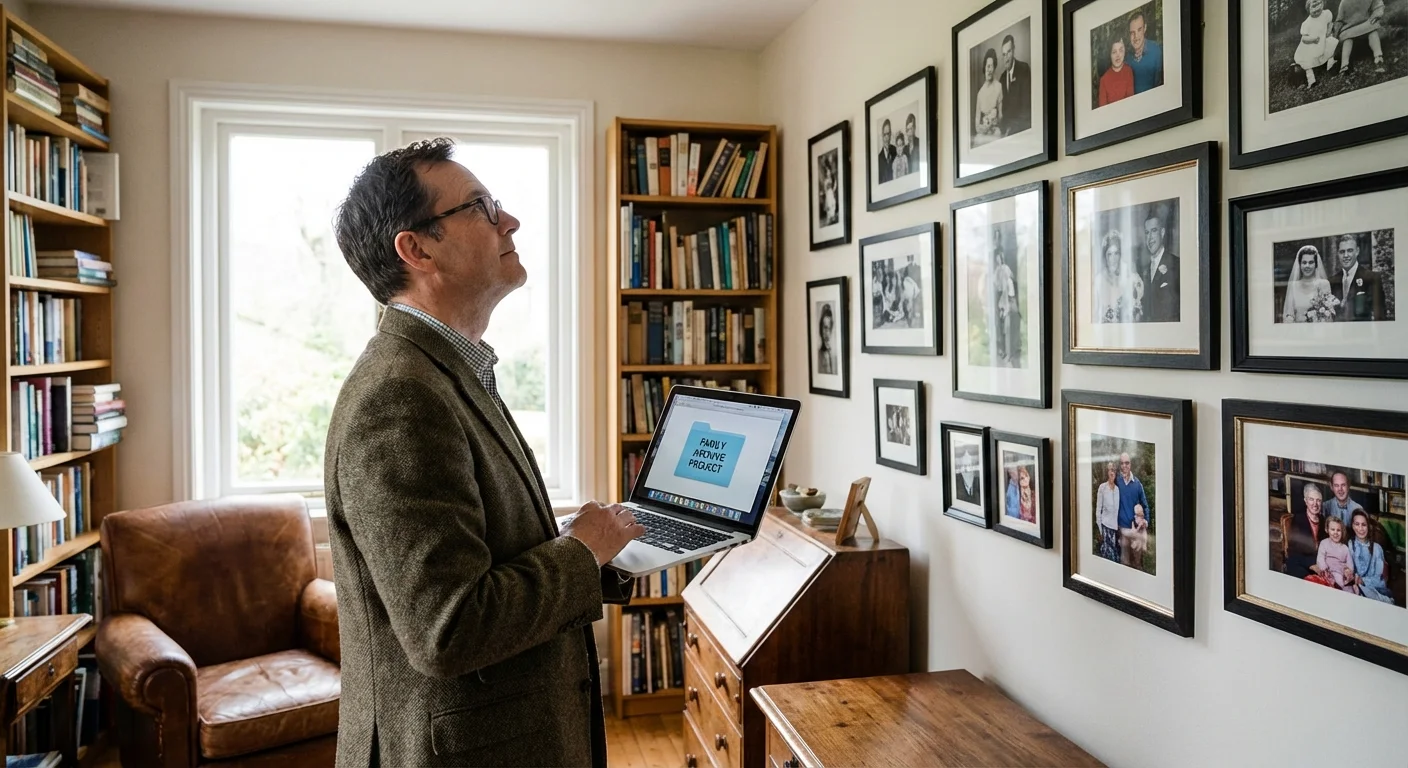
Choosing the Right Workflow for Your Memories
So, which one should you choose? The answer depends on your goals and how you like to work. Do you want to “set it and forget it,” or do you want to “roll up your sleeves” and manage every detail?
Choose Mylio Photos if:
- You want to see your entire photo collection (including scans from the 1900s) on your phone at any time.
- You have a massive family tree and want to use facial recognition to identify relatives across thousands of photos.
- You want an automated backup system that works over your home Wi-Fi without using “The Cloud.”
- You prefer a modern, visual interface that feels like a “Gallery” rather than a “File Browser.”
Choose Adobe Bridge if:
- You are working on a single desktop computer and don’t need mobile access.
- You need to perform heavy-duty file management, like complex batch renaming or massive metadata corrections.
- You are on a strict budget and want professional-grade tools for $0.
- You are already familiar with the Adobe ecosystem (Photoshop, Lightroom) and want a consistent experience.
A “hybrid” approach is also possible. You might use Adobe Bridge to “ingest” and rename your old scans, ensuring the file names and basic metadata are perfect. Once that foundational work is done, you can point Mylio at those folders. Mylio will then sync those perfectly organized folders to your phone and tablet, providing the best of both worlds: industrial-strength organization and modern, go-anywhere accessibility.
Whichever path you choose, the most important step is to start. Digital photos are fragile; they do not age like wine. They require active management to survive. By choosing an offline manager like Mylio or Bridge, you are taking the first and most important step in ensuring your family’s story remains visible, organized, and safe for decades to come. Treat your digital files with the same respect you would give a physical heirloom, and they will reward you by remaining accessible for your children and grandchildren.
Frequently Asked Questions
Can I use Mylio and Adobe Bridge together?
Yes, you can use both simultaneously because neither program locks your photos into a proprietary database. Since both applications read and write metadata to industry-standard XMP sidecar files, changes you make in Bridge will typically appear in Mylio once the folder rescans, and vice versa.
Is Adobe Bridge truly free to use?
Adobe Bridge is currently available as a free download from the Adobe Creative Cloud desktop app. While you need an Adobe ID to download it, you do not need an active paid subscription to Photoshop or Lightroom to use Bridge for photo organization.
Do I need an internet connection for Mylio to sync my devices?
No, Mylio creates its own peer-to-peer network (Mylio Mesh) over your local Wi-Fi. Your devices communicate directly with one another to transfer images and metadata without your data ever leaving your private network or touching a third-party cloud server.
Which software is better for handling old scanned family photos?
Mylio is often superior for family history because its LifeCalendar view and automated facial recognition make it easier to organize decades of scans chronologically. However, if you need to perform bulk metadata corrections or advanced batch renaming on thousands of scans, Adobe Bridge offers more powerful industrial-strength tools.
Disclaimer: This article is for informational purposes only. When handling valuable or irreplaceable photographs, consider consulting a professional conservator. Always test preservation methods on non-valuable items first.








Leave a Reply