

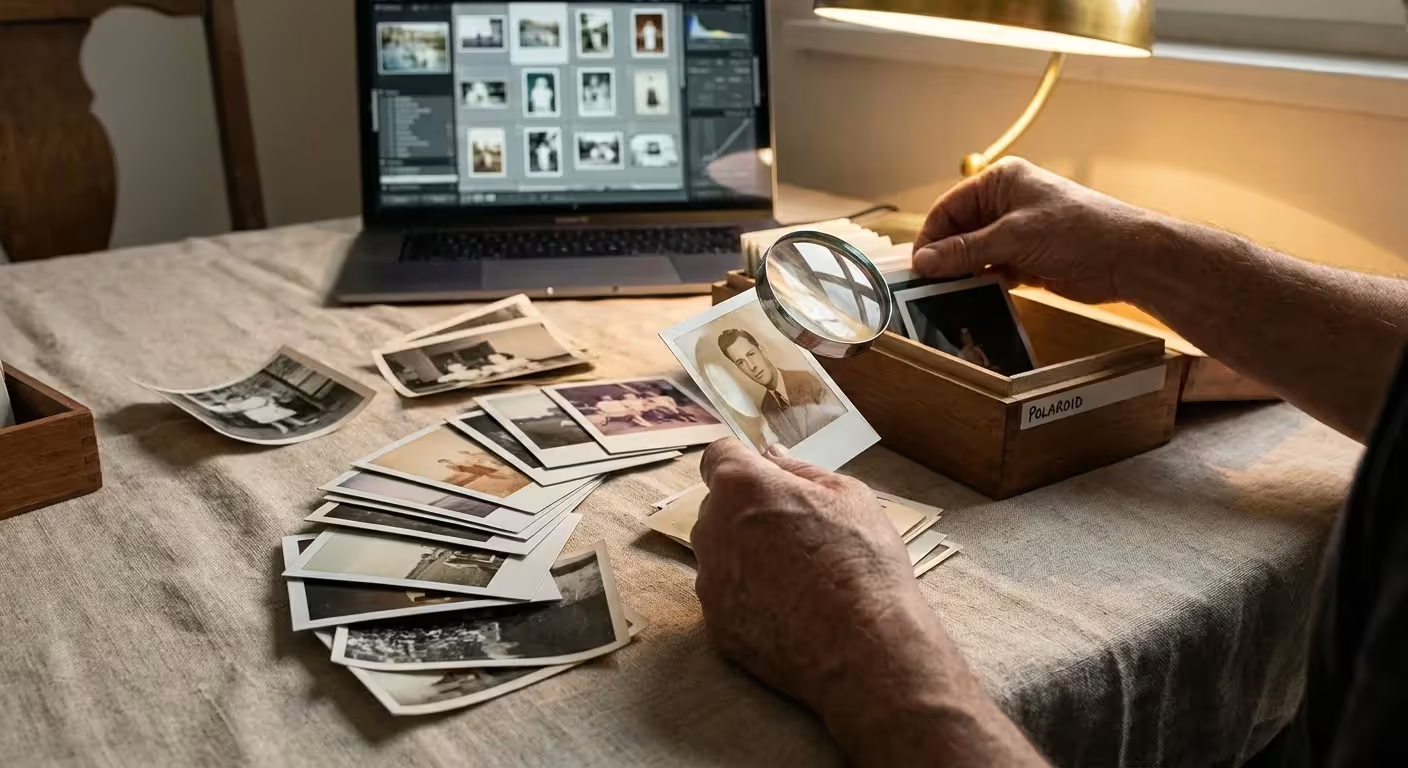
You hold a box of physical memories—faded Polaroids, black-and-white portraits of ancestors you never met, and glossy prints from your childhood vacations. When you scan these items, you transform them into digital assets. However, a digital file without a logical name is essentially lost. A file named “IMG_001.jpg” tells you nothing about the 1942 wedding it depicts or the grandmother smiling in the frame. Without a robust photo naming convention, your digital archive becomes a cluttered “junk drawer” that grows more frustrating to navigate with every passing year.
Establishing a standardized system for your digital file management ensures that your memories remain discoverable for decades. This guide provides a professional-grade framework for naming your photos. By implementing these practices today, you create a legacy that your children and grandchildren can easily browse, search, and appreciate. You are not just naming files; you are building a bridge between generations.
Why Naming Conventions Matter for Digital Preservation
The primary goal of digital preservation is to ensure that information remains accessible and understandable over time. When you name a file, you are creating the most basic form of descriptive metadata. While advanced photo management software can tag faces or recognize locations, these proprietary databases often break when you move your files to a new computer or a different cloud service. The filename, however, travels with the file itself.
A standardized filenaming system solves three critical problems. First, it enables “agnostic sorting.” This means your files will appear in a logical order whether you view them on Windows, macOS, Linux, or a mobile device. Second, it provides instant context. You can identify the contents of a photo without opening it, which saves hours of time when searching for a specific memory. Third, it prevents file name collisions. If you simply use the default names assigned by your scanner, you will eventually have dozens of files named “Scan001.jpg,” leading to accidental overwrites and lost data.
Experts at the Library of Congress Preservation directorate emphasize that consistent naming is a foundational step in personal archiving. By treating your digital photos with the same care a museum treats its artifacts, you protect the integrity of your family history against the “digital dark age”—a period where data exists but cannot be identified or used.
Standardization is the enemy of digital decay; a clear, consistent filename ensures that even fifty years from now, a stranger could understand the context of your collection.
The ISO 8601 Standard: Why Dates Come First
When you look at a list of files on your computer, you usually want to see them in the order they happened. Most people naturally write dates in their regional format, such as MM-DD-YYYY in the United States or DD-MM-YYYY in Europe. For a computer, however, these formats are a nightmare for sorting. If you name files 01-15-1980 and 02-10-1975, the computer will sort 01 before 02, placing a 1980 photo before a 1975 photo.
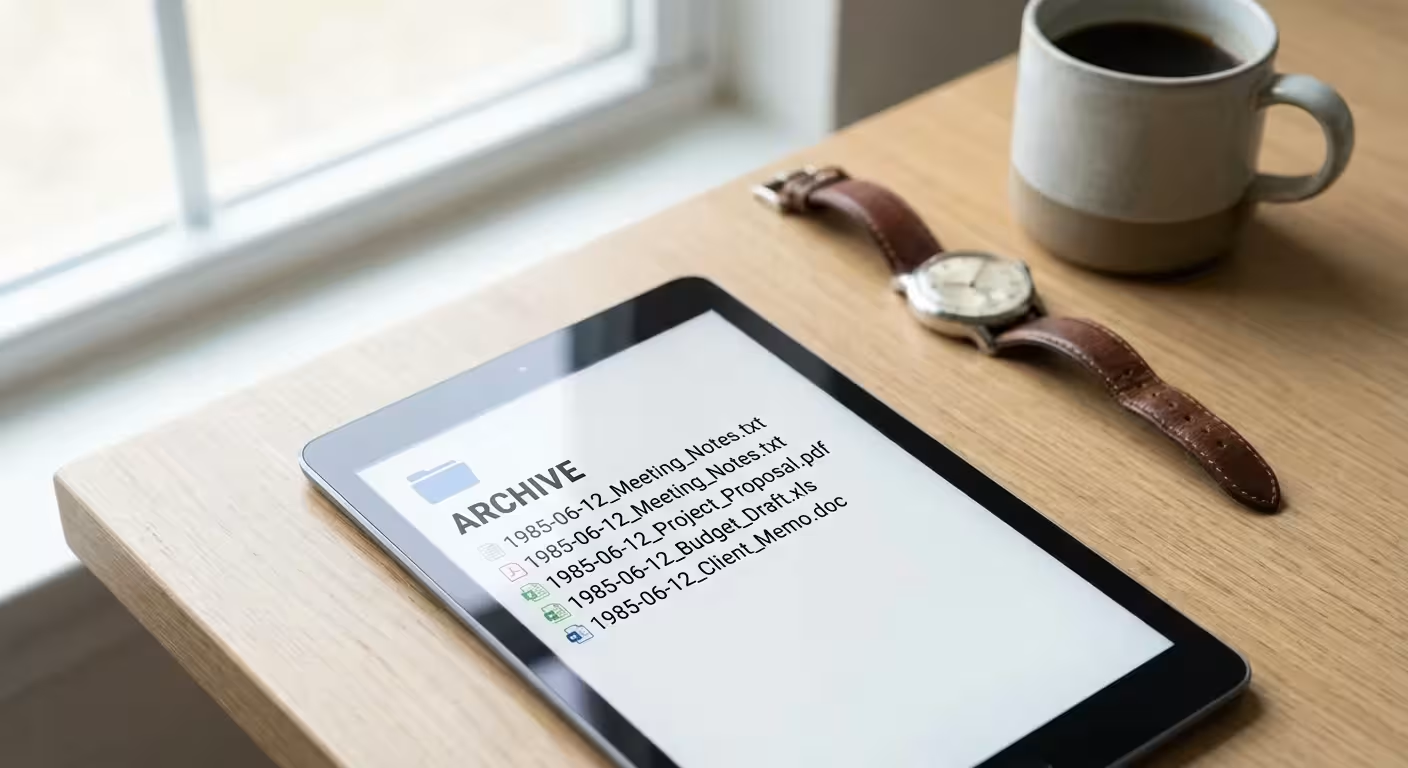
To solve this, you must use the ISO 8601 international standard: YYYY-MM-DD. When you lead with the year, followed by the month and day, your computer’s default alphabetical sorting becomes a chronological sort. This simple change ensures that “1975-02-10” correctly precedes “1980-01-15.”
This format also aids in digital file management across different cultures and software platforms. It is the universal language of data organization. Whether you are scanning a 19th-century tintype or a 1990s 35mm slide, starting with the year provides an immediate chronological anchor for your entire collection.
Essential Components of a Sustainable Filename
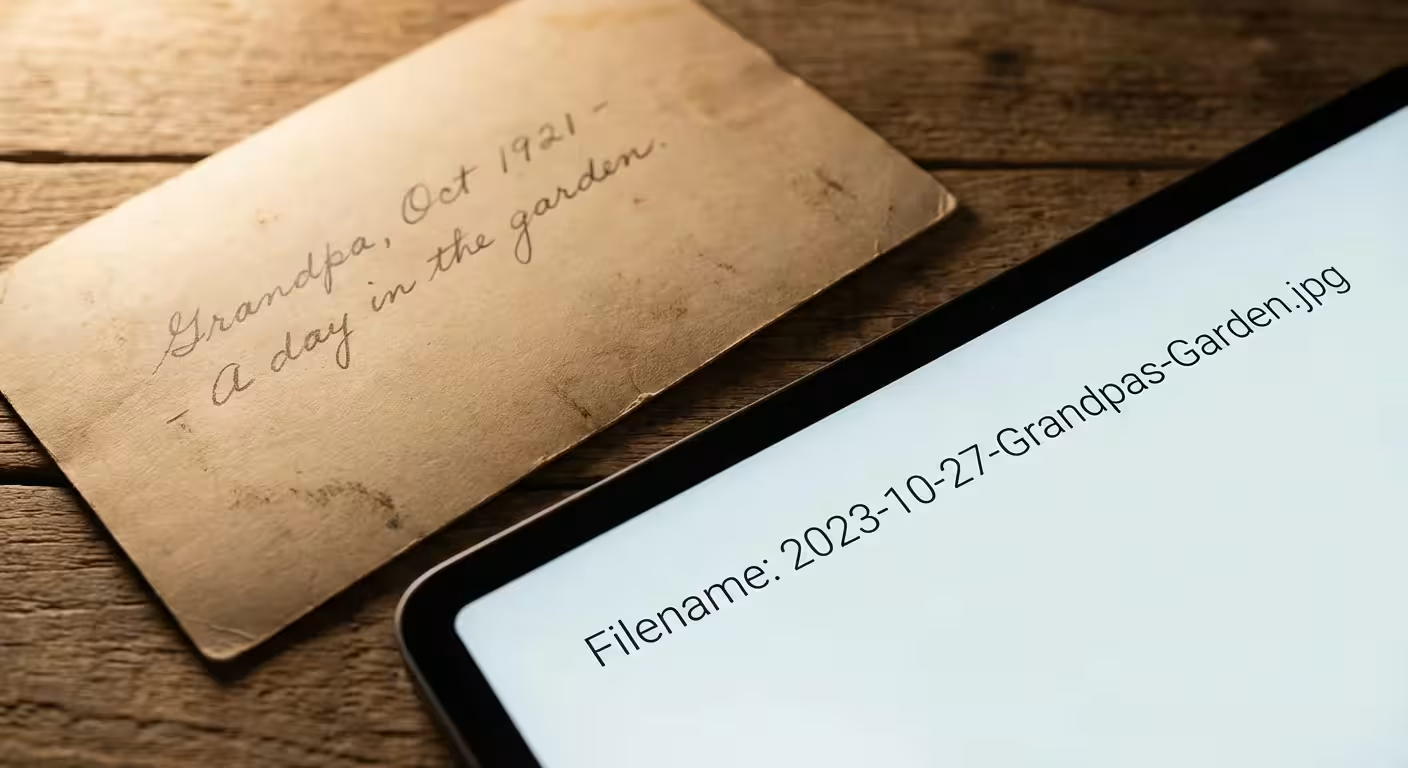
A successful filename strikes a balance between being descriptive and remaining concise. You want enough information to identify the photo but not so much that the filename becomes a paragraph. Most preservation experts recommend a four-part structure: Date, Subject, Location, and Sequence.
- Date (YYYY-MM-DD): The most important anchor for your file.
- Subject/Event: A brief description of the primary focus (e.g., Wedding, Graduation, SummerVacation).
- Location: The city, state, or specific venue (e.g., Chicago, Yellowstone, GrandmasHouse).
- Sequence: A numerical suffix to handle multiple photos from the same day or event (e.g., 001, 002).
Consider this comparison of naming approaches:
| Quality | Example Filename | Why it Works (or Fails) |
|---|---|---|
| Poor | IMG_8492.jpg | No context; impossible to search or sort chronologically. |
| Mediocre | Mom_at_Beach_1994.jpg | Sorts by “M” for Mom; inconsistent if you have many “Mom” photos. |
| Excellent | 1994-07-22_Mom_Myrtle-Beach_001.jpg | Sorts by year; provides subject and location; sequence prevents overwriting. |
By including a three-digit sequence (001 instead of 1), you ensure that file “10” doesn’t sort immediately after file “1.” Computers read characters one by one; “10” comes before “2” in a basic alphabetical sort, but “002” correctly comes before “010.”

Technical Rules for File Compatibility and Search
To ensure your filenames work on every device you might own in the future, you must follow specific technical constraints. While modern computers are more flexible than those from the 1990s, sticking to “safe” characters prevents data corruption during transfers to cloud storage or external drives.
1. Avoid Spaces
Spaces in filenames can be interpreted as the end of a command by some web servers and database systems. This often results in your filename appearing as “2023%20Summer%20Vacation.jpg” in a web browser. Use hyphens (-) or underscores (_) to separate words. Many archivists prefer underscores between categories and hyphens between words within a category—for example: 1982-05-14_Grandpa-Fishing_Lake-Tahoe_001.jpg.
2. Limit Special Characters
Never use characters like slash (/), backslash (\), colon (:), asterisk (*), question mark (?), or brackets. These characters often have special meanings in computer operating systems. Stick to the basic alphanumeric characters (A-Z, 0-9), hyphens, and underscores.
3. Use Consistent Case
Decide whether you will use TitleCase, camelCase, or lowercase. While most systems are not case-sensitive today, some servers (like those running Linux) are. Consistency makes your folders look professional and ensures your search queries return accurate results. “SummerVacation” and “summervacation” may be treated differently by some advanced indexing tools.
4. Watch the Length
While modern systems allow for very long filenames, try to stay under 255 characters for the entire file path (the folders plus the filename). Deeply nested folders combined with long filenames can eventually lead to errors where a file cannot be moved or deleted because its name is too long for the system to process.
Tools and Software for Batch Renaming Scanned Photos
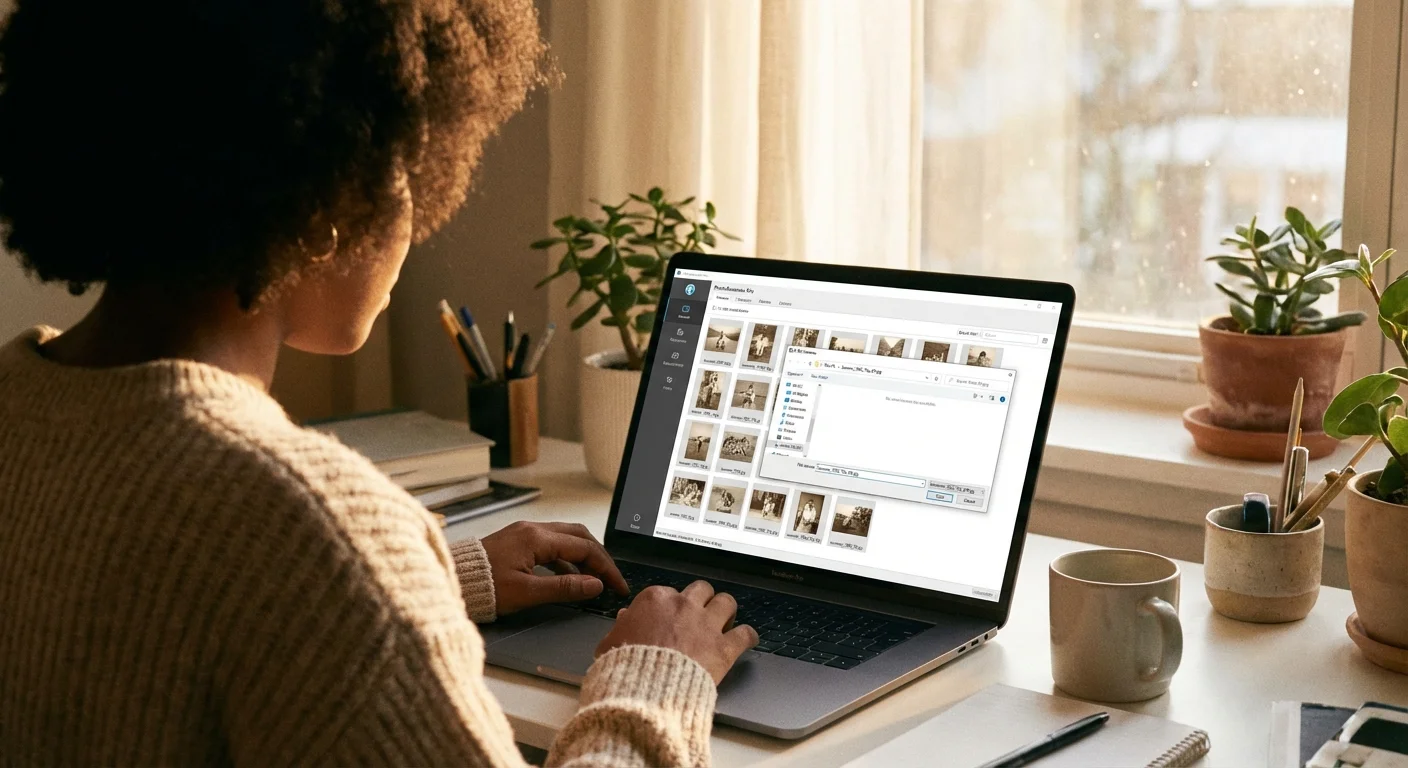
Naming five photos manually is easy; naming five thousand is a chore. To organize scanned files effectively, you should use batch renaming software. These tools allow you to select hundreds of files and apply a naming pattern instantly.
For Windows users, PowerRename (part of the free Microsoft PowerToys suite) is a powerful tool for finding and replacing text in filenames. For macOS users, the Finder has a built-in “Rename” function (accessible by highlighting files and right-clicking) that allows you to add text or change formats in bulk.
If you need more advanced control, Adobe Bridge is an excellent, free-to-use professional tool for digital file management. It allows you to preview the “New Filename” before you commit to the change, which prevents mistakes. Another robust option is ExifTool, though it requires some comfort with command-line interfaces. For a more user-friendly experience, NameChanger (Mac) or Bulk Rename Utility (Windows) offer comprehensive options for adding dates, sequences, and metadata-based names.
When using these tools, always work on a copy of your photos first. Renaming thousands of files incorrectly can be difficult to undo. Once you verify that the new names are correct, you can delete the original unorganized files.
Strategies for Handling Unknown Dates and Details
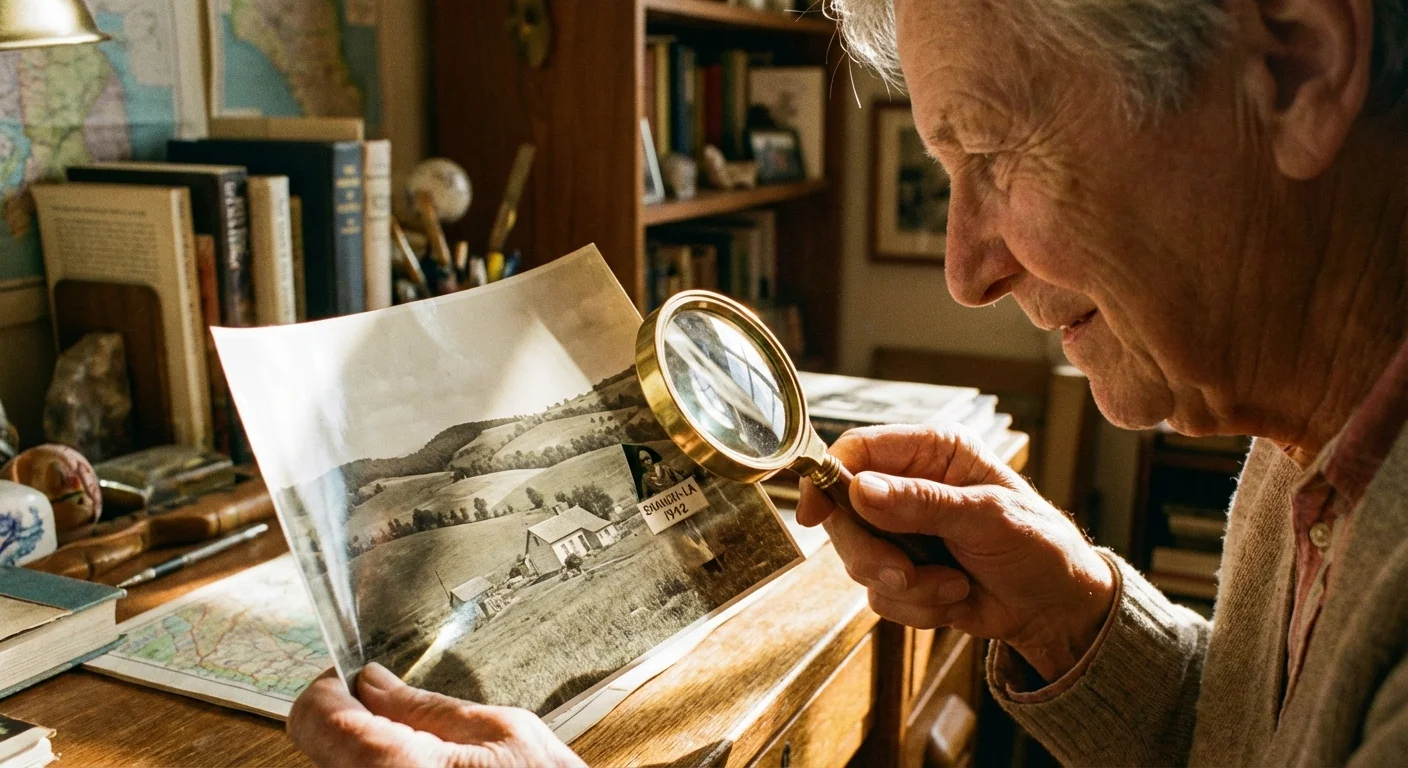
Inherited photo collections often come with mysteries. You might find a photo of a great-aunt, but you have no idea when it was taken. This poses a challenge for a date-first naming convention. However, you can still maintain your system by using placeholders.
If you only know the year, use “00” for the month and day: 1945-00-00_Aunt-Mary.jpg. This ensures the photo still sorts into the correct year. If you only know the decade, you can use “194X” or “1940s.” For completely unknown dates, many people use “0000-00-00” to force those files to the very top of their folders, or “9999-00-00” to send them to the very bottom. This acts as a “to-do” list; as you research your family history and find the date, you can update the filename.
You can also use the Smithsonian Archives approach to uncertainty by adding descriptive keywords in the subject line. If you don’t know the person’s name, describe their clothing or the setting (e.g., 1920-00-00_Woman-in-Floral-Dress_Front-Porch.jpg). This creates a searchable record that might help you identify the person later as you find more photos of that same porch or dress.
The goal of a naming convention isn’t perfection; it is persistence. Even an incomplete date is more useful than a generic scanner ID.

Integrating Metadata with Your Filenaming System
While the filename is your first line of defense, it is not the only place to store information. Digital photos have “hidden” data fields called IPTC (International Press Telecommunications Council) and XMP (Extensible Metadata Platform). These allow you to embed detailed captions, copyright info, and specific names of people in the photo directly into the file.
You should view your filename as the “Permanent Address” and metadata as the “Detailed Biography.” Use the filename for the high-level details that help you find the file in a folder. Use metadata for the deep details, like every cousin’s name in a group shot or the specific story behind a photo. Tools like Adobe Lightroom or the free Cambridge in Colour tutorials can help you understand how to embed this data. The advantage of metadata is that it is searchable by modern operating systems. If you type “Cousin Vinny” into your search bar, the computer can find the file even if his name isn’t in the filename, as long as it is in the metadata.
However, remember that metadata can sometimes be stripped away by social media platforms or certain email clients. This is why you should never rely on metadata alone. Your filename must always be strong enough to stand on its own if all other data is lost.
Maintenance and Future-Proofing Your Digital Legacy
Creating a photo naming convention is a marathon, not a sprint. As your collection grows, you must maintain the discipline of naming new scans immediately. Letting “unorganized” folders pile up is the quickest way to lose control of your archive.
Beyond naming, consider your storage strategy. Digital files are fragile in their own way. Hard drives fail, and cloud services can change their terms of service. Follow the “3-2-1 rule” for your organized photos: keep 3 copies of your data, on 2 different media types (e.g., one on your computer and one on an external drive), with 1 copy located off-site (cloud storage). Organizations like the National Archives Preservation department advocate for regular “refreshing” of digital media—moving your files to new hardware every 5 to 7 years.
When you move your files to a new drive, your standardized filenaming will be your greatest asset. It allows you to verify that everything transferred correctly and makes the reorganization process seamless. You are building a system that doesn’t just work for you today, but for anyone who might inherit these digital treasures in the future. By following these steps, you ensure that your family’s history remains a vivid, searchable story rather than a forgotten collection of data.
Frequently Asked Questions
What is the best date format for naming photo files?
The ISO 8601 standard (YYYY-MM-DD) is the superior choice. Using the year first ensures that your computer sorts files chronologically by name, regardless of the software you use. For example, 1985-06-12 allows for a natural progression from the 1970s through today.
Should I use spaces or underscores in my filenames?
Avoid spaces in filenames, as they can cause issues with web servers and older operating systems. Instead, use underscores (_) or hyphens (-) to separate words. Underscores are often preferred for visual clarity between date and description segments.
What should I do if I don’t know the exact date a photo was taken?
Use “00” as a placeholder for unknown months or days. If you only know the year, name it YYYY-00-00. If you only know the decade, you can use 197X-00-00. This preserves the chronological sort order even when specific details are missing.
Is filenaming more important than adding metadata keywords?
Filenaming and metadata serve different purposes. Filenames are the most basic, resilient level of organization that works across every system. Metadata (IPTC/XMP) allows for deeper searching. You should use a clear filename as your primary defense and metadata as a secondary, detailed layer.
Disclaimer: This article is for informational purposes only. When handling valuable or irreplaceable photographs, consider consulting a professional conservator. Always test preservation methods on non-valuable items first.






Leave a Reply