
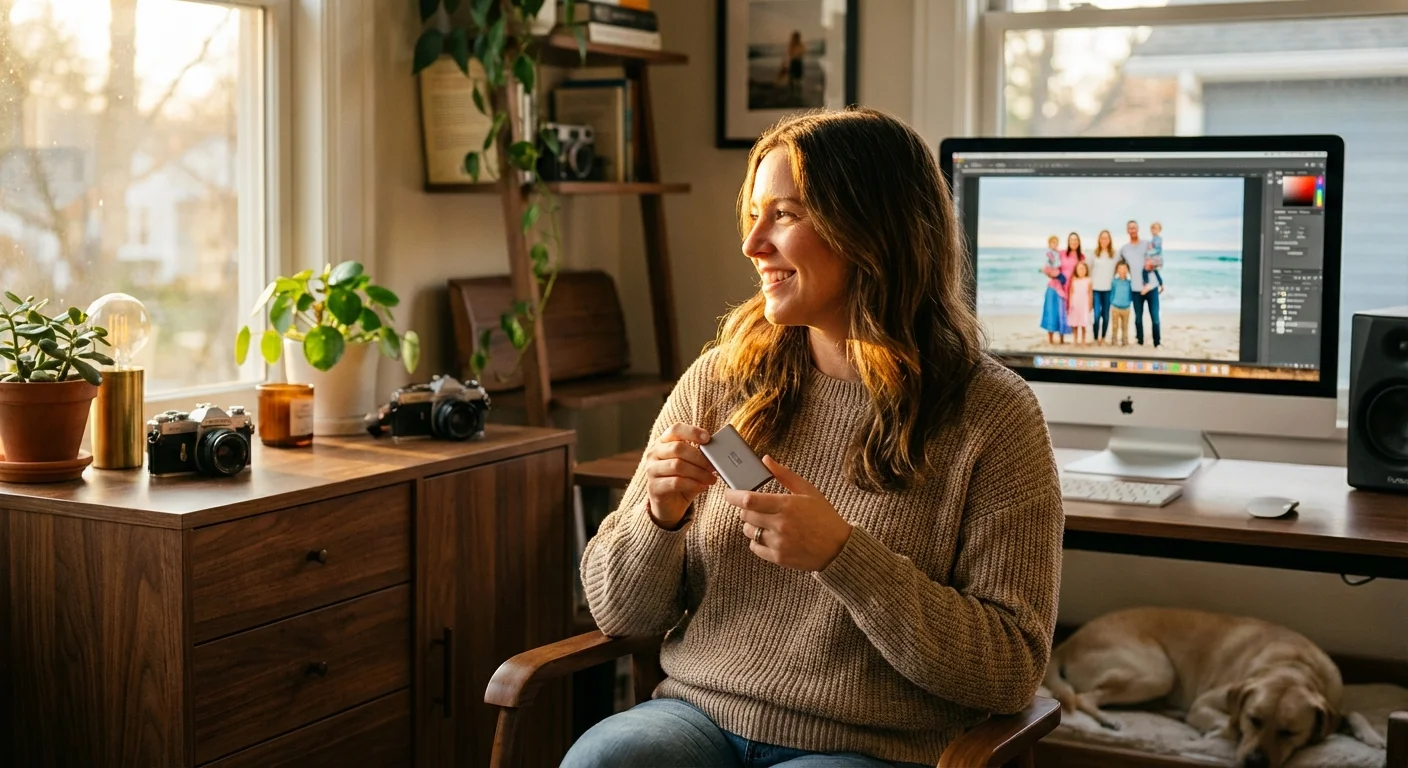
You probably have thousands of digital memories stored on your phone, your laptop, and various social media accounts. These files represent years of birthdays, holidays, and quiet moments that define your family history. However, digital files are far more fragile than most people realize; a single hardware failure, a lost phone, or a corrupted cloud account can erase decades of history in an instant. While a physical photo might fade over a century, a digital photo can vanish in a millisecond. To protect these irreplaceable assets, you need a professional-grade redundancy system known as the 3-2-1 backup strategy.
The 3-2-1 rule remains the industry standard for data preservation because it accounts for almost every possible failure point. By following this method, you ensure that no single accident—whether it is a spilled cup of coffee on your laptop or a house fire—can destroy your photographic heritage. This guide will walk you through the technical implementation of this strategy, helping you move from a state of digital vulnerability to total peace of mind.

Why Digital Photos Are At Risk
Digital storage media has an expiration date. Hard disk drives (HDDs) rely on mechanical platters and moving heads that eventually wear out; most consumer-grade drives have a life expectancy of three to five years. Solid-state drives (SSDs) are faster and more durable against physical shocks, but they can lose data if left unpowered for long periods. Even the “cloud” is just someone else’s computer, subject to service outages, account hacks, or corporate policy changes that could lock you out of your own files.
Beyond hardware failure, you must consider human error and software issues. You might accidentally delete a folder, or a software update could corrupt your photo library database. Ransomware attacks can also encrypt your files, holding your memories hostage. According to data preservation experts at the Library of Congress, active management is the only way to ensure digital content remains accessible as technology evolves. If you do not have a redundant system, you are not storing your photos; you are merely gambling with them.
Decoding the 3-2-1 Backup Rule
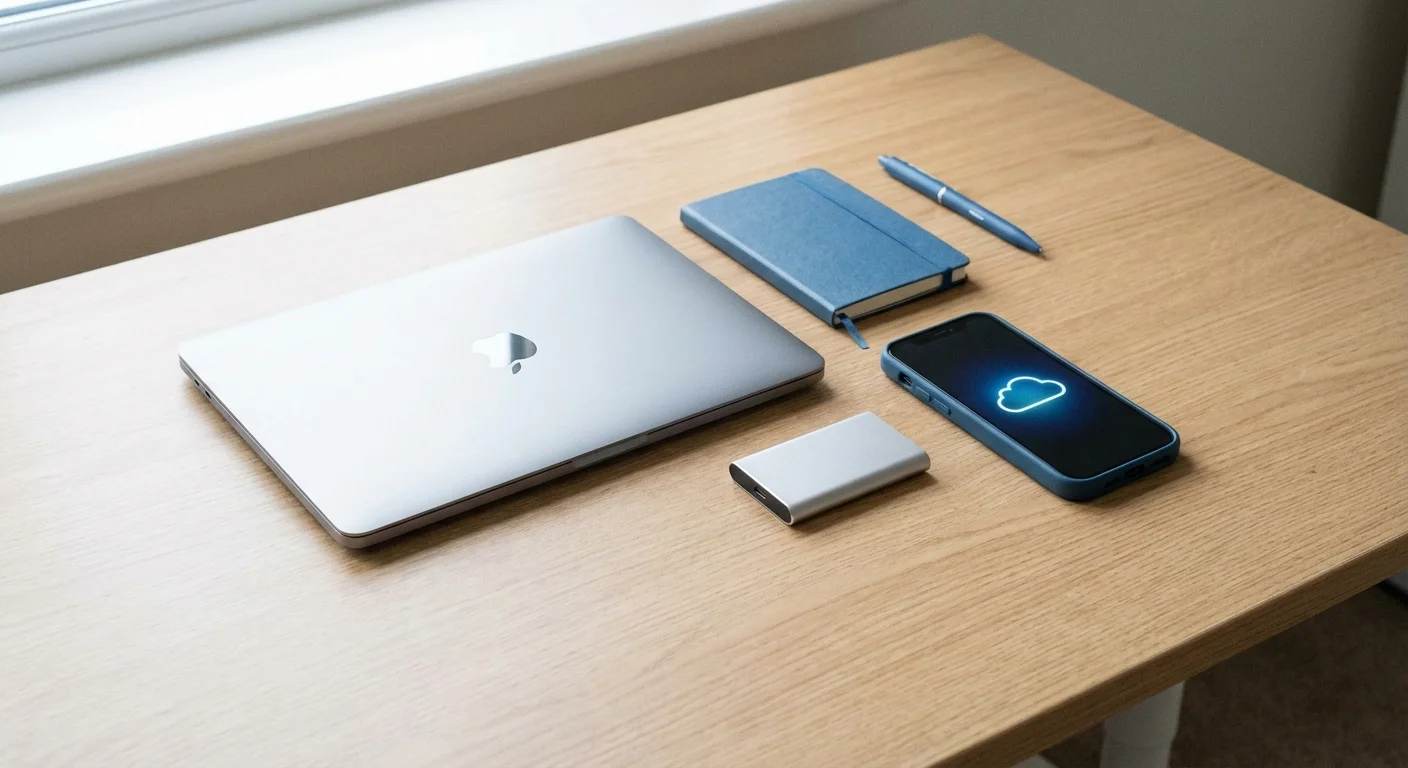
The 3-2-1 backup strategy is a simple, effective framework that provides multiple layers of protection. You do not need to be a computer scientist to implement it, but you do need to be disciplined. The rule breaks down as follows:
- 3 Copies of Your Data: You should have your primary working files plus at least two backup copies. If you have three copies, the statistical probability of all three failing simultaneously is nearly zero.
- 2 Different Media Types: Do not store all your backups on the same type of technology. For example, if you store everything on two identical external hard drives from the same manufacturing batch, they might both fail around the same time due to a factory defect. Use a mix of internal drives, external drives, or cloud storage.
- 1 Copy Offsite: Physical disasters like fires, floods, or thefts can destroy every device in your home. Keeping one copy in a different physical location—such as a cloud server or a drive kept at a relative’s house—ensures your memories survive even if your home does not.
The goal of a 3-2-1 strategy isn’t just to save your files today, but to ensure they are recoverable ten, twenty, or fifty years from now when the hardware you use today is obsolete.
Selecting the Right Storage Hardware
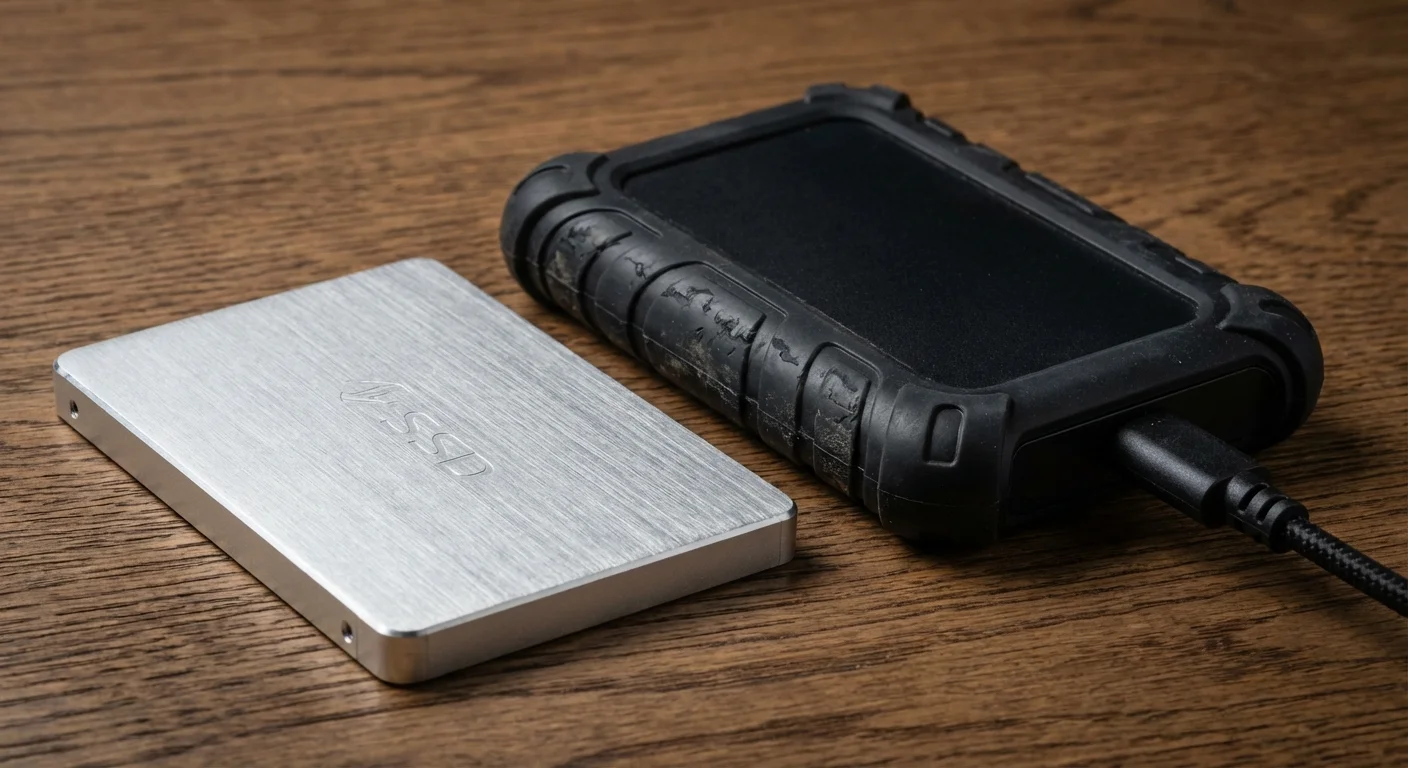
To build a robust system, you must choose hardware that fits your workflow and budget. Not all storage is created equal. When you evaluate storage options, consider capacity, speed, and longevity. If you are a casual smartphone photographer, you might only need a few hundred gigabytes. If you are a hobbyist shooting high-resolution RAW files, you will likely need multiple terabytes (TB).
| Storage Type | Pros | Cons | Best Use Case |
|---|---|---|---|
| Internal SSD | Extremely fast, no extra cables. | Expensive per GB, limited capacity. | Primary working library and editing. |
| External HDD | Inexpensive, huge capacities (up to 20TB+). | Fragile (moving parts), slower. | Secondary local backup for bulk storage. |
| External SSD | Fast, portable, durable. | More expensive than HDDs. | Travel backup or “working” drive for laptops. |
| Cloud Storage | Offsite by default, automated. | Requires subscription, slow upload speeds. | Tertiary offsite backup and sharing. |
When purchasing external drives, look for reputable brands and consider the “Enterprise” or “Pro” lines, which often carry longer warranties and are rated for higher workloads. Always check the interface; USB-C or Thunderbolt drives offer much faster transfer speeds, which is vital when you are backing up thousands of high-resolution images.

Local Backups: Speed and Accessibility
The second copy in your 3-2-1 system should be a local backup. This copy allows for the fastest recovery if your computer’s internal drive fails. You should not have to manually drag and drop files every day; instead, you should use automation to ensure your backup is always current.
For Windows users, File History or third-party tools like Macrium Reflect can create mirrors of your photo folders. Mac users have access to Time Machine, which is one of the most user-friendly backup systems available. Simply plug in an external hard drive, designate it as your Time Machine drive, and your Mac will automatically save hourly, daily, and weekly snapshots of your entire system. This protects you not just from drive failure, but also from accidental deletions, as you can “go back in time” to recover a file you deleted yesterday.
If your collection is massive—reaching 10TB or more—you should consider a Network Attached Storage (NAS) device. A NAS is a small server that sits in your home and connects to your Wi-Fi or Ethernet. It usually contains multiple hard drives configured in a “RAID” setup. This means if one drive inside the NAS fails, the others keep your data safe until you replace the broken disk. While more complex to set up, a NAS provides a professional level of photo redundancy that simple external drives cannot match.
Offsite Storage: Protection from Disaster
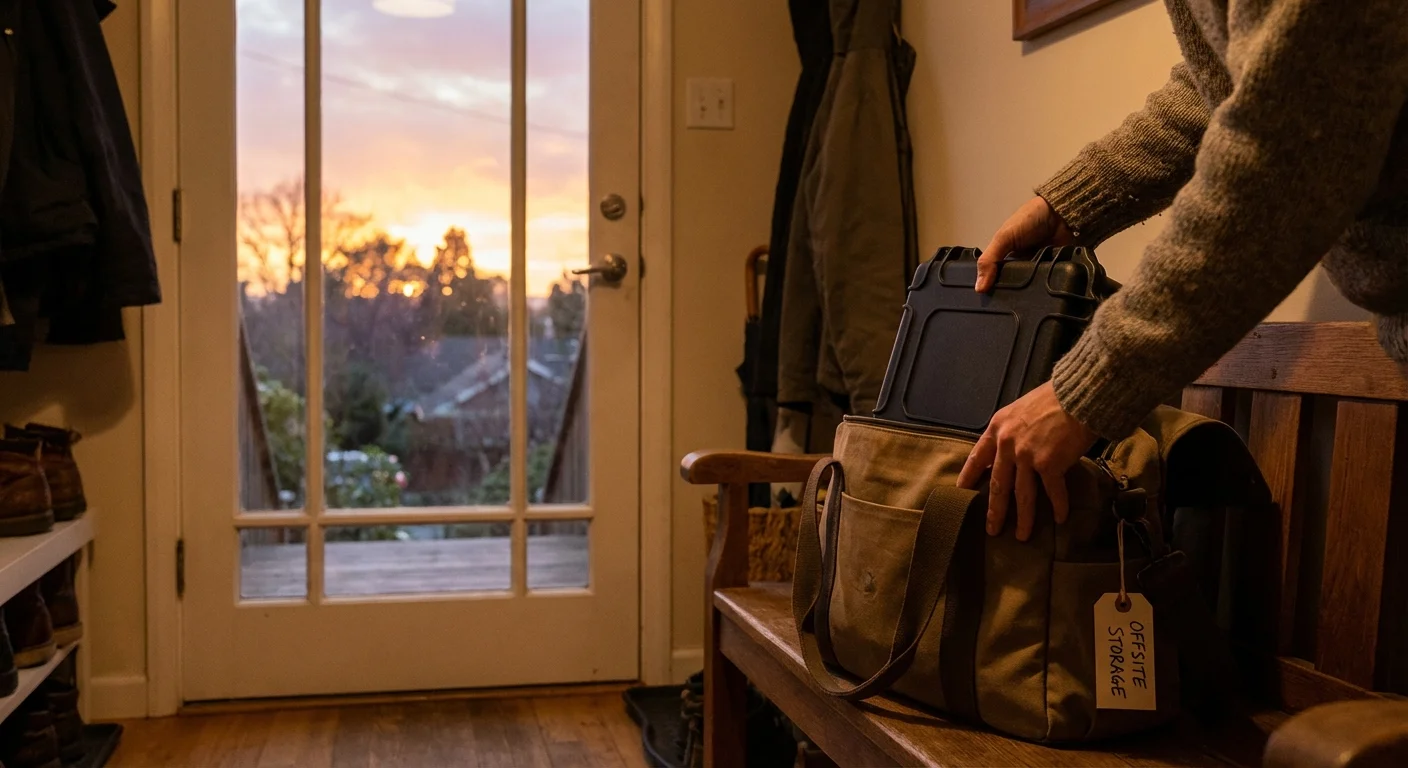
The “1” in 3-2-1 is the most frequently ignored step, yet it is the most critical for catastrophic protection. If a pipe bursts and floods your office, both your laptop and your local backup drive could be destroyed. Offsite storage solves this problem.
Cloud storage is the most popular offsite solution. Services like Backblaze, Carbonite, or Amazon Photos offer different ways to store your images. However, you must distinguish between “Personal Backup” services and “Cloud Storage/Sync” services. A personal backup service (like Backblaze) runs quietly in the background and mirrors your entire computer to the cloud for a flat annual fee. This is ideal for the 3-2-1 rule because it requires no daily effort on your part.
If you prefer not to use the cloud—perhaps due to slow internet speeds or privacy concerns—you can still achieve offsite redundancy physically. Buy two external hard drives. Back up your photos to both. Keep one at home and take the other to your workplace or a trusted relative’s house. Every month, bring the offsite drive home, update it with your newest photos, and return it. While this requires manual effort, it creates a “cold storage” copy that is safe from both local disasters and online hacking attempts.
The Difference Between Syncing and Backing Up
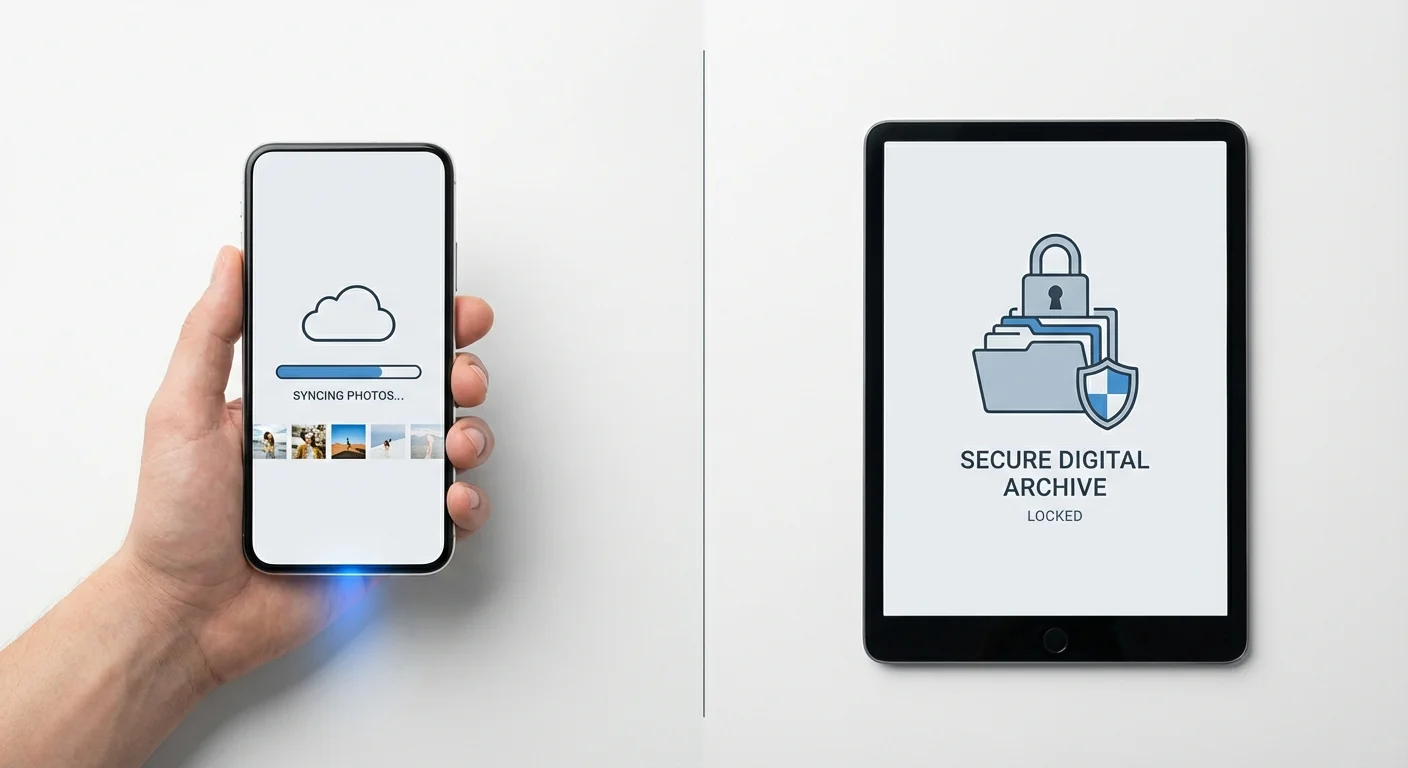
Many people believe that because their photos are in iCloud, Google Photos, or Dropbox, they are “backed up.” This is a dangerous misconception. These services are primarily synchronization services, not backup services. Their purpose is to make sure the same files appear on your phone, tablet, and computer.
The problem with syncing is that it mirrors your mistakes. If you accidentally delete a precious wedding photo on your iPhone, the sync service sees that deletion as an “update” and promptly deletes the photo from your iPad and the cloud server as well. A true backup is a one-way street; it copies files to a safe location and keeps them there, regardless of what happens to the original file. To use the 3-2-1 rule effectively, you must ensure at least one of your copies is a true backup that does not automatically delete files just because you removed them from your phone to save space.

Organizing Files for Long-Term Survival
A backup is useless if you cannot find the photos you need. Before you commit to a 3-2-1 system, you should establish a clear organizational structure. Digital photos often have cryptic filenames like “IMG_4582.JPG,” which tell you nothing about the content. Over time, these filenames become meaningless.
Adopt a consistent naming convention and folder structure. A widely recommended format is: YYYY-MM-DD-Event-Description. For example, a folder named “2023-05-12-Grandmas-80th-Birthday” is instantly searchable and tells you exactly what is inside. Inside that folder, you can rename the images to match, such as “2023-05-12-Grandma-Cake-01.JPG.”
Additionally, you should utilize metadata. Most photo management software allows you to add “Tags” or “Keywords” to your images. You can tag family members, locations, or themes. This metadata is often embedded directly into the file (using EXIF or IPTC standards), meaning the information travels with the photo wherever it goes. According to the Smithsonian Archives, descriptive metadata is a key component of digital preservation, as it provides the context future generations will need to understand who is in the photos and why they were taken.
Fighting Digital Decay and Bit Rot
Even if your hardware stays functional, your data can still degrade. This phenomenon is known as “bit rot” or data decay. Over time, the magnetic orientation of bits on a hard drive can flip, or the electrical charge in an SSD can leak. This results in small errors in the file. A photo might suddenly have a strange colored line through it, or it might refuse to open entirely.
To fight bit rot, you must perform regular “data scrubbing” or integrity checks. Advanced file systems like ZFS (often used in NAS devices) do this automatically by comparing “checksums”—digital fingerprints—of your files to ensure they haven’t changed. If you use standard external drives, you should manually verify your backups once a year. Simply try opening a random selection of older photos to see if they load correctly. If you notice corruption, you must immediately replace that copy with one of your other backups.
Another form of decay is format obsolescence. In twenty years, your computer might not know how to read the specific RAW file format your current camera uses. To mitigate this, consider saving your most precious “final” versions of photos as high-quality JPEGs or TIFFs. These are open-standard formats that are highly likely to remain readable for many decades. The Image Permanence Institute provides extensive research on how digital formats and physical media age, emphasizing that migration to new formats and hardware is a necessary, ongoing task.

Building Your Preservation Habit
The 3-2-1 strategy is not a “set it and forget it” task; it is a lifestyle habit for your digital assets. You should schedule a “Digital Maintenance Day” once every quarter. Use this time to perform the following tasks:
- Consolidate: Move photos from your phone and SD cards into your primary library.
- Cull: Delete the blurry shots, the accidental pocket photos, and the five nearly identical versions of the same sunset. Keeping only the best photos makes your library easier to manage and reduces storage costs.
- Verify: Ensure your local and cloud backups have been running successfully. Check for any error logs in your backup software.
- Update: If you use a physical offsite drive, swap it with the one you have at home to ensure your offsite copy is current.
By treating your digital library with the same respect you would give a physical family heirloom, you ensure that your history remains intact. The technology will change—drives will get smaller and faster, and the cloud will evolve—but the 3-2-1 principle will remain your best defense against the loss of your precious memories.
Frequently Asked Questions
Is Google Photos a sufficient backup for my family photos?
While Google Photos is excellent for searching and sharing, it should not be your only copy. It is a sync service, meaning accidental deletions can sync across devices. Furthermore, Google may compress your images unless you pay for “Original Quality” storage. Use Google Photos as your “offsite” or “sharing” copy, but maintain two other physical copies on hardware you own.
How long do external hard drives actually last?
Most external hard drives have a reliable lifespan of 3 to 5 years. While a drive might last 10 years, the risk of failure increases significantly after year five. You should plan to “migrate” your data to a new drive every 4 to 5 years to stay ahead of potential hardware failure.
Should I use DVDs or Blu-rays for my photo backups?
Optical media like gold-archival DVDs can be part of a 3-2-1 strategy as a second media type. However, they have limited capacity compared to modern photo libraries, and many modern computers no longer have disc drives. If you use them, they should be a supplemental “cold storage” copy, not your primary backup method.
What is ‘bit rot’ and should I be worried about it?
Bit rot is the slow corruption of digital data due to environmental factors or media degradation. While it is rare for a single file, the risk grows as your library gets larger. You can protect yourself by having multiple copies (3-2-1) and occasionally checking that your older files still open correctly.
Disclaimer: This article is for informational purposes only. When handling valuable or irreplaceable photographs, consider consulting a professional conservator. Always test preservation methods on non-valuable items first.








Leave a Reply