

The weight of a disorganized photo collection often feels like a physical burden. You likely have thousands of images scattered across various smartphones, dusty hard drives, old SD cards, and perhaps a dozen different cloud storage accounts. When you want to find that one specific photo of your daughter’s first steps or your grandfather’s 80th birthday, you find yourself scrolling endlessly through a sea of screenshots, blurry accidental pocket-shots, and duplicates. This digital clutter does more than take up gigabytes of space; it buries your most meaningful memories under a mountain of digital noise.
Before diving in, it is helpful to understand the principles of how to create a photo organization system that sticks to ensure your hard work lasts for years.
Organizing a collection of 10,000 or even 50,000 photos is a marathon, not a sprint. You do not need to finish this project in a single weekend. By following a structured system, you can transform your chaotic digital hoard into a streamlined heritage library that your family will cherish for generations. This guide provides the practical, step-by-step roadmap you need to reclaim your memories and ensure they remain accessible, searchable, and safe from digital decay.

Gathering Your Digital Assets into One Central Hub
The first mistake most beginners make is trying to organize photos in five different places at once. You cannot effectively manage a collection if it is fragmented across Google Photos, iCloud, Dropbox, and three different laptops. You must choose a single “Primary Hub.” For most people, this is a high-capacity external hard drive or a dedicated computer with a large internal drive.
If your library spans several decades, learning how to organize 20 years of digital photos can provide additional strategies for handling long-term file migrations.
Start by identifying every location where your photos live. This list usually includes your current phone, old phones sitting in drawers, social media archives (like Facebook or Instagram exports), and physical media like CDs or flash drives. Use a physical checklist to track your progress as you move these files to your central hub. When moving files, do not worry about the internal folder structure yet; simply create a folder on your primary hub named “Incoming” and move everything there. This consolidates the mess into one “room” so you can begin the sorting process.
When transferring from smartphones, avoid using wireless transfers for large batches, as they frequently drop connections and can lead to data loss. Use a high-quality USB cable to connect your device directly to your computer. If you are extracting photos from old cloud services, look for “Export” or “Takeout” tools, which allow you to download your entire library in bulk rather than clicking on individual images. Once every digital file is in your “Incoming” folder, you have officially conquered the hardest part: the scattered start.

The Culling Process: Removing the Digital Noise
The average person’s photo library is roughly 30% to 50% “garbage.” This includes screenshots of grocery lists, accidental videos of the inside of your pocket, five nearly identical bursts of the same sunset, and blurry outtakes. Organizing 10,000 photos is overwhelming, but organizing 5,000 high-quality photos is manageable. Culling is the act of ruthlessly deleting what doesn’t matter so your best memories can shine.
Adopt the “Fewer but Better” mindset. When you look at a series of ten photos from a birthday party, you do not need all ten. Identify the one or two images that capture the emotion and the people perfectly. Delete the rest. Be particularly aggressive with technical failures—out-of-focus shots, poorly exposed images, and duplicates should be the first to go. If you struggle with the “what if I need it later” anxiety, remember that a library you cannot navigate is just as useless as a library that doesn’t exist.
“The goal of photo organization is not to save everything, but to ensure the images that truly matter are easy to find and share.”
To speed up this process, use specialized software designed to find duplicates. Tools like Gemini or Duplicate Cleaner Pro can scan your 10,000 photos in minutes and flag identical files or “near-matches.” This automated step can often reduce your total file count by 20% before you even begin manual sorting. Focus your manual energy on the “Best of” selections, rather than wasting time on the technical junk.
Creating a Sustainable Folder and Naming System
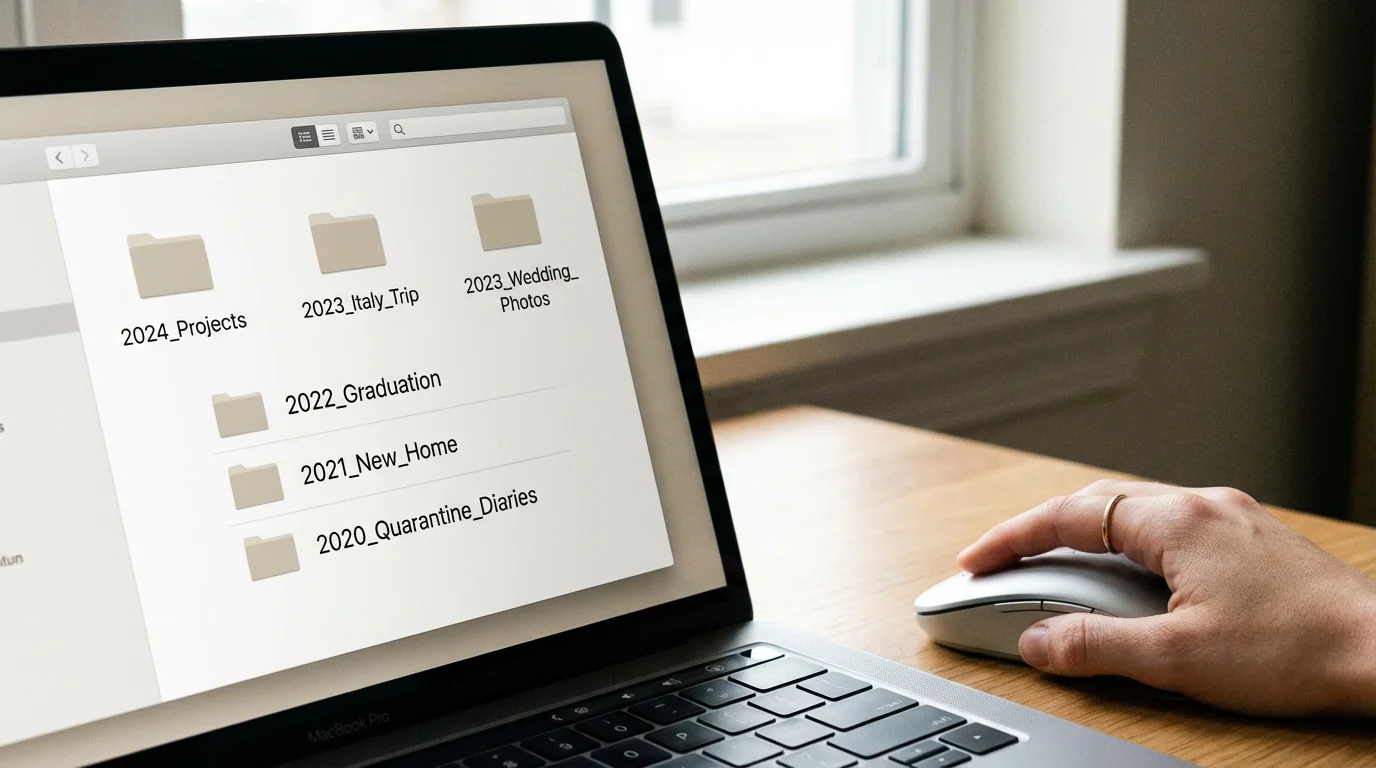
Digital photo management relies on a logical, chronological folder structure. You want a system that is “software agnostic,” meaning it makes sense whether you are looking at it through a specialized app or a basic file browser on a computer twenty years from now. Avoid organizing primarily by “Person” or “Event” at the top level; instead, use the “Year-Month-Event” format.
Before committing to a specific hierarchy, it is worth comparing organizing photos by event, date, or people to see which method aligns best with how you recall your memories.
Your folder hierarchy should look like this:
- 2023
- 2023-05-Grand-Canyon-Trip
- 2023-12-Christmas-Eve
- 2024
- 2024-02-Saras-Graduation
- 2024-07-Beach-Vacation
Using the YYYY-MM-DD format ensures your computer sorts folders chronologically. If you simply name a folder “Beach Trip,” it will be lost in an alphabetical list. By including the date first, your entire life story unfolds in order as you scroll. Apply this same logic to file naming. While “IMG_4829.jpg” means nothing, “2024-07-Beach-001.jpg” tells you exactly what the file is even if it gets moved out of its folder. Most photo management software allows for “Batch Renaming,” which lets you rename hundreds of files simultaneously. This consistency is the backbone of a professional-grade collection.

Mastering Metadata and Searchable Tags
Folder names are great for browsing, but metadata is what makes your 10,000 photos searchable. Metadata is hidden information embedded within the image file itself, such as the date taken, the camera used, and the GPS location. You can add your own metadata in the form of “Keywords” or “Tags.”
Think of keywords as the index of a book. If you want to find every photo of your dog, regardless of which year it was taken, you need a “Dog” tag. Common categories for tagging include:
| Category | Example Tags | Purpose |
|---|---|---|
| People | John Smith, Grandma Betty | Quickly find family members across decades. |
| Events | Wedding, Birthday, Holiday | Group specific types of celebrations together. |
| Location | New York City, Yosemite, Home | Search by travel destination. |
| Rating | 5 Stars, Favorites, Portfolio | Identify your absolute best shots for printing. |
Many modern programs use AI-driven face recognition to help you tag people. While this is a massive time-saver, always verify the AI’s work, as it can occasionally misidentify relatives. Focus your tagging efforts on your “5-star” images first. You don’t necessarily need to tag every single one of your 10,000 photos; start with the top 1,000 to see immediate benefits in your ability to locate cherished memories.

The 3-2-1 Backup Strategy for Total Security
Data loss is not a matter of “if,” but “when.” Hard drives have a mechanical lifespan, and cloud services can change their terms or lose data. To protect a collection of this size, you must implement the 3-2-1 backup rule. This is the gold standard recommended by the Library of Congress Preservation experts to ensure digital longevity.
Choosing the right hardware is a critical component of the 3-2-1 rule; you can explore various local photo backup solutions to find the most reliable drive for your primary archive.
The 3-2-1 rule dictates that you should have:
- Three copies of your data: One primary and two backups.
- Two different types of media: For example, one copy on an External Hard Drive (SSD or HDD) and one copy on a Cloud Service.
- One copy off-site: If a fire or flood affects your home, your local backups will be destroyed. An off-site copy (usually the Cloud) ensures your memories survive local disasters.
For a collection of 10,000 photos, a 2-terabyte external drive is usually sufficient for years to come. Pair this with a dedicated “cold storage” cloud provider like Backblaze or an “active” cloud like Google Photos or iCloud. The “active” cloud allows you to view photos on your phone, while the “cold storage” acts as a true disaster recovery tool. Check your backups twice a year—perhaps on New Year’s Day and the Fourth of July—to ensure the drives still spin up and the cloud sync is active.
Preserving Physical Heirlooms and Scanned Images
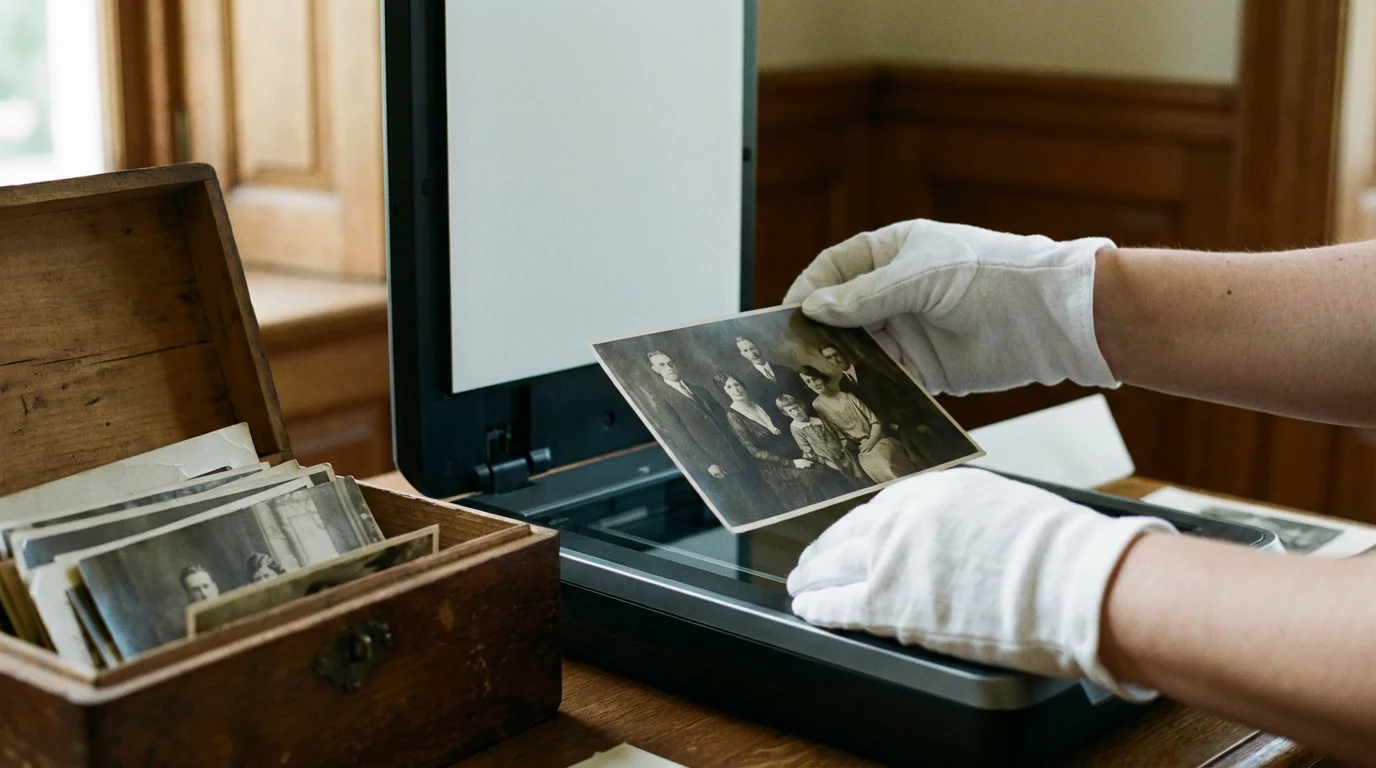
Many photo chaos projects include a box of old physical prints, slides, or negatives. These items are even more fragile than digital files because they are susceptible to light, humidity, and heat. When handling old photographs, you must treat them as precious historical artifacts. Use clean, dry hands (or lint-free cotton gloves) to avoid transferring skin oils, which can cause permanent staining over time.
If you are starting with hundreds of prints in shoeboxes, you may want to learn how to digitize large photo collections efficiently to speed up the transition to digital.
For storage, avoid the “magnetic” peel-and-stick albums popular in the 1970s and 80s; the adhesive is highly acidic and will eventually eat through the photo paper. Instead, use archival-quality materials. Look for products that have passed the Photographic Activity Test (PAT). Storage containers should be made of acid-free, lignin-free paper or stable plastics like polyester, polypropylene, or polyethylene. For more detailed material standards, refer to the Smithsonian Archives guidelines on physical preservation.
Once you scan these physical photos to join your digital collection, the digital versions should follow the same folder and naming conventions mentioned earlier. Add a “Scanned” tag to these images in your metadata so you can distinguish between native digital photos and digitized heirlooms. Keep the physical originals even after scanning; the physical print is the “master record” and often holds more sentimental and archival value than its digital counterpart.

Selecting the Right Digital Photo Management Tools
Your choice of software will determine how easy it is to maintain your system. There is no “perfect” app, only the app that fits your workflow. Beginners usually fall into one of two camps: those who want an all-in-one ecosystem and those who want total control over their files.
Ecosystem Users (Apple Photos / Google Photos): These tools are excellent for those who want the software to do the heavy lifting. They offer incredible search capabilities, face recognition, and seamless syncing between phones and computers. However, they can make it difficult to export your photos in a clean folder structure later. If you use these, you must still maintain a secondary backup of the original files on a hard drive.
Power Users (Adobe Lightroom Classic / DigiKam): These programs are designed for large-scale digital photo management. They allow you to manage files exactly where they sit on your hard drive without moving them into a proprietary “library file.” Lightroom is the industry standard for organization and editing, while DigiKam is a powerful, free, open-source alternative. These tools are better suited for collections exceeding 20,000 images where precise metadata and batch processing are required.
If you are truly a beginner, start with the software you already have, but apply the folder and naming rules manually. This builds “good habits” that will transfer to any software you might choose in the future.

Establishing a Monthly Maintenance Habit
The biggest threat to your newly organized 10,000-photo collection is the 500 new photos you will take next month. Organization is a process, not a destination. To prevent chaos from returning, you must establish a maintenance routine. Set a recurring calendar invite for the first Sunday of every month to “Process Photos.”
To prevent future backlogs, you might also consider implementing a 10-minute daily photo organization routine to keep your collection pristine as you take new photos.
During this monthly session, perform the following tasks:
- Download all new photos from your phone to your primary hub.
- Cull the junk immediately—delete the screenshots and the blurs.
- Move the “keepers” into their YYYY-MM-Event folders.
- Add basic tags (People, Locations).
- Verify that your 3-2-1 backup system has successfully synced the new additions.
By spending 20 minutes a month on maintenance, you avoid ever having to face a “10,000-photo mountain” again. You shift from being a “hoarder” of digital files to being a “curator” of family history. This proactive approach ensures that your library grows in value over time, becoming a legacy rather than a liability. You have the tools, the strategy, and the roadmap—now take the first step and move that first batch of photos into your “Incoming” folder.
Frequently Asked Questions
How long does it take to organize 10,000 digital photos?
The timeframe depends on your level of clutter. For most beginners, dedicating two hours per week will yield a fully organized collection in roughly three to four months. Using automated culling software can reduce this time significantly by identifying duplicates and blurry shots instantly.
What is the best file format for long-term photo preservation?
For the highest preservation standard, use TIFF or DNG formats for master files as they are uncompressed and widely supported. For everyday sharing and storage efficiency, high-quality JPEGs remain the industry standard due to their universal compatibility. For more on format longevity, see the Image Permanence Institute resources.
Should I organize photos by date or by event?
The most effective system uses a chronological folder structure (Year > Month > Event). This ensures that files remain in a logical order even if software changes. Adding descriptive keywords to the folder name, such as “2023-05-Grand-Canyon-Trip,” provides the best of both worlds by being both chronological and searchable.
How do I prevent losing my digital photo collection if a hard drive fails?
Follow the 3-2-1 backup rule: keep three copies of your data, stored on two different types of media (like an external drive and a cloud service), with one copy located off-site to protect against physical disasters like fire or theft. Consistency in checking these backups is just as important as having them.
Disclaimer: This article is for informational purposes only. When handling valuable or irreplaceable photographs, consider consulting a professional conservator. Always test preservation methods on non-valuable items first.






3 Comments