Your family photos represent more than just data; they are the visual records of your heritage, the first steps of your children, and the faces of ancestors you never met. Yet, most people treat these irreplaceable memories with less security than their monthly utility bills. A single hard drive failure, a lost smartphone, or a spilled cup of coffee can erase decades of history in a heartbeat. Protecting your collection requires moving beyond hope and into a structured strategy. You need a system that survives hardware malfunctions, accidental deletions, and the inevitable march of technological change.
Before starting your backup process, decluttering your photo collection can help you save space and focus on your best memories.
The challenge lies in the sheer volume of images we produce. In the era of film, a family might accumulate a few dozen shoeboxes over a lifetime. Today, a single vacation can result in thousands of high-resolution files. Managing this digital deluge requires understanding the strengths and weaknesses of different storage technologies. Whether you are safeguarding digitized scans of 19th-century tintypes or a library of 4K smartphone videos, this guide provides the roadmap to build a resilient, professional-grade photo backup system.
The Gold Standard: 3-2-1 Backup Strategy
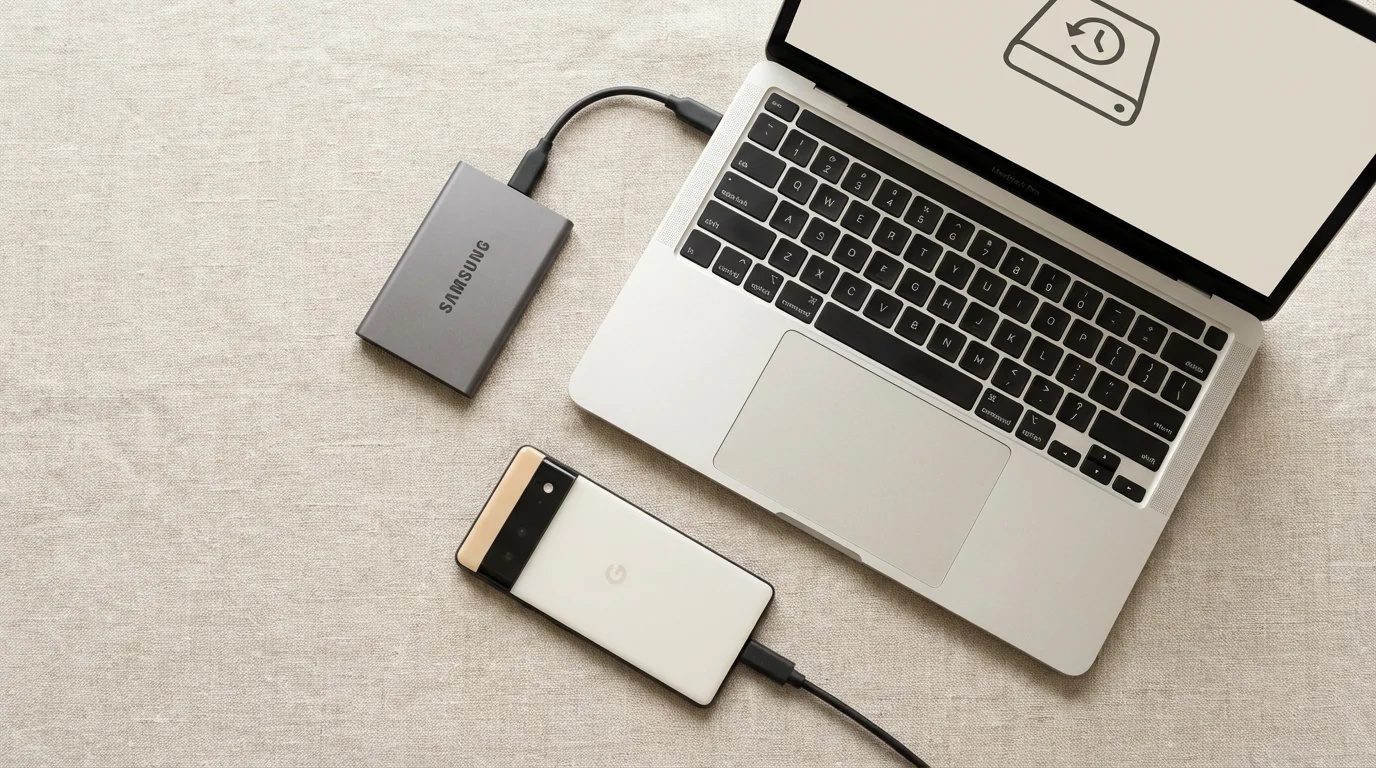
Before you purchase a single drive or subscribe to a service, you must understand the industry standard for data safety: the 3-2-1 rule. This strategy ensures that no single point of failure can destroy your collection. Reliability does not come from the quality of one device, but from the redundancy of the entire system.
In addition to digital files, it is wise to learn how to create a photo emergency go-bag to safeguard physical heirlooms from local disasters.
The rule is simple but powerful:
- 3 Copies of Your Data: You keep the original files plus at least two backups.
- 2 Different Media Types: You store these copies on different types of hardware—such as one internal hard drive and one external drive—to protect against manufacturer defects or specific technology vulnerabilities.
- 1 Copy Offsite: You keep at least one backup in a separate physical location, such as a cloud server or a drive kept at a relative’s house, to guard against fire, flood, or theft.
Why is this necessary? Consider the “click of death.” This rhythmic clicking sound is the herald of a mechanical hard drive failure. If that drive is your only copy, your photos are gone. If you have a second drive sitting right next to it, a power surge could fry both simultaneously. Only the offsite copy provides the ultimate safety net. Implementing this strategy might feel like overkill, but the peace of mind it offers is invaluable when your computer fails to boot on a Tuesday morning.
Physical Storage: External Hard Drives and SSDs
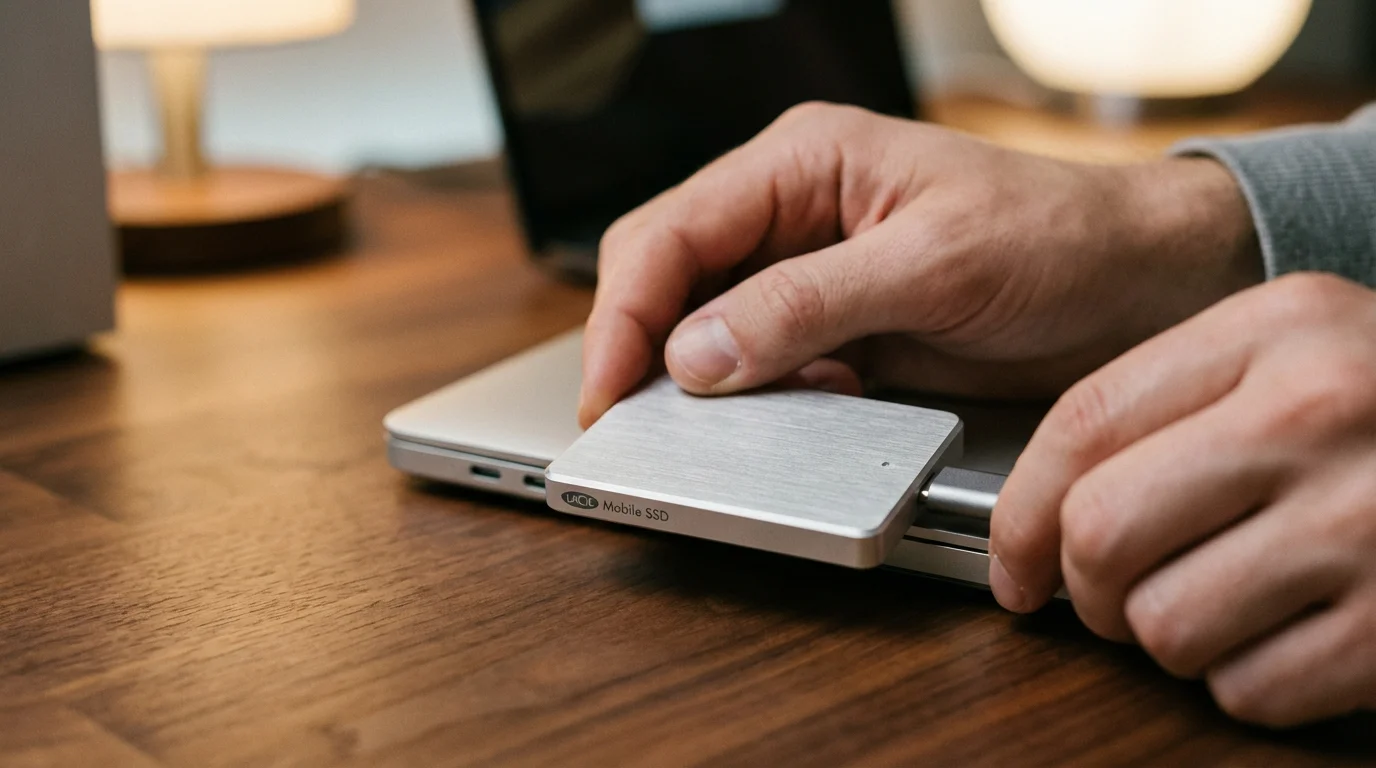
External drives are the frontline of any photo backup strategy. They offer high capacities, no monthly fees, and the fastest transfer speeds for large libraries. However, not all external drives are equal. You must choose between traditional Hard Disk Drives (HDDs) and modern Solid State Drives (SSDs) based on your specific needs.
Exploring the nuances of local photo backup solutions can help you decide which physical hardware best suits your archiving goals.
When capturing new memories, using reliable, high-speed memory cards is the first step in ensuring your data remains uncorrupted.
Hard Disk Drives (HDDs) are the workhorses of the storage world. They use spinning magnetic platters to store data, making them susceptible to physical damage if dropped. However, they remain the most cost-effective way to store terabytes of data. For “cold storage”—backups that you update and then put on a shelf—HDDs are excellent. Brands often offer 8TB or 12TB desktop drives that can house even the largest family archives for a relatively low price. According to industry data, mechanical drives have a bathtub-shaped failure curve; they either fail very early due to manufacturing defects or after several years of wear and tear.
Solid State Drives (SSDs) have no moving parts. They are incredibly fast, which makes them ideal for the “active” part of your library—the photos you are currently editing or organizing. If you frequently travel with your laptop, an SSD is the safer choice because it handles bumps and vibrations far better than a mechanical drive. The trade-off is price. An SSD can cost three to four times more per gigabyte than an HDD. For preservation, remember that SSDs require power occasionally to maintain their data integrity; they are not intended to be left in a drawer for ten years without being plugged in.
Physical drives are temporary vessels. You should plan to migrate your entire photo library to new hardware every five years to stay ahead of the inevitable mechanical or electrical failure.

The Convenience of Cloud Storage Solutions
Cloud storage has revolutionized how we access our memories. Services like Google Photos, iCloud, and Adobe Creative Cloud offer seamless integration with your devices. When you take a photo on your phone, it appears on your tablet and desktop almost instantly. This convenience is a double-edged sword, however, and you must distinguish between “syncing” and “backup.”
To simplify your daily routine, you can set up automatic photo backup from your phone so your mobile photos are protected without manual effort.
A syncing service mirrors your actions. If you delete a photo on your phone to save space, the service may delete it from the cloud as well. A true cloud backup service, such as Backblaze or Carbonite, runs in the background of your computer and saves every version of your files. If you accidentally delete a folder, you can go back in time and retrieve it. This is a critical distinction for preservation. For the best results, use a syncing service for daily access and a dedicated backup service for long-term security.
The main advantage of the cloud is the “offsite” requirement of the 3-2-1 rule. Your data lives in professional data centers with redundant power and extreme security. The primary downsides are recurring costs and upload speeds. If you have 5TB of photos, your initial upload might take weeks depending on your internet connection. Furthermore, you are renting space; if you stop paying the monthly fee, you lose access to your photos. For more technical insights on how different platforms handle image compression, Digital Photography Review provides excellent deep dives into file integrity across various web services.
The Powerhouse: Network Attached Storage (NAS)
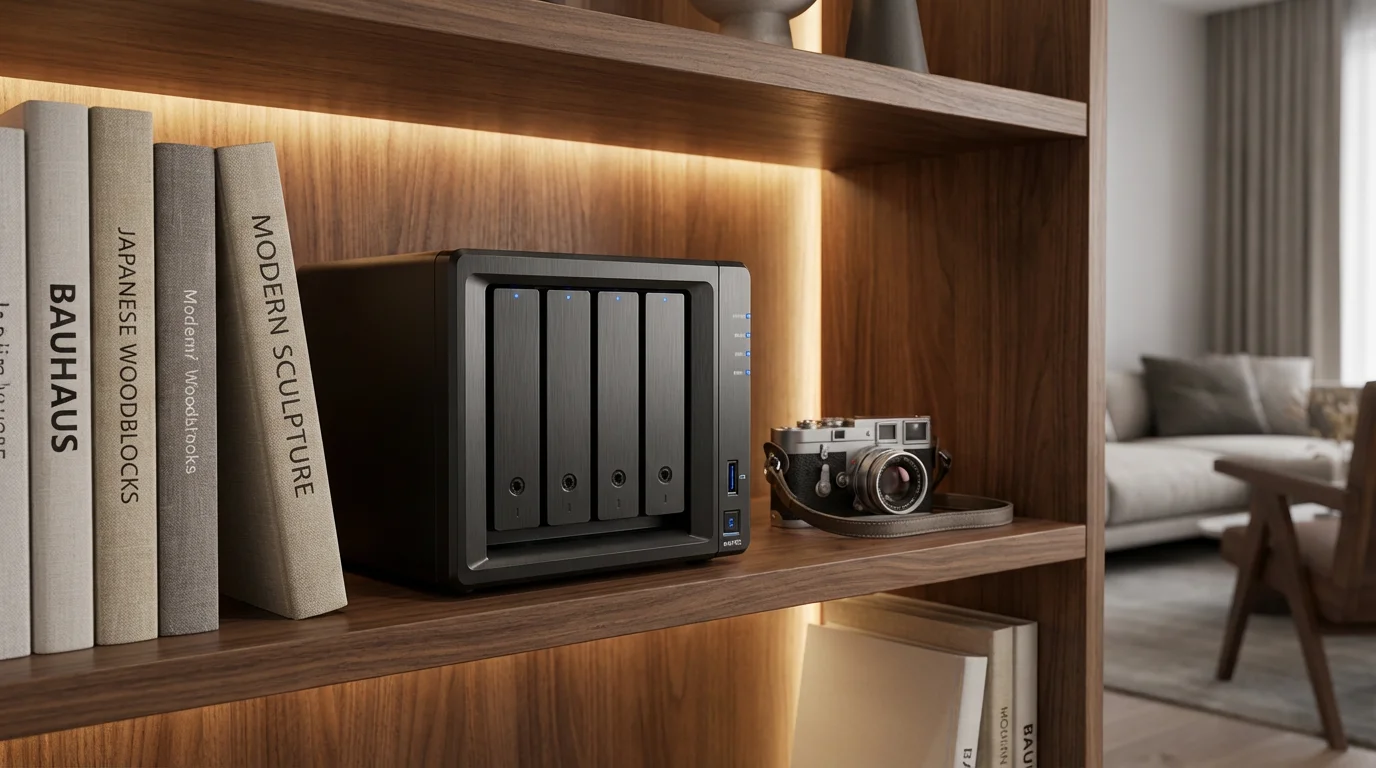
A nas photo storage solution is essentially a private cloud that sits in your home. It is a small computer filled with multiple hard drives that connects directly to your internet router. A NAS offers the best of both worlds: the massive capacity and speed of local drives combined with the remote access and automation of the cloud. It is the preferred choice for those with massive collections or high privacy concerns.
The secret weapon of a NAS is RAID (Redundant Array of Independent Disks). In a typical two-bay NAS, you might use RAID 1, which mirrors your data across two separate drives. If Drive A fails, Drive B continues to run without any data loss. You simply pull out the broken drive, slide in a new one, and the system rebuilds itself. This “high availability” ensures that a single hardware failure doesn’t stop you from accessing your memories.
Modern NAS units from companies like Synology or QNAP also feature dedicated photo management apps. These apps use AI to recognize faces, group photos by location, and allow you to share albums with family members without relying on Big Tech companies. While the initial setup cost is higher—often between $400 and $800 including drives—there are no monthly fees, and you retain total control over your data privacy. However, a NAS is still a physical device in your home; it does not count as your “offsite” copy unless you set it up to replicate its data to a second NAS elsewhere or to a cloud provider.
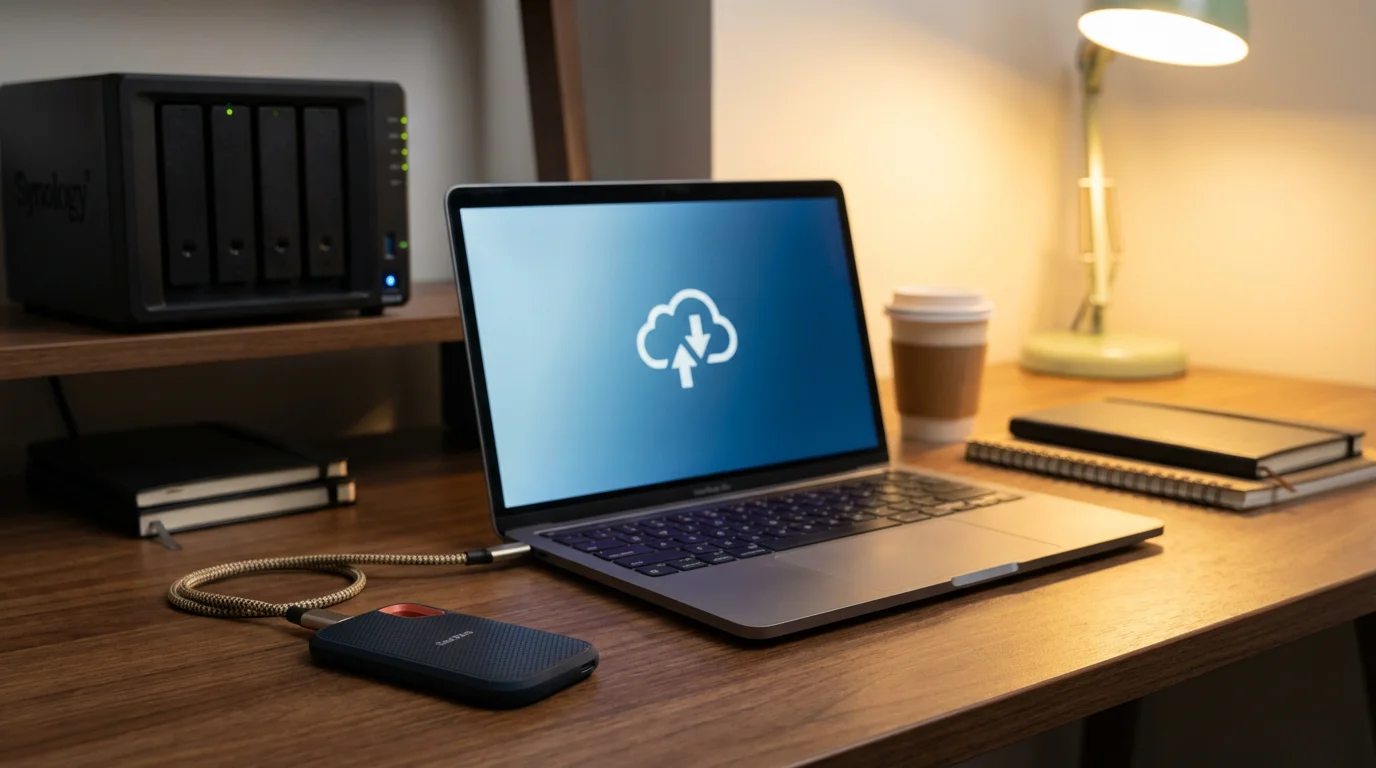
Comparing Cloud vs. External Drive vs. NAS
Choosing the right tool depends on your budget, technical comfort level, and the size of your collection. Most users benefit from a hybrid approach. Use the table below to compare the core attributes of each storage method.
Once you have chosen a hardware solution, establishing a folder structure for your photo library is the next critical step for long-term accessibility.
A robust backup is most effective when you also know how to organize 20 years of digital photos into a searchable collection.
| Feature | External Hard Drive | Cloud Storage | NAS (Private Cloud) |
|---|---|---|---|
| Initial Cost | Low ($50 – $200) | Zero to Low | High ($300 – $800+) |
| Ongoing Fees | None | Monthly/Yearly Subscription | None |
| Speed | Fast (Direct Connection) | Slow (Depends on Internet) | Medium to Fast (Local Network) |
| Remote Access | No | Yes (Universal) | Yes (Requires Setup) |
| Protection | Manual redundancy only | Built-in by provider | Automatic RAID redundancy |
| Technical Skill | Plug and Play | Simple App Setup | Intermediate Knowledge Needed |
If you are just starting, an external hard drive is the logical first step. As your library grows and you want to share memories with your spouse or children, moving to a NAS or a high-capacity cloud plan becomes necessary. For those managing digitized family archives, the stability and control of a NAS often outweigh the complexity of the setup.
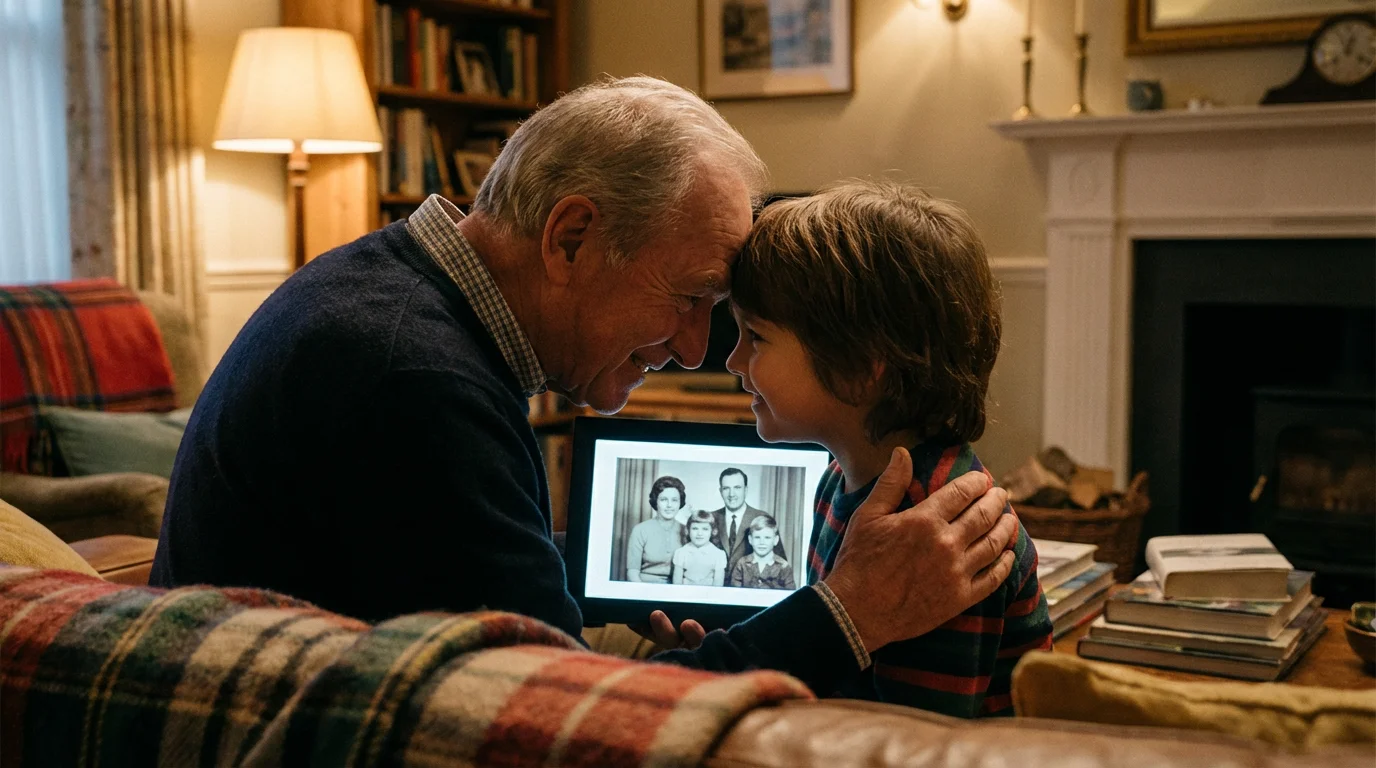
Protecting Your Digital Legacy Against Bit Rot
Digital files are not as permanent as we once believed. They are subject to a phenomenon known as “bit rot” or data degradation. Over time, the magnetic orientation of the bits on a hard drive can flip, or the charge in an SSD can leak. This results in “corrupted” files—photos that develop strange lines, color shifts, or simply refuse to open. If you back up a corrupted file, you are just preserving a broken memory.
To fight bit rot, you should use software that performs checksum verification. This process creates a unique digital fingerprint for every photo. When you copy the files to a new drive, the software compares the fingerprints. If they don’t match exactly, the software alerts you that the data has changed. Advanced NAS systems use file systems like Btrfs or ZFS that automatically detect and repair this corruption in the background.
Additionally, file formats matter. While the JPEG is the most common format, it is “lossy,” meaning it loses a tiny bit of quality every time you edit and re-save it. For your most precious scans and original digital captures, consider keeping “master” copies in TIFF or DNG formats. These are more robust and widely supported by professional institutions. The Library of Congress provides extensive documentation on sustainable file formats for long-term digital preservation that you can apply to your personal archives.
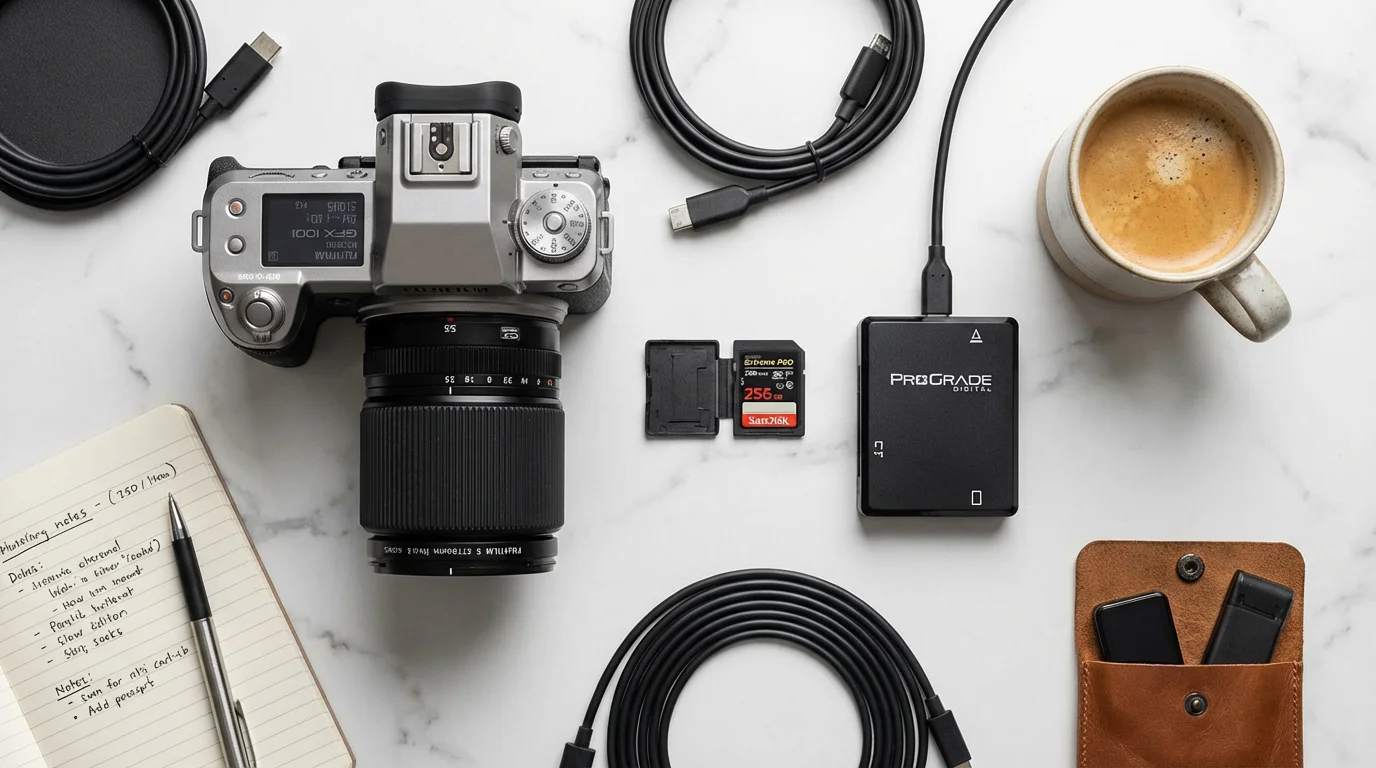
Step-by-Step Workflow for Photo Preservation
A backup system only works if you actually use it. You need a repeatable workflow that moves your images from your camera or scanner into your permanent archive. Follow these steps to build a routine that ensures no memory is left behind.
Start by implementing best practices for a home photo archive to ensure your workflow is both efficient and secure.
- Centralize Your Imports: Designate one computer or NAS as the “Ingest Station.” Every photo from your phone, DSLR, or scanner must land here first. Avoid having photos scattered across multiple laptops and tablets.
- Organize by Date and Event: Use a consistent folder naming convention, such as YYYY-MM-DD-Event-Name. This makes it easy to find specific memories without relying on proprietary software that might become obsolete in a decade.
- Initial Culling: Do not back up the “noise.” Delete blurry shots, accidental photos of your pocket, and duplicates. A smaller, curated library is much easier to manage and cheaper to store.
- The First Backup (Local): Once you have organized the new photos, immediately copy them to your primary external drive or NAS. This provides your second copy.
- The Second Backup (Cloud/Offsite): Ensure your cloud backup service is running. If you are using a manual method, copy the new files to a drive that you keep at your office or a friend’s house.
- Annual Health Check: Once a year, sit down and verify your backups. Open a few random photos from five years ago to ensure they still work. This is also the time to check if your physical drives are nearing their five-year replacement window.
When handling physical photographs for scanning, the Smithsonian Institution Archives recommends using clean, dry hands or lint-free cotton gloves to avoid transferring oils to the prints. Once digitized, these physical originals should be stored in acid-free, archival-quality boxes in a cool, dry place. The digital copy is your “working version” for display and sharing, while the physical print remains the ultimate backup.
The best time to start your backup plan was ten years ago. The second best time is today.
Frequently Asked Questions
Which photo backup method is the most secure for long-term preservation?
The most secure method follows the 3-2-1 rule: three copies of your data, stored on two different media types, with one copy located offsite. Using a combination of a local NAS (Network Attached Storage) and an encrypted cloud backup service provides the highest level of security against both hardware failure and physical disasters like fire or theft.
How often should I back up my digital photo collection?
You should aim for automated, real-time backups for your primary devices. If you prefer manual backups, schedule them at least once a month. For professional photographers or those documenting daily family life, a weekly backup of new imports to an external hard drive or NAS is a practical minimum to prevent significant data loss.
Do external hard drives eventually fail?
Yes, all physical storage media have a limited lifespan. Traditional Hard Disk Drives (HDDs) typically last between 3 to 5 years due to mechanical wear, while Solid State Drives (SSDs) can last longer but face risks from long-term power loss. You should proactively replace backup drives every 4 to 5 years to avoid data corruption.
Is Google Photos or iCloud sufficient as a standalone backup?
No, synchronization services like iCloud and Google Photos are not true backups. If you accidentally delete a photo on your phone, the service often deletes it from the cloud simultaneously. A true backup is an independent copy of your data that remains unaffected by changes made to the original files.
Preserving your photographic heritage is an ongoing commitment rather than a one-time task. As technology evolves, so too must your backup strategy. By implementing a combination of external hard drives for speed, cloud storage for offsite security, and a NAS for centralized management, you create a safety net that protects your memories for generations to come. You owe it to your future self—and your descendants—to ensure that the digital record of your life remains intact and accessible. Start today by securing your primary library and building a habit of redundancy.
Disclaimer: This article is for informational purposes only. When handling valuable or irreplaceable photographs, consider consulting a professional conservator. Always test preservation methods on non-valuable items first.