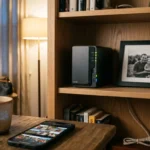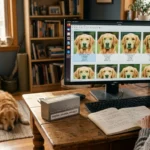
You have likely spent years documenting the milestones of your life—weddings, the first steps of your children, and quiet family vacations. These images represent more than just data; they are the visual legacy of your family. Yet, many of these memories live in precarious states, scattered across various smartphones, old laptops, and fragile external hard drives. If a single drive fails or a cloud service changes its terms, you risk losing decades of history in an instant.
Network Attached Storage (NAS) offers a professional-grade solution for the home user. Think of a NAS as your own private cloud—a dedicated device that stays in your home, keeps your photos organized, and protects them against hardware failure. Unlike a simple external drive, a NAS connects to your internet router, making your library accessible to every device in your house and even your phone when you are traveling. By the time you finish this guide, you will understand how to select the best NAS drive for your specific photo collection and how to set it up for maximum security.
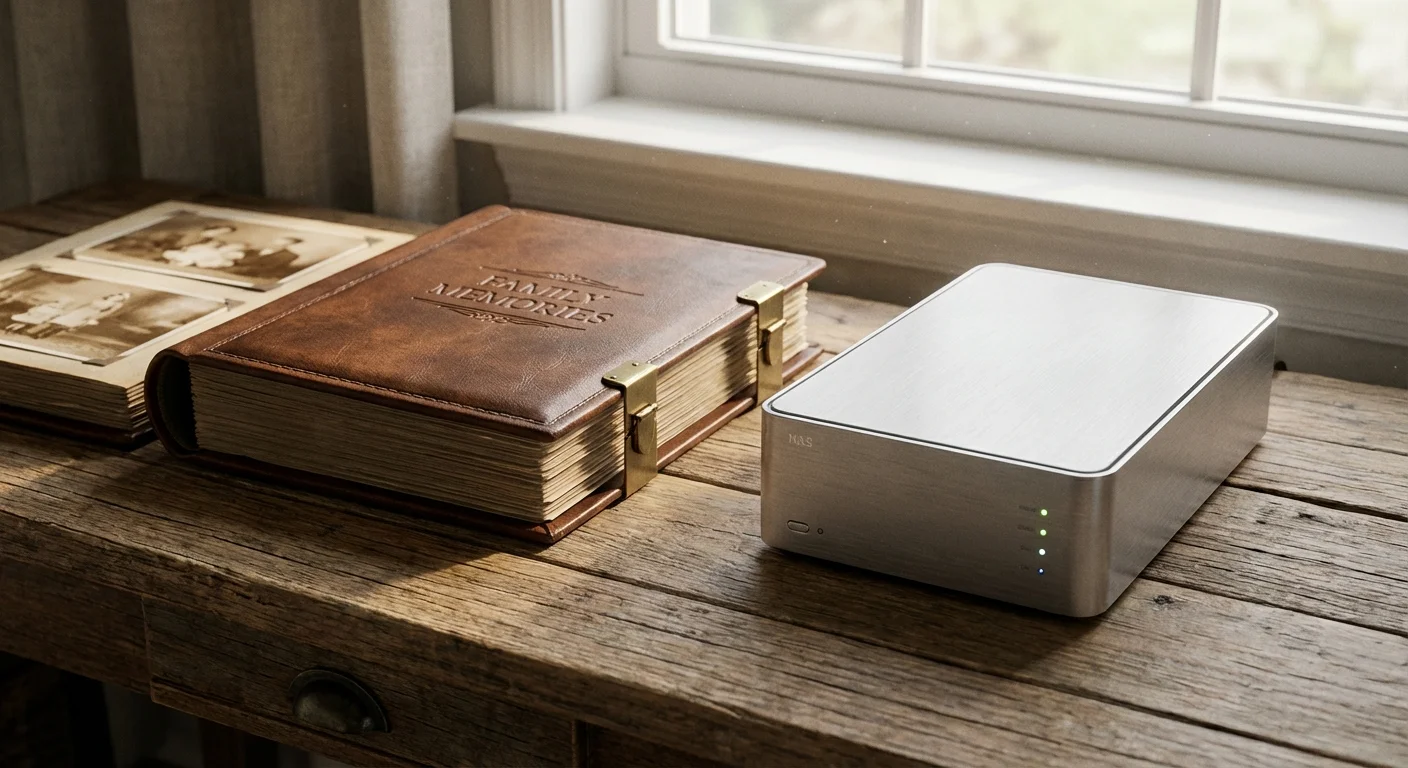
Why a NAS Is Essential for Photo Preservation
Most people rely on one of two things: a single external USB drive or a monthly cloud subscription. Both have significant flaws. A single external drive is a “single point of failure”—if it stops spinning, your photos are gone. Cloud services are convenient, but they strip away your privacy, require monthly fees that never end, and can be difficult to manage if you have terabytes of high-resolution images or scanned family archives. The Library of Congress emphasizes the importance of active management in digital preservation, and a NAS is the most powerful tool for that task.
A NAS is a core component of creating a home photo archive that remains accessible for decades.
A NAS solves these problems by using multiple hard drives simultaneously. If one drive breaks, the others have a redundant copy or the mathematical data required to “rebuild” the lost information. Furthermore, modern NAS systems include powerful software that uses artificial intelligence to recognize faces and locations, helping you organize thousands of unlabelled images into a coherent story. You gain the convenience of a modern app with the security of physical ownership.
A photo backup isn’t truly a backup unless it is automated, redundant, and verified regularly to ensure the files remain uncorrupted over decades.
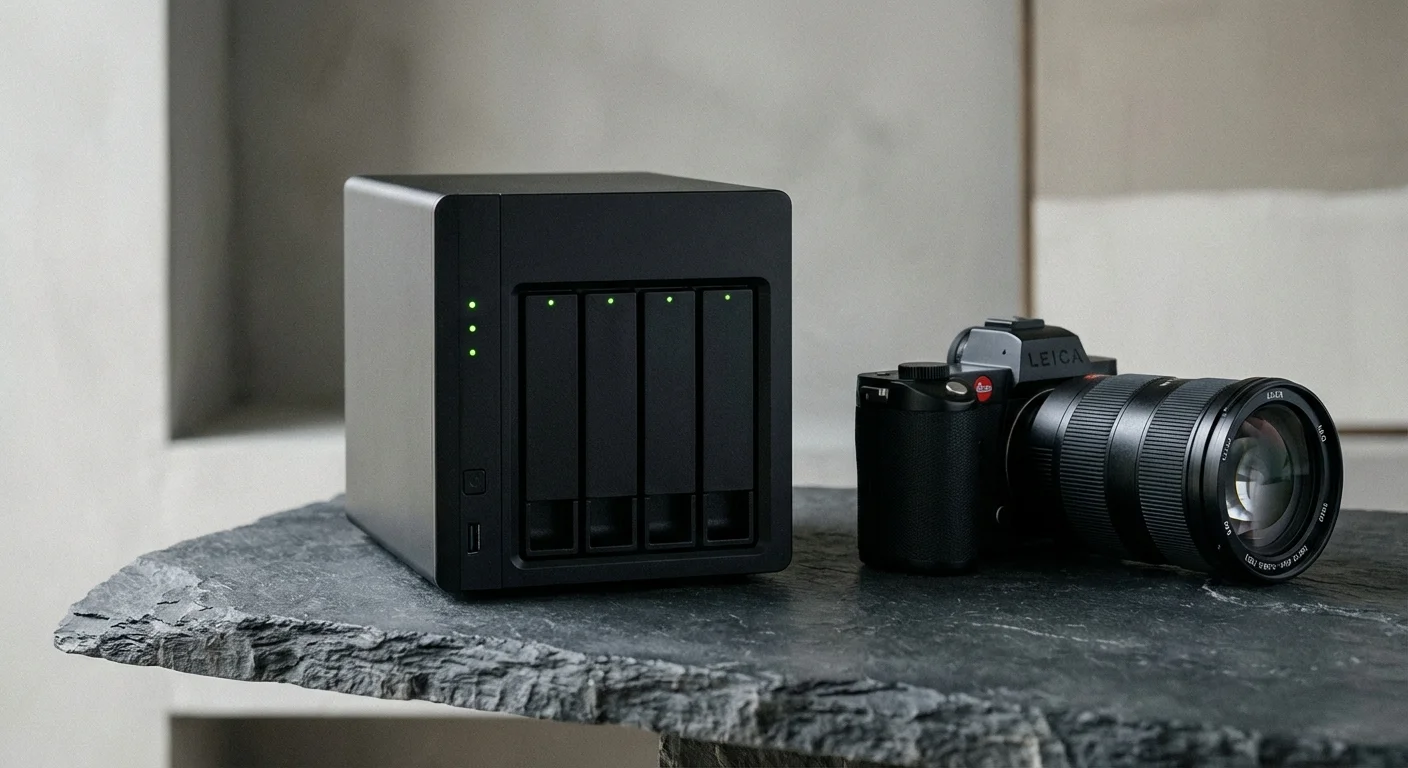
Top Photo Storage NAS Recommendations for 2024
Selecting the right hardware depends on the size of your collection and your technical comfort level. For most family historians and photographers, the following models represent the best balance of performance, ease of use, and reliability.
These devices serve as a reliable destination for files when you empty your camera’s memory cards.
Synology DiskStation DS923+ (Best Overall)
The Synology DS923+ is widely considered the gold standard for home users. It features four drive bays, which allows for a massive amount of storage—up to 80 terabytes or more depending on the drives you choose. What sets Synology apart is the software. Their “Synology Photos” app is a near-perfect replacement for Google Photos. It provides a beautiful timeline view, handles RAW files from professional cameras, and allows you to create password-protected albums for relatives.
QNAP TS-264 (Best for Performance)
If you plan to store a lot of video alongside your photos, the QNAP TS-264 is a powerhouse. It features a faster processor and a built-in HDMI port, which lets you plug the device directly into your TV for family slideshows. QNAP hardware often offers more “bang for your buck” in terms of raw specifications, though the setup process requires a bit more technical familiarity than Synology.
Asustor AS5402T (Best Value)
For those just starting their photo preservation journey, the Asustor AS5402T offers high-speed networking and excellent build quality at a lower price point. It is a two-bay system, meaning it is more compact and perfect for a desk or shelf. While it has fewer bays for future expansion, it is more than enough for a collection of 50,000 to 100,000 high-resolution photos.
| Feature | Synology DS923+ | QNAP TS-264 | Asustor AS5402T |
|---|---|---|---|
| Drive Bays | 4 Bays | 2 Bays | 2 Bays |
| Best For | Ease of Use / Photos | Video / Media Speed | Budget / Speed |
| Expandable RAM | Yes (ECC supported) | Yes | Yes |
| Software Suite | Synology Photos (Excellent) | QuMagie (Good) | Photo Gallery 3 (Fair) |
Understanding RAID: The Safety Net for Your Memories
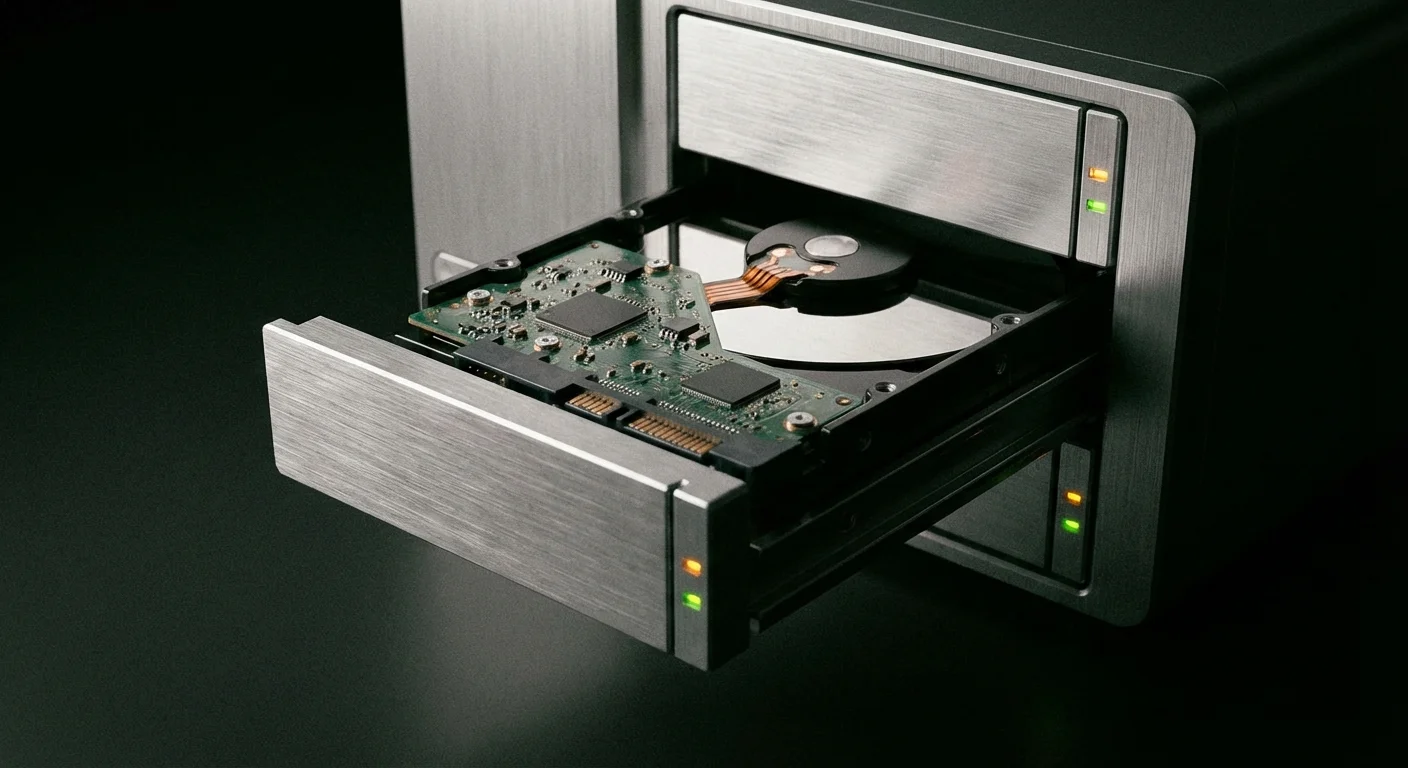
When you set up your NAS, you will encounter the term RAID (Redundant Array of Independent Disks). This is the “magic” that protects your memories from hardware failure. You should never use a NAS as a single drive; you should always configure it for redundancy. For those managing family archives, two specific RAID levels are most relevant.
RAID 1 (Mirroring): This is used in two-bay systems. The NAS writes every photo to both Drive A and Drive B simultaneously. If Drive A dies, you still have a perfect copy on Drive B. You lose 50% of your total storage capacity to this safety net, but it is the simplest way to ensure data survival.
RAID 5 (Parity): This requires at least three drives. It distributes data and “parity” information across all drives. If one drive fails, the system uses the parity data on the remaining drives to recreate the missing files. This is more efficient than RAID 1 because you only lose the capacity of one drive, regardless of whether you have three, four, or five drives in the system.
You can find deeper technical explanations of digital imaging and storage at Cambridge in Colour, but for the average user, simply knowing that RAID keeps your photos alive during a hardware crash is the most important takeaway.

Software and Apps: Organizing Your Digital Shoebox
The hardware is only half the battle. The software determines how often you will actually look at your photos. A NAS that just sits in the corner as a “dumb” storage box is rarely helpful. You want an ecosystem that makes your photos feel alive.
To make the most of your new storage, you should first declutter your photo collection to avoid importing blurry or duplicate shots.
Modern photo applications on a NAS perform several critical tasks:
- Automatic Mobile Backup: The moment you walk into your house and connect to Wi-Fi, the NAS app on your phone begins uploading your new photos. This ensures that even if you lose your phone the next day, your memories are already safe at home.
- Facial Recognition: The NAS indexes your library, identifying Grandma, your spouse, or your children. This allows you to search for “Sarah” and see every photo of her from 1995 to today in seconds.
- Metadata Management: Good software preserves the EXIF data—the digital fingerprints that tell you when and where a photo was taken. For scanned images, you can manually add this data to ensure future generations know the context of the photo.
- Smart Albums: You can set up “Conditional Albums” that automatically gather every photo tagged with “Vacation” and “Hawaii,” saving you hours of manual sorting.
Choosing the Right Hard Drives for Your NAS
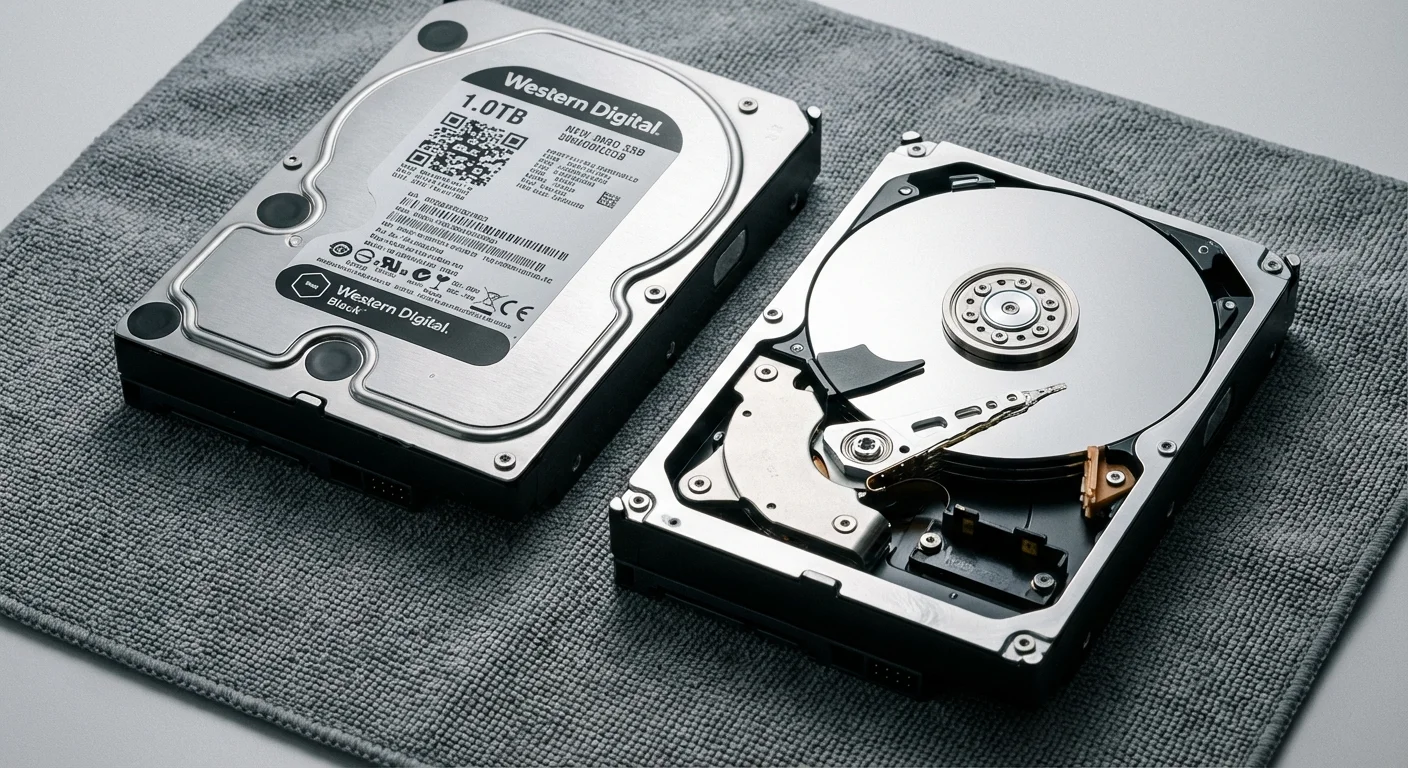
You generally buy a NAS as an empty “shell” and purchase the hard drives separately. It is a common mistake to buy the cheapest drives available at a local big-box store. Standard desktop drives are designed to run for a few hours a day; a NAS runs 24/7. You need “NAS-rated” drives which are engineered to handle the heat, vibration, and constant uptime of a server environment.
Look for these specific product lines:
- Western Digital Red Plus or Red Pro: These are the industry standard for home and small business NAS systems. The “Plus” and “Pro” versions use CMR (Conventional Magnetic Recording) technology, which is more reliable for photo storage than the cheaper SMR technology found in some budget drives.
- Seagate IronWolf or IronWolf Pro: These are comparable to the WD Red series and include “Health Management” software that integrates directly with your NAS to warn you of potential failures before they happen.
As a rule of thumb, calculate how many gigabytes of photos you currently have and triple that number. This allows room for your collection to grow over the next five to ten years without needing to upgrade your hardware.
The 3-2-1 Strategy: Beyond Local Storage
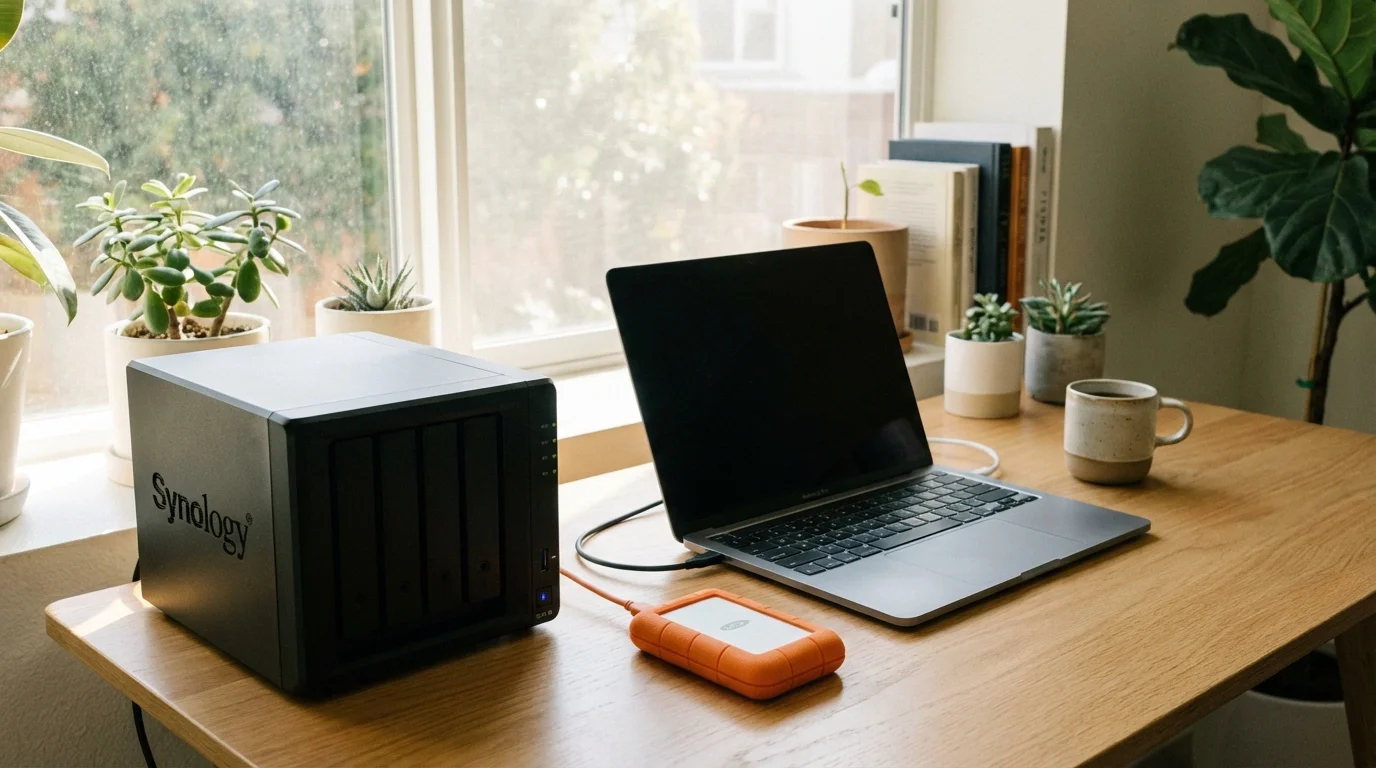
A NAS is a powerful tool, but it is not a complete preservation plan on its own. If your house suffers a fire, flood, or theft, even a RAID-protected NAS will be lost. To truly protect your photographic heritage, you must follow the 3-2-1 backup rule:
- 3 Copies of your data: Keep your primary library, a local backup, and an offsite backup.
- 2 Different media types: For example, keep photos on your NAS (hard drives) and a secondary set on M-Disc Blu-rays or a different storage technology.
- 1 Copy offsite: This is critical. Use an encrypted cloud service (like Backblaze B2 or Synology C2) or keep a physical drive in a safe deposit box or a relative’s home.
Most modern NAS units have a “Cloud Sync” feature. You can configure the NAS to automatically encrypt your photos and upload them to a secure offsite server every night. This creates a “set it and forget it” system that protects your memories against both hardware failure and physical disasters. For more information on professional standards for digital archiving, consult the Digital Photography Review storage guides.
Digital photos are incredibly fragile because they depend on hardware that will eventually fail. A NAS provides the structure, but your consistency provides the preservation.
Frequently Asked Questions
What is the difference between a 2-bay and a 4-bay NAS?
A 2-bay NAS is smaller and less expensive, but it only allows for RAID 1 (mirroring). A 4-bay NAS offers more flexibility, allowing you to use RAID 5 or 6, which provides a better balance between storage capacity and data protection. A 4-bay system is also much easier to expand later by adding more drives as your photo collection grows.
Do I need an SSD for my photo NAS?
While SSDs are much faster than traditional hard drives, they are significantly more expensive for large capacities. For storing photos, traditional “mechanical” NAS hard drives are usually sufficient. However, many modern NAS units allow you to add a small NVMe SSD as a “cache.” This speeds up the process of generating thumbnails and searching through your library without the high cost of an all-SSD system.
Can I use my NAS to scan old family photos directly?
While you cannot plug a scanner directly into most NAS units, you can set your computer’s scanning software to save files directly to a folder on the NAS. This ensures that as you digitize your family’s physical photo albums, the files are immediately protected by the NAS’s redundancy and backup protocols.
Is it hard to set up a NAS?
Ten years ago, setting up a NAS required significant IT knowledge. Today, brands like Synology and QNAP have made the process as simple as setting up a new smartphone. You slide the drives in, plug in the power and internet, and follow a web-based wizard that walks you through the entire configuration. If you can navigate a modern web browser, you can set up a photo NAS.
Preserving your memories is an investment in your family’s future. By moving your photos to a dedicated NAS, you take them out of the “digital shoebox” and place them into a secure, organized, and accessible library. It is the single most effective step you can take to ensure your children and grandchildren can see the world as you saw it.
Disclaimer: This article is for informational purposes only. When handling valuable or irreplaceable photographs, consider consulting a professional conservator. Always test preservation methods on non-valuable items first.