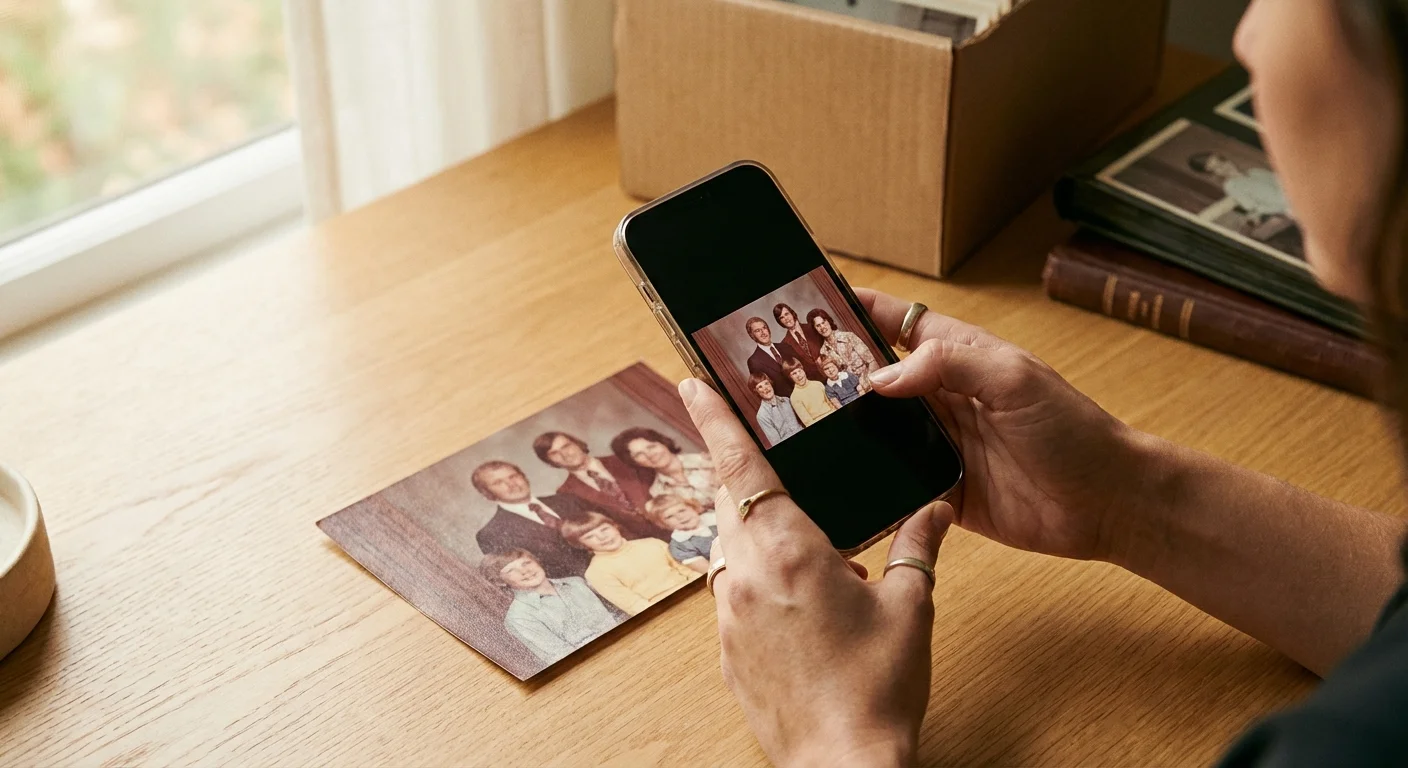
You likely have a shoebox or an old adhesive album tucked away in a closet, filled with the only surviving visual records of your family’s history. These physical prints are vulnerable to humidity, light exposure, and the inevitable passage of time; yet, the prospect of lugging them to a professional service or spending weeks at a flatbed scanner feels overwhelming. Fortunately, your smartphone is now powerful enough to serve as a high-quality mobile scanner. By using a specialized photo scanning app, you can transform these fragile physical artifacts into durable digital files that you can share, enhance, and preserve for future generations.
The transition from physical to digital does more than just protect the image—it unlocks the ability to organize your heritage. Digital files do not fade, and they do not disappear if a single basement flood occurs. When you scan photos with your phone, you are essentially creating a backup of your most precious memories. This guide explores the best tools available today to help you achieve professional-grade results without expensive equipment.

Preparing Your Physical Photos for the Best Results
Before you even open a photo scanning app, your environment dictates the quality of your digital output. No software can fully compensate for a dirty lens or poor lighting. Treat your original prints with the respect they deserve; handle them by the edges to avoid leaving oils from your skin on the surface. For truly delicate or historical items, the Library of Congress Preservation division suggests working on a clean, flat surface in a climate-controlled room to prevent further degradation.
If you want to achieve even more professional results, you can learn how to build a DIY camera scanning rig using simple household items to keep your phone perfectly stable.
Lighting is your most important variable. Avoid direct sunlight, which can cause harsh highlights and wash out colors. Instead, find a spot with bright, indirect light—a table near a north-facing window is often ideal. If you must use artificial light, place two lamps at 45-degree angles to the photo to minimize direct reflections. Ensure your phone lens is spotless; a quick wipe with a microfiber cloth removes the pocket lint and smudges that cause “hazy” scans.
Stability also matters. While you can hold your phone by hand, a small tripod or even a makeshift “scanning stand” (like a stack of books) ensures your phone remains parallel to the photo. This alignment prevents geometric distortion, making the app’s job of perspective correction much easier. If the photo is curled, use small, non-damaging weights on the corners or a piece of high-quality, non-reflective museum glass to hold it flat.
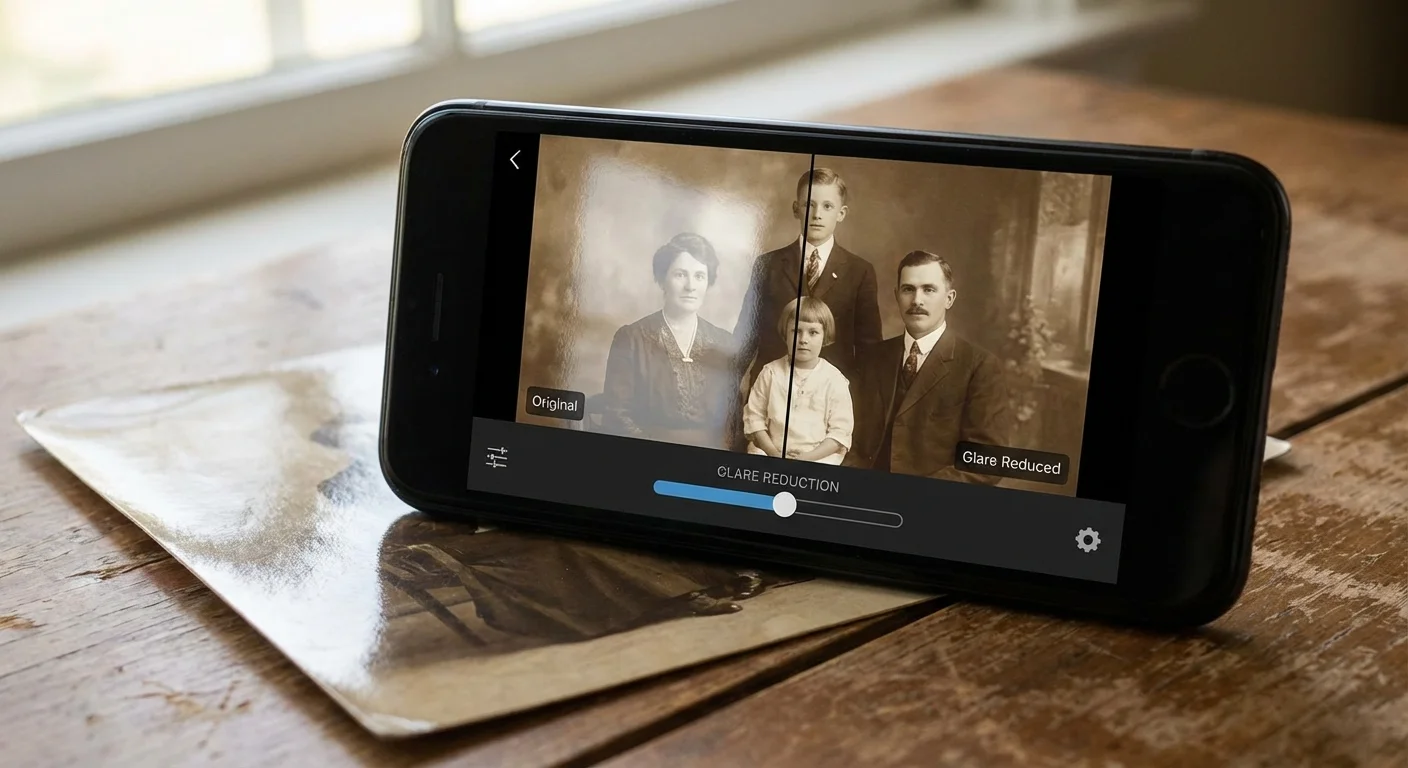
Google PhotoScan: The Industry Standard for Glare Reduction
Google PhotoScan remains a favorite for many because it solves the single biggest problem in mobile scanning: glare. When you use a standard camera app, glossy photos often reflect the ceiling lights or the phone itself. PhotoScan uses a clever multi-shot process to eliminate these distractions. When you start the scan, the app asks you to align a circle over four white dots that appear on your screen. As you move your phone to each dot, the app takes a high-resolution image from that specific angle.
For a deeper dive into how this tool compares to other top-tier options, read our direct comparison of Photomyne vs. Google PhotoScan.
The software then stitches these perspectives together, using the parts of each image that do not have glare. The result is a clean, matte-looking digital file that looks like it was captured in a studio. This makes it the best free photo scanning app for users who have many glossy 4×6 prints from the 1990s and early 2000s. It also performs automatic edge detection and perspective correction, so you do not have to worry about your hands being perfectly level.
However, there is a trade-off. Because PhotoScan prioritizes glare reduction and speed, the final resolution is sometimes lower than what your phone’s sensor is actually capable of producing. If you intend to blow up a small 2×3 wallet photo into a large poster, you might find the details slightly soft. For standard digital archiving and social sharing, however, its ease of use is unmatched on both iPhone and Android platforms.
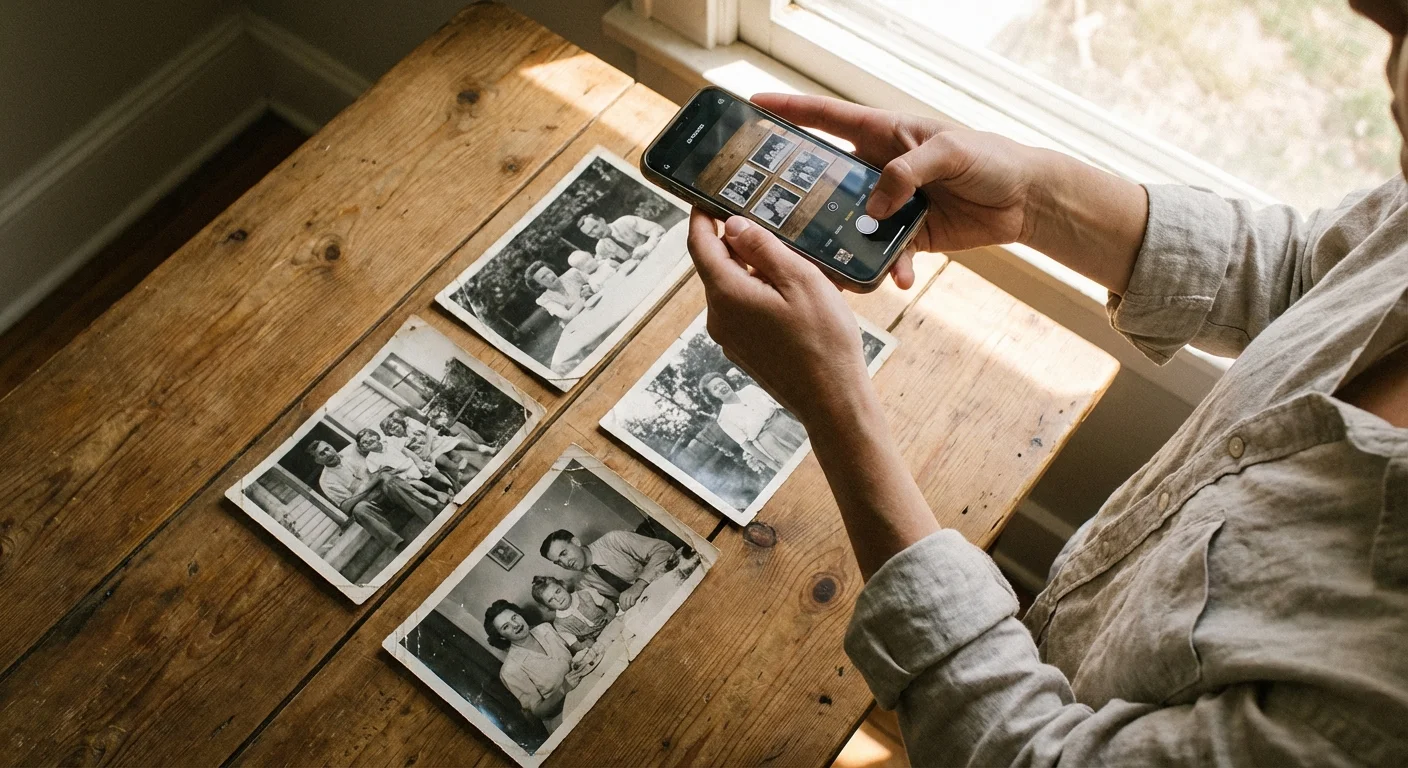
Photomyne: Maximizing Efficiency for Large Collections
If you have inherited dozens of thick photo albums, the thought of scanning every individual picture is daunting. Photomyne is designed specifically for this “bulk” use case. Unlike other apps that require you to focus on one image at a time, Photomyne allows you to scan an entire album page at once. Its AI-driven engine detects multiple photos in a single frame, crops them into individual files, and straightens them automatically.
This approach is particularly effective when you need to scan and preserve old photo albums without removing delicate prints from their original backing.
You can scan photos with your phone as fast as you can turn the pages. Beyond the scanning itself, Photomyne offers a suite of tools geared toward family history. You can add metadata—such as dates, locations, and names—directly to the digital files. It even includes a colorization feature that uses machine learning to breathe life into old black-and-white portraits. While the basic version is free, the premium subscription is worth considering if you have thousands of photos, as it provides unlimited cloud storage and higher-resolution saves.
Expert Insight: When using bulk-scanning features, ensure there is at least a quarter-inch of space between the photos on the page. This helps the AI accurately identify the borders of each print.
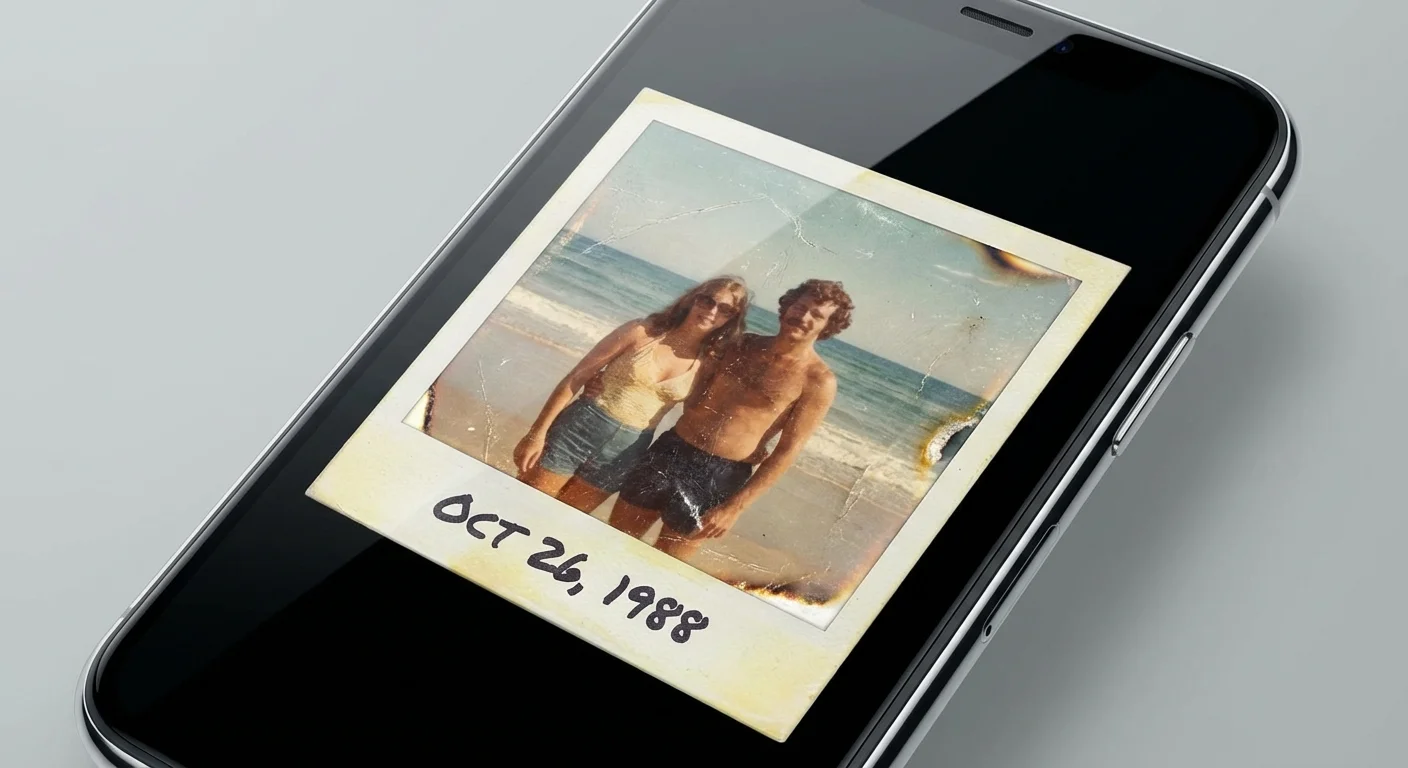
Adobe Scan: Professional Clarity and Document Tech
While Adobe Scan is often marketed as a document scanner, its image-processing pipeline is incredibly sophisticated. If you value sharpness and color accuracy over “smart” features like colorization, this is a strong contender. Adobe uses its Sensei AI to sharpen edges and reduce noise, which is particularly helpful for older, grainier photos. The app’s ability to handle different textures—like the “silk” or “matte” finishes common in mid-century photography—is superior to many competitors.
Adobe Scan saves your images as PDFs by default, but you can easily export them as JPEGs. One unique advantage is the integration with Adobe Creative Cloud. If you are already a photographer who uses Lightroom or Photoshop, your scans sync effortlessly with your desktop workflow. This allows you to perform deep restorations—like removing scratches or repairing torn corners—with professional-grade tools after the initial capture.
The app’s boundary detection is nearly flawless. You simply point your camera at the photo, and the app “grabs” the image once it detects a stable, clear view. This hands-free capture reduces the blur caused by tapping the shutter button, ensuring the sharpest possible scan from your mobile scanner.
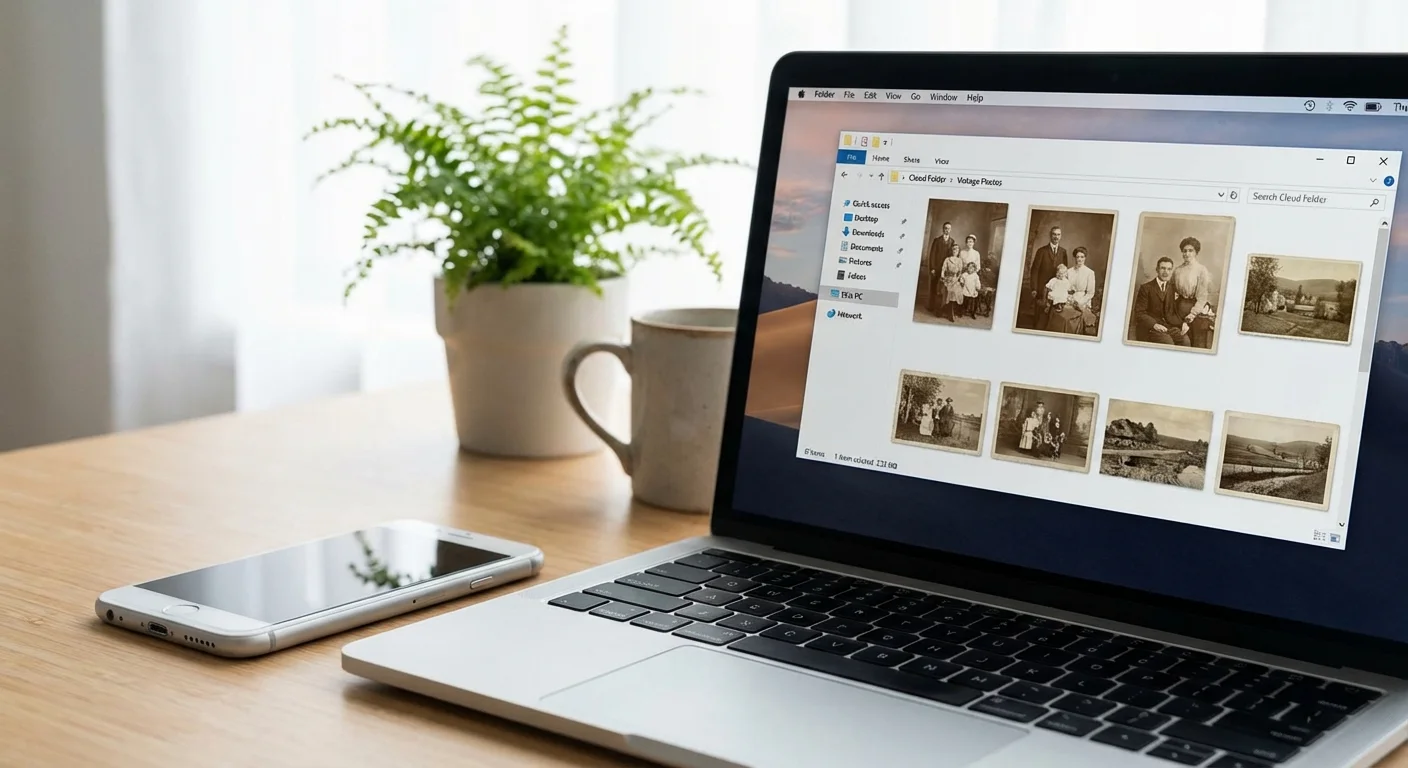
Microsoft Lens: Simple and Effective Integration
Formerly known as Office Lens, Microsoft Lens is a powerhouse of utility and simplicity. It is an excellent choice for users who want a no-frills experience that works reliably across devices. The app features a specific “Photo” mode that optimizes the sensor settings for color depth and contrast rather than text legibility. For many, this is the best free photo scanning app because it contains no hidden paywalls or intrusive advertisements.
One of the standout features of Microsoft Lens is its seamless integration with OneDrive and OneNote. If you are already using the Microsoft ecosystem for your family’s digital filing, your scanned photos can be sent directly to a specific folder or notebook. The perspective correction is robust; you can scan photos at an angle to avoid glare, and the software will “flatten” the image so it looks like it was scanned on a flatbed. While it lacks the fancy AI colorization of Photomyne or the glare-stitching of Google, its reliability makes it a staple for quick, high-quality digitizing.
Pic Scanner Gold: Advanced Features for iOS Users
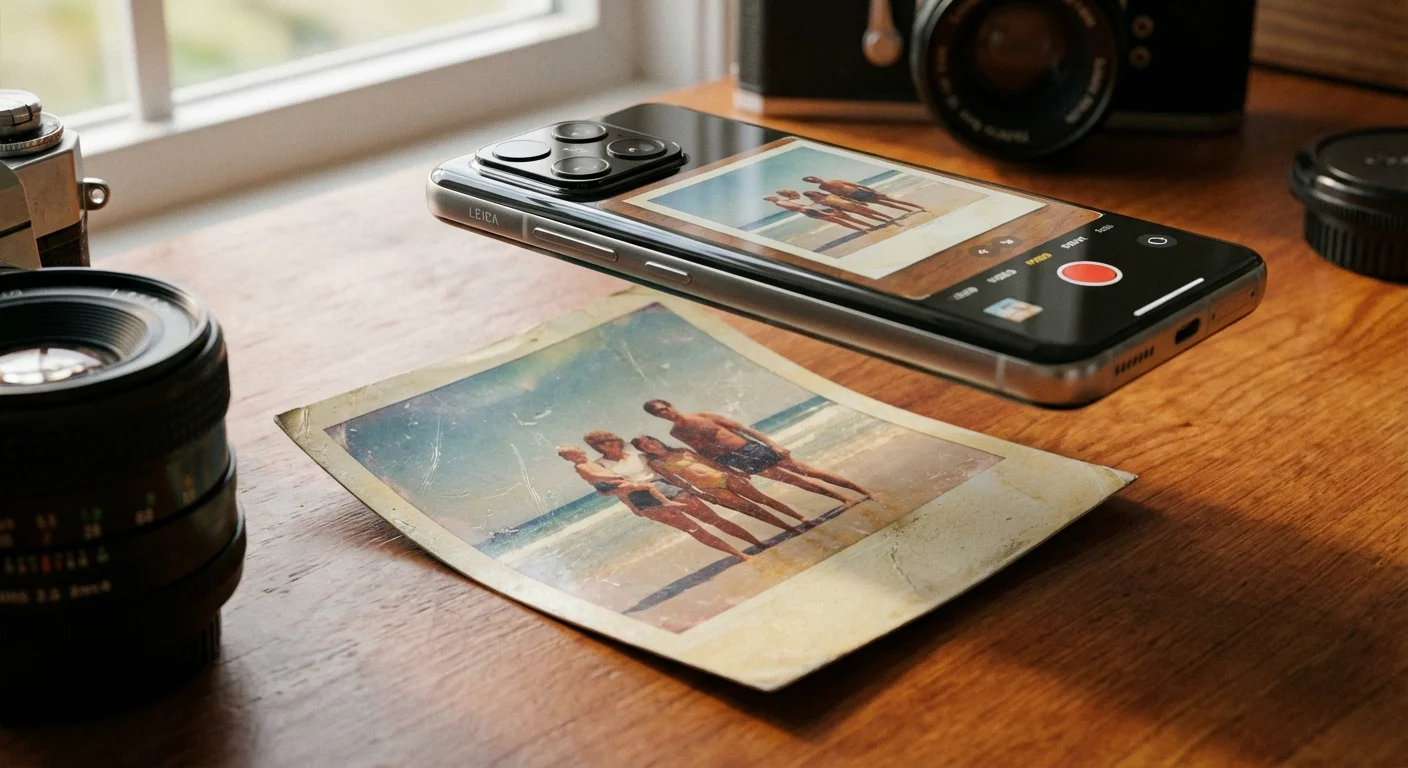
For those looking to scan photos on an iPhone, Pic Scanner Gold offers a premium experience that goes beyond the basic capture. It was one of the first apps to allow multiple photo scanning in a single shot, and it has refined that technology significantly. What sets this app apart is its built-in editor, which allows you to perform detailed color correction, cropping, and even the creation of digital slideshows or greeting cards within the app itself.
If your collection includes more than just prints, you can also learn how to digitize 35mm film negatives at home using similar smartphone-based techniques.
Pic Scanner Gold emphasizes the importance of resolution. It provides a “High Quality” mode that captures the maximum detail possible from the iPhone’s camera sensor. It also allows you to add captions and “tags” to the back of the digital photo—replicating the old habit of writing on the back of physical prints. This metadata is stored with the image, ensuring that the story behind the photo stays with the file as it is shared. If you are willing to pay a small one-time fee, you gain a tool that acts as both a mobile scanner and a digital curator.
Technical Standards: Resolution and File Formats
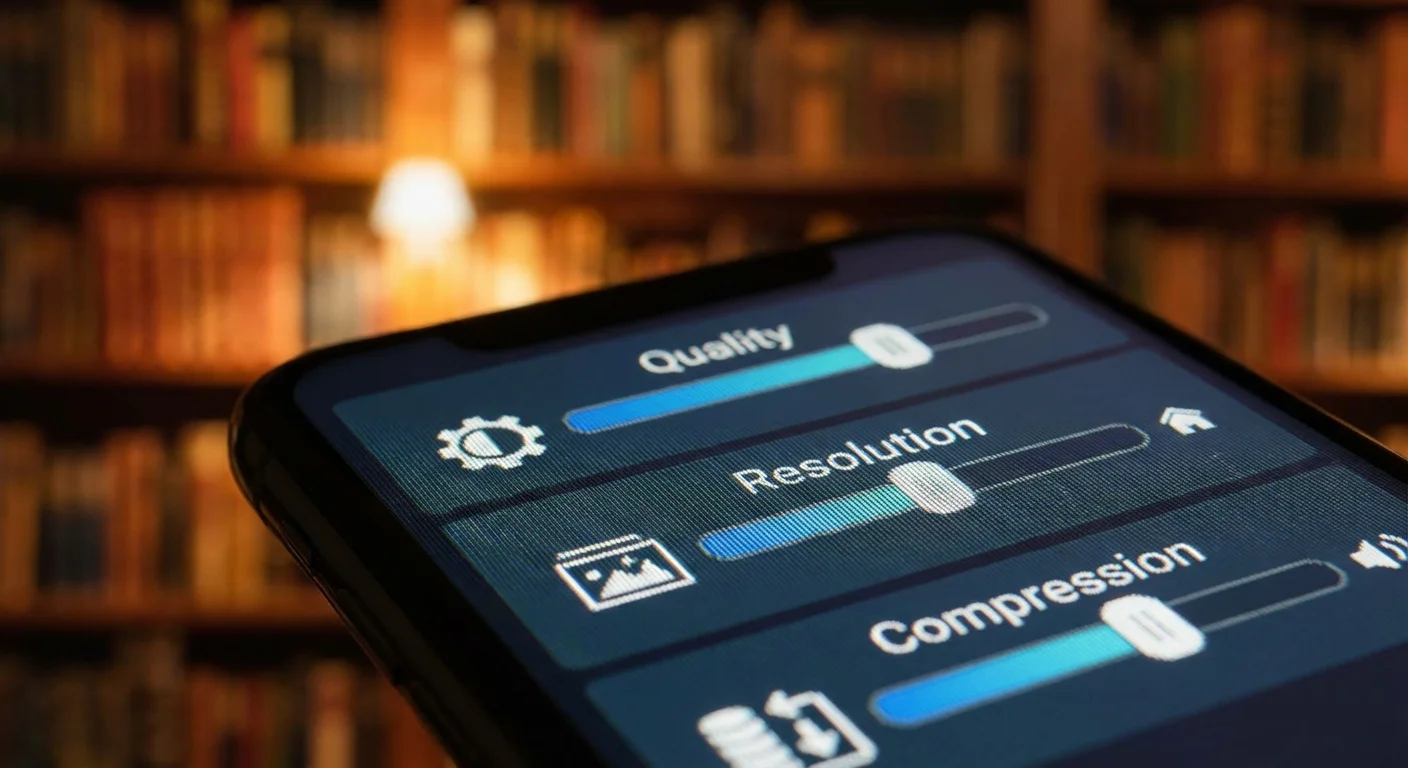
To ensure your scans are useful for more than just a quick post on social media, you must understand the technical side of the process. Digital images are measured in pixels, and for physical photo preservation, resolution is king. When you scan a 4×6 photo, aim for a resolution that would allow you to print it at the same size at 300 dots per inch (DPI). Most modern smartphones have 12-megapixel cameras or higher, which is more than enough to achieve this standard for standard-sized prints.
For a broader look at all your digitization options beyond just mobile apps, refer to our complete guide on how to scan old photos at home.
However, the file format you choose matters for long-term storage.
| Format | Pros | Cons | Best For |
|---|---|---|---|
| JPEG | Universal compatibility, small file size. | Lossy compression; loses quality every time you save an edit. | General sharing and everyday viewing. |
| HEIF / HEIC | High quality at half the file size of JPEG. | Compatibility issues with older Windows versions. | iPhone users who want to save space without losing detail. |
| TIFF | Uncompressed, preserves every bit of data. | Huge file sizes; not supported by many mobile apps. | Professional-grade archiving and restoration. |
For most readers, saving as a high-quality JPEG is the “sweet spot.” It balances quality with the ability to easily view the photo on any device. For more technical insights on sensor performance and image quality, resources like Digital Photography Review provide deep dives into how mobile hardware handles these tasks.

Post-Scan Workflow: Backing Up Your Digital Archive
Scanning is only the first step. A digital file that exists only on your phone is just as vulnerable as a physical photo in a shoebox. If you lose your phone or it suffers hardware failure, your hard work vanishes. You must implement a “3-2-1” backup strategy: three copies of your data, on two different media types, with one copy off-site.
To prevent future data loss, we recommend setting up automatic photo backup from your phone so that every scan you take is instantly saved to the cloud.
After your images are digitized, it is essential to follow best practices for creating a home photo archive to keep your library searchable and safe.
Start by syncing your scans to a cloud service like Google Photos, iCloud, or OneDrive. This provides immediate protection and makes sharing with family members easy. Next, periodically download these photos to a physical hard drive or a computer. Finally, consider a secondary cloud backup or an external drive kept at a different location (like a relative’s house). This redundancy ensures that even a catastrophic event won’t erase your family history.
Organization is equally vital. Don’t leave your scans named “IMG_4502.jpg.” Use a consistent naming convention, such as “YYYY-MM-DD_Event_Person.jpg.” This makes your collection searchable. If you don’t know the exact date, use the year or a decade (e.g., “1970s_Grandpa_Fishing.jpg”). Building this habit now will save you hundreds of hours of frustration later as your digital library grows into the thousands.
Frequently Asked Questions
Can I scan photos that are still behind the plastic in an old album?
You can, but it is not ideal. The plastic sheets in vintage “magnetic” albums often yellow and create significant glare. If the photo is not stuck, remove it carefully for the scan. If it is stuck, do not force it; use an app like Google PhotoScan which can help mitigate the reflections from the plastic film.
How do I know if my phone’s camera is good enough for scanning?
Most smartphones released within the last four or five years (such as the iPhone 11 or Samsung Galaxy S10 and newer) have excellent sensors for photo scanning. The key is not just the megapixels, but the app’s ability to handle the processing. If your phone can take a sharp, clear outdoor photo, it can scan a physical print.
Is it better to use a dedicated scanning app or just the regular camera app?
Always use a dedicated photo scanning app. Standard camera apps do not account for perspective distortion (the way a photo looks wider at the bottom if you tilt the phone) and they don’t have the specific algorithms needed to remove glare and identify the exact edges of a print. The specialized tools save you hours of manual cropping and editing.
Should I throw away the original photos after scanning them?
No. Digital files are a backup and a way to share memories, but they are not a replacement for the original physical artifact. Store your physical photos in acid-free boxes in a cool, dry place. The physical print is the “master copy” that can be rescanned in the future as technology improves even further.
Disclaimer: This article is for informational purposes only. When handling valuable or irreplaceable photographs, consider consulting a professional conservator. Always test preservation methods on non-valuable items first.