You hold a digital file in your hands—perhaps a snapshot of a child’s first steps or a high-resolution scan of your grandmother’s wedding portrait—and you see an image. However, beneath those colorful pixels lies a hidden world of information. This invisible layer of data acts as a digital fingerprint for every picture you take; it records the exact moment the shutter clicked, the specific camera settings used, and even the precise GPS coordinates of where you stood. This is photo metadata.
If you are currently overwhelmed by a large collection, following a beginner’s guide to organizing 10,000+ photos can help you get your library under control before diving into technical metadata.
Understanding what is photo metadata and how to leverage it transforms a chaotic pile of digital files into a searchable, meaningful archive. Whether you are a hobbyist photographer or a family historian, mastering EXIF data ensures your memories remain connected to their context. Without this data, a photo is just a picture; with it, a photo becomes a historical record. In this guide, you will learn how to view, edit, and protect this vital photo information to preserve your legacy for generations to come.

Understanding the Basics: What is Photo Metadata?
Metadata is simply data about data. In photography, it refers to the descriptive, administrative, and structural information embedded within an image file. While there are several types of metadata, three primary standards dominate the industry: EXIF, IPTC, and XMP.
Before you begin tagging, decluttering your photo collection will ensure you only spend time on images worth preserving.
EXIF (Exchangeable Image File Format) is the most common type. Your camera or smartphone generates this automatically the moment you take a picture. It focuses on the technical details: the “how” and “when” of the capture. If you have ever wondered why a certain photo looks blurry or perfectly sharp, the EXIF data holds the answer.
IPTC (International Press Telecommunications Council) data is focused on the “who” and “what.” Photojournalists and archivists use this to add captions, keywords, and copyright information. Unlike EXIF, which is largely automated, you usually add IPTC data manually during the editing or archiving process.
XMP (Extensible Metadata Platform) is a more modern standard created by Adobe. It allows for the storage of any kind of metadata and is particularly useful because it can track the “how” of your post-processing—storing the specific edits you made to a photo without changing the original pixels.
| Metadata Type | Primary Purpose | How is it Created? |
|---|---|---|
| EXIF | Technical details (ISO, Shutter, Date, GPS) | Automatic by Camera |
| IPTC | Administrative details (Captions, Copyright) | Manual Entry |
| XMP | Standardization and Edit Tracking | Manual or Software-Generated |
The Anatomy of EXIF Data: What Your Camera Records
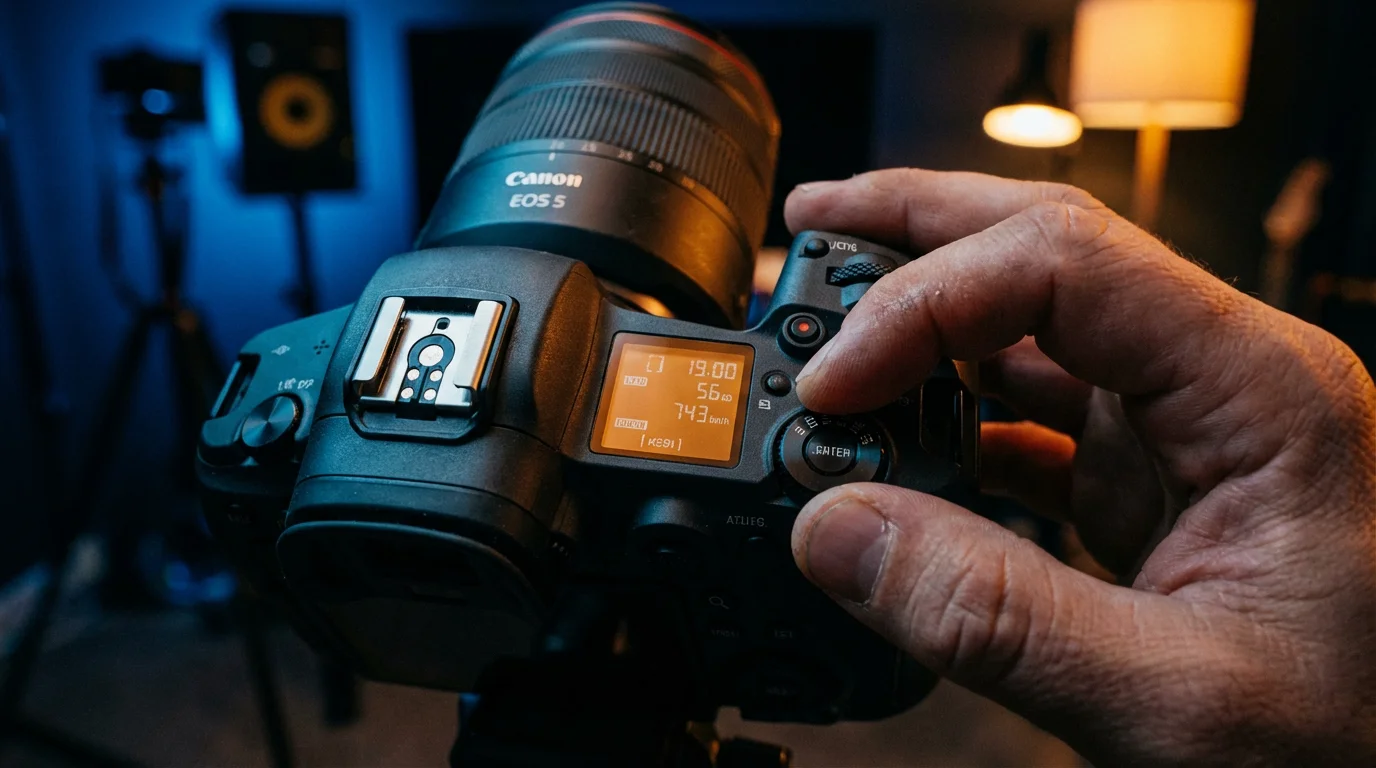
When you press the shutter button, your camera acts as a meticulous bookkeeper. It records dozens of parameters in a fraction of a second. Understanding these specific fields helps you become a better photographer and a more organized archivist.
The reliability of this data capture often depends on the speed and quality of your hardware, making high-quality memory cards essential for any photographer.
The most crucial field is the Date and Time Original. This tag represents the exact millisecond the image was captured. For family historians, this is the holy grail of information. It allows you to place a photo precisely in a timeline, even if the file was renamed or moved decades later. According to Digital Photography Review, ensuring your camera’s internal clock is accurate is the single most important step in digital photo hygiene.
Next are the exposure settings: Aperture (f-stop), Shutter Speed, and ISO. These tell the story of the light. If you find a photo you love and want to replicate the look, checking the EXIF data reveals how you achieved that shallow depth of field or captured that crisp motion. Furthermore, the Lens and Focal Length tags tell you exactly which equipment was used—information that is invaluable if you are deciding which gear to bring on your next trip.
“Metadata acts as the digital DNA of a photograph; it provides the context necessary to turn a simple image into a verifiable historical document.”
Finally, modern devices often include GPS Metadata. This records the latitude, longitude, and sometimes even the altitude of the photo’s location. While this is incredibly helpful for mapping out a family vacation, it also carries privacy implications that you must manage carefully.

How to View EXIF Data on Any Device
You do not need fancy software to access photo information. Most operating systems have built-in viewers that reveal the basic EXIF tags hidden within your files.
On a Windows PC, right-click any image file and select “Properties.” Navigate to the “Details” tab. Here, you will see a list of everything from the camera model to the exposure settings. You can even edit some of these fields—like the title or tags—directly from this menu. This is a quick way to add basic organization to a folder of images without opening a dedicated photo editor.
On a Mac, the process is equally simple. Open the image in “Preview,” then go to “Tools” in the top menu and select “Show Inspector” (or press Cmd+I). Click on the small “i” icon, and you will see tabs for General, EXIF, and GPS data. macOS provides a very clean interface for seeing exactly where a photo was taken on a map if the GPS data is present.
For those using mobile devices, iOS and Android have integrated these features into their native gallery apps. On an iPhone, opening a photo and tapping the “i” icon displays the camera model, lens, and location. This accessibility makes it easy to verify the date of a photo while you are on the go, ensuring you always have the context of your memories at your fingertips.
Bridging the Gap: Metadata for Scanned Heritage Photos
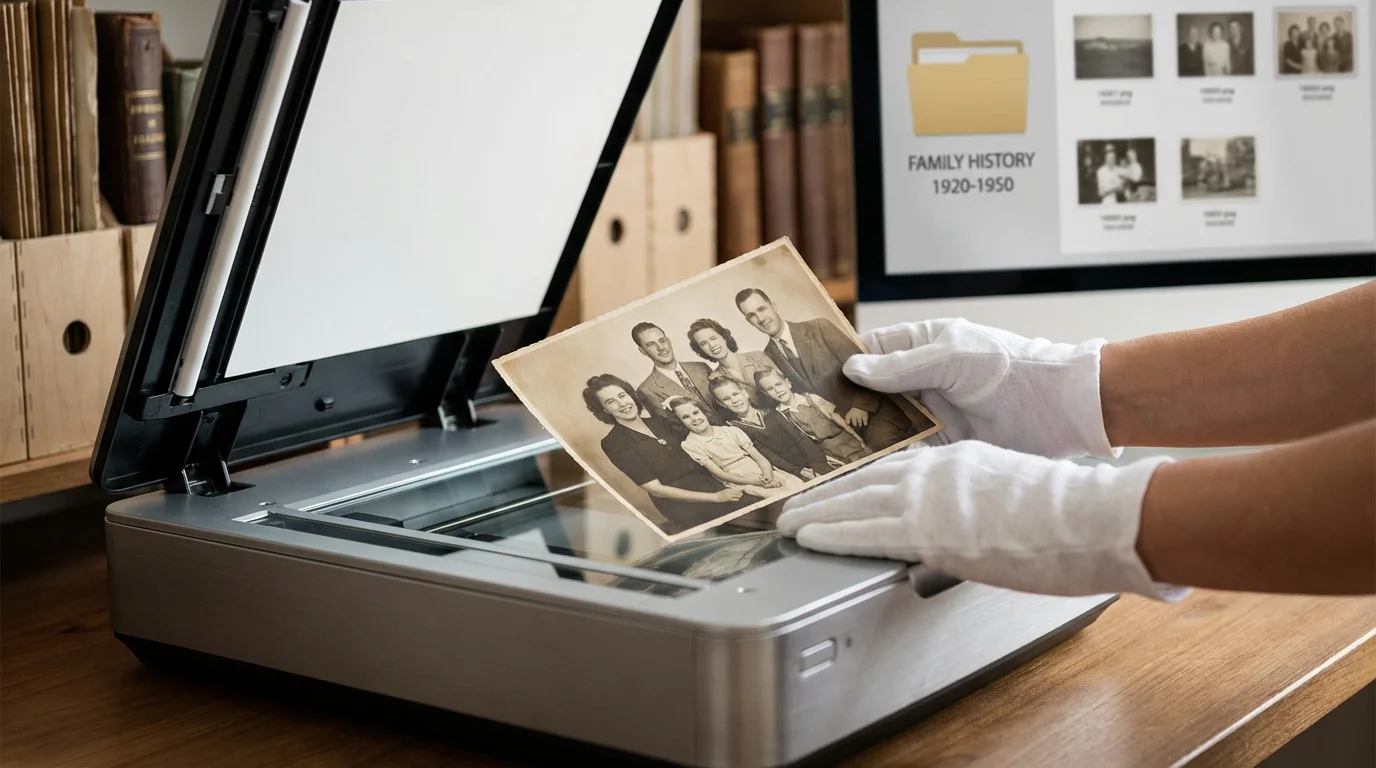
Preserving old family photos presents a unique challenge: scanners do not know when a physical print was actually made. When you scan a photo from 1945, the computer assigns it a “Date Created” of today. This disconnect can ruin your digital organization, making your grandmother’s childhood photos appear right next to your recent lunch pictures.
Before you can begin tagging, you must first learn how to scan old photos at home using settings that preserve as much original detail as possible.
You must manually intervene to correct this. By editing the photo metadata, you can change the “Date Taken” field to reflect the actual historical date. Even if you only know the year, setting the metadata to “January 1, 1945” is far better than leaving it as today’s date. This allows your photo management software to sort the images chronologically, creating a seamless timeline from the 19th century to the present.
When digitizing, follow these steps to maintain metadata integrity:
- Use a consistent naming convention: Include the year in the filename (e.g., 1952_Summer_Vacation_01.jpg).
- Add descriptive IPTC tags: Use keywords like “Family Heritage,” “Wedding,” or the names of the people in the photo.
- Correct the Date Taken: Use software like Adobe Bridge to batch-edit the dates of entire folders of scanned images.
The Library of Congress emphasizes that descriptive metadata is essential for the long-term survival of digital files. Without names and dates embedded in the file, future generations may not know who the people in the photos are, rendering the preservation effort moot.

Privacy Concerns: When to Keep or Strip Metadata
While EXIF data is a boon for organization, it can be a liability for privacy. GPS coordinates embedded in your photos can reveal your home address, your children’s school, or your daily routines to strangers if you share those photos publicly. Most social media platforms automatically strip this data to protect you, but personal blogs or direct file sharing might not.
Once your metadata is cleaned and organized, protect your hard work by following the 3-2-1 backup rule for ultimate security.
You should be intentional about what you share. When sending photos to a close family member or a professional archivist, keep the metadata intact. It provides the necessary context for their records. However, if you are posting an original high-resolution file to a public forum, consider using a “metadata scrubber” or the “Export for Web” feature in your editing software to remove sensitive information.
In Windows, you can remove metadata by going to the “Details” tab in the file properties and clicking “Remove Properties and Personal Information” at the bottom. This allows you to create a copy of the photo with all identifying information removed. For smartphone users, check your camera settings—you can often toggle “Location Tags” off entirely if you prefer not to record that data in the first place.

Best Tools for Managing and Editing Photo Metadata
If you have thousands of photos to organize, manual editing via file properties is too slow. You need robust tools designed for batch processing and deep metadata management.
Properly managed metadata is the final step in creating a digital family archive that turns a simple camera roll into a lasting heirloom.
Adobe Lightroom Classic is the industry standard for a reason. It offers powerful metadata templates that allow you to apply copyright information and keywords to thousands of photos simultaneously. Its “Library” module makes it easy to filter your entire collection by camera, lens, or even the specific date a photo was taken.
For those who want a free, open-source option, ExifTool by Phil Harvey is an incredibly powerful command-line application. While it has a steeper learning curve, it can read and write metadata in almost every file format imaginable. Many third-party apps with graphical interfaces actually use ExifTool as their engine.
Photo Mechanic is another favorite among professionals, especially those who need to add captions and keywords quickly. It is significantly faster than Lightroom for “culling” and “ingesting” photos, making it ideal for large heritage projects where you are processing hundreds of scans at once.
“The best time to add metadata to your photos was the day you took them; the second best time is today.”
By implementing a consistent metadata workflow, you ensure that your digital library remains an asset rather than a burden. You move from “searching” for photos to “finding” them instantly. This level of organization is the ultimate gift to your future self and your descendants.
Frequently Asked Questions
Can I see EXIF data on my smartphone?
Yes, most modern smartphones allow you to view photo information directly. On an iPhone, tap the “i” icon or swipe up on a photo in the Photos app. On Android, open the photo in Google Photos, tap the three dots, and select “Details” to see camera settings and location data.
Does photo metadata survive being shared on social media?
Usually, no. Platforms like Facebook, Instagram, and WhatsApp typically strip EXIF data to protect user privacy and reduce file sizes. If you want to share photos with the metadata intact, use cloud storage links like Google Drive or Dropbox, or send them as document attachments.
Is it possible to add metadata to scanned old photos?
Absolutely. Since scanners don’t know when a physical photo was originally taken, you must manually add that information. Software like Adobe Lightroom, Adobe Bridge, or specialized tools like Photo Mechanic allow you to edit the “Date Taken” and “Location” fields so your digitized heritage remains organized.
Does metadata increase the file size of my photos?
While metadata does take up some space, it is negligible. It typically adds only a few kilobytes to a file that might be several megabytes in size. The benefits of organization and searchability far outweigh the tiny amount of storage it consumes.
Disclaimer: This article is for informational purposes only. When handling valuable or irreplaceable photographs, consider consulting a professional conservator. Always test preservation methods on non-valuable items first.