A digital photograph feels permanent, but it is actually one of the most fragile objects you own. Unlike a physical print that may fade slowly over decades in a shoebox, a digital file can vanish in a millisecond. A spilled cup of coffee on a laptop, a sudden surge of electricity during a thunderstorm, or a mechanical failure inside a hard drive can instantly erase years of family history. If you treat your digital photos as invincible, you risk losing the only visual records of your children’s childhood, your parents’ weddings, and your own life’s milestones. To prevent this heartbreak, professional archivists and photographers rely on a standardized backup strategy known as the 3-2-1 backup rule.
You may feel overwhelmed by the technical jargon of storage capacities and cloud synchronization, but the core of photo preservation is simple redundancy. By spreading your images across different devices and locations, you ensure that no single accident can destroy your entire collection. This guide breaks down the 3-2-1 backup rule into actionable steps, helping you build a resilient system that protects your photographic heritage for the next generation.

Defining the 3-2-1 Rule for Photo Preservation
The 3-2-1 backup rule is not just a suggestion; it is a foundational principle of data management. It provides a roadmap for your photo backup journey, ensuring that your backup strategy covers all potential points of failure. The rule states that you should have:
- 3 total copies of your data: One primary copy (the version you work on) and two backups.
- 2 different media types: Store your copies on different technologies, such as an internal hard drive and an external Solid State Drive (SSD).
- 1 copy offsite: Keep at least one version of your library in a different physical location, such as a cloud service or a hard drive kept at a relative’s house.
When you apply this rule, you move from a “hope for the best” approach to a “prepared for the worst” reality. If your primary computer dies, you have two backups left. If one backup drive fails simultaneously, you still have the offsite copy. This layered defense is the best photo backup strategy because it accounts for both local disasters—like a house fire—and localized technology failures—like a corrupted drive. Understanding the 3-2-1 backup rule explained in this context allows you to see the vulnerabilities in your current habits and fix them before a crisis occurs.
Why Three Copies are the Magic Number
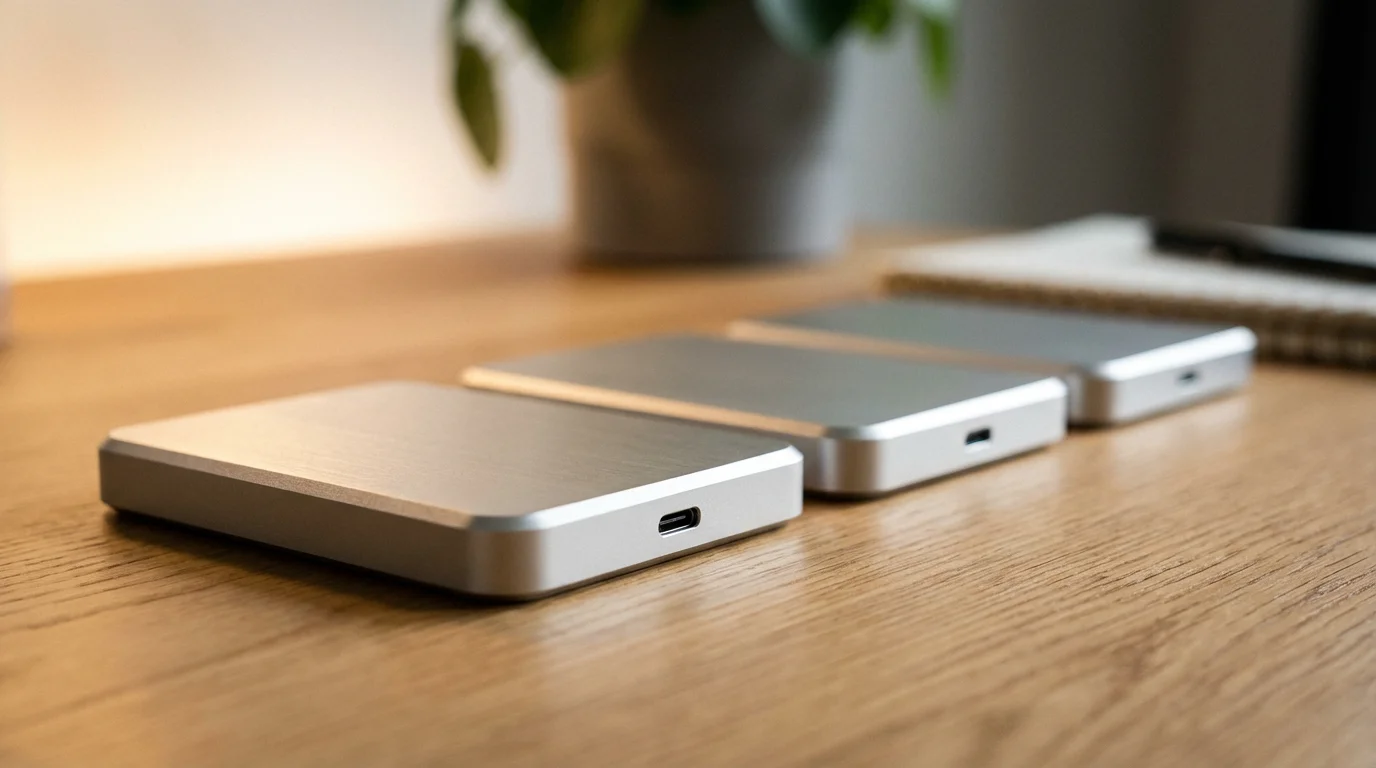
You might wonder why two copies aren’t enough. Many people believe that having their photos on their laptop and an external drive is sufficient. However, redundancy is a game of probability. Hardware components share similar lifespans; if you bought two identical hard drives at the same time, they might fail within months of each other. Furthermore, human error often accounts for data loss. If you accidentally delete a folder on your laptop and your backup software immediately syncs that deletion to your only backup drive, you have effectively lost those photos twice.
By maintaining three copies, you create a safety net. Your primary copy is your active library—the one you browse and edit. Your second copy is your local backup, usually an external drive connected to your computer that updates automatically. Your third copy acts as the ultimate insurance policy. Professionals often refer to this as the “primary, secondary, and tertiary” structure. In this scenario, the risk of all three failing simultaneously is statistically negligible, provided they are managed correctly.
“The value of a photograph increases over time as the memory it depicts fades; therefore, the effort to preserve it must increase proportionally to its value.”
Consider the “silent killer” of digital data: bit rot. Over time, the magnetic or electronic charge that represents your data can degrade, causing files to become unreadable. If you only have two copies and one develops bit rot, you might not notice until it is too late. With three copies, you can compare files across versions to ensure your digital heritage remains intact.
Selecting Two Different Media Types
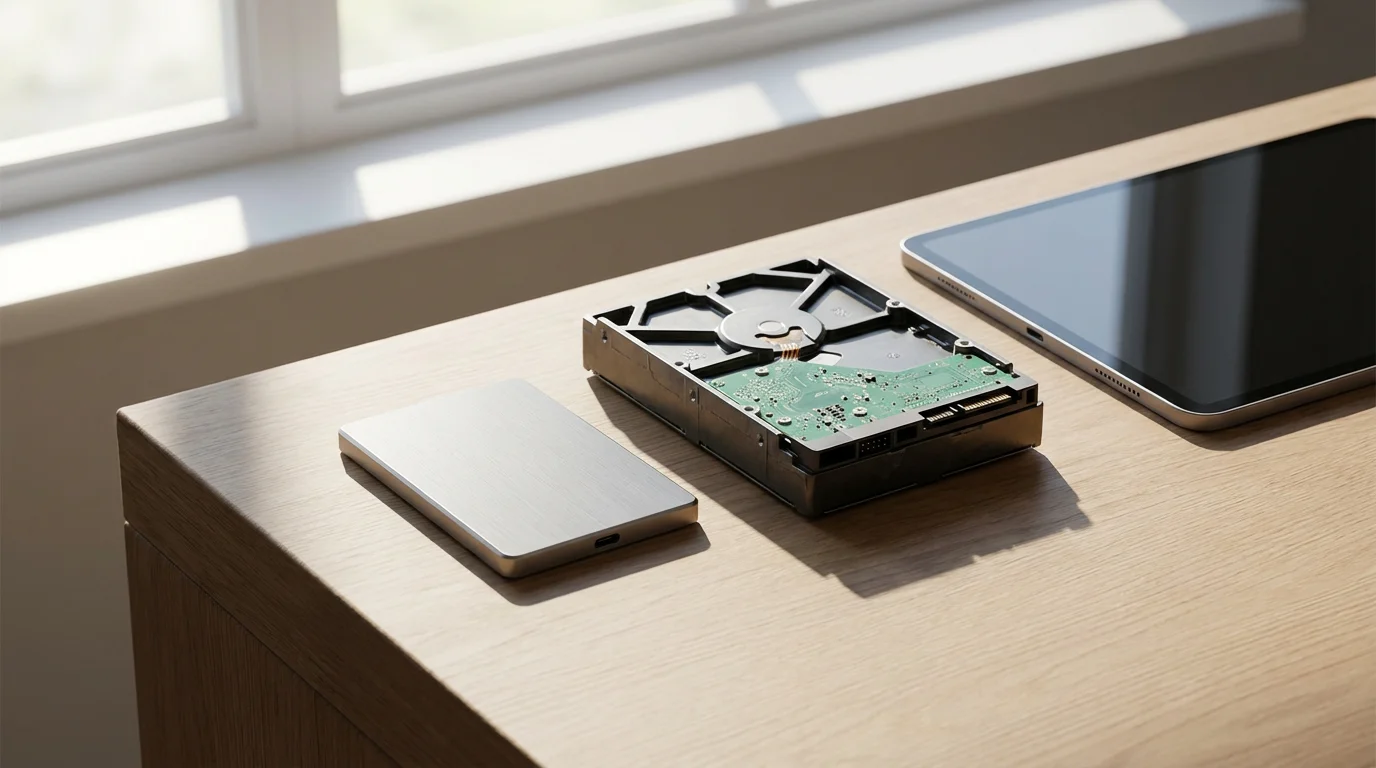
Using two different types of storage media protects you against systemic failures in technology. If you store all three copies on the exact same model of external hard drive, a manufacturing defect could potentially ruin all of them. Diversifying your media types spreads the risk across different physical formats. Common options for photo storage include:
For advanced users, a Network Attached Storage (NAS) device provides robust local redundancy; check out our guide on the best photo storage NAS drives to see if it’s right for you.
| Media Type | Pros | Cons |
|---|---|---|
| Hard Disk Drive (HDD) | High capacity, very affordable per gigabyte. | Mechanical parts can fail; sensitive to movement. |
| Solid State Drive (SSD) | Fast, no moving parts, resistant to drops. | More expensive; can lose data if left unpowered for years. |
| Cloud Storage | Automated, accessible anywhere, offsite by nature. | Requires subscription fees and internet access. |
| Optical Media (M-Disc) | Extremely durable, designed to last 1,000 years. | Low capacity, slow to write, requires specialized drives. |
For your home setup, a practical approach involves using your computer’s internal SSD as your primary workspace, a high-capacity HDD as your primary backup, and a cloud-based service as your secondary backup. This combination leverages the speed of SSDs for editing, the cost-efficiency of HDDs for bulk storage, and the geographic protection of the cloud. When selecting hardware, look for reputable brands and read reviews on sites like Digital Photography Review to find drives that offer high reliability for large photo libraries.

The Power of One Offsite Location
The “1” in the 3-2-1 rule is often the most neglected step, yet it is the most critical for protection against catastrophic loss. A “local-only” backup system—where your laptop and your backup drive sit on the same desk—will fail you if there is a flood, fire, or theft. Offsite storage ensures that even if your home is physically compromised, your memories remain safe.
Beyond digital backups, consider creating a photo emergency go-bag to protect your most precious physical items from sudden natural disasters.
Cloud storage is the most popular modern solution for offsite backup. Services like Backblaze, IDrive, or Google Photos offer automated syncing that works in the background. However, you must distinguish between “cloud sync” and “cloud backup.” Services that sync (like iCloud or Dropbox) are designed for accessibility; if you delete a photo on your phone, it disappears from the cloud. True cloud backup services keep historical versions of your files, allowing you to recover data even after accidental deletions.
If you prefer not to use the cloud, you can implement a “sneakernet” offsite backup. Buy two external hard drives. Keep one at your home for weekly backups and store the other at your office or a trusted friend’s house. Every month, swap them. This provides physical separation without a monthly subscription fee. Regardless of the method, the goal is geographic diversity.

Organizing Your Assets Before the Backup
A backup of a mess is still a mess. Before you commit your life’s work to multiple drives, you should spend time organizing your files. This makes it easier to verify that your backups are complete and allows you to find specific memories without sifting through thousands of “IMG_4829.jpg” files. A clean organization system usually follows a chronological and descriptive structure.
Start by centralizing your photos. Gather images from old phones, stray SD cards, and forgotten flash drives into one master folder. Use a standard naming convention, such as: YYYY-MM-DD-Event-Description. For example, “2023-06-15-Grandmas-80th-Birthday.” Inside these folders, keep your original, unedited files. If you use editing software, ensure your catalog file (the database that tracks your edits) is also part of your 3-2-1 backup routine.
The Library of Congress Preservation department emphasizes the importance of metadata. If you add keywords, dates, and locations to your photos’ metadata, that information travels with the file across all your backup copies. This “self-documenting” approach ensures that even fifty years from now, your descendants will know exactly who is in the photos and why they were taken.

The Critical Role of Backup Verification
The biggest mistake you can make is assuming your backup is working just because the software says so. Technology fails silently. Files can become corrupted during transfer, or a drive might simply stop spinning after a year of disuse. You must perform regular “health checks” on your photo library to ensure your 3-2-1 system remains functional.
Set a recurring calendar reminder every three months to verify your backups. Open a random selection of 20 to 30 photos from your backup drives and your cloud storage. Ensure they open correctly and show no signs of visual artifacts. Check the total file count of your primary library against your backups; if the numbers don’t match, you might be missing folders. Many professional backup tools offer a “checksum” or “verification” feature that automatically compares the source and destination files to ensure they are bit-for-bit identical.
Furthermore, hardware is not permanent. Most external hard drives have a reliable lifespan of three to five years. Do not wait for a drive to fail before replacing it. Proactively migrate your photos to new hardware every few years. This process, known as “refreshing,” is a core tenet of long-term digital preservation. Think of it like changing the oil in your car; it’s a small maintenance task that prevents a total engine failure.
Bridging the Gap: Scanning Physical Photos
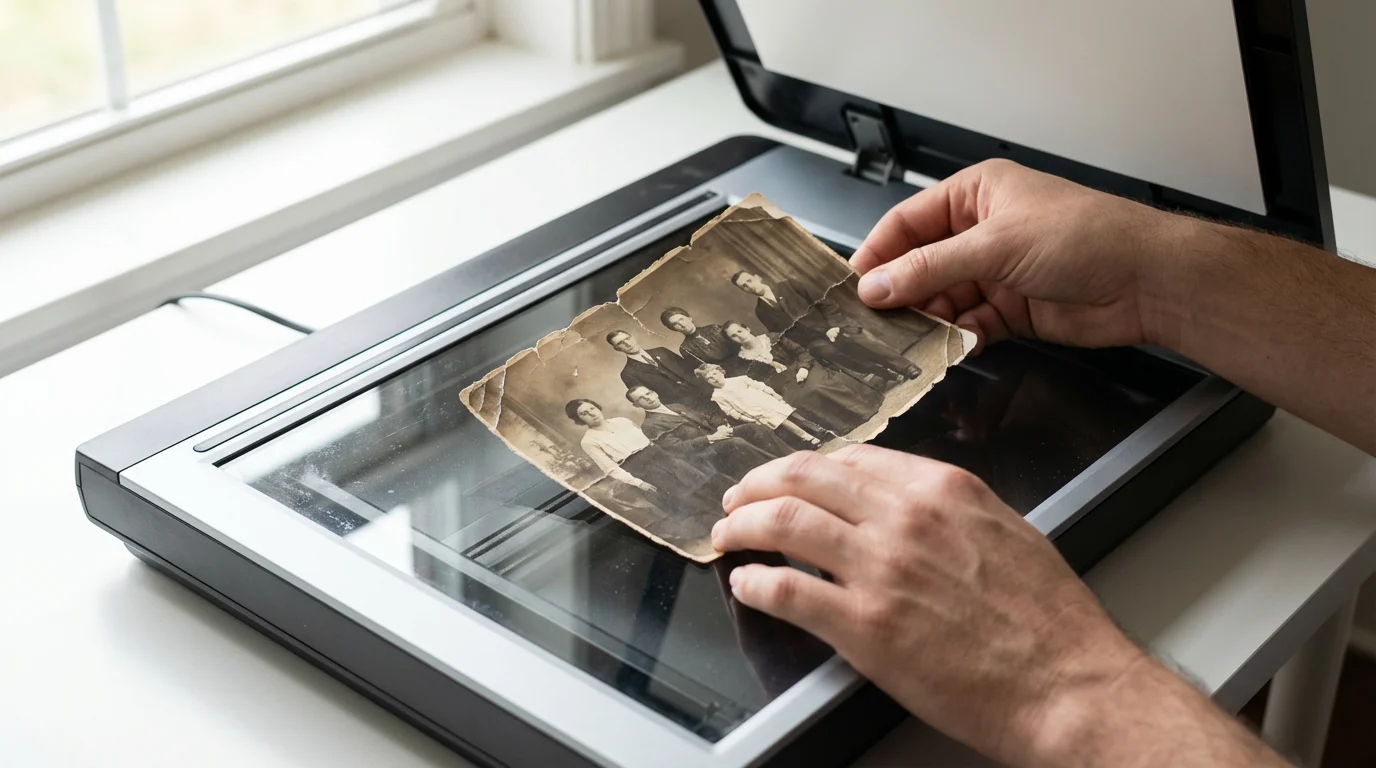
If you have inherited boxes of vintage prints or slides, the 3-2-1 rule begins with digitization. A physical photograph is a single point of failure. If that print is lost, the image is gone forever. Scanning your physical heritage brings those memories into your modern backup strategy.
When you digitize old family prints, you ensure that your ancestral history is integrated into your modern 3-2-1 backup system.
When scanning, aim for high-quality formats. Save your images as TIFF files rather than JPEGs whenever possible. TIFFs are “lossless,” meaning they retain every detail the scanner captures, whereas JPEGs compress the image and lose data every time you save them. For more guidance on technical standards, the Image Permanence Institute provides excellent resources on how different materials react to digital capture and storage.
Once you have digitized your physical photos, treat them with the same respect as your digital-born images. Add them to your organized master library and let the 3-2-1 rule take over. Remember to keep the original physical prints as well. In the 3-2-1 framework, the original physical print counts as one of your “different media types.” Store the physical versions in archival-quality, acid-free boxes in a cool, dry place, separate from where you keep your digital backup drives.
“Preservation is a marathon, not a sprint. The goal is not to find a permanent storage device, but to build a permanent process of migration.”
Frequently Asked Questions
Is Google Photos or iCloud a complete backup solution?
No, they are primarily synchronization services. While they provide offsite storage, they do not satisfy the “3” or “2” parts of the 3-2-1 rule on their own. If you accidentally delete a photo from your phone, it may be deleted from the cloud instantly. You should still maintain a local copy on a computer and an additional backup on an external hard drive.
What is the difference between a backup and an archive?
A backup is a copy of data you are currently using or editing, intended for quick recovery. An archive is a collection of data you no longer need frequently but want to keep for the long term. Both should follow the 3-2-1 rule, but archives are often stored on more durable, slower media like cold-storage HDDs or M-Discs.
Can I use a NAS (Network Attached Storage) for my 3-2-1 strategy?
A NAS is an excellent tool for the “primary” or “local backup” copy. It allows for large storage capacities and can even be configured with RAID (Redundant Array of Independent Disks) to protect against a single drive failure. However, a NAS sitting in your house still counts as a “local” copy. You still need an offsite version in the cloud or at another location to complete the rule.
Should I use a flash drive for long-term backups?
Flash drives and thumb drives are generally not recommended for long-term photo storage. They are easy to lose, susceptible to static electricity, and have a higher failure rate than dedicated external hard drives or SSDs. Use them for transferring files, but do not rely on them as one of your three permanent copies.
Implementing the 3-2-1 backup rule requires an initial investment of time and a small amount of money for hardware, but the peace of mind it provides is invaluable. You are not just managing files; you are safeguarding your family’s history. Start today by identifying your primary photo collection, purchasing a dedicated backup drive, and selecting a cloud provider. Your future self—and your grandchildren—will thank you for the effort you took to ensure these memories never fade away.
Disclaimer: This article is for informational purposes only. When handling valuable or irreplaceable photographs, consider consulting a professional conservator. Always test preservation methods on non-valuable items first.