

Your digital photo library represents a lifetime of milestones—the blurry first steps of a child, the golden light of a distant vacation, and the faces of ancestors you never met but whose legacy you carry. Yet, these digital assets are remarkably fragile. A single spilled coffee, a sudden power surge, or a forgotten password can erase decades of history in an instant. Protecting these memories requires more than just luck; it requires a systematic approach to photo backup.
Before investing in storage, it is essential to learn how to create a photo organization system that keeps your files cataloged and easy to find.
The debate between using an external hard drive backup and relying on the best cloud storage for photos often feels like a choice between two competing philosophies. On one side, you have the tangible security of hardware you can hold in your hand. On the other, you have the infinite, accessible convenience of the cloud. This guide breaks down the technical nuances, costs, and practical realities of both systems to help you build a bulletproof preservation plan.

The Power of Tangible Assets: External Hard Drives and SSDs
External hard drives serve as the bedrock of traditional photo preservation. When you save your images to a physical drive, you retain absolute ownership and control over your data. There are no monthly fees, no concerns about a tech company changing its terms of service, and no need for an internet connection to view your gallery.
For a more advanced local setup, check out the best photo storage NAS drives to build your own private cloud.
To keep these physical drives tidy, take the time to begin creating a folder structure for your photo library that makes sense to you.
For those who want to dive deeper into on-premise hardware, check out our guide on local photo backup solutions to explore NAS and other physical media.
You generally choose between two technologies: Hard Disk Drives (HDD) and Solid State Drives (SSD). HDDs utilize spinning magnetic platters and are incredibly cost-effective for large collections. You can often purchase a 5TB HDD for under $120, providing enough space for roughly one million high-quality JPEGs. However, because they rely on moving parts, they are susceptible to damage from drops or vibration.
SSDs, by contrast, use flash memory. They are significantly faster—a crucial factor if you are transferring large RAW files or 4K video. While more expensive per gigabyte, their lack of moving parts makes them the superior choice for photographers on the go. According to technical reviews on Digital Photography Review, the speed gains of an SSD can reduce backup times from hours to minutes, encouraging you to maintain a more consistent backup schedule.
Hard drives are not permanent storage containers; they are temporary vessels that require regular maintenance and replacement every few years to avoid catastrophic data loss.
When you use an external hard drive backup, you bypass the bottleneck of upload speeds. If you have 500GB of wedding photos to secure, plugging in a USB 3.0 or USB-C drive allows for nearly instantaneous local transfers. This immediacy provides a psychological sense of security that the cloud cannot replicate.

The Virtual Vault: Why Cloud Storage Dominates Modern Workflow
Cloud storage revolutionizes photo management by removing the “single point of failure” risk associated with hardware. If your house suffers a fire, flood, or burglary, your external hard drive might vanish alongside your computer. Cloud services store your data in geographically redundant data centers, meaning your photos exist in multiple locations simultaneously.
To get started with mobile syncing, see our step-by-step guide on setting up automatic photo backup from your phone.
If you are struggling with decades of files, learning how to organize 20 years of digital photos can help you sort your archive before uploading.
The best cloud storage for photos offers more than just space; it offers intelligence. Services like Google Photos or Apple iCloud use AI to categorize your images automatically. You can search for “dog” or “beach,” and the service retrieves the relevant memories instantly. This level of organization is nearly impossible to maintain manually on a standard hard drive without hundreds of hours of tagging.
Automation is the cloud’s greatest strength. Most mobile apps sync your camera roll in the background. The moment you snap a photo, the backup process begins. This “set it and forget it” mentality ensures that even the most disorganized user has a safety net. Furthermore, the cloud allows for seamless sharing. Instead of mailing a physical drive to a relative, you can share a secure link to a high-resolution gallery in seconds.
The Financial Reality: Long-Term Costs vs. Upfront Investment
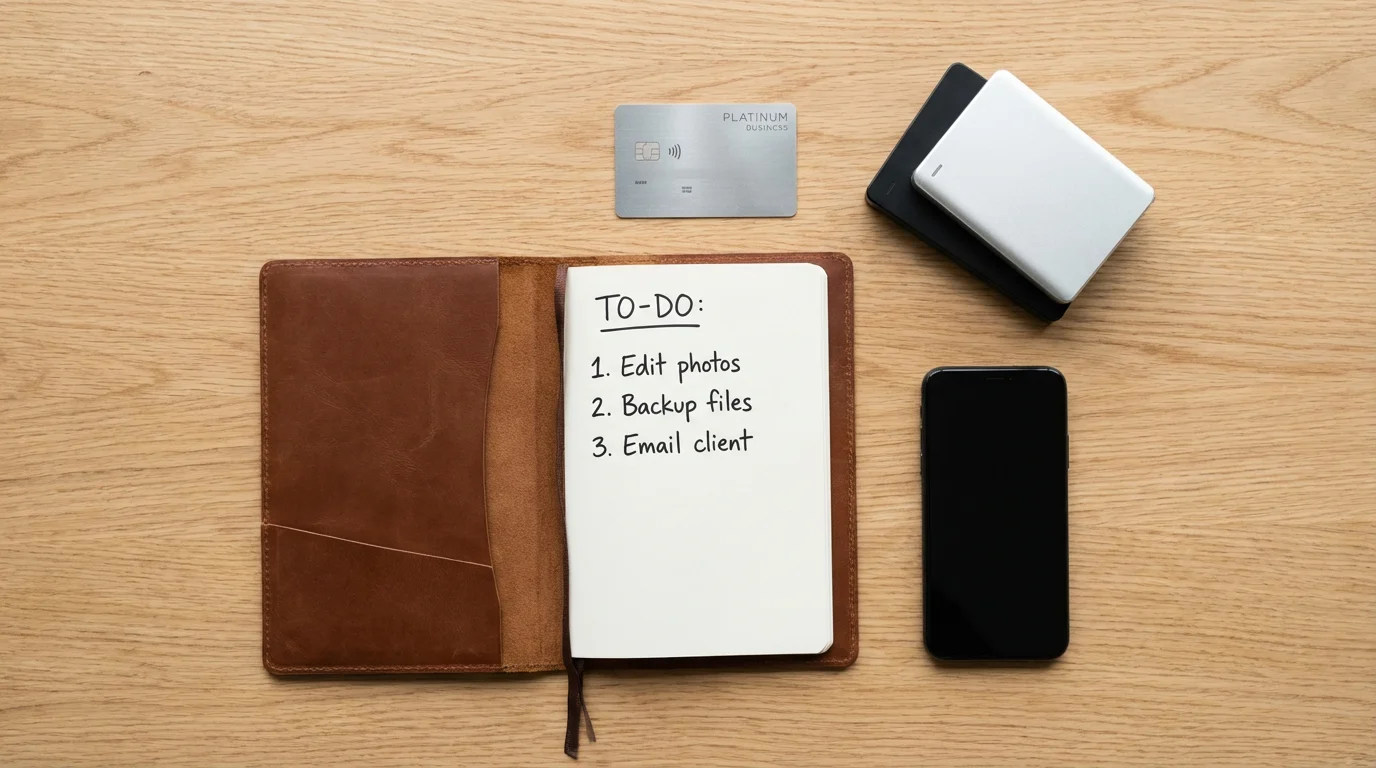
When choosing your storage method, you must look beyond the initial price tag. Physical hardware follows a “buy once, cry once” model. You pay for the drive upfront and own the capacity until the device fails. However, you must factor in the cost of replacement. Since drives typically last 3 to 5 years, your “one-time” cost repeats throughout your lifetime.
To minimize these expenses, try decluttering your photo collection to delete duplicates and blurry shots before buying storage.
Cloud storage operates on a subscription model, which creates “subscription fatigue” for many. Below is a breakdown of how costs typically scale over a five-year period for a 2TB collection:
| Storage Type | Initial Cost | Monthly Fee | 5-Year Total |
|---|---|---|---|
| External HDD (Local) | $60 – $80 | $0 | $60 – $80 |
| Portable SSD (Local) | $150 – $180 | $0 | $150 – $180 |
| Google One / iCloud (Cloud) | $0 | $9.99 | $599.40 |
| Backblaze (Cloud Backup) | $0 | $9.00 | $540.00 |
While the hard drive appears much cheaper, it lacks the secondary benefits of the cloud, such as off-site protection and mobile access. Conversely, the cloud costs more over time but offers a “service” rather than just a “product.” You are paying for the electricity, the physical security of the data centers, and the software development that keeps the apps running. For many, the peace of mind is worth the $120 annual investment.
Bit Rot and Mechanical Failure: How Long Do Your Backups Really Last?
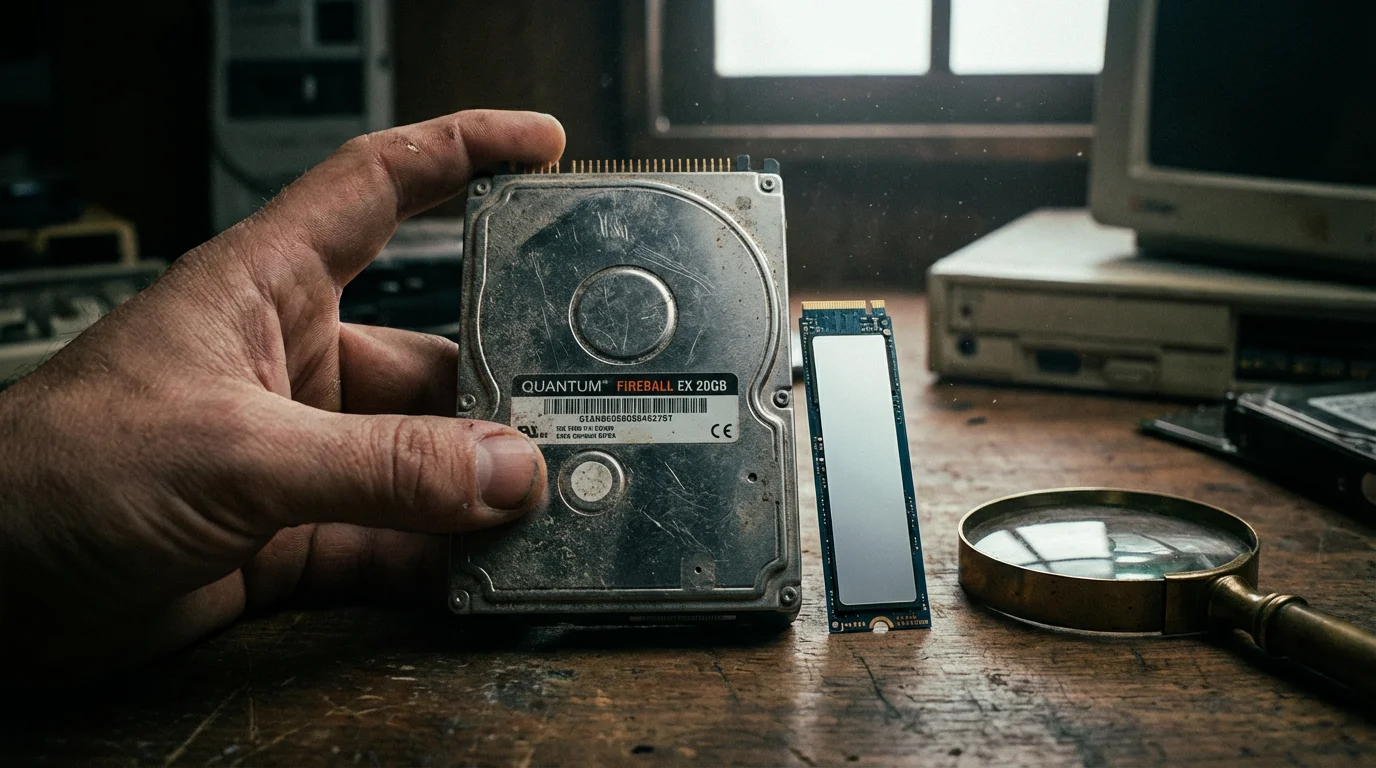
We often treat digital files as eternal, but they are subject to a phenomenon known as “bit rot” or data degradation. Over time, the magnetic orientation on an HDD or the electrical charge in an SSD cell can shift. This leads to corrupted files that refuse to open or display artifacts in your images.
Before you even worry about digital longevity, it is critical to recognize the importance of backing up physical photos digitally if you have legacy paper albums lying around.
The Library of Congress Preservation guidelines emphasize that digital media is not “archival” in the same way that acid-free paper is. To combat this, you must engage in “data refreshing.” This involves moving your photos to a new drive every few years. If you leave a hard drive in a drawer for ten years without power, there is a significant chance it will not spin up or will have lost data integrity when you finally plug it in.
Cloud providers mitigate this risk through a process called “checksumming.” Their systems constantly scan files for errors and replace corrupted bits with healthy versions from redundant copies. In this sense, the cloud is technically more “permanent” than a hard drive because the provider handles the hardware migration and maintenance behind the scenes. You never have to worry about a “dead drive” in the cloud, as long as your account remains active and paid.
The Security Spectrum: Hacking Risks vs. Physical Vulnerability
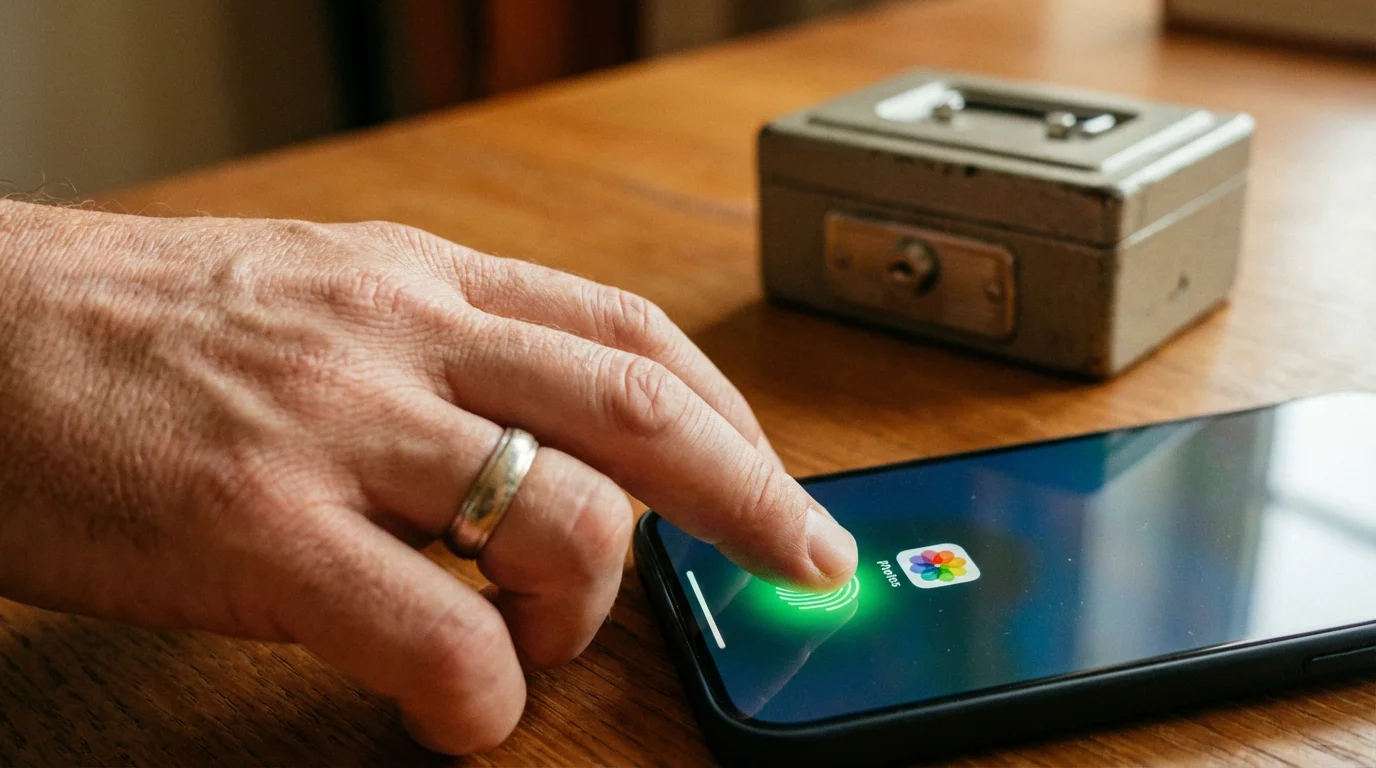
Security is a double-edged sword. With a physical hard drive, your primary risks are environmental and local. A house fire, a flood, or a simple burglary can result in the total loss of your photographic heritage. However, your data is “air-gapped”—it is not connected to the internet, making it virtually impossible for a hacker in another country to access your private family moments.
Cloud storage introduces the risk of account compromise. Weak passwords or a lack of two-factor authentication (2FA) can leave your library vulnerable to bad actors. There is also the matter of privacy. When you upload your photos to major tech platforms, you are often agreeing to let their algorithms “scan” your images to improve their AI services. While most major providers encrypt your data, it is rarely “zero-knowledge” encryption, meaning the provider could technically access the files if compelled by law or a massive internal breach.
To maximize security in the cloud, you should always:
- Enable Two-Factor Authentication (2FA) using an app like Google Authenticator or a physical security key.
- Use a unique, complex password for your storage account that you do not use anywhere else.
- Review “authorized devices” regularly in your account settings.
- Consider “Zero-Knowledge” providers like Sync.com or pCloud if privacy is your absolute priority.

The 3-2-1 Rule: Creating a Hybrid Photo Preservation System
Experts in the preservation community, including the Smithsonian Archives, advocate for the 3-2-1 backup rule. This strategy ensures that no single event—no matter how catastrophic—can destroy your memories. The showdown between cloud and hard drive shouldn’t end with a winner; it should end with a partnership.
For those whose collections start as paper prints, hiring professional photo scanning services is a great way to kickstart your 3-2-1 backup workflow.
Setting up a robust copy system is a foundational step in creating a home photo archive that will preserve your family history for generations.
The 3-2-1 rule stands for:
- 3 Copies of your data: Keep your original files plus two backups.
- 2 Different media types: Use two different technologies to store those copies (e.g., an internal SSD and an external HDD).
- 1 Off-site copy: Keep one backup in a different physical location (e.g., the cloud or a drive kept in a safe-deposit box).
By following this rule, you gain the benefits of both systems. Your local hard drive provides fast access and no monthly fees for your primary backup. Your cloud account provides the “off-site” safety net that protects you from local disasters. If your hard drive fails, you download from the cloud. If the cloud provider goes out of business or your internet is down, you pull from your hard drive.
The most expensive backup is the one you don’t have when your primary drive fails.

Setting Up Your Ultimate Backup System Today
Do not let the fear of a complex system prevent you from starting. You can build a robust photo backup system in one afternoon by following these actionable steps.
Step 1: Consolidate your sources. Gather your old SD cards, your phone’s camera roll, and any images scattered across old laptops. Move everything into a single “Master Library” folder on your computer. Use a consistent folder structure, such as “YYYY-MM-DD_EventName,” to keep things organized.
Step 2: Initialize your local backup. Purchase a high-quality external hard drive (at least double the size of your current library). Connect it and set up automated backup software. Windows users can use File History, while Mac users should utilize Time Machine. These tools work in the background, copying new photos to your drive every time it is plugged in.
Step 3: Choose and configure your cloud service. Select a provider based on your ecosystem. If you use an iPhone, iCloud is the most seamless. If you are a professional photographer with massive RAW files, look at Backblaze, which offers unlimited backup for a flat monthly fee. Ensure you select “Original Quality” settings to avoid losing detail through compression.
Step 4: Verify your backups. Every six months, perform a “fire drill.” Try to open a few random photos from your external hard drive and download a few from your cloud storage. This ensures the files are not corrupted and that you remember your login credentials.
Frequently Asked Questions
How long do photos last on an external hard drive?
Most external hard drives have a lifespan of 3 to 5 years. While some may last a decade, physical components eventually wear out or the drive may suffer from bit rot. It is vital to refresh your hardware every few years to ensure data integrity.
Is cloud storage safer than a physical hard drive?
Cloud storage offers better protection against physical disasters like fire or theft, but it introduces risks related to privacy and recurring subscription costs. Ideally, safety comes from using both methods simultaneously as part of a 3-2-1 backup strategy.
Does cloud storage reduce the quality of my photos?
It depends on your settings. Services like Google Photos may compress images to save space unless you specifically choose “Original Quality.” Always verify that your chosen provider maintains the full resolution and metadata of your files.
What is the 3-2-1 backup rule for photography?
The 3-2-1 rule dictates that you should have three copies of your data, stored on two different types of media, with at least one copy located off-site (such as in the cloud or a different physical building).
Disclaimer: This article is for informational purposes only. When handling valuable or irreplaceable photographs, consider consulting a professional conservator. Always test preservation methods on non-valuable items first.






1 Comment