You carry a darkroom, a gallery, and a professional editing suite in your pocket every single day. Modern phone photography has transcended simple snapshots; it now rivals the capabilities of entry-level DSLR cameras. According to industry data, smartphones now account for over 90% of all photos taken globally. This shift means the tools available for enhancing these images have become incredibly sophisticated—yet many users barely scratch the surface of what their devices can achieve. Whether you are looking to rescue a dim photo of a family heirloom or turn a vacation sunset into a piece of wall art, the right software makes the difference between a cluttered digital folder and a curated legacy.
To ensure you start with the best possible shots, it helps to keep a few smartphone photography tips for family moments in mind while shooting.
Mastering photo editing allows you to honor the stories within your images. You can clarify the facial features of a grandparent in a shadowed room or remove a distracting modern car from the background of a historic home. These apps do not just add filters—they provide the surgical precision required to preserve the emotional weight of your memories. By learning to use these tools effectively, you transform your phone from a mere capture device into a powerful instrument for preservation and creative expression.
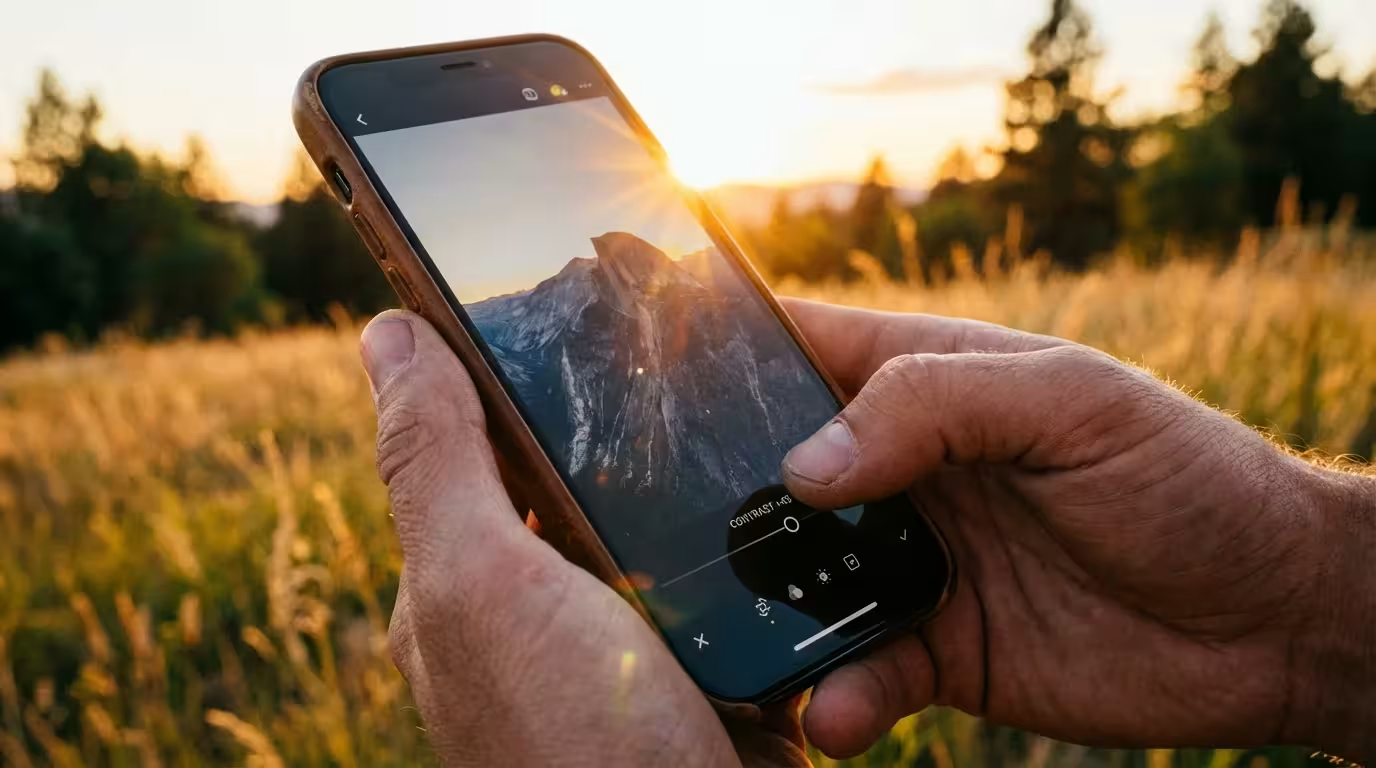
The Power of Mobile Darkrooms in Your Pocket
The transition from traditional film to digital photography changed how we interact with images, but the fundamentals of light and shadow remain the same. In the past, photographers spent hours in chemical-filled darkrooms to “dodge” and “burn” areas of a print. Today, you perform these same tasks with a swipe of your thumb. Using a high-quality photo editing app is not about distorting reality; it is about bringing the digital file closer to what your eye actually perceived at the moment you pressed the shutter.
If you are starting with physical prints, learning the proper techniques for scanning photos with your smartphone will give you a much cleaner digital file to work with.
If you need to digitize old prints first, utilizing specialized photo scanning apps is a great way to capture high-quality digital copies.
Smartphone sensors are small, which often leads to technical limitations like “noise” in low light or “blown-out” highlights in bright sun. Expert resources like Digital Photography Review frequently highlight how computational photography—the math your phone does behind the scenes—tries to fix these issues. However, the automated processing your phone applies by default is often aggressive and generic. Manual editing puts the control back in your hands, allowing you to decide which details matter most. This is especially vital when you are digitizing physical photo collections, where the goal is to replicate the authentic look of the original print while subtly repairing the ravages of time.
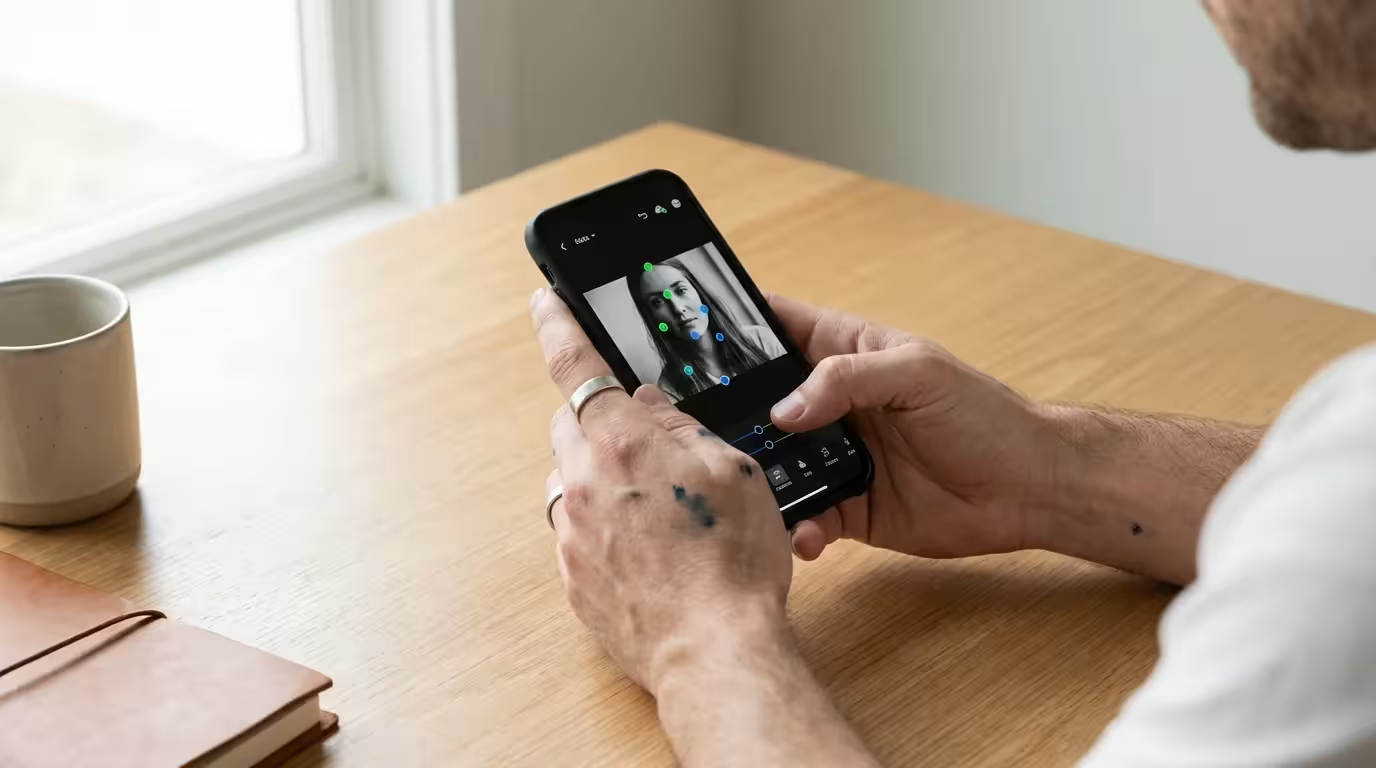
Snapseed: Professional Precision for Every Skill Level
If you are looking for a comprehensive, free mobile photo editor that offers professional-grade features without a subscription fee, Snapseed stands alone. Developed by Google, this app provides a tactile interface that makes complex adjustments feel intuitive. Its greatest strength lies in its “Selective” and “Brush” tools, which allow you to apply edits to specific parts of a photo rather than the entire image.
If your source image suffers from camera shake, you can also explore techniques to sharpen blurry photos to make faces and fine details stand out.
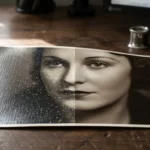
Learning these basic manual adjustments is also highly beneficial when you want to restore old faded photos from your family archives.
Imagine you have a photo of a family gathering where the people are in deep shadow but the sky behind them is beautifully bright. Most apps would brighten the whole photo, making the sky disappear into a white void. In Snapseed, you can use the Selective tool to place a control point on a person’s face and increase only the brightness and contrast of that specific area. This preserves the integrity of the background while making your subjects pop. Furthermore, the “Healing” tool is incredibly effective for removing small blemishes or dust spots on scanned images of old photographs; it samples the surrounding pixels to seamlessly cover the damage.
For those who want to understand the science behind their images, Snapseed’s “Curves” and “Histogram” tools are invaluable. You can manipulate the red, green, and blue channels independently to correct color casts caused by aging paper or poor indoor lighting. To learn more about how these graphical representations of light work, Cambridge in Colour offers excellent tutorials on histograms that apply directly to your Snapseed workflow.
Adobe Lightroom: The Industry Standard for Color and Detail
Adobe Lightroom is often considered the gold standard for photo apps, and for good reason. It is built on the same engine as its desktop counterpart, providing unparalleled control over color grading and light. While the app offers a premium subscription that syncs with your computer, the free version remains one of the most powerful tools for phone photography available today.
If you want to speed up your color adjustments, implementing a few Lightroom editing hacks can instantly transform your workflow.
While mobile organization is convenient, utilizing dedicated photo management software remains essential for cataloging your entire lifetime collection.
Lightroom excels in its ability to handle RAW files. Many modern smartphones, like the iPhone (Pro models) and various Samsung Galaxy devices, can capture images in a RAW format (such as DNG). These files contain significantly more data than a standard JPEG. Using Lightroom to edit RAW files allows you to recover details in the brightest clouds or the darkest shadows that would otherwise be lost forever. If you are serious about preserving family history through digital photography, Lightroom’s “Color Mix” tool allows you to target specific hues. For example, if an old color photo has turned unpleasantly orange over the decades, you can specifically lower the saturation of the orange tones without affecting the rest of the image’s color balance.
“The true power of Lightroom lies not in its filters, but in its ability to manage the delicate relationship between luminance and chrominance, giving the photographer total control over the mood of the memory.”
Beyond editing, Lightroom acts as a robust organizational system. You can tag photos, rate them with stars, and search for images based on the objects within them—such as “dog,” “mountain,” or “birthday.” This functionality is essential for anyone dealing with a digital library of thousands of unorganized images. When you organize your photos as you edit them, you build a searchable archive for future generations.

Adobe Photoshop Express: Speed Meets Creative Flexibility
While the full version of Photoshop is famous for its steep learning curve, Photoshop Express is designed for efficiency and creative flair. This app focuses on the “all-in-one” experience, combining standard editing tools with layout features like collages, borders, and text overlays. It is the perfect tool for creating meaningful memory projects, such as a multi-photo tribute for a wedding anniversary or a “then and now” comparison for a family reunion.
One of the standout features of Photoshop Express is its intelligent noise reduction. When you take photos in low-light environments, like a candlelit dinner or a dimly lit museum, the image often appears “grainy.” This is digital noise. Photoshop Express uses advanced algorithms to smooth out this grain while attempting to keep edges sharp. This makes your phone photography look significantly more professional and “clean.”
Additionally, the app includes a wide variety of “Looks”—sophisticated filters that you can adjust with a slider. Unlike the garish filters found on some social media platforms, these are designed to mimic professional color grading. You can apply a subtle “matte” finish to a portrait to give it a timeless feel, or use a high-contrast black-and-white look to emphasize the textures in a landscape. For those who want to add a personalized touch, the app’s text tool allows you to add dates, names, or locations directly to the image—a modern version of writing on the back of a physical photograph.
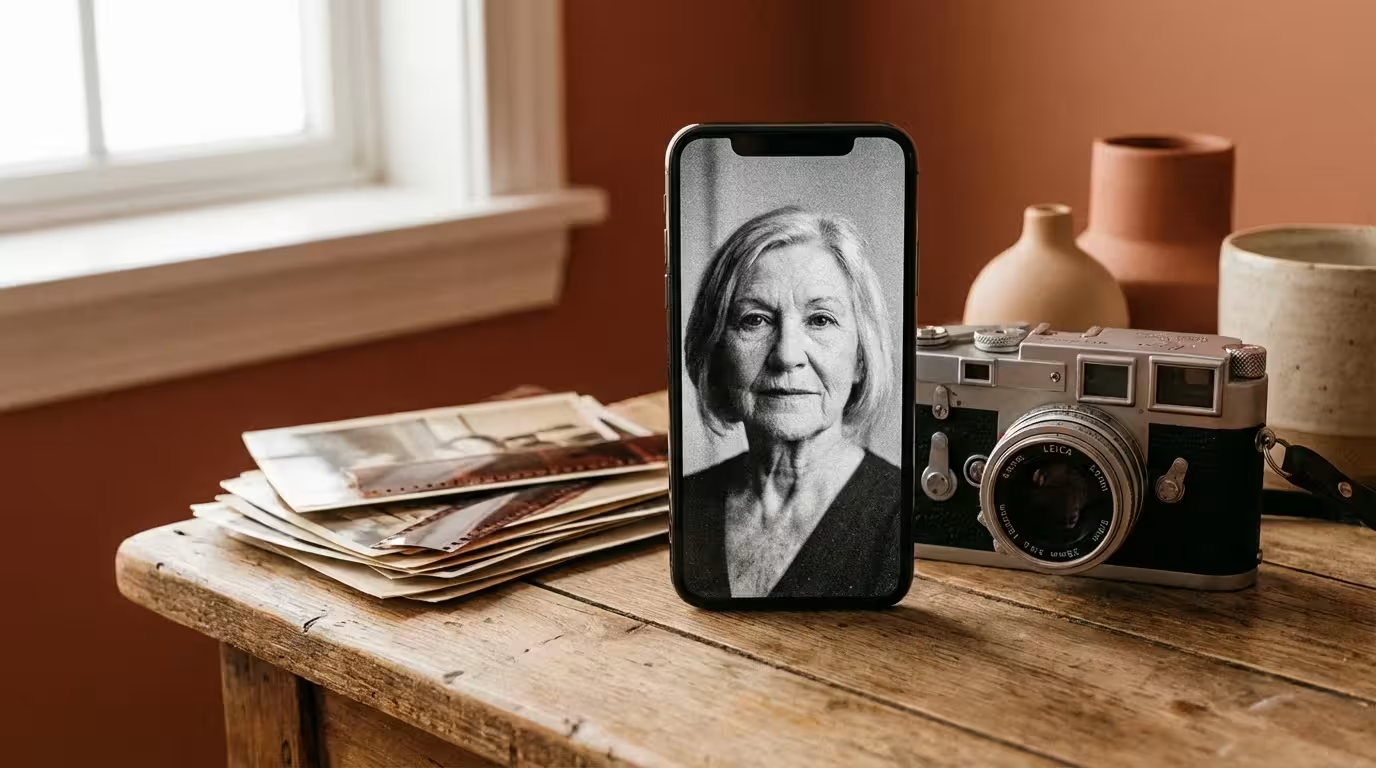
VSCO: Bringing the Soul of Analog Film to Digital Files
If you find yourself drawn to the warm, nostalgic look of old film stocks like Kodak Portra or Fuji 400H, VSCO is your essential companion. VSCO (Visual Supply Co.) started by creating presets for professional photographers, and their mobile app brings that same aesthetic sensibility to your smartphone. It is widely considered the best photo editing apps for those who prioritize a specific, cohesive “vibe” across their collection.
Because VSCO is highly popular for portraits, combining its film presets with basic portrait editing for beginners will help you enhance skin tones naturally.
VSCO operates differently than most editors. It encourages a “minimalist” approach to editing. Its presets are modeled after the chemical reactions of actual film, meaning they don’t just change colors; they change how light interacts with the textures of the photo. This is particularly useful when you want to make modern digital photos feel like they belong in a legacy album alongside photos from the 1970s or 80s. The “Grain” tool in VSCO is particularly praised for its realistic appearance, adding a sense of tactile history to a sharp digital file.
The app also features a “Recipes” tool, which allows you to save a specific set of edits and apply them to multiple photos instantly. If you have fifty photos from a single afternoon, you can edit one to perfection, save the recipe, and apply it to the rest in seconds. This ensures a consistent look for your digital albums. Using these tools helps you avoid the common mistake of “over-editing,” where a photo ends up looking plastic or artificial. VSCO rewards a subtle hand, preserving the “soul” of the moment while gently enhancing its beauty.

TouchRetouch: The Magic Wand for Flawless Compositions
Sometimes, the perfect photo is ruined by a single distracting element—a trash can in the background of a park photo, a power line cutting through a sunset, or a photobomber in a candid family shot. TouchRetouch is a specialized app designed for one purpose: removing unwanted objects with staggering accuracy. While other apps have “healing” tools, TouchRetouch offers dedicated features like the “Line Remover,” which can identify and erase thin wires or fences with a single tap.
While major suites offer healing brushes, specialized apps make removing unwanted objects from photos incredibly fast and seamless.
For complex damage like deep cracks or missing details, combining manual retouching with automated AI photo restoration tools can yield the best results.
For photo preservationists, this tool is a godsend. When you scan old photos, you often find scratches, hair, or dust that have been captured by the scanner. Attempting to fix these in a general editor can be tedious. In TouchRetouch, you can use the “Brush” or “Lasso” to highlight a crack in the physical photo’s emulsion and watch as the app intelligently fills it in by analyzing the surrounding textures. It’s important to remember the ethos of preservation here: only remove elements that are truly distractions or damage. Avoid removing historical context, such as a vintage car or an old-fashioned sign, which provides valuable information about when the photo was taken.
The app’s “Mesh Removal” feature is another “mind-blowing” tool. If you have ever taken a photo through a chain-link fence at a sporting event or a zoo, you know how it ruins the shot. This feature can often detect and remove that mesh, revealing the clear image behind it. It is a highly specialized tool that performs tasks that previously required hours of work in desktop software, all within a few seconds on your phone.
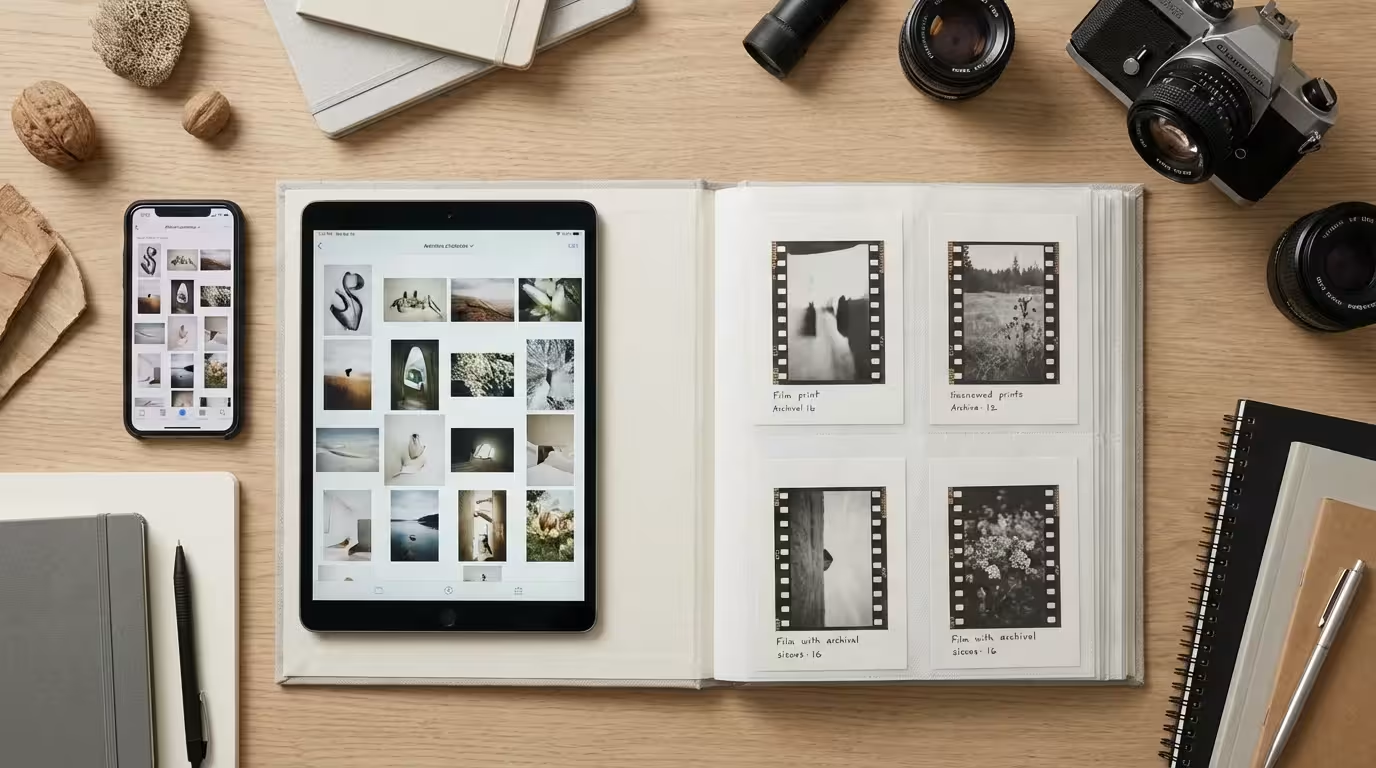
Strategic Workflow: From Raw Capture to Archival Export
To get the most out of these apps, you need a repeatable system. Editing randomly can lead to “over-processing,” where your photos lose their natural look and start to show digital artifacts like banding or pixelation. Follow this structured approach to ensure your memories are both beautiful and preserved for the long term.
- Start with the best possible source: If your phone allows it, shoot in RAW or HEIC. These formats store more data than standard JPEGs, giving your apps more “information” to work with during the editing process.
- Correct the foundation first: Before applying any filters or stylistic choices, fix the exposure and white balance. Ensure the skin tones look natural and the horizon is straight. A photo with a “film look” but a crooked horizon will always look amateur.
- Use a light touch with localized edits: Instead of cranking up the “Structure” or “Contrast” sliders for the whole photo, use selective tools to enhance only the areas that need it—like the texture of an old stone wall or the light in someone’s eyes.
- Mind the “3-2-1” Rule: Digital files are fragile. Once you have finished a masterpiece edit, ensure it is backed up. The Image Permanence Institute emphasizes the importance of digital integrity. Keep three copies of your files, on two different types of media (e.g., your phone and an external hard drive), with one copy offsite (in the cloud).
- Export for the intended use: If you plan to print your photo, export it at the highest possible resolution. If you are just sending it in a text message, a smaller JPEG is fine. Never delete your original, unedited “master” file; you might want to re-edit it in ten years as software technology improves even further.
The beauty of smartphone photography is its accessibility. You no longer need to be a professional with expensive equipment to document your family’s journey or capture the breathtaking details of the world around you. By mastering these five apps, you empower yourself to take control of your visual legacy. Each edit you make is an act of curation—a way of saying that this specific moment, this person, or this place is worth remembering with clarity and beauty. Start with one app, experiment with its tools, and watch as your photo collection transforms from a series of snapshots into a gallery of cherished memories.
Frequently Asked Questions
Does editing photos on my smartphone reduce the image quality?
It depends on the app and the file format. Most high-quality apps like Lightroom and Snapseed use non-destructive editing, meaning they save your changes as a set of instructions rather than overwriting the original data. However, every time you export a JPEG, some compression occurs. To maintain the highest quality, edit in RAW format when possible and limit the number of times you re-save a single file.
Is Snapseed really a free mobile photo editor without hidden costs?
Yes, Snapseed is completely free. Google owns the app and provides its full suite of professional-grade tools—including curves, selective editing, and healing—without subscription fees, in-app purchases, or intrusive advertisements.
Can I use these apps to restore old family photos I have scanned?
Absolutely. While professional desktop software offers more power, apps like TouchRetouch are excellent for removing scratches or dust spots from digital scans. Snapseed’s “Black and White” and “Curves” tools can also help restore contrast and detail to faded monochromatic prints.
What is the best format for saving my edited photos?
For sharing on social media or via text, JPEG is the standard. However, for long-term preservation of your edited work, consider saving a copy in a high-quality format like TIFF or a high-quality PNG. If your phone supports it, always keep the original RAW or HEIC file as your master copy.
Disclaimer: This article is for informational purposes only. When handling valuable or irreplaceable photographs, consider consulting a professional conservator. Always test preservation methods on non-valuable items first.