You stand before a digital mountain: thousands of smartphone snapshots, folders of high-resolution vacation photos, and a dusty box of heritage scans from your grandmother’s attic. Preserving these memories requires more than just storage; it requires a tool that helps you find, fix, and share them. Adobe offers two primary solutions for this task: Photoshop Elements and Lightroom. While both carry the Adobe pedigree, they serve vastly different masters. Choosing the wrong one can lead to technical frustration or, worse, a disorganized mess that makes your memories impossible to find. Understanding the fundamental architecture of these programs ensures you spend your time enjoying your photos rather than fighting your software.
If neither of these Adobe options seems like a perfect fit, you may want to explore other entries in our list of the best photo management software currently available.

Understanding the Core Philosophies
Before you look at buttons and sliders, you must understand the “why” behind each program. Photoshop Elements functions as a simplified, consumer-friendly version of the professional Photoshop. It focuses on the “pixel level”—it allows you to change the actual content of a photo. You can remove a cousin who photobombed a wedding shot, change a gray sky to a vibrant sunset, or reconstruct a torn corner on a 1940s portrait. It treats every photo as an individual project, an approach perfect for those who want to create specific physical items like calendars, greeting cards, or detailed composite images.
If you are feeling overwhelmed by a massive library, learning how to organize 20 years of digital photos can help you establish a system before you begin editing.
Lightroom, conversely, serves as a workflow manager and a non-destructive darkroom. It treats your photo collection as a living library. When you “edit” in Lightroom, you aren’t changing the original pixels; you are creating a set of instructions that Lightroom displays on top of the original. This non-destructive nature is critical for preservation. You can always go back to the original image, no matter how many changes you make. According to technical analysis from Digital Photography Review, Lightroom’s strength lies in its ability to handle hundreds of images at once—applying the same color correction to an entire birthday party set in seconds.
The primary goal of photo preservation is to maintain the integrity of the original image while creating a path for future generations to access it.
If you enjoy the “craft” of working on one photo for an hour to make it perfect, Elements likely fits your style. If you want to organize 10,000 photos and make them all look professional with minimal fuss, Lightroom is your engine.

Photoshop Elements: The Creative Toolbox
Photoshop Elements organizes its power into three distinct modes: Quick, Guided, and Expert. This structure respects your learning curve. In the Quick mode, you handle basic exposure and sharpening with simple sliders. The Guided mode acts like a personal tutor; it walks you through complex processes like “Object Removal” or “Replace Background” step-by-step. For the family archivist, the “Restore Old Photo” guided edit is a godsend. It uses AI-driven tools to identify cracks and dust, suggesting fixes that would take a professional hours to complete manually.
The “Expert” mode opens up layers. Layers allow you to stack different edits or images on top of one another. For example, you can place a scan of a handwritten note over a photograph of the person who wrote it, adjusting the transparency until they blend beautifully. This level of creative control makes Elements the superior choice for scrapbooking and creating commemorative displays. You also get access to the “Elements Organizer,” a separate utility that helps you tag faces and locations, though it lacks the sophisticated deep-cataloging features of its sibling, Lightroom.
One often overlooked benefit of Elements is its inclusion of creative templates. You can take a set of holiday photos and, within minutes, drop them into a pre-designed photo book layout. For many users, the goal of photo preservation isn’t just “saving” files, but “using” them. Elements bridges the gap between a digital file and a physical heirloom.

Adobe Lightroom: The Digital Darkroom and Archive
Lightroom comes in two flavors: Lightroom (cloud-based) and Lightroom Classic (desktop-based). For the serious preservationist, Lightroom Classic is often preferred because it gives you total control over where your files live—whether on your internal hard drive or a secure external RAID system. Lightroom is built around the “Catalog,” a database that tracks your photos’ locations, metadata, and edit history.
Before moving your entire library into a new catalog, consider decluttering your photo collection to ensure you are only preserving your highest quality memories.
Establishing a robust catalog in Lightroom is a critical component of creating a home photo archive that remains accessible for generations.
The “Develop” module in Lightroom focuses on global changes. You adjust white balance, contrast, and highlights to bring out the best in your image. Because it’s designed for volume, you can “sync” these settings. Imagine you spent the afternoon scanning 50 slides from a 1970s vacation. They all have a slight magenta color cast due to the aging film stock. In Lightroom, you fix one photo, select the other 49, and hit “Sync.” Instantly, your entire collection is corrected. This efficiency is impossible in Elements, where you would have to open and fix each file individually.
Furthermore, Lightroom’s keyword and metadata tools are industry-standard. You can tag photos with names, dates, events, and even GPS coordinates. Twenty years from now, when you want to find every photo of “Aunt Martha” taken in “Chicago,” a simple search in Lightroom will find them in milliseconds. This level of organization is the backbone of a professional-grade photo archive.

Feature Comparison Side-by-Side
To help you visualize the differences, consider this breakdown of how each program handles common tasks. This table compares the desktop versions of both applications to give you a clear view of their capabilities.
| Feature | Photoshop Elements | Adobe Lightroom |
|---|---|---|
| Primary Focus | Creative editing and single-photo manipulation. | Organization, batch processing, and color grading. |
| Editing Style | Destructive (unless using layers); changes pixels. | Non-destructive; saves instructions in a catalog. |
| Learning Curve | Low to Moderate (includes Guided modes). | Moderate to High (requires understanding catalogs). |
| Organizational Tools | Basic tagging and face recognition. | Advanced metadata, keywords, and smart collections. |
| Restoration Tools | Excellent (dedicated tools for cracks/tears). | Good (cloning/healing only). |
| Batch Processing | Very limited. | Exceptional (sync edits across thousands of photos). |
| Physical Projects | Built-in templates for books, cards, and prints. | Book and Print modules (more professional, less “crafty”). |
The Preservation Angle: Restoring Old Scans
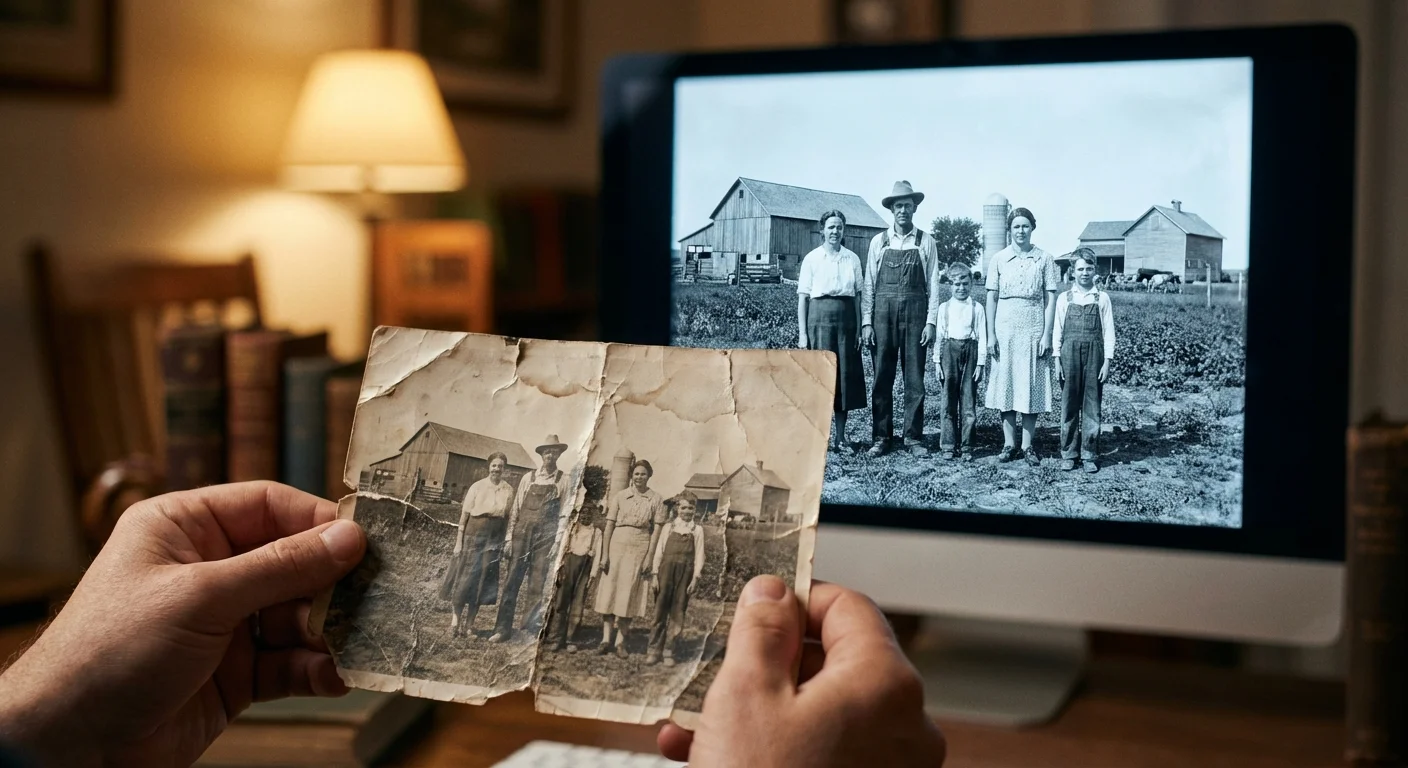
When you digitize old family photos, you often encounter physical damage. Emulsion cracks, silvering, and simple fading are common. The Image Permanence Institute notes that environmental factors like humidity and light exposure accelerate this decay. Once you have a high-quality scan, Photoshop Elements is your best weapon for “digital conservation.”
Elements features a “Spot Healing Brush” and a “Clone Stamp” that are remarkably intuitive. If a photo of your grandfather has a crease across his face, the Spot Healing Brush can analyze the surrounding skin texture and “stitch” the crack closed. Lightroom has a similar tool, but it lacks the fine-tuned control found in Elements. In Elements, you can work at the pixel level, carefully reconstructing lost details. You can even use the “Shake Reduction” tool to sharpen an old photo that was slightly out of focus—a common issue with vintage consumer cameras.
However, preservation isn’t just about fixing what’s broken; it’s about not breaking what’s fixed. This is where Lightroom shines. Since Lightroom doesn’t change your original scan, you can experiment with different “looks”—perhaps a high-contrast black and white version and a subtly color-corrected version—without ever losing the raw data of your original scan. For a comprehensive preservation strategy, you might use Elements to perform the heavy “surgery” on a damaged scan, save that as a new high-quality TIFF file, and then bring that file into Lightroom for long-term archiving and color management.

Cost of Ownership: Subscription vs. License
For many, the decision comes down to the checkbook. Adobe has moved most of its professional software to a subscription model, which includes Lightroom. You typically pay a monthly fee (often around $9.99 for the Photography Plan) which gives you Lightroom, the professional version of Photoshop, and a certain amount of cloud storage. The benefit here is that you always have the latest version. The downside is that if you stop paying, you lose access to the “Develop” module (though your library remains accessible).
If you aren’t ready to invest in a paid license or subscription, you can also start with the best free photo editing software for beginners to learn the basics.
Photoshop Elements remains one of the few Adobe products available as a “buy it once” license. You pay a flat fee (usually around $99) and you own that version forever. For occasional users or hobbyists who don’t want another monthly bill, this is a major selling point. However, be aware that Adobe releases a new version every year. While your old version will keep working, it won’t receive the latest AI features or support for the newest camera RAW files unless you pay for an upgrade. For a family archivist working with static scans, a single purchase of Elements can last many years before an upgrade becomes necessary.

Workflow Scenarios: Which One Fits You?
To make the final choice, identify which of these two personas fits you best. Your daily habits and the size of your collection dictate the tool you need.
Scenario A: The Family Historian
You have 500 heritage photos to scan, 1,000 family slides, and you want to make a high-quality coffee table book for your parents’ 50th anniversary. You need to fix scratches and perhaps colorize a few black-and-white images. You aren’t taking hundreds of new photos every month.
Your Choice: Photoshop Elements. Its restoration tools and built-in project templates are designed exactly for this kind of work.
Scenario B: The Modern Memory Keeper
You take thousands of photos of your children, your travels, and your daily life on your smartphone and a mirrorless camera. Your primary struggle is finding that one photo of “the kids at the beach in 2018” among 40,000 images. You want your photos to look “polished” and professional with minimal editing time.
Your Choice: Adobe Lightroom. The organizational power and batch-editing capabilities will save you hundreds of hours over the long term. It turns a chaotic pile of files into a searchable, professional-looking archive.
Regardless of your choice, remember that software is just a tool. The real value lies in the memories themselves. Start by organizing a small subset of your photos—perhaps just one year or one specific event. Use the software to clean them up, tag them properly, and share them with your family. By taking these small, actionable steps, you ensure that your photographic heritage remains vibrant and accessible for generations to come.
Frequently Asked Questions
Do I need a powerful computer to run these programs?
Both programs require a relatively modern computer with at least 8GB of RAM (16GB is recommended) and a decent processor. Lightroom, in particular, can be “resource-heavy” because it manages a large database of images. If you are working with very high-resolution scans of old photos, ensure your computer has enough hard drive space for the files and the software’s cache.
Can I move my photos from Elements to Lightroom later?
Yes, you can import images edited in Elements into a Lightroom catalog. However, the specific “Guided Edits” or “Layers” from Elements will not be editable within Lightroom. You will be importing the finished image. If you think you might want the advanced organization of Lightroom eventually, it’s often easier to start there and use Elements as a “plugin” for specific tasks.
Is Lightroom better for phone photos?
Lightroom has a significant advantage for smartphone users. The Lightroom mobile app syncs perfectly with the desktop version. You can take a photo on your iPhone, and it will automatically appear in your Lightroom library on your computer, ready for organizing. Photoshop Elements is strictly a desktop-focused experience and lacks this seamless mobile integration.
Which one is better for removing people from the background?
Photoshop Elements is superior for this task. Its “Content-Aware Fill” and dedicated “Object Removal” guided edits are much more powerful than Lightroom’s healing tools. Elements can realistically “invent” the background behind the person you removed, whereas Lightroom often struggles with complex patterns.
Disclaimer: This article is for informational purposes only. When handling valuable or irreplaceable photographs, consider consulting a professional conservator. Always test preservation methods on non-valuable items first.