

You can reclaim precious storage and rescue family memories without reviewing 15,000 group chat images by hand. A few automated filtering steps can clean your entire gallery in one afternoon.
If your photo library has spiraled out of hand across years of daily use, our beginner’s guide to organizing 10,000+ photos offers a structured foundation to regain control.
School parent threads, sports carpool updates, and viral memes quietly choke your camera roll every week. These throwaway files push you into expensive cloud storage tiers while burying authentic childhood milestones.
You do not have to curate manually. Leveraging stripped EXIF hardware metadata lets you systematically isolate chat clutter from genuine family snapshots in seconds.
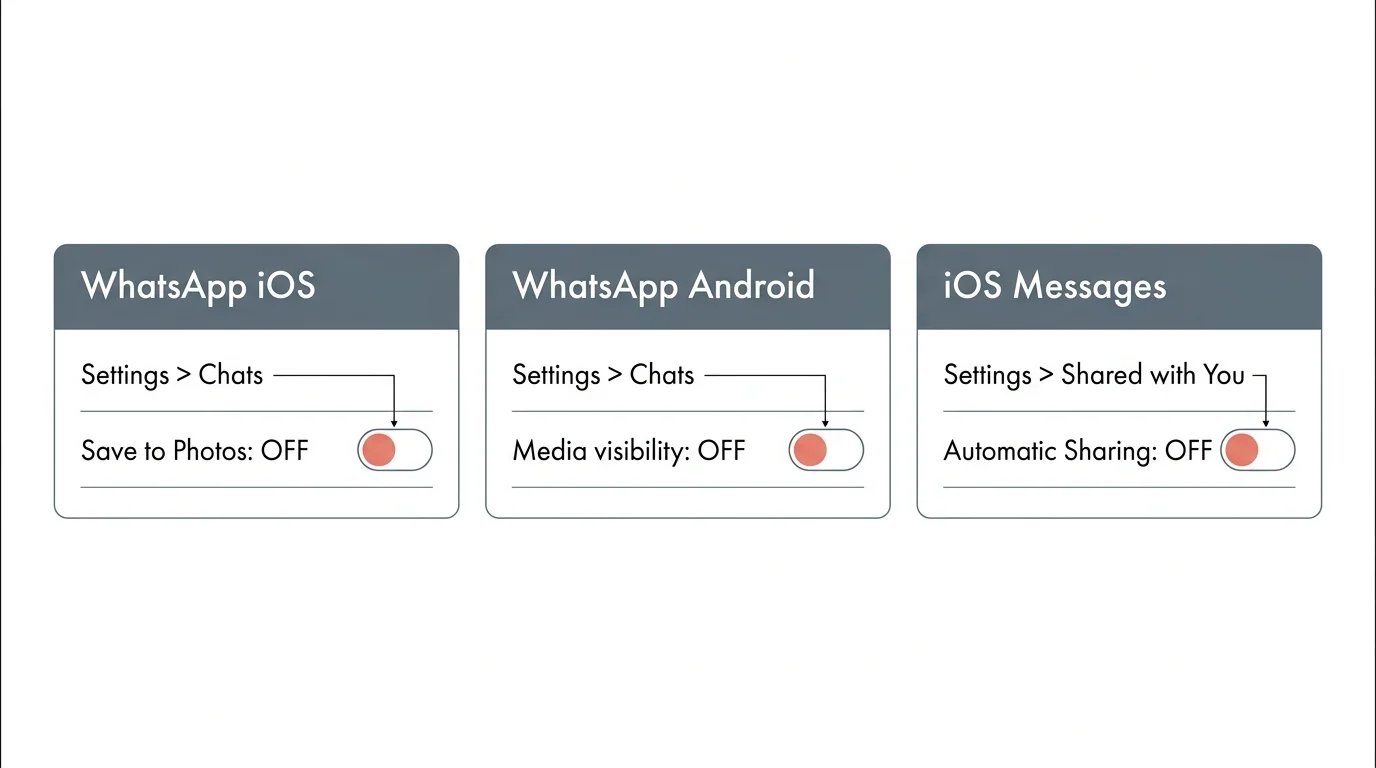
Stop the Inflow: Turn Off WhatsApp and iMessage Auto-Save
Your smartphone cannot distinguish between a portrait of your child and a compressed soccer practice schedule. Both arrive as image files and land directly in your main gallery timeline.
For additional tactics on isolating temporary screen captures alongside messaging media, explore our workflow to organize smartphone screenshots and WhatsApp clutter.
Every active parent group chat functions like an open faucet pouring digital debris into your storage. You must close that valve before tackling your historical backlog.
On an iPhone, open WhatsApp and tap Settings in the bottom navigation bar. Select Chats, then locate the toggle labeled Save to Photos and turn it off immediately.
On Android devices, open WhatsApp, tap the three vertical dots in the upper right corner, and select Settings. Choose Chats and switch off Media visibility to prevent downloads from entering Google Photos.
This single adjustment prevents incoming memes, screenshots, and graphics from appearing in your master camera roll. The media stays accessible inside your chat threads until you explicitly save an item.
To clean whatsapp photo clutter effectively, apply a similar approach to iMessage. Navigate to iOS Settings, tap Messages, and select Shared with You.
Toggle off Automatic Sharing or disable Photos specifically. This action prevents casual chat attachments from cluttering your personal library without your permission.
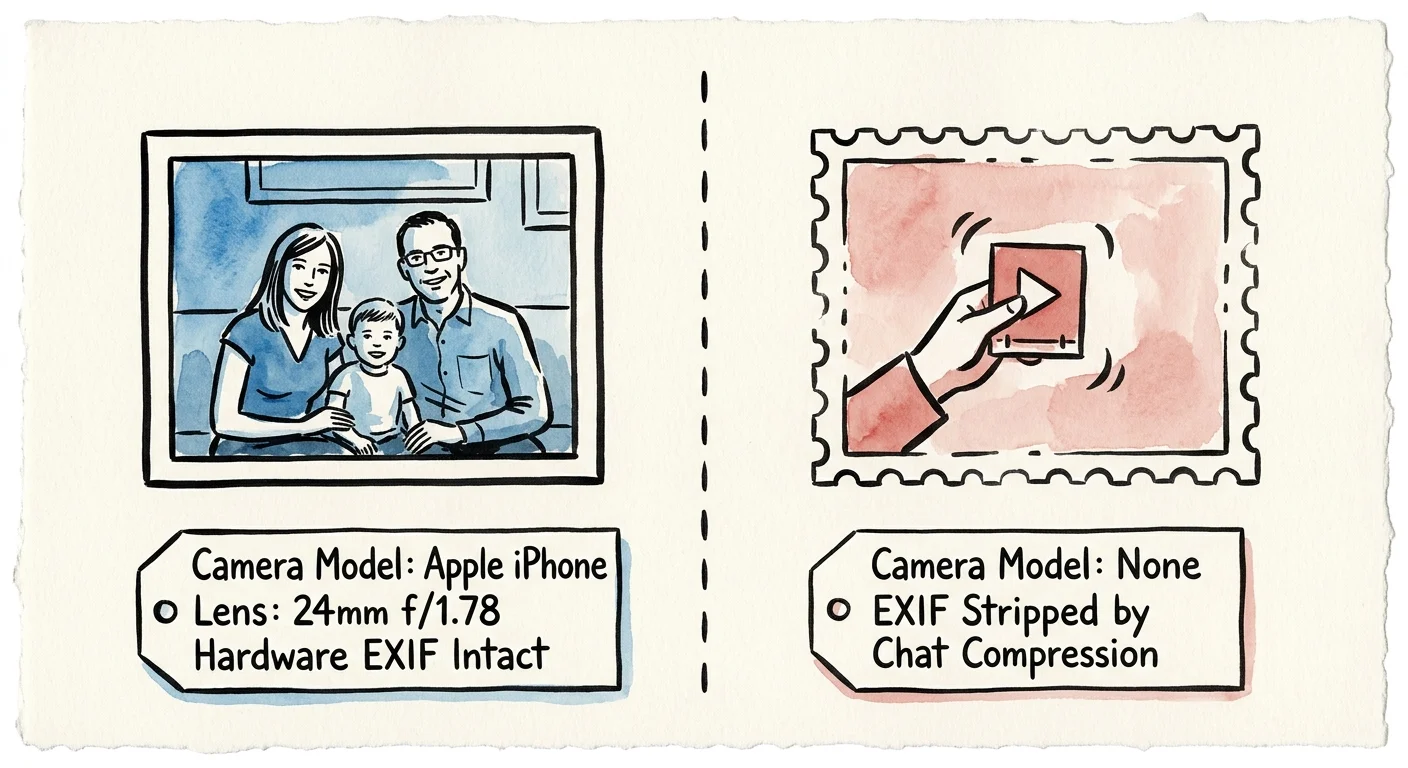
The Metadata Divide: Separate Memes from Camera Roll via EXIF
Every digital picture captured with your smartphone contains Exchangeable Image File format data, known as EXIF metadata. This hidden record logs your lens focal length, aperture, shutter speed, and exact camera hardware model.
When someone shares memes, infographics, or downloaded web graphics across messaging networks, the originating platforms aggressively compress those files. During compression, chat networks strip out all camera hardware metadata to save bandwidth.
Authentic candid photos taken directly on an iPhone or Android phone retain camera hardware tags like “Apple iPhone 15 Pro” or “Samsung Galaxy S24.” Chat debris completely lacks these hardware tags.
This technical discrepancy gives you an effortless way to separate memes from camera roll archives. You can instruct your operating system to isolate every file missing a camera model tag.
Rather than evaluating 10,000 images individually, you can group all untagged assets together automatically. This leaves your genuine family photos untouched while congregating flyers, jokes, and web graphics for deletion.
Metadata integrity represents the primary dividing line between authentic documentary photography and disposable digital communication assets.
Archival institutions such as the Library of Congress Preservation directorate emphasize metadata preservation as the cornerstone of digital asset management. Exploiting missing metadata turns an archival limitation into an automated cleaning solution.
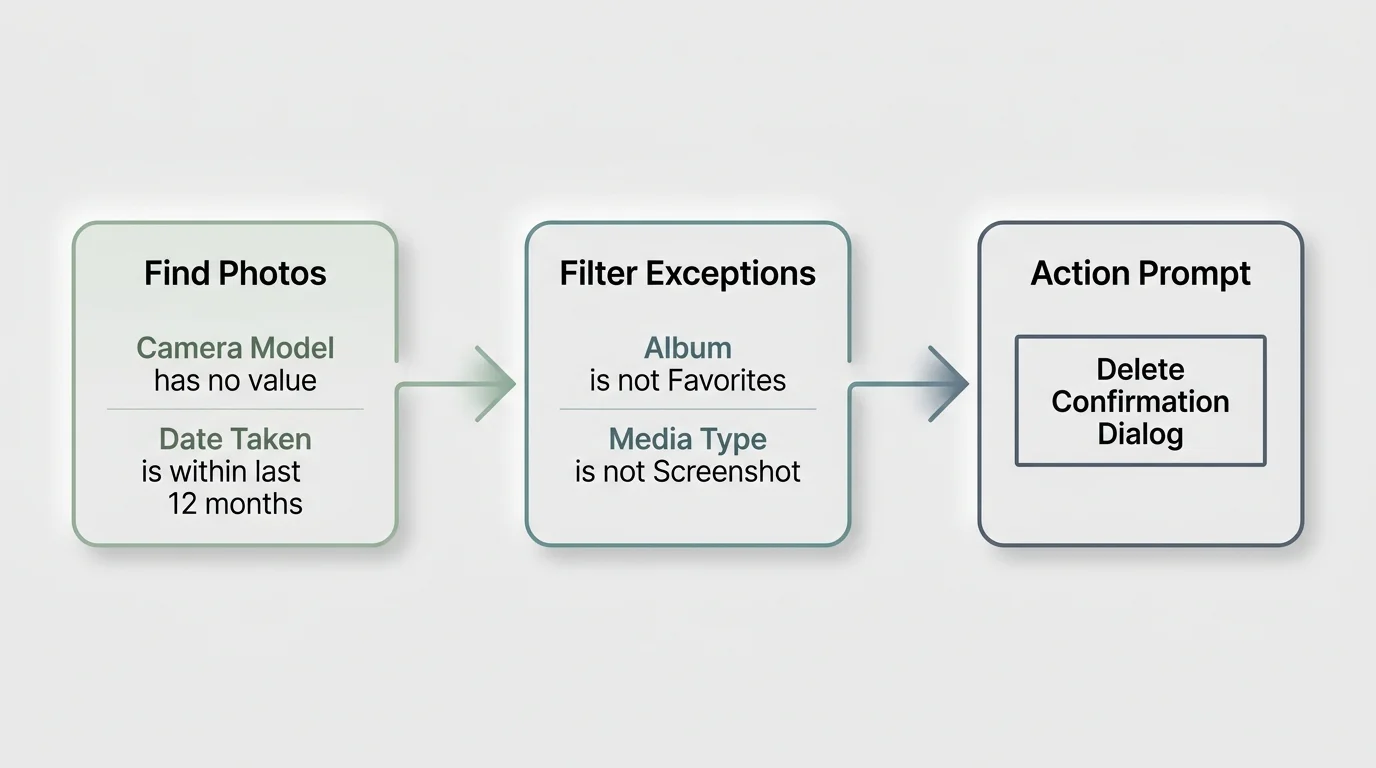
Build the Automated iOS Shortcuts Photo Cleaner
Apple provides a native automation environment on every modern iPhone through the Shortcuts application. You can build a custom workflow in under three minutes to isolate non-camera media.
Before clearing out your review folders, reviewing a criteria checklist for what photos to keep and delete ensures you don’t discard meaningful moments by mistake.
Launch the Shortcuts app on your iPhone and tap the plus icon in the upper right corner. Rename your new workflow “Chat Clutter Quarantine.”
Tap Add Action and search for the native command labeled Find Photos. Insert this action into your workflow to configure your filtering parameters.
Tap Add Filter inside the action block. Configure the first filter condition to read: Camera Make does not have any value.
Add a second condition immediately below the first: Camera Model does not have any value. This dual criteria targets images that did not originate from physical camera hardware.
Refine your search by adding a third filter rule: Is Not a Screenshot. This separates deliberate screen grabs from incoming group chat media.
Add a fourth parameter: Date Taken is in the last 24 months, or choose All Photos depending on your backlog. This makes the ios shortcuts photo cleaner safe and focused.
Next, search for the action labeled Create Album and enter “Quarantine Review” as the title. Follow this by inserting the Add Photos to Album action, targeting your newly created quarantine folder.
This staging mechanism ensures you do not delete anything accidentally. Running this shortcut parses 15,000 images in approximately four minutes, depositing all untagged chat files into one isolated folder.
Open the Quarantine Review album once the shortcut finishes executing. Scan the grid quickly to favorite any candid photos sent by relatives, then select all remaining images and delete them.
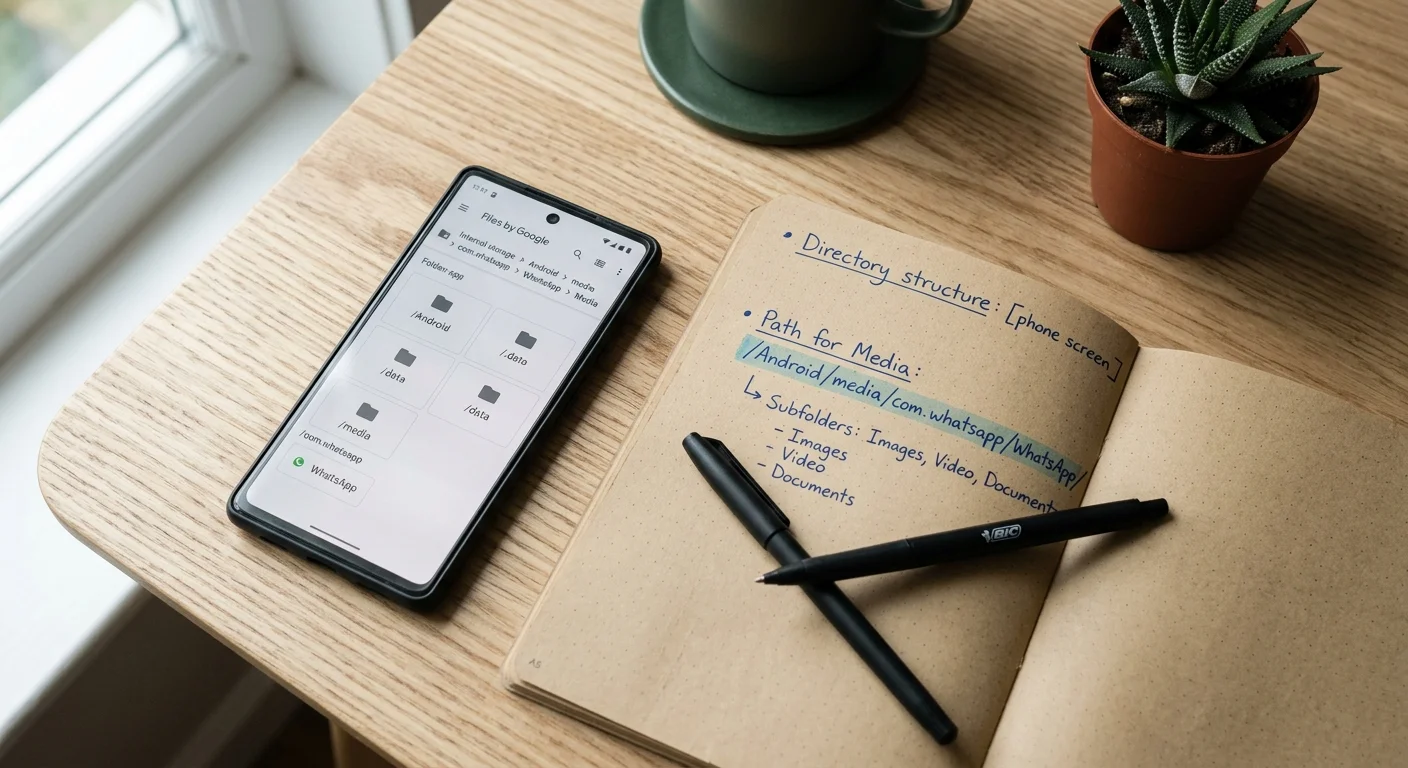
Android File Automation: Purging Hidden Chat Directories
Android organizes WhatsApp media inside dedicated file system paths rather than mixing files directly into main system partitions. This architecture makes bulk removal fast once you know where to look.
Open the native Files by Google app or your preferred file manager. Navigate to Internal Storage, open the Android folder, select Media, and locate com.whatsapp.
Inside this folder, follow the path through WhatsApp and Media to reach WhatsApp Images. Here you will find subfolders labeled Sent and Private alongside incoming images.
The Sent folder contains duplicate copies of every photo, video, and screenshot you transmitted to school threads or family members. Deleting the contents of this Sent folder often recovers 10 to 30 gigabytes instantly.
To filter incoming clutter, sort the primary WhatsApp Images directory by file size. Sort descending to flag large infographics and video clips, or sort ascending to isolate tiny sticker graphics and web memes.
Select all items within the folder while excluding family photos you want to keep. Tap the trash icon to permanently remove the clutter from your device.
Third-party automation utilities like Tasker can monitor this directory continuously. You can schedule weekly tasks that automatically delete files older than thirty days from the incoming cache.
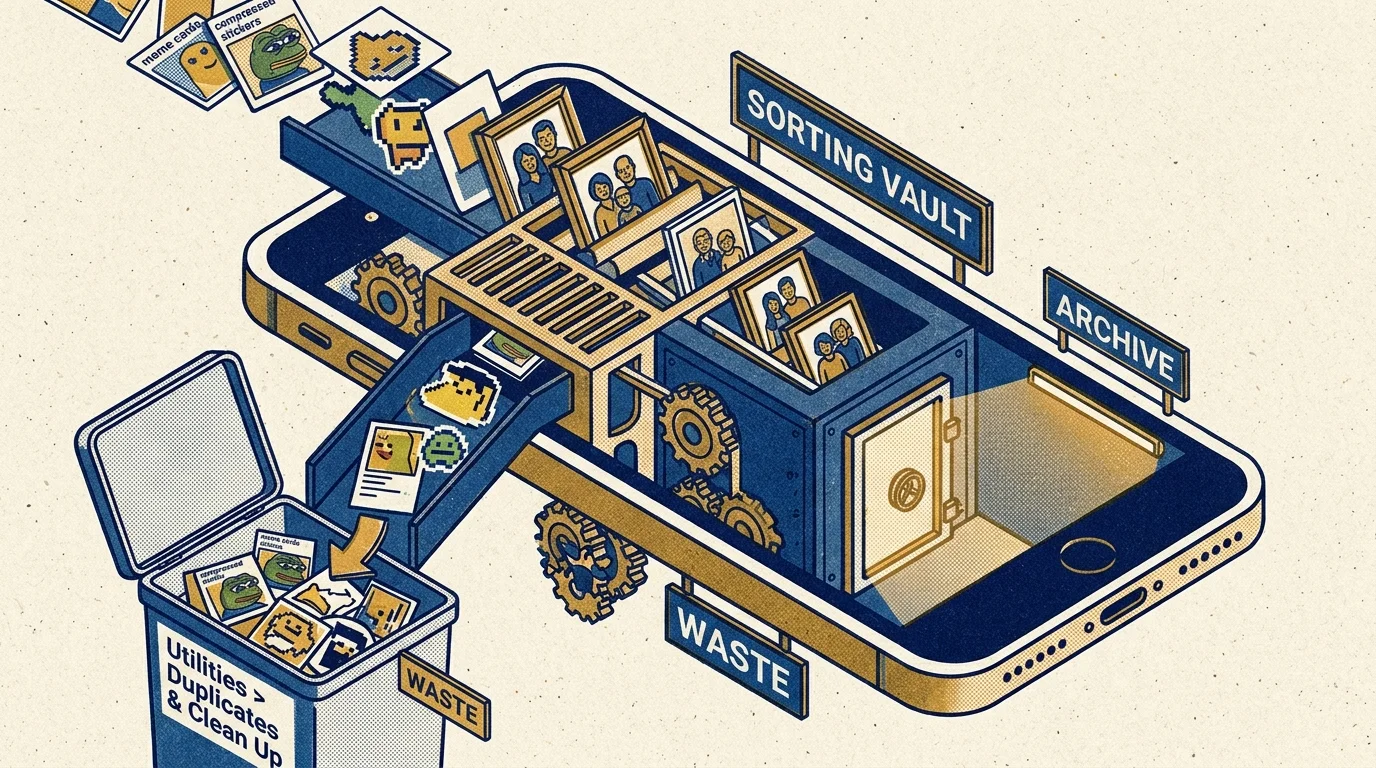
Leverage Native Cleaners: iOS 18 Utilities and WhatsApp Storage
Apple introduced powerful machine-learning filters in iOS 18 that identify specific categories of visual clutter. The redesigned Photos app categorizes non-personal imagery without requiring third-party software.
Scroll down your Photos screen to locate the Utilities collection. Apple now automatically gathers images into dedicated containers for Illustrations, Documents, Receipts, Handwriting, and QR Codes.
Group chat flyers and school permission slips routinely populate the Documents and Receipts albums. Tap into either category, choose Select, hit Select All, and delete hundreds of administrative photos simultaneously.
The Illustrations category automatically gathers cartoon memes, web comics, and forwarded digital stickers. Purging this single folder removes thousands of group chat artifacts without risking candid family snapshots.
WhatsApp also provides its own internal maintenance dashboard. Open WhatsApp Settings, select Storage and Data, and tap Manage Storage to access this native utility.
The top banner categorizes media into Forwarded many times and Larger than 5 MB. The forwarded section isolates viral memes circulating through your parent groups, letting you delete group chat media bulk with one confirmation tap.
Below these banners, WhatsApp lists your individual chats and group threads ranked strictly by the data volume they consume. Tapping a class parent thread lets you wipe months of shared files while preserving your text chat history.
For iMessage, open iOS Settings, tap General, select iPhone Storage, and choose Messages. Select Photos or Review Large Attachments to mass-delete attachments across all threads without deleting message transcripts.

Worked Financial Scenario: How Purging Chat Junk Saves Real Money
Digital clutter carries direct monetary costs. Cloud storage providers charge ongoing monthly subscription fees to house useless chat attachments that your phone backs up automatically.
Consider the typical scenario of a parent named Sarah, whose iPhone 14 Pro held 34,200 total assets consuming 182 GB of internal storage. Her device backed up daily to iCloud.
Sarah’s storage demands exceeded Apple’s 50 GB tier ($0.99 per month) and 200 GB tier ($2.99 per month). She paid $9.99 every month for the 2 TB iCloud+ plan simply to avoid storage warning alerts.
Running the EXIF metadata shortcut identified 11,400 chat attachments dating back three years. These uncurated images and shared video clips occupied 142 GB of her photo library.
Sarah spent 20 minutes scanning the quarantine album. She favorited 340 authentic photos of school plays and sports matches sent by other parents, moving them into her permanent family albums.
She then deleted the remaining 11,060 files, including duplicate event schedules, internet memes, and high-bitrate video clips. Her total photo library dropped from 182 GB down to 44 GB.
This reduction enabled Sarah to downgrade her iCloud+ tier from 2 TB down to the 200 GB plan at $2.99 per month. She saved $7.00 per month, putting $84 back into her family budget every year.
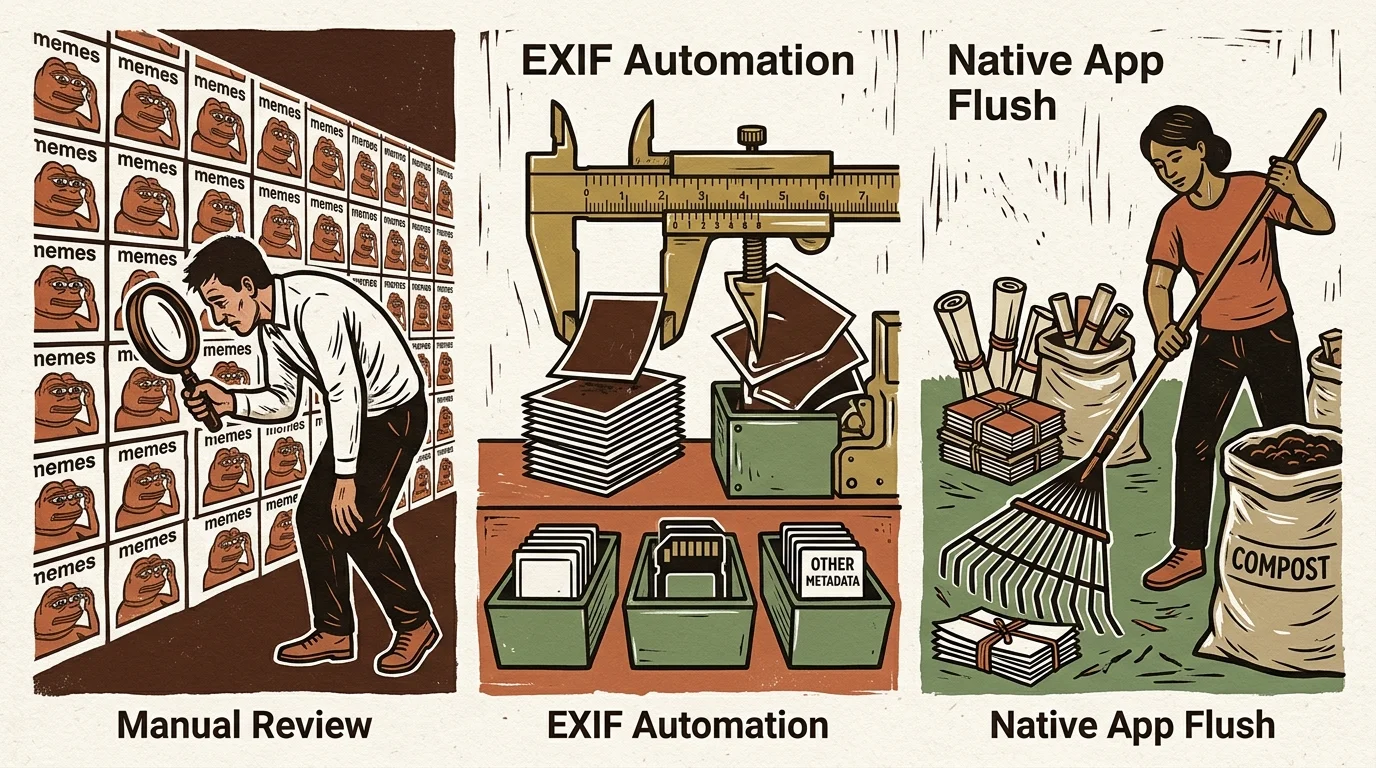
Comparison of Mobile Media Cleanup Methods
Selecting the right purging strategy depends on your device operating system, available time, and tolerance for accidental deletions. Use the measurable attributes below to choose your workflow.
| Cleanup Method | Primary Media Target | Execution Speed (10,000 Files) | False Positive Risk | Requires Manual Review |
|---|---|---|---|---|
| iOS Shortcuts EXIF Rule | Untagged chat memes, flyers, web images | 3 to 5 minutes | Low (preserves camera EXIF) | Yes (staging album review) |
| WhatsApp Manage Storage | Viral forwards, files over 5 MB | 1 to 2 minutes | Moderate (threads grouped by size) | No (bulk delete by thread) |
| iOS 18 Photos Utilities | Illustrations, receipts, documents | Instant (pre-indexed) | Very Low (ML category sorting) | Yes (album spot check) |
| iMessage Storage Settings | Large video and photo attachments | 2 to 4 minutes | High (lists files by size only) | Yes (thumbnail inspection) |
| Android Files WhatsApp Path | Sent folders, raw image cache | 1 minute | Moderate (entire folder wipe) | No (direct folder purge) |
Combining the iOS Shortcuts EXIF rule with iOS 18 Photos Utilities provides the highest protection for family photos. This paired approach isolates administrative junk without risking original camera captures.

Preserving the Survivors: Archival Strategies for Family Candids
Purging chat clutter is not just about freeing disk space; it protects your irreplaceable family archives from dilution. Candid portraits shared by grandparents deserve proper digital preservation rather than living inside temporary message caches.
When relatives transmit candid family photos through messaging apps, download the original files directly to your primary camera roll before initiating bulk cleanups. Assign favorites or move them to dedicated chronological albums.
Messaging services apply lossy compression algorithms that degrade image resolution and discard archival metadata. Research by organizations like the Image Permanence Institute confirms that repeated re-compression permanently degrades digital asset quality.
Digital preservation requires maintaining verified originals in uncompressed formats, isolated from ephemeral messaging caches and transient downloads.
Whenever possible, ask family members to share high-resolution original files using shared iCloud albums, Google Photos links, or AirDrop. These direct transfer protocols preserve original camera sensors’ raw pixel dimensions and EXIF timestamps.
Establish a routine 3-2-1 backup strategy for your curated photo library. Keep three distinct copies of your family memories across two different media types, storing at least one copy in a secure offsite cloud location.
Resources such as Digital Photography Review offer extensive guidance on file formats and digital asset workflows for long-term family collections. Clean libraries ensure that future generations inherit meaningful milestones rather than forgotten school flyers.
Frequently Asked Questions
Will deleting media from WhatsApp Manage Storage delete photos from my phone’s camera roll?
Yes, if WhatsApp has already saved those files to your device gallery, deleting them through the Manage Storage menu deletes both the chat attachment and the local camera roll copy on iOS.
How can I prevent genuine family candids from being deleted during a bulk purge?
Filter missing EXIF hardware metadata into a quarantine review album first. This isolates memes and flyers while letting you manually favorite genuine photos sent by family members before executing a bulk purge.
Why do WhatsApp and iMessage strip camera metadata from photos?
Messaging services compress images to save network bandwidth and protect sender privacy, automatically stripping EXIF tags such as camera model, GPS coordinates, and shutter speeds during transit.
Can I recover photos if I accidentally delete them with an iOS Shortcut?
Yes, deleted photos remain inside the Recently Deleted album in Apple Photos for 30 days before permanent erasure, allowing quick recovery if needed.
Disclaimer: This article is for informational purposes only. When handling valuable or irreplaceable photographs, consider consulting a professional conservator. Always test preservation methods on non-valuable items first.





1 Comment