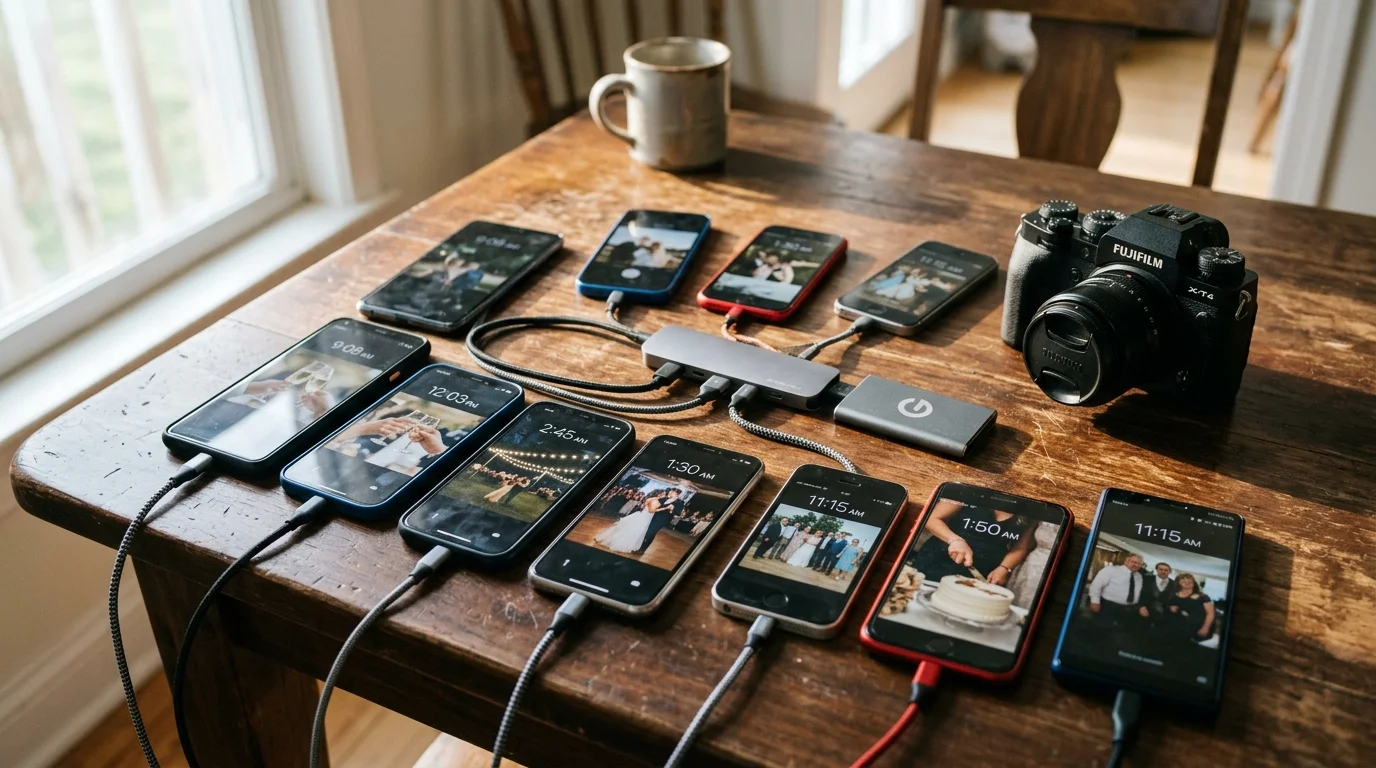
Merging wedding photographs from six iPhones, two Androids, and a DSLR creates immediate chronological chaos. You can instantly fix this timeline disaster by anchoring every camera to a single shared milestone snapshot.
Instead of manually editing thousands of timestamps, you will calculate the exact mathematical drift between devices and apply batch offsets using ExifTool. This approach synchronizes mismatched time zones and unsynced camera clocks down to the exact second.
Follow this terminal workflow to batch edit EXIF dates, preserve file integrity, and build a unified family wedding archive.
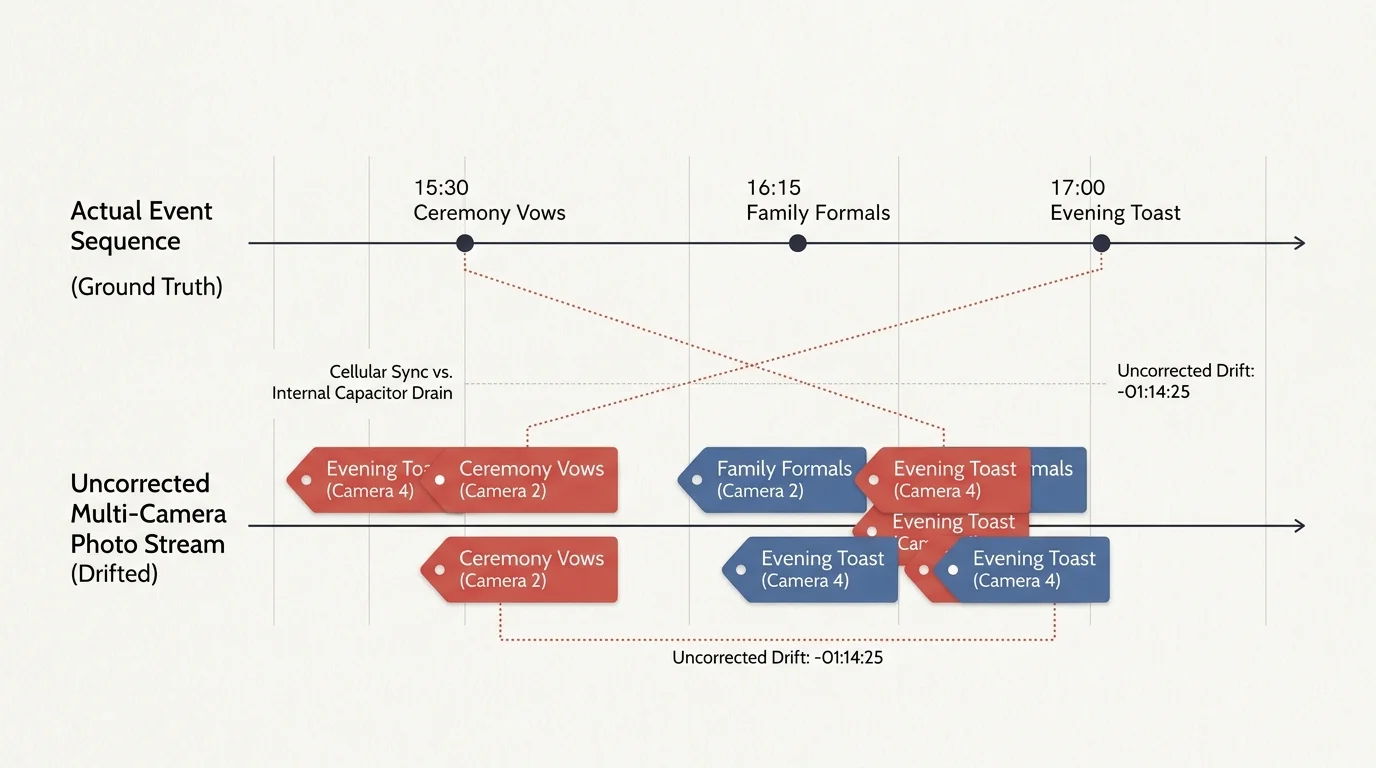
The Anatomy of Multi-Camera Timestamp Drift
When you gather photo dumps from eight family smartphones and a dedicated camera, chronological sorting breaks down immediately. The resulting photo gallery displays the celebratory toast before the exchange of vows.
Smartphone clocks sync regularly with cell towers, but internal clock drift still occurs. Guests traveling from different time zones often carry devices that never updated their local network offset.
Dedicated cameras introduce even greater errors. Most DSLR and mirrorless bodies lack internal cellular chips or GPS receivers, relying instead on manual clock setup.
A camera left in a storage bag loses internal clock accuracy as its internal capacitor drains. This creates a silent drift of several minutes or entire hours.
Furthermore, casual file transfer methods compound the timeline confusion. Social messaging apps strip metadata entirely, while cloud downloads often rewrite operating system file creation dates.
You must preserve and edit internal exchangeable image file format metadata rather than file system dates. ExifTool lets you modify these internal records directly without altering image pixels.

The Reference Anchor Technique: Establishing Ground Truth
To synchronize disparate camera clocks, you need a single shared visual reference. You do not need to guess timestamps when you can calculate exact mathematical deltas from a single simultaneous event.
Identify a split-second milestone captured by all eight phones and the standalone camera. Excellent reference candidates include the wedding kiss, the cake cutting strike, or the outdoor champagne toast.
Select one modern smartphone connected to a stable cellular network as your master clock. Its timestamp serves as the absolute ground truth for the entire wedding collection.
Inspect the capture time of the milestone event across each individual device folder. Subtract the device capture timestamp from your master reference timestamp to find your specific correction delta.
If the master photo reads 16:30:00 and an unadjusted camera reads 15:15:35, that camera lagged behind reality. You must shift that camera forward by exactly one hour, fourteen minutes, and twenty-five seconds.
Precision synchronization requires identifying an instant with microsecond visual clarity. A popping champagne cork or the burst of an external flash provides the cleanest reference anchor across multiple lenses.
When guests shoot from different angles, visual landmarks establish the exact instant of capture. Look for physical contact points, such as hands meeting during the ring exchange.
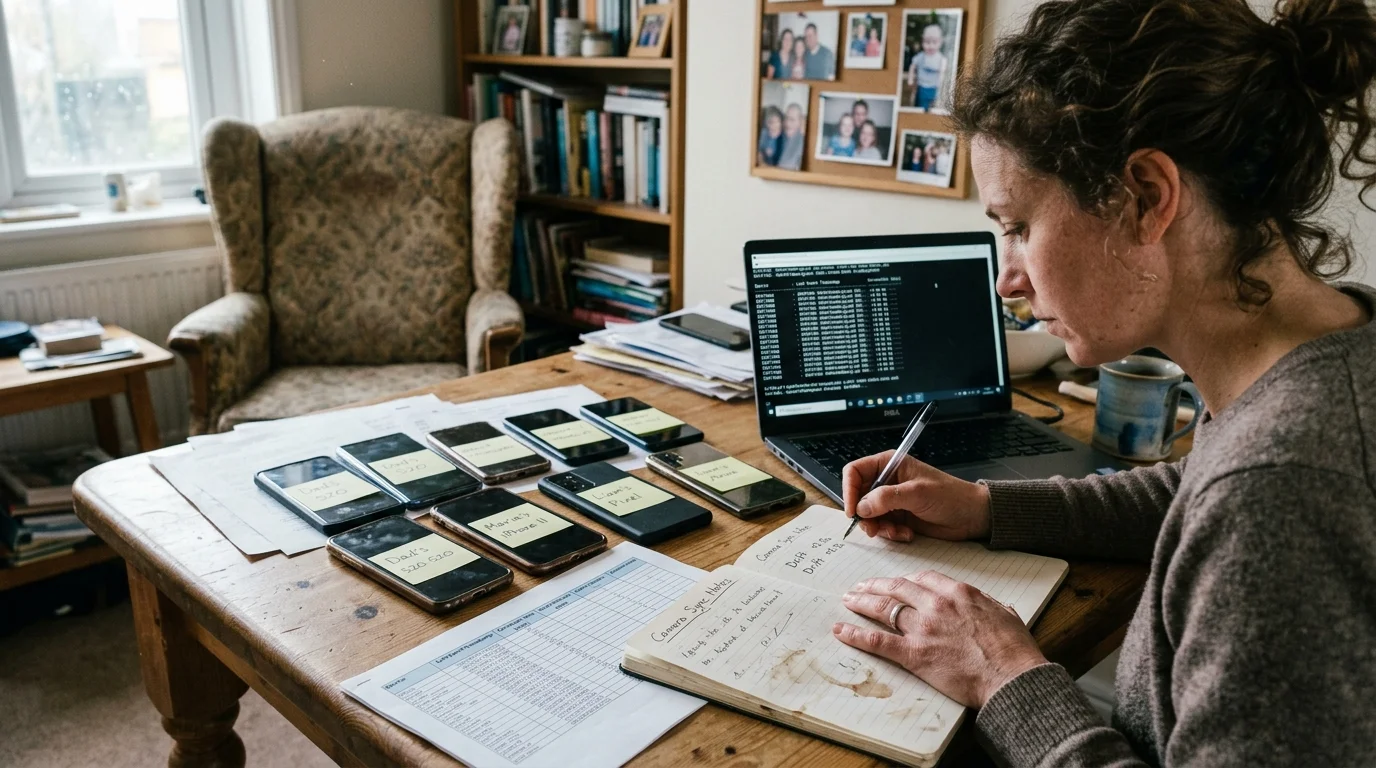
Camera Audit and Drift Calculation Matrix
Before issuing terminal commands, document every device dump in a structured audit log. Tracking devices prevents accidental double-shifting and ensures full recovery if an error occurs.
Our worked scenario analyzes an archive of 1,842 wedding photographs collected across nine individual cameras. The table below details the exact measurements derived from the cake-cutting flash.
| Contributor and Device | Hardware Profile | Primary File Format | Milestone Timestamp | Calculated Offset Delta | Target Time Zone Tag |
|---|---|---|---|---|---|
| Coworker (Master Baseline) | Google Pixel 7 | JPEG | 16:30:00 | +00:00:00 (Baseline) | UTC-5 |
| Uncle Jim (Family DSLR) | Nikon D750 | NEF RAW | 15:15:35 | +01:14:25 | None (Inject UTC-5) |
| Maid of Honor | Apple iPhone 15 Pro | HEIC | 16:30:02 | -00:00:02 | UTC-5 |
| Best Man | Apple iPhone 14 | HEIC | 16:29:48 | +00:00:12 | UTC-5 |
| Cousin Sarah (UK Visitor) | Apple iPhone 13 | HEIC | 21:30:00 | -05:00:00 | UTC+1 (Shift to UTC-5) |
| College Roommate | Samsung Galaxy S22 | JPEG | 16:30:04 | -00:00:04 | UTC-5 |
| Aunt Linda | Apple iPhone 12 | HEIC | 16:29:15 | +00:00:45 | UTC-5 |
| Grandparent | Apple iPhone SE | JPEG | 16:31:10 | -00:01:10 | UTC-5 |
| Cousin Dave | Apple iPhone 13 | HEIC | 16:30:08 | -00:00:08 | UTC-5 |
Notice the drastic five-hour discrepancy on Cousin Sarah’s iPhone 13. Her phone kept British Summer Time metadata because roaming data remained switched off during her international flight.
Uncle Jim’s Nikon D750 exhibited both daylight saving neglect and battery-induced clock drift. His capture lagged by one hour, fourteen minutes, and twenty-five seconds.
Attempting to fix camera clock drift manually across hundreds of individual files would take days. ExifTool executes these corrections across entire directory trees in fractions of a second.
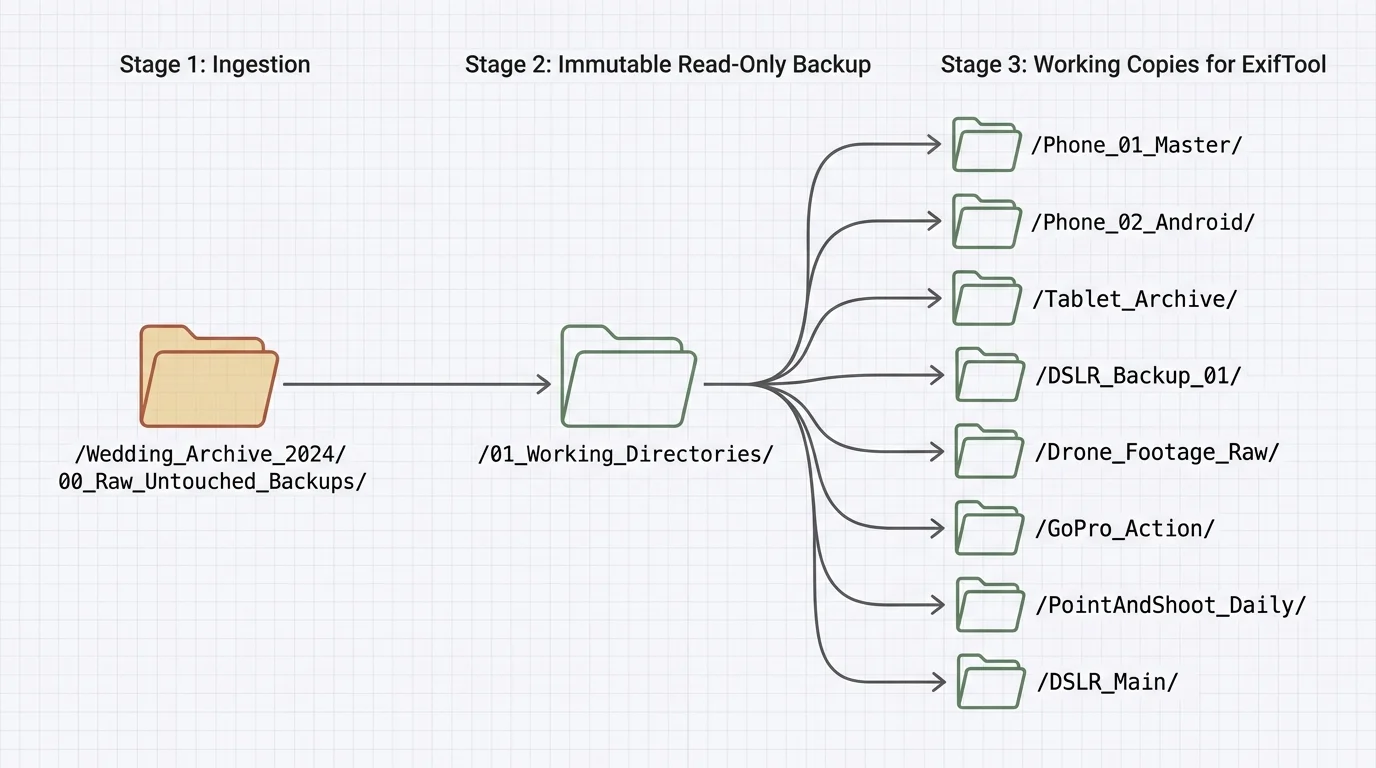
Pre-Flight Directory Setup and Archival Backups
Digital preservation demands strict separation between source media and active working files. Modifying original wedding dumps directly invites permanent data loss if a command contains a typo.
The Library of Congress Preservation Directorate recommends maintaining an untouched digital master in secure storage before undertaking any metadata transformations.
Create a dedicated working directory on your local drive with two isolated root folders named Ingest_Master and Ingest_Working. Duplicate all original camera folders into the working directory.
Store Ingest_Master on an external disconnected drive as cold storage. You will only execute commands against the folders stored inside Ingest_Working.
Group files by contributor device inside your working folder before applying any terminal scripts. This folder isolation prevents accidental timestamp contamination across different camera hardware profiles.
Verify that all photos possess read and write permissions on your computer operating system. Locked files will cause batch processing scripts to halt unexpectedly mid-directory.
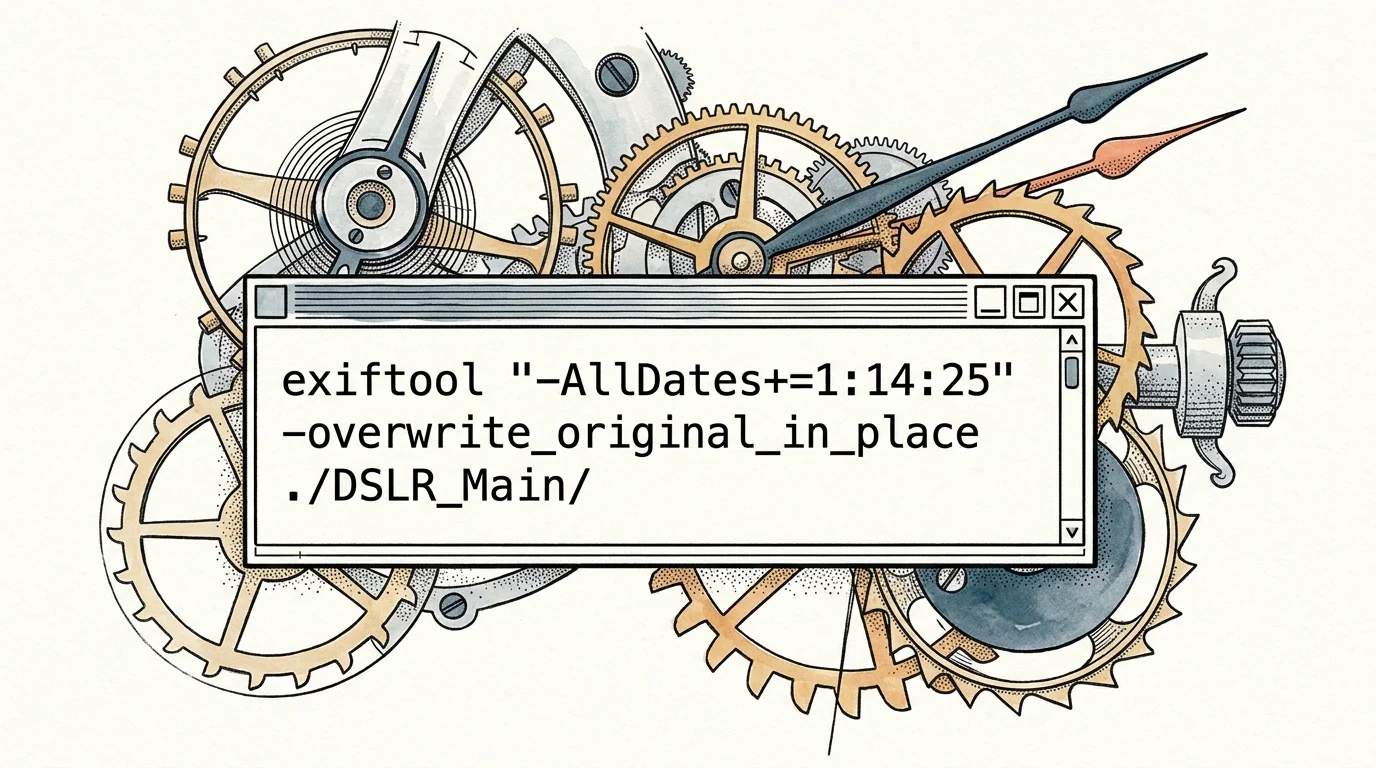
ExifTool Commands for Batch Time Shifting
Phil Harvey’s ExifTool is the global archival standard for reading, writing, and modifying multimedia metadata. It operates directly from your command terminal across macOS, Windows, and Linux.
If you frequently manage mixed-device exports, you can use similar command-line workflows for fixing Apple Photos migration time-scrambles when file systems corrupt your true capture dates.
The tool processes three primary timestamp tags simultaneously when you invoke the AllDates parameter shortcut. This shortcut updates DateTimeOriginal, CreateDate, and ModifyDate in a single pass.
To fix Uncle Jim’s Nikon DSLR files, navigate to your working directory and execute the positive adjustment command.
Positive Shift Command: exiftool “-AllDates+=1:14:25” ./Ingest_Working/01_Nikon_D750
This instruction advances all internal timestamps across the Nikon directory by one hour, fourteen minutes, and twenty-five seconds. Every photo now aligns perfectly with the cake-cutting reference.
For devices running ahead of ground truth, employ the subtraction operator instead. To adjust the iPhone 15 Pro, apply a two-second reduction.
Negative Shift Command: exiftool “-AllDates-=0:0:2” ./Ingest_Working/02_iPhone15_Pro
ExifTool automatically preserves an untouched duplicate of each file ending in the extension _original. Once you confirm timestamp accuracy, you can clean these duplicates using the delete flag.
Cleanup Command: exiftool -delete_original! ./Ingest_Working/02_iPhone15_Pro
Alternatively, add the overwrite_original parameter to your execution string if you have already generated external archival backups. This saves substantial local drive space during large ingest operations.
Resolving Mismatched Time Zones and Subsecond Data
Multi-camera collections frequently break because different manufacturers record time zones differently. Smartphones write explicit UTC offset tags, whereas most standalone cameras omit timezone information completely.
If you sync photo timestamps exiftool will balance the core clock, but modern photo viewers also read OffsetTimeOriginal. Unaligned offset tags cause cataloging software to shift images unexpectedly.
Cousin Sarah’s iPhone photos contain a British Summer Time offset of plus one hour. You must shift the base time and set the offset tag to match local venue time.
Time Zone Shift Command: exiftool “-AllDates-=5:0:0″ -OffsetTimeOriginal=”-05:00″ -OffsetTime=”-05:00″ ./Ingest_Working/05_iPhone13_Sarah
For Uncle Jim’s DSLR files, the camera wrote no timezone metadata whatsoever. You should inject the local offset directly so future archival software interprets capture times accurately.
Time Zone Injection Command: exiftool -OffsetTimeOriginal=”-05:00″ -OffsetTimeDigitized=”-05:00″ ./Ingest_Working/01_Nikon_D750
High-speed burst captures also record subsecond timestamps inside EXIF tags like SubSecTimeOriginal. ExifTool preserves these millisecond fractions automatically during shifts, keeping high-speed bursts in sequence.
Understanding digital sensor metadata helps prevent sorting errors when merging burst captures and standard exposures. Consult Cambridge in Colour photography tutorials to examine technical metadata and camera sensor characteristics.
HEIC, RAW, and JPEG Format-Specific Quirks
Working with eight family phones means managing multiple file containers with distinct internal structures. Apple iPhones produce proprietary HEIC containers, Android phones produce standard JPEGs, and DSLRs generate proprietary RAW files.
HEIC files store both EXIF blocks and QuickTime metadata tags. Modifying only the standard EXIF block can leave QuickTime creation dates unadjusted inside native Apple applications.
To ensure full compatibility across iOS devices, sync both EXIF and QuickTime metadata groups simultaneously when modifying HEIC containers.
HEIC Dual-Group Command: exiftool “-QuickTime:CreateDate+=0:0:12” “-AllDates+=0:0:12” ./Ingest_Working/04_iPhone14_Brother
Nikon NEF files require delicate handling to avoid metadata corruption. ExifTool writes safely to proprietary RAW files, but some preservationists prefer writing modifications to external XMP sidecar files.
If you prefer non-destructive sidecar management for DSLR RAW files, generate XMP sidecars during the shift operation.
XMP Sidecar Command: exiftool -o %d%f.xmp “-AllDates+=1:14:25” ./Ingest_Working/01_Nikon_D750
For Android devices shooting JPEG, metadata modifications write cleanly directly to the file header. Run standard date shifts without requiring custom format flags or secondary sidecars.
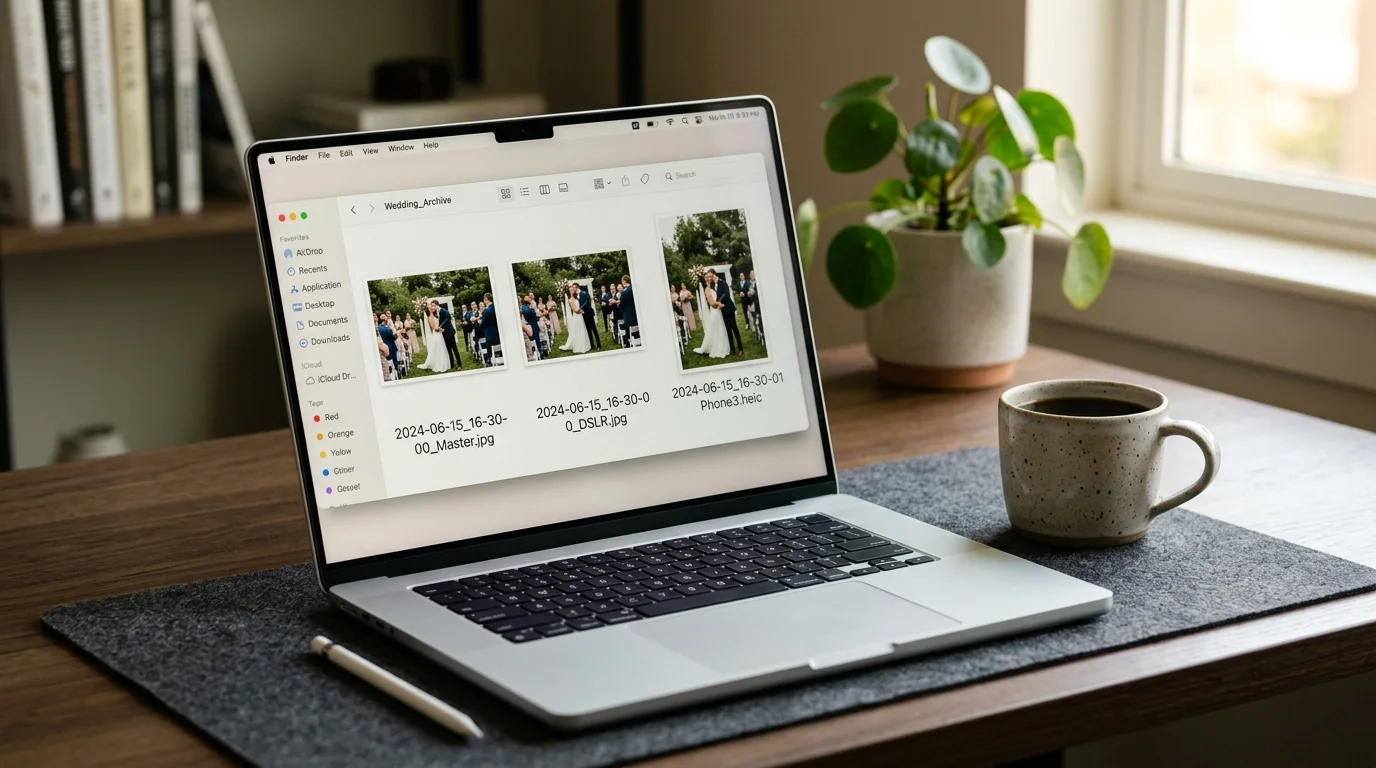
Batch Renaming for Seamless Chronological Viewing
Correcting internal EXIF dates solves timeline display inside intelligent photo managers. However, operating system file browsers still display files by arbitrary alphabetical filenames like IMG_4021.HEIC or DSC_0891.NEF.
To merge wedding photos chronological ordering must reflect in the filenames themselves. You can batch edit exif dates into standardized naming strings using ExifTool.
Execute a batch renaming command that prepends the verified capture date and time to every image. Including the camera model prevents filename collisions when two cameras shoot simultaneously.
Renaming Command: exiftool “-FileName<${DateTimeOriginal}_${Model}_%-f.%e” -d “%Y%m%d_%H%M%S” -r ./Ingest_Working
This single command recursively renames every image across all contributor subdirectories. A photo taken on June 15, 2024, at 4:30 PM becomes 20240615_163000_NIKON-D750_DSC_0891.NEF.
Once renamed, move all photographs from the individual contributor folders into a single unified directory named Wedding_Master_Chronological. Sorting by filename now presents a seamless chronological storyline.
Standardizing filenames with capture timestamps transforms a fragmented collection into an effortless visual narrative. Any computer operating system will naturally display your event in chronological sequence.
Opening this unified folder gives you an instant, synchronized record of the celebration. Every perspective sits in its rightful position along the timeline.
Frequently Asked Questions
Will adjusting EXIF timestamps alter my image quality or recompress photos?
No, ExifTool never recompresses or decodes image pixel data. It rewrites only the metadata headers at the start of the file container, preserving original image quality completely.
What if two guest phones captured no mutual reference photos?
Use a secondary reference bridge. Align phone A to phone B using an early event, and align phone B to phone C using a later milestone photo.
As long as each camera shares at least one simultaneous shot with a calibrated camera, you can chain offsets across the entire collection.
Why does Apple Photos still display the wrong time after running ExifTool?
Apple Photos caches metadata upon initial import. If you edit files after importing them, the application does not rescan the underlying files automatically.
Export the affected images, run your ExifTool corrections on the exported copies, and import them into a fresh album.
How can I safely revert changes if I enter an incorrect offset value?
If you retained the default _original backup files, restore them instantly using the restore flag. Otherwise, copy your untouched master files back from your cold backup directory.
Revert Backup Command: exiftool -restore_original -r ./Ingest_Working
Disclaimer: This article is for informational purposes only; when handling valuable photographs, consider consulting a professional conservator. Always test preservation methods on non-valuable items first.