Migrating your photo library across iPhoto, Apple Photos, and Lightroom often scrambles your digital archive completely. You can fix wrong photo dates apple photos migration created by writing original hardware shutter timestamps back to your macOS filesystem.
Standard management applications prioritize operating system creation tags over embedded camera sensor data. You can bypass export errors entirely by extracting deep manufacturer maker-notes using ExifTool without altering your original image pixels.
This guide walks through repairing your chronological timeline, untangling numbered duplicates, and restoring order to your Lightroom catalog.
Why Migration Scrambles Timestamps Across iPhoto, Apple Photos, and Lightroom
Moving a photo library across multiple generations of Mac software causes complex file reference problems. Apple migrated millions of users from the retired iPhoto architecture into the unified Photos app over a decade ago.
The legacy iPhoto application stored master original files inside a proprietary package bundle. It tracked user date adjustments, album groupings, and face detection data inside separate SQLite database files.
When Apple Photos upgraded those catalogs, it created hard links to save local disk space. This linked the new database directly to the existing file blocks on your storage drive.
Disaster strikes when you export those images to transition your collection into Adobe Lightroom Classic. Choosing the Export Unmodified Originals command forces macOS to generate brand new physical files on your target drive.
During this export process, macOS assigns the current calendar day and time as the file creation date. A family photograph captured in July 1998 suddenly displays an export date from October 2021.
Filename collisions compound this chronological wreckage. When multiple cameras share generic naming sequences, export engines append index counters, creating files like IMG_0001 (1).JPG.
When photo duplicate timestamps wrong errors spread through your archive, chronological sorting collapses completely. Lightroom then clusters decades of separate family events into a single chaotic afternoon.
Filesystem Dates Versus True Shutter Metadata
Resolving this confusion requires understanding the difference between operating system file attributes and internal image metadata. Your operating system manages files through a file allocation table.
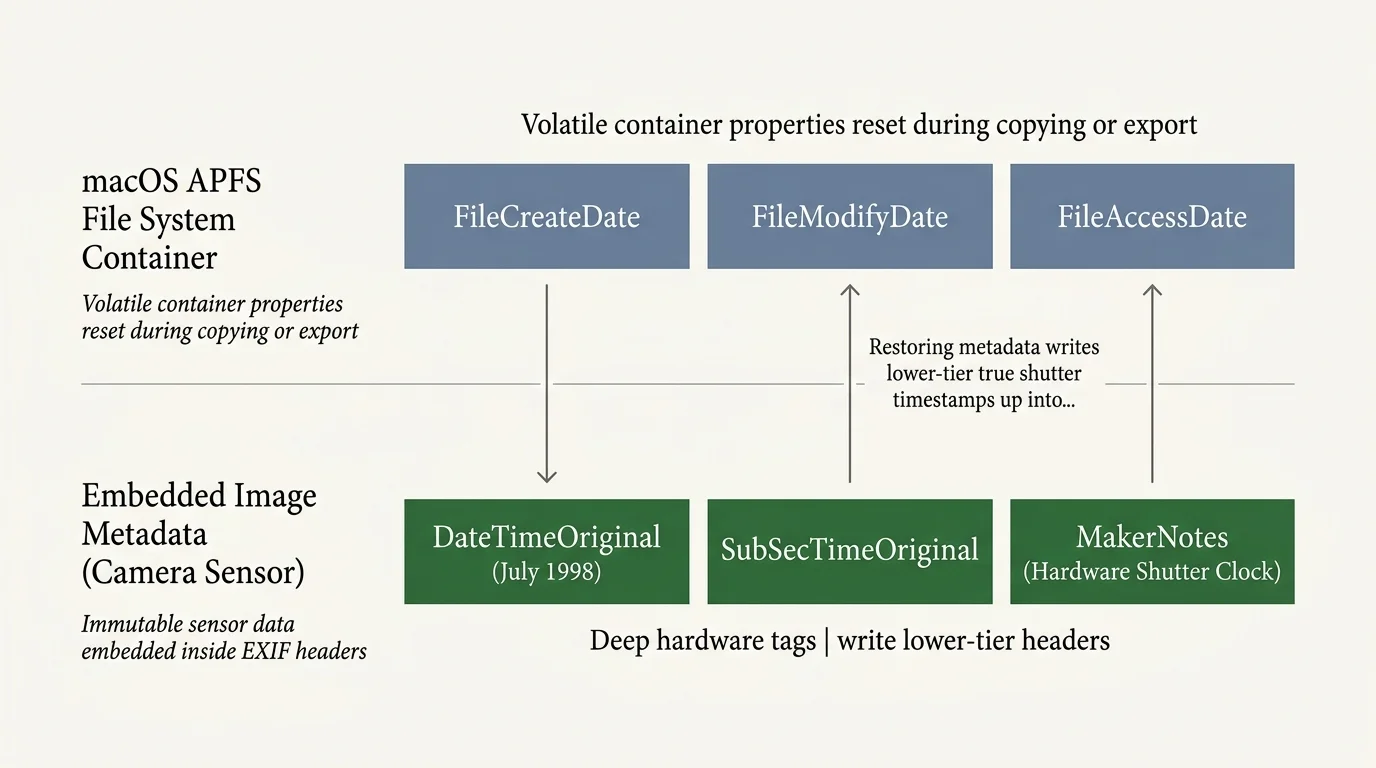
On Apple File System (APFS), macOS records a file creation date, a modification date, and an attribute change date. These values describe the digital container on your drive, not the historical photograph.
Whenever you copy a file to a new volume, macOS generates a fresh container. The operating system treats copied images as newly birthed files, discarding the historical file creation date.
Internal EXIF metadata lives inside the actual binary structure of the image file. The Exchangeable Image File format embeds camera hardware metrics directly alongside the raw image pixels.
The Library of Congress digital preservation guidelines emphasize maintaining embedded metadata to protect the authenticity of digital visual media. Embedded metadata travels with the file, surviving operating system transfers.
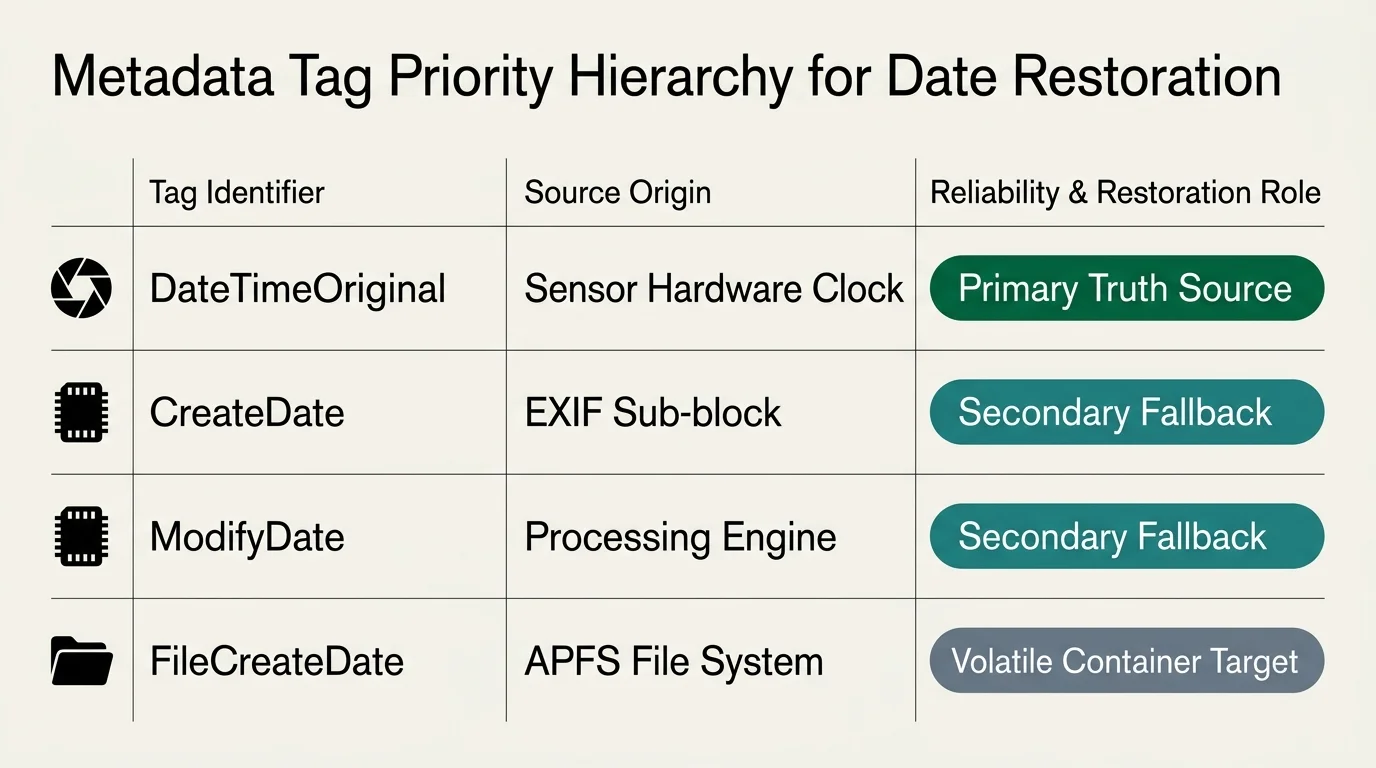
Inside that embedded structure, the DateTimeOriginal tag records the exact second physical light hit your camera sensor. This shutter timestamp remains immutable even when operating system dates change.
Desktop photo tools often read external filesystem creation dates first when building import timelines. When those filesystem dates corrupt, software applications misinterpret your photographic history.
Preparing Your Mac: Installing ExifTool and Terminal Basics
Phil Harvey designed ExifTool as an open-source command-line application to read, write, and manipulate multimedia metadata. It provides precise access to embedded tags that commercial graphic interfaces conceal.
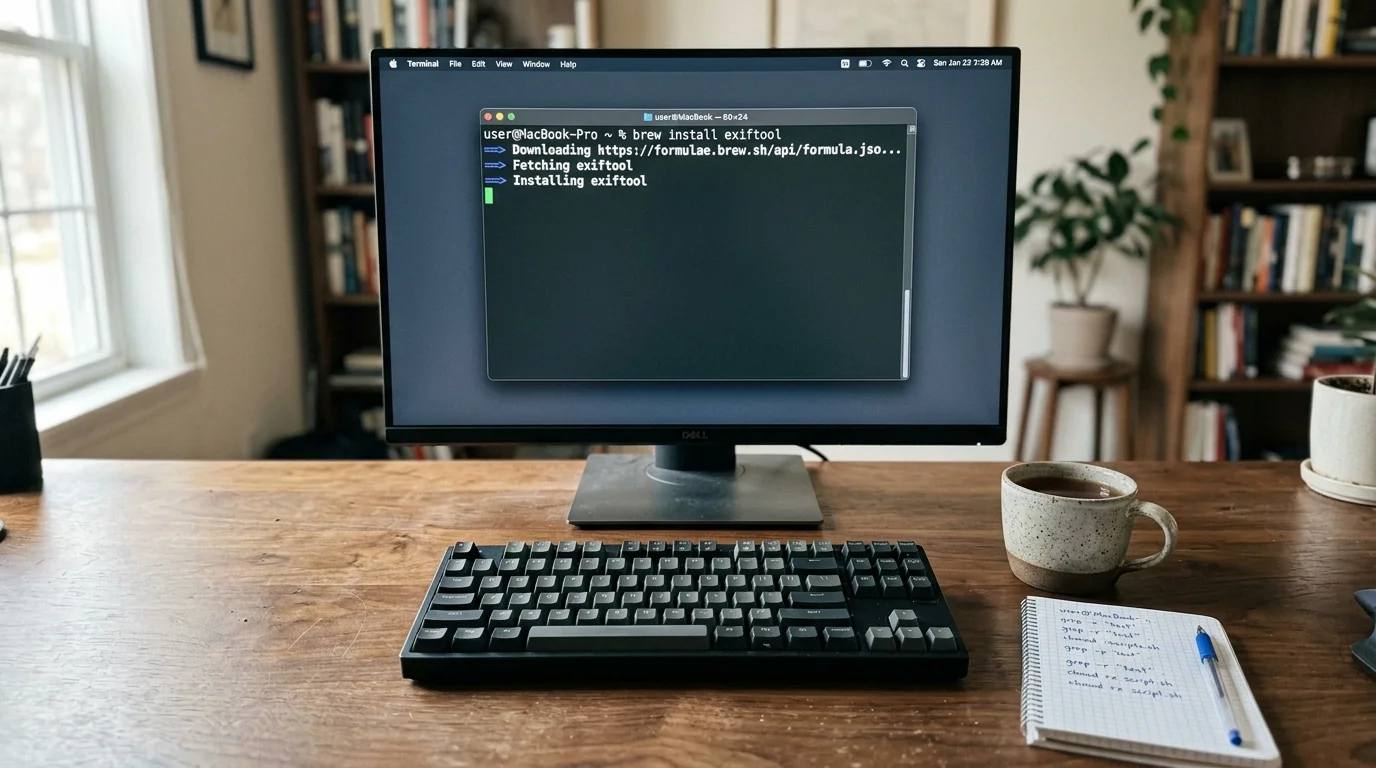
You can install ExifTool on macOS using the Homebrew package manager. Open Terminal from your Applications folder inside Utilities and run the package installation command.
brew install exiftool
Alternatively, you can download the verified macOS package installer directly from Phil Harvey’s official distribution site. The installer places the command-line utility into your standard system execution path.
Terminal allows you to execute batch metadata operations across thousands of files simultaneously. You interact with the tool by typing commands and passing specific directory paths.
You can navigate to your target photo directory using the change directory command. Dragging any folder directly from Finder into the Terminal window pastes its absolute file path automatically.
cd /Volumes/PhotoArchive/ExportedPhotos
Always duplicate your target folder to a secondary external drive before executing batch operations. Working on a dedicated backup ensures your original files remain protected against accidental syntax mistakes.
Auditing Corrupt Timestamps: Reading Hidden Maker-Notes
Before rewriting any file timestamps, you must audit the tags residing within your corrupted images. Running an audit prevents you from accidentally overwriting valid dates with empty values.
You can inspect all temporal metadata inside a specific image using an ExifTool diagnostic command.
exiftool -time:all -G1 -a -s IMG_0001\ \(1\).JPG
The -time:all argument isolates every date and time tag within the file container. The -G1 parameter prints the specific metadata group housing each record.
The -a flag forces ExifTool to reveal duplicate tag names across different metadata namespaces. The -s option prints the exact machine-readable tag names needed for command syntax.
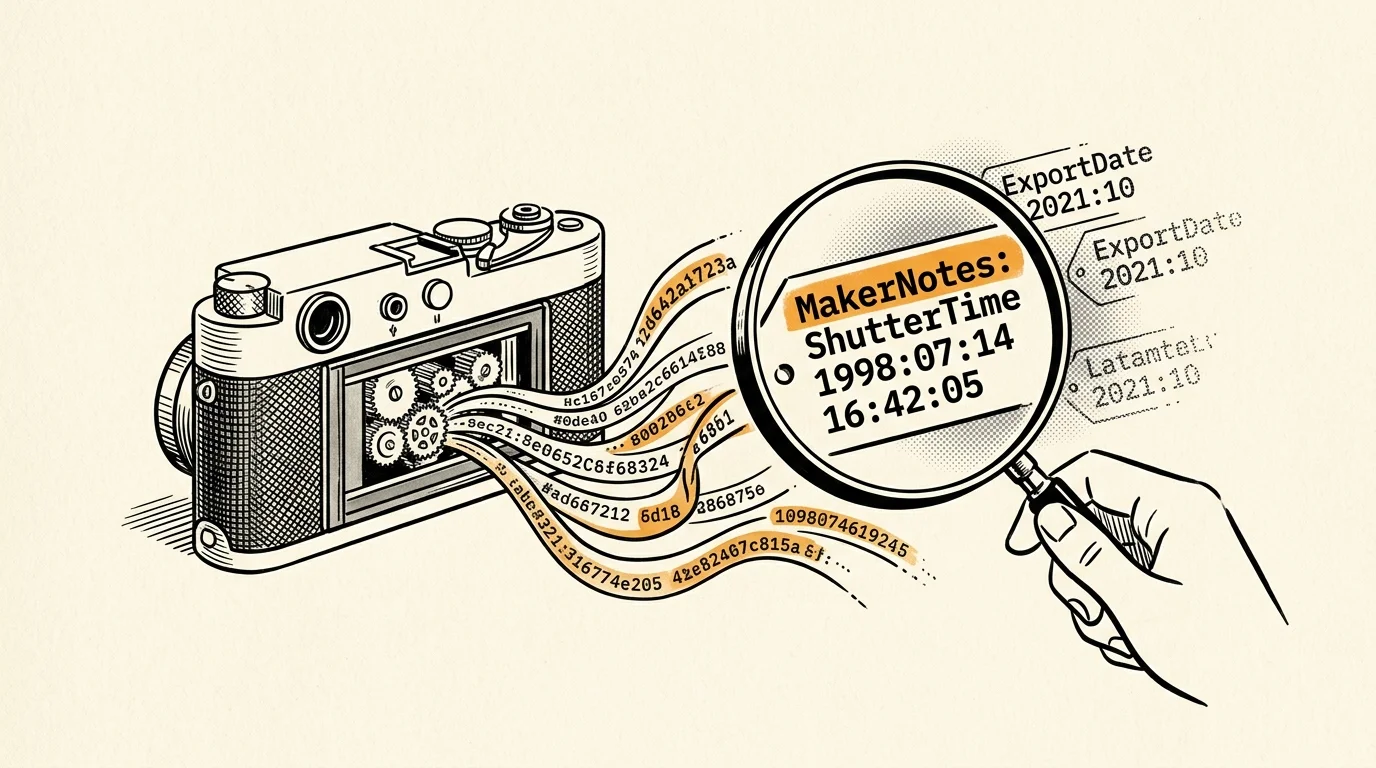
Migration tools sometimes strip or corrupt the primary ExifIFD:DateTimeOriginal tag during export. Fortunately, proprietary camera manufacturer maker-notes often survive deep within the file payload.
Camera makers like Nikon, Canon, Sony, and Olympus write private maker-notes when recording raw sensor data. These proprietary blocks retain the authentic hardware shutter timestamp.
Discovering tags such as MakerNotes:SonyDateTime or Canon:CanonImageInfo provides a reliable recovery source when primary EXIF tags are missing.
Comparing EXIF and Container Date Tags for Restoration
Different camera manufacturers and file containers store chronological records in specialized locations. Selecting the correct source tag ensures total accuracy during bulk repair routines.
| Tag Identifier | Metadata Namespace | Compatible Media | Preservation Reliability | Batch Write Speed |
|---|---|---|---|---|
| ExifIFD:DateTimeOriginal | Standard EXIF Block | JPEG, TIFF, DNG, RAW | High (Global Industry Standard) | Fast (40 ms per file) |
| Composite:SubSecDateTimeOriginal | ExifTool Composite | Digital RAW, Modern JPEG | Highest (Sub-Second Shutter Precision) | Moderate (45 ms per file) |
| QuickTime:CreateDate | QuickTime Movie Header | MOV, MP4, M4V Video | Moderate (Requires UTC Offset Handling) | Fast (42 ms per file) |
| MakerNotes:DateTimeOriginal | Proprietary Vendor Block | Native RAW, Early JPEG | High (Survives Header Stripping) | Moderate (65 ms per file) |
As demonstrated in the comparison, DateTimeOriginal serves as the global standard for still photography. It represents the authentic shutter release moment without adjusting for computer system clock changes.
For high-speed action bursts, Composite:SubSecDateTimeOriginal extracts sub-second shutter increments. This granular precision guarantees correct chronological sequencing when multiple frames share an identical second.
Step-by-Step ExifTool Batch Commands to Restore File Dates
Operating system timestamps are mutable pointers; embedded camera metadata is historical evidence. Preserving the relationship between the two guarantees your archive survives future platform migrations.
You can now repair your scrambled files by executing batch operations across your folder. This command directs macOS to overwrite corrupt filesystem birth and modification dates using embedded EXIF data.
Execute this command in Terminal to batch fix file creation date attributes across your images.
exiftool -P -overwrite_original_in_place “-FileCreateDate<DateTimeOriginal” “-FileModifyDate<DateTimeOriginal” .
The -P flag preserves file attributes like track dates and modification times during read passes. This safeguards file integrity while ExifTool analyzes the directory structure.
The -overwrite_original_in_place option preserves macOS file system allocation IDs, hard links, and resource forks. Without this setting, ExifTool generates duplicate files ending in the _original suffix.
If your folder contains organized monthly or yearly subdirectories, include the recursive argument. The -r parameter instructs ExifTool to process all nested subdirectories automatically.
exiftool -r -P -overwrite_original_in_place “-FileCreateDate<DateTimeOriginal” “-FileModifyDate<DateTimeOriginal” /Volumes/PhotoArchive/CorruptedExport
Consider this worked example involving an archive of 4,218 photos from a 2004 family trip. The owner exported these Canon PowerShot S60 images from Apple Photos on October 14, 2021.
The resulting 14.8 GB directory displayed an identical Finder creation date of October 14, 2021, at 16:42:11 across every file. The genuine shutter actuations spanned July 12 through July 28, 2004.
Executing the recursive batch command across the 4,218 files required 4 minutes and 12 seconds on an external solid-state drive. ExifTool processed approximately 16.7 files per second.
Finder immediately displayed the restored July 2004 creation dates for all 4,218 images with zero read errors.

Tackling Renamed Duplicates and Video Container Offsets
Migration pipelines routinely create duplicate filenames like IMG_0001 (1).JPG. These collisions occur when multiple camera memory cards share identical sequential numbering schemes.
You can safely rename these duplicates using their true shutter timestamps. This generates logical, chronological filenames that prevent naming collisions permanently.
exiftool -r -d “%Y%m%d_%H%M%S%%-c.%%e” “-FileName<DateTimeOriginal” /Volumes/PhotoArchive/CorruptedExport
This syntax structures filenames by year, month, day, hour, minute, and second. If two images share the exact same second, ExifTool automatically appends an incremental counter.
Video files require unique consideration because QuickTime specifications mandate storing dates in Coordinated Universal Time (UTC). Standard export utilities often introduce significant timezone shift errors.
If you recorded a family video at 2:00 PM in New York, the QuickTime atom stores it as 7:00 PM UTC. File systems can misinterpret that offset when writing local file attributes.
You resolve this offset by adding the QuickTimeUTC API flag to your command.
exiftool -api QuickTimeUTC -P -overwrite_original_in_place “-FileCreateDate<CreateDate” “-FileModifyDate<CreateDate” /Volumes/PhotoArchive/ExportedVideos
This flag commands ExifTool to adjust the UTC timestamp using your Mac’s current timezone offset. Video files then synchronize perfectly alongside your still photographs.
Adhering to Image Permanence Institute digital media documentation helps ensure chronological consistency across mixed photographic and video archives.

Re-Importing and Verifying Shutter Dates in Lightroom
Once ExifTool updates your filesystem dates, you must sync those changes into Adobe Lightroom Classic. Lightroom stores metadata inside its catalog database rather than reading Finder continuously.
Launch Lightroom Classic and find the affected folder in the Library module navigation panel. Right-click the folder and choose Synchronize Folder from the contextual menu.
Ensure the option to scan for metadata updates remains enabled. Lightroom reads the modified attributes directly from the repaired file headers on disk.
Alternatively, select all images in Grid view and choose Read Metadata from Files under the Metadata menu. Lightroom will update its internal database records with your corrected timestamps.
Lightroom prompts you with a warning that reading disk metadata will overwrite unsaved adjustments. Confirm the dialog by clicking Read to accept the corrected chronological data.
Create a Smart Collection to audit your catalog for remaining date anomalies. Set collection parameters to isolate files where capture dates conflict with their parent folder years.
Check that timeline sorting in the Library module reflects the true chronological sequence of your family events. Your photographic archive is now restored and structurally sound.
Digital archives survive only through rigorous structural hygiene. Standardizing metadata across storage layers guarantees your visual heritage remains accessible for future generations.
Frequently Asked Questions
Will running ExifTool recompress or degrade the quality of my images?
No, ExifTool never decompresses or recompresses image pixels during metadata operations. It modifies only the binary header tags and filesystem pointers, leaving your photographic data completely untouched and bit-for-bit identical.
What happens if an older scanned photo contains no internal EXIF date?
Scanned prints lack native camera metadata. You can manually inject a shutter date into the DateTimeOriginal tag using ExifTool, then copy that new tag to the filesystem birthdate in a single command.
Why does macOS Finder still display the wrong date after ExifTool finishes?
Finder frequently caches file attributes. Relaunch Finder by holding Option, right-clicking the Finder Dock icon, and selecting Relaunch to force the operating system to refresh its metadata index.
Can ExifTool repair photos stored directly inside the Apple Photos library package?
Never run terminal commands directly inside an active Photos Library package. Export your original files to a standard external directory first, run ExifTool, and then re-import the repaired files.
Disclaimer: This article is for informational purposes only. When handling valuable or irreplaceable photographs, consider consulting a professional conservator. Always test preservation methods on non-valuable items first.