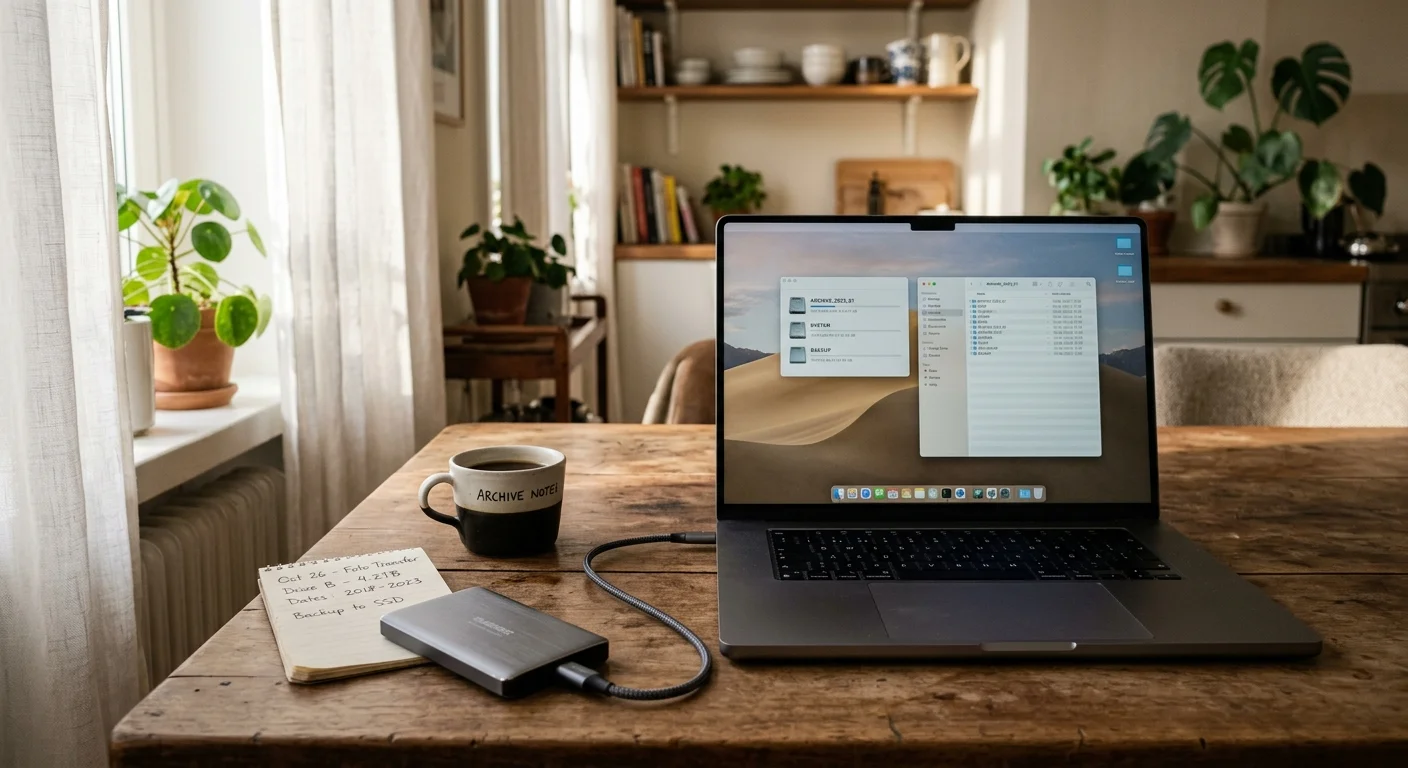
You can preserve your complete photographic legacy without paying Apple $120 every year for expanded cloud storage. Splitting your bloated library allows you to keep recent captures synced across your devices on the $2.99 monthly 200GB tier.
Rather than exporting raw files into disorganized folders, a dual-database architecture segregates your collection cleanly. You keep an active rolling library in iCloud while preserving an offline master archive on high-speed local storage.
This technical workflow protects every non-destructive edit, retains custom album structures, and locks in permanent annual savings.
The 2TB Storage Trap: Why Apple Photos Outgrows iCloud
Modern iPhones generate immense media files. Between 48-megapixel ProRAW captures and 4K ProRes video, your photo collection accumulates gigabytes at an unprecedented rate.
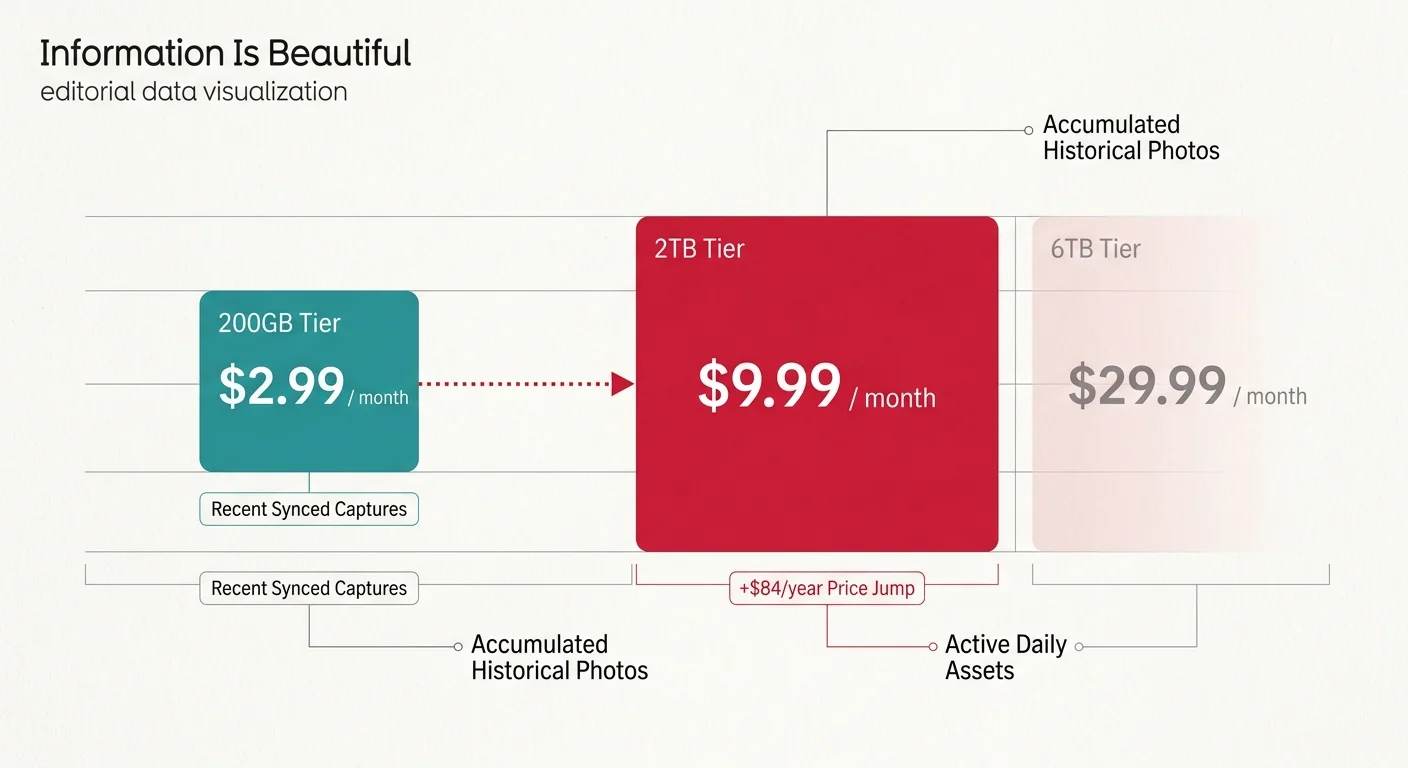
Apple prices its iCloud+ tiers with a punitive gap. The 200GB plan costs $2.99 per month, but exceeding that threshold forces you directly into the 2TB tier at $9.99 per month.
Stepping up to 2TB costs you an extra $84 every year; stepping beyond 2TB pushes you into the 6TB tier at an exorbitant $29.99 monthly. Cloud storage bills compound indefinitely over decades.
Most Mac users treat their photo library as a monolithic container. You store snapshots from ten years ago alongside photos of yesterday’s lunch, syncing every historical asset across all mobile hardware.
This architecture is fundamentally inefficient. You rarely need immediate, synchronized mobile access to thousands of vacation images captured in 2014.
Those historical images represent valuable personal heritage, not active everyday assets. Separating active files from cold archives eliminates recurring cloud bloat while safeguarding your historical records.
Hardware Requirements for APFS Cold Storage
Apple Photos relies on complex relational SQLite databases to manage photo edits, face recognition, and album relationships. Hosting a library on an external drive requires specific storage hardware.
You must format your external storage drive as APFS (Apple File System) or Mac OS Extended (Journaled). Never use drives formatted as ExFAT or FAT32.
Apple explicitly warns that running Photos libraries from ExFAT volumes, SD cards, or USB thumb drives causes catastrophic database corruption. Non-Apple file systems cannot manage native macOS file permissions or extended attributes.
Network Attached Storage (NAS) devices are similarly unsuitable for live Apple Photos libraries. Storing an active library file across a network share breaks SQLite database locks and triggers read-write errors.
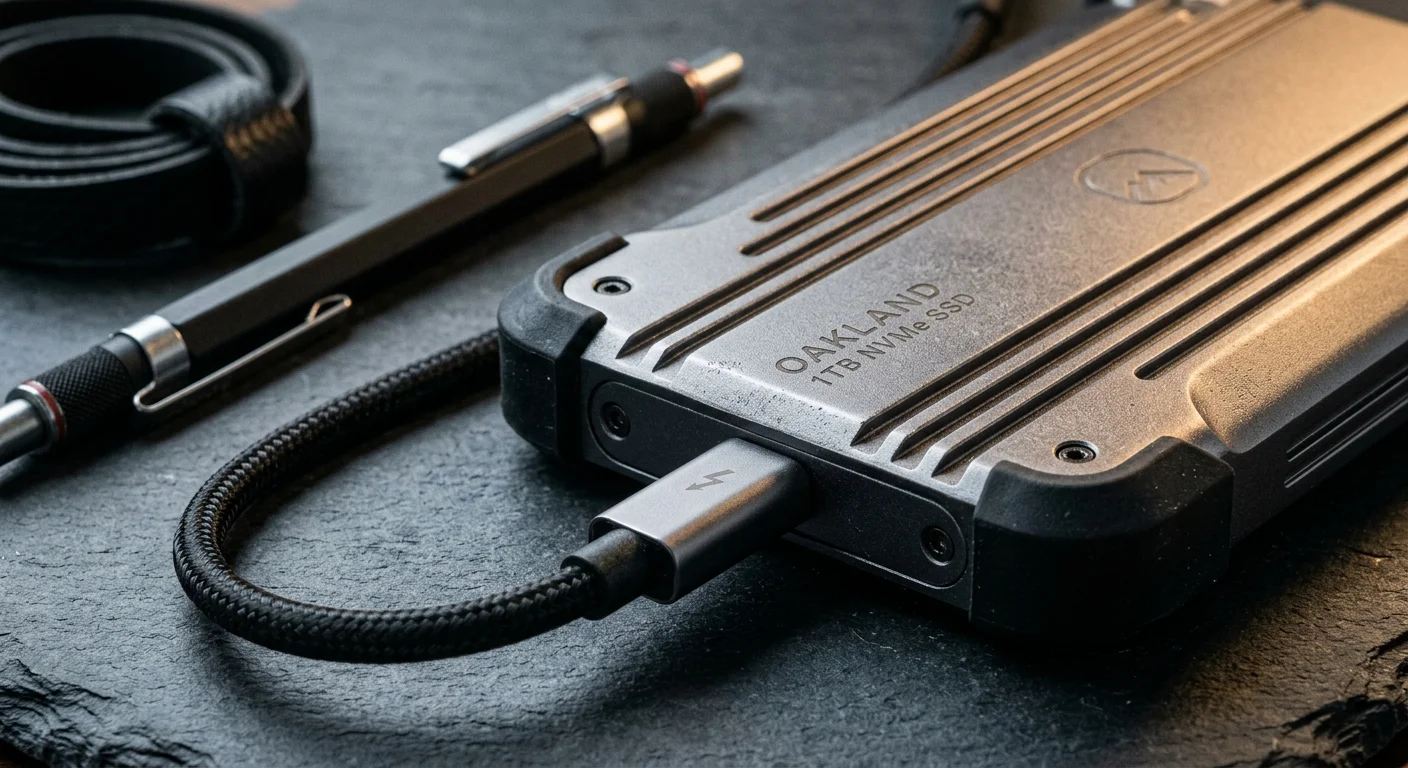
Invest in a dedicated solid-state drive such as the Crucial X9 Pro or Samsung T7 Shield. Solid-state drives deliver sustained read speeds above 1,000 MB/s, ensuring fluid library navigation and instantaneous search rendering.
For long-term media integrity, consult established archival protocols like the Library of Congress digital preservation standards. Proper local storage infrastructure forms the foundation of reliable digital preservation.
Understanding System Photo Library Mechanics
Apple Photos supports multiple distinct library files on the same Mac. You can create a new library at any time by holding the Option key while launching the Photos application.
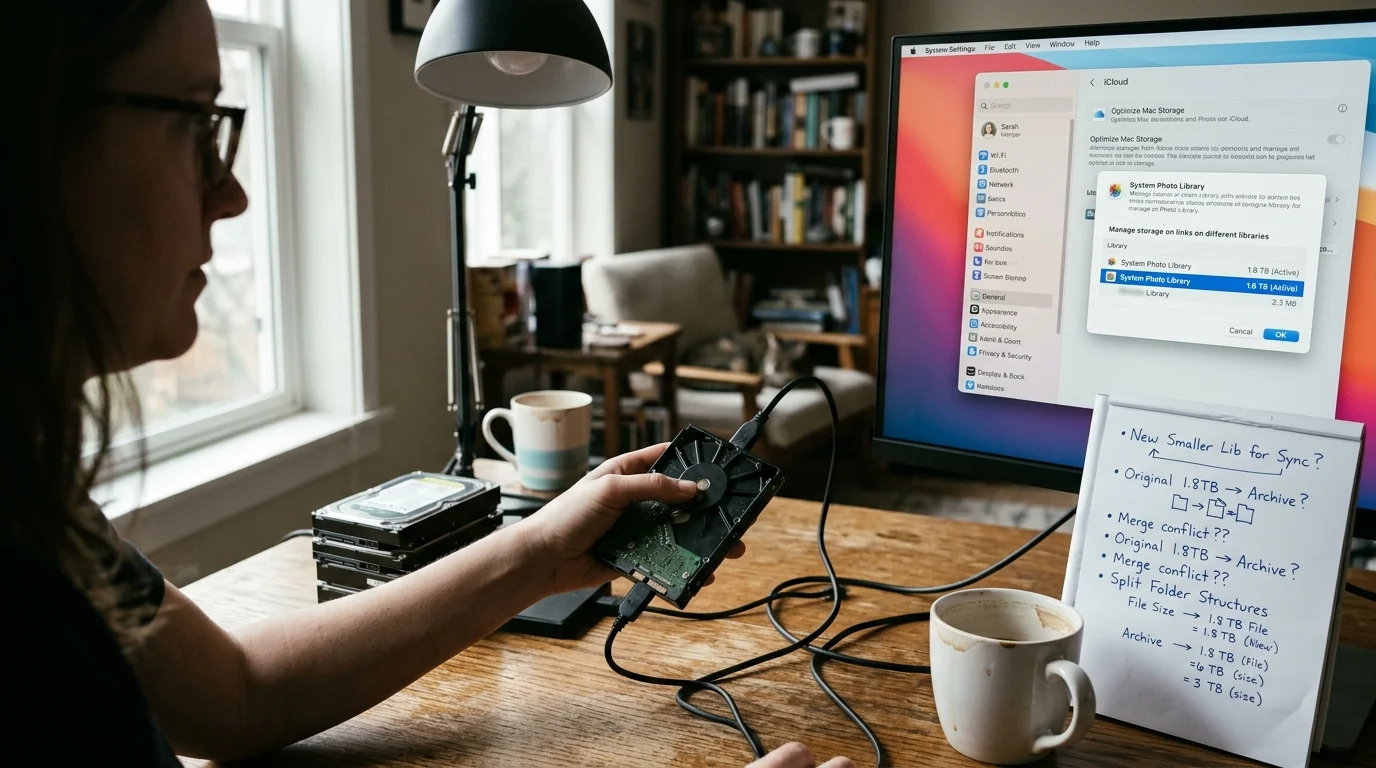
However, macOS enforces a strict operational rule: only one library can function as the designated System Photo Library. This design limitation dictates your entire storage workflow.
Only the designated System Photo Library can synchronize with iCloud Photos, shared albums, and connected iOS devices. All secondary libraries remain entirely offline and local to your Mac.
When you split your library, your active library remains designated as the System Photo Library. It synchronizes automatically with iCloud, your iPhone, and your iPad.
Your secondary archive library lives on your external APFS drive as an independent file. It connects directly to the Photos engine whenever you choose to open it locally.
This architectural boundary protects your cloud storage quota. The offline archive consumes zero bytes of your 200GB iCloud limit while retaining native Photos functionality.
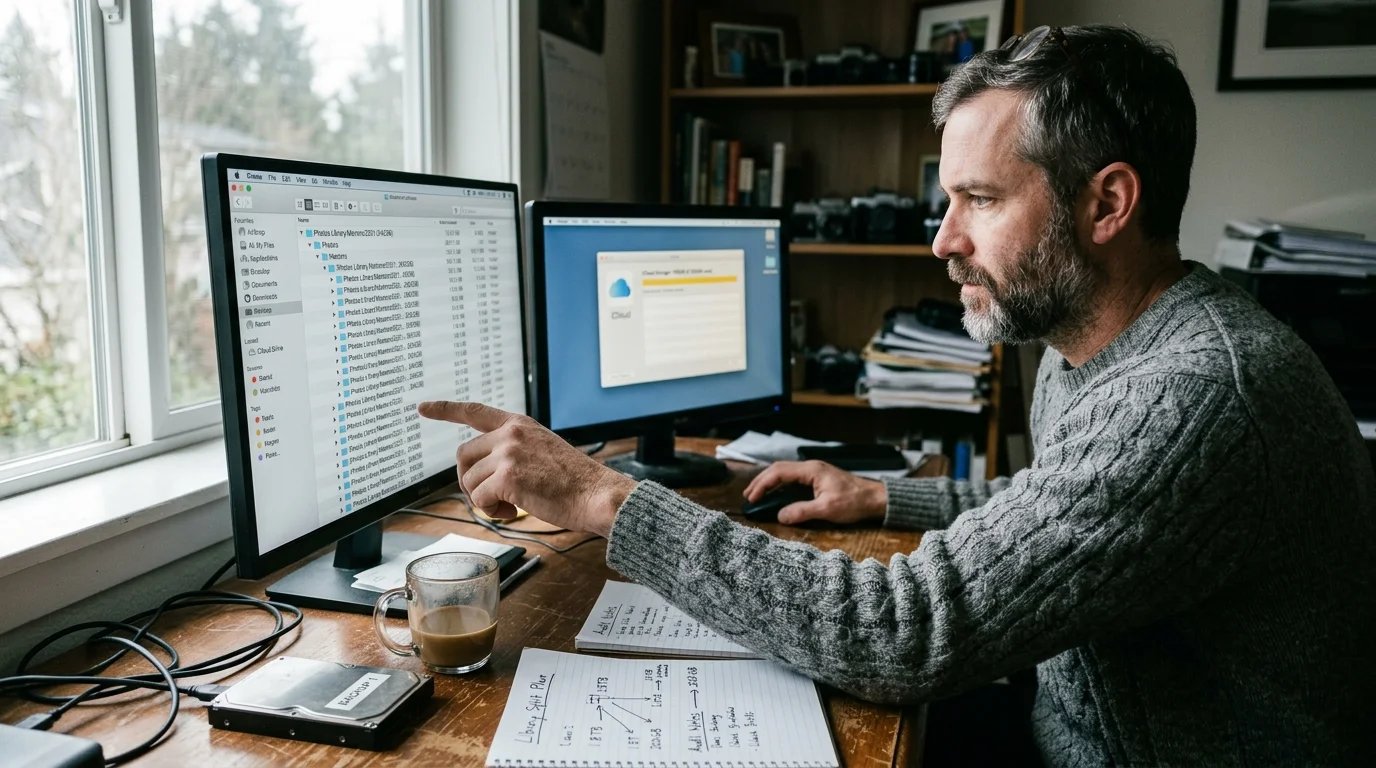
Worked Example: Auditing a 1.8TB Bloated Library
Consider an actual power-user scenario involving a 1.8TB primary collection. This real-world audit illustrates how surgical library partitioning restores equilibrium to your storage ecosystem.
The original library contains 142,500 images and 1,840 video files spanning from June 2012 to March 2026. The database file consumes 1,843GB on an internal Mac Studio drive.
A storage audit reveals that 88 percent of this disk usage originates from items captured before January 1, 2024. Old 4K family home videos from 2016 through 2021 represent over 900GB alone.
We establish a two-year rolling threshold for the active collection. Everything captured between January 1, 2024, and the present remains in the active cloud-synced library.
This rolling window contains 11,200 images and 180 video clips, totaling 84GB of storage space. The remaining 131,300 items—totaling 1,759GB—are tagged for relocation to the cold archive.
Let us review the resulting allocation on the 200GB iCloud plan:
- Active Photos Library: 84GB
- iOS Device Backups: 34GB
- iMessage Attachments and iCloud Drive Documents: 16GB
- Total iCloud Storage Consumed: 134GB
- Available Cloud Buffer: 66GB
This reallocation eliminates the need for the $9.99 monthly plan. Over five years, staying on the 200GB tier saves $420 in direct subscription fees.
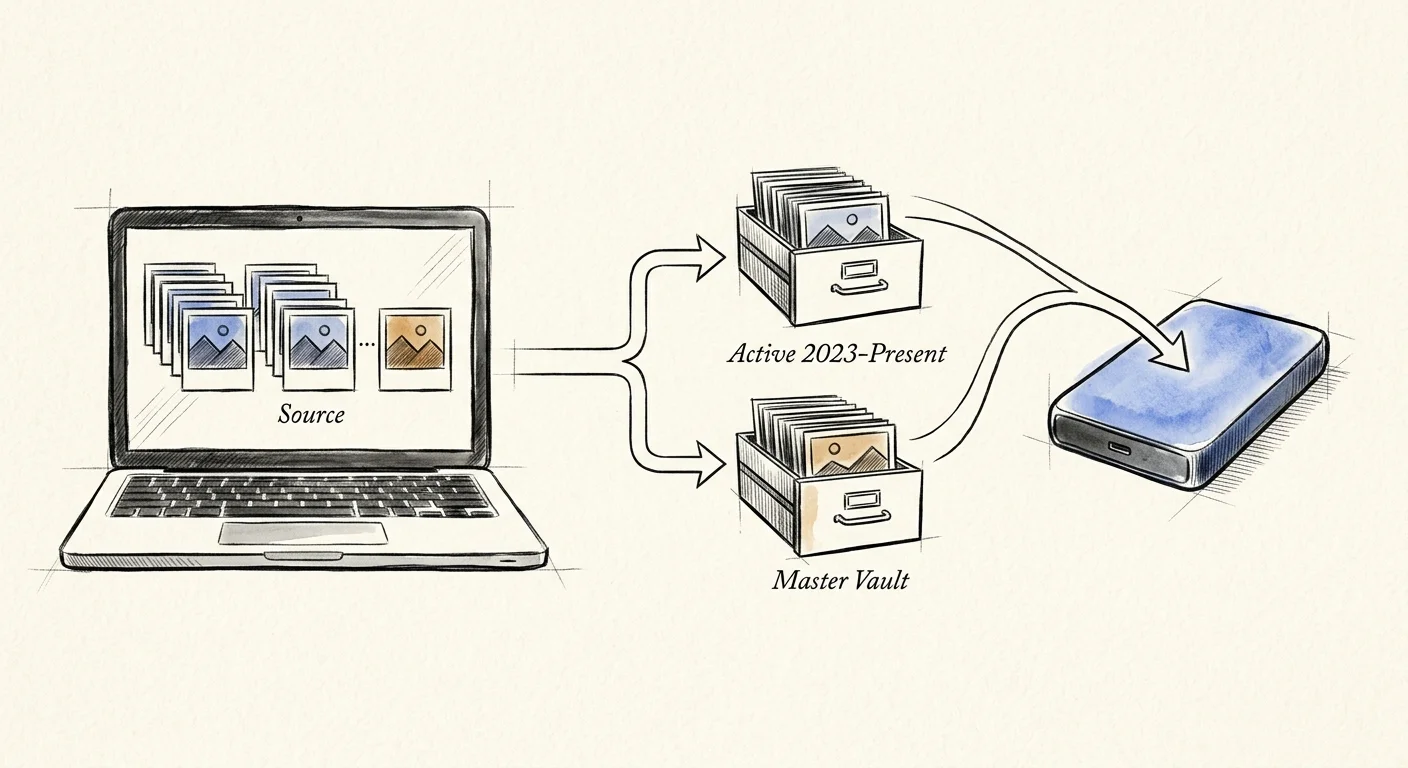
PowerPhotos Tutorial: Step-by-Step Library Partitioning
Apple Photos provides no built-in tool to split an existing library while preserving edits and albums. Exporting files manually via Finder strips non-destructive edit histories and empties your curated album hierarchies.
To execute a flawless partition, use PowerPhotos by Fat Cat Software ($39.95 single-user license). PowerPhotos interfaces directly with the Photos internal database to transfer assets losslessly.
Follow this exact operational sequence to move photos library to external drive storage safely.
Step 1: Create the APFS Storage Container
Connect your external SSD to your Mac. Open Disk Utility, select the external drive, and click Erase.
Name the volume “Photo Archive” and set the format to APFS with a GUID Partition Map scheme. Click Erase to initialize the volume.
Step 2: Establish the Offline Archive Library
Launch PowerPhotos. Click the Add Library button in the toolbar, select “Create New Library,” and target your external SSD.
Name this file “Cold Archive 2012-2023.photoslibrary.” PowerPhotos creates a clean, native Apple Photos database structure on the SSD.
Step 3: Define and Migrate the Historical Segment
Open your primary System Photo Library in PowerPhotos alongside your new archive library. In your primary library, create a Smart Album named “Pre-2024 Archive.”
Set the rule to: “Date Captured is before 01/01/2024.” PowerPhotos populates the smart album with your 131,300 historical assets.
Drag the “Pre-2024 Archive” smart album from your primary library and drop it directly onto the new cold archive library in PowerPhotos. A configuration dialog appears.
In the transfer settings, check “Copy unedited originals” alongside “Include adjusted versions.” Ensure “Preserve metadata” is checked to retain all keywords, faces, GPS coordinates, and titles.
Click “Start Copy.” PowerPhotos initiates the database transfer, migrating full-resolution masters and sidecar adjustment files.
A 1.7TB transfer takes approximately 45 to 90 minutes over a 10Gbps USB-C connection. Allow the process to complete entirely without sleeping your Mac.
Step 4: Verify Database Parity
Hold Option and open the new “Cold Archive 2012-2023.photoslibrary” inside Apple Photos. Inspect album structures, verify photo counts, and check raw image adjustment sliders.
If you notice that image timestamps shifted during the transfer, learn how fixing Apple Photos migration time-scrambles can restore your original capture dates using ExifTool.
Confirm that your non-destructive crop boundaries, exposure tweaks, and color grades remain fully intact. Do not touch your original library until you confirm this audit.
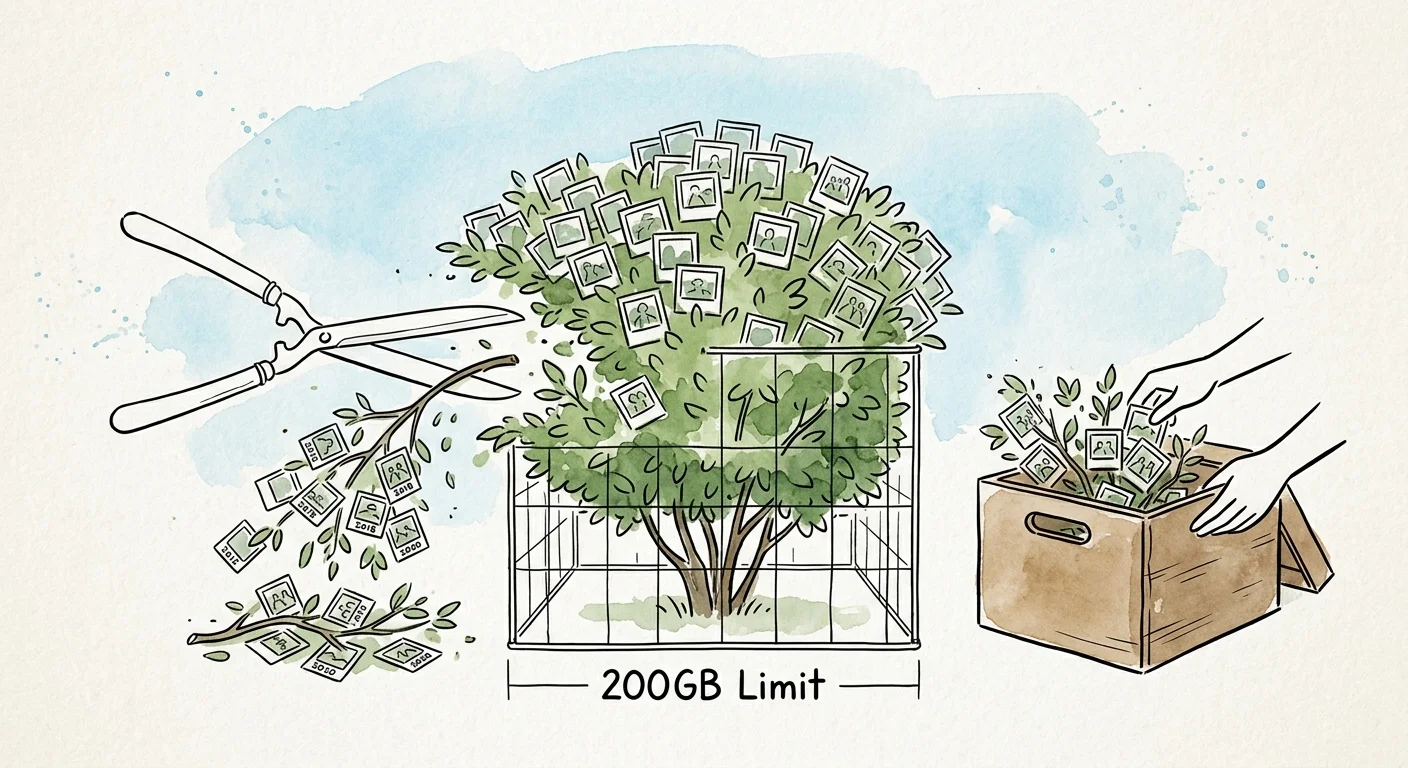
Pruning the System Library and Reclaiming iCloud Quota
Now that your assets reside safely in cold storage, you must reduce icloud photo storage in your primary database. Pruning the primary library requires careful execution.
Hold Option and reopen your primary System Photo Library in Apple Photos. Navigate to the “Pre-2024 Archive” album you created earlier.
Select all items within the album by pressing Command-A. Delete them from the library by pressing Command-Delete.
Moving items to the trash does not reclaim storage immediately. The assets move into the “Recently Deleted” system album, where macOS retains them for 30 days.
Click on “Recently Deleted” in the sidebar, authenticate with your Mac password or Touch ID, and click “Delete All.” Confirm the deletion prompt.
Open Photos Settings and click the iCloud tab. Observe the synchronization status bar at the bottom of the interface.
Apple Photos will begin processing deletions across the cloud cluster. Within 2 to 6 hours, your iCloud storage gauge recalibrates, dropping your usage to roughly 84GB.

The Rolling Two-Year Maintenance Protocol
A partitioned system requires consistent lifecycle management. Without an annual routine, your active library will expand past the 200GB limit within 18 to 24 months.
Schedule a recurring maintenance session every January. This 30-minute procedure keeps your primary library lean and predictable.
Connect your archive SSD and launch PowerPhotos. Identify media that crossed the two-year threshold during the preceding twelve months.
Transfer that single calendar year into your cold archive library. Confirm the transfer, delete the batch from your primary library, and empty the “Recently Deleted” album.
This rolling cadence guarantees you retain the last 700 to 730 days of memories on your iPhone. You always carry your most relevant experiences wherever you go.
Meanwhile, your historical memories remain organized within the exact same Apple Photos ecosystem on your desk. You sacrifice zero search capability while halting cloud storage subscription inflation.
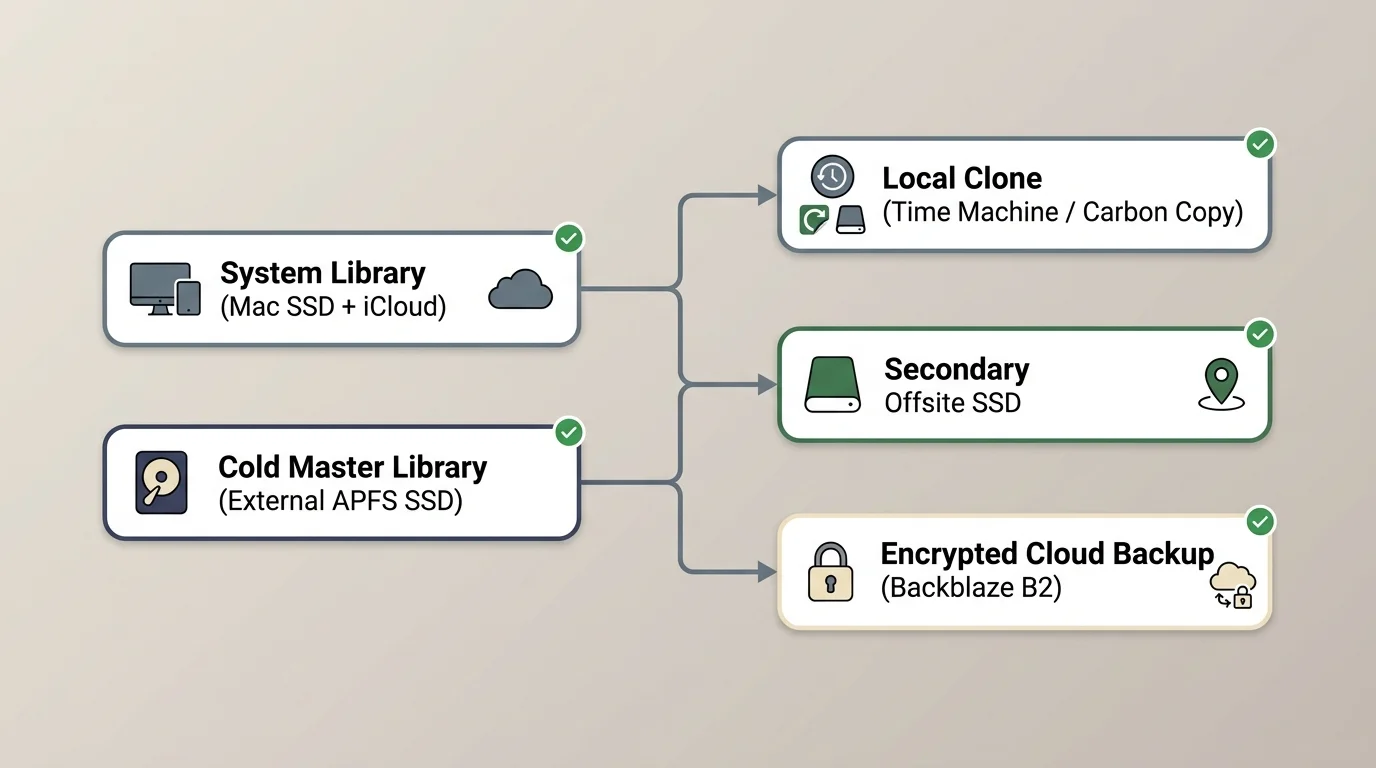
Preservation and Backup Architecture for Dual Libraries
An offline library on an external SSD is vulnerable to drive failure, accidental drops, and file system corruption. Removing items from iCloud eliminates Apple’s cloud redundancy for those specific files.
You must establish a rigorous 3-2-1 backup pipeline for your split apple photos library. Three copies of your data must exist across two distinct media types, with one copy stored offsite.
Maintain your primary working archive on your fast external APFS SSD. Configure macOS Time Machine to back up that external SSD to a separate, dedicated desktop hard drive daily.
Cloud synchronization is a synchronization utility, not an archival backup. True digital photo preservation requires disconnected local clones and immutable offsite archives.
Generate a second direct clone of your archive drive every month using Carbon Copy Cloner or SuperDuper. Store that physical clone drive at an office, family member’s home, or secure safety deposit box.
For managed offsite digital storage, use an encrypted cloud backup provider such as Backblaze or an Amazon S3 Glacier vault. These services back up connected external APFS drives without arbitrary size penalties.
Follow the preservation frameworks outlined by the National Archives preservation guidelines to protect digital heritage from media degradation. Treat your personal photo collection with the same procedural rigor used by institutional archivists.
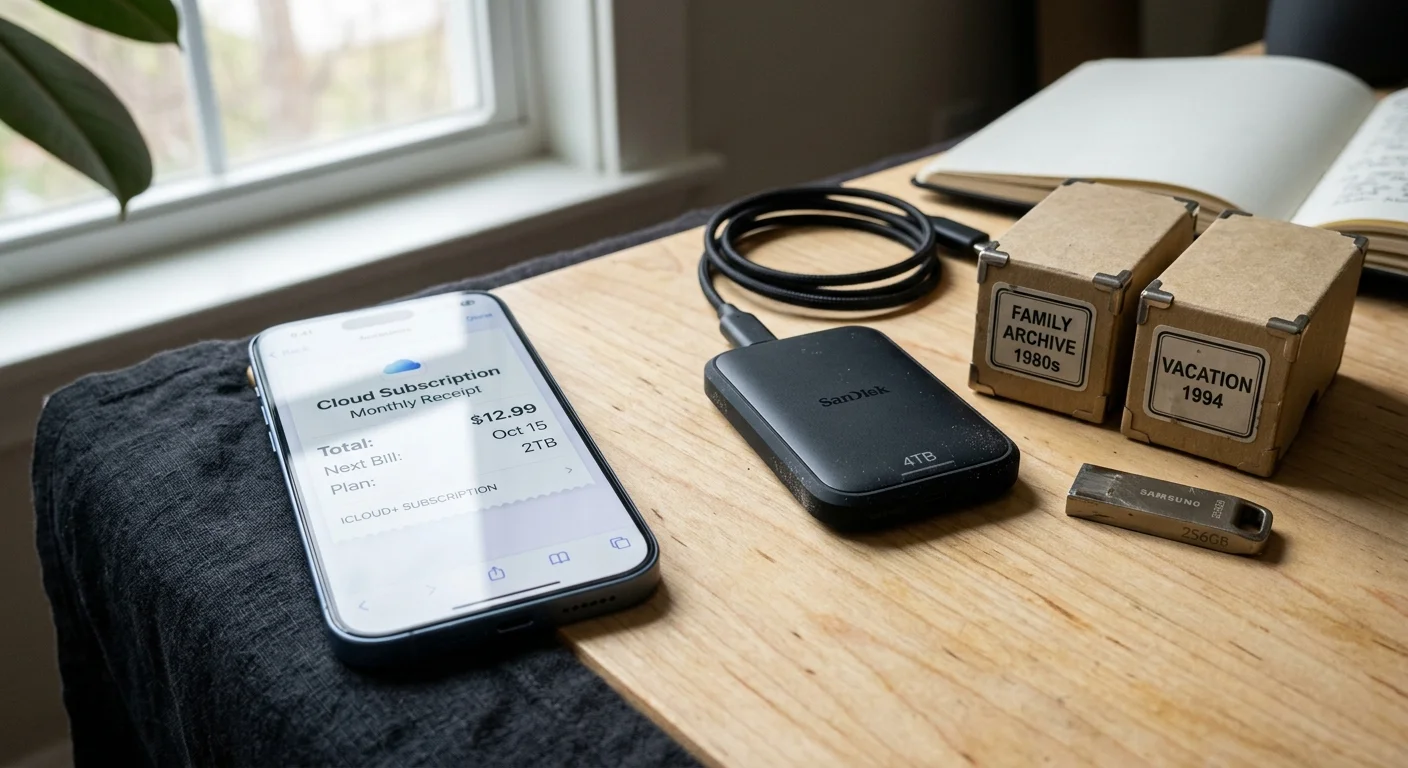
Storage Architecture Comparison: Cloud vs. Split Local
Choosing the correct storage model depends on your budget, technical comfort, and accessibility requirements. The following matrix contrasts four real-world photo management frameworks.
| Storage Strategy | Annual Recurring Cost | Edits & Metadata Retained | Mobile iPhone Access | Offline Resilience |
|---|---|---|---|---|
| Full 2TB iCloud+ Tier | $119.88 / year | Full (Native Cloud Sync) | Complete (All 1.8TB) | Poor (Dependent on Apple ID) |
| Split Library (PowerPhotos + APFS) | $35.88 / year | Full (Lossless SQLite Clones) | Rolling 2 Years (84GB) | Excellent (Local APFS Clones) |
| Manual Finder Export to Folder | $35.88 / year | None (Destructive or Sidecars) | Rolling 2 Years (84GB) | Moderate (Unindexed JPEGs) |
| Local NAS Photo Server | $0 to $60 / year | Partial (Proprietary App Formats) | Full (Self-Hosted App) | High (Local RAID Arrays) |
The split-library approach provides the ideal compromise between convenience and fiscal practicality. You preserve the Apple software experience while cutting your storage costs by 70 percent.
Frequently Asked Questions
Will deleting photos from my System Photo Library delete them from my cold archive?
No. Once you copy assets into the secondary library using PowerPhotos, the two databases exist completely independent of one another. Deleting files from your primary System Photo Library has zero effect on the files stored inside your archive library.
Can I view my cold archive photos on my iPhone or iPad?
Not directly through the native iOS Photos application. Apple restricts iOS devices to syncing exclusively with your single designated System Photo Library. To view archive photos on mobile, export select albums to an encrypted cloud drive or browse your Mac remotely.
Why can’t I store my cold archive Apple Photos library on a Synology or TrueNAS server?
Apple Photos requires file system features like APFS extended attributes and specific POSIX file locking mechanisms. Storing a live Photos library across SMB or AFP network protocols frequently corrupts the underlying SQLite database, causing permanent data loss.
Does PowerPhotos preserve Live Photos, HDR metadata, and non-destructive adjustments?
Yes. PowerPhotos transfers the complete package of photo data, including the paired video component of Live Photos, HDR gain maps, raw camera profiles, and reversible edit parameters. The destination library matches the original quality identically.
Disclaimer: This article is for informational purposes only. When handling valuable or irreplaceable photographs, consider consulting a professional conservator. Always test preservation methods on non-valuable items first.